Table of contents
- Risks of phone theft
- 1. Financial risks
- 2. Data and identity risks
- Protect your phone from theft with Clario Anti Spy’s Anti-theft alarm
- How to protect your phone from theft?
- 1. Use strong passcodes
- 2. Disable lock screen previews
- 3. Use two-factor authentication
- 4. Set up Find My Phone
- 5. Use remote lock and wipe features
- 6. Store your IMEI and MEID
- 7. Use biometrics
- What to do if your phone is stolen?
- Conclusion
Risks of phone theft
While your phone itself is valuable, it’s often what’s stored on the mobile device that holds the most value for thieves and can have the most impact on you. The risks associated with cell phone theft include financial repercussions, identity theft, and privacy concerns if thieves gain access to your sensitive data, potentially leading to scams, blackmail, and damage to your credit score and reputation.
In London, a mind-blowing 116,000 cell phones are stolen each year. That’s over 300 per day in one city alone. If your phone falls into the wrong hands, a clever thief may try to clone it, making a copy of all your data. Cloning is a whole other issue, and it’s important to understand how to stop phone cloning so you don’t become a victim of this scam.
The first step to keep your phone safe from theft is to understand the potential consequences. What can a thief do if they manage to get their hands on your mobile device?
1. Financial risks
If your phone gets stolen, not only could a thief access your bank account and credit card details, but they could also access your contacts list. With access to your contacts, posing as you, crafty thieves may attempt to extract money from the people you know. For example, the “Hi Mom” scam, in which fraudsters pose as a family member in need of urgent financial assistance, has fooled countless people worldwide. Imagine how much easier it would be to pull off if the message came from your actual phone number.
Generally, a cell phone thief’s motivations are financial, whether they want to sell the device itself, access your finances directly, or use other sensitive data for monetary gain.
2. Data and identity risks
Our mobile devices often store our most private and sensitive data. Photos, text messages, emails, and other personal information, items we’d never willingly provide to a stranger.
As technology and the scammers’ capabilities improve, it’s fair to wonder: What can someone do with your phone number? The answer: more than many of us know. With that in mind, imagine what they could do with your most private information. With access to the personal data stored on your cell phone, a capable thief could commit varying degrees of identity theft, impersonating you to take out loans, make unauthorized changes to certain accounts, such as bank accounts, or gain access to even more information.
We live in a world where data is currency, and you should protect yours at all costs.
In certain cases, thieves may even attempt blackmail by requesting financial compensation to keep your private information private. Personal photos, text messages, and other sensitive data could all be used against you if a stranger gains control of your device.
Ultimately, when you neglect to secure your phone against theft and unauthorized access, you don’t just risk your finances. You also risk your credit score, reputation, and, in some cases, your dignity. The solution? Take measures to protect your device so that, even when stolen, your most sensitive data remains safe.
Protect your phone from theft with Clario Anti Spy’s Anti-theft alarm
One of the best ways to keep your phone safe from theft is to use an anti-theft alarm. When enabled, an anti-theft alarm activates when someone tries to access your mobile device, deterring thieves and alerting you to the attempted theft.
Clario Anti Spy for iOS has a built-in anti-theft alarm to help secure your device and prevent cell phone theft. When enabled, the feature immediately plays a loud alarm if someone moves your phone or tries to access it with the wrong PIN.
To enable Clario Anti Spy’s anti-theft alarm, follow these steps:
- Launch Clario Anti Spy and log in or create an account.
- Toggle on Anti-theft Alarm.
- Set a PIN.
- Put your phone down, keep it still, and lock it to activate the alarm.
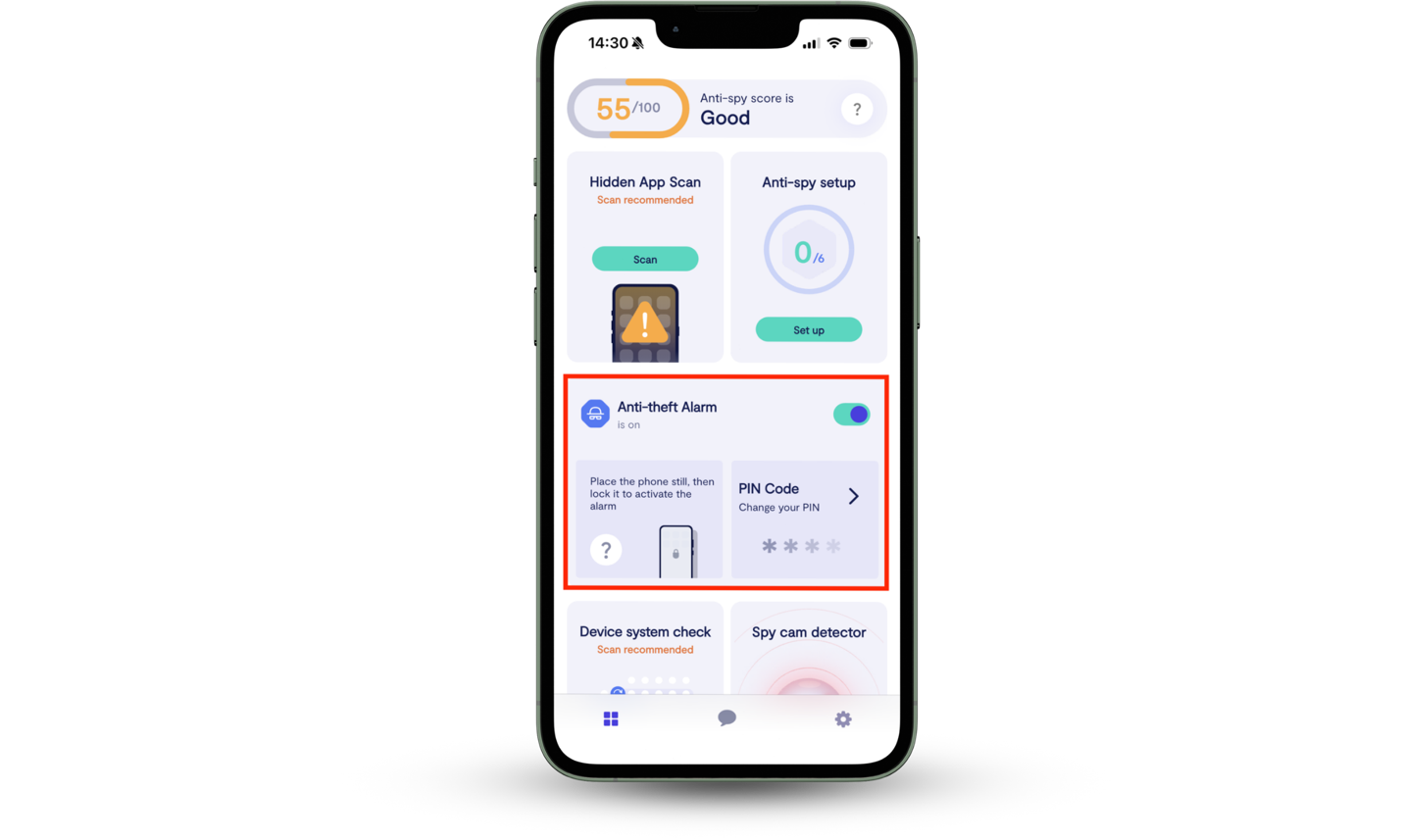
With the alarm active, you can relax knowing that any attempted theft will result in a loud alert and a startled thief. The feature is also great for pranking your friends (but you didn’t hear that from me).
When it comes to device security, I recommend getting familiar with the best apps to protect your phone from hackers.
How to protect your phone from theft?
The best way to protect your phone from theft is to follow good security practices: creating strong passcodes and PIN numbers, being vigilant when out in public, using an anti-theft lanyard or strap, and enabling advanced security features, like two-factor authentication, Find My Phone, biometrics, and remote lock and wipe.
To prevent cell phone theft in the first place, awareness is key. When out in public, I recommend taking the following precautions:
- Never leave your devices unattended.
- Pay attention to your surroundings and beware of shoulder surfing, where thieves attempt to gain sensitive information, such as passwords and PIN numbers, by looking over your shoulder either physically or through a camera.
- Use a security accessory, such as an anti-theft lanyard or strap.
- Don’t hand your device to a stranger unless you know you can trust them (for example, a scammer may fake an emergency to trick you into handing over your phone).
If a crafty thief manages to overcome your theft prevention strategy, with the right security measures in place, your stolen phone becomes nothing but an ill-gotten paperweight. Let’s discuss how each feature and practice can protect your device and data from theft.
1. Use strong passcodes
Strong passwords and difficult-to-guess PIN numbers are your first line of defense against anyone trying to access your device, data, or any other sensitive information.
The following checklist outlines best practices for creating strong, secure passcodes:
- Use a combination of numbers, letters, and special characters.
- Use different passwords for each account.
- Don’t use words or numbers that are easy to guess, such as your pet’s name or your birthdate (using random combinations of numerals, letters, and special characters is ideal).
- Never tell anyone your passwords or PIN numbers.
- Beware of social engineering techniques where scammers try to persuade you to provide sensitive information—for example, your bank account password—by impersonating an employee or person of authority. Scammers only need minimal information to initiate a scam, and often, they can hack a phone with just a phone number via phishing and other methods.
- Use a password manager to store your passwords, making it more viable to create passwords that are random, lengthy, and unique.
Once you’ve strengthened your passcodes, several additional security measures can help deter thieves and protect your personal data.
2. Disable lock screen previews
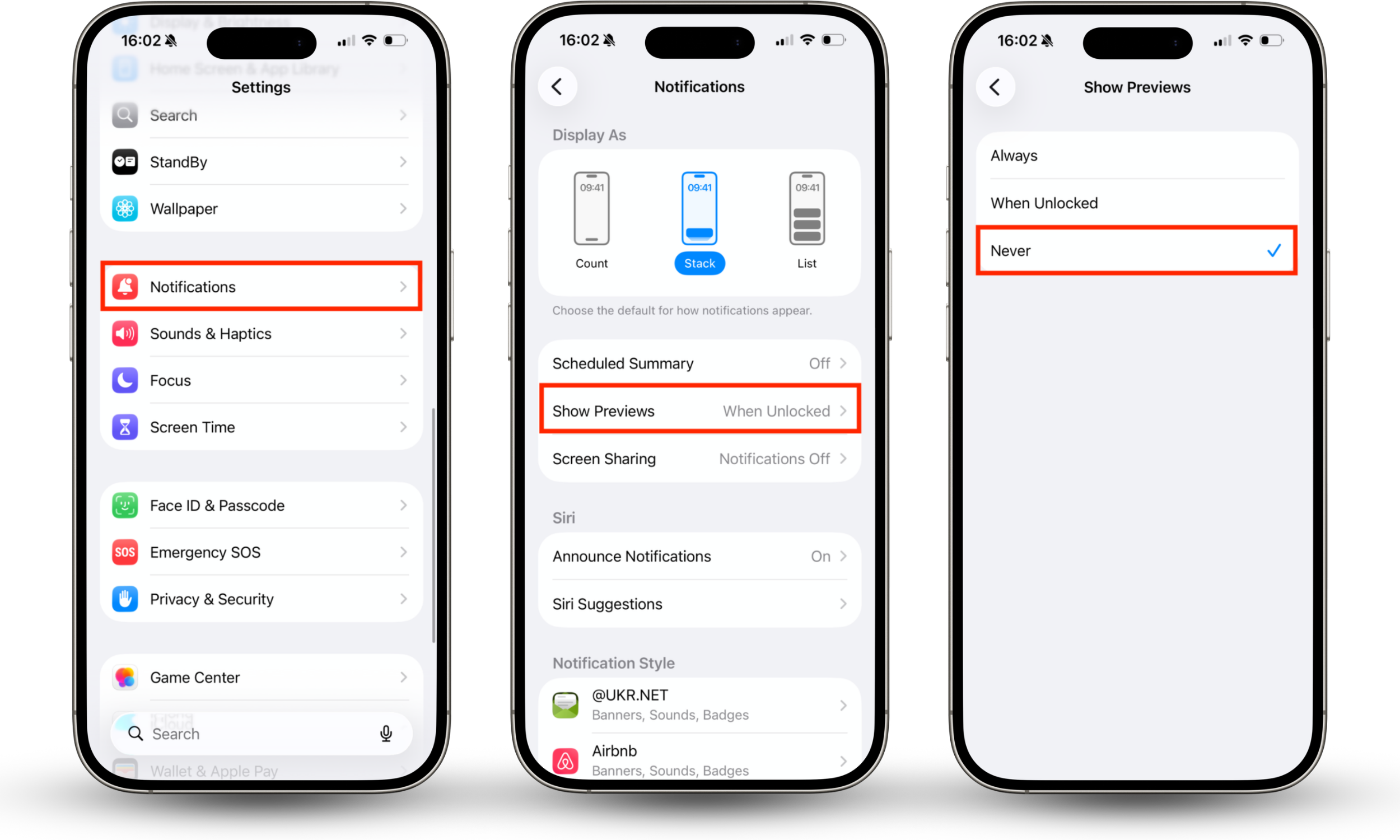
While lock screen previews are convenient, they can reveal sensitive information to scammers and thieves. The safest approach is to disable lock screen notification previews completely.
To disable lock screen previews in iOS, follow these steps:
- Go to Settings.
- Select Notifications.
- Tap Show Previews.
- Select Never.
To disable lock screen previews in Android, follow these steps:
- Go to Settings.
- Select Notifications.
- Tap Lock screen notifications.
- Select Hide content.
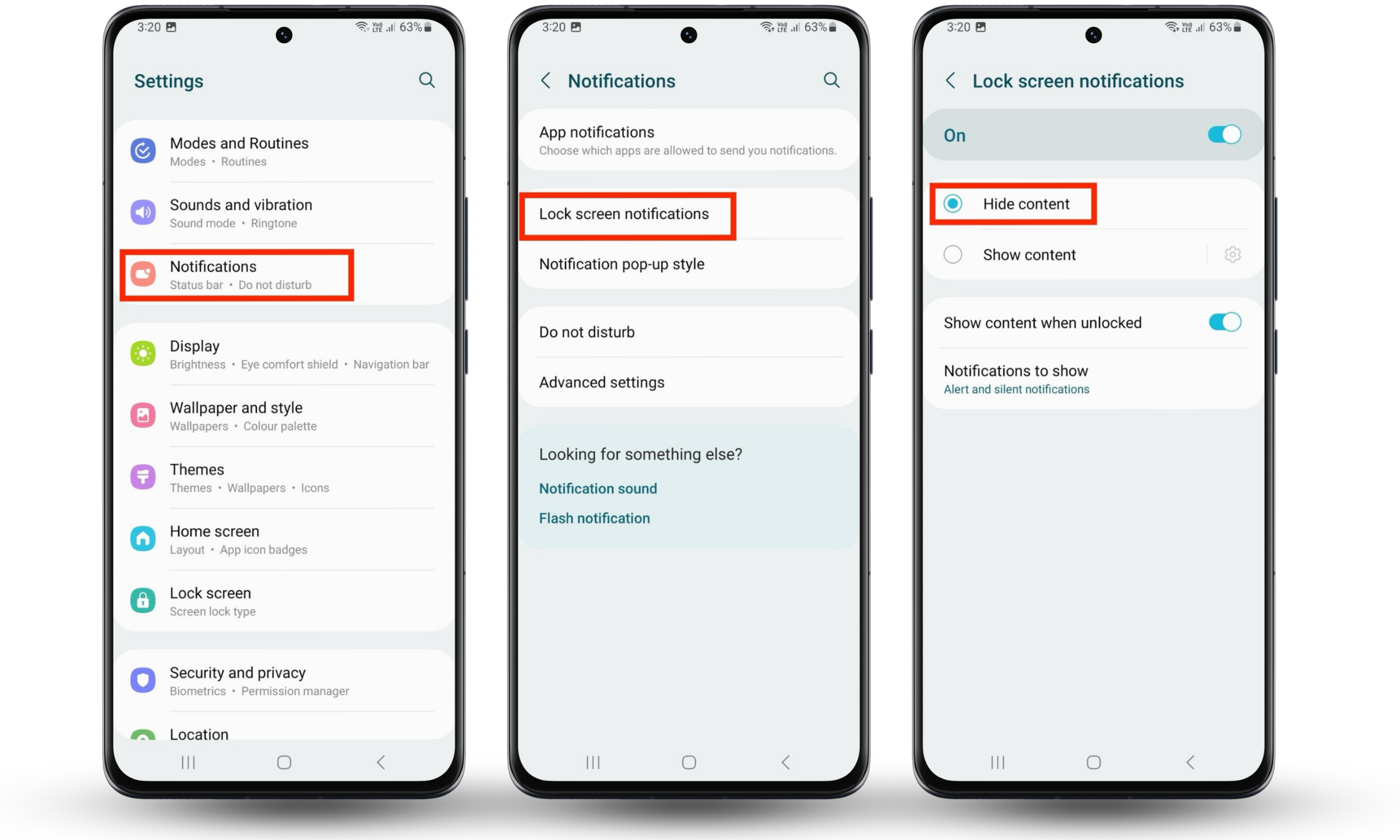
The less thieves can see, the better protected your device and data will be.
3. Use two-factor authentication
Two-factor authentication (2FA) is a security measure that requires two forms of verification, such as a password and an additional emailed or texted code, to access an account.
While enabling two-factor authentication increases security—I recommend enabling it for all important accounts—if the secondary verification code is sent to the stolen phone, the thief can use it to access your accounts. Ideally, you should set up 2FA in a way that avoids this issue, for example, having the verification code go to an email that a thief can’t access on your phone.
4. Set up Find My Phone
Apple’s Find Devices for iOS and Google’s Find Hub for Android let you remotely track, lock, or factory reset your phone.
Tracking a stolen device can help law enforcement find and identify the thief, leading to police potentially retrieving your stolen property. It’s important to note that if you do recover your cell phone, you should ensure the thief hasn’t installed any malicious software and understand how to know if your phone is being tracked.
To enable Find My iPhone on iOS, follow these steps:
- Go to Settings.
- Select [Your Name].
- Tap Find My.
- Select Find My iPhone.
- Switch the feature On.
![Settings app is open on an iPhone device. Tap [Your Name], Find My, Find My Phone, and toggle on the feature.](https://clario-cdn.altcdn.co/blog-upload/images/new_Bboe4wfkDN.png "Settings app is open on an iPhone device. Tap [Your Name], Find My, Find My Phone, and toggle on the feature.")
To enable Find My Device on Android, follow these steps:
- Go to Settings.
- Select Google.
- Tap All services.
- Under Personal and device safety select Find Hub.
- Toggle on Allow device to be located.
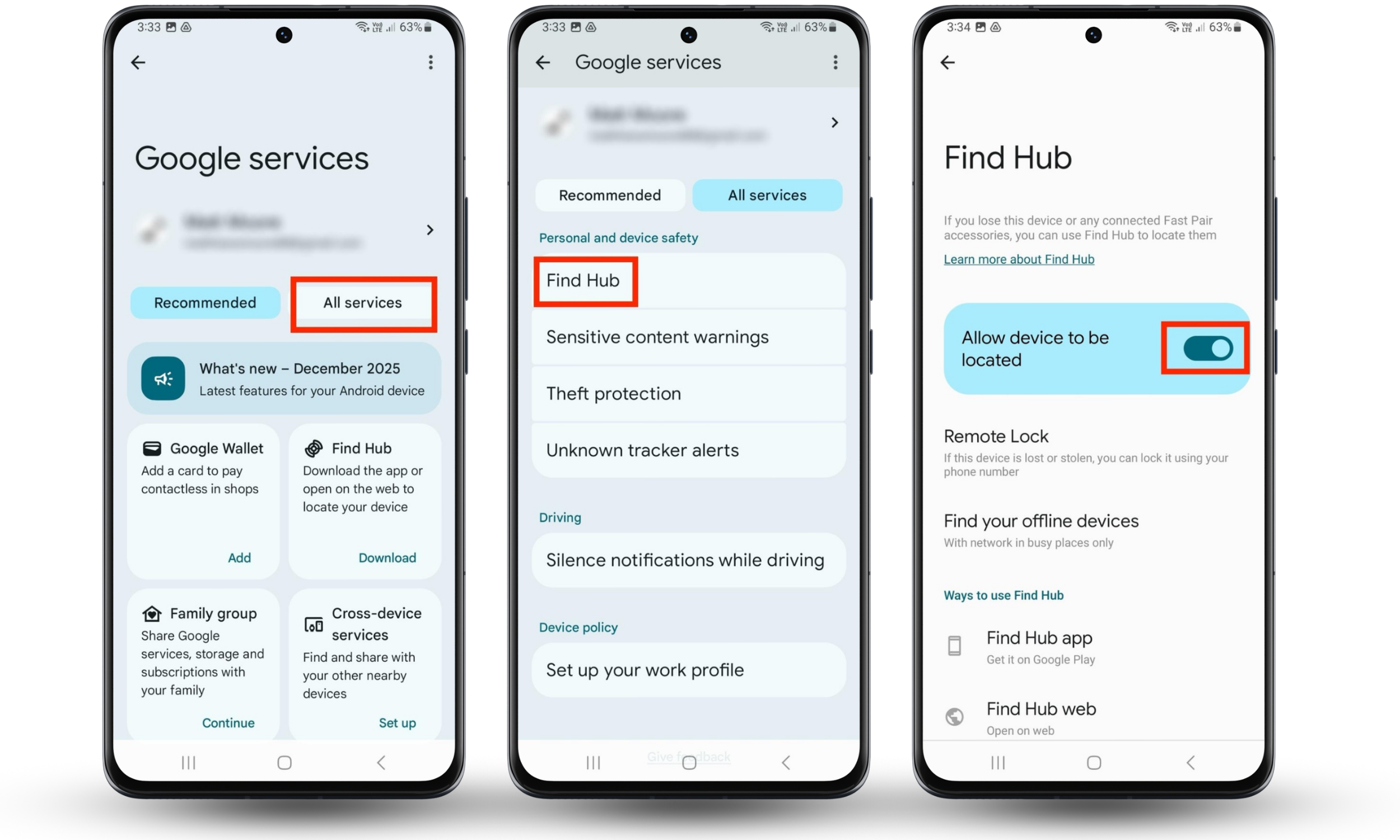
With ‘find’ features enabled, you still have some control over your device even when it’s not physically in your hand.
5. Use remote lock and wipe features
When Apple’s Find My iPhone or Google’s Find Hub is enabled, you can remotely lock or wipe your device if it’s still online.
To lock a stolen iOS phone, follow these steps:
- Go to Apple’s Find Devices in iCloud and sign in if necessary.
- Select the device you want to lock.
- Tap Lost … and follow the on-screen instructions.
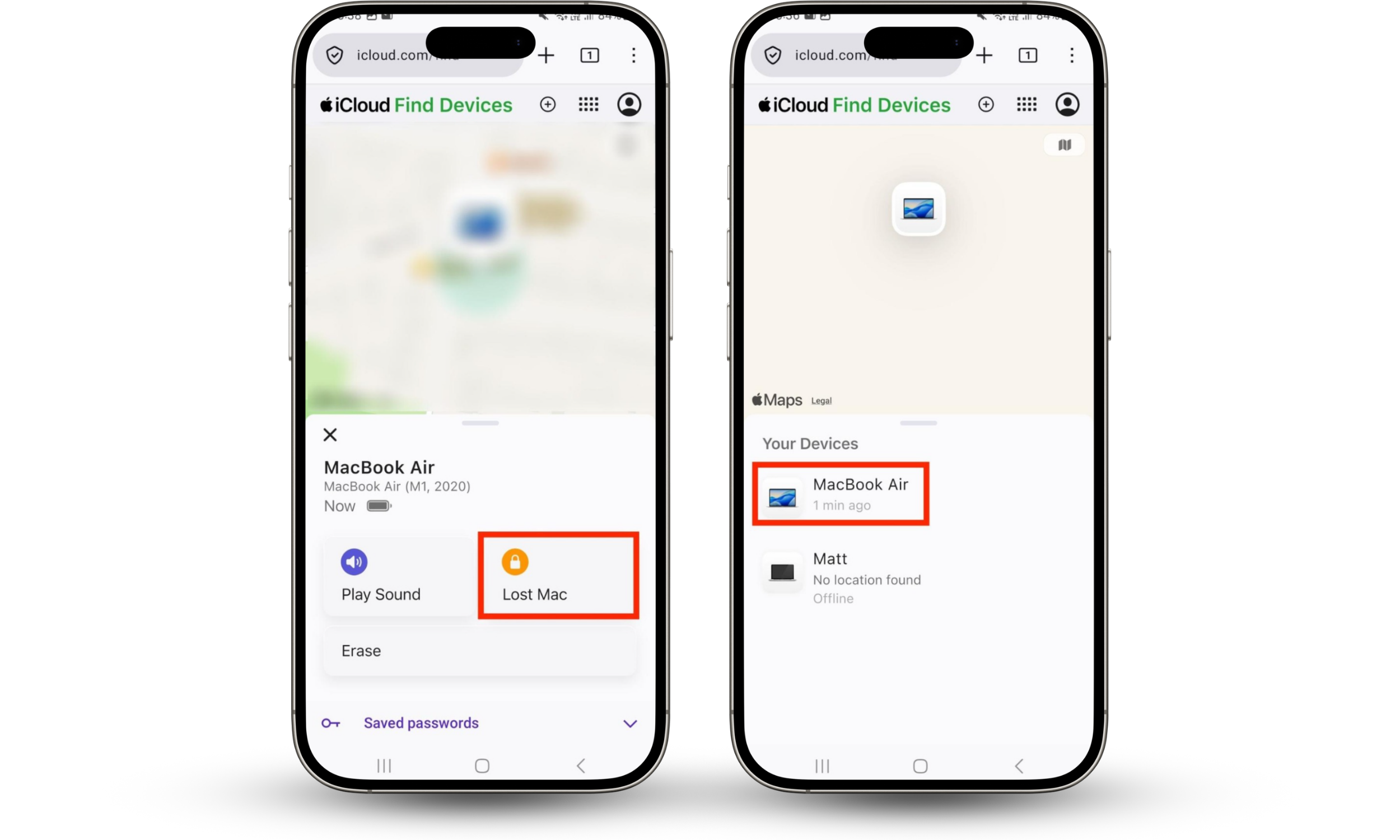
To lock a stolen Android phone, follow these steps:
- Go to Google’s Find Hub and sign in if necessary.
- Tap Find and ensure the correct device is selected.
- Select Mark as lost and follow the on-screen instructions.
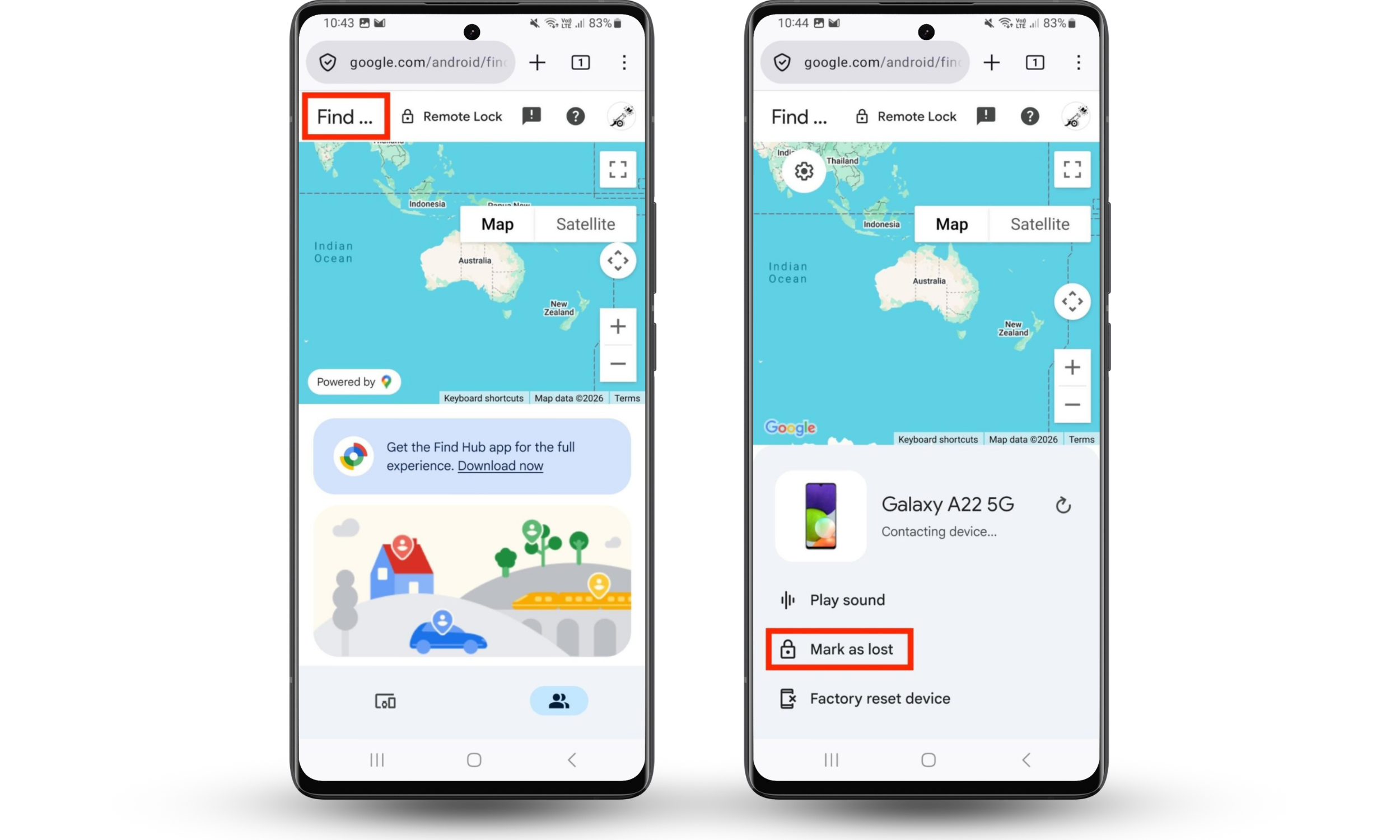
If there’s sensitive data on your stolen phone and you have a recent backup, you may instead opt to remotely erase or factory reset the device.
To erase a stolen iOS phone, follow these steps:
- Go to Apple’s Find Devices in iCloud and sign in if necessary.
- Select the device you want to erase.
- Tap Erase and follow the on-screen instructions.
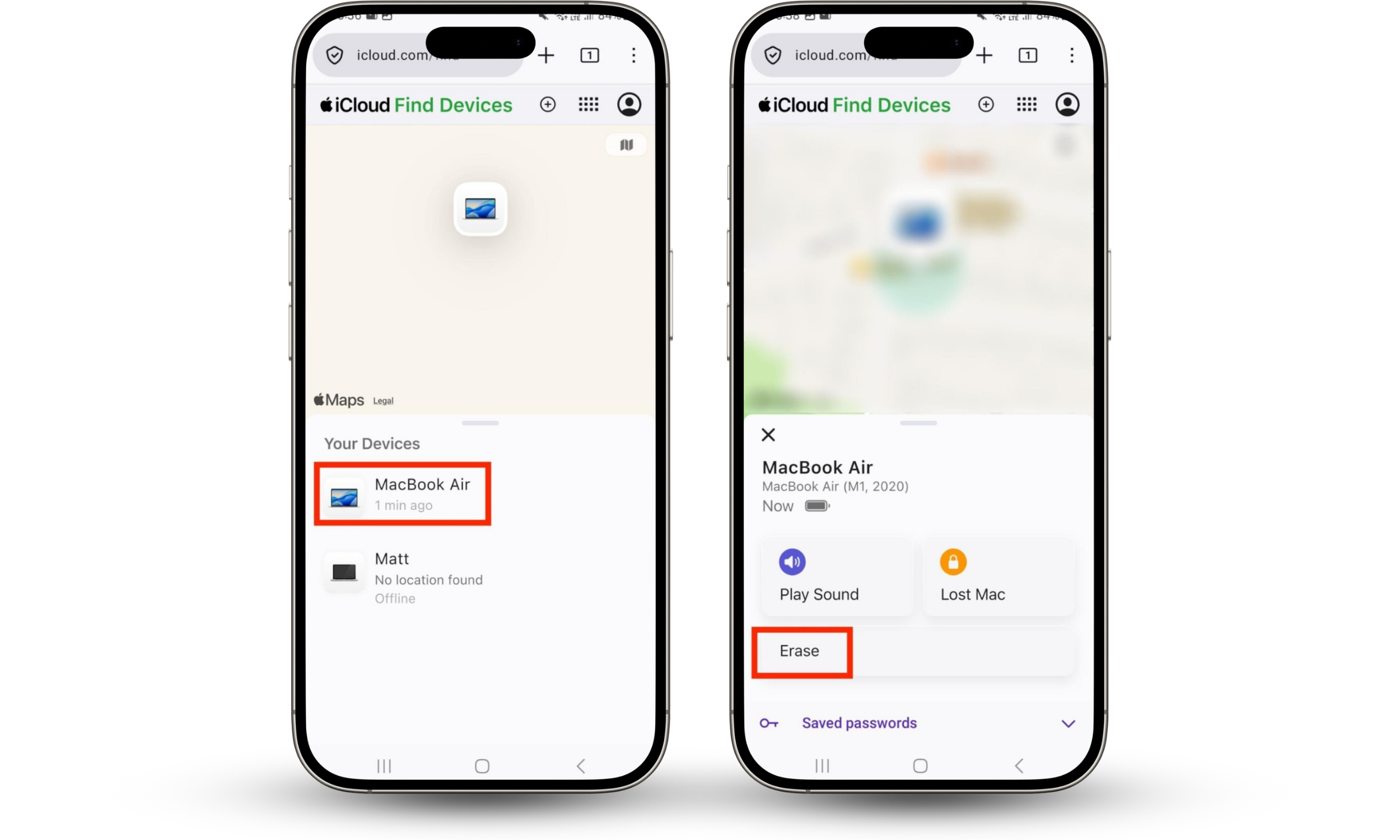
To erase a stolen Android phone, follow these steps:
- Go to Google’s Find Hub and sign in if necessary.
- Tap Find and ensure the correct device is selected.
- Select Factory reset device and follow the on-screen instructions.
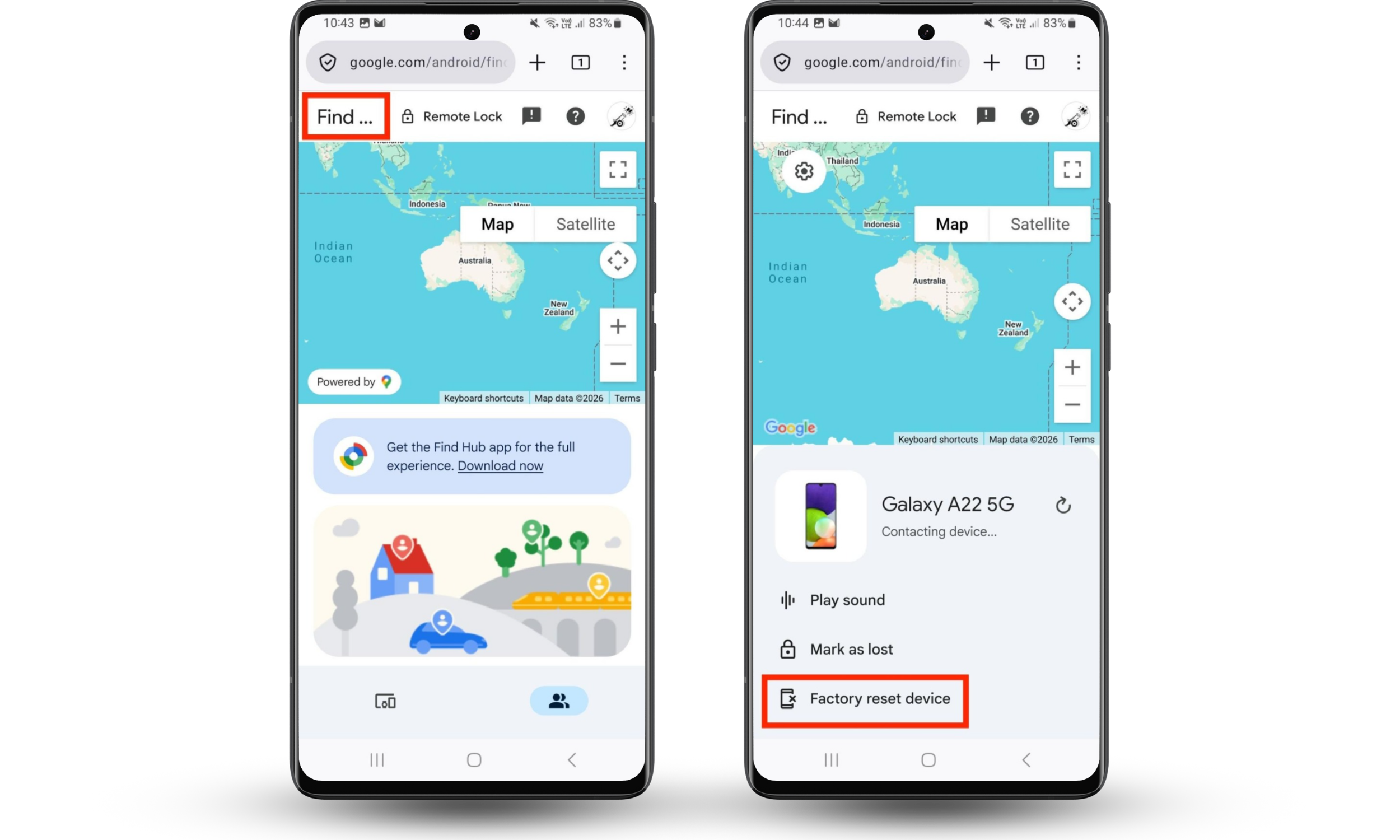
6. Store your IMEI and MEID
Your IMEI (string of 15 digits) and MEID (string of 14 characters) are your device’s unique identifiers. If your phone gets stolen, your IMEI and MEID can help law enforcement identify your device if it’s recovered. You can also provide the identifiers to your cell phone service provider and request that they block your device from all carrier networks.
Whenever you purchase a new mobile device, record its IMEI and MEID (if applicable), and store them in a safe place. The location of these identifiers varies depending on the product.
7. Use biometrics
Biometrics are another great way to protect your phone from theft and unauthorized access, as only you, with your unique physical attributes, can unlock your device.
Biometric security options include:
- Fingerprint scanning
- Facial recognition
- Voice recognition
- Iris recognition
Many modern phones include biometric security options. Exactly which features are available varies between devices.
What to do if your phone is stolen?
If your phone is stolen, use Find Devices (iOS) or Find Hub (Android) to remotely lock your device to prevent unauthorized access. Once your data is secure, report the theft to law enforcement, providing all relevant information, including your phone’s current location (if available) and the IMEI.
In certain cases, you may opt to remotely erase or factory reset your device. Before doing so, ensure you have a recent backup of any important data.
You can also contact your carrier to suspend your service and block the stolen device so the thief can’t use it on any cellular network. Before requesting a network block, ensure you’ve completed any “find my device” tasks, for example, locking, wiping, or locating, as your phone may lose internet connectivity.
Conclusion
Fortunately, you can prevent cell phone theft and mitigate some of the damage if your phone does get stolen by using strong passcodes and PIN numbers, disabling lock screen notifications, enabling two-factor authentication, using security accessories, such as anti-theft lanyards, setting up find my device services, including remote lock and wipe, using biometrics, and storing your IMEI and MEID in a safe place.
If your phone does get stolen, the first step is to remotely lock the device, wipe it if needed, and track its location. From there, you can contact law enforcement and provide them with the relevant information, including your phone’s location and IMEI.
With the right security measures in place, thieves will think twice before attempting to swipe your device. For this reason, when out in public, I recommend using Clario Anti Spy’s Anti-theft alarm to alert you to any attempted theft. Don’t let yourself be an easy target.