Table of contents
- Why is my Mac running slow?
- How to fix a slow Mac
- 1. Find and kill resource-consuming processes
- 2. Check for macOS updates
- 3. Restart your Mac once in a while
- 4. Free up space on the startup disk
- 5. Limit the number of apps running in the background
- 6. Manage login items on startup
- 7. Clear cache files on Mac
- 8. Add more RAM
- 9. Clean up a cluttered desktop
- 10. Check your Mac for malware
- Improve a Mac running slowly
Why is my Mac running slow?
A slow Mac is typically caused by high CPU usage, insufficient free storage, memory pressure, excessive startup applications, browser resource consumption, outdated software, or malware. While older hardware can contribute to slower performance, many Mac slowdowns are caused by software-related issues that can often be resolved without replacing the device.
A Mac that suddenly becomes slow is often experiencing a recent change rather than a long-term hardware limitation. Common causes include a macOS update running background indexing tasks, a recently installed application consuming excessive resources, low available storage, browser extensions, malware, or cloud-sync services processing large numbers of files. Identifying what changed shortly before the slowdown can often help pinpoint the root cause more quickly than applying multiple troubleshooting steps.
| Common cause | Typical symptoms |
| High CPU usage | Loud fans, overheating, lagging apps |
| Memory pressure | Freezing apps, spinning beachball cursor |
| Low storage space | Slow launches, delayed file operations |
| Excessive startup items | Slow boot times |
| Browser overload | Lag while browsing, high RAM consumption |
| Malware or unwanted software | Unexpected slowdowns and resource spikes |
| Outdated macOS version | Compatibility and performance issues |
How to fix a slow Mac
A slow Mac is typically caused by high CPU usage, insufficient free storage, excessive startup applications, memory pressure, outdated macOS software, browser resource consumption, or malware. Identifying which system resource is constrained—processor, memory, storage, or background processes—helps determine the fastest and most effective solution.
For many Mac users, paying a premium for an Apple devices is worth it for many reasons. In fact, Macs are often known to have great security features, outlive their non-Mac counterparts, and remain lightning-fast even afters years of use. For this reason, it can be quite bothersome when your Mac is slow.
Thankfully, there are plenty of things you can do to improve your Mac’s performance and make your Mac feel new again. Here are the different methods you can try to fix a slow Mac.
1. Find and kill resource-consuming processes
Resource-intensive applications are one of the most common causes of Mac performance issues. When a single process consumes an unusually large percentage of CPU resources, other applications and system services may struggle to perform efficiently. Activity Monitor helps identify whether a specific application, browser tab, background service, or system process is responsible for the slowdown.
To check what’s causing the excessive CPU load, head over to Activity Monitor:
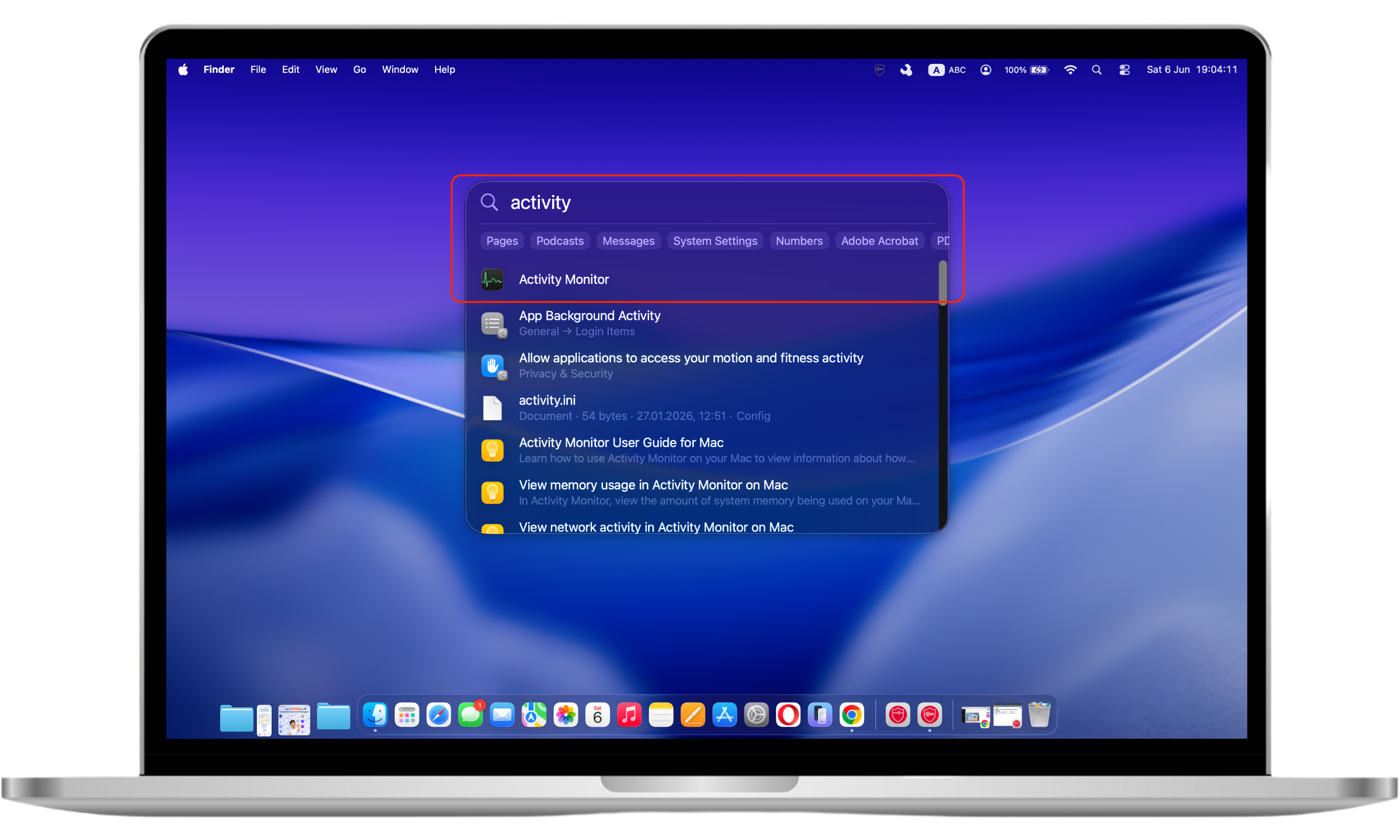
- To open your Activity Monitor, open your Spotlight (Command + Space) and type Activity Monitor.
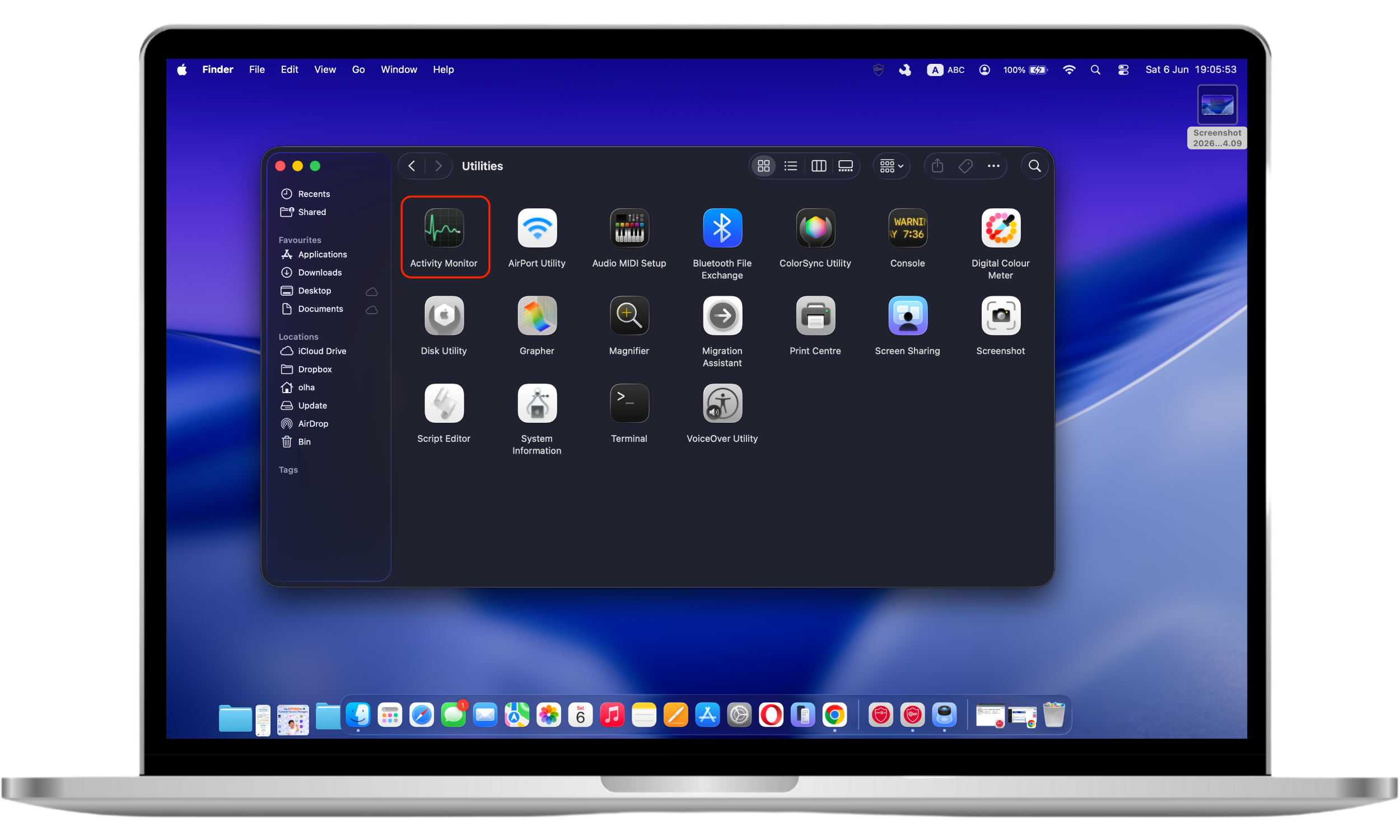
- Alternatively, you can open any Finder window and search Activity Monitor.
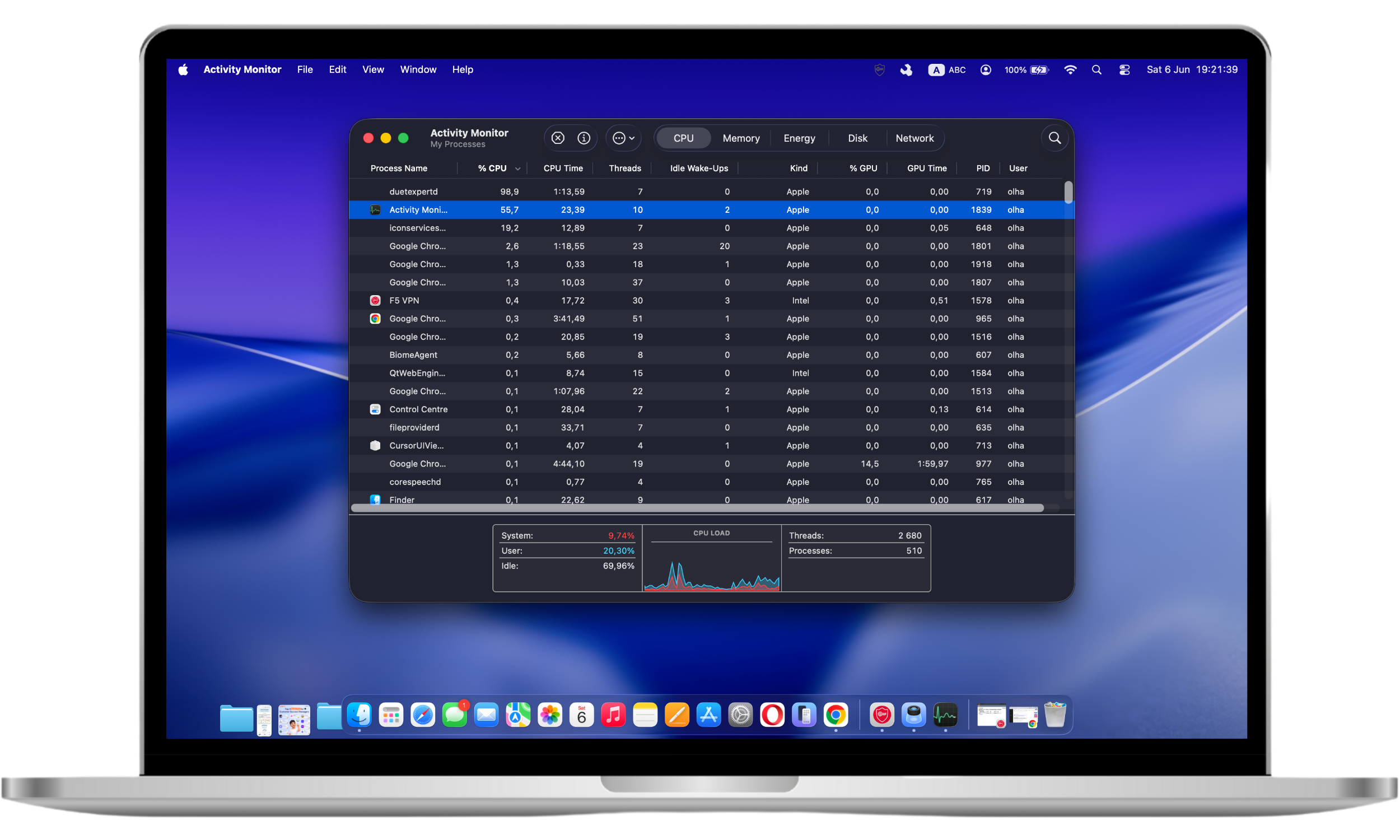
- Once you’ve opened the Activity Monitor, click on the CPU tab, then select the % CPU drop-down to view the processes with the highest CPU usage.
- The processes will keep moving up and down on the list, so it’s best to watch the Activity Monitor for a few minutes. Whatever slows down your system will stay near or at the top.
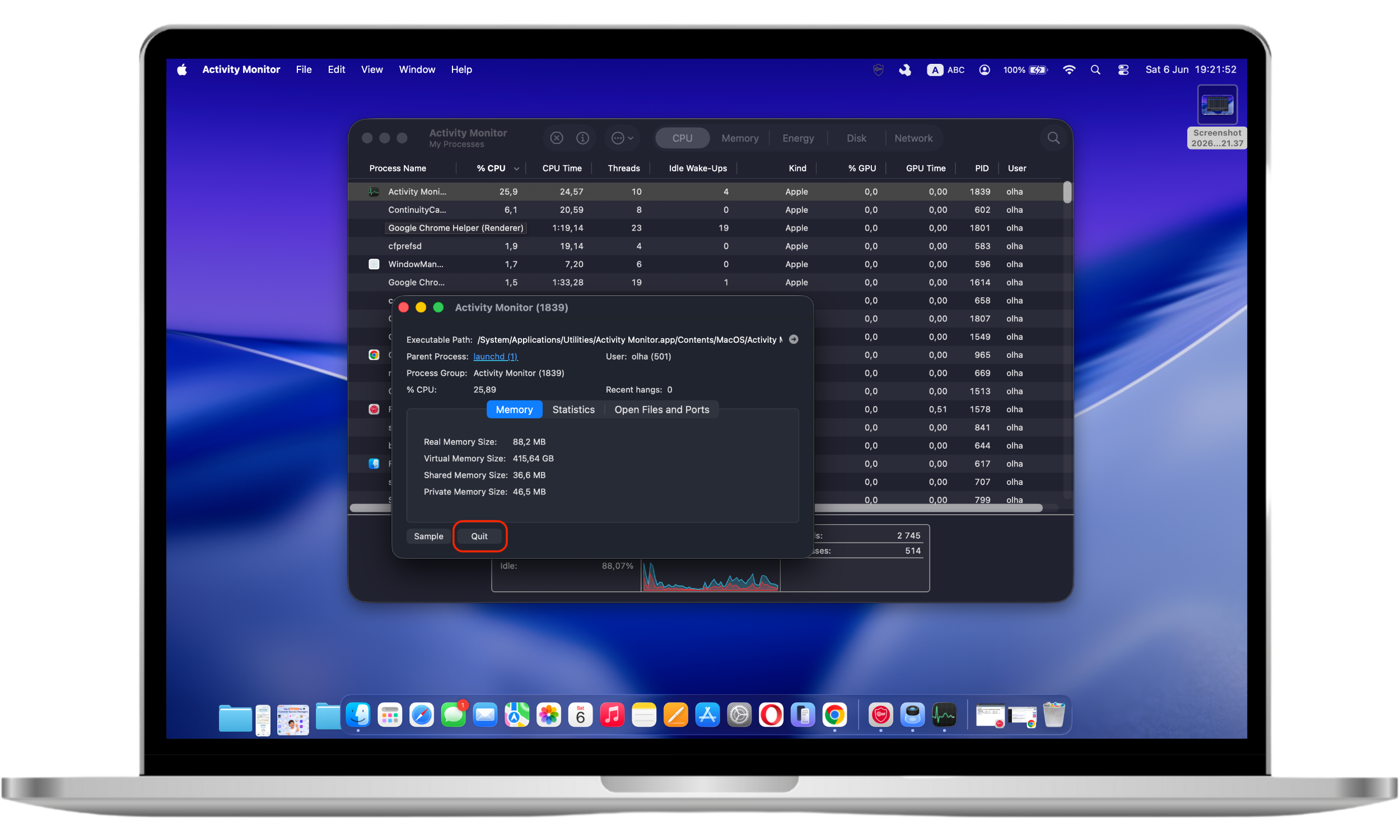
- You can kill the resource-consuming process by double-clicking the specific item on the list. On the pop-up window, select Quit.
Important to know
Avoid force-quitting critical macOS system processes such as kernel_task, launchd, or WindowServer unless instructed by Apple Support. Terminating essential system processes may cause instability, data loss, or an unexpected restart.
2. Check for macOS updates
To prevent cybercriminals from wreaking havoc on your computer, you must keep your operating system (OS) up-to-date. Apple regularly releases performance optimizations, memory-management improvements, compatibility fixes, and stability enhancements that can directly affect how quickly a Mac responds during everyday tasks.
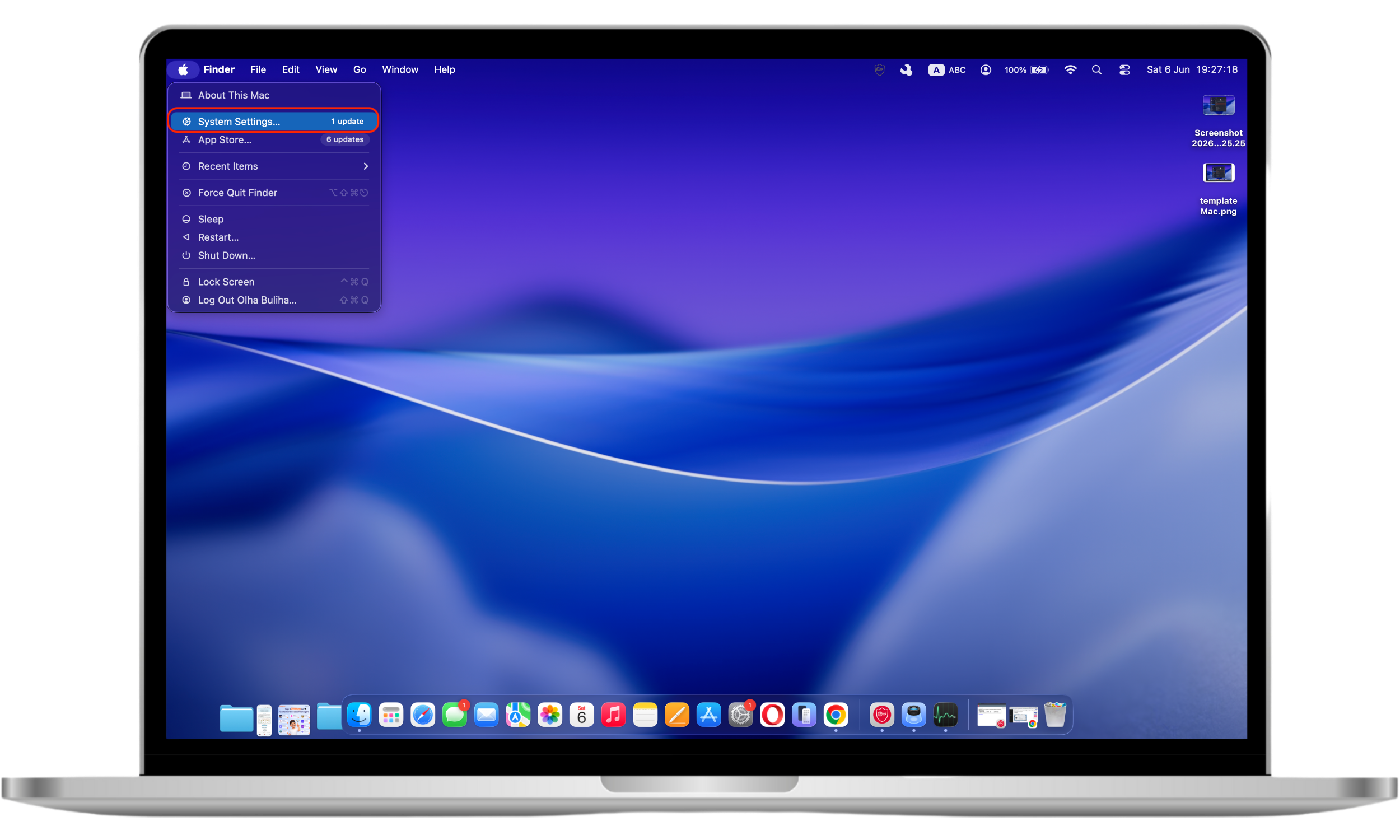
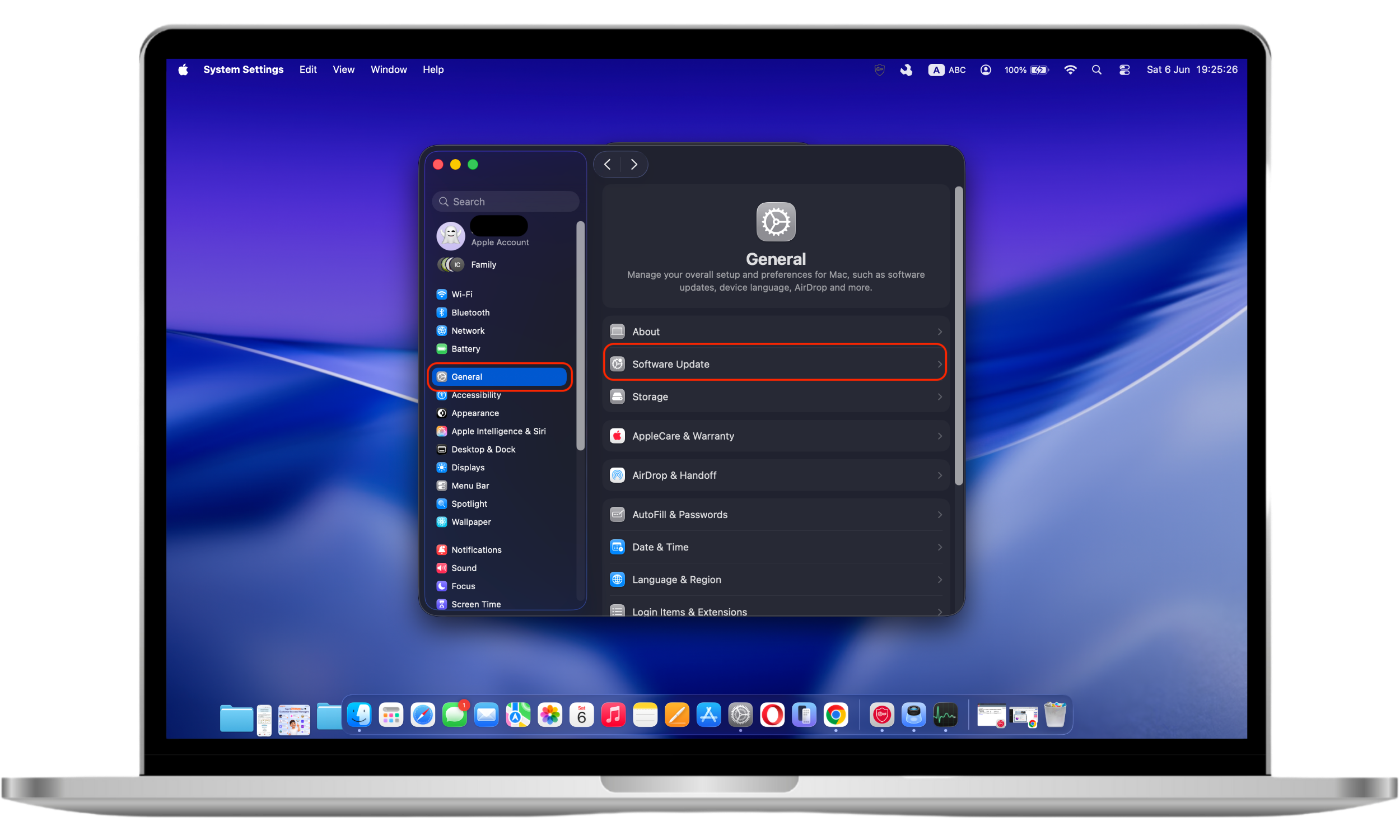
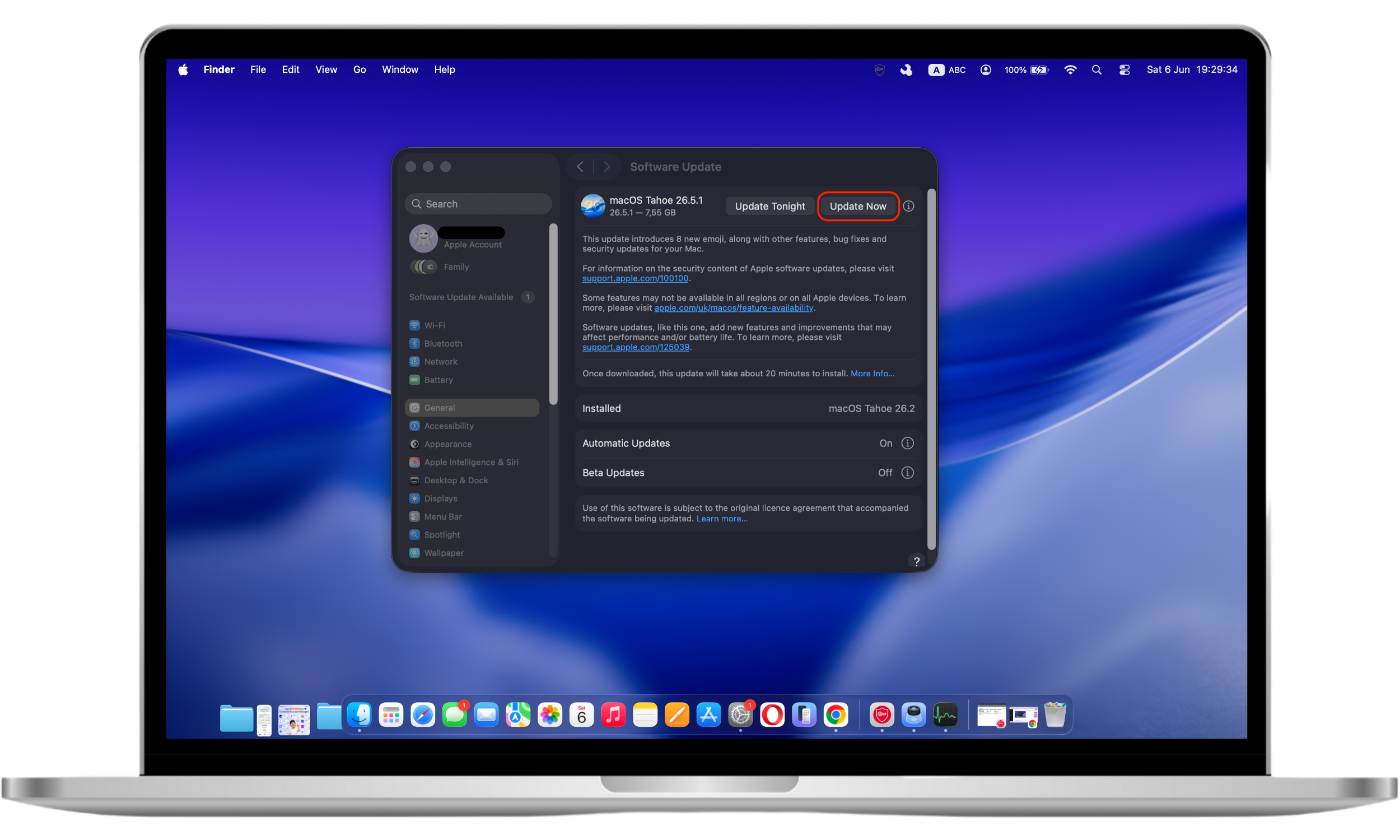
To check and install updates on your Mac, follow these simple steps:
- Go to the Apple icon in the upper-left corner of your screen.
- Select System Settings.
- Click Software Update.
- If updates are available, click Update Now.
Common user complaint
Some users notice that their Mac becomes slower immediately after installing a major macOS update. In many cases, Spotlight is reindexing files in the background, temporarily increasing CPU usage and disk activity. Performance often improves automatically once indexing is complete.
3. Restart your Mac once in a while
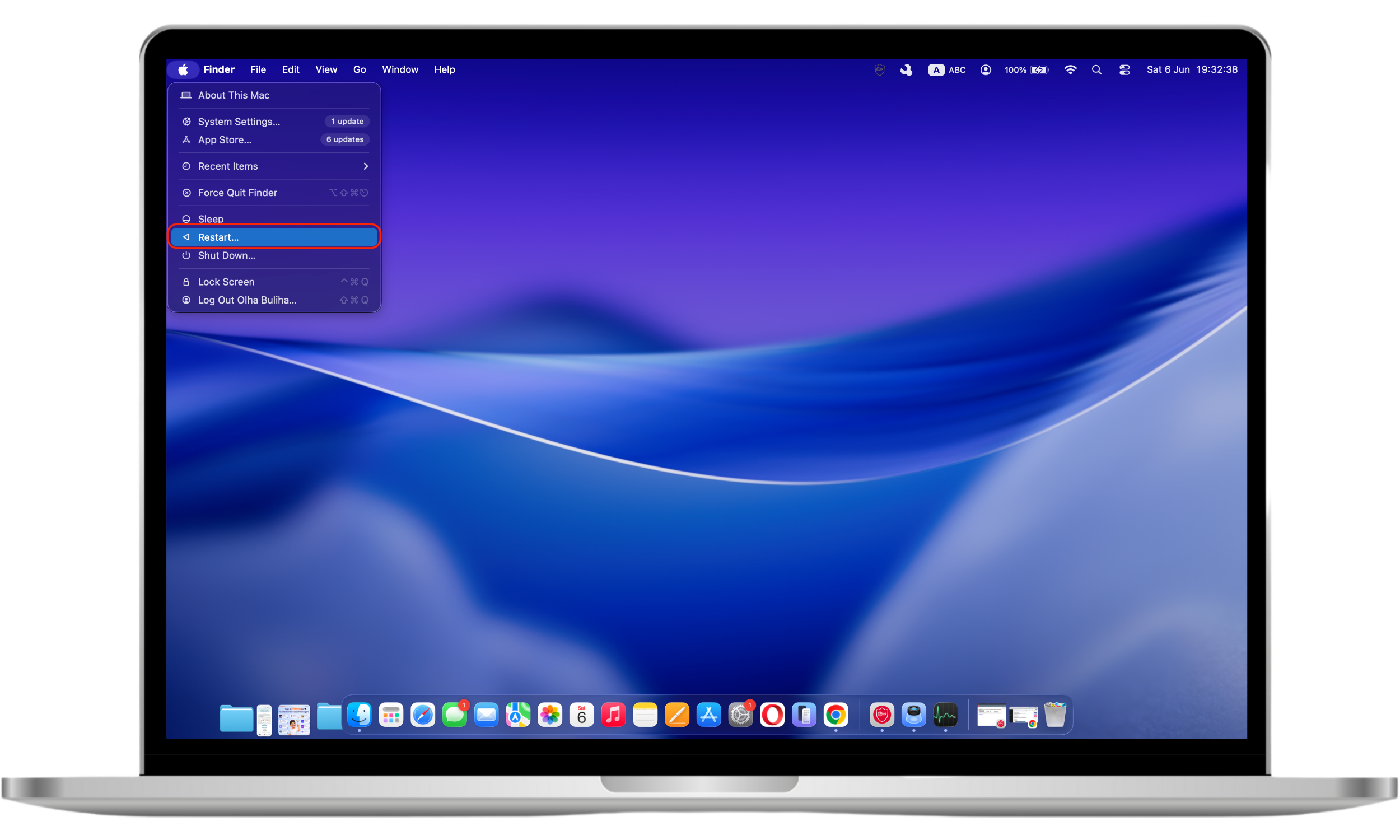
Have you tried turning it off and on again? Yes, this age-old advice is as effective as ever. Restarting your Mac clears the memory and reloads processes. Just make sure you’ve saved all your work in progress before doing so. Here’s how you can do it:
- Go to the Apple icon.
- Click Restart.
- Wait for your Mac to restart.
4. Free up space on the startup disk
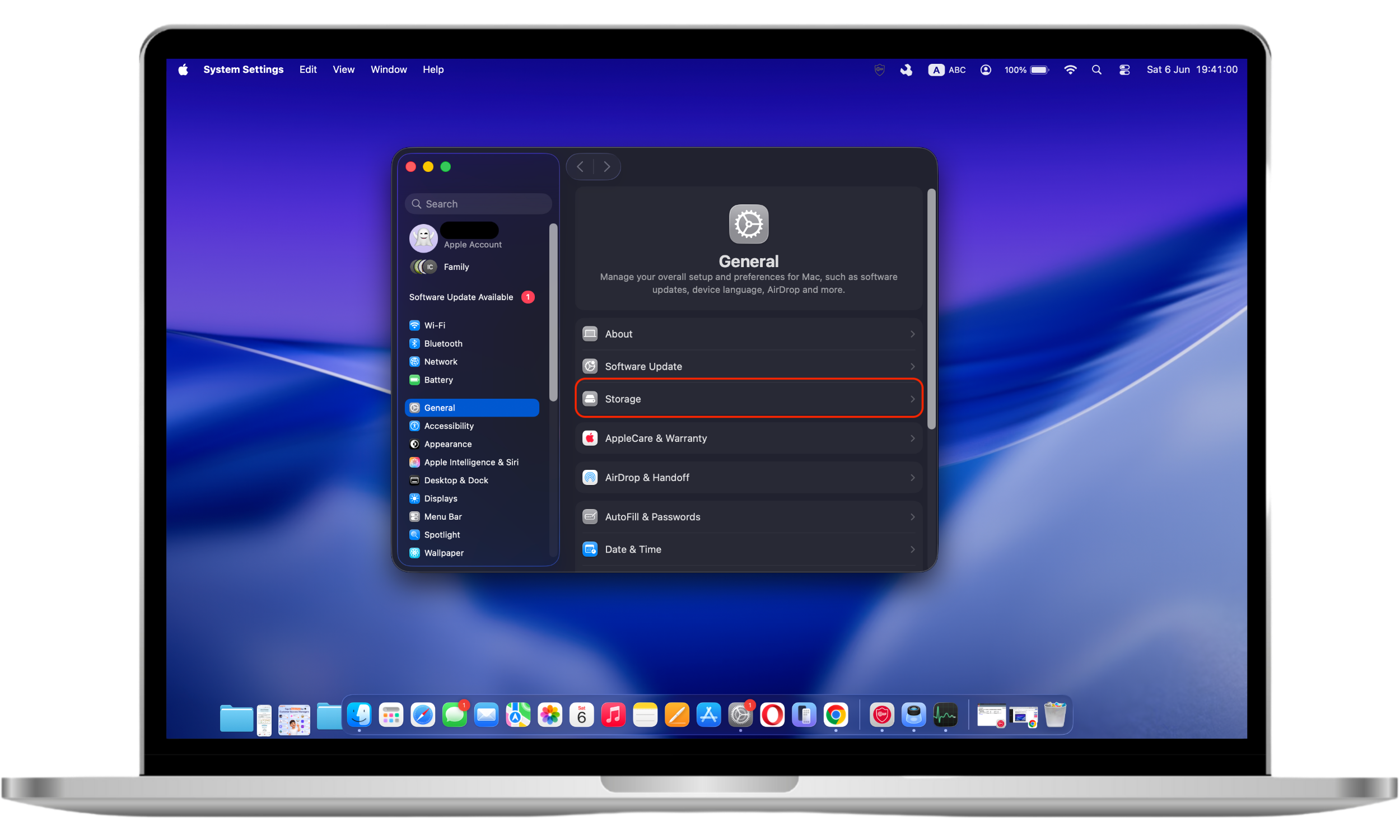
Available storage space plays an important role in overall Mac performance. macOS uses free disk space for temporary files, virtual memory, application data, and system updates. As available storage decreases, everyday tasks may become noticeably slower. To check your Mac’s available storage space, follow these steps:
- Go to the Apple icon.
- Select System Settings.
- Click on the Storage tab.
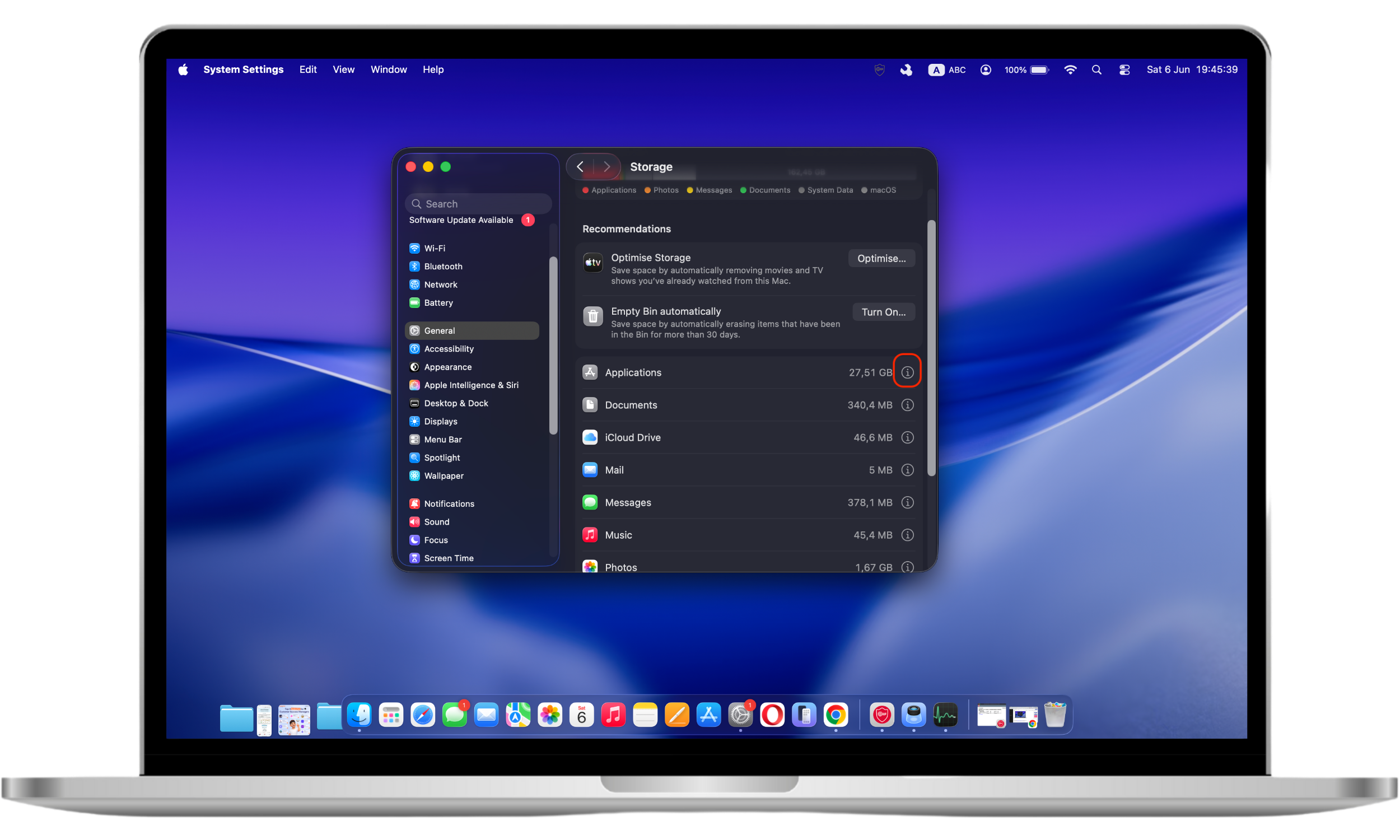
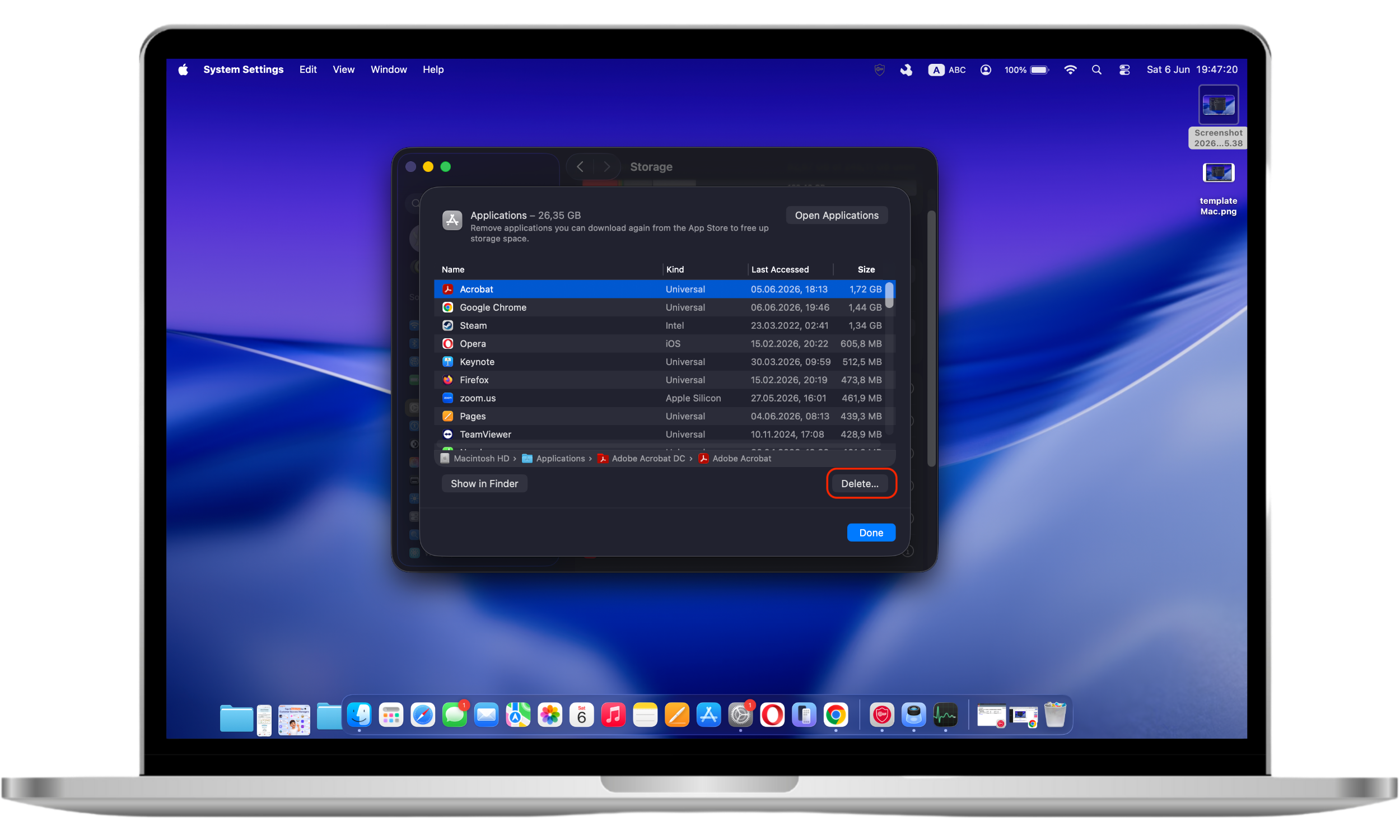
- To free up space, click the ⓘ button next to a category. Review the files, applications, or documents listed and remove only items you no longer need. Be careful not to delete important system files, personal documents, or applications you still use.
- You can then quickly manage your Mac’s storage using the following recommendations:
- Store in iCloud. Free up space on your device by moving your files to cloud storage. To do this, click Store in iCloud and follow the instructions on the screen.
- Optimize Storage. Click on the Optimize button to automatically delete movies and TV shows you’ve already watched. You can also use the tool to make sure your system is only storing recent email attachments.
- Empty Trash Automatically. Turning this tool on automatically empties the Trash of items that have been in there for more than 30 days.
- Reduce Clutter. Use this tool to easily spot and delete large or useless files. Click Review Files and go through each document before deleting them permanently.
You should also consider moving your files to an external hard drive. In case your device gets infected with malware (yes, even Macs get malware), you will have your files safely tucked away.
Alternatively, you may also want to try investing in a Mac cleaner software to help you sort through the clutter, hassle-free.
Some of the most common storage-heavy items on Macs include:
- Photos libraries
- Downloads folders
- iPhone and iPad backups
- Video editing projects
- Virtual machine files
- Large email attachments
- Cloud-storage offline files
Important to know
For optimal performance, maintain at least 10–20% free space on your startup disk whenever possible. A nearly full drive can slow application launches, file operations, software updates, and virtual memory processes.
5. Limit the number of apps running in the background
Not all resource-consuming applications are visible on the desktop. Cloud-sync services, VPN software, backup utilities, communication apps, and browser helper processes often continue running in the background and can contribute to slower system performance.
Although your Mac is a powerful machine, there are limits to how much it can handle at once. Running too many apps simultaneously can slow down your system.
To help your Mac pick up its pace, make sure you don’t have any useless apps running in the background. You can use your dock to do a quick check. Open apps have a small dot beside their icon. Right-click on each active app, then select Quit.
Check your browser activity
Web browsers are among the most resource-intensive applications on modern Macs. Dozens of open tabs, video streaming services, web-based productivity tools, and browser extensions can consume significant amounts of CPU and memory.
If your Mac slows down primarily while browsing:
- Close unused tabs
- Remove unnecessary browser extensions
- Disable auto-playing media
- Restart your browser periodically
- Use built-in memory-saving features when available
6. Manage login items on startup
Macs are set to auto-launch certain apps when you log in. Applications configured to launch automatically at startup can increase boot times and consume resources before you begin using your Mac. Reviewing login items regularly helps ensure only essential applications launch when you sign in.
Follow these simple steps:
- Click the Apple menu () in the top-left corner of your screen.
- Select System Settings.
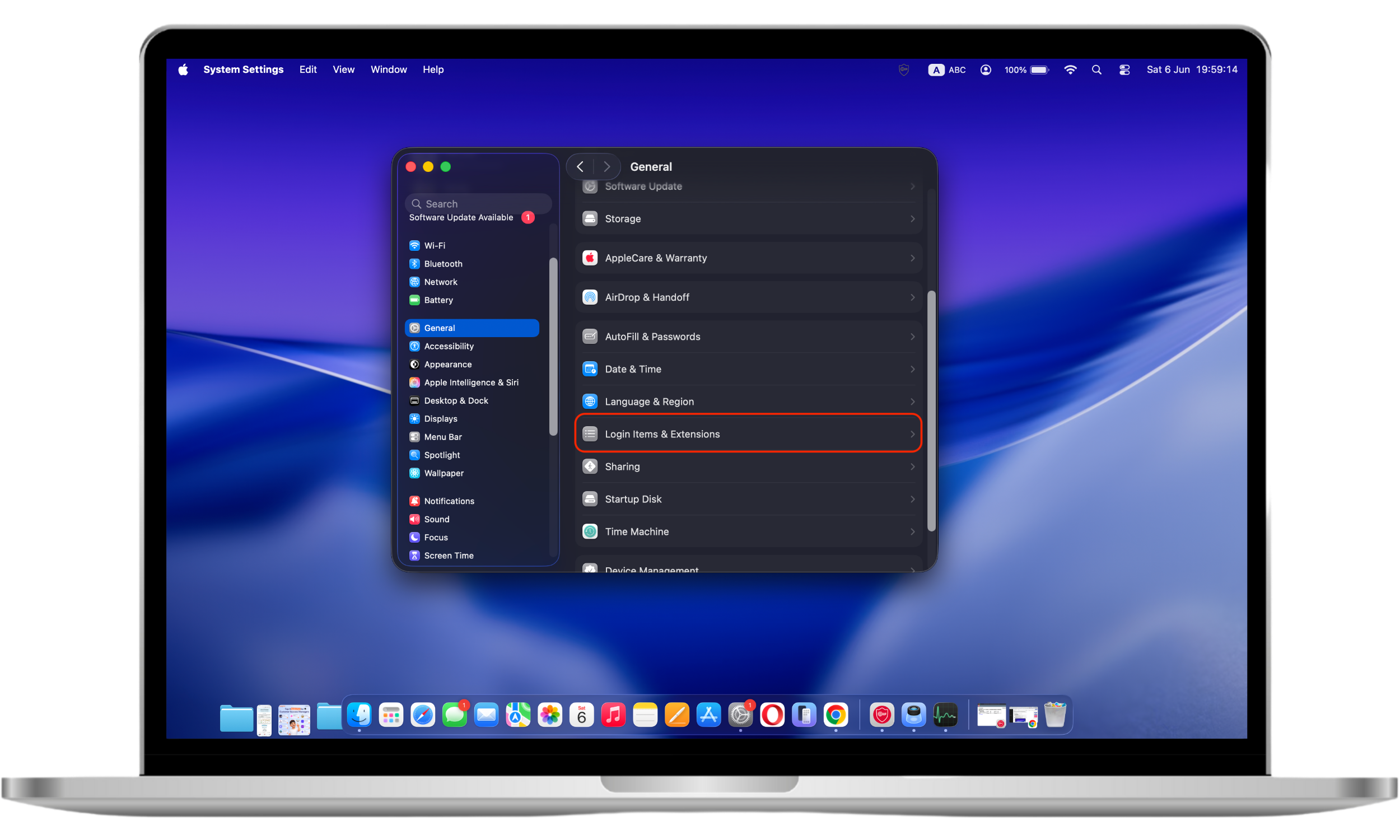
- In the sidebar, click General.
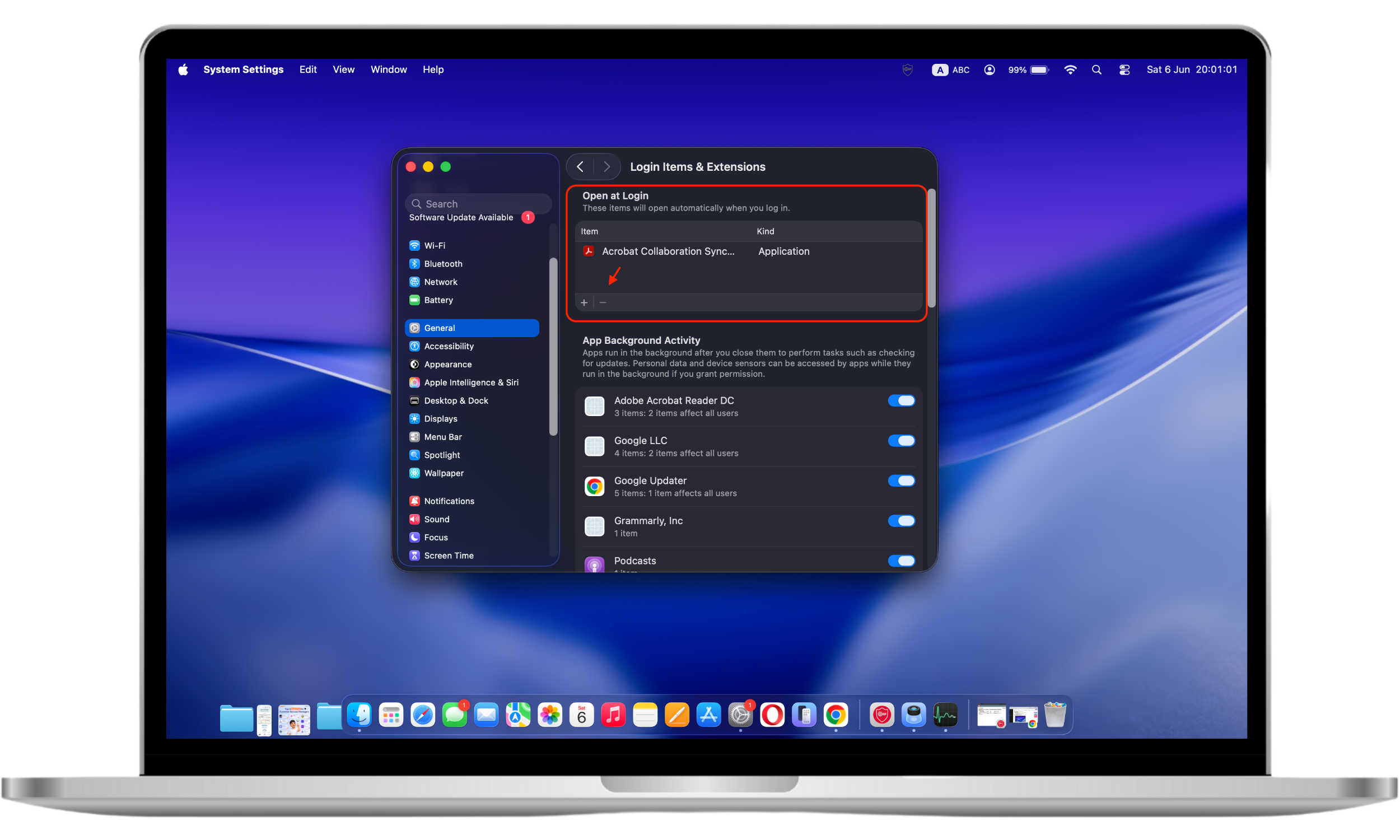
- Click Login Items & Extensions.
- Under Open at Login, review the list of applications that launch automatically when you sign in.
- To remove an application from the startup list:
- Select the application you no longer want to open automatically.
- Click the minus (-) button below the list.
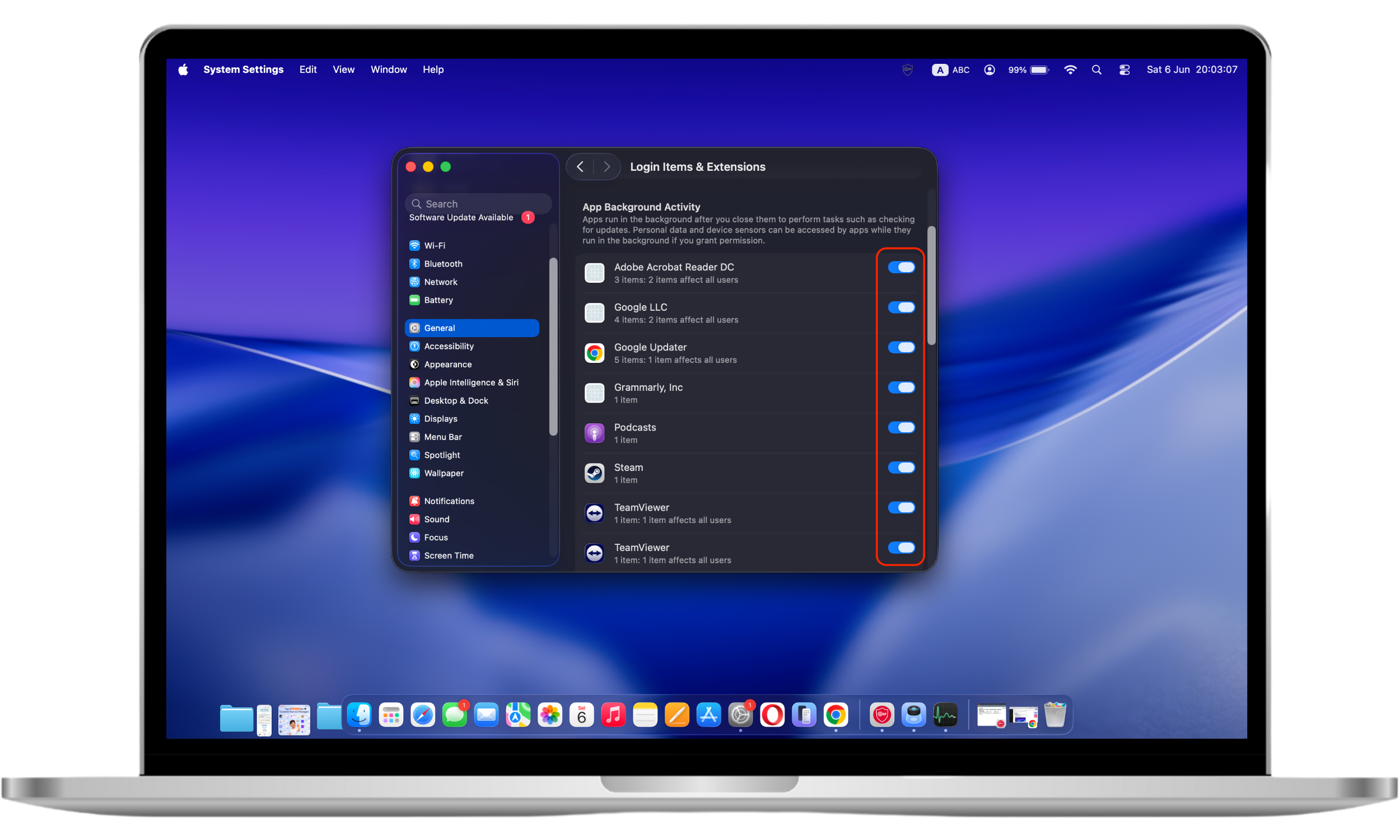
- Under App Background Activity, review apps that are permitted to run background processes.
- Turn off any background items that are not required.
If your Mac is slow to boot, the tips above will be helpful to get your Mac up-to-speed.
7. Clear cache files on Mac
Cache files are temporary data stored by macOS and applications to speed up frequently performed tasks. Over time, outdated or corrupted cache files may contribute to performance issues, application errors, or unusual behavior.
Although generally helpful, temporary files can become a problem when they’re stored on your Mac longer than necessary. To prevent your Mac from running slowly, you must clear your caches from time to time.
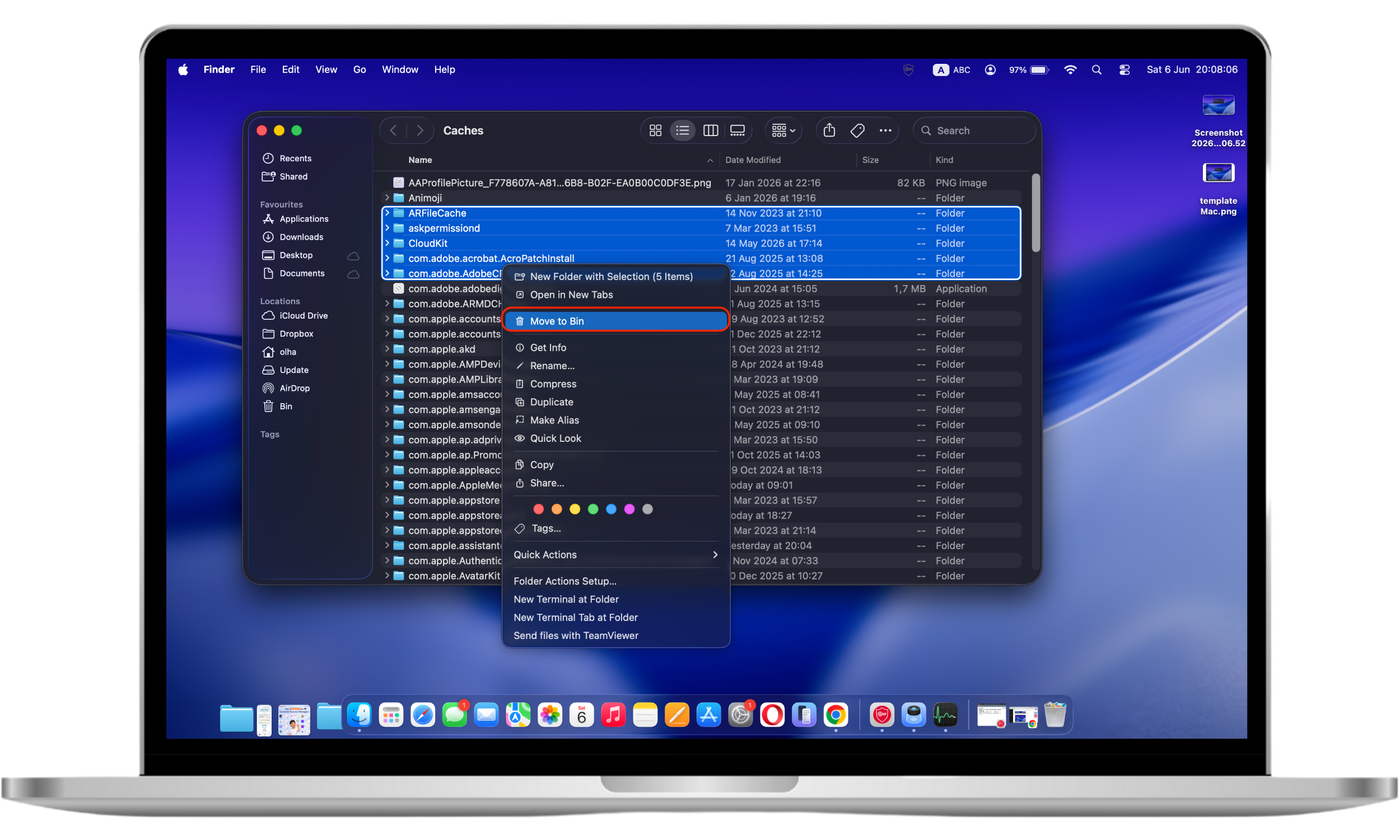
To clear your app or user cache on Mac, here’s how:
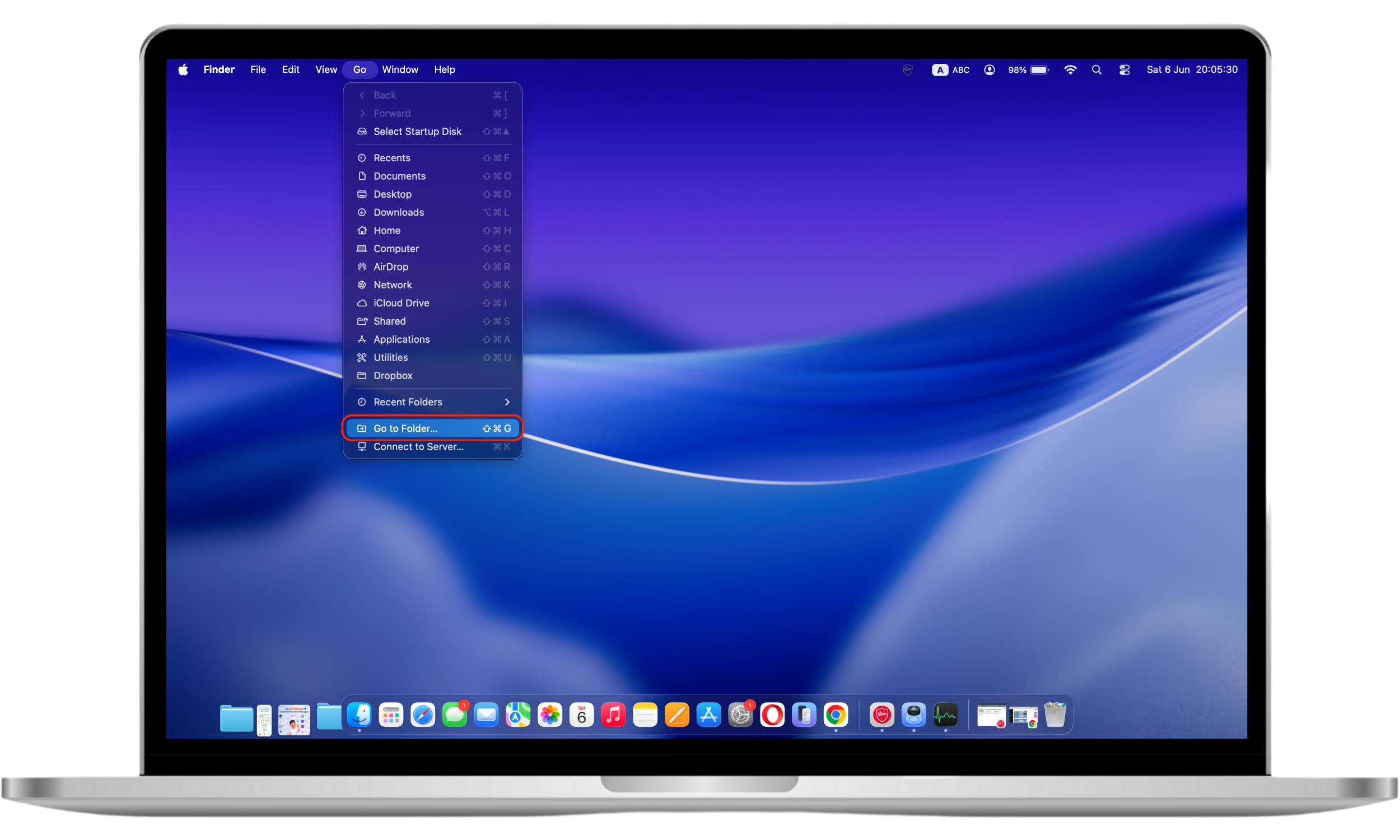
- On the menu bar, click Go.
- Select Go to Folder.
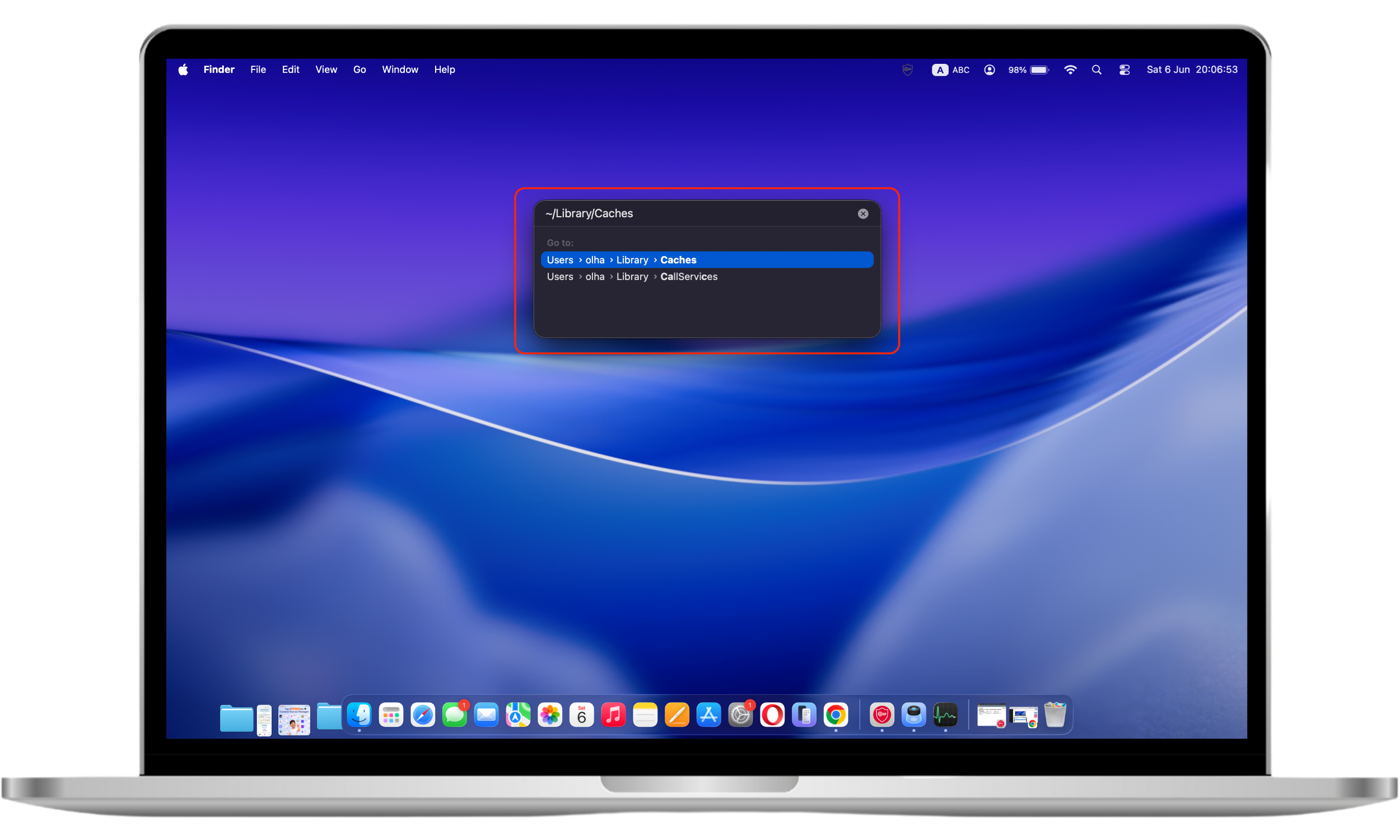
- On the pop-up, type “~/Library/Caches” on the space provided and press return.
- Select all the caches you don’t need and right-click.
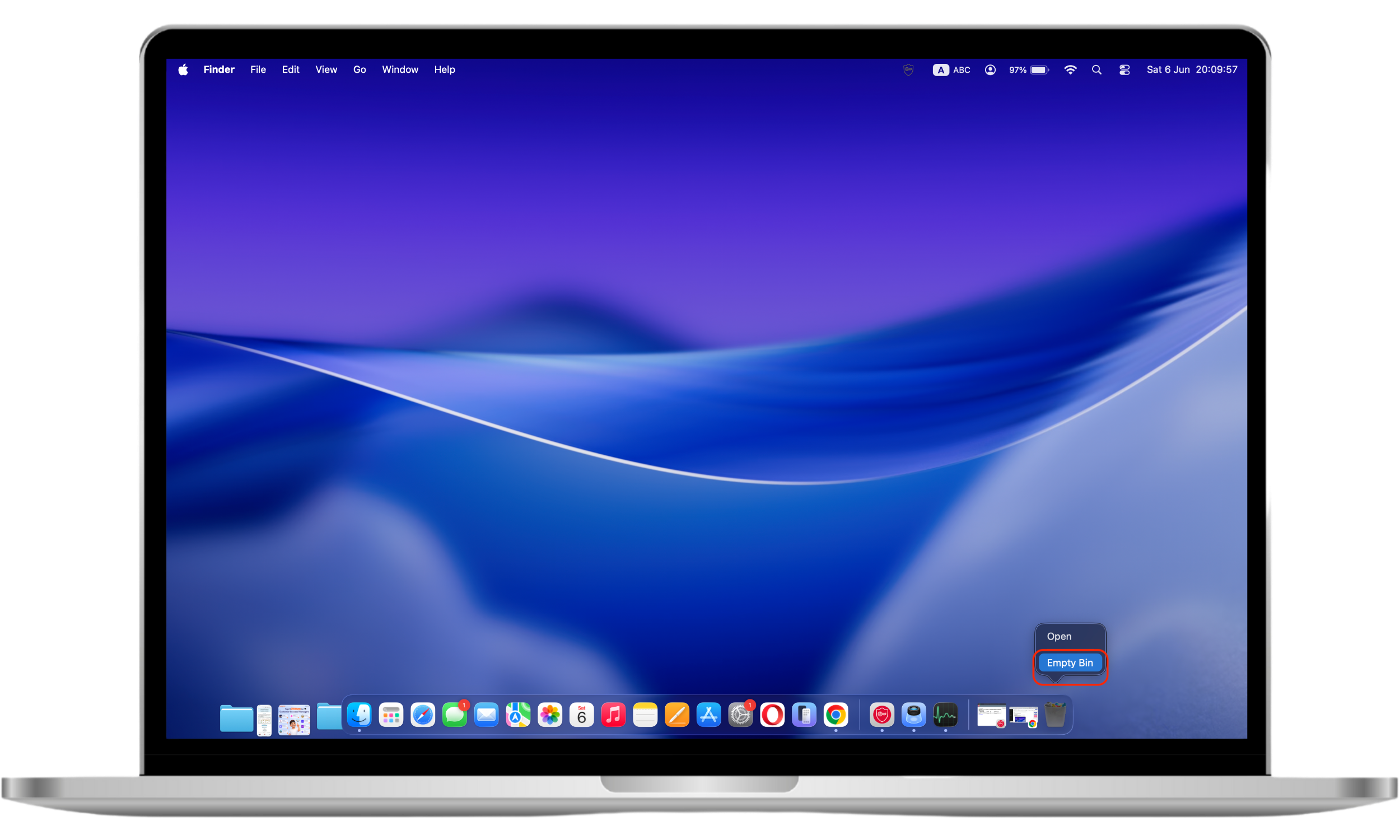
- Click Move to Trash.
- Empty Trash to completely clear your cache.
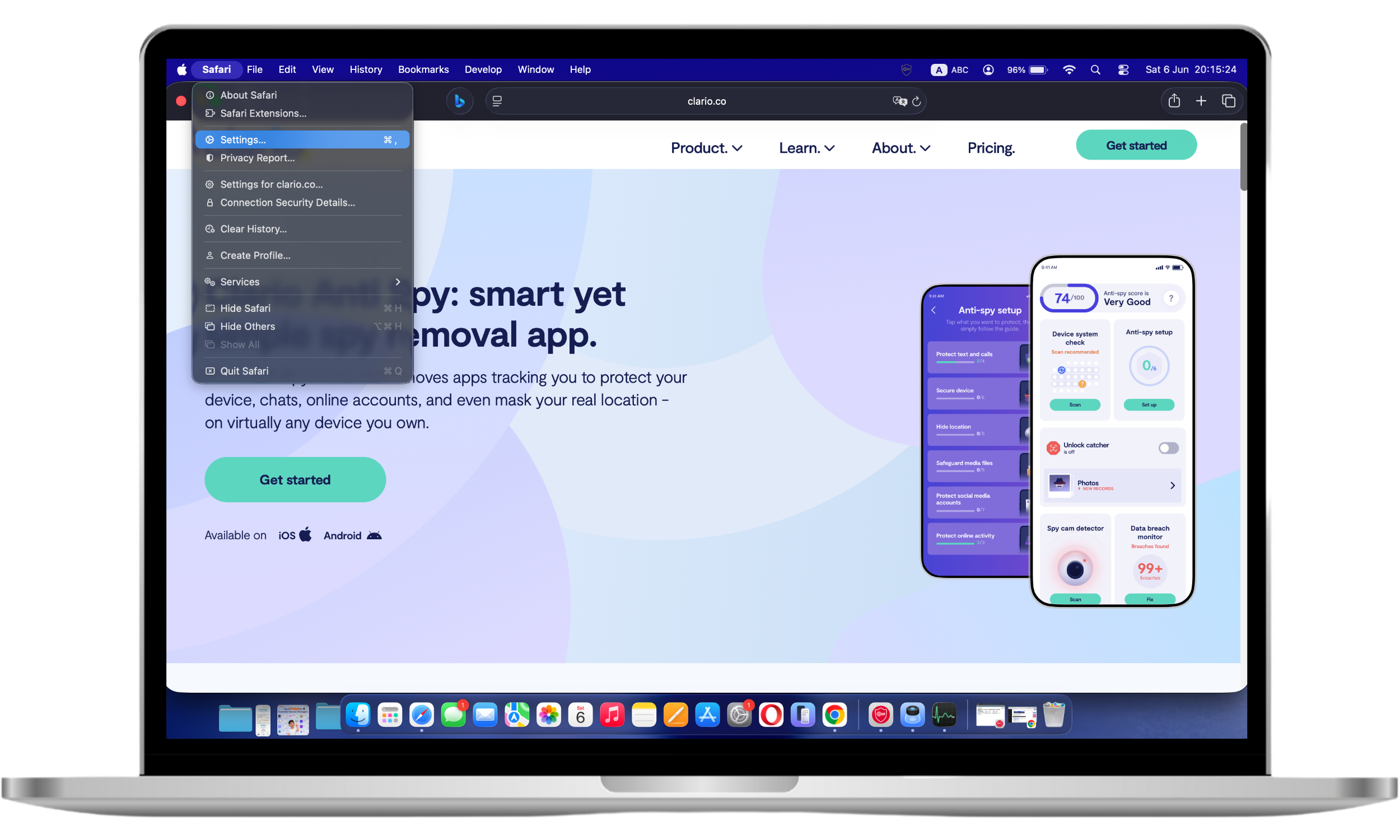
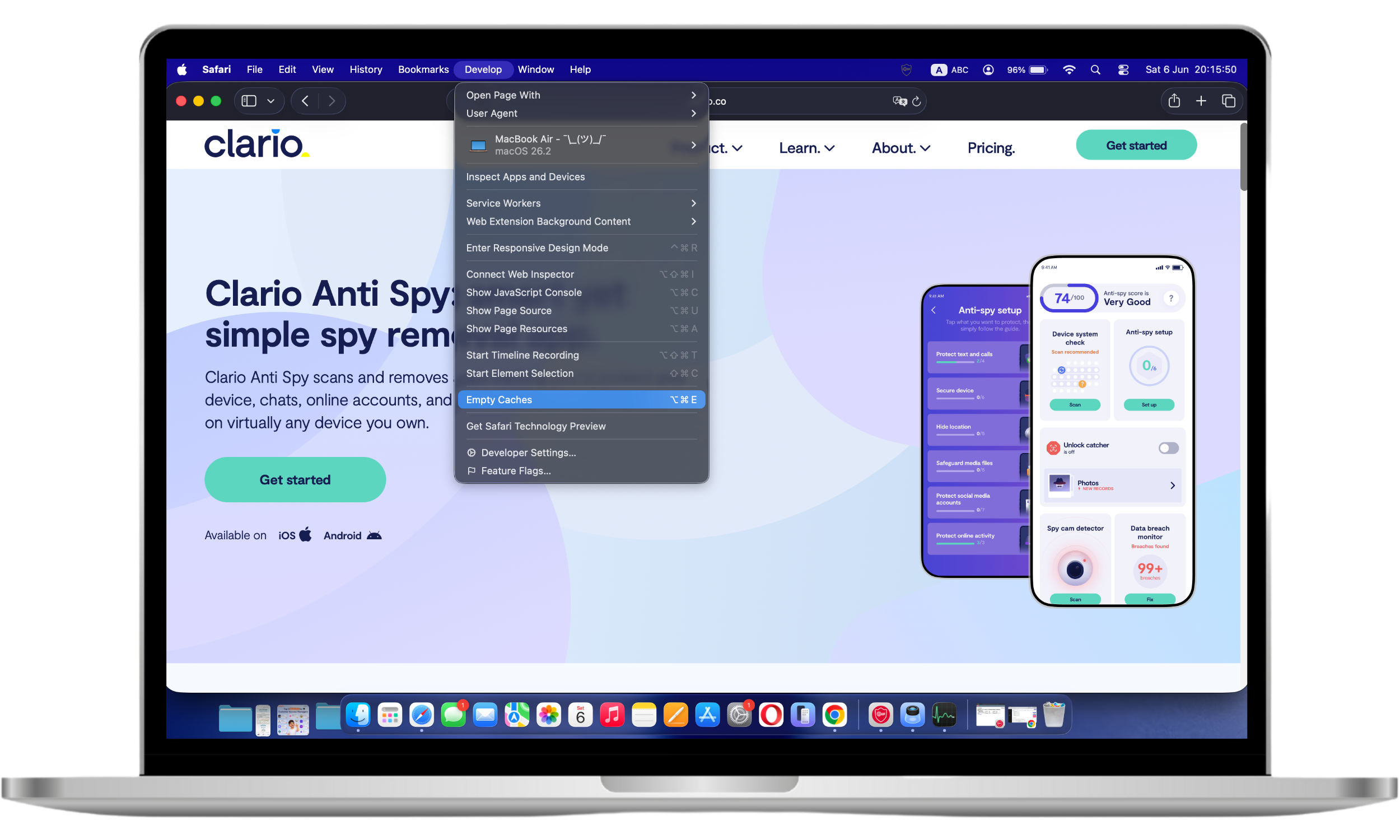
To clear your default browser cache on Mac, follow these steps.
- Go to Safari.
- On the Safari drop-down menu, click Settings.
- In the menu bar, click Develop and select Empty Caches.
Important to know
Deleting cache files may temporarily sign you out of websites, remove stored preferences, or require applications to rebuild temporary data. Avoid deleting files outside designated cache folders unless you know their purpose.
8. Add more RAM
Your Mac uses random access memory (RAM) to store temporary information (in contrast to the hard drive, which is used for long-term storage). RAM allows you to quickly access data, and the lack of ample RAM space may be the reason your Mac is lagging. When available memory becomes limited, macOS relies more heavily on storage-based virtual memory, which can result in slower application performance and reduced responsiveness.
Here’s how to check if your RAM is full:
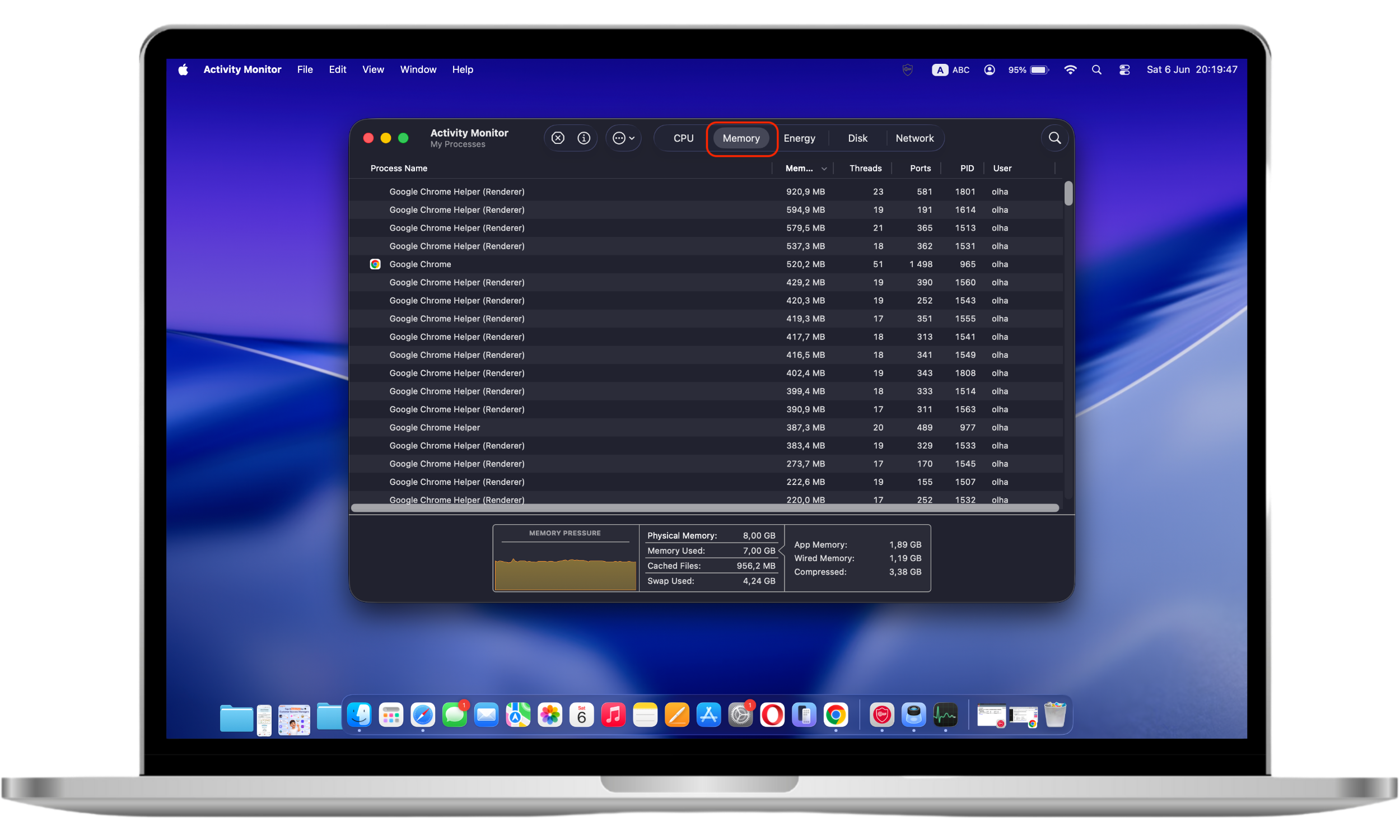
- Open Activity Monitor.
- Select the Memory tab.
- Check out the Memory Pressure graph found at the bottom of the window. You still have plenty of RAM space if it’s green. Your RAM space is running low if it’s yellow, and it’s near or at full capacity if it’s red.
| Memory pressure | Status meaning | Recommended action |
| Green | Memory resources are sufficient | No action needed |
| Yellow | Memory resources are becoming constrained | Close unused applications |
| Red | Memory resources are heavily constrained | Reduce workload or consider hardware limitations |
If you’re constantly running out of RAM space, you may have to splurge on additional RAM. This is ideal if your Mac is accessible for upgrades. BTW, Apple offers guidelines for adding RAM to various Mac models.
Important to know
Most Apple Silicon Macs (M1, M2, M3, M4, and newer) use unified memory that cannot be upgraded after purchase. If your Mac uses Apple Silicon, optimizing memory usage is generally more practical than planning a future RAM upgrade.
9. Clean up a cluttered desktop
Large numbers of files stored directly on the desktop can increase indexing activity, thumbnail generation, and Finder workload. While the impact varies by Mac model, keeping the desktop organized may contribute to a more responsive user experience.
A cluttered desktop can also cause a Mac to be slow. Here’s how to clear the space quickly (the trick will work if your Mac is using macOS Mojave or Catalina):
- On the desktop, control-click and a popup window will appear.
- Click Use Stacks.
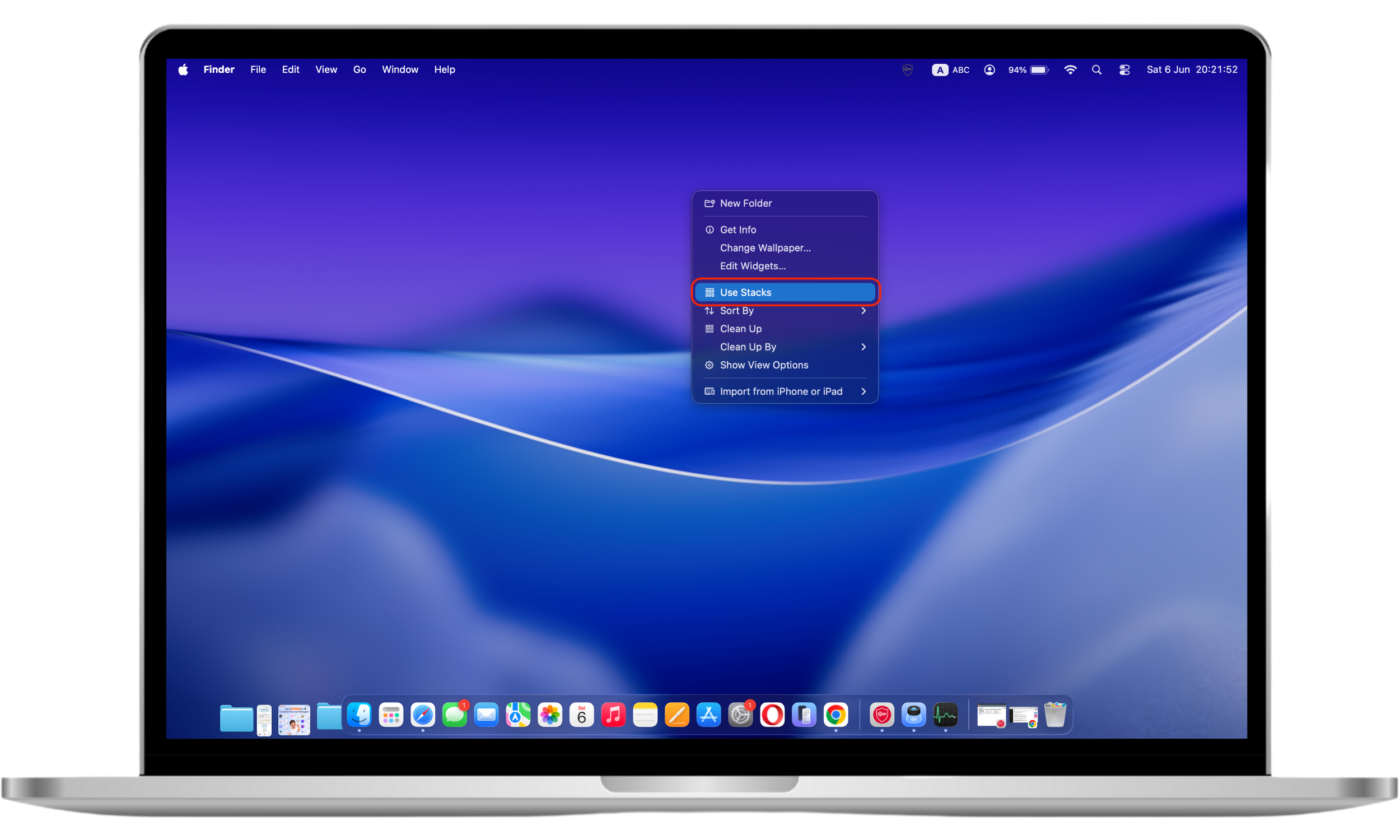
Following these steps will instantly sort out the desktop files. But don’t just stop there. Delete the useless ones and move the others to a more appropriate location.
10. Check your Mac for malware
Some malware strains are designed to deliberately slow down Macs. Malware can affect Mac performance by consuming system resources, generating unwanted background activity, modifying browser settings, or installing persistent processes that continue running after startup. Although Macs include built-in security protections, no device is completely immune to malicious software.
You can catch malware from malicious websites, email attachments, and file-sharing apps. Hackers are inventive, so no matter how careful you are, you could still inadvertently provide them with access to your Mac. Use third-party apps to check if your Mac has malware.
Given how often you use your phone, it’s also vulnerable to malware attacks, which bad actors can use to spy on you. Therefore, it’s non-negotiable to set up safeguards to prevent malware infections that can lead to spying. Clario ’s Anti-spy setup simplifies this process by guiding you through a list of action items to protect your data. The Anti-spy setup tool tells you what settings to tweak so you can make those key changes, saving you time.
Don’t give malicious actors an opportunity to access your data. Use Clario’s Anti-spy setup today. Here’s how:
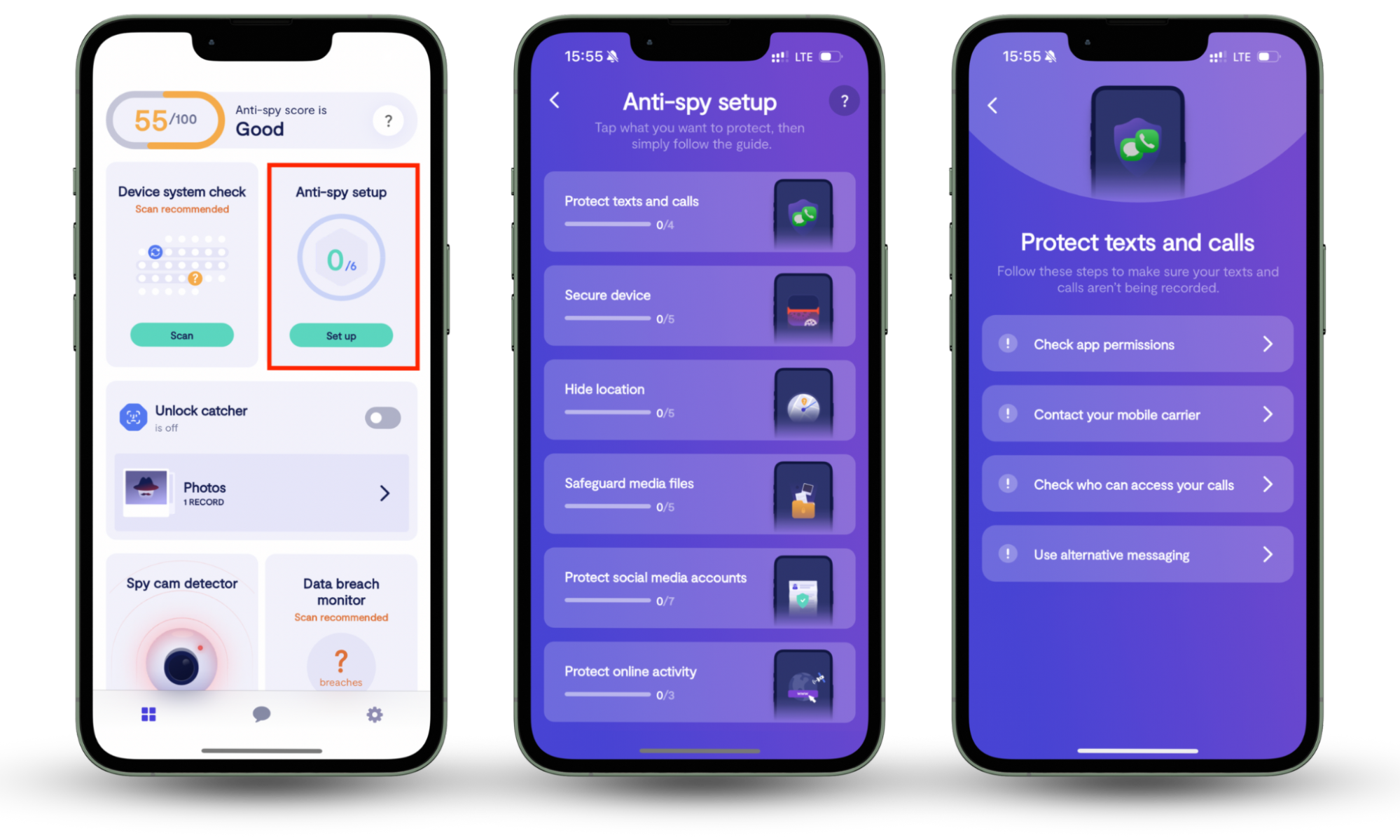
- Download Clario Anti Spy on your smartphone.
- Find the Anti-spy setup option in the app and tap Set up below it.
- Check out the list of categories you can protect, then tap a category and follow all the steps on the next screen to set up the relevant protections.
- Repeat the process with a different category until you’re satisfied.
Improve a Mac running slowly
Troubleshooting your lagging Mac can be as simple as restarting it or as complex as determining if it's infected with malware. In any case, you know you need to do everything you can to get it running smoothly again. After all, you bought the expensive machine because you expected it to provide optimal performance.
The steps we listed will keep you from having to hand your Mac over to an Apple Genius Bar. But, some issues can be too complex for a non-techie. That’s where third-party tools come in handy. In addition, don’t forget about your smartphone, which can also be targeted with malware. Protect your phone calls, social media accounts, and more with Clario Anti Spy. Combining anti-spying software and expert human support, Clario Anti Spy can provide the digital healthcare services you need. Its Anti-spy setup walks you through the process of protecting your phone and sensitive information across various categories for your peace of mind.