Table of contents
- Why it's important to protect your data
- How to protect data on your phone?
- Is your phone storing more than you realize?
- 1. Use strong authentication
- 2. Turn on remote lock and wipe
- 3. Avoid sensitive tasks on networks you don't trust
- 4. Use a VPN
- 5. Download from official app stores
- 6. Keep your OS up to date
- 7. Regularly review app permissions
- 8. Back up your data
- 9. Stay alert to phishing and scams
- 10. Protect your device with security tools
- 11. Use multi-factor authentication and strong passwords
- Conclusion
Why it's important to protect your data
A lost, stolen, or compromised phone can expose passwords, personal files, payment details, account access, and location data. Mobile devices are high-value targets because they consolidate so many accounts in one place. CISA, Apple, and Google all treat device lock, remote erase, app permissions, and software updates as core mobile security requirements.
CISA recommends securing mobile devices because they contain sensitive information, and Apple and Google both build security tools around device lock, remote erase, app permissions, and software updates for exactly that reason.
In my view, the biggest mistake people make is thinking mobile data security only matters if they're famous, wealthy, or in a high-risk job. In reality, ordinary people are often easier targets because they reuse passwords, delay updates, and trust text messages too quickly.
You also need to understand the difference between keeping your data private and keeping it secure. Read our guide on data privacy vs. data security to understand why a private-looking setup can still leave you exposed.
How to protect data on your phone?
You protect data on a mobile device by combining strong authentication, remote lock and wipe, safer network habits, official app downloads, regular updates, permission reviews, backups, phishing awareness, and security tools.
If you only remember one thing from this guide, let it be this: good mobile data security is layered. You need enough safeguards that a thief, scammer, or malicious app can't easily move through your phone. No single app or setting does it alone.
Before the step-by-step advice below, here's the overall approach I recommend:
- Lock the device itself.
- Reduce what apps can access.
- Keep the system current.
- Back up what matters.
- Assume phishing can reach you by text, email, calls, and fake apps.
- Add security tools that help you spot suspicious behavior early.
Is your phone storing more than you realize?
Your smartphone stores access to your email, bank, cloud files, recovery codes, and private photos all at once. So protecting your device isn't just about stopping malware; it's also about noticing when someone tries to unlock it or when an app doesn't belong there.
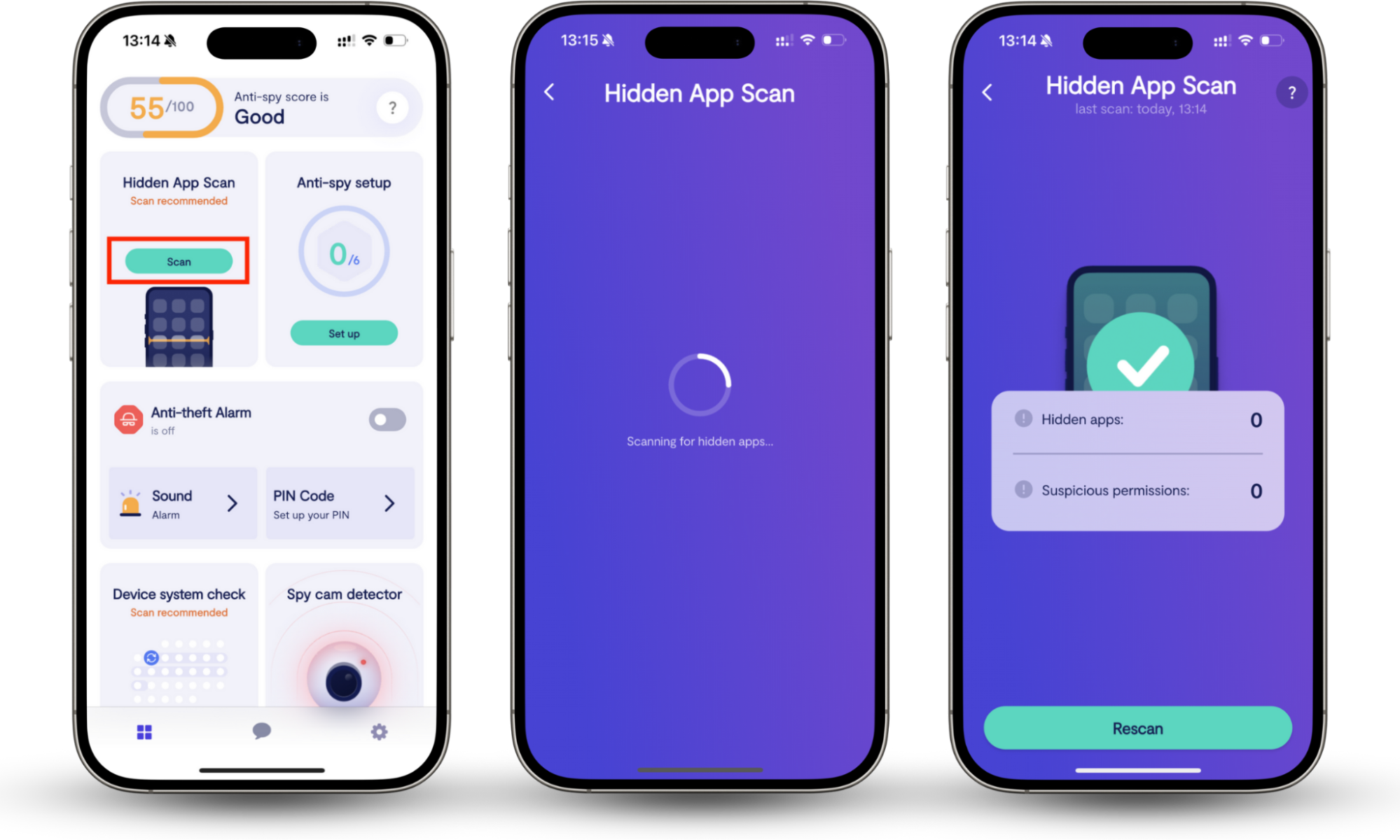
Here's a scenario we often see: someone notices two apps on their Android device that they don't recognize and didn't install. After running Hidden app scan, they can see exactly which apps are disguised or suspicious and remove them before any data leaves the device. Unlock Catcher then provides a record of access attempts, so they can tell whether anyone else tried to get in.
Clario Anti Spy helps you check both. Here's how to strengthen your phone before a small security gap becomes a bigger one.
- Download Clario Anti Spy and sign in.
- Open Hidden App Scan and run a device scan.
- Review any apps that look disguised, unnecessary, or suspicious.
- Turn on Unlock Catcher to monitor unauthorized access attempts.
- Check alerts regularly and remove anything you don't trust.
Now, let's go through the most effective methods for securing your phone's data one by one.
1. Use strong authentication
Strong mobile authentication combines biometrics, like Face ID or fingerprint, with a passcode. Biometrics offer speed and convenience. The passcode protects sensitive actions and account recovery. Using both together is harder to bypass than either alone, and it's the baseline Apple and Google both recommend.
Your lock screen is the front door to your mobile life. A weak PIN or no screen lock at all makes every other safeguard less useful.
Apple recommends using a passcode, and the iPhone supports Face ID or Touch ID on top of that. Android devices also support PINs, passwords, patterns, biometrics, and related lock settings. Apple's newer iPhone protections also include Stolen Device Protection (available on iOS 17.3 or later), which adds extra safeguards for sensitive actions in unfamiliar locations. (Apple Support)
The best setup isn't biometric unlock alone. It's biometrics plus a strong passcode. Face or fingerprint unlock is convenient, but the passcode still protects critical actions and account recovery.
I suggest you avoid simple patterns, repeated digits, birthdays, and "it's only my spare phone" logic. If you use the same weak code across an iPhone, iPad, and Android tablet, one exposed device can train attackers to try the same code elsewhere.
2. Turn on remote lock and wipe
Remote lock and wipe lets you lock or erase a phone you no longer physically control. Apple's Find My and Google's Find My Device both support this. You must enable these features before you lose the device.
Phones get lost, stolen, left in taxis, dropped in cafés, and forgotten in hotel rooms. Remote lock and erase exist for exactly that scenario, but only if you've set them up in advance.
Apple's Find My lets you erase a device remotely, provided the device was signed in to iCloud with Find My enabled beforehand. Google says you can find, secure, or erase a lost Android device using its built-in Find My Device tools. These features don't just help you locate the device; they help protect stored data if you can't get the phone back.
Remote wipe is your fallback plan when physical control is gone. Without it, you may spend hours changing passwords while hoping nobody opens the device first.
3. Avoid sensitive tasks on networks you don't trust
Public Wi-Fi networks (in cafés, airports, hotels, and conference venues) are shared, uncontrolled environments. You can't verify who else is on the network or whether the hotspot is genuine. Sensitive tasks like banking, password resets, or account recovery are safer on your phone's mobile data connection.
The real rule here isn't to avoid Wi-Fi. Home Wi-Fi that you control isn't the same as public café, airport, hotel, or conference Wi-Fi.
Avoid doing sensitive tasks on networks you don't trust. Public networks increase risk because you don't control who else is on them, how they're configured, or whether you've joined a lookalike hotspot by mistake. CISA's mobile guidance centers on secure communication habits for mobile devices, and this fits that logic.
For banking, password resets, work admin logins, or cloud account recovery, your phone's mobile data connection is often the safer choice than unknown public Wi-Fi.
4. Use a VPN
A VPN encrypts data between your phone and the internet, reducing the risk of interception on untrusted networks. It doesn't prevent phishing, fix a hacked device, or replace strong passwords. It's one layer of protection for data in transit, most useful on public Wi-Fi or while traveling.
A VPN won't magically make a hacked phone safe, nor will it stop phishing. But it can reduce network exposure, especially on untrusted networks.
Use a reputable VPN when connecting via public Wi-Fi or while traveling. Think of it as protection for data in transit, not a replacement for updates, passwords, or app vetting.
A VPN is one layer, not the whole system. Many people install a VPN and assume their device is now secure by default. It isn't, but it does meaningfully reduce one specific risk.
5. Download from official app stores
Why official app stores reduce mobile security risk?
The Apple App Store and Google Play both screen apps before listing them and can remove harmful apps after the fact. Google Play Protect also continuously scans installed apps. Downloading outside these stores removes those safeguards and significantly increases the chance of installing malware.
One of the easiest ways to secure your phone's data is to reduce the likelihood of installing malware in the first place.
Use the Apple App Store for iPhone and iPad, and Google Play for Android whenever possible. Google Play Protect also scans apps to help identify harmful software on Android. Official stores aren't perfect, but they offer screening, removal mechanisms, and security checks you won't find on random download pages.
Most risky app installs begin with urgency or curiosity, a fake delivery message, a cracked premium app, adult-content lure, or a "required update" prompt that pushes people outside official channels. Read our guide on protecting your phone from hackers for more on controlling what gets onto your device.
6. Keep your OS up to date
Why software updates matter for phone security?
iOS and Android updates routinely patch security vulnerabilities that attackers actively exploit. An unpatched phone (even a recent model) is more exposed than an older phone running current software. Both Apple and Google recommend installing updates as soon as they're available.
Updates are annoying right up until you need the fix they contain.
Apple says keeping software up to date is one of the most important things you can do to maintain security. Google says Android system updates and security patches usually install automatically, and you can also check manually in Settings.
The safest phone isn't the newest phone; it's the one that still gets security updates and actually installs them. That's also why device choice matters. Our guide to the most secure phone can help you evaluate options beyond marketing claims.
7. Regularly review app permissions
App permissions control what data and device features each app can access (camera, microphone, location, contacts, and more). Reviewing them regularly helps you catch apps that access more than they need. Both iOS and Android provide built-in tools to audit and restrict permissions at any time.
An app doesn't need to be full-blown malware to overreach. Sometimes it just asks for more access than it truly needs, and that quiet overstep is its own security risk.
Android lets you review and change permissions in Permission Manager and Privacy Dashboard. Apple lets you manage access to the camera, microphone, Bluetooth, local network, and other sensitive features under Privacy & Security. Apple also offers App Privacy Report on iPhone (iOS 15.2 or later), which shows how often apps accessed privacy-sensitive data and sensors in the past seven days.
Permission review is where privacy and security meet. A flashlight app shouldn't need your microphone. A wallpaper app shouldn't need your contacts. And if an app asks for location "always," you should know exactly why.
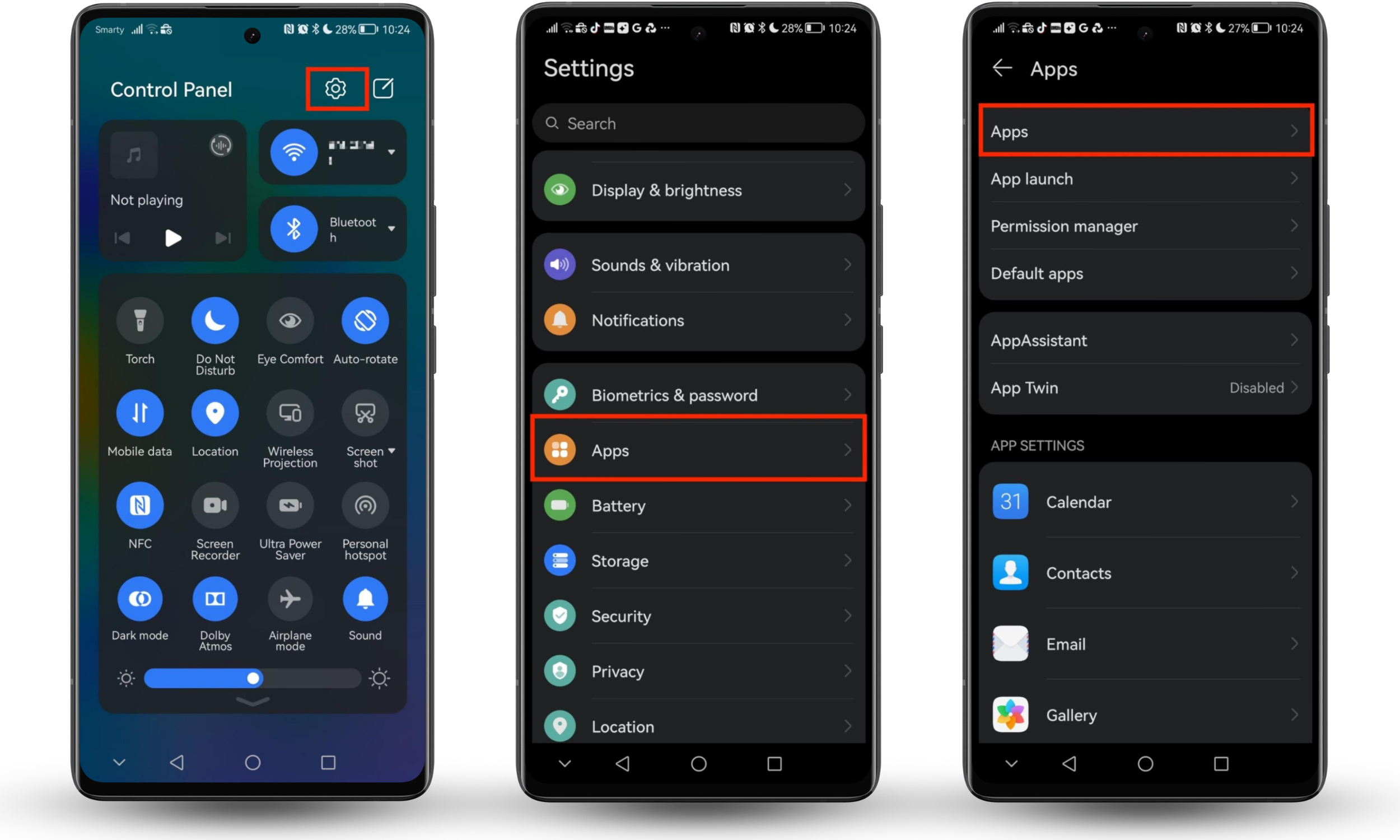
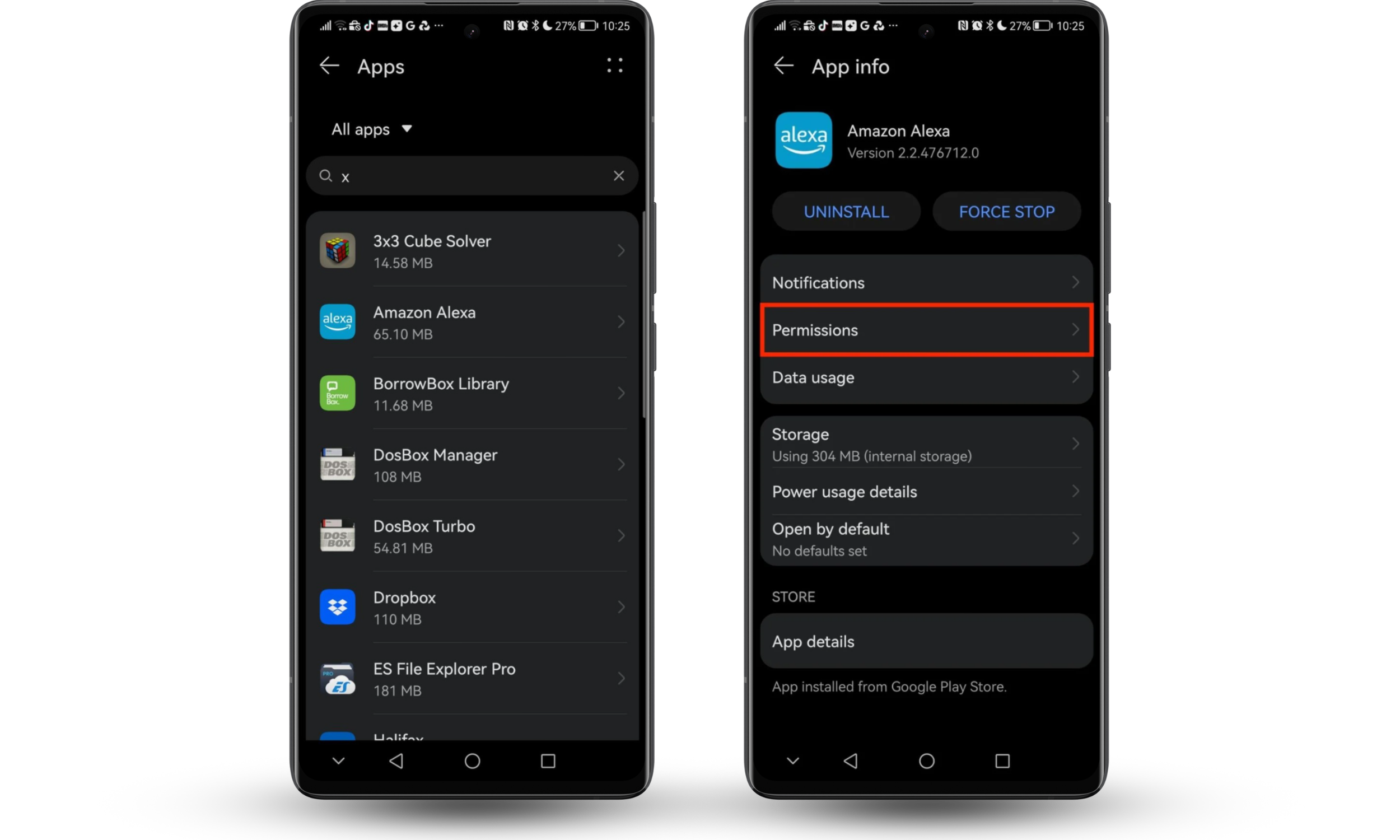
Here's how to check and manage app permissions on your Android device:
- Open your phone’s Settings. You can usually get there by tapping the cog icon in your notification tray.
- Scroll through the options and open the App section.
- Tap Apps.
- Find the app you want to make changes to and select it.
- Now tap Permissions.
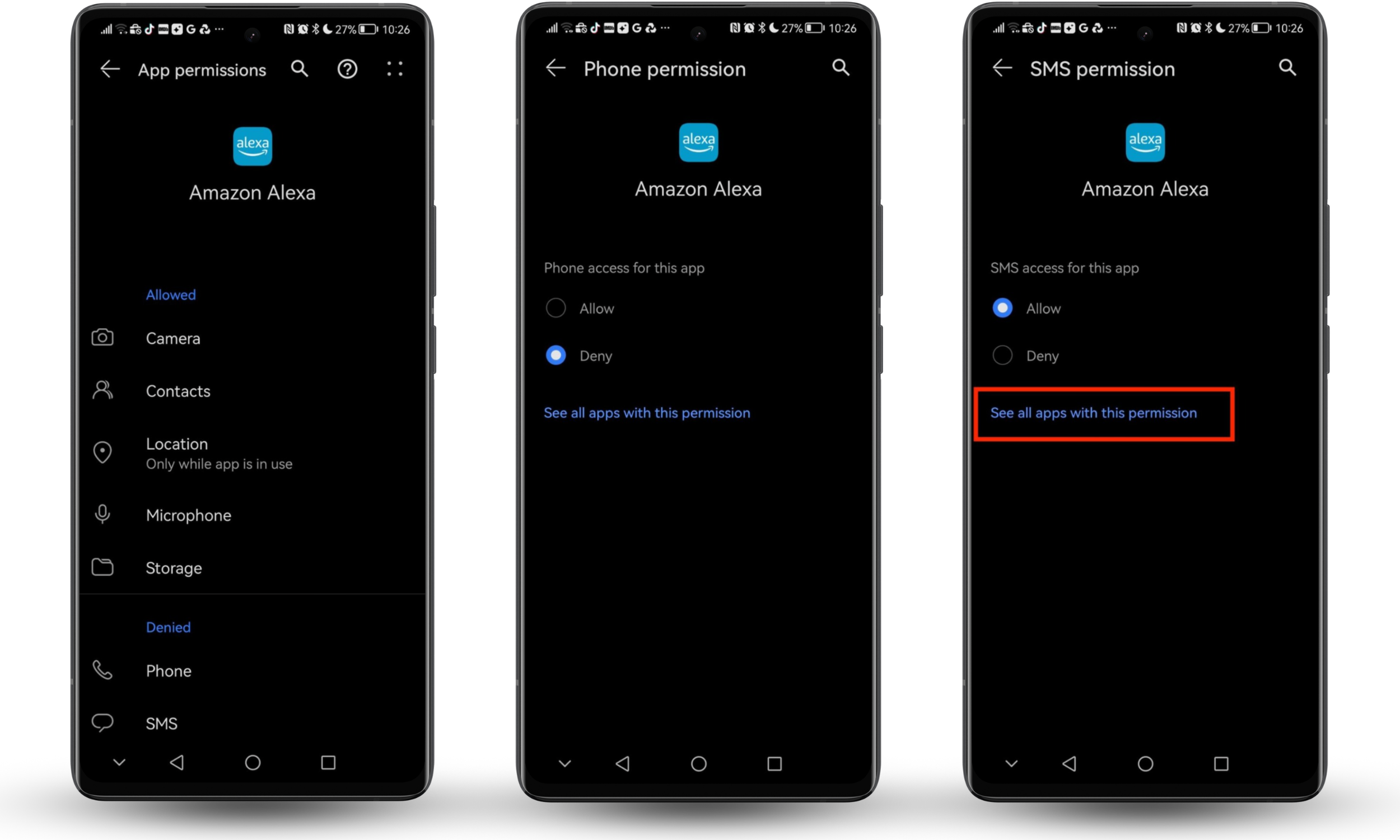
- Check which permissions are allowed and which are denied. Tap any you want to change.
- Select Allow or Deny, as appropriate.
- Tap See all apps with this permission to instantly see whichever apps on your phone can access that permission.
8. Back up your data
Backups reduce the damage from theft, ransomware, device failure, or accidental deletion. A current backup means you can wipe a compromised device immediately without fear of losing photos, notes, or files. That freedom to act decisively is itself a security advantage.
Backups don't stop a hack, but they reduce the damage after theft, device failure, ransomware, or accidental deletion.
If you back up regularly, you can wipe a compromised device with far less fear. Too many people delay decisive action because they're afraid of losing photos, notes, or important files.
Backups turn recovery from a crisis into an inconvenience. For me, that makes consistent backups one of the most practical mobile data-protection habits you can build. Keep at least one trusted backup method active, and make sure you know how restoration works before you need it.
9. Stay alert to phishing and scams
Mobile phishing arrives by text, email, fake app notification, or spoofed call. It uses urgency, threats, or impersonation to make you tap a link or share information before you think. Common signals include "verify now" messages, fake support numbers, requests for codes or passwords, and links in unsolicited texts.
Mobile phishing works because phones are small, fast, and interruption-driven. You glance, tap, and move on, and that speed is exactly what makes text scams, fake delivery links, urgent account warnings, and spoofed calls so effective.
Google's guidance says not to enter your password after clicking a link in a message and warns against sharing private information without confirming the request is real. Google also advises people not to click links in texts and not to share temporary credentials.
Watch for these red flags:
- Urgency or threats
- "Verify now" links
- Fake support numbers
- Requests for codes, passwords, or card details
- Messages that push you to act before thinking
Our guide on how to protect personal information online covers broader habits that apply across email, text, and social channels, since mobile scams rarely stay on one channel.
10. Protect your device with security tools
Built-in tools like Google Play Protect scan apps for harmful behavior on Android. Third-party security apps add a layer of visibility, alerting you to suspicious apps, unauthorized access attempts, and other warning signs.
Google Play Protect helps scan Android apps for harmful behavior. Device-level security tools can also help you identify suspicious apps, unusual access, or other warning signs before the issue grows.
11. Use multi-factor authentication and strong passwords
Multi-factor authentication (MFA) requires more than a password to access an account, typically a second factor like an authenticator app code or biometric confirmation. NIST recommends MFA because passwords alone don't protect against phishing. Adding a second factor means a stolen password is no longer enough to break in.
This step protects more than the phone itself. It protects every account your phone can access.
NIST says MFA is an important security enhancement because it requires more than just a username and password. NIST also notes that passwords alone don't protect against phishing, which is why adding a second factor matters so much. Its password guidance moves away from arbitrary complexity tricks and toward stronger, less compromised passwords with MFA layered on top.
Your phone can be physically secure and still expose your data if your email or cloud account uses a weak password. Use these habits:
- Create unique passwords for important accounts.
- Turn on MFA for email, banking, cloud storage, and social accounts.
- Prefer authenticator apps or stronger methods over SMS when possible.
- Store passwords in a reputable password manager instead of notes or screenshots.
This also reduces damage from SIM-related fraud. Could someone clone your phone? Stronger account security and MFA limit what an attacker can do, even if one channel is compromised.
Conclusion
To protect data on a mobile device, you need layered defenses. Use strong authentication, enable remote lock and wipe, avoid sensitive activity on untrusted Wi-Fi, use a VPN when needed, download apps only from official stores, install updates promptly, review permissions, back up your data, stay alert to phishing, and secure your accounts with MFA.
In my opinion, the smartest way to think about mobile data security is this: your phone isn't one device. It's a container for every other account that matters. That's why even simple safeguards have outsized value for keeping your data secure on Android and iOS.
If you want an easier way to spot suspicious apps and unauthorized access, Clario Anti Spy adds practical support on both iOS and Android.