Table of contents
- TL;DR
- How often should you change passwords?
- Workplace accounts
- Personal accounts
- High-risk accounts
- Inactive accounts
- Do you really need to change passwords often?
- When should you change passwords?
- 1. Account has been hacked
- 2. You’ve been using the same password for long time
- 3. Data breach
- 4. Unusual activity on your account
- 5. You found malware
- 6. Using unsecured network
- 7. Someone learned your password
- 8. You no longer use certain accounts
- 9. Losing your device
- 10. You’ve been the victim of phishing attack
- 11. You logged in on untrusted device or network
- Importance of strong and unique passwords
- Best practices for updating and managing your passwords
- 1. Use password manager
- 2. Use Clario Anti Spy’s Data breach monitor
- 3. Conduct password audit
- 4. Create strong passwords
- 5. Avoid reusing passwords
- 6. Use multi-factor authentication
- 7. Set reminders for regular changes
- 8. Try using access keys
- Verdict: How often should passwords be changed?
TL;DR
- Rotate your passwords in the workplace accounts according to the company’s policy.
- Change passwords for your personal accounts once a year or after a data leak.
- Make sure to change the passwords on your sensitive accounts (like banking apps or email accounts) every 6 months or immediately after a breach.
- Not every account needs frequent resets. Strong, unique passwords and MFA reduce risk more than changing passwords monthly.
How often should you change passwords?
Change your password immediately after a data breach, phishing attack, malware infection, suspicious login activity, device loss, or if someone learns your password. You should also update the passwords for high-risk accounts, such as email, banking, work-related, and healthcare accounts, every 3–6 months. For low-risk personal accounts, prioritize strong, unique passwords and multi-factor authentication, and avoid frequent password resets unless exposure occurs.
Workplace accounts
For work accounts, follow your company’s IT policy. Many organizations rely on guidance from the National Institute of Standards and Technology. NIST recommends focusing on strong, unique passwords and changing them when there’s evidence of compromise. However, many workplaces still require password rotation every 60 to 90 days.
Some tips for setting strong passwords for work-related accounts:
- Use a password manager instead of memorizing variations
- Never reuse passwords
- Avoid predictable changes like adding “1” to the end
- Enable multi-factor authentication
Personal accounts
For personal accounts, like online shopping, social media, cloud storage, and other subscriptions, update your passwords once per year unless breached. If you get a notification about a data breach, change your passwords immediately.
If you’re unsure how to create one, here’s how to make a secure password that resists guessing and brute-force attacks.
High-risk accounts
High-risk accounts require stricter rotation. In your banking apps, email accounts, healthcare portals, crypto wallets, etc, change these every 3 to 6 months, even if there was no known data leak.
These accounts require stricter security measures because they are a gateway to your sensitive information and dozens of other accounts, too.
A rule of thumb for sensitive accounts
Enable multi-factor authentication, store passwords in an encrypted vault, and never reuse credentials.
Inactive accounts
Unused accounts are easy targets. If passwords from your inactive accounts are leaked, cybercriminals can try them on your other accounts, and if you reuse credentials, they can easily hack your banking app or email account.
If you have inactive accounts, it’s best to delete them entirely or remove payment details and disconnect any linked services.
If deletion isn’t possible, rotate the password to a random, unique value.
Do you really need to change passwords often?
You don’t always need to change passwords often. Frequent password rotation can backfire when it forces people to pick predictable variations or reuse old passwords. Today, many experts recommend using long, unique passwords, turning on multi-factor authentication, and changing passwords only when there’s a reason, such as a breach, phishing, malware, or suspicious activity.
When should you change passwords?
Rotate your passwords in the workplace accounts according to the company’s policy. Change passwords for your personal accounts once a year or after a data leak. Make sure to change the passwords on your sensitive accounts (like banking apps or email accounts) every 6 months or immediately after a breach. For low-risk accounts, prioritize unique long passwords and MFA.
1. Account has been hacked
Reset the password immediately after you notice account hacking, before it turns into an account takeover. Then, close the holes attackers love to leave behind, like linked devices. Log out of all active sessions, review connected apps, and check forwarding rules in email accounts. I recommend changing the recovery email and phone number if you see anything unfamiliar, because attackers often try to lock you out.
2. You’ve been using the same password for long time
Old passwords tend to be weaker, reused, or already circulating in leaked databases. If you’ve used the same password for years, treat it as high-risk even if you haven’t been notified about a breach. This is one of the few cases where passwords should be updated often, even without a visible incident, especially if you can’t confidently say it’s unique.
3. Data breach
Breaches don’t always feel urgent because you don’t see the damage right away. Attackers can use stolen credentials for credential stuffing, sell them, or hold them until you forget. If the breached password was reused anywhere else, rotate those accounts, too.
You shouldn’t have to search for data leaks manually. Use Clario Anti Spy’s Data breach monitor to continuously check known leak databases. It will alert you if your email appears in a breached database, a saved password may be compromised, or our credentials were exposed in a third-party service leak.
How to use Clario Anti Spy’s Data breach monitor:
- Download Clario Anti Spy and subscribe.
- Under Data breach monitor, tap Scan.
- Enter your email address.
- When the scan is complete, follow the on-screen guidance to review any data breaches.
- Repeat the process for any other email addresses.
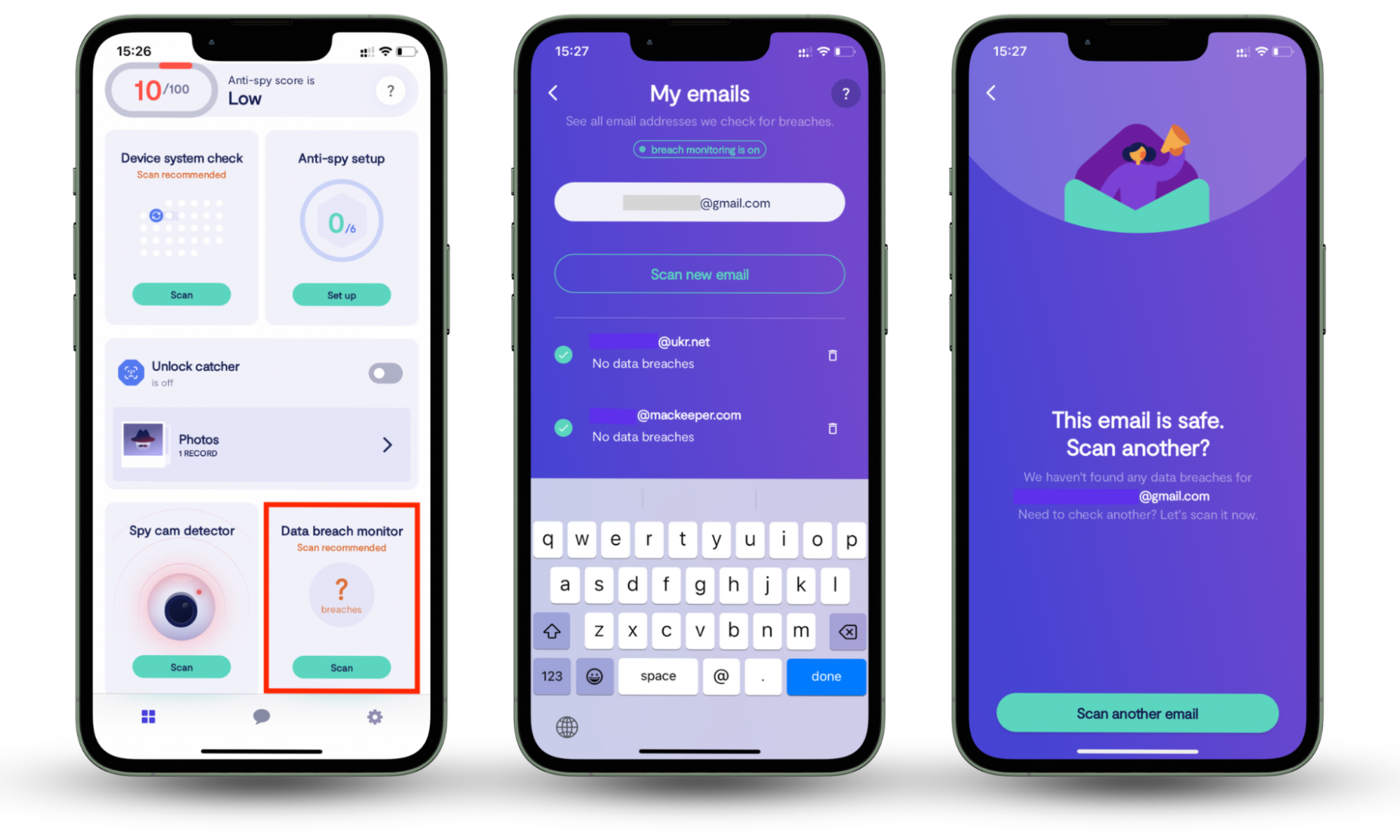
Instead of rotating passwords blindly every few months, you’ll know exactly when your data is at risk.
4. Unusual activity on your account
Unexpected password reset emails, login alerts from unfamiliar locations, or devices you don’t recognize are usually signs that someone is testing access. Change the password, review active sessions, and enable MFA right after.
5. You found malware
Malware can steal saved passwords, session cookies, and even screen content. Don’t just change passwords while the device is still infected. First, remove the malware, update the OS, then rotate your most important accounts, starting with email, banking, and Apple/Google IDs.
6. Using unsecured network
Public Wi-Fi isn’t always dangerous, but it increases risk, especially if you log into sensitive accounts on unsecured networks, like Wi-Fi at the airport or cafes. If you did, rotate that password and turn on MFA.
For me, the biggest risk here is reusing passwords, because one exposed login can unlock many accounts.
7. Someone learned your password
If someone saw your password, you shared it, or you suspect it leaked, change it immediately. Even if you trust the person, you can’t control where that password ends up next. Also, rotate any account where you reused that password.
Need ideas that don’t turn into predictable patterns? Use these password ideas to create stronger options.
8. You no longer use certain accounts
Inactive accounts are easy targets because you don’t notice takeover signs. Delete accounts you don’t use. If you can’t delete them, change the password to a long, random one and remove saved payment methods.
9. Losing your device
If you lose a phone or laptop, assume someone may try to access saved sessions. Change your email password first, then your banking password, then everything else. Also, revoke sessions for key services and change your Apple ID or Google account password because they control account recovery.
10. You’ve been the victim of phishing attack
If you typed your password into a fake site, don’t wait. Change it immediately and rotate any account where you reused that password. Then, enable MFA. If the phishing page asked for a code, treat it as an attempted takeover and check your account activity.
11. You logged in on untrusted device or network
If you signed into your account on a shared computer, hotel business center PC, borrowed phone, public laptop, or public Wi-Fi without protection, assume your credentials or session may have been exposed. Untrusted devices can store autofilled passwords, keep you logged in through saved cookies, or even run hidden malware or keyloggers that capture what you type.
As soon as you’re back on a device you fully control, change the password immediately, then go into the account’s security settings and sign out of all active sessions. Remove any unfamiliar devices, revoke saved browser access, and enable multi-factor authentication if it’s not already on.
Importance of strong and unique passwords
Strong, unique passwords reduce the need for frequent rotation because they resist guessing, brute-force attacks, and credential stuffing. Use long passphrases or randomly generated passwords, never reuse passwords across accounts, and store them in a password manager vault. Add multi-factor authentication to block account takeover even if a password leaks.
If you want a clear system, learn how to store passwords safely so you don’t reuse or forget them.
Best practices for updating and managing your passwords
Best practices include using a password manager to generate and store unique passwords, auditing accounts for reuse, enabling multi-factor authentication, and setting reminders for periodic reviews. Rotate passwords after breaches, phishing, malware, suspicious activity, or device loss. Use Clario Anti Spy’s Data breach monitor to know when your passwords get leaked. Consider passkeys to reduce phishing risk and reliance on passwords.
1. Use password manager
A password manager generates random passwords, stores them in an encrypted vault, and autofills logins safely. I recommend using it specifically to stop “tiny variations” like Summer2025!, because attackers predict patterns. A manager also makes password rotation easier because you don’t have to memorize anything.
2. Use Clario Anti Spy’s Data breach monitor
You shouldn’t have to manually search the internet or wait for a company email to learn that your data has been leaked. Clario Anti Spy’s Data breach monitor checks known leak databases and alerts you when your email shows up in a breach so that you can rotate passwords based on real exposure, not guesswork.
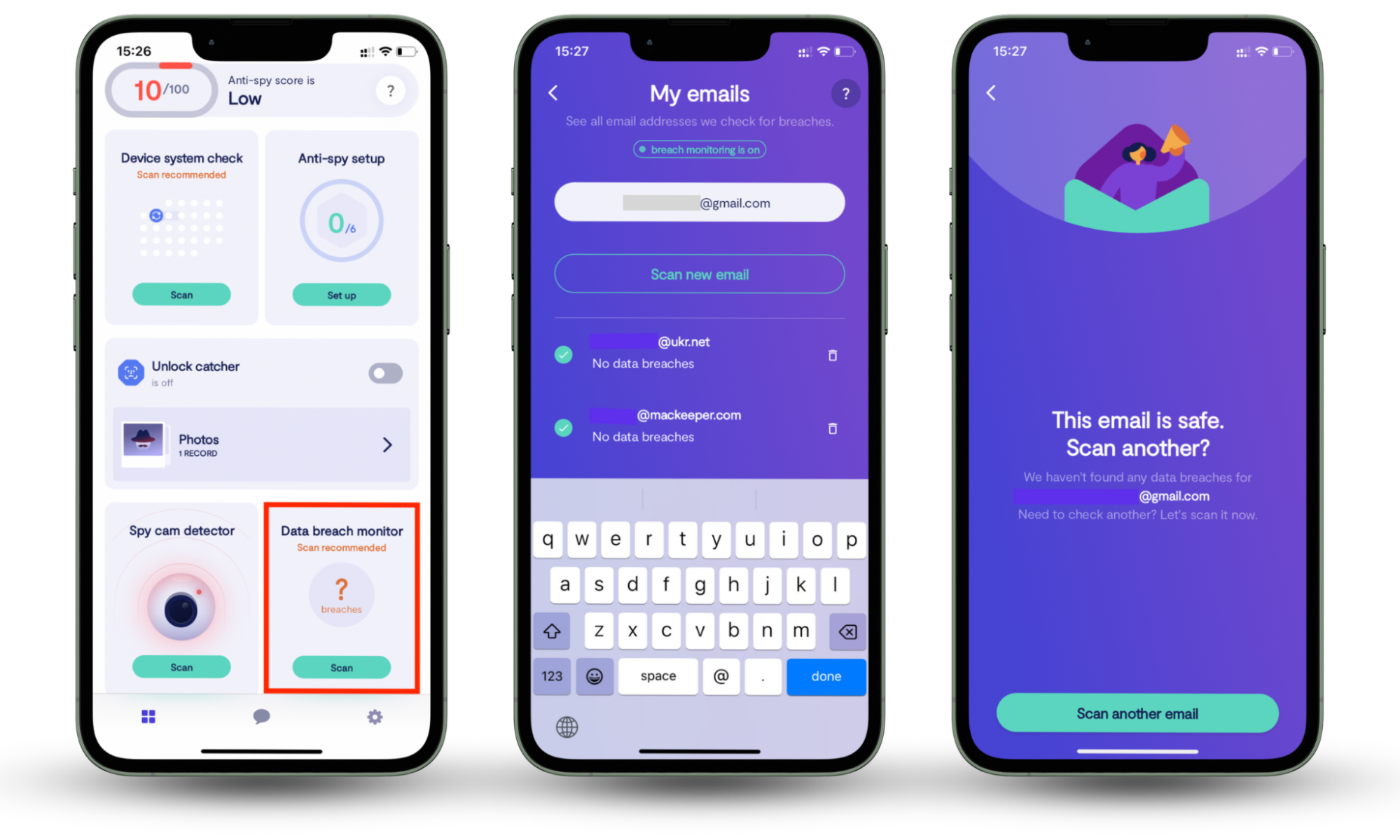
How to use Clario Anti Spy’s Data breach monitor:
- Download Clario Anti Spy and subscribe.
- Under Data breach monitor, tap Scan.
- Enter your email address.
- When the scan is complete, follow the on-screen guidance to review any data breaches.
3. Conduct password audit
Audit your accounts every 6–12 months. Look for reused passwords, outdated recovery emails, and old accounts you don’t use. Delete what you can and rotate what you must. If you treat your email as a master key, audit it first.
4. Create strong passwords
Use long passphrases or random strings, and aim for 12–16 characters minimum. Avoid personal details and common phrases. If you want a fast approach, create a passphrase that’s memorable to you but difficult to guess, then store it securely so you don’t reuse it.
5. Avoid reusing passwords
I will not stop repeating—reusing passwords is what makes breaches contagious. One leak becomes five takeovers. If you’re curious how attackers abuse large lists of logins, reading about what password spraying is makes the risk feel very real.
6. Use multi-factor authentication
MFA blocks many takeovers even if a password leaks. Use an authenticator app or hardware key where possible. If SMS is your only option, it’s still better than nothing. Turn on MFA for email, banking, and any account that can reset other passwords.
7. Set reminders for regular changes
If you manage high-risk accounts or follow workplace policy, reminders help you stay disciplined. A practical schedule looks like this: high-risk accounts every 3–6 months, medium-risk accounts every 6–12 months, and low-risk accounts only after a breach or suspicious activity.
8. Try using access keys
Access keys, also called passkeys, reduce password risk because they’re harder to phish and can’t be reused. When a service offers passkeys, I recommend enabling them, especially for email and cloud accounts.
Verdict: How often should passwords be changed?
It depends on the account and the risk.
Password rotation matters because it mitigates attacks, reduces exposure, and remains a security best practice, especially for workplace and high-risk accounts. But forcing frequent resets for every account can backfire if it creates predictable passwords and reuse.
Instead of guessing whether passwords should be updated often, use Clario Anti Spy’s Data breach monitor to get alerts when your credentials appear in leaks. That way, you change passwords when there’s a real risk.