Table of contents
- How to change privacy settings on Facebook
- How to change Facebook privacy settings on mobile web browser
- How to change Facebook privacy settings on desktop browser
- How to change Facebook privacy settings on mobile app
- Facebook privacy settings you need to change immediately
- Limit wrong people from seeing your posts (old posts and new posts)
- Control who can see your private information
- Clear up your friend list
- Make sure your name doesn’t pop up in the search engine
- Control targeted ads
- Limit people from posting on your timeline
- Filter friend requests
- Review all posts you’re tagged in
- Turn Off location tracking
- Block suspicious users
- How Clario Anti Spy protects your privacy online
How to change privacy settings on Facebook
Having a Facebook profile doesn’t automatically put you at risk. Facebook privacy settings control who can see your content, find your profile, interact with your account, and access information about your activity. Still, there are some default settings, which, if not addressed, can indirectly put your personal data at risk of being shared with criminals. Check out these jaw-dropping facts about online privacy and find out how to set your privacy on Facebook below.
Even if you never post sensitive information intentionally, Facebook profiles can reveal details that cybercriminals use for profiling and social engineering. Common privacy risks include:
- Public posts visible to strangers
- Search engine indexing of profiles
- Exposure of personal details such as birthdays and workplaces
- Unwanted friend requests from fake accounts
- Oversharing through tagged posts
- Location-sharing features revealing movement patterns
Important to know
Facebook regularly updates its interface across iPhone, Android, desktop browsers, and mobile browsers. Menu names and button locations may vary slightly depending on your device, operating system version, app version, and region. If you cannot find a setting exactly as described, use Facebook's Privacy Checkup tool, which typically provides the fastest route to the same controls.
How to change Facebook privacy settings on mobile web browser
Facebook's Privacy Checkup tool provides a centralized way to review your account's most important privacy controls. From a mobile browser, you can manage profile visibility, audience settings, account security options, ad preferences, and discoverability settings without installing the Facebook app.
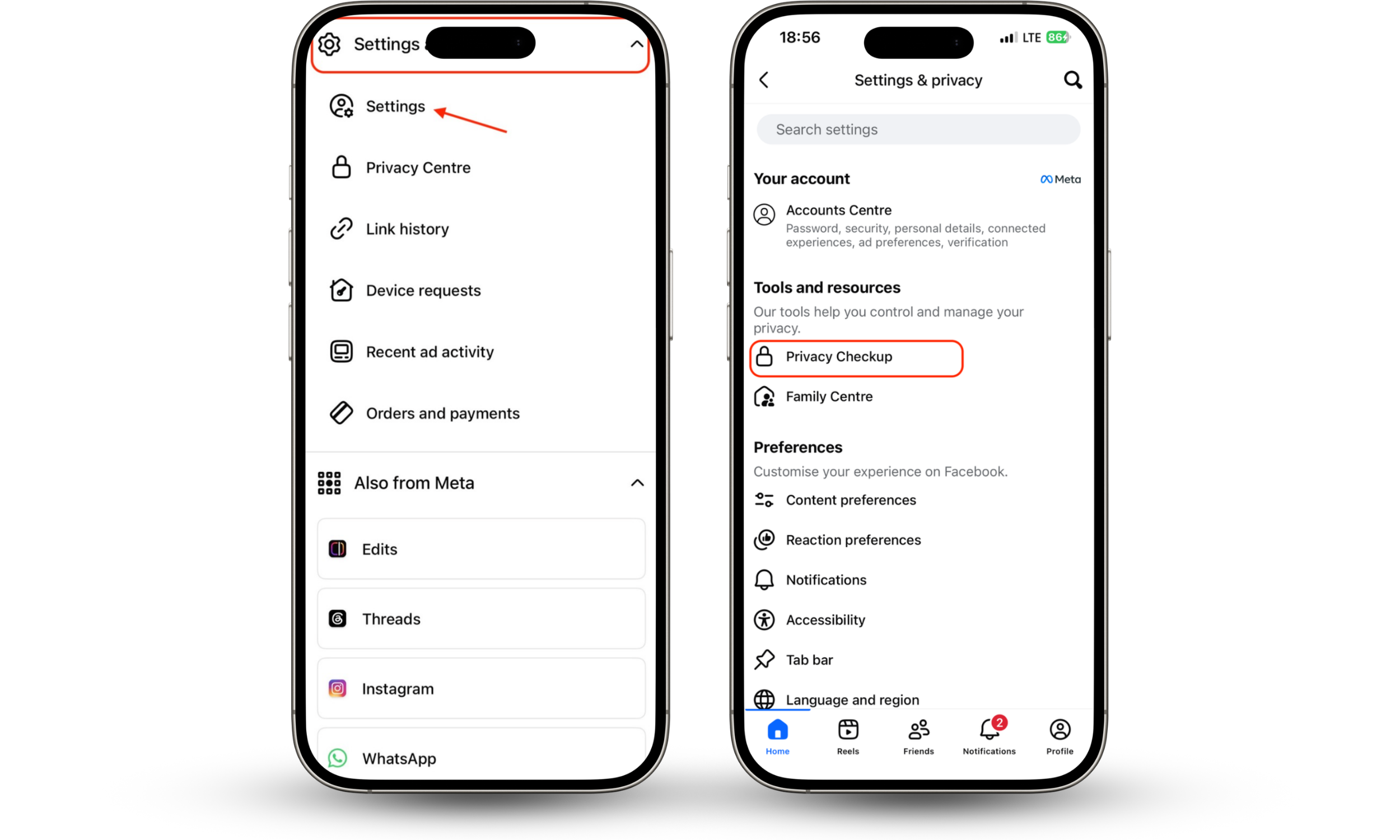
Access your settings page on your mobile web browser by following these simple steps:
- Open Facebook in your mobile web browser and sign in.
- Tap the Menu icon (☰).
- Select Settings & Privacy.
- Tap Settings.
- Open Privacy Checkup to review your privacy settings.
How to change Facebook privacy settings on desktop browser
Facebook's desktop privacy settings allow users to manage audience controls, profile visibility, tagging permissions, ad preferences, and account discoverability from a single settings area. Reviewing these controls regularly helps reduce unnecessary exposure of personal information.
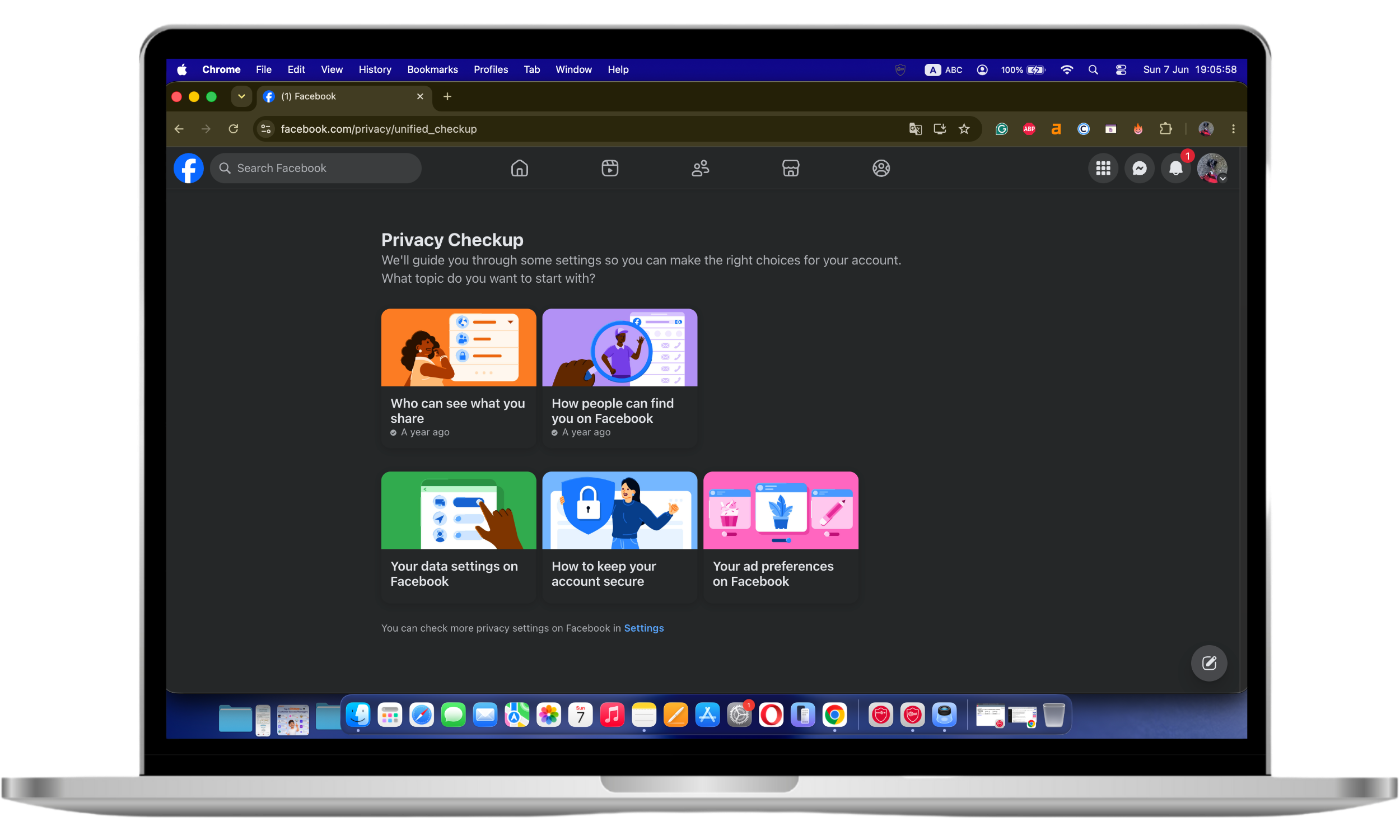
Access the settings page on your desktop web browser by following these simple steps:
- Open Facebook in your web browser and sign in.
- Click your profile picture in the top-right corner of the page.
- Select Settings & Privacy.
- Choose Settings to access account controls.
- To review Facebook's guided privacy recommendations, open Privacy Checkup from the Settings & Privacy menu.
- Review sections to adjust your preferences.
Important to know
Facebook periodically changes the location of menu items and privacy controls. If a specific option appears to be missing, use Privacy Checkup or search within Settings to locate the same feature under a different category.
How to change Facebook privacy settings on mobile app
The Facebook mobile app includes nearly all privacy controls available on desktop. Users can manage audience settings, tagging permissions, profile visibility, advertising preferences, and location permissions directly from the Settings menu.
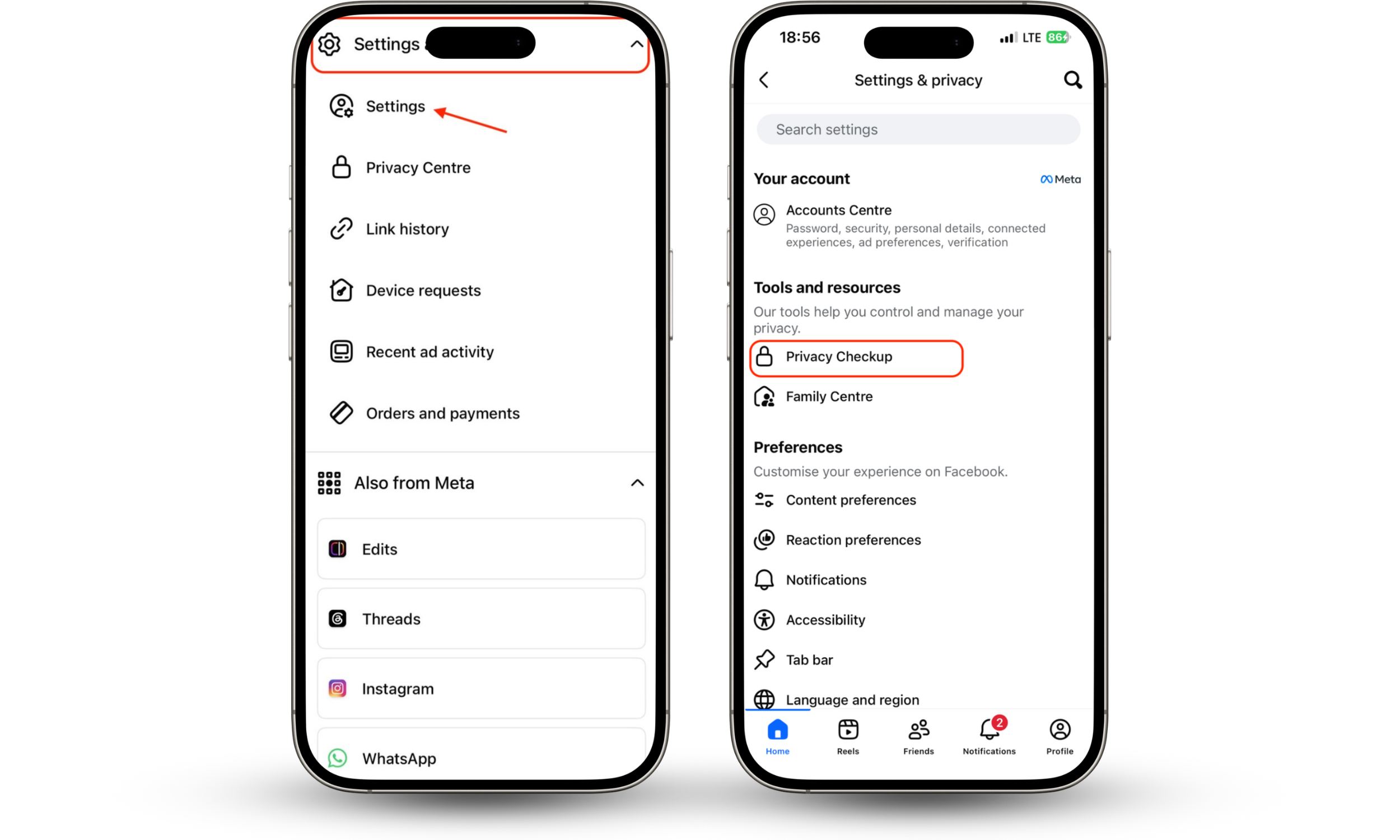
Access your settings page on the mobile App by following these simple steps:
- Launch Facebook.
- Press the three-line menu in the top right-hand corner of the screen (bottom right on iPhone).
- Press the Settings & Privacy page.
- Tap Settings.
- Complete the Privacy Checkup to find important privacy settings.
So, now that you’ve tweaked your privacy settings on Facebook, is your data safe? Not quite. See, you’ve adjusted your post and profile visibility, but this doesn’t eliminate all potential threats. Facebook's own data collection policies and the persistent risk of breaches make it clear that relying on the platform's tools alone is not enough.
Security note
Privacy settings help control who can view your information, but they cannot prevent every security threat. Account compromises caused by phishing attacks, stolen passwords, malicious software, or credential reuse can still expose personal information even when privacy settings are configured correctly.
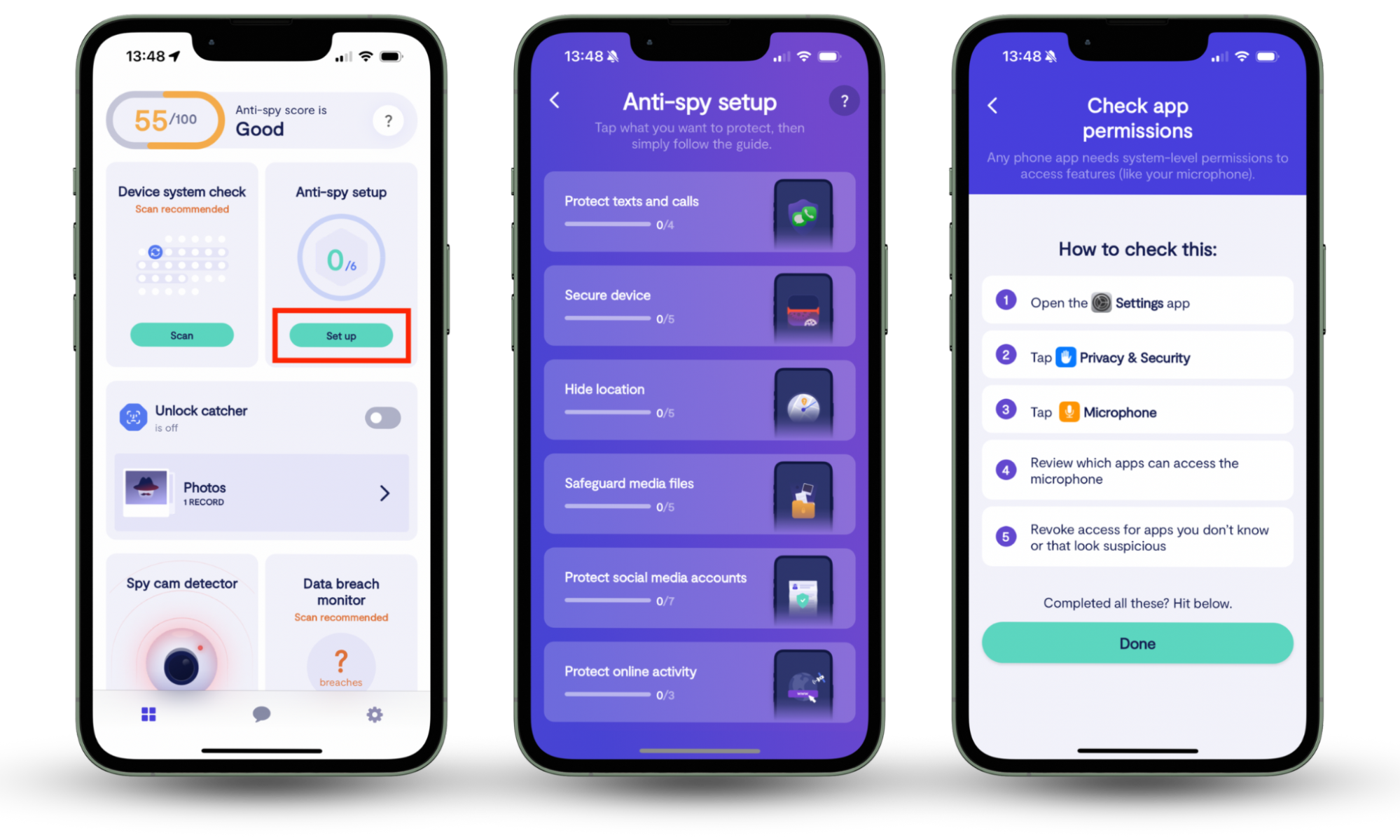
This is why we created Clario Anti Spy: to address the urgent need to protect user privacy and data. Clario's Anti-spy setup feature offers detailed step-by-step guidance to help you enhance your digital safety. It protects your social media accounts, along with your texts, calls, messages, location, and more.
Here’s how to start with Clario's Anti-spy setup feature:
- Download Clario Anti Spy on your mobile device.
- Set up an account.
- Locate Anti-spy setup feature and click Set up.
- Tap on Protect social media accounts and follow the guide.
Facebook privacy settings you need to change immediately
Now that you have made it to the settings page, knowing where to look is important. The most important Facebook privacy settings focus on limiting profile visibility, controlling who can contact you, managing tagged content, reducing ad personalization, and restricting location sharing. Reviewing these settings can significantly reduce unnecessary exposure of personal information. Below, we’ll give you a list of key areas to explore in your Facebook settings to make sure you are not leaving yourself vulnerable online.
Limit wrong people from seeing your posts (old posts and new posts)
Public posts can reveal personal habits, relationships, interests, workplaces, travel plans, and other information that may be collected through open-source intelligence (OSINT) techniques. Restricting who can view your posts helps reduce unnecessary exposure.
You never know who might be lurking on your profile, so it’s always best to limit your posts' visibility. On desktop, click the downward arrow in the top right-hand of your screen, click Settings & Privacy, and press Settings.
Inside the Privacy page on the left-hand side, you can scroll down to Your Activity. Here, you will be able to change the option for Who can see your future posts? Edit it to limit your posts to your preferred audience. While you are there, you should also look at the Limit The Audience for Old Posts on Your Timeline options to protect previously posted information.
On mobile, click the three lines at the top right of your screen, click Settings & Privacy, and press Settings. Scroll down to Audience and visibility, and press Posts. Here, you can change the option for Who can see your future posts? Edit it to limit your posts to your preferred audience.
Important to know
Audience restrictions cannot prevent screenshots, copied content, or resharing by people who already have permission to view your posts.
Control who can see your private information
Although it’s nice for your close family and friends to know what school you went to, who your family members are, or what year you were born in, this is all delicate information often used to back up your password reminders on your accounts.
To keep this sensitive profile data private, head to your profile and select Edit profile. Unselect any data fields you don’t want being publicly displayed on your profile and press Save. Another helpful tip is to click the About section on the left of your timeline, and you can then access the data you have chosen to display on your profile and decide exactly which users can see this data.
Security note
Publicly visible profile information may be used in impersonation attempts, phishing campaigns, account recovery attacks, or social engineering scams.
Clear up your friend list
Having over 1000 friends may look nice on the surface, but it’s probably best to do a routine sweep of your friends list and remove anyone you haven’t spoken to in a long time or never plan to. Your friends list can often be the cause of privacy leaks, especially if you are the type of person who accepts random adds.
Consider removing:
- People you no longer recognize
- Duplicate accounts
- Inactive accounts
- Suspicious profiles with limited activity
- Accounts that frequently send spam or promotional messages
Make sure your name doesn’t pop up in the search engine
Sometimes, it’s best not to have potential employers be able to find your Facebook profile by searching your name on Google. Here’s a quick way to remove your profile from Google search engine results: On desktop, press the downward arrow in the top right-hand corner and select Settings & Privacy. Under the Privacy header, you can scroll down to the How people can find and contact you section, and there you will find the option for Do you want search engines outside of Facebook to link to your profile?
On mobile, click the three lines at the top right-hand corner of your screen, click Settings & Privacy, and press Settings. Scroll down to Audience and visibility, press the How people can find and contact you section, and you will find the option to "Do you want search engines outside of Facebook to link to your profile?"
Control targeted ads
Facebook tries to collate the information it gathers from you to target which ads to send your way as you use their platform. Changing the targeted ad settings to your preferred system is a good way to control this.
In the Settings page, you’ll find the Ads section, then click through to Ad Settings. The settings inside this page will allow you to monitor and adjust settings like “interest categories,” “Categories used to reach you,” “Ads shown on Facebook,” “Audience based advertising,'' and options to turn off Facebook displaying which ads you have previously liked.
Limit people from posting on your timeline
If you want to take control over who can post on your timeline and what people can post onto your wall, head to the Profile and Tagging section of your Settings and change the settings of Who can post on your profile.
Filter friend requests
On desktop, press the downward arrow in the top right-hand corner and select Settings & Privacy. Under the Privacy header, you can scroll down to the How people can find and contact you section, and there you will find the option for Who can send you friend requests?
On mobile, click the three lines at the top right-hand of your screen, click Settings & Privacy, and press Settings. Scroll down to Audience and visibility, press How people can find and contact you section, and there you will find the option for Who can send you friend requests?
Editing this option can only allow friends of friends to send you friend requests, thus avoiding awkward random follows.
Review all posts you’re tagged in
Under the review section, you can enable all posts to require approval before they are shared publicly on your wall—to get to this section, follow this chain:
On desktop, press the downward arrow at the top right-hand corner > Settings & Privacy > Settings > Profile and tagging > Reviewing.
On mobile, click the three lines at the top right-hand of your screen > Settings & Privacy > Settings > Audience and visibility > profile and tagging > Reviewing.
Turn Off location tracking
When using your mobile phone, Facebook can access your location to offer various services to you on their platform. However, this does mean they know where you are at all times. This is how you can find it on your desktop and mobile:
On desktop, press the downward arrow at the top right-hand corner > Settings & Privacy > Settings > Location settings.
On mobile, click the three lines at the top right-hand of your screen > Settings & Privacy > Settings > Permissions > Location.
Block suspicious users
You don’t need to feel bad about using the block button more generously. If you have a weird feeling about a profile online, it’s better to block than be sorry.
How Clario Anti Spy protects your privacy online
While Facebook has become a staple in most people’s daily social media routine, there is one gloomy cloud often associated with the platform. While the social network has so many positive uses that keep its audience entertained for hours a day and keep them coming back throughout the week, there has always been a question mark linked to the users' privacy.
While reputable companies continue to exploit their tracking capabilities, it’s only natural to assume that other companies, and more worryingly, criminals, also want to collect your data to sell to third parties or try to gain access to your accounts.
To enhance the security of your social media accounts, including on Facebook, try Clario’s Anti-spy setup. The feature works seamlessly on iOS and Android platforms, keeping your privacy intact and providing you with peace of mind during this vulnerable online era. So, how can you efficiently protect your online data?