Table of contents
- Why does call history appear in your car?
- Methods to clear the call history on a car
- 1. Delete call history from your phone first
- 2. Clear call history via the car infotainment system
- 3. Factory reset the infotainment system
- How to delete call history when using Apple CarPlay?
- When doesn’t call history disappear from a car?
- Erase the call history on Bluetooth in car
Why does call history appear in your car?
When you pair your phone via Bluetooth, your car uses specialized communication protocols to sync and store your call history, contacts, and GPS destinations. This design enables you to manage communications hands-free through the car’s interface, reducing the risk of dangerous distractions while driving. While modern cars make this connectivity almost essential for a seamless experience, they often retain this data in the car's memory after your phone is disconnected.
To remove your call history from a car:
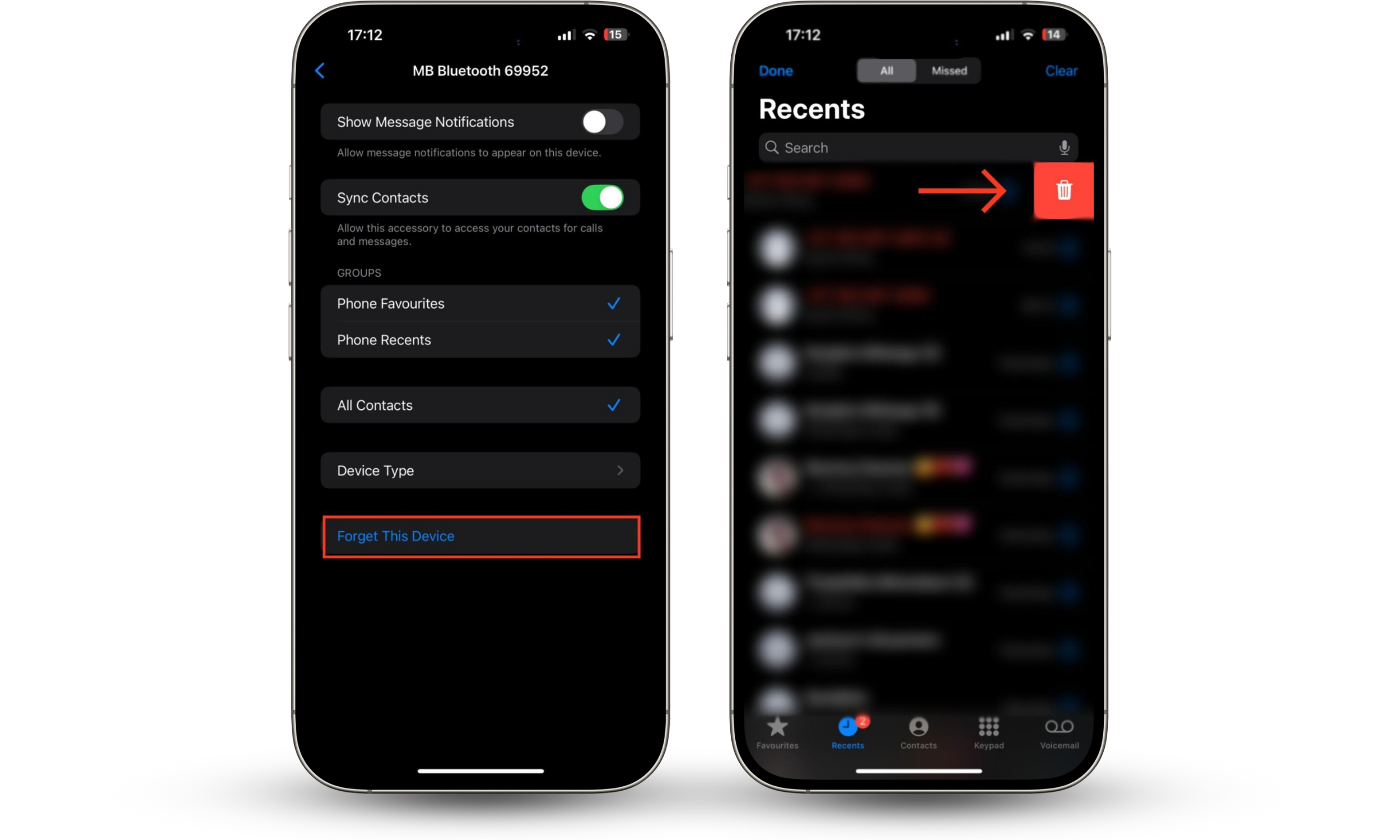
- Delete or Forget your car from your phone's Bluetooth settings.
- You can also clear your records from Recents in the Phone app.
- If selling your vehicle or returning a rental car, find the car’s Settings or System menu, choose General, and clear your data by selecting the option to Delete Personal Data or Factory Reset.
Tip
Getting rid of your call records isn't enough to protect your privacy, just like scanning your car for a tracking device with your phone. For complete protection against eavesdropping, we advise using a reliable cybersecurity program such as Clario Anti Spy. Its feature set enables you to proactively combat threats by lessening their impact.
Take the Hidden app scan, for instance. It unearths signs of spying and other hidden threats you might otherwise miss, such as parental control apps that bad actors could misuse to monitor your activity, including your call logs, text messages, and media. Clario Anti Spy is developed by Clario Tech, a leading cybersecurity firm trusted by privacy-minded Mac owners like you.
Follow the steps below to use Clario Anti Spy’s Hidden app scan:
- Download the Clario Anti Spy app on your iOS or Android device.
- Complete the installation and setup process by following the prompts.
- Find the Hidden app scan tool on the home page and tap the Scan option under it.
- Carefully review suspicious apps and permissions for any apps the Hidden app scan finds, and change the permissions that appear to be privacy risks.
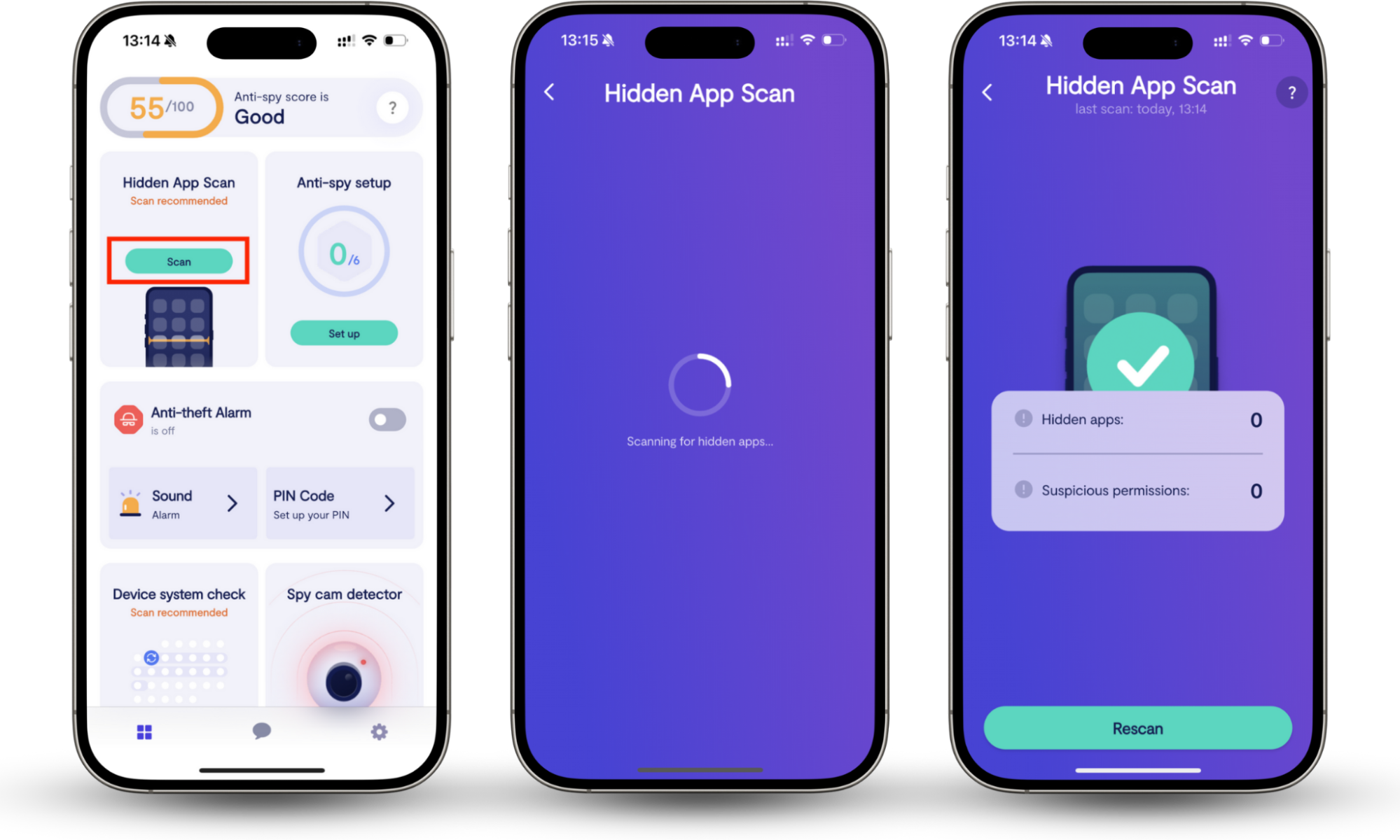
Hidden App scan is one of many smart tools available in the Clario Anti Spy app. Get the app to explore more helpful solutions, such as the ones listed below.
- Anti-spy setup reduces the chance of threats occurring by guiding you through a set of comprehensive privacy checklists for basic anti-spy protection on your iOS or Android.
- Device system check helps keep your smartphone’s operating system up to date and covered with the latest security updates and fixes by checking for signs of major security threats, such as a jailbreak. This helps keep your phone secure and reduces unauthorized access.
Methods to clear the call history on a car
Remove your call history in two areas: your phone and the vehicle system. Delete call history from your phone first. If this method doesn’t work, clear your call history via the car's infotainment system. You can also factory reset the infotainment system.
Did you know? Your wife can track your car. Let’s explore each of these methods below to at least reduce the risk of phone spying by deleting your call records from your car.
1. Delete call history from your phone first
Since your car pulls your call history from your phone, deleting call records directly from your phone usually erases them from your car, too. But this method doesn’t always remove your call records from the vehicle, as some systems keep a local copy. Be that as it may, it’s still a good first step.
To delete call logs on iOS devices:
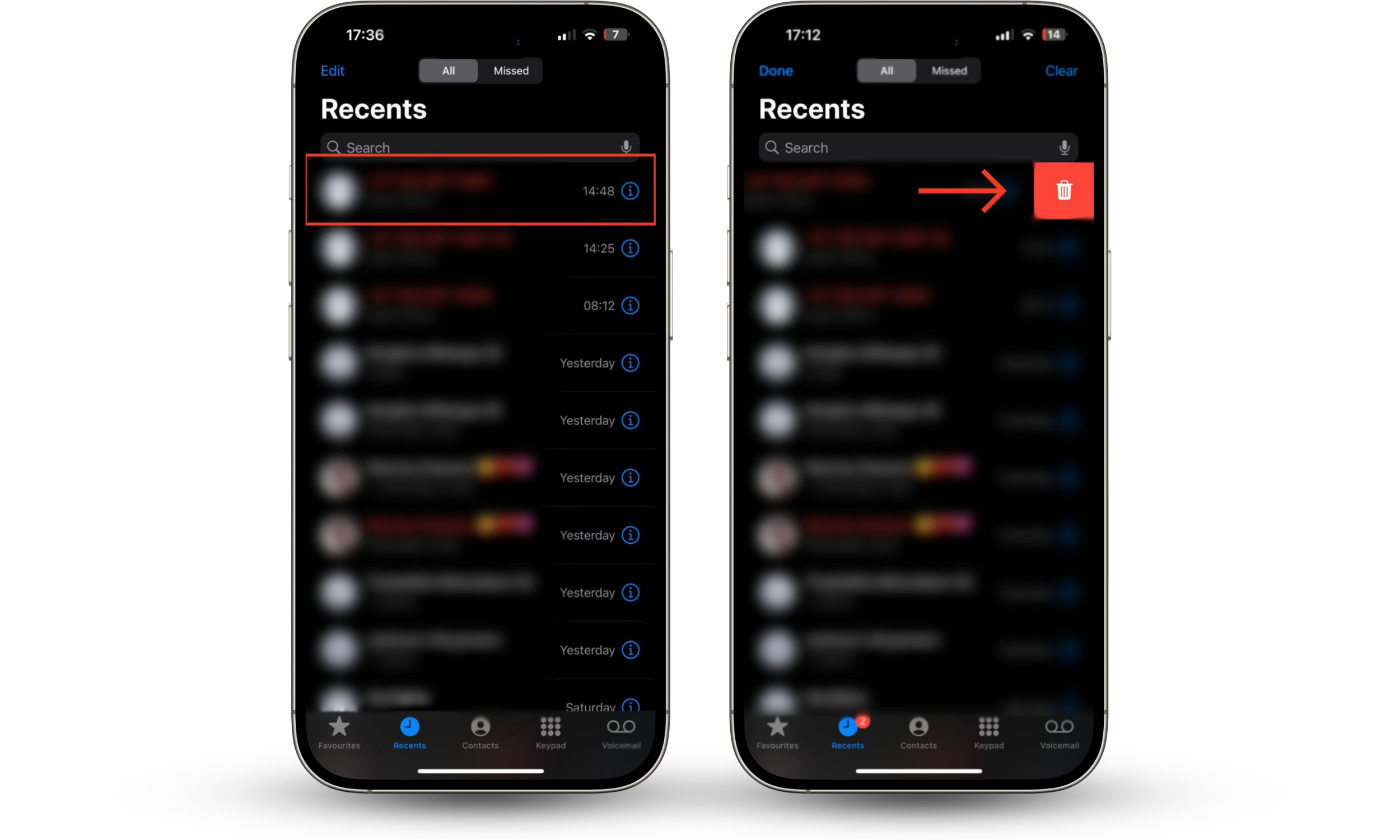
- Open the Phone app and find the call record you want to get rid of.
- Tap the Recents tab, slide the call record to the left of the screen until the red trash icon appears, and tap it.
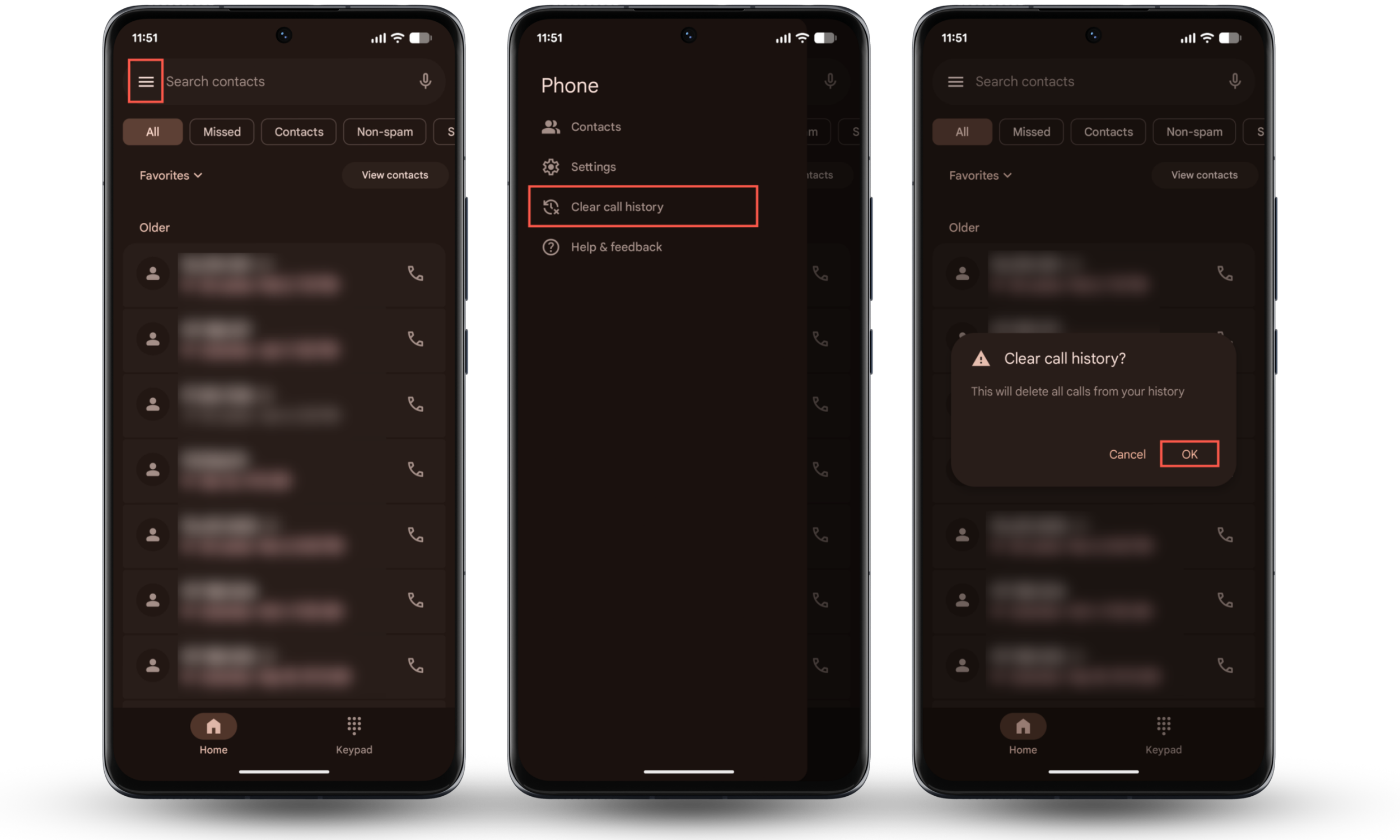
To delete all call logs on Android devices:
- Open the Phone app and tap Home.
- Tap the icon with three-tacked lines in the top left.
- Tap Clear call history > OK.
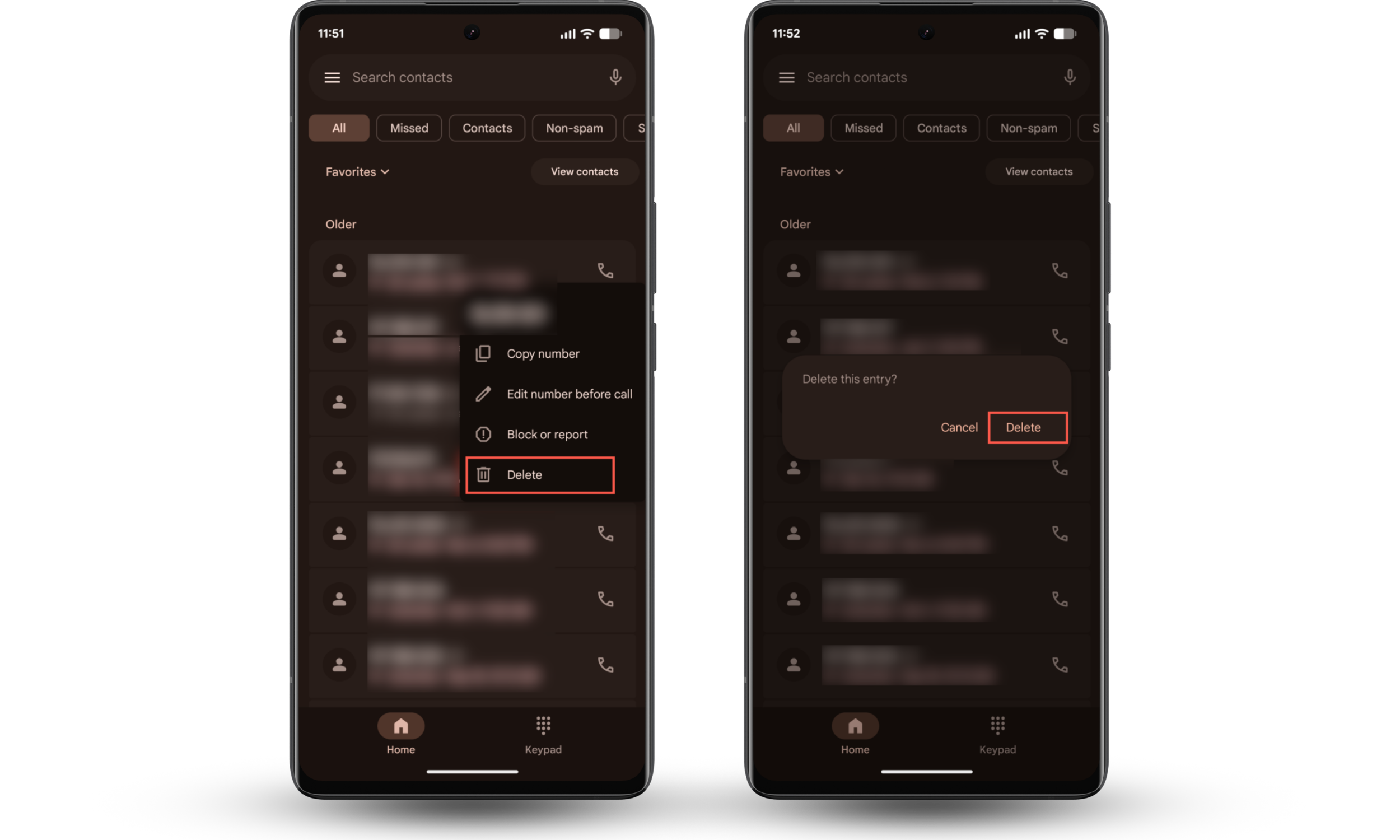
To delete specific call logs on Android phones:
- Open the Phone app and navigate to Home.
- Tap and hold the contact or phone number you want to delete and press either the Delete option or the Trash icon.
- Alternatively, tap the contact name or number (for unsaved numbers) and press Call details > Delete.
2. Clear call history via the car infotainment system
If the previous step didn’t work, you must delete your call history directly from your car. This means deleting it from the car’s infotainment system.
Note
Unpairing your phone may also erase stored data associated with your profile, depending on the car you drive or are removing your call history from. It also usually stops further synchronization. Another thing to keep in mind is that infotainment interfaces and features vary by car manufacturer and model, so the instructions below may differ slightly.
Follow these steps to disconnect your phone directly from the car:
- Look for the phone or connectivity settings in the car’s infotainment system.
- Find the list of paired devices, then select the option to forget, disconnect, or unpair your smartphone.
3. Factory reset the infotainment system
You've likely connected several phones to your car or set up different user profiles if you've had it for a time (we do this all the time). Usually, a factory reset erases user profiles, call records, stored contacts, and navigation history. To preserve your privacy, do one before returning a rented car, selling, or exchanging it. This guarantees that your call history and other private information won't be accessible to anyone who uses your vehicle.
Here’s how to factory reset your car’s infotainment system:
- Find the factory reset option under the settings, account information, or profile menus on your car’s infotainment screen.
- Can’t find this option? Just check the infotainment section of your owner’s manual.
How to delete call history when using Apple CarPlay?
Since Apple CarPlay mirrors your phone, you must delete your call history on your iPhone. Delete recent calls from your Phone app’s Recents tab. If your call history still appears on your car’s display, go to Settings > Bluetooth on your iPhone, select your car, and tap Forget This Device.
When doesn’t call history disappear from a car?
Your call history could still be visible on your car because Active Sync settings force the car to re-download logs when you connect. Since data is linked to your device profile, it remains visible until you unpair or delete your phone from your car. Additionally, network lag can prevent the car from reflecting deletions made on your phone in real time.
Erase the call history on Bluetooth in car
Though connecting your phone to your car via Bluetooth makes access more convenient and driving safer, it can pose a significant privacy risk if anyone else uses your car. Use the tips in this guide to clear your call history from your car, from deleting call records from your phone to unpairing your phone from your car via the infotainment system.
And remember: privacy extends beyond call logs. Protect your overall digital privacy and reduce the likelihood of falling victim to spying with Clario Anti Spy. Explore its range of features, including the Anti-spy setup and Hidden app scan to stay a step ahead of bad actors. Using this cybersecurity solution, you can learn how to stop someone from listening to your phone calls on Android and iOS.