Table of contents
- What is Android System WebView?
- Why it runs in the background
- Relationship to Chrome
- What does Android System WebView do?
- How to check if Android System WebView is a spy app?
- Check app permissions
- Review battery usage
- Use Clario Anti Spy’s Hidden app scan
- Can you uninstall Android System WebView?
- How to disable Android System WebView older Android versions?
- What happens if you disable Android System WebView?
- Is it safe to disable Android System WebView?
- How to clear WebView data?
- How to add WebView to an app?
- What is the difference between Android System WebView and spyware?
- Is Android System WebView spyware?
What is Android System WebView?
Android System WebView is a system component maintained by Google that allows Android apps to display web content inside the app itself instead of opening a separate browser window.
Think of it as a built-in mini-browser engine. When an app needs to show a help page, login screen, embedded article, or terms of service, it uses WebView to render that content securely within the app.
Why it runs in the background
WebView runs quietly in the background because many apps depend on it. Even if you’re not actively reading a web page, apps may call WebView processes for authentication, previews, or background tasks, making it appear “always on.”
Relationship to Chrome
On newer Android versions, Chrome WebView means Google Chrome may provide the WebView engine. In that case, Chrome updates also improve WebView security and performance.
What does Android System WebView do?
Android System WebView’s job is:
- To display web content inside apps (HTML, CSS, JavaScript)
- To keep users inside the app instead of redirecting to a browser
- To use sandboxing so web pages don’t automatically access device data
- To receive security updates via Google Play (or Chrome on newer versions)
Because it interacts with web content, users sometimes associate it with tracking or spying. However, WebView itself does not decide which data needs collecting. It depends on which app is using it and what web content it loads.
How to check if Android System WebView is a spy app?
If you’re worried about spyware, you can check if the Android System WebView you see is indeed a spy app. Check the app permissions in your Settings, review how much battery it eats up, or simply run Clario Anti Spy’s Hidden app scan.
Check app permissions
In your Settings app, you can go through the list of apps on your phone and check for any you don't recognize that are downloading. Get rid of those apps immediately. Additionally, check permissions for each app. Here’s how to do it:
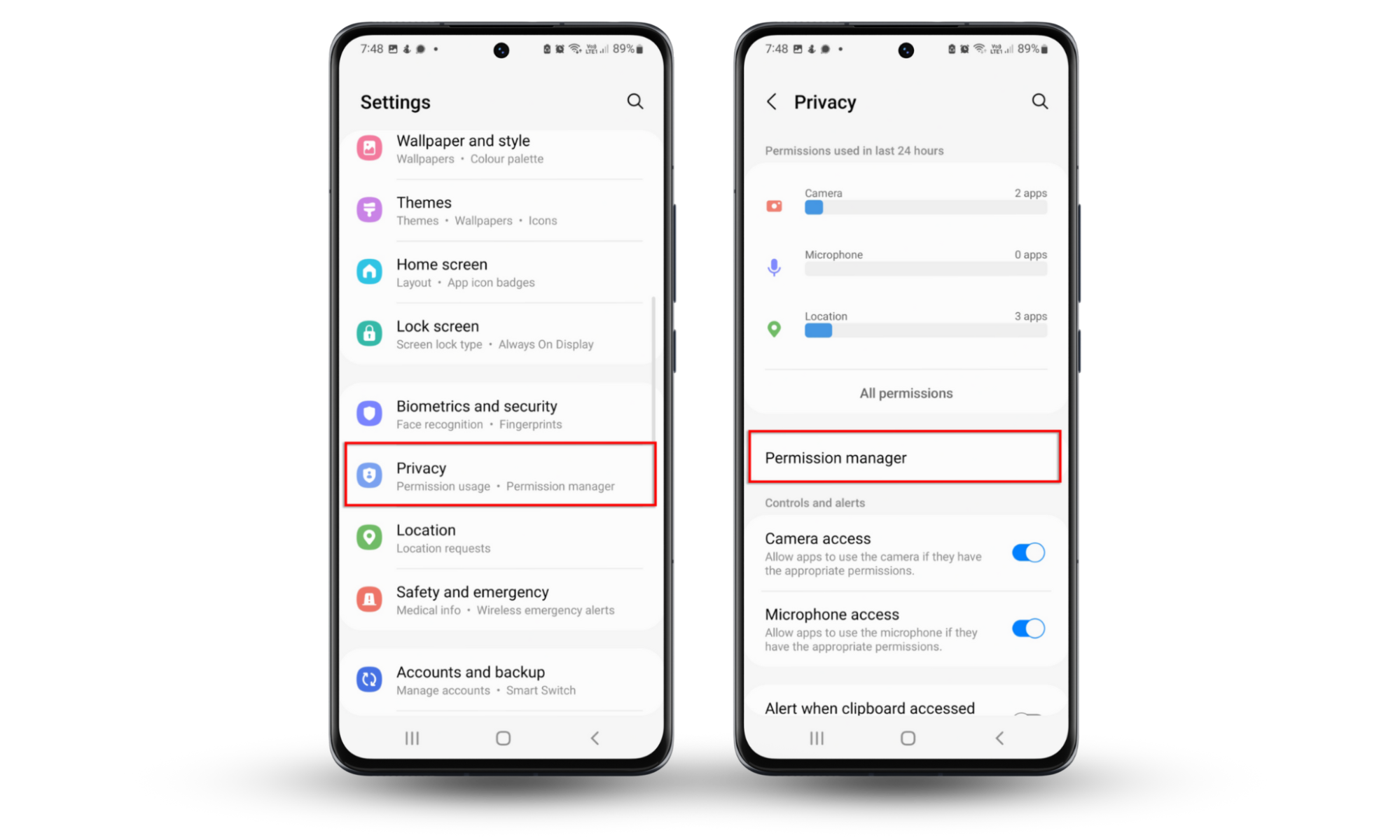
- Go to Settings > Privacy.
- Select Permission manager (or Permissions).
- Choose a sensitive permission (like Location, Microphone, or Camera).
- See which apps currently have access to it.
- If an app like Calculator has access to your microphone, this is a definite red flag, and you need to revoke access and remove the app.
Pro tip
WebView typically needs no sensitive permissions (like contacts, microphone, or location). If you see an unusual permission, that’s a red flag, but it usually points to another app, not WebView itself.
Review battery usage
If Android System WebView shows consistently high battery usage, it usually means another app is using it excessively, either due to a bug or because the app is constantly loading web content in the background.
How to check battery usage on Android:
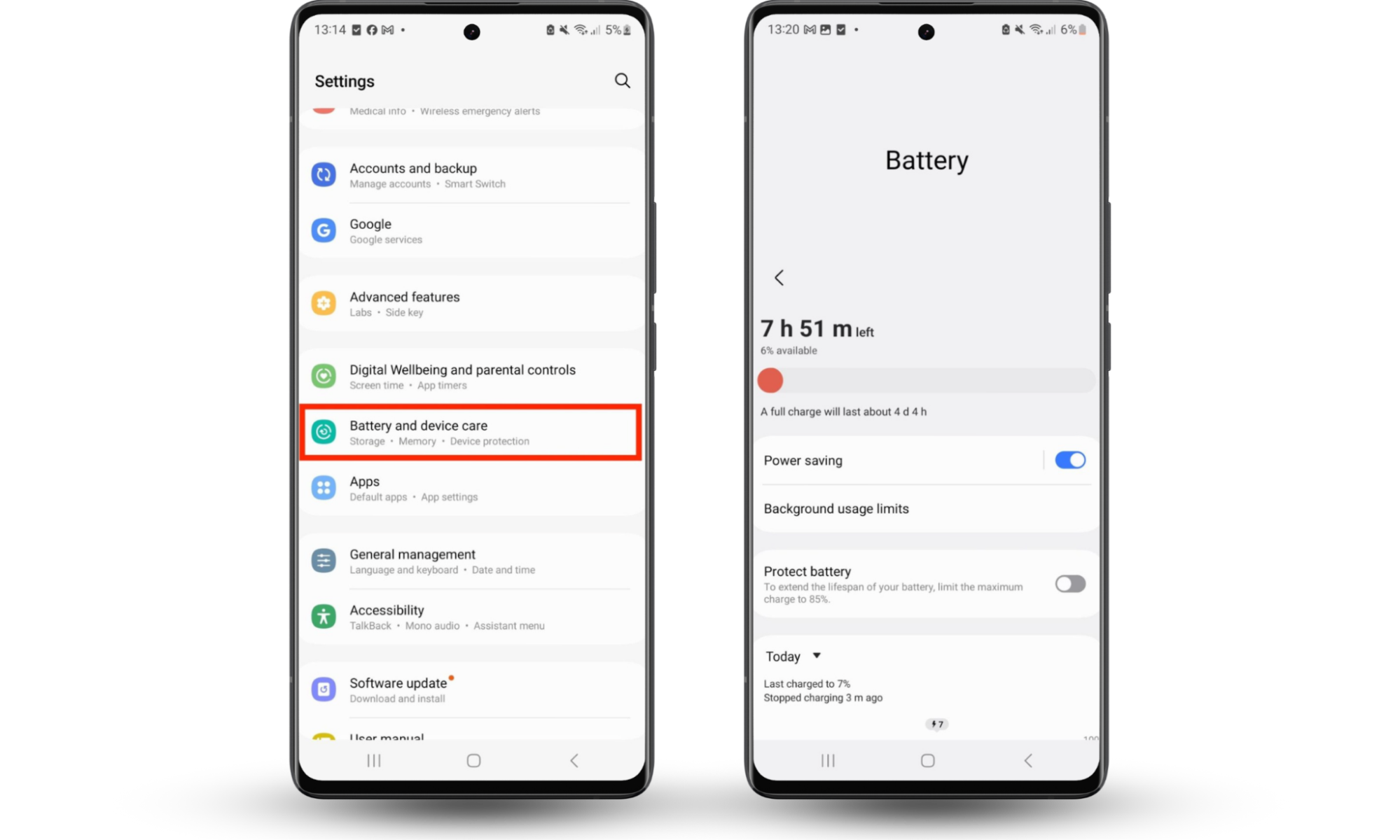
- Go to Settings > Battery and device care.
- Tap Battery. Do you see Android System WebView on the list? Is it using the battery too much?
Note that if you notice your Android is acting weird, overheating, fast battery drain, or random pop-ups, these are all signs of spyware. Read on to learn how to get rid of spyware on your Android.
Use Clario Anti Spy’s Hidden app scan
Clario Anti Spy Hidden app scan checks for hidden apps that disguise themselves as system processes, flags suspicious app permissions, and points out security threats. This may help you confirm whether the issue is with WebView or spyware running in the background.
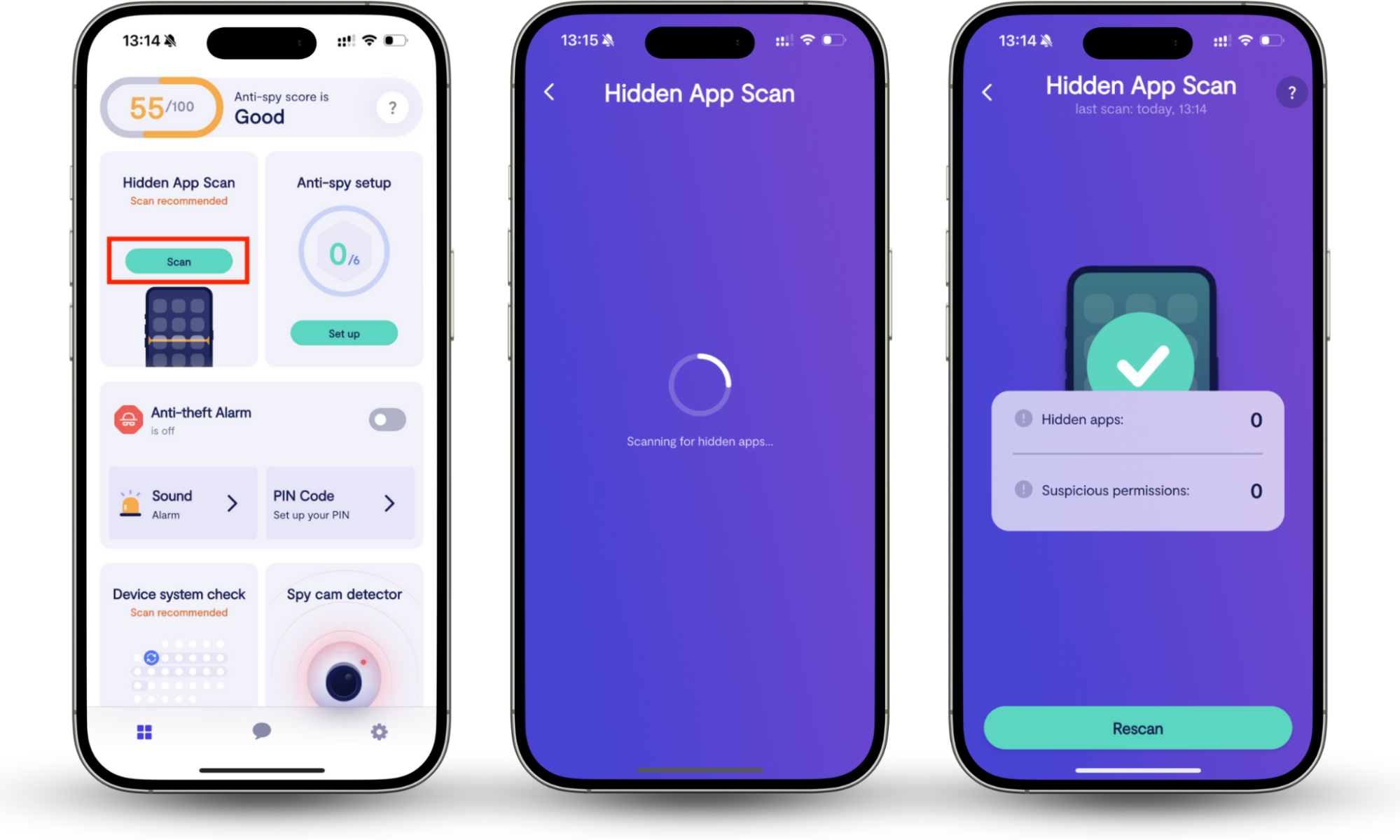
Here’s how to check for hidden apps on your Android using Clario Anti Spy:
- Download Clario Anti Spy and get a subscription.
- Under Hidden app scan, tap Scan.
- When the scan is complete, review hidden apps and suspicious permissions.
Can you uninstall Android System WebView?
No, you cannot uninstall Android System WebView, and you shouldn’t. Android System WebView is a core system component. On most devices, you can’t uninstall it without breaking app functionality. However, if you have an older Android version, like Android 7.0 Nougat, Android 8.0 Oreo, or Android 9.0 Pie, you can still disable the app.
How to disable Android System WebView older Android versions?
On Android 7.0, 8.0, or 9.0, to disable Android System WebView, you need to:
- Go to Settings > Apps > More.
- Tap Show system.
- Hit Android System WebView and then Disable.
Note
On newer Android versions, disabling may not be possible because Chrome handles WebView.
What happens if you disable Android System WebView?
If you managed to disable Android System WebView on your phone, you may experience the following issues:
- Apps that rely on embedded web pages may crash.
- Login screens or help pages may fail to load.
- Security updates may stop if Chrome isn’t handling WebView.
Is it safe to disable Android System WebView?
It is only okay to disable Android System WebView in particular cases, such as:
- Your Android version explicitly supports Chrome-based WebView.
- Google recommends it for your OS version.
Otherwise, disabling it can reduce security, not improve it.
How to clear WebView data?
Android System WebView, like other system components, can accumulate cache and app data while rendering web content inside apps. This data may include temporary files and cookies used by the apps that rely on WebView. Clearing the cache can free up storage or fix display issues, but you rarely need to do this. If you clear app data, some apps may require you to sign in again or reconfigure settings.
To clear WebView data:
- Open Settings > Apps (or Apps & notifications).
- Select See all apps.
- Find Android System WebView and tap it.
- Choose Storage & cache.
- You have options to tap Clear cache and Clear storage.
- Clear cache removes temporary data.
- Clear storage removes all site data, cookies, and login information. Note that this may require you to re-authenticate or set up apps that use WebView again.
How to add WebView to an app?
A bit of context: developers embed WebView intentionally to help your Android apps display web content inside the app instead of opening a separate browser window. WebView doesn’t just randomly appear on your phone. This explains why WebView itself isn’t spyware; it’s an explicit development choice.
What is the difference between Android System WebView and spyware?
| Android System WebView | Spyware |
| Official Google system component | Installed secretly or deceptively |
| Transparent purpose | Requests invasive permissions |
| Regular security updates | Sends data to third parties without consent |
| No independent data-collection intent | Often hides under generic or system-like names |
Spyware may use WebView to load tracking pages or exfiltrate data, but that doesn’t make WebView the spy.
Pro tip
You can easily scan your phone for spyware file names that are officially reported as malicious to find out if your phone has spyware. You will find that WebView is not associated with any of them.
Is Android System WebView spyware?
No. Android System WebView is a legitimate Google system component designed to display web content inside apps. It doesn’t spy on you by default, and uninstalling or disabling it can actually cause problems. However, if you want to check if your phone is hacked, use the codes in our guide.
For an even simpler solution, use Clario Anti Spy’s Hidden app scan and Device system check. These features will tell you whether you have apps that abuse permissions on your phone and whether there are signs of rooting. Confirm your Android’s safety with clarity and confidence.