Table of contents
- What are the different types of junkware?
- Is junkware a PUP?
- Is junkware malware?
- How do I know if I have junkware?
- How do I get rid of junkware?
- macOS
- Windows
- iOS
- Android
- How to prevent getting junkware or PUPs
- Conclusion
What are the different types of junkware?
Junkware generally refers to unnecessary or unwanted software that ends up on a device either through pre-installation or bundled downloads.
There is no objective difference between junkware and legitimate software. In general, if you have no prior knowledge of the installation of a program, it can be considered junkware. However, if you start regularly using software and find it useful, it can no longer be called “junk.”
Based on its level of threat and the way it sneaks onto your device, junkware falls into two categories:
- Pre-installed. Laptop manufacturers get paid to install junkware on your device. For instance, your Mac device has a Chess game and the Stocks app pre-installed. Do you need them? That’s a question that leads us back to junkware being a subjective term. Usually, this type of junkware carries a low threat level. It can take up space or slow down your device, but that’s about it.
- Downloaded. When you download a free app or software, what you’re not told is that you’re paying for it another way. This “free” app or software may be bundled with other programs that can install themselves on your computer without your knowledge. And in this case, there’s no guarantee that these bundled programs aren’t malicious. That’s why downloaded junkware is potentially more dangerous than pre-installed programs.
To better understand how junkware appears in real life, here are a few typical examples:
- Trial software that constantly prompts you to upgrade to a paid version
- Browser toolbars or extensions installed without clear permission
- Pre-installed manufacturer apps that you never use
- Ad-supported programs that display frequent pop-ups or notifications
As you can see, junkware can sometimes pose a real threat to your device. But should we be calling it a PUP (potentially unwanted program) or even malware? Let’s find out.
Important to know
Junkware is not always harmful, but its impact depends on how it behaves. Some programs may only take up storage, while others can affect performance or expose you to additional risks if they request excessive permissions.
Is junkware a PUP?
No, it isn’t. Junkware and potentially unwanted programs (PUPs) are often confused, but they are not the same. Junkware typically refers to unnecessary or low-value software that may slow down your device, while PUPs are programs that are installed without clear consent and may display intrusive behavior such as ads, tracking, or system changes.
Though a potentially unwanted program sneaks onto your device packaged with other software just like junkware, we can’t use the terms “junkware” and “PUP” interchangeably. There are slight differences between the two.
First, legitimate device manufacturers cannot pre-install PUPs. A PUP is always downloaded. Second, the level of threat to your device makes the two different. More often than not, PUPs are malicious. For example, they can bombard your device with ads or even spy on your activity. Meanwhile, most junkware is useless, and that’s it.
Key differences between junkware and PUPs:
| Aspect | Junkware | Potentially Unwanted Programs (PUPs) |
| Installation method | Can be pre-installed by manufacturers or bundled with software | Installed through downloads, often via deceptive prompts or bundled installers |
| Intent | Typically unnecessary but not intentionally harmful | Often designed to generate revenue, display ads, or collect data |
| Risk level | Usually low-risk and mainly affects performance or storage | Can pose privacy and security risks depending on behavior |
| Examples | Unused pre-installed apps, trial software | Adware, tracking-enabled apps, browser hijackers |
Important to know
Some software may start as harmless junkware but later behave like a PUP after updates or permission changes. This is why it’s important to review app behavior regularly, not just installation sources.
Is junkware malware?
As we now know, the majority of junkware is not malware. Why is it so? Well, malware always has a hidden agenda, such as tracking your online activities and accessing your private information. Instead, junkware is just the programs pre-installed or accidentally installed on your device. Usually, the most damage they can do is bloat your system and take up space in your device’s internal memory or hard drive.
The difference between junkware and malware is best understood by comparing their intent and behavior:
| Aspect | Junkware | Malware |
| Intent | Not designed to cause harm; mainly unnecessary or low-value software | Specifically designed to harm, exploit, or gain unauthorized access |
| Behavior | May slow down your device or take up storage | Can steal data, monitor activity, or damage systems |
| User impact | Inconvenience, reduced performance, clutter | Security breaches, privacy violations, system compromise |
| Examples | Pre-installed apps, trial software, unused tools | Viruses, spyware, ransomware, trojans |
Important to know
Some junkware can behave like malware if it collects data, shows aggressive ads, or installs additional software without your permission. This is often how adware or spyware begins, making regular checks of installed apps essential.
How do I know if I have junkware?
Junkware may not be easy to spot. Junkware can be identified by changes in your device’s performance, storage usage, and overall behavior. It often appears as unfamiliar apps, unexpected interface changes, or persistent notifications. Because junkware doesn’t always hide itself, recognizing these signs early can help you remove unnecessary programs before they affect your device’s speed or security.
Common signs of junkware can be grouped into performance, storage, and interface-related issues:
- Your device takes longer to start.
- Junkware reduces your device's internal memory, so you often run out of space to add new programs.
- Your device seems cluttered, and there are a lot of programs you don’t regularly use.
- You see a new toolbar on your browser that keeps reminding you to upgrade your free trial of an unknown program.
How to confirm if an app is junkware:
- Check when the app was installed and whether you remember downloading it
- Review app permissions, especially access to data, location, or system settings
- Look at how often you use the app and whether it provides real value
- Search the app name online to see if it’s commonly flagged as unwanted
However, if you have any concerns, an anti-spyware solution like Clario Anti Spy can help. It's designed for iOS and Android to quickly secure your device from spying, stalking, and tracking.
For instance, a Device system check can beef up the system software on your device and prevent malicious apps from taking over. On Android, you can also run a Spyware scan to check for suspicious apps masquerading as junkware.
Here's how to run a Spyware scan with Clario Anti Spy:
- Download Clario Anti Spy and subscribe to create an account.
- Tap Scan under Spyware scan.
- Wait for the scan to complete and follow the on-screen instructions to deal with any malicious apps.
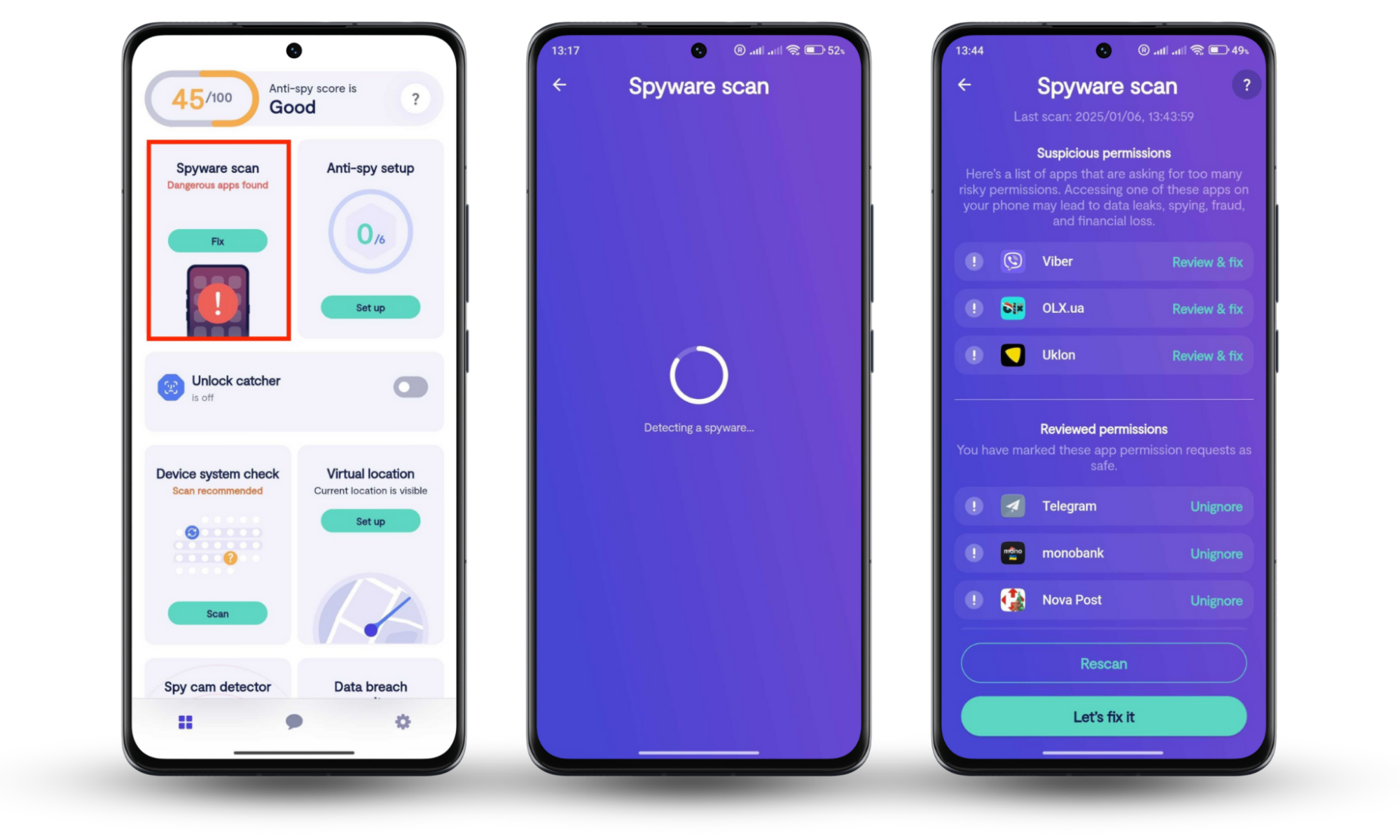
Clario Anti Spy comes with comprehensive live tech support for all your concerns. Tap the Messages icon to connect with a security expert 24/7.
How do I get rid of junkware?
Getting rid of junkware involves identifying unnecessary apps, removing them safely, and ensuring no leftover files or permissions remain. Unlike malware, junkware is usually visible and can be uninstalled through standard system settings. However, taking a structured approach helps ensure your device is fully cleaned and running efficiently.
Now, suppose you’ve noticed that your computer or phone isn’t that fast, and, for some reason, there’s no free space to install an app or game you want. What do you do then?
You must check your device's list of applications for signs of junkware and get rid of them quickly. Unlike viruses, junkware isn't hidden, and removal is usually straightforward.
General steps to remove junkware:
- Review your installed apps and identify programs you don’t recognize or use
- Check when these apps were installed and how they got onto your device
- Uninstall unwanted apps using your system settings
- Restart your device to ensure changes take effect
- Recheck storage and performance to confirm improvement
Here's how to check and delete apps on your computer or phone:
macOS
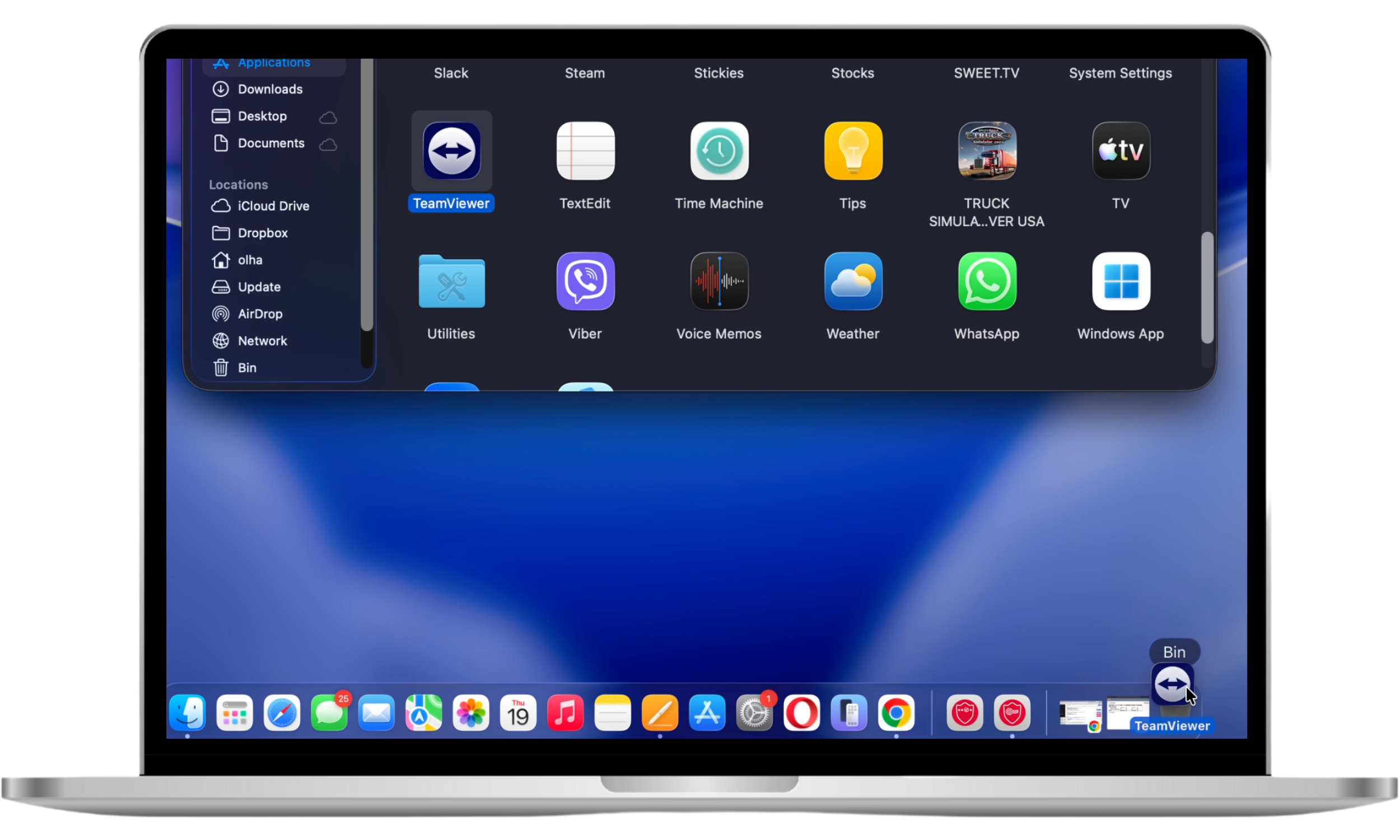
On macOS, you can remove junkware by opening the Applications folder and deleting any apps you don’t recognize or no longer need. Follow these steps:
- Open a Finder window.
- Select Applications on the sidebar.
- Drag and drop any unwanted apps into the Trash.
Windows
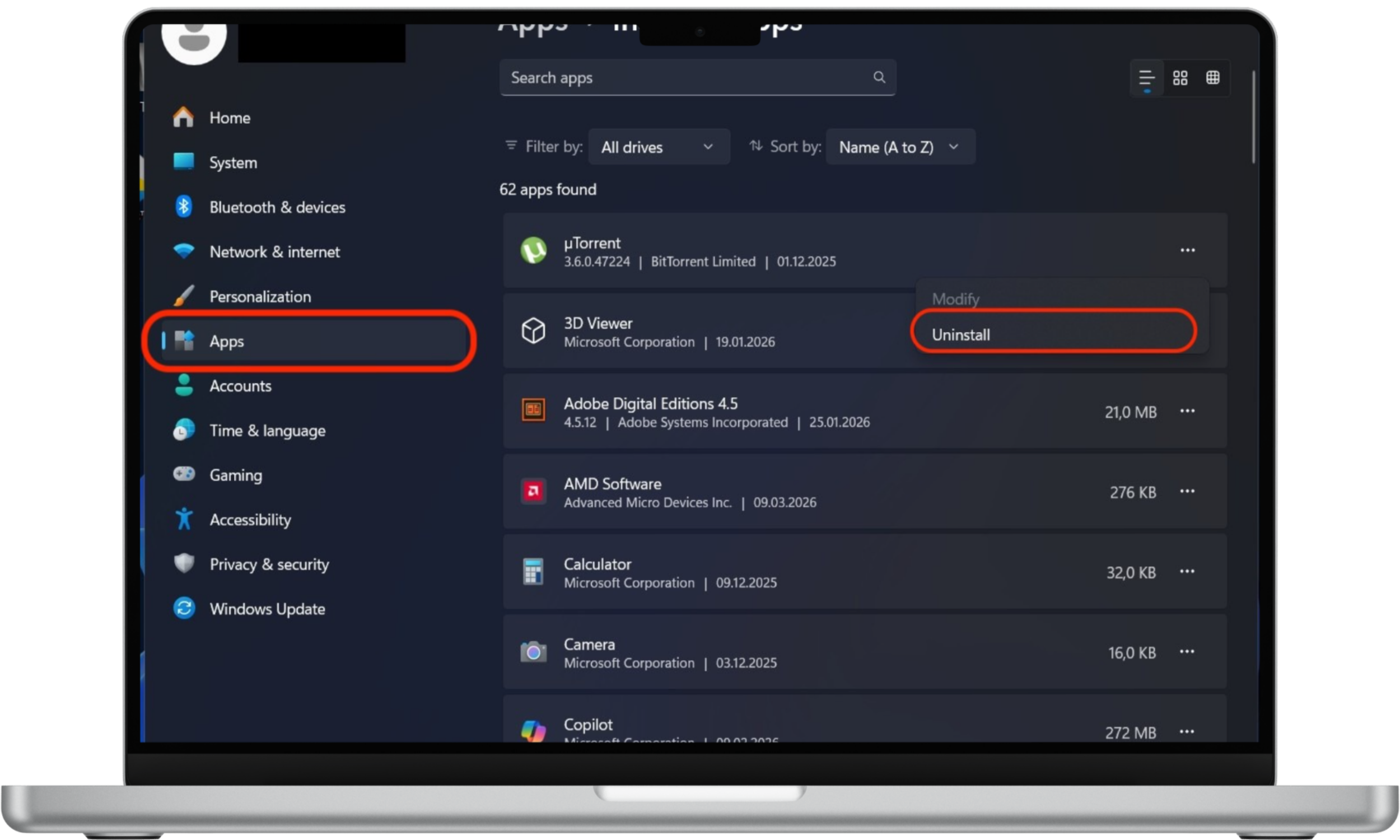
On Windows, junkware can be removed through the Installed apps section, where you can review and uninstall unfamiliar or unnecessary programs. Here is how to do it:
- Right-click the Start button
- Select Installed apps.
- Go through the list of apps that show up and select Uninstall next to any unwanted apps you want to delete.
iOS
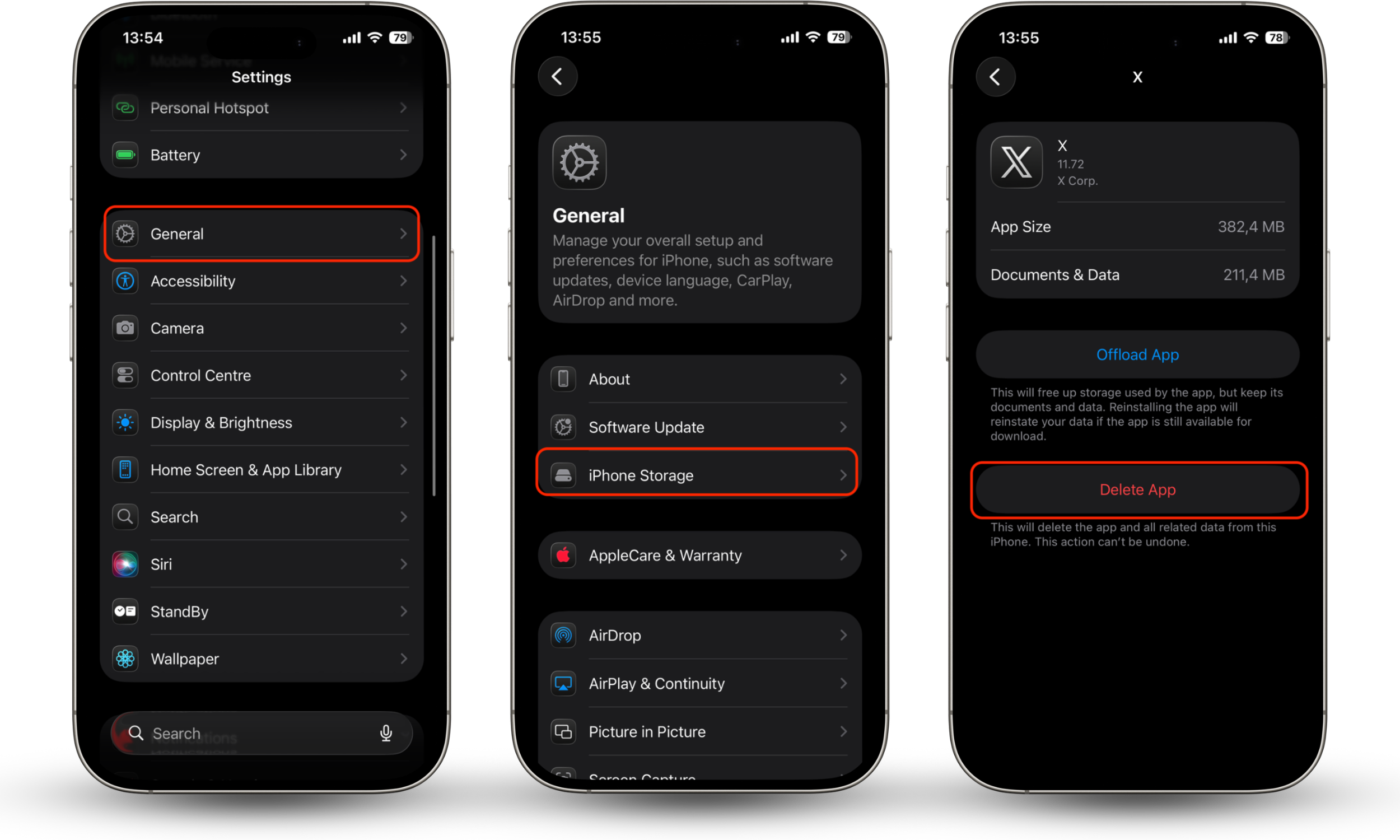
On iOS, you can identify and remove junkware by checking iPhone Storage and deleting apps you don’t use or don’t remember installing. Go through the steps to delete apps on your iPhone:
- Open the Settings app.
- Go to General > iPhone Storage.
- Pick the app you want to delete, and tap Delete App.
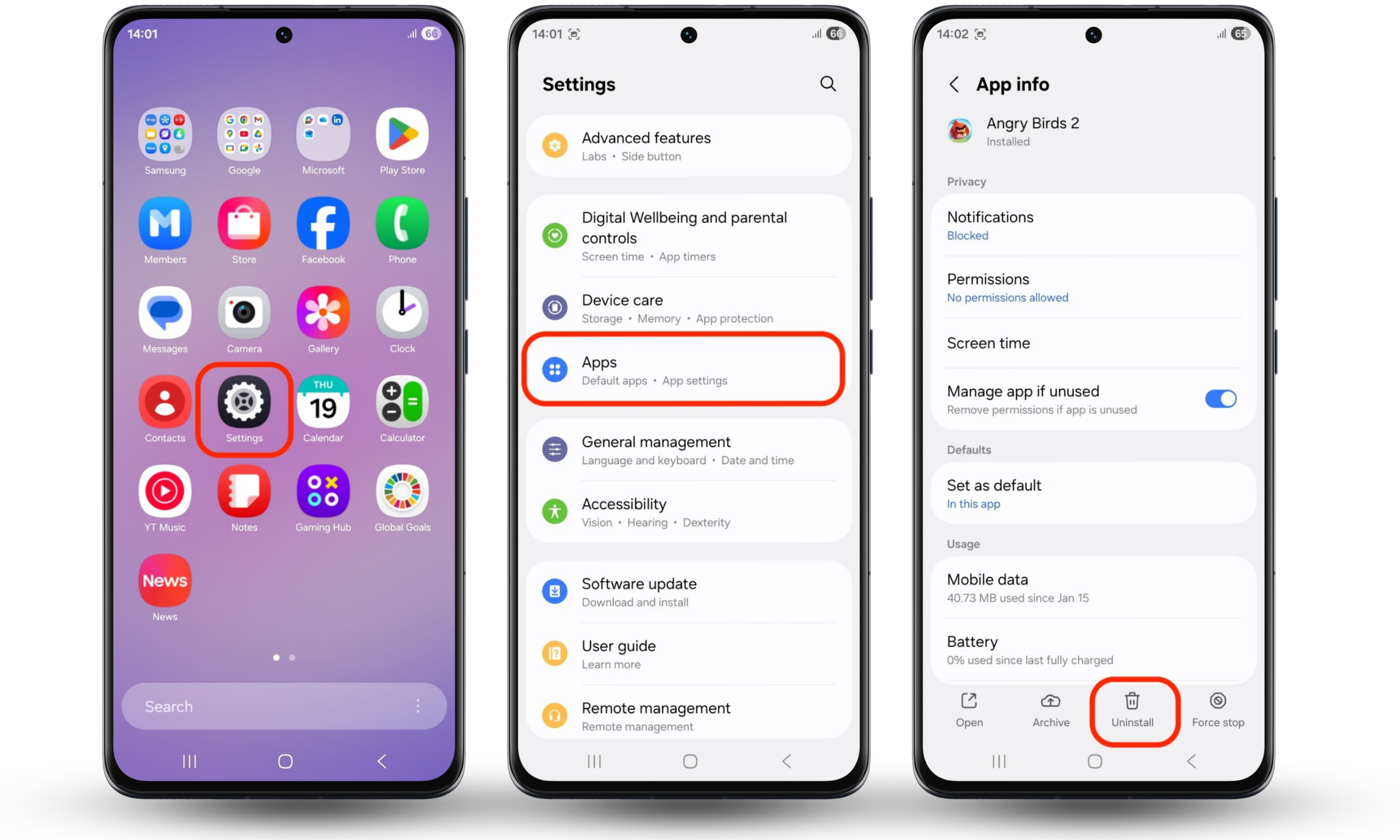
Android
On Android, junkware can be uninstalled through the Apps section in settings by selecting and removing apps that appear unfamiliar or unnecessary. Follow these steps:
- Open the Settings app.
- Go to Apps > All Apps.
- Tap an app you want to delete, and choose Uninstall.
Pro tip
If an app cannot be removed easily or keeps reinstalling itself, it may no longer be simple junkware and could require deeper security checks.
How to prevent getting junkware or PUPs
Preventing junkware and PUPs mainly comes down to controlling how software is installed and ensuring your device only runs trusted applications. Most unwanted programs are introduced through bundled downloads or misleading prompts, so being cautious with installation choices and keeping your system updated significantly reduces the risk.
If you want to avoid junkware invading your devices, here are a few pointers:
- Only buy your devices (laptops, desktops, phones) from trusted stores. Sometimes, store attendants may ask you if you want some pre-installed programs. Always remember you have the right to politely decline them.
- Be careful where you download or upgrade your software. Those free downloadable items are usually bundled with junkware, which is potentially harmful to your device.
- Always update your operating system. While junkware is usually harmless, you never know what threats it can bring. The most up-to-date version of your operating system ensures your device is better protected.
- Invest in security software. Security software is the best way to protect yourself against PUPs or viruses. For instance, Clario Anti Spy can keep mobile devices safe.
- Always choose custom or advanced installation options instead of default settings to avoid bundled software
- Carefully review all checkboxes during installation, especially those pre-selected by default
- Avoid downloading apps from unofficial websites or third-party stores
- Regularly review installed apps and remove anything you don’t recognize
Important to know
Even trusted sources can sometimes include bundled software or optional add-ons. That’s why reviewing installation steps and app permissions is just as important as choosing where you download from.
Conclusion
As you can see, junkware is not as scary as it seems at first sight. For the most part, these are harmless programs on your device that you simply never use. On the other hand, in some cases, junkware can be malicious and do more damage than just stealing memory space. To be sure that your devices are safe and sound, don’t forget to do regular checkups and delete all unwanted software. Clario Anti Spy features like Device system check and Spyware scan can also protect your phone from spyware and other harmful apps.