Table of contents
- What does iCloud Keychain do?
- Just how secure is your information once it’s stored in Keychain?
- Should I be using iCloud Keychain?
- 1. Its weak password detection is, well, weak
- 2. Keychain doesn’t support two-factor authentication
- 3. Keychain won’t send you reminders to update your passwords
- 4. You can’t sync your passwords to any devices outside the Apple ecosystem
- 5. Keychain won’t alert you to potential security threats to your online accounts
- 6. It takes up iCloud storage
- How to use iCloud Keychain
- How to enable iCloud Keychain
- How to access your iCloud passwords
- How to add your credit card information to Keychain
- How to generate a password using iCloud Keychain
- How to approve iCloud Keychain from another device
- Remember, your Keychain is only as secure as your device…
Be honest—unless you have a photographic memory, it’s hard to remember all of the passwords you use to secure your online accounts without a little help.
Especially if you’re in the habit of creating strong passwords (which you absolutely should be). So, what most people do is reuse the same, easy-to-remember passwords across multiple websites and apps.
While this might feel like the path of least resistance, it’s exactly how you put your online security most at risk - a password breach with one company then means your accounts on all those others sites are now wide open to attack from cybercriminals. Yikes.
Fortunately, the iCloud Keychain solves this problem—at least on Apple devices.
When you enter a new password in Safari, you’ve probably seen iCloud Keychain pop up and ask if you’d like it to save it for use across all your devices. As Apple’s inbuilt password manager for macOS and iOS, Keychain is designed to make everyday online tasks, from browsing Safari and connecting to Wi-Fi to making online purchases, far easier.
Keychain stores and automatically fills in passwords and other secure information for you as you browse Safari and use third-party apps. It can also sync and keep your passwords updated across all your devices via iCloud. Keychain makes it a snap for you to create and retrieve complex passwords - meaning no more jotting down passwords in the back of your notebook or on a Post-it note on your desk.
But is Keychain actually a safe place to store your passwords and financial information? Let's take a look at how Keychain works and what security measures it uses.
A password manager is a tool that securely stores usernames, passwords, and other sensitive login data, then autofills it when needed. iCloud Keychain is Apple’s built-in password manager for iPhone, iPad, and Mac, designed to help users create stronger passwords, reduce password reuse, and sign in more securely across their devices.
What does iCloud Keychain do?
iCloud Keychain is Apple’s built-in password manager that stores passwords, payment details, Wi-Fi credentials, and other sensitive information, then syncs that data across approved Apple devices. Its main purpose is to help users create, save, manage, and autofill credentials securely without reusing weak passwords or storing them manually.
Using Keychain helps you save your login details for pretty much any website or app, then easily access them whenever you need to sign back in.
This includes:
- Usernames and passwords for Safari websites and third-party apps
- Credit card details
- Wi-Fi login details
In practice, Keychain works by detecting login fields in Safari and supported apps, offering to save credentials, encrypting that information, and making it available on your other trusted Apple devices through iCloud sync.
How iCloud Keychain works in practice:
- When you create or enter login credentials, Safari or a supported app prompts you to save them in Keychain.
- The credentials are encrypted on your device before being stored.
- Encrypted data syncs securely across your Apple devices through iCloud.
- When you return to the website or app, Keychain autofills your credentials after device authentication.
This reduces the need to remember complex passwords while also lowering the risk of reusing the same password across multiple accounts.
With Keychain, all your credentials are encrypted and stored on iCloud, meaning you can easily sync them across all your Apple devices.
But that’s not all Keychain can do. You can also manage all passwords on your Keychain, including editing passwords and clearing login credentials for accounts once they’re no longer needed.
Keychain can also auto-generate complex passwords for you (that is, a password that’s very difficult for hackers to crack) on any new website or app.
Finally, it has one pretty nifty feature - Secure Notes, which you can use to save snippets of text in your Keychain along with passwords and credit card information. Secure Notes is a great place to keep your home alarm code, safe combination, Social Security number, driver's license details, embarrassing poetry you wrote during your angsty teenage years... the list is endless.
Important to know
iCloud Keychain works best within Apple’s ecosystem and is most seamless in Safari and Apple device workflows. While some third-party apps support Keychain autofill, the experience may vary depending on the browser, app, and platform you use.
Just how secure is your information once it’s stored in Keychain?
iCloud Keychain protects stored passwords and sensitive information using strong encryption, device authentication, and end-to-end encrypted syncing. Credentials are encrypted on the device before being uploaded to iCloud and can only be decrypted on trusted Apple devices that you approve. This layered approach helps prevent unauthorized access even if cloud data were intercepted.
Do you think there’s a chance your iCloud Keychain can be hacked? It might reassure you to know Apple provides several layers of security to protect the data stored on your Keychain.
For starters, passwords and credit card numbers are encrypted with 256-bit AES (Advanced Encryption Standard), the industry gold standard for data security.
AES-256 is a widely used encryption standard trusted across industries to protect sensitive information in storage and transit. Including that detail helps readers understand that Keychain does not rely on casual or proprietary-only protection, but on a well-established encryption method recognized across modern security systems.
To better understand how this protection works, it helps to look at the different layers involved:
- Device-level encryption: Password data is encrypted on your device before it is stored or synced.
- Secure authentication: Access to stored credentials requires your device passcode, Face ID, or Touch ID.
- End-to-end encrypted syncing: When credentials sync through iCloud, the encrypted data can only be decrypted on trusted devices connected to your Apple ID.
- Trusted device approval: New devices must be verified before they can access your Keychain data.
Keychain also uses end-to-end encryption to protect your information. This means any stored data is protected with a unique device key and access code and can only ever be decrypted on your device. In essence, this means you’re the only person who can conceivably access the data stored on your Keychain.
End-to-end encryption is about as secure as it gets, folks; even if Apple themselves went rogue and tried to access your data, they’d still need the unique device key - a key held by you and you alone.
Security note
Strong encryption does not eliminate every risk. If someone gains access to your unlocked device, your Apple ID account, or a trusted device connected to your account, the security of your stored credentials can be affected even if the encryption itself remains strong.
Should I be using iCloud Keychain?
Yes, using iCloud Keychain is generally a safe and convenient way to manage passwords if you primarily use Apple devices. It helps users generate strong passwords, securely store login credentials, and autofill them across trusted devices. However, some users prefer dedicated password managers because they offer broader platform support and more advanced security monitoring features.
1. Its weak password detection is, well, weak
Keychain only registers a password as potentially weak if it’s been used on another website or app. But let’s be real here, there are many forms of weak passwords outside just duplicates.
If you’re still using passwords that include names (your own, your pet or someone close to you), a birthdate or a combination of these, you’re basically every hacker’s dream. But Keychain won’t alert you to this.
Other paid password managers conduct regular security audits and will tip you off to any questionable password hygiene on your end, such as weak, compromised or repeated passwords.
2. Keychain doesn’t support two-factor authentication
That means you’re left with no recourse but to use more insecure methods of authentication, like SMS or email. However, this is something Apple is said to be rolling out for iOS 14 so stay tuned to the Clario Anti Spy blog for updates.
3. Keychain won’t send you reminders to update your passwords
Other password managers will automatically flag passwords as “old” and let you know when it’s time to update them.
4. You can’t sync your passwords to any devices outside the Apple ecosystem
Apple users tend to be a loyal bunch, so this might not apply to you. But if it does, other password managers offer cross-platform functionality outside of MacOS and iOS and might be worth investigating.
5. Keychain won’t alert you to potential security threats to your online accounts
Other password managers make it easier to limit the damage wrought by your passwords getting leaked in a data breach.
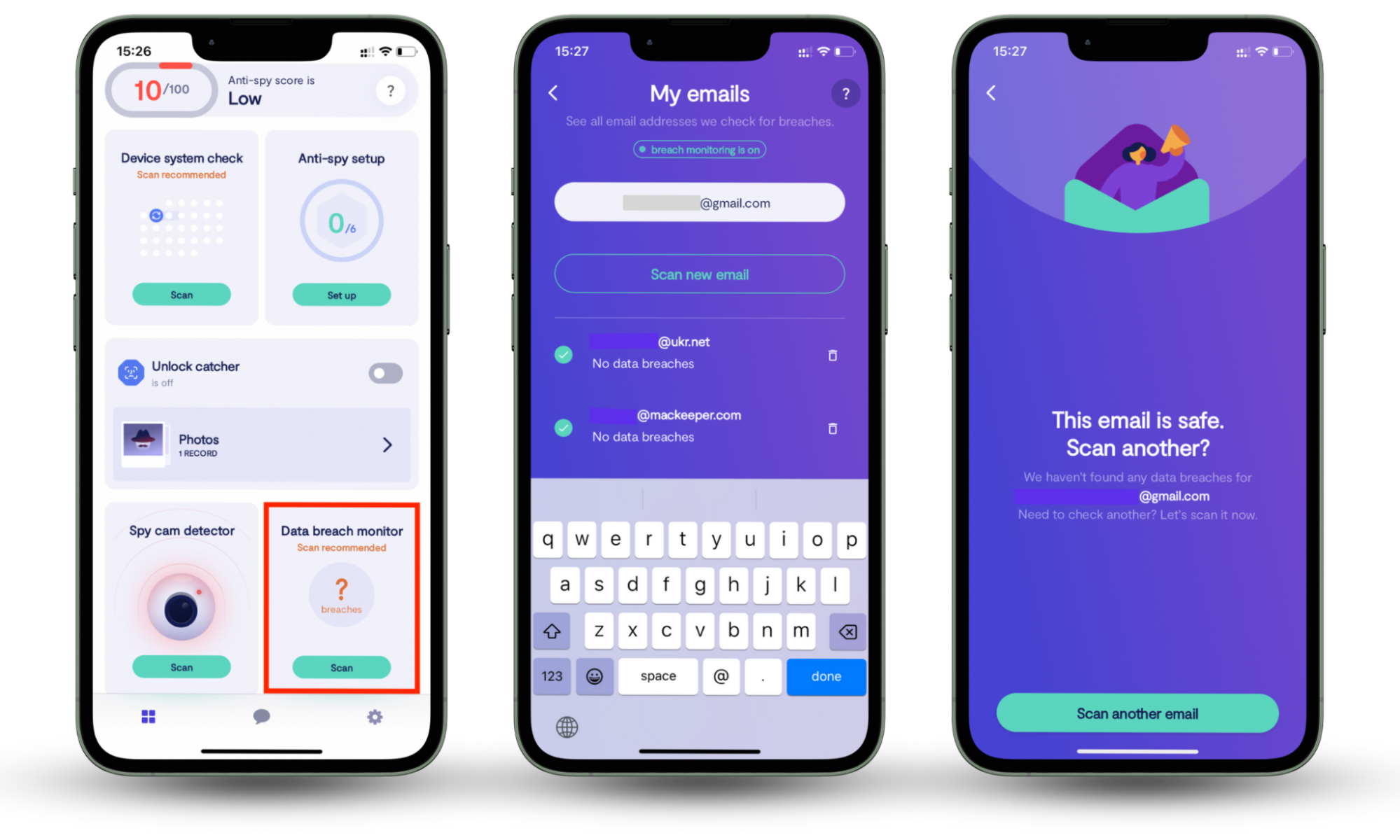
For example, at Clario Anti Spy, we alert our users as soon as their login credentials are compromised and advise them on whether to update their passwords across their accounts.
This is called the Data Breach Monitor feature, and here’s how you can enable it on your Clario Anti Spy app:
- Open Clario Anti Spy on your phone.
- Tap Data breach monitor from the dashboard.
- Enter the email you want to check for breaches.
- Tap Scan and wait for the results.
- If any breaches are found, follow the recommendations to secure your accounts.
6. It takes up iCloud storage
While Keychain is ostensibly free, the additional data stored on it can eat into the free 5GB of iCloud storage Apple provides.
A relatively minor gripe in the grand scheme of things (you can purchase iCloud storage for as little as $1/month) but one worth mentioning nonetheless.
In other words, the decision comes down to convenience versus advanced control. Keychain is easy to use and well integrated into Apple devices, but dedicated password managers often provide broader visibility into password health, stronger sharing features, more flexible platform support, and more proactive security monitoring.
Important to know
Password manager features can change over time as Apple updates iOS, iPadOS, and macOS. When comparing Keychain to third-party tools, it helps to evaluate current platform support, built-in security alerts, and account recovery options based on the version you are using.
How to use iCloud Keychain
Using iCloud Keychain involves enabling the feature on your Apple ID, approving trusted devices, and then using it to save, access, and autofill passwords, payment data, and other credentials. The steps vary slightly across Mac, iPhone, and iPad, but the overall process is designed to make password management easier while keeping access tied to your devices and identity checks.
This section covers the core tasks most users look for when setting up and managing Keychain:
- enabling iCloud Keychain
- accessing saved passwords
- adding credit card details
- generating strong passwords
- approving Keychain on another device
When it comes to setting up iCloud Keychain on your device, your first port of call will be to set up two-step verification. If you’ve already done this, then skip ahead to the next step.
How to enable iCloud Keychain
Before turning on iCloud Keychain, it is important to make sure your Apple ID uses modern account protection and that your devices are signed into the same Apple account. This reduces setup issues and helps ensure your encrypted password data syncs only between devices you trust.
Step 1. Enable two-factor authentication for your Apple ID
Before turning on iCloud Keychain, make sure your Apple ID is protected with two-factor authentication. This extra layer of security helps ensure that only trusted devices can access your stored passwords.
- Go to your Apple ID account settings.
- Navigate to Password and Security.
- Turn on Two-Factor Authentication if it isn’t already enabled.
- Follow the on-screen instructions to finish the setup.
Once two-factor authentication is active, you can enable iCloud Keychain on your devices.
Step 2. Turn on iCloud Keychain on a Mac
- Open System Settings (or System Preferences on older macOS versions).
- Click your Apple ID at the top of the sidebar.
- Select iCloud.
- Find Keychain in the list of iCloud features.
- Toggle iCloud Keychain on.
Your Mac may ask you to confirm your identity using your Apple ID password or by approving the request from another trusted device.
Step 3. Turn on iCloud Keychain on iPhone or iPad
- Open Settings on your iPhone or iPad.
- Tap your Apple ID banner at the top of the screen.
- Tap iCloud.
- Select Keychain.
- Toggle iCloud Keychain on.
You may be asked to verify your Apple ID password or approve the device using another trusted Apple device connected to your account.
Once enabled, iCloud Keychain will begin securely syncing your saved passwords, passkeys, and other credentials across your Apple devices.
How to access your iCloud passwords
On your Mac, iPhone and iPad, Keychain will automatically make an appearance on any login screen, giving you seamless access to the relevant username and password.
If you’re looking to access all your passwords on Keychain, though, here’s exactly how to go about it.
On Mac:
- Launch Safari on your Mac, either directly from your Dock or within the Applications folder.
- Click Safari in the menu bar displayed along the top of your screen.
- Click Preferences.
- Look for Passwords.
On iPhone/iPad:
- Open Settings.
- Scroll to Passwords & Accounts.
- Tap Website & App Passwords.
- Verify your identity using either Face or Touch ID.
How to add your credit card information to Keychain
On Mac:
- Launch Safari.
- Click Safari.
- Click Preferences.
- Select AutoFill.
- Click on the Edit button next to Credit Cards.
- Click Add.
- Manually type in your credit card details.
- Click Done.
On iPhone/iPad:
- Open Settings.
- Tap Safari.
- Tap AutoFill.
- Tap Saved Credit Cards.
- Use Touch or Face ID if prompted to view your credit cards.
- Tap Add Credit Card.
- Manually enter your credit card information (or use your device’s camera to capture your details).
- Tap Done.
How to generate a password using iCloud Keychain
On Mac:
- Launch Safari.
- Go to the website you’re looking to create a login for.
- Select the password field on the account set-up form.
- Click on the suggested password that iCloud Keychain automatically generates.
On iPhone/iPad:
- Launch Safari.
- Go to the website you’re looking to create a login for.
- Select the password field on the account set-up form.
- Tap Suggest Password displayed above your keyboard.
- At this juncture, Keychain will automatically generate a secure password for you to use.
- Tap Use Suggested Password.
How to approve iCloud Keychain from another device
This one’s easy. When you set up your Keychain on a new device, a notification will automatically be displayed on any Apple devices you own that already have Keychain enabled.
For example, let’s say you want to set up Keychain on your iPhone. On your Mac, you'll see a big Apple ID sign-in alert pop up in the upper-right-hand corner of your screen. All you have to do is click Continue and verify it’s you by entering your Apple ID password and clicking Allow.
Remember, your Keychain is only as secure as your device…
iCloud Keychain makes managing passwords across Apple devices far easier by helping you generate, store, and autofill complex credentials. With encryption, device-based authentication, and secure syncing through iCloud, it offers a convenient way to reduce password reuse and strengthen everyday account security.
However, even the most secure password manager cannot prevent every risk on its own. Password exposure from data breaches, compromised accounts, or reused credentials can still put your online identity at risk. That’s why combining password management with proactive monitoring is an important part of staying protected online.
Keep your iOS updated to close security gaps and use strong, unique passwords. For extra peace of mind, monitor your accounts for breaches with Clario Anti Spy.