Table of contents
- What is Opera GX used for?
- Is Opera GX safe?
- What can Opera GX do?
- 1. GX Control (CPU, RAM, Network limits)
- 2. Hot Tabs and resource monitoring
- 3. Customization and visual themes
- 4. Built-in ad blocker and VPN
- 5. Sidebar and app integrations
- 6. Gaming-focused features
- 7. AI and smart tools
- 8. Cross-Device
- Performance and everyday use of Opera GX
- Conclusion
What is Opera GX used for?
Opera GX is a version of the Opera web browser designed for gamers. Its GX Control feature lets you manage its CPU and RAM usage, ensuring your computer runs smoothly. This is really useful if you’re browsing the web and playing resource-intensive games at the same time, but you don’t have to be a gamer to enjoy Opera GX.
People might call Opera GX a gaming browser, but it can appeal to anyone who wants to make sure their browser isn’t making their computer run slowly. It’s also a good choice for people who want to personalize their web browser and sync it across their computer and phone.
Opera GX is available for Windows PCs and macOS, and a Linux version is currently in development. There’s also a mobile version available for both Android and iOS.
Is Opera GX safe?
Opera GX is safe to use. It’s built on the same Chromium engine as Google Chrome, the world’s most popular web browser. As long as you download it from the official website, Google Play, or the App Store if you’re a mobile user, it’s safe to install and use.
Some people worry about their privacy with Opera GX. This is largely because Opera is partly-owned by a Chinese parent company; however, Opera itself is a Norwegian organization and complies with European law. There isn’t any evidence to suggest that user data is being sent to the Chinese government.
Is Opera GX spyware? No, Opera GX isn’t spyware or any type of malware. It’s a legitimate web browser, used by more than 30 million people across the world.
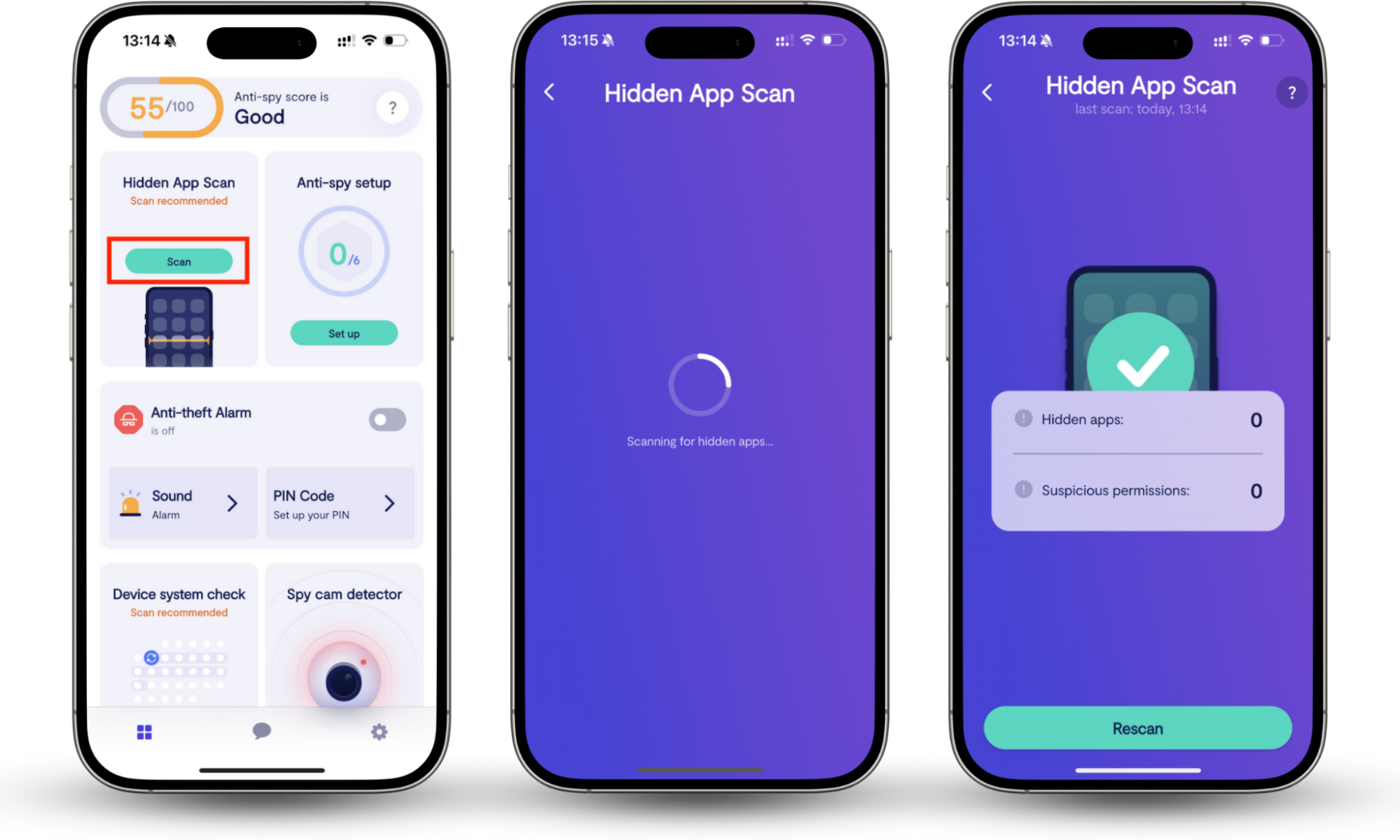
Although Opera GX isn’t malware, your computer and phone can both come under threat from spyware and other malicious software. We all know the importance of security software for our computers, but do you regularly check your phone for malware? Clario Anti Spy’s Hidden App Scan can help you. It looks for hidden apps and software that request too many permissions, a common sign of spyware.
One of the Clario experts, Ross, recently spoke to a customer who had noticed their phone behaving strangely. They hadn’t installed anything new, but their battery was draining much more quickly than usual, and they noticed weird targeted ads showing up online. Ross explained how to run a Hidden App Scan, and the customer quickly found several suspicious apps requesting access to their location, microphone, and even their contacts.
How to check your phone for hidden malicious apps:
- Download Clario Anti Spy and set up a subscription.
- Under Hidden App Scan, tap Scan.
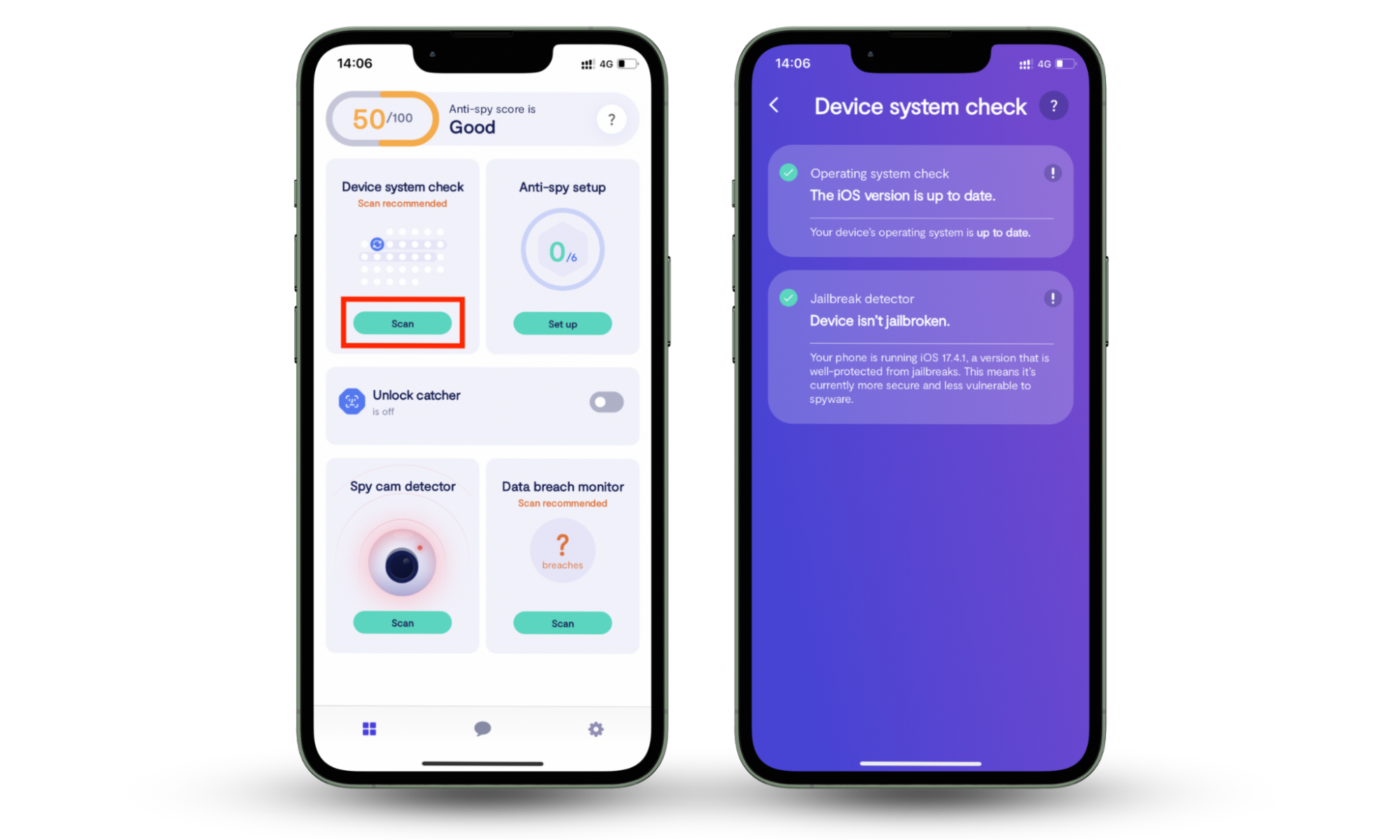
If you have an iPhone, you might think that you’re safe from malware. After all, Apple’s built-in security features mean that you can only download pre-vetted apps from the App Store, and every new iOS update includes new safety patches. However, if your phone is jailbroken, you’re not protected by these built-in security protections. Clario Anti Spy’s Device system check can help you find jailbreaks on your phone, so you know whether you’re at risk. It’ll also look for system updates, so you can keep your phone up to date and protected.
How to look for jailbreaks on your iPhone:
- Download Clario Anti Spy and subscribe.
- Under Device system check, tap Scan.
What can Opera GX do?
Like all browsers, Opera GX lets you browse the internet. However, it has some unique features that set it apart from other browsers. It lets you limit how much CPU and RAM it uses, so it won’t slow down your computer. It has an integrated ad blocker and VPN, and is one of the most customizable browsers available. It can also sync between mobile and desktop browsers.
1. GX Control (CPU, RAM, Network limits)
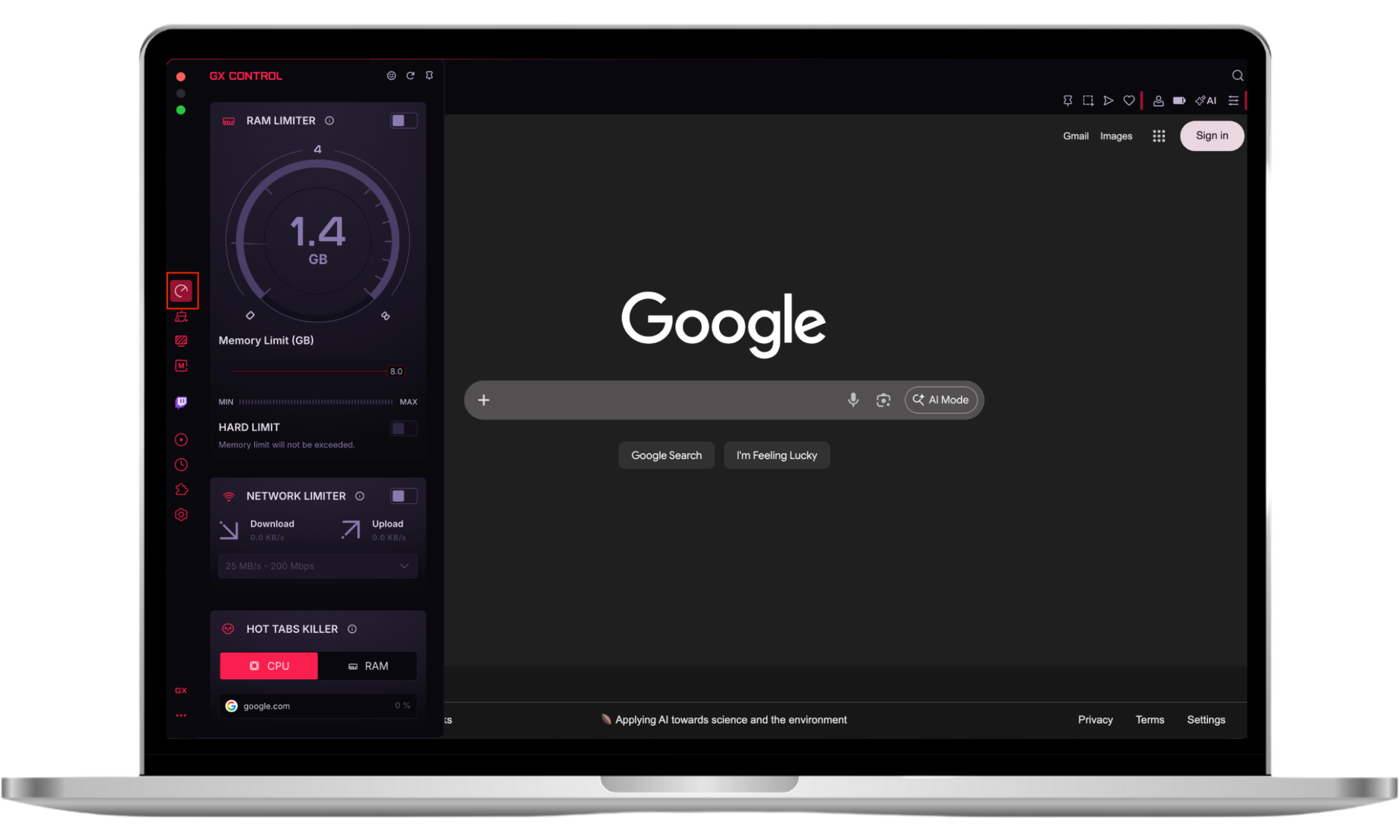
Most browsers take up a lot of memory, meaning it’s best to close them before you start gaming. However, GX Control allows you to limit the amount of RAM and CPU the browser uses, and it even lets you set network download limits. This means you can continue gaming uninterrupted, and you’ll know Opera GX won’t be hogging your computer’s resources. It’s perfect for gamers, or anyone who wants to make sure their computer runs smoothly, with no freezing.
How to access GX Control on Opera GX:
- Tap the GX Control button in the sidebar.
2. Hot Tabs and resource monitoring
Another good innovation on Opera GX for gamers is the Hot Tabs Killer. This lets you see which tabs are consuming the most CPU or RAM, and close them quickly, so they don’t interfere with your game.
How to close resource-intensive tabs on Opera GX:
- Click the GX Control button in the sidebar.
- Under Hot Tabs Killer, see each tab’s CPU and RAM usage. Mouse over the tab you want to close, and click the X.
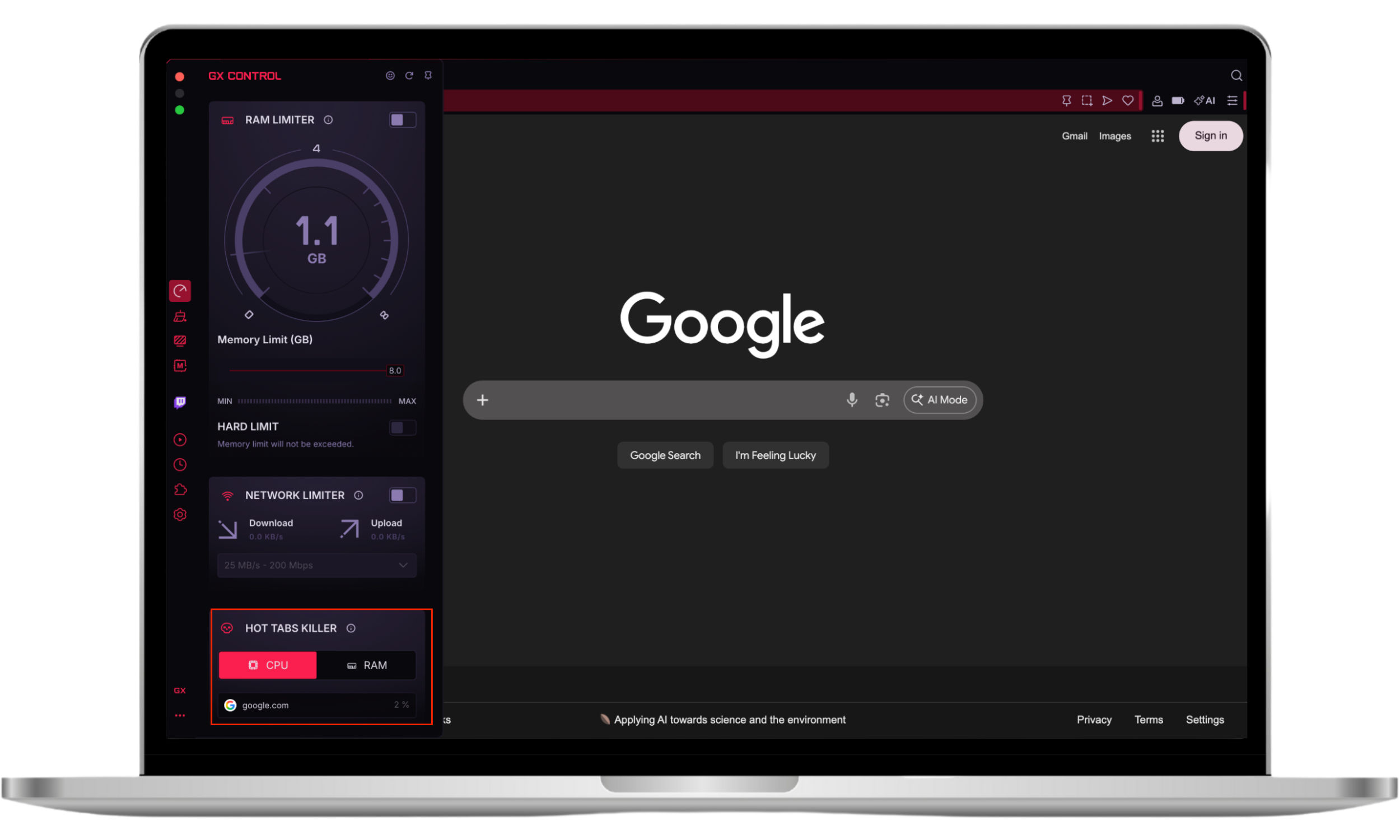
I love this feature. I always have loads of tabs open, and I can’t always tell which one is causing problems. With the Hot Tabs Killer, I can easily see which has the highest CPU or RAM usage, and close it immediately.
3. Customization and visual themes
Opera GX is one of the most customizable browsers available. You can change its look, add new features to the sidebar, and even add background music and sound effects if you want.
As well as changing its appearance, you can also customize Opera GX with add-ons. It has its own extensions and can access Google Chrome’s add-on library, too.
4. Built-in ad blocker and VPN
Opera GX has an integrated ad blocker and VPN, so you don’t need to download third-party extensions. These are both great privacy features: ad blockers can prevent tracking scripts in adverts from gathering data about your browsing habits, and VPNs can help you hide your online activity from trackers, potential hackers, and even your internet service provider.
As well as keeping you safe, ad blockers can make your web browsing experience much nicer, you’re no longer bombarded with intrusive ads. What’s more, Opera GX’s ad blocker is even available on the mobile app.
The ad blocker is one of my favorite features in the mobile version of Opera GX. Very few mobile browsers have ad blockers.
How to enable ad blocker on Opera GX on desktop:
- Click the Extensions button in the sidebar.
- Under Opera Ad Blocker, choose Enable.
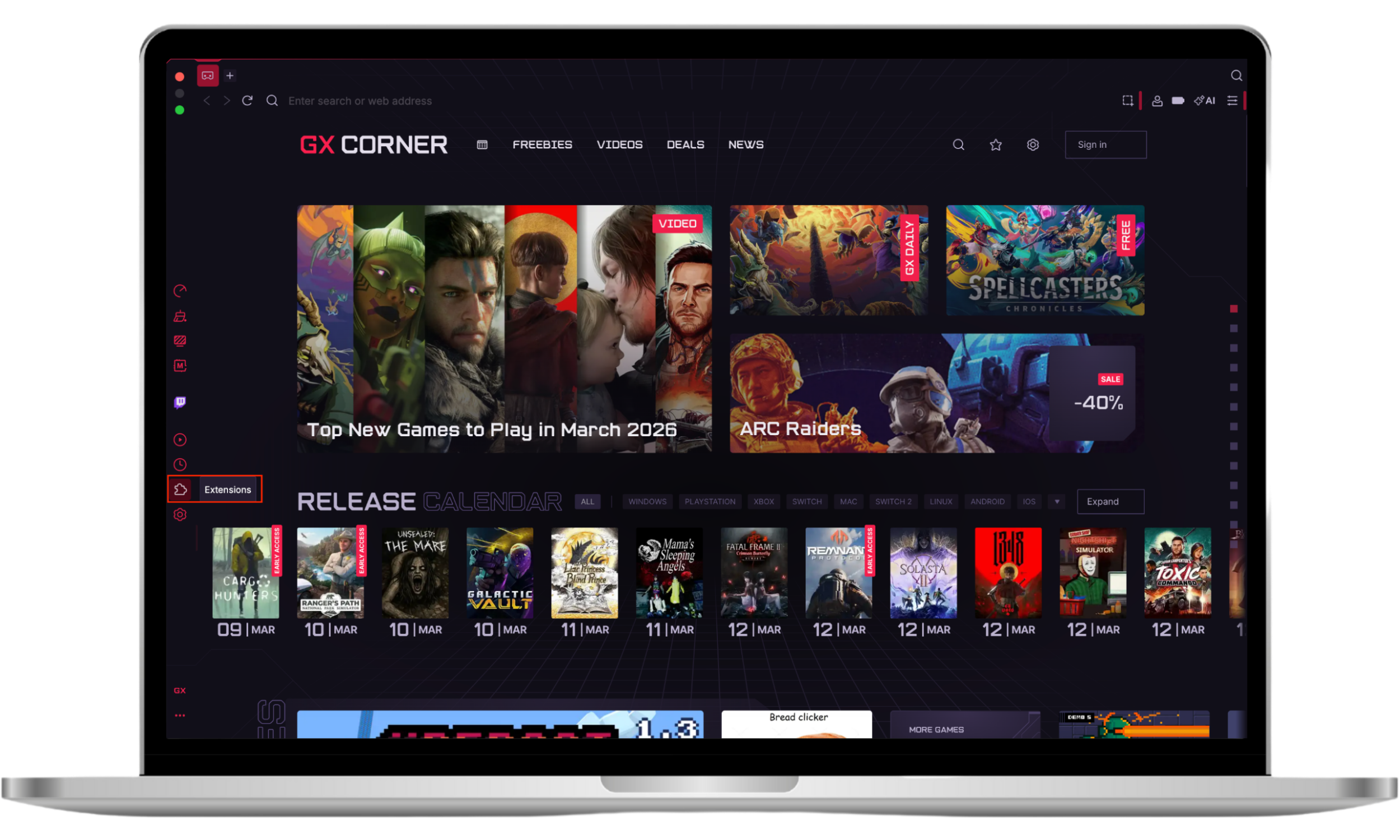
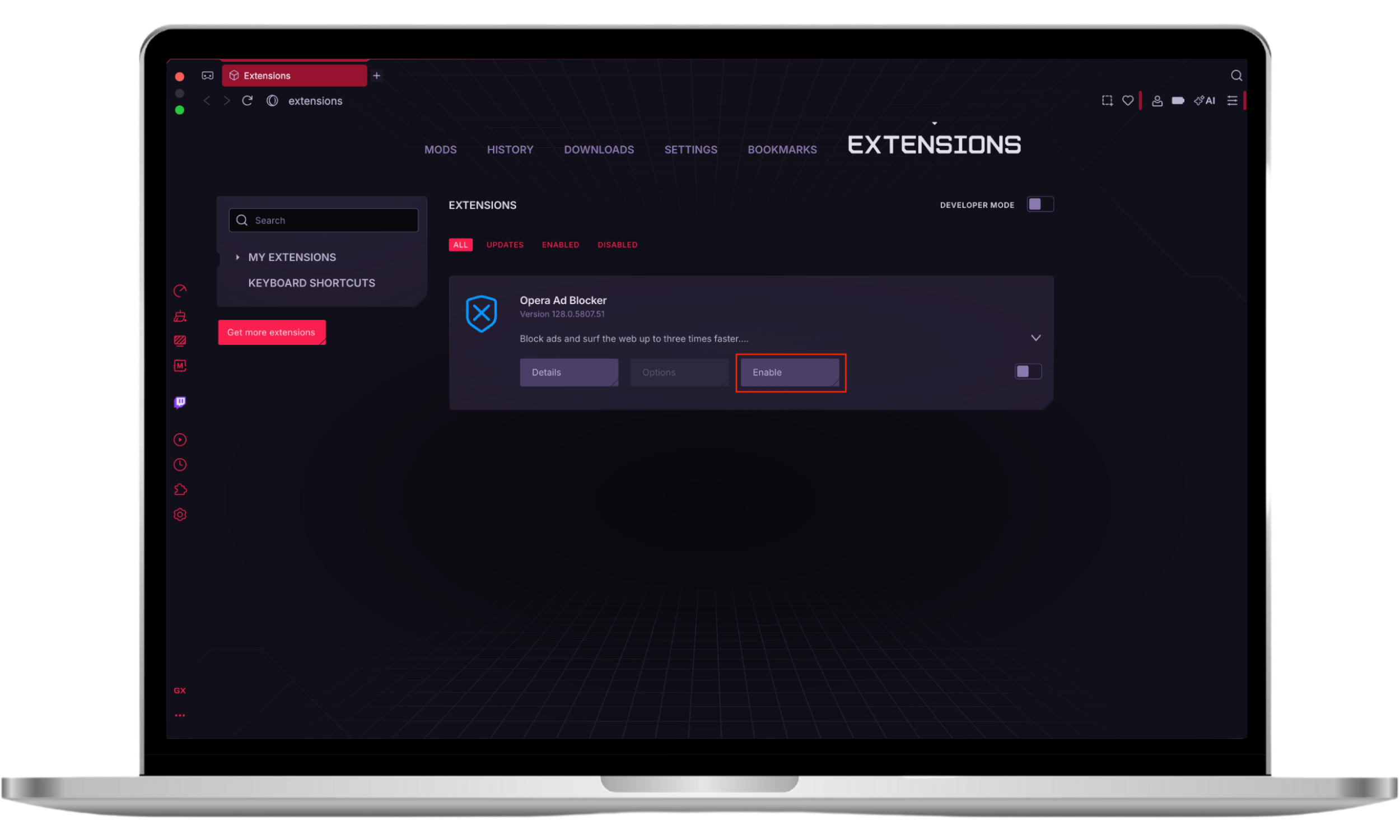
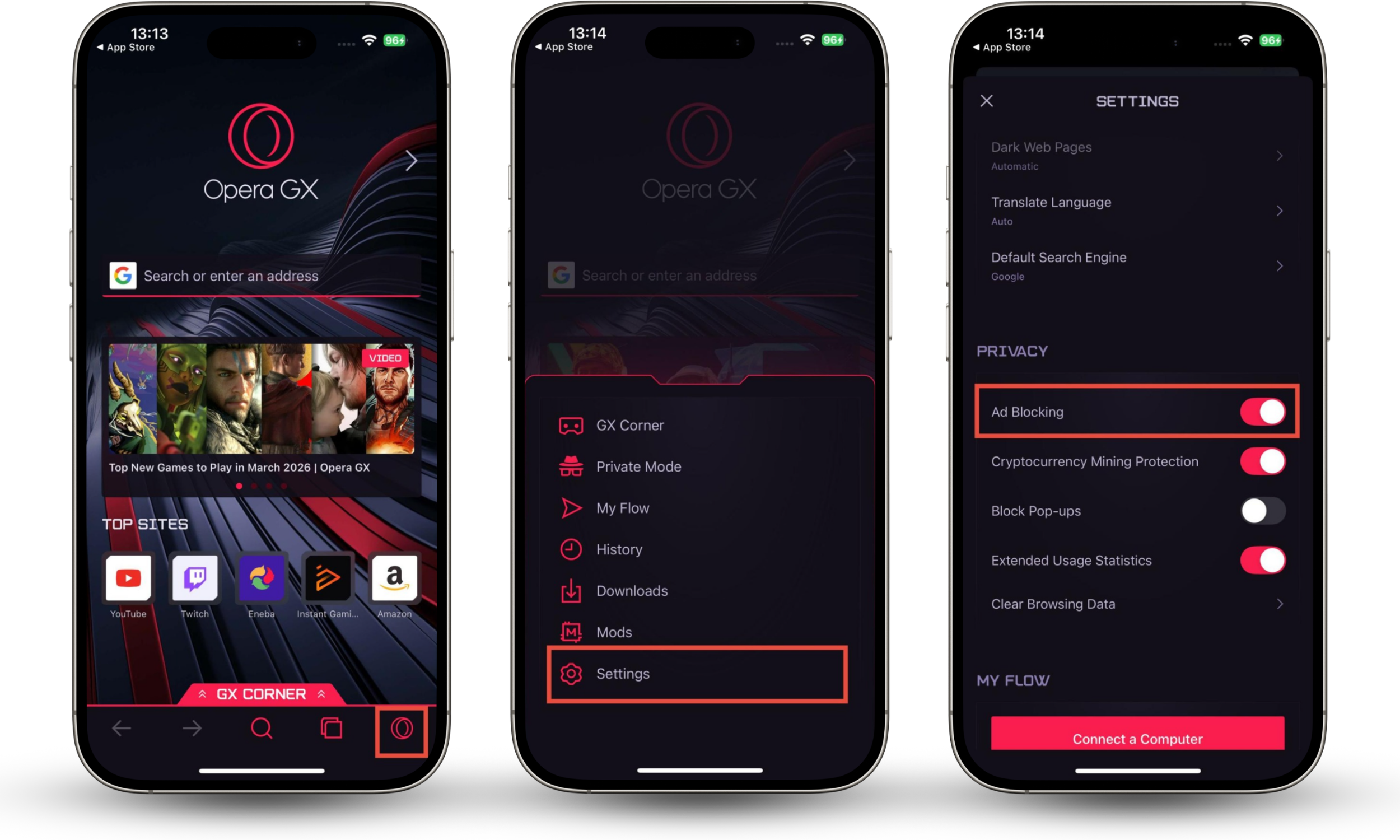
When you open Opera GX on mobile for the first time, you’re given the option to enable the ad blocker. If you forget to do this, or want to enable it later, you can.
How to enable an ad blocker on Opera GX mobile:
- Tap the Opera logo.
- Choose Settings.
- Toggle the switch next to Ad Blocking.
The VPN is only available on the desktop version. It offers more than 100 servers in Europe, Asia, and North and South America. This means you can avoid being tracked online and also access geolocked content for these areas.
Opera GX’s VPN is free to use within the browser, although there’s also a device-wide version you can unlock for a fee. Prices currently start at $4 per month.
Concerned about your online privacy? The Opera browser for gaming isn’t the only one with built-in privacy protections. Find out how to browse privately with other browsers, too.
5. Sidebar and app integrations
Opera GX’s sidebar lets you access a variety of messaging software and media platforms, all without leaving the app. You can customize it, too. If you don’t need to access Twitch, Discord, or other apps, you can remove them, and, alternatively, if you’d like to add other services like WhatsApp, TikTok, or ChatGPT, you can.
6. Gaming-focused features
Opera GX is for gamers, so it has some features that are designed to appeal to them. Some of these make your web browsing feel more like a game, and others help you keep up with the gaming world.
Opera GX’s gaming-focused features include:
- Sound effects and background music, which adds a fun new level to your web browsing.
- GX Corner, which gives you quick access to gaming news, the latest Steam titles, and a release calendar of major upcoming games.
- Twitch integration, which makes it easier to watch your favorite streamers.
7. AI and smart tools
Love using AI? Opera GX lets you access ChatGPT and ChatSonic directly from the sidebar, and Opera’s own AI is in the top right corner of the application.
Opera GX AI can summarize videos or text content, translate for you, and even process information in spreadsheets, images, and videos that you upload, all great productivity features. You can type or speak to it, and it can read its answers aloud to you.
8. Cross-Device
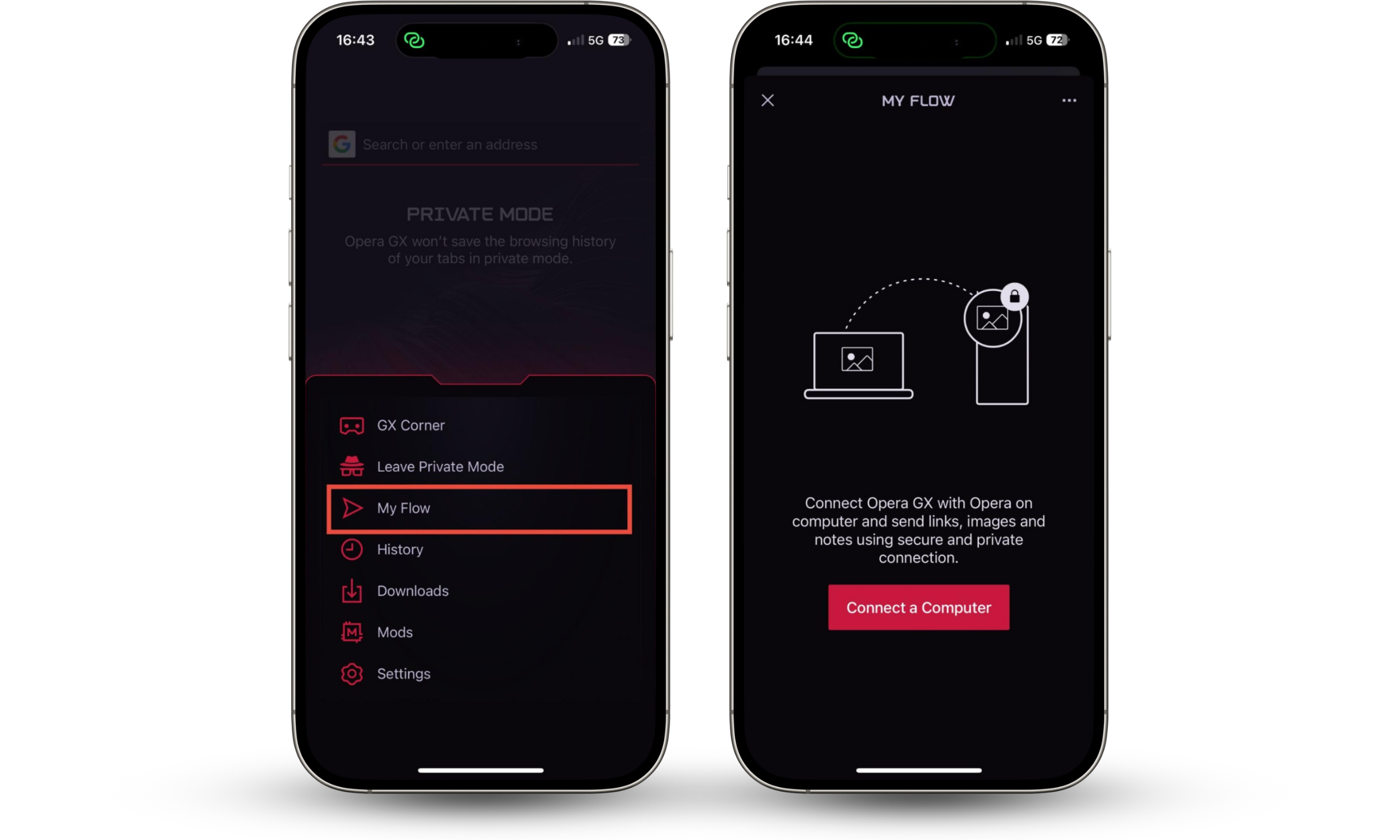
If you’re anything like me, you switch between your phone and your computer all the time. Opera GX makes this really easy. It syncs data securely between the desktop and mobile browsers, using a feature called Flow.
How to connect your computer and phone with Opera GX Flow:
- On your phone, open Opera GX, tap the Opera menu, and choose My Flow.
- Tap Connect A Computer.
- Open Opera GX on your computer, and choose the Flow icon from the sidebar. Tap Reveal the QR code, and scan it with your phone.
Performance and everyday use of Opera GX
Opera GX runs really smoothly. Even if you notice any lag, you can quickly check which tab is causing the problem and close it with the Hot Tabs Killer.
It’s great for playing browser-based games; you can access games from GX Corner, and they load quickly. If you’re using Opera for browser gaming or you’re playing any kind of online games with other people, check out our online gaming safety tips. Stay safe when you’re playing online!
Whether you’re a gamer or not, you’ll appreciate how you can customize your browsing experience. Most of us use messaging apps, and it’s great to have quick access to your favorites, for example.
It’s simple to get started with the Opera GX gaming browser, too. On macOS, I was able to download, install, and open it in under two minutes.
Conclusion
Opera GX gives you lots of control. You can customize how it looks and sounds, what appears in the sidebar, and even how much RAM it uses. If you’re a keen gamer, it can help your computer run smoothly, meaning you can play with no performance issues.
It offers an integrated ad blocker and VPN, so you can protect your privacy and security online. If you’re concerned about your phone’s security and privacy, though, make sure you use dedicated security software. Clario Anti Spy can help you detect vulnerabilities like jailbreaks and scan your phone for potentially dangerous hidden apps.