Table of contents
- How Security Delay works on iPhone
- What triggers Security Delay on iPhone?
- Purpose and benefit of security delay on iPhone
- How to manage Security Delay on iPhone?
- Conclusion
How Security Delay works on iPhone
Security delay on iPhone pauses high-risk setting changes for one hour whenever your device is outside a familiar location. It requires one Face ID or Touch ID scan to start the request, then a second scan after the 60-minute countdown ends to confirm the change.
When you try to change a sensitive setting, such as your Apple ID password or passcode, while your device is at an unfamiliar location, iOS immediately starts the one-hour timer. During this window, the action is completely locked. You can't skip or cancel the delay by force; you must wait for it to expire, or return to a familiar location like home or work, which can end the delay early.
At the end of the hour, your iPhone prompts you to enter a second passcode or use Face ID or Touch ID to complete the change. This two-scan system means that even if a thief knows your passcode, they can't instantly override your account security. They'd need to hold your device and stay undetected for a full hour.
When you're at a familiar location, such as your home or regular workplace, the security delay doesn't apply. Apple uses Significant Locations data to distinguish trusted environments from unfamiliar ones, so everyday changes go through without friction.
What triggers Security Delay on iPhone?
The Stolen Device Protection feature triggers the security delay on your iPhone when you try to change sensitive account or security settings while away from a familiar location, such as home or work. Apple enforces a one-hour wait to prevent unauthorized access if your phone and passcode are stolen.
Not every action triggers the delay, only changes that could lock you out of your account or hand full control to someone else. The key triggers away from familiar locations are:
- Changing your Apple ID password. This is the highest-risk action, since a new password would immediately cut off your access to iCloud, Find My, and all connected Apple services.
- Modifying device security settings. Adding or removing Face ID, changing Touch ID, or updating your passcode all fall here. These are the first settings a thief would target to lock you out permanently.
- Turning off Stolen Device Protection itself. Disabling the system that protects you also requires passing through the delay, closing the loophole of simply switching it off.
- Other account security changes include signing out of your Apple account, resetting all settings, and enrolling in device management.
Location is central to the trigger logic because Apple recognizes that most theft happens away from home. If someone is spying on your movements or a thief grabs your phone on the street, they're by definition not at your trusted location, which is precisely when the delay kicks in and buys you time to act.
Purpose and benefit of security delay on iPhone
The purpose of Security Delay on iPhone is to give you a critical one-hour window to respond the moment your device is stolen. It stops a thief who has your passcode from instantly hijacking your Apple ID or erasing the device before you can mark it as Lost in Find My.
Apple introduced this feature after a wave of cases where criminals observed victims entering their passcode in public, stole the phone, and immediately changed the Apple ID password, stripping the owner of all access in minutes. Security delay directly breaks that attack chain.
The key benefits are:
- Time to mark your device as Lost. You can open Find My on another device, mark your iPhone as Lost, and lock it remotely—before the thief can disable that option.
- Protection against instant account takeover. Even if a thief knows your passcode, they can't bypass the biometric requirement or skip the timer. Your Apple ID, iCloud data, and payment methods stay protected.
- Prevention of identity theft. Your Apple ID can expose email, contacts, photos, and saved passwords. Stopping an attacker at the device level is one of the most effective defenses in real-world theft scenarios.
Understanding the difference between data privacy vs. data security helps clarify why this feature matters. Security delay is an active, real-time security control, not just a privacy setting.
Clario Anti Spy's Unlock catcher adds another layer of protection. While Apple's security delay slows thieves down after the fact, Clario Anti Spy's Unlock catcher captures timestamped photos of anyone who tries to unlock your phone without permission, so you can see exactly who touched your device and when. Here's how to set it up:
To enable Unlock catcher in Clario Anti Spy:
- Open Clario Anti Spy on your iPhone.
- Tap Unlock catcher.
- Enable the feature and allow camera access when prompted.
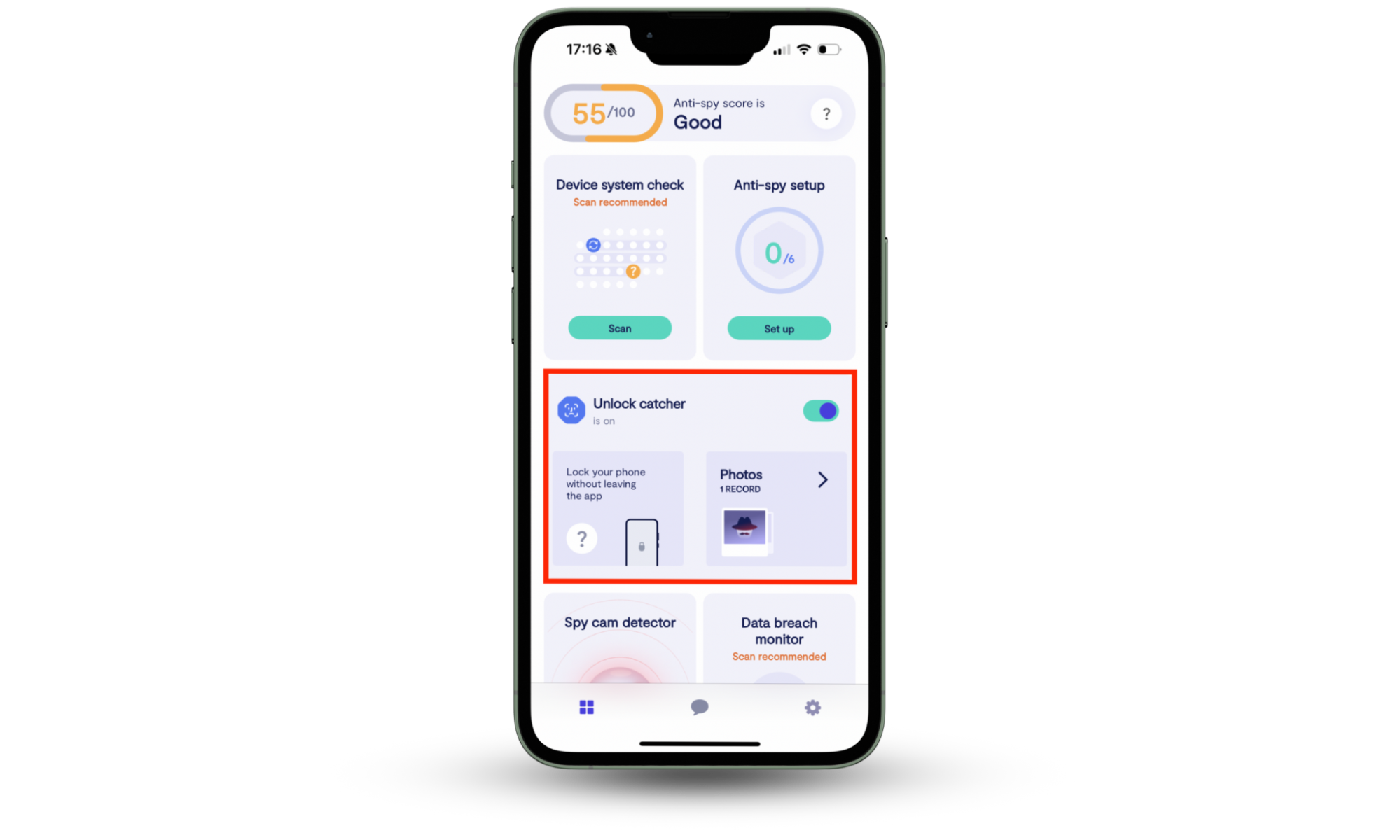
One Clario Anti Spy user contacted our support team after noticing unfamiliar unlock attempts on their iPhone. The Unlock catcher had already captured a timestamped photo of the person who had picked up their device, giving them the evidence they needed to act.
How to manage Security Delay on iPhone?
To manage the security delay on your iPhone, go to Settings, tap Face ID & Passcode, enter your passcode, then tap Stolen Device Protection. You can limit the delay to unfamiliar locations only, or turn it off entirely. If a delay is already counting down, returning home or to work may end it early. Otherwise, you must wait the full hour.
Here's how to adjust or disable the security delay on your iPhone:
- Open Settings and tap Face ID & Passcode.
- Enter your passcode when prompted.
- Tap Stolen Device Protection.
- Under Stolen Device Protection, find the Require Security Delay option.
- Select Away from Familiar Locations to limit the delay to unfamiliar environments, or tap Always if you want the delay to apply everywhere.
- To turn off Stolen Device Protection entirely, toggle it off. Apple still requires biometric authentication. If you're away from a familiar location, the one-hour delay applies before the toggle takes effect.
If a delay is already in progress, you can't cancel it manually. Returning to a familiar location, home or work, may end it early; otherwise, you'll need to wait the full hour.
Keeping Stolen Device Protection enabled is strongly recommended. The minor inconvenience of an occasional delay is a small price for the level of account and device protection it provides.
Conclusion
Security delay on iPhone is one of the most practical theft-protection tools built into iOS. It adds a mandatory one-hour pause before anyone, including a thief with your passcode, can make critical changes to your account or device. Apple introduced it to close the window that criminals exploited to take over accounts within minutes of stealing a phone. Keep it on, pair it with Clario Anti Spy's Unlock catcher, and you'll have two layers of protection working together before any damage can be done.