Table of contents
How Stolen Device Protection works?
Despite having Face ID or Touch ID, your iPhone allows you to perform any action that requires authentication using just the device passcode. Stolen Device Protection, however, forces you to use biometrics for activities that have an impact on your privacy and security. This prevents someone who knows the passcode or steals your phone while it's unlocked from accessing your data or tampering with important device settings.
Stolen Device Protection uses location services to recognize places you're at the most, such as your home or workplace. When your iPhone is outside these locations, it imposes these restrictions automatically.
For instance, you'll need biometric authentication for activities like:
- Viewing saved passwords and payment methods
- Opening locked apps
- Disabling Lost Mode via Find My
- Applying for an Apple Card
- Viewing Apple Card or Apple Cash numbers
Stolen Device Protection also triggers a one hour delay for actions that involve modifying your iPhone's security settings. For instance, to change your Apple Account's password, you must use Face ID or Touch ID once, wait an hour, then use biometric authentication again. This prevents a thief from immediately changing your security setup and gives you enough time to mark the device as lost in Find My if the phone is lost or stolen.
Actions that trigger a one-hour delay include:
- Turning off Find My
- Signing out of your Apple ID
- Changing the device passcode
- Performing a settings or factory reset
Stolen Device Protection doesn't exactly help if you want to stop someone from stealing your iPhone in the first place. But Clario Anti Spy can. Its Anti-Theft Alarm instantly alerts you if someone tries to steal the device.
Here's how to set up the Anti-Theft Alarm on your iPhone:
- Download Clario Anti Spy and subscribe to create an account.
- Enable the switch next to Anti-Theft Alarm.
- Work through the onscreen instructions to activate the feature.
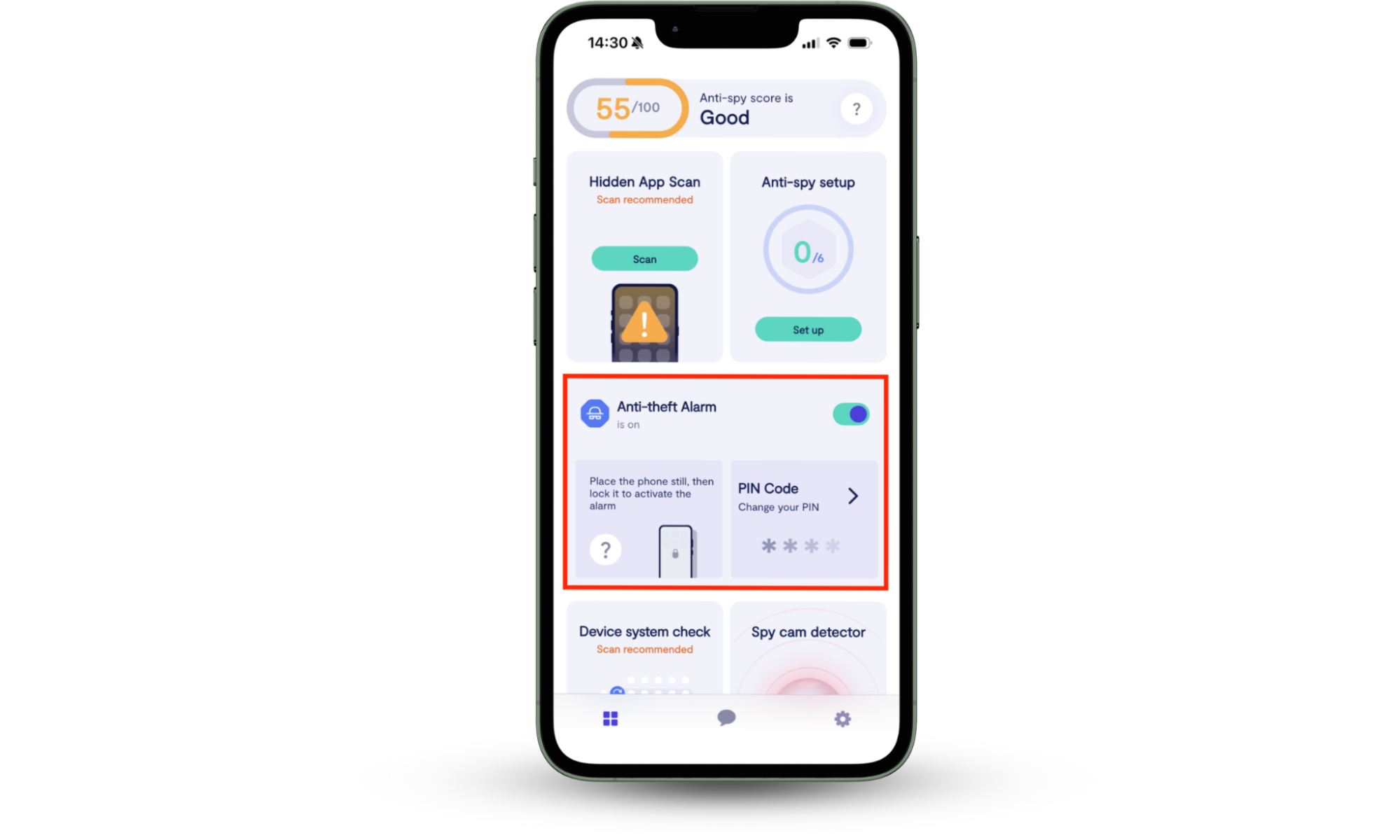
Clario Anti Spy also includes other tools to keep your iPhone safe. For example, its Device system check identifies vulnerabilities in the system software, while the Anti-spy setup walks you through everything you need to protect your phone and online accounts. There's also a Data breach monitor that alerts you if your Apple ID credentials end up in a known data breach.
If you need help with anything, you can tap the Messages icon to talk with a security expert 24/7. Clario experts help with all sorts of issues, and here's what one of them shared about a customer who was worried their account details might have been compromised:
"A client reached out with concerns regarding the potential exposure of his personal information and requested our assistance in verifying whether any of his data had been compromised or was circulating on the dark web.
In response, we provided step-by-step guidance on how to integrate his email addresses into our Data Breach Monitoring system, along with detailed instructions on reviewing breach reports and mitigating any associated risks.
The client was particularly anxious to ensure that none of his sensitive information—especially financial or personally identifiable data—was being exploited without his knowledge. Following a comprehensive scan, several breaches were detected involving the client's data. Alarmingly, the exposed information included critical personal identifiers such as credit card details and his Social Security Number (SSN).
Given the severity of the findings, we promptly recommended a series of actions: contacting his financial institution to cancel the affected card and issue a replacement, initiating a credit freeze across all major credit bureaus to prevent unauthorized access, and considering the placement of a fraud alert to enhance vigilance around any future credit inquiries.
The client expressed sincere appreciation for the timely support and actionable recommendations, and confirmed his intention to leave a positive review of our services."
How to set up and manage Stolen Device Protection?
You can enable Stolen Device Protection from your iPhone's passcode and biometrics settings panel. Your device must run iOS 17.3 or later, and your Apple ID must have two-factor authentication enabled.
Here's how to enable and use Stolen Device Protection on iPhone:
- Open the Settings app.
- Scroll down and tap Face ID & Passcode or Touch ID & Passcode.
- Enter your device passcode.
- Scroll down and tap Stolen Device Protection.
- Enable the switch next to the feature.
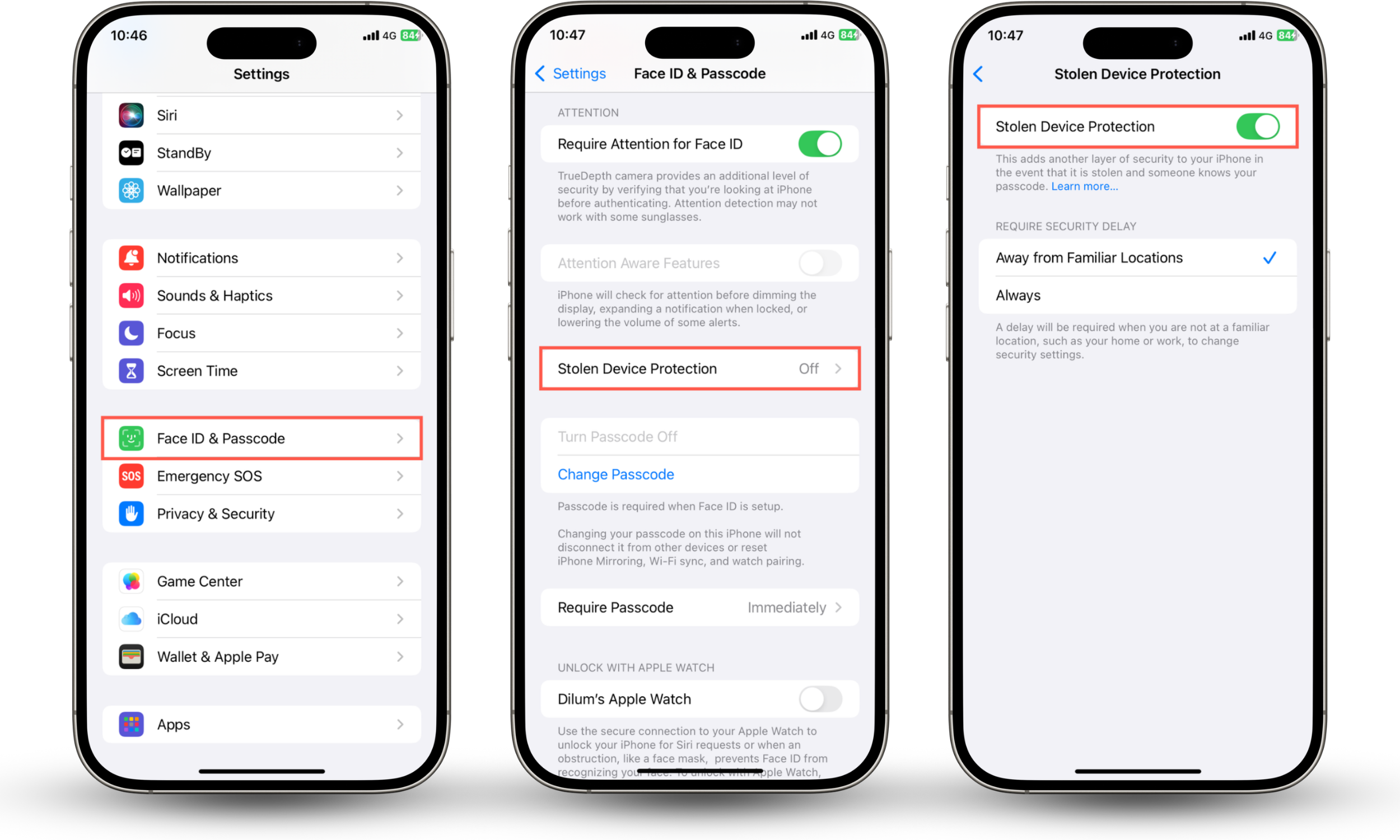
Stolen Device Protection works automatically by using location data to detect when your iPhone's away from familiar places. If you want the feature's restrictions to be always active, select Always under Require Security Delay.
Note
If you haven't enabled two-factor authentication, go to Settings > Apple Account > Sign-In & Security > Two-Factor Authentication to turn it on. This is required for Stolen Device Protection and is also essential to protect your mobile from hacking.
Should you use Stolen Device Protection?
Yes, you should use Stolen Device Protection. Imagine an ex stole the phone or a thief snatched it after seeing you unlock it. The feature stops them from changing your Apple ID password, disabling Find My, or accessing stored passwords and financial data by enforcing biometric authentication. There's little downside since the extra checks only activate when the phone is away from places you frequently visit.
Stolen Device Protection can protect your data if you:
- Frequently travel or use your iPhone in public places
- Store passwords and credit card numbers on the device
- Use Apple Pay, banking, or other financial apps
If your iPhone is stolen, check our guide on "How do you know if your phone is hacked?" to figure out your next steps.
Conclusion
Stolen Device Protection is an important security feature that helps protect your personal data if your iPhone is lost or stolen. It requires Face ID or Touch ID for anything private and adds a one hour delay for changes to security settings. This makes it much harder for thieves to take control of your device or Apple ID. To prevent theft in the first place, install Clario Anti Spy and activate its Anti-Theft Alarm feature so you're instantly alerted if someone tries to steal your iPhone.