Table of contents
- Why are your contacts syncing with another phone
- 1. Both phones use same Apple ID or Google Account
- 2. Contact syncing is enabled for shared account
- 3. Shared email account has contacts syncing enabled
- 4. You previously signed into your account on another device
- 5. Third-party apps sync contacts across devices
- How to stop my contacts from syncing to another phone
- 1. How to unsync contacts on iPhone
- 2. How to turn off contact sync on Android
- Conclusion
Why are your contacts syncing with another phone
A contact sync usually occurs when two phones are signed in to the same cloud account (such as iCloud or Google). The cloud treats both phones as yours. So, any updates on the contact list in one would also appear on the other.
Contact syncing is often harmless. It could also be malicious. An intruder could steal your cloud password and replicate your phone’s contact list on another device.
Let’s look at a few of the most common reasons why a contact sync could happen.
1. Both phones use same Apple ID or Google Account
This is when you use the same account details as someone else to sign into your phone. When two phones are signed in to the same Apple ID or Google account, the system assumes they belong to the same person and merges their data.
Apple explicitly warns against sharing an Apple account for this reason, noting that it gives full access to personal data across devices.
2. Contact syncing is enabled for shared account
A shared account is a specific type of email account used by organizations to allow multiple people to access the same emails and calendar. You do not log in with a password; instead, an admin grants you access.
Contact syncing is not on by default on shared accounts. However, if contact sync was accidentally enabled, your phone would download the account’s contact list.
3. Shared email account has contacts syncing enabled
Here, two people know the password to a joint email account (like doefamily@gmail.com), and both add it to their phones. During setup, the phone asks what it should sync. If contact syncing is left on, that email’s address book gets pulled into the device.
4. You previously signed into your account on another device
This is a common occurrence that happens when you log into your Cloud account on another phone and forget to log out. Because your personal phone and the other phone remain linked, your contact list will be merged across both devices.
5. Third-party apps sync contacts across devices
Some apps ask for permission to read and manage your contacts. Once granted, they often upload your contact list to their servers to keep your data consistent across all your devices.
If you log in to one of these apps on a second phone, it may automatically download those server contacts to that device. This usually happens with:
- Messaging apps
- Email clients
- CRM or contact manager apps
- Backup and migration tools
It’s usually harmless, and the main risk comes from fishy third-party software.
These malicious apps usually market themselves as parental monitoring tools, but their real function is to collect and copy personal data (including contact lists). WebWatcher is an example of this kind of software.
To determine if this software is installed on your device, refer to our guide on how WebWatcher works. It explains how WebWatcher bypasses security and secretly retrieves your contact data.
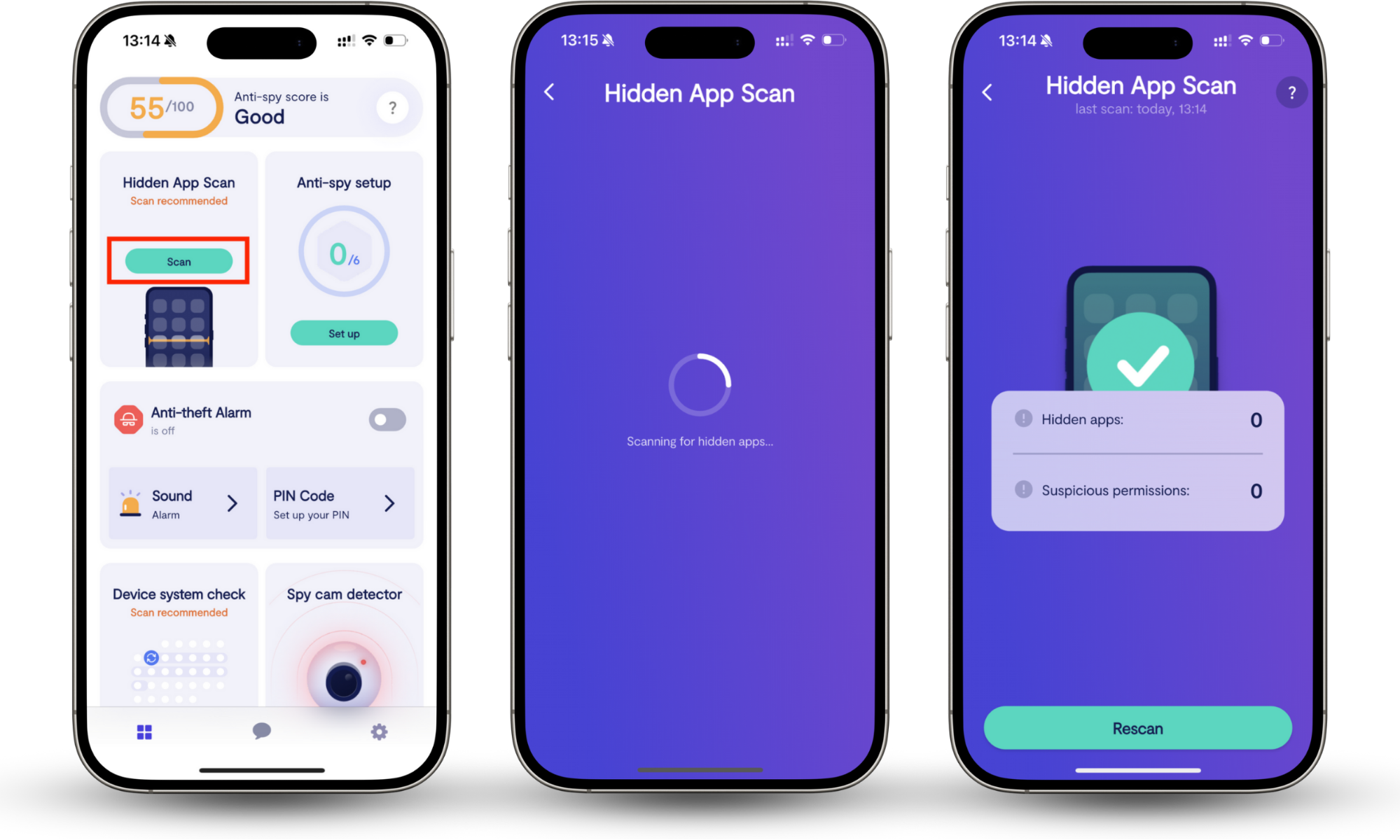
You can also use Clario Anti Spy’s Hidden app scan. It’s much quicker.
Hidden app scan checks your phone for suspicious apps and permissions, then flags apps that behave like monitoring or spyware tools. The scan includes a report showing which apps have suspicious access, including contact access that does not match what the app claims to do.
Follow these steps to run Clario Anti Spy’s Hidden app scan:
- Download Clario Anti Spy by Clario Tech.
- Create an account and open the app.
- Select Hidden app scan.
- Tap Scan.
- Review the results and remove anything flagged as suspicious.
How to stop my contacts from syncing to another phone
To prevent your contacts from syncing with another device, you should disable the sync setting for that shared account (typically iCloud or Google).
If the shared account is on a device you no longer have access to, removing that device from your device list or changing your account password will cut the link.
This is often enough to stop your contacts from syncing to another iPhone or Android phone.
1. How to unsync contacts on iPhone
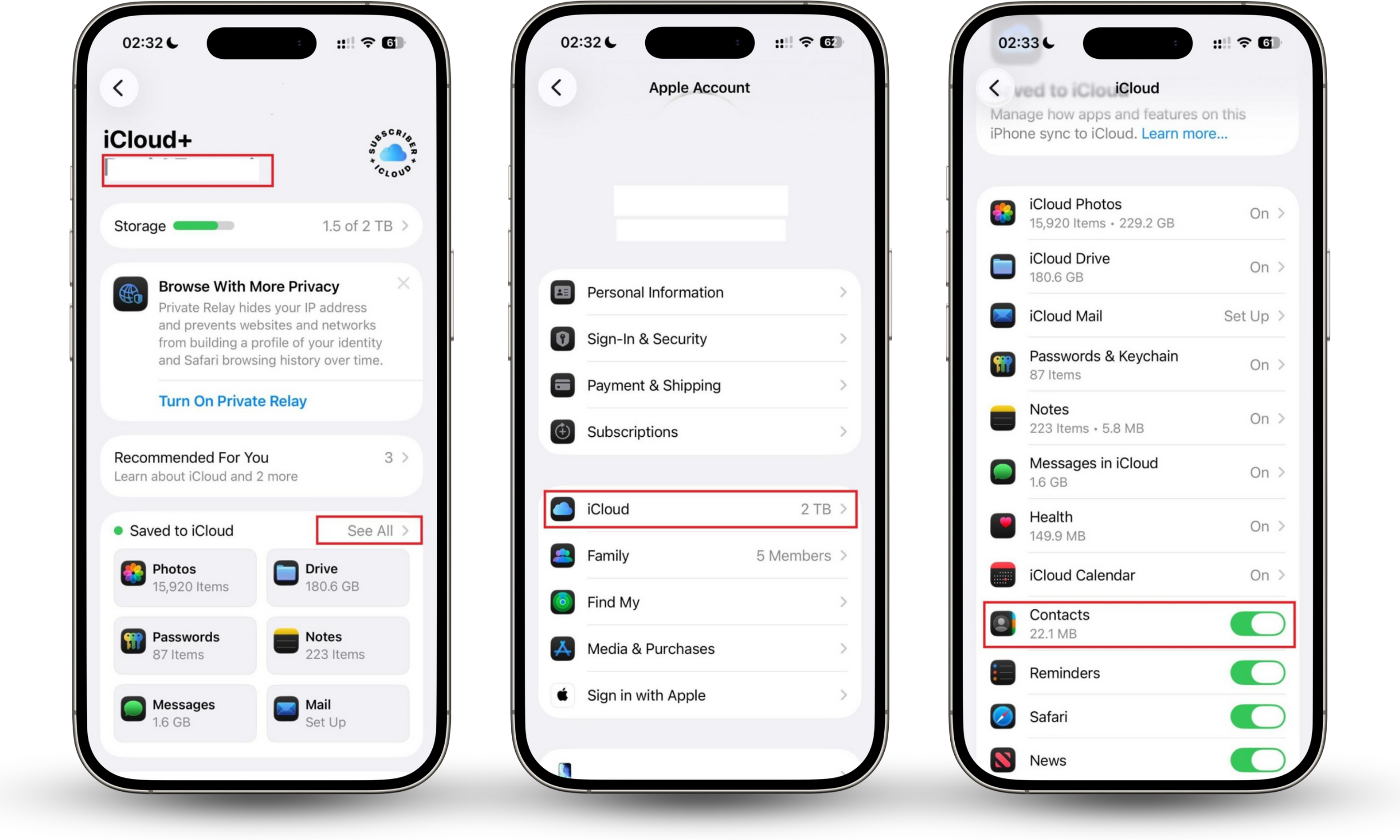
To unsync contacts on your iPhone, the most common method is to stop iCloud sharing: go to Settings > [Your Name] > iCloud, and toggle Contacts off.
That isn’t the only way to unsync contacts, though, especially if your phone is acting weird. Here are all the ways to stop contact sync on iPhone:
1.1 Turn off iCloud Contacts
Turning off iCloud Contacts stops your address book from syncing across devices and helps unlink contacts on your iPhone.
Follow the steps below to turn off iCloud contacts on iPhone:
- Open Settings.
- Tap your name at the top.
- Select iCloud.
- Go to Saved to iCloud > See all.
- Toggle Contacts off.
- Choose Keep on My iPhone when prompted.
1.2 Remove third-party apps that sync contacts
First, use these codes to see if your phone is being tracked. If it’s not, review all apps that have permission to access Contacts.
Be sure to look out for apps using common spyware file names or ones that appear suspicious. If something looks unfamiliar, remove it.
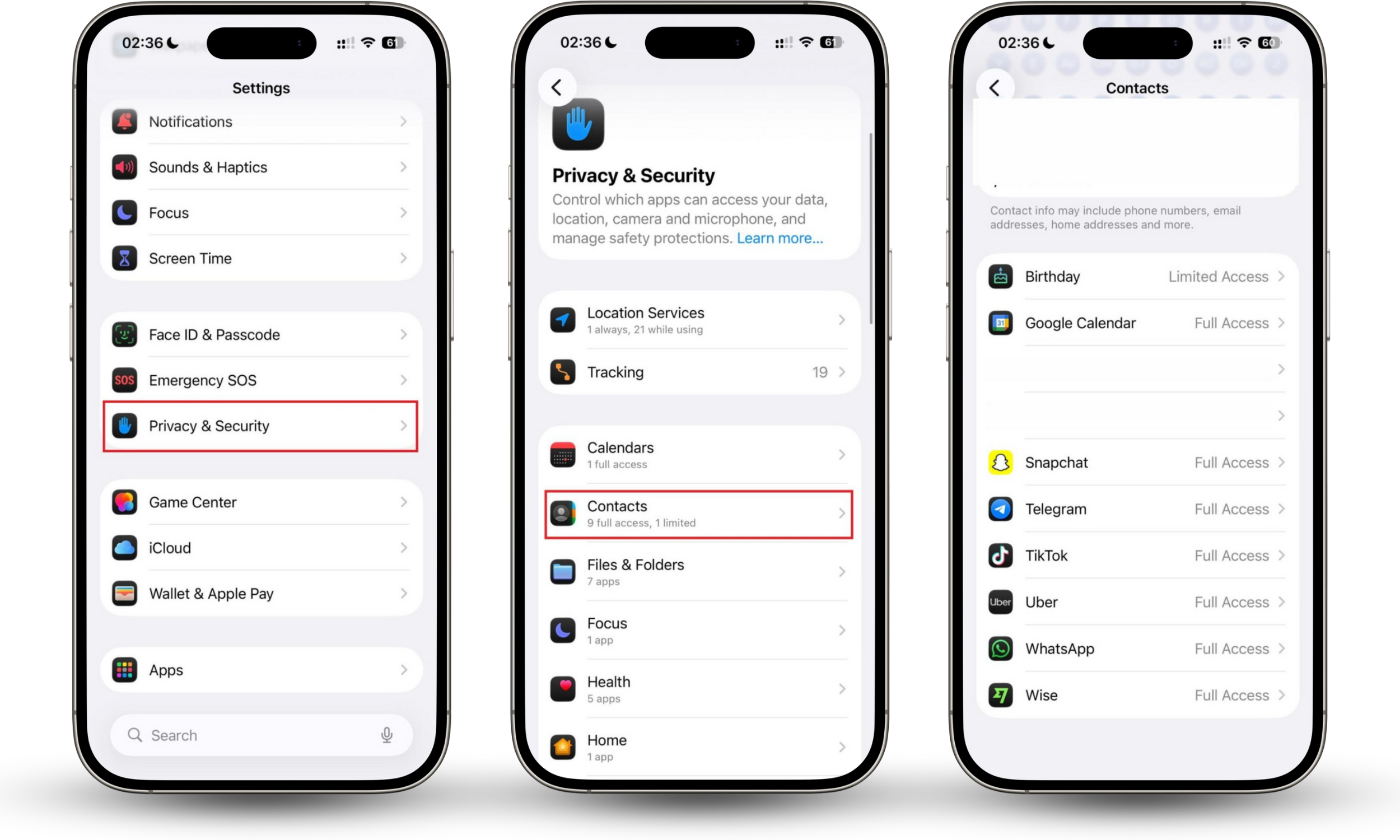
Here’s how to remove third-party apps that sync contacts on iPhone:
- Open Settings.
- Scroll down and tap Privacy & Security.
- Select Contacts.
- Review the list of apps with contact access.
- Restrict or limit contact access for any app you do not recognize or no longer use.
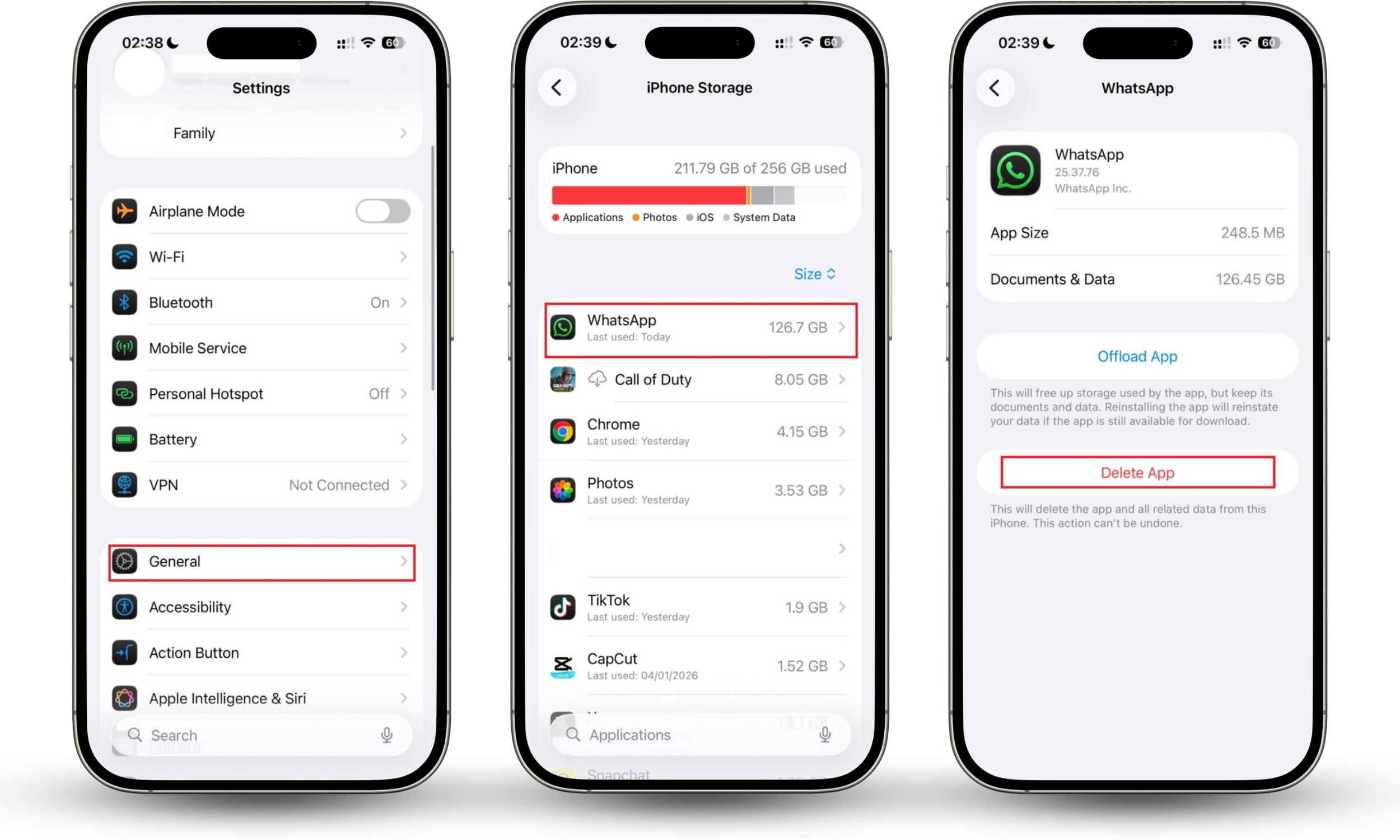
After that, remove the app completely. All you have to do is:
- Go to Settings.
- Tap General.
- Select iPhone Storage.
- Find the app in the list.
- Tap Delete App.
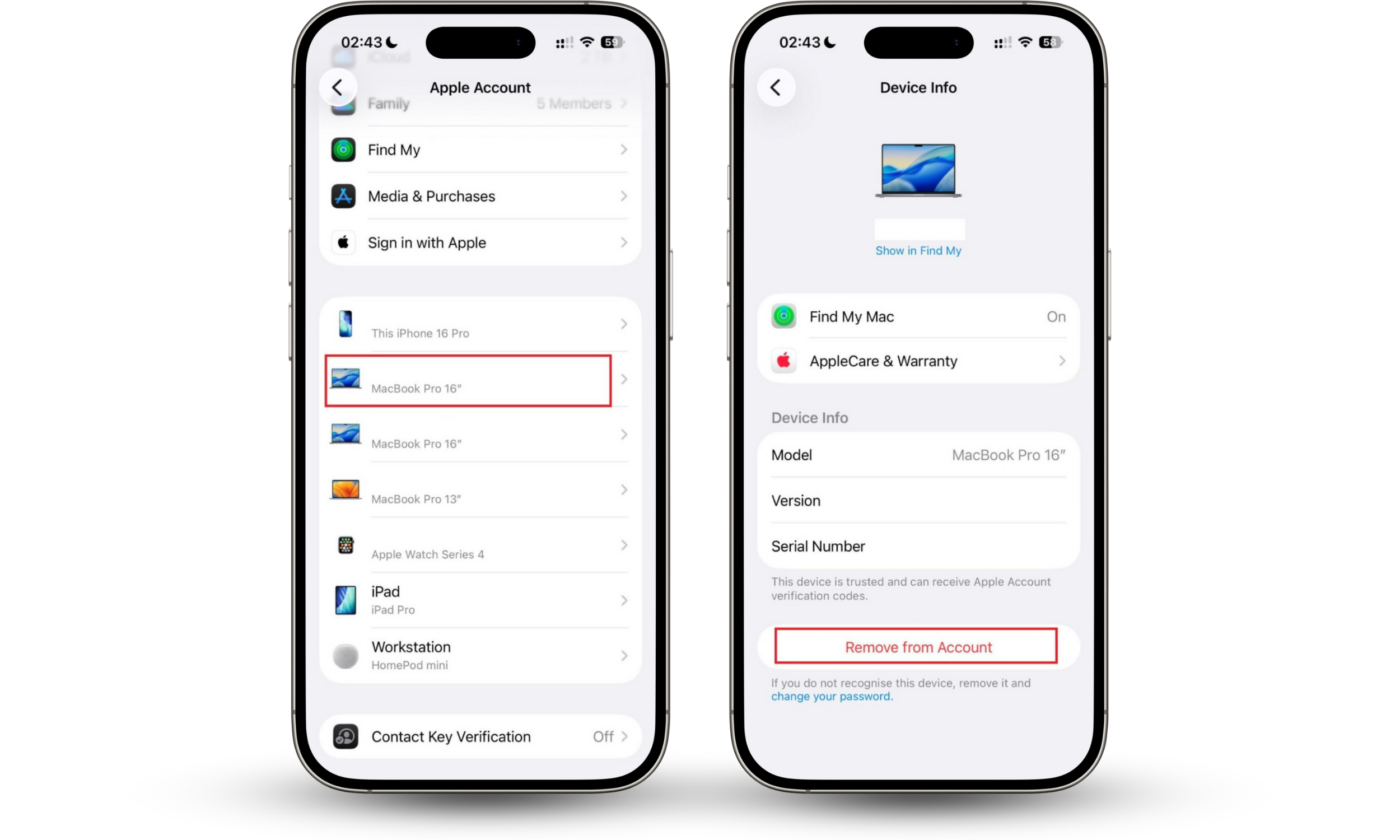
1.3 Delete iCloud account on iPhone you want to unlink
If contacts are syncing from an old or unknown device you no longer want connected, the safest fix is to remove that device from your iCloud access list.
Here’s how to remove a device from your iCloud:
- Open Settings on your iPhone.
- Tap your name at the top.
- Scroll down and select the device you want to unlink.
- Select Remove from account.
1.4 Change your Apple ID password
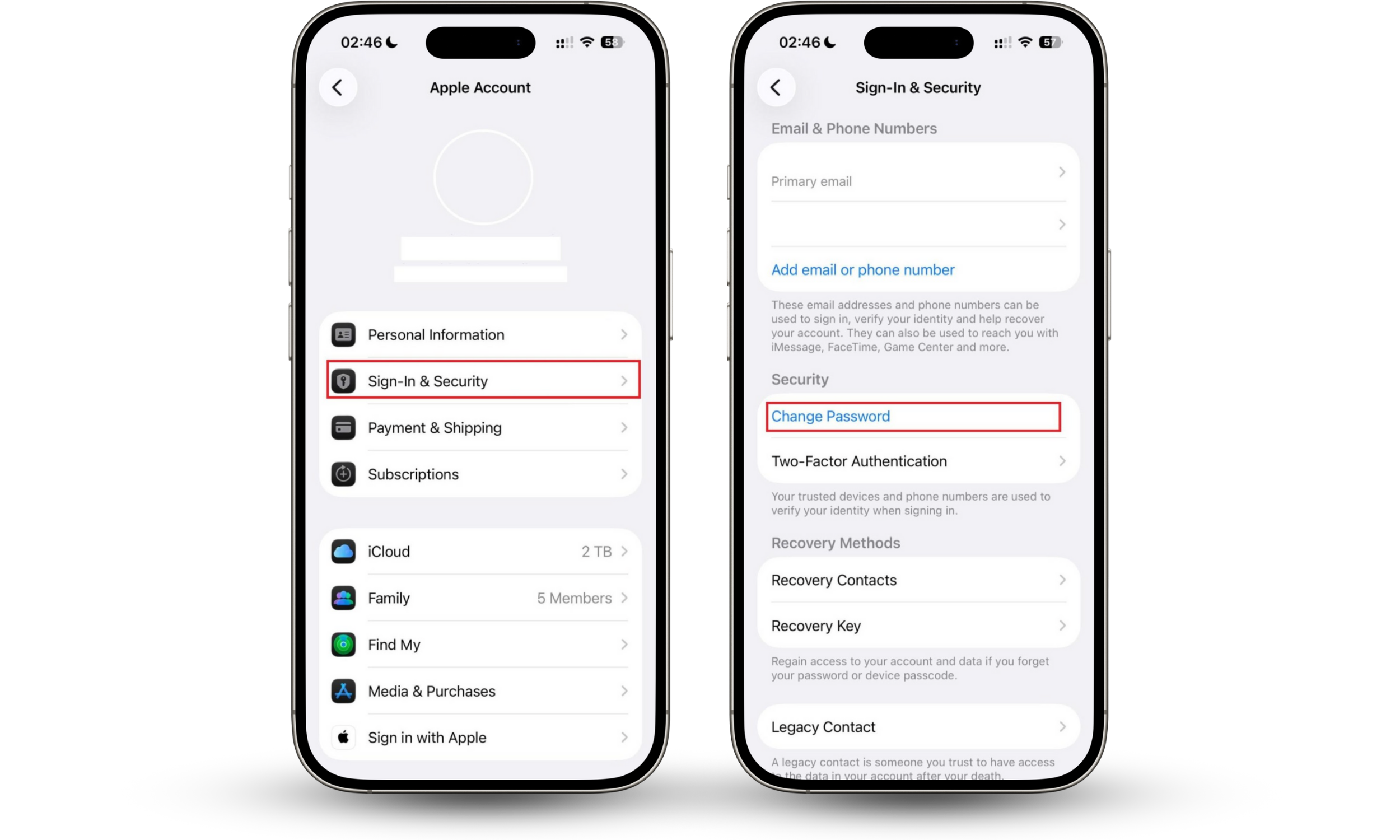
Changing your Apple ID password forces every device signed into your account to reconnect. Any iPhone that you do not actively approve for reconnection will lose access, including the one syncing with your contacts.
Here’s how to change your Apple ID password on iPhone:
- Open Settings and tap your name at the top.
- Select Sign-in & Security.
- Tap Change Password.
- Enter your current passcode or Apple ID password.
- Set a new password and confirm.
2. How to turn off contact sync on Android
The most direct way to stop contact syncing on Android is to go into Settings > Passwords & Accounts and toggle off 'Contacts' for the specific Google account you are sharing. Alternatively, removing the secondary Google account entirely or signing out of the device will also break the link.
2.1 Look for shared Google account
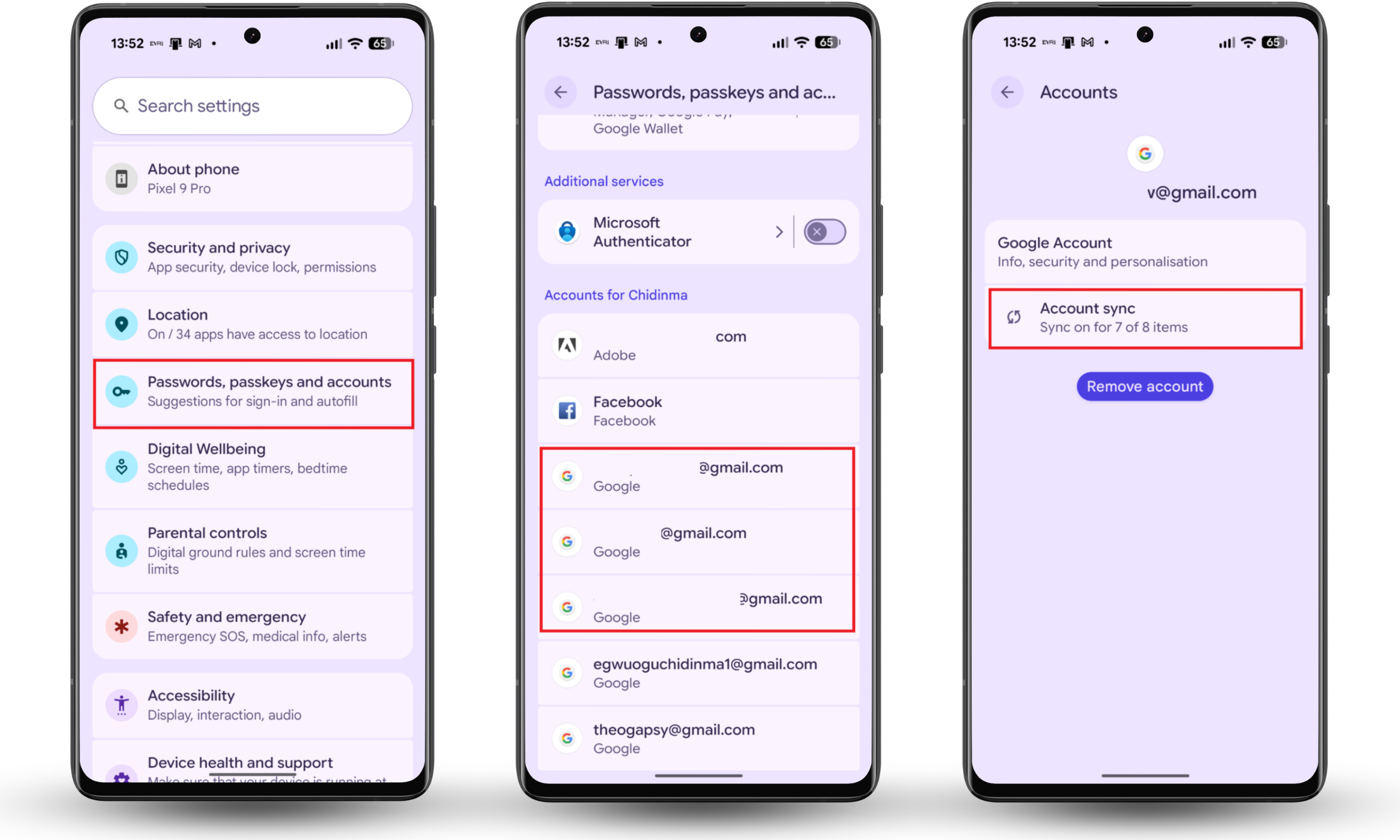
If more than one Google account is logged in on your phone and allowed to sync contacts, the phone treats all of them as yours.
Here’s how to check for a shared Google account on Android:
- Open Settings on your phone.
- Tap Passwords, passkeys and accounts (or Accounts).
- Review every Google account listed.
- Open each account and check whether Contacts sync is turned on.
2.2 Check external account sync
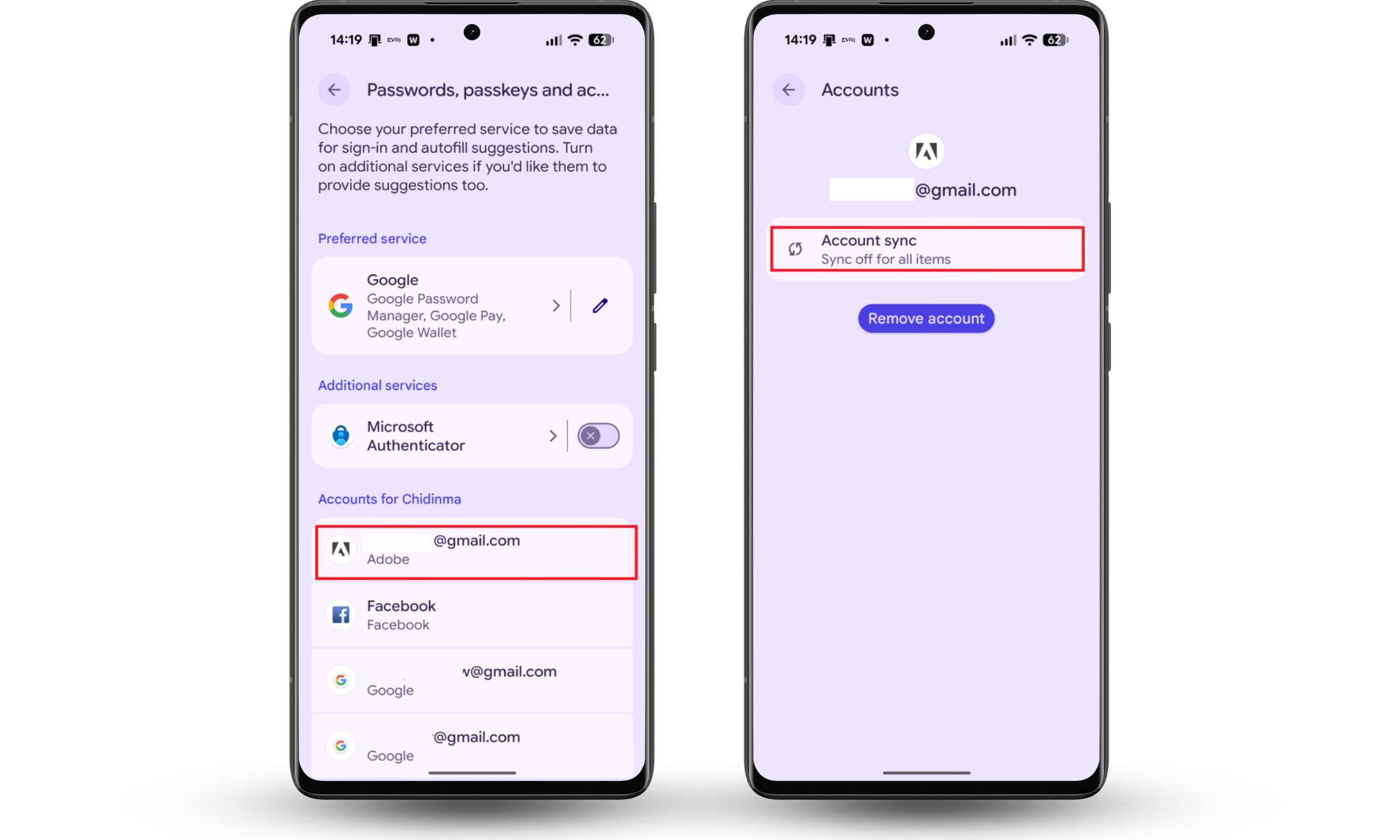
Contacts on Android can also come from non-Google accounts. Email apps, work profiles, and services like Outlook or Exchange can sync their own contact lists once added to the phone. The fix is to check which non-Google accounts are allowed to sync contacts and disable that access.
Here’s how to check external account contact sync on Android:
- Open Settings.
- Tap Passwords, passkeys and accounts or Accounts.
- Review all listed accounts that are not Google.
- Tap each account and open Account sync settings.
- Check whether Contacts sync is enabled.
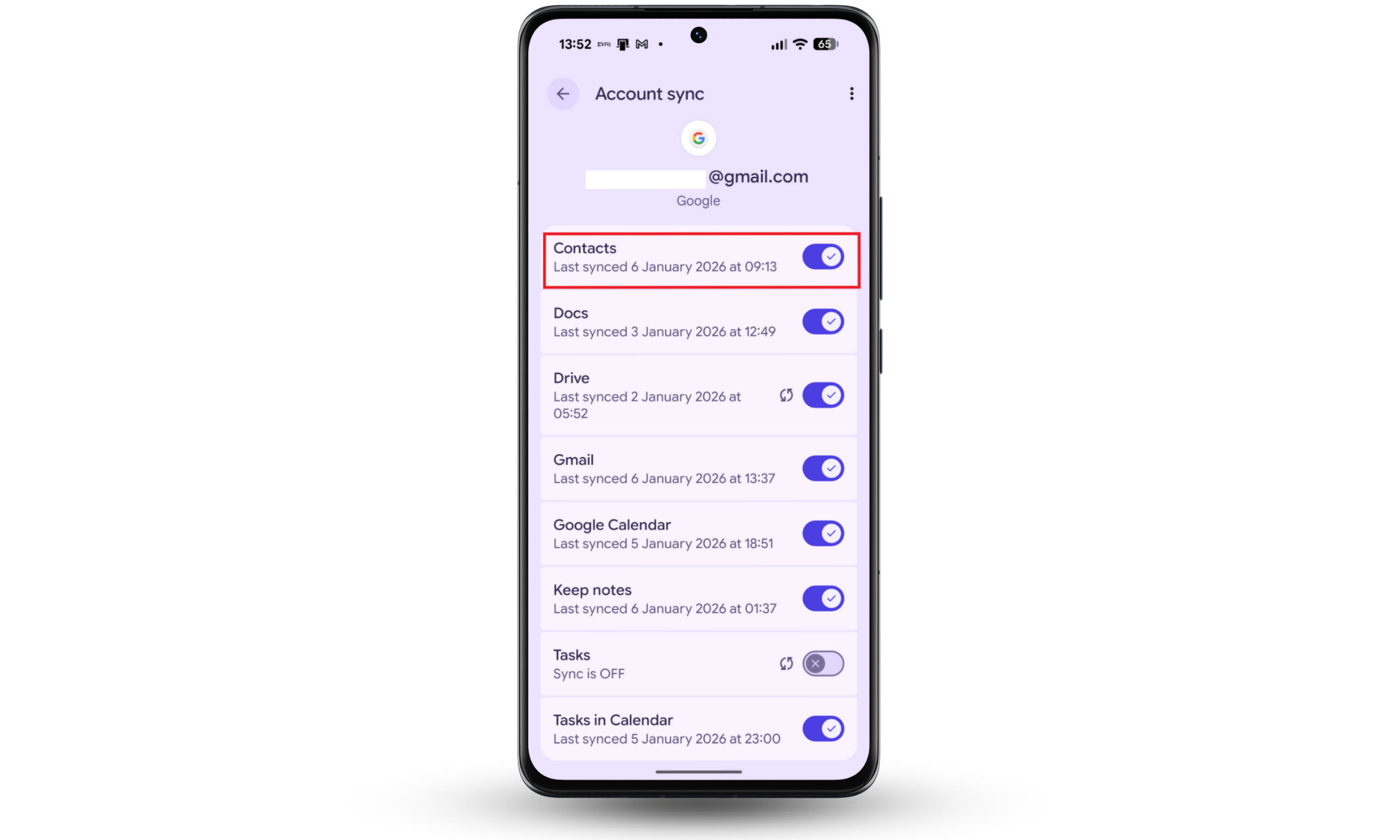
2.3 Turn off sync in settings
This step lets you stop contact syncing for any account on the phone, even if you are not yet sure which one is responsible. You can repeat this process until only your main account’s sync is left.
How to turn off contact sync on the device:
- Open Settings on your phone.
- Tap Passwords, passkeys and accounts or Accounts.
- Select any account from the list.
- Tap Account sync.
- Turn Contacts off.
2.4 Check your Google Contacts app settings
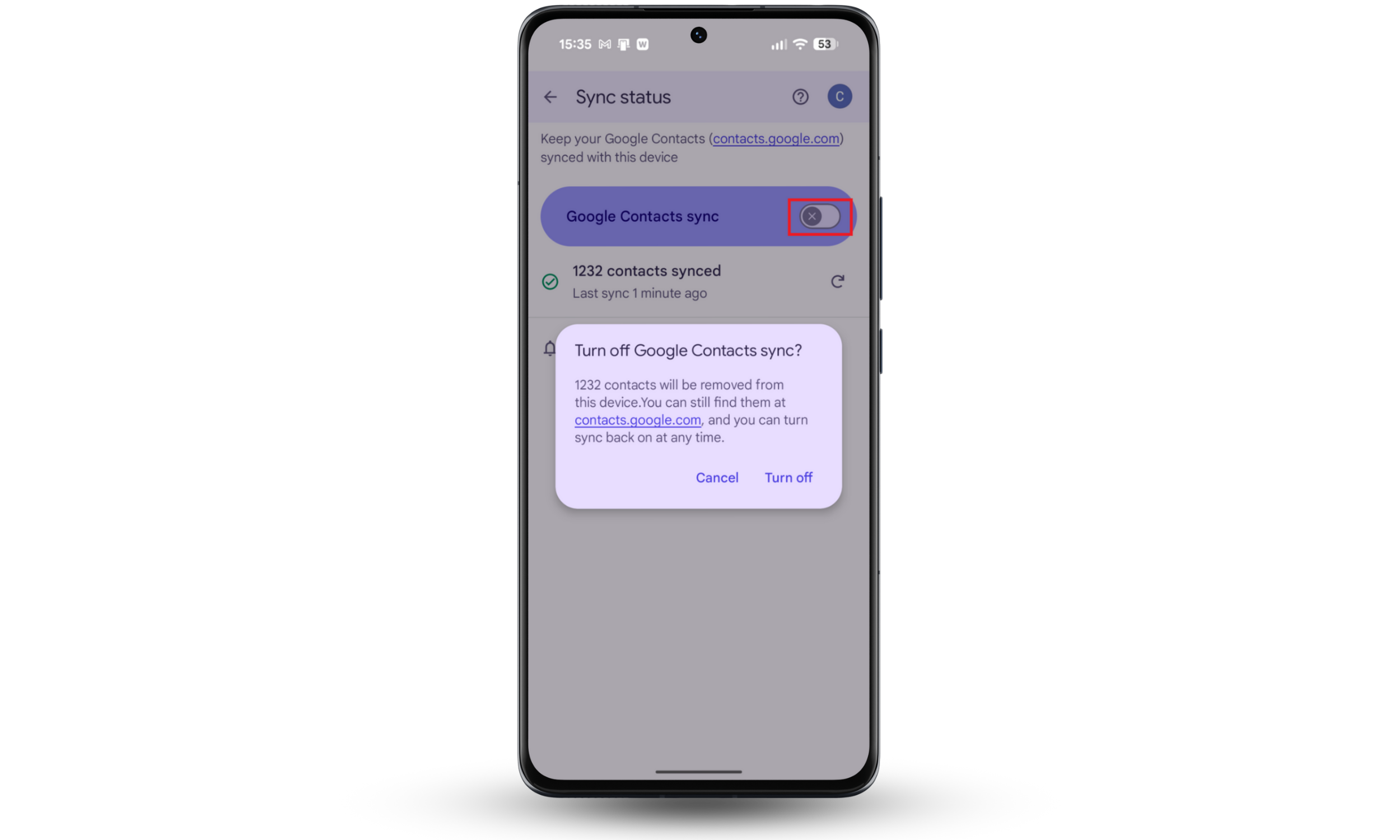
Turning this setting off removes Google-synced contacts from your phone, but it does not stop the syncing from happening in the cloud.
How to disconnect your phone from Google Contacts:
- Open the Contacts app on your phone.
- Tap the Organize tab.
- Select Google Contacts sync settings.
- Open Sync status.
- Turn off Google Contacts sync.
A warning will appear saying contacts will be removed from this device. Those contacts are not deleted entirely. They remain in your Google account and can still be accessed at contacts.google.com.
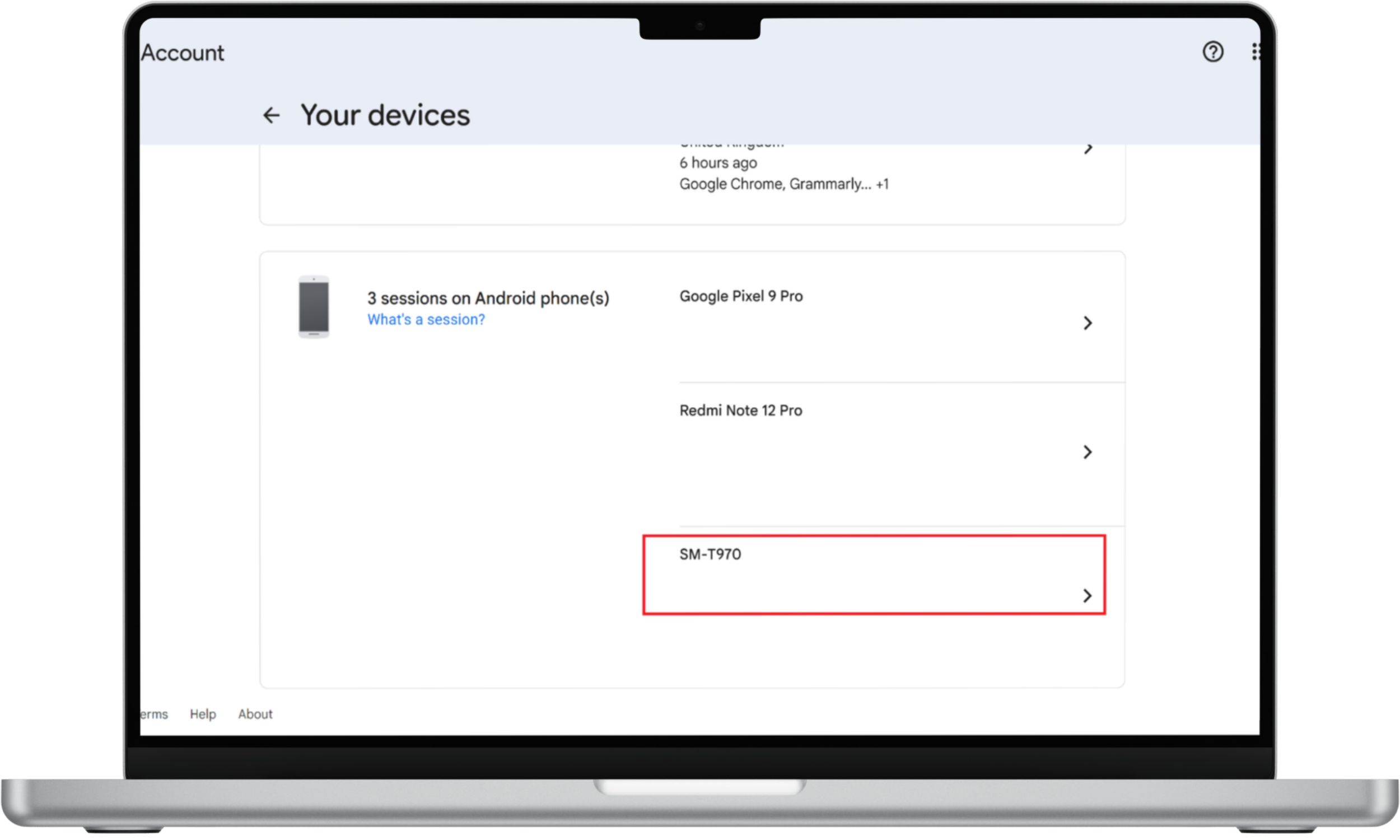
You can also remove unknown devices from your Google account and change your password.
How to remove a device from your Google account and change your password:
- Open your web browser and go to myaccount.google.com.
- Click on Security & sign-in in the left-hand menu (or the top bar on mobile).
- Scroll down to the Your devices panel and click Manage all devices.
- Locate the device you want to disconnect.
- Click on that device and select Sign out.
- Return to the Security page and scroll to How you sign in to Google.
- Click Password and create a new, strong password to prevent them from logging back in.
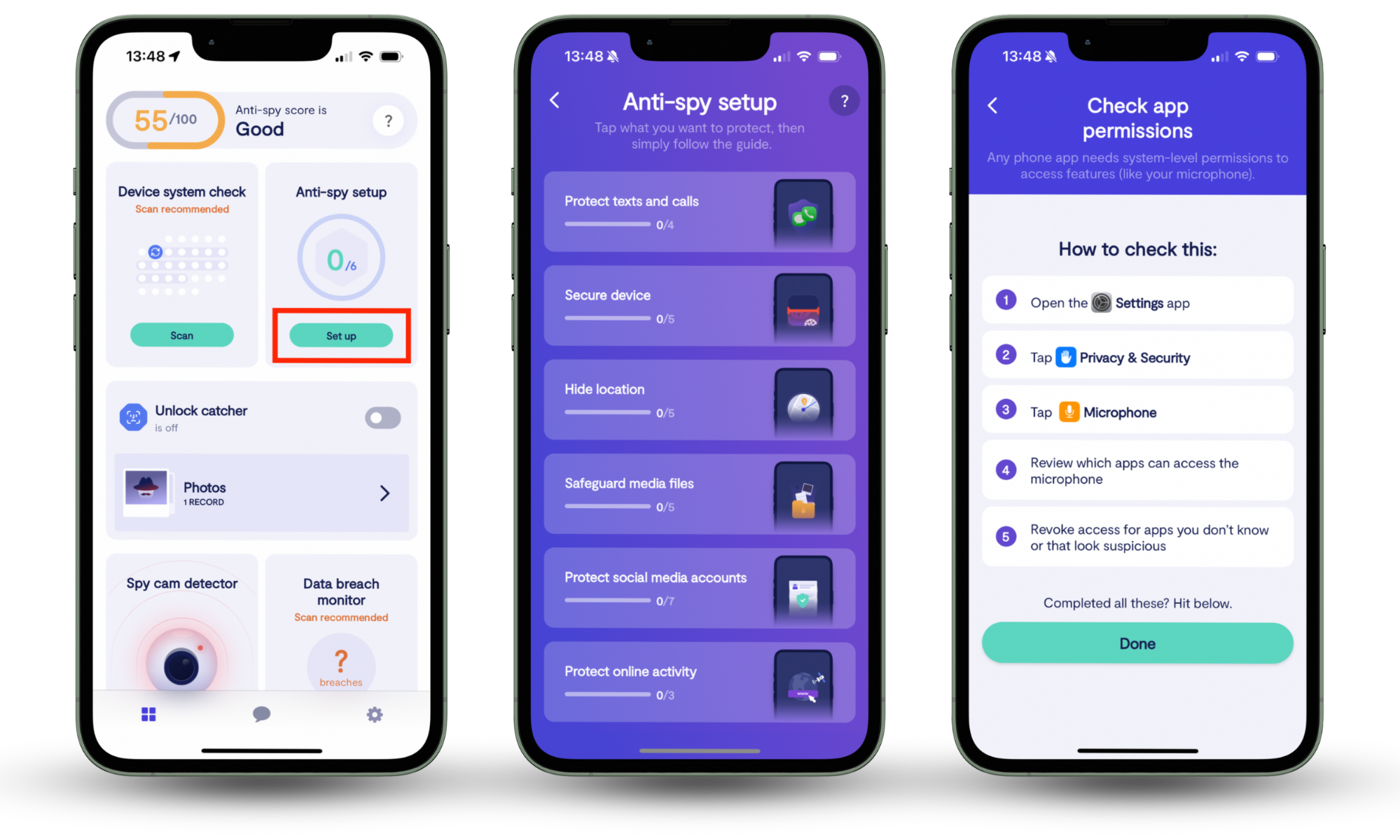
After cutting off account access and locking your password, double-check that there are no leftover settings allowing secret access to your data. You can do this with Clario’s Anti Spy Setup.
Anti-spy setup helps you review contact access, account permissions, and system-level settings that are easy to miss and could be exploited by spy apps.
Follow these steps to activate Clario’s Anti-spy setup:
- Download Clario Anti Spy and create an account.
- On the home screen, select Anti-spy setup.
- Follow the on-screen checklist to review contact access, account permissions, and background activity.
- Apply the recommended changes to lock down your device.
2.5 Delete synced contacts from your device
Turning sync off stops new changes to your contact list, but contacts that have already synced will remain on the phone. You can remove them in three ways.
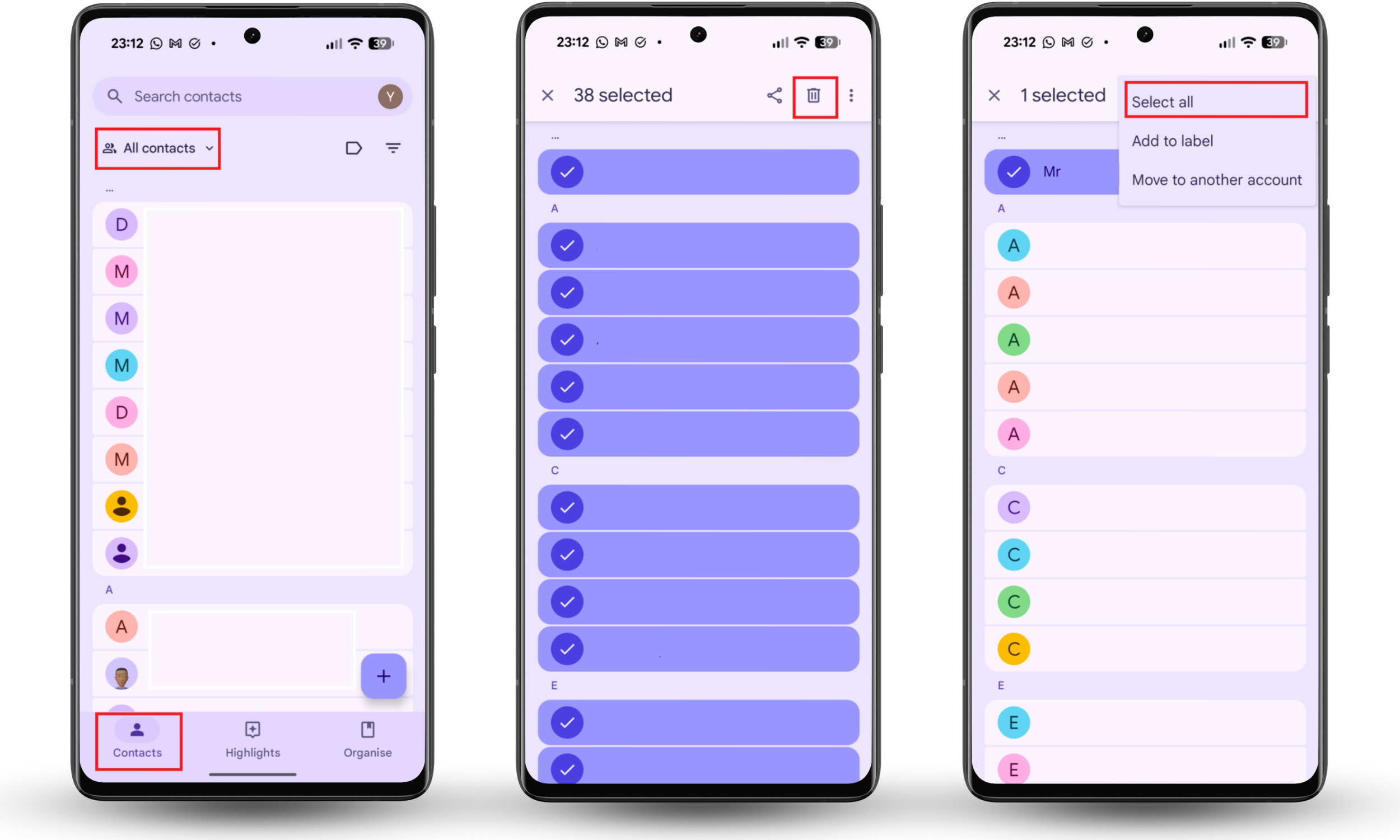
Method 1: Delete contacts from a specific account
Use this when you know what account the unwanted contacts came from, such as a work email or a shared Google login. Only contacts tied to that account will be removed.
- Open the Contacts app.
- Go to the Contacts tab.
- At the top, select the account you want to erase.
- Check that the list now shows only contacts from that account.
- Long-press a contact to enter selection mode.
- Tap the three dots in the top corner and choose Select all.
- Tap the trash icon and confirm.
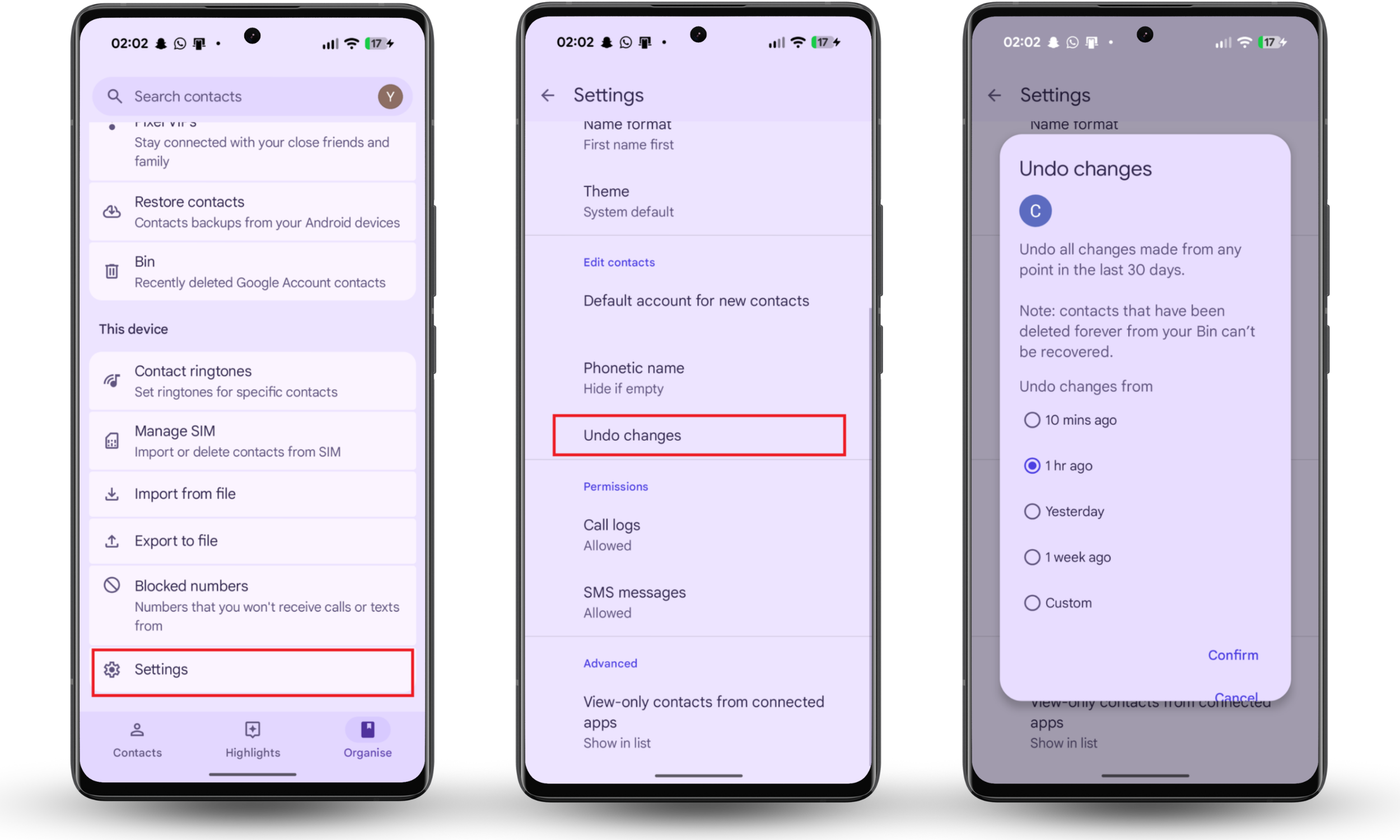
Method 2: Undo a recent contact merge
This works best if the contact sync or merge happened recently. It rewinds your contact list to a date before the sync.
- Open the Contacts app.
- Tap the Organize tab (or Fix and manage in some devices).
- Open Settings, then tap Undo changes.
- Choose your main contact account.
- Select a time frame (max 30 days).
- Tap Confirm.
Method 3: Clear the phone’s contact storage
Use this if you’ve done all of the above, and yet unwanted contacts keep coming back or refuse to delete.
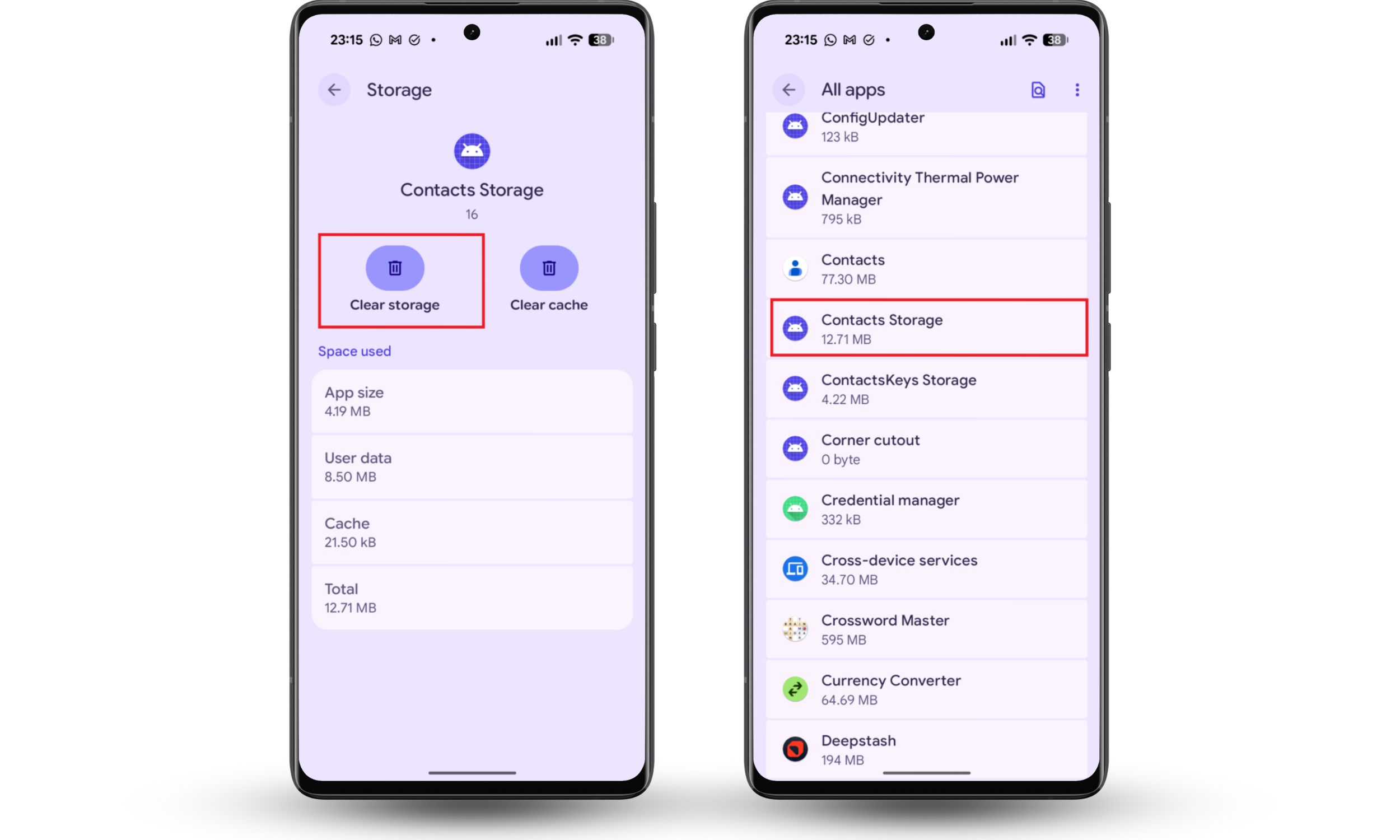
Clearing your phone’s contact storage deletes the local contact database on your phone. Your contacts remain safe in the Cloud, though. So next time you reopen the Contacts app, the phone reloads and syncs from your approved accounts.
- Open Settings on your phone.
- Go to Apps and tap See all apps.
- Tap the three dots and enable Show system apps.
- Find and open Contacts Storage (not the Contacts app).
- Tap Storage and cache.
- Select Clear storage or Clear data. Do not choose Clear cache.
- Confirm when prompted.
Conclusion
Most of the time, contacts sync to another phone simply because a shared Google or iCloud account is active. Disabling that setting usually stops the issue. However, if you’ve done this and contact syncing persists, it could be a sign of unauthorized access or a rogue app.
Use Clario Anti Spy to scan your device for spyware apps with sketchy permissions that farm your data. Be vigilant. Check your device now.