Table of contents
- What “calendar syncing on another phone” really means
- Why “calendar syncing on another phone” happens
- 1. iOS and Apple ecosystem
- 2. Android and Google ecosystem
- How to stop unwanted calendar syncing on your phone
- 1. For Android (turn off Google Calendar sync)
- 2. For iOS (remove shared calendars or disable account calendars)
- 3. For Google Calendar (unshare calendar or remove access)
- Conclusion
What “calendar syncing on another phone” really means
When your calendar is syncing on another phone, it simply means both devices are connected to the same account, such as an Apple ID, iCloud, or your Google account. Because of that link, any event you add or change on one phone shows up instantly on the other. This could also happen through shared accounts, shared calendars, or outdated sync permissions you may have set up and forgotten.
However, if you're sure your calendar is syncing due to some other reason, it's worth double-checking that your device hasn't been tampered with. Clario Anti Spy is an anti-spyware tool that can help with that. Its Device system check can tell you if your phone is jailbroken, rooted, or missing important security updates.
Here's how to run a Device system check with Clario Anti Spy:
- Download Clario Anti Spy and subscribe to create an account.
- Tap Scan under Device system check.
- Follow the on-screen steps if the scan notifies you of any threats.
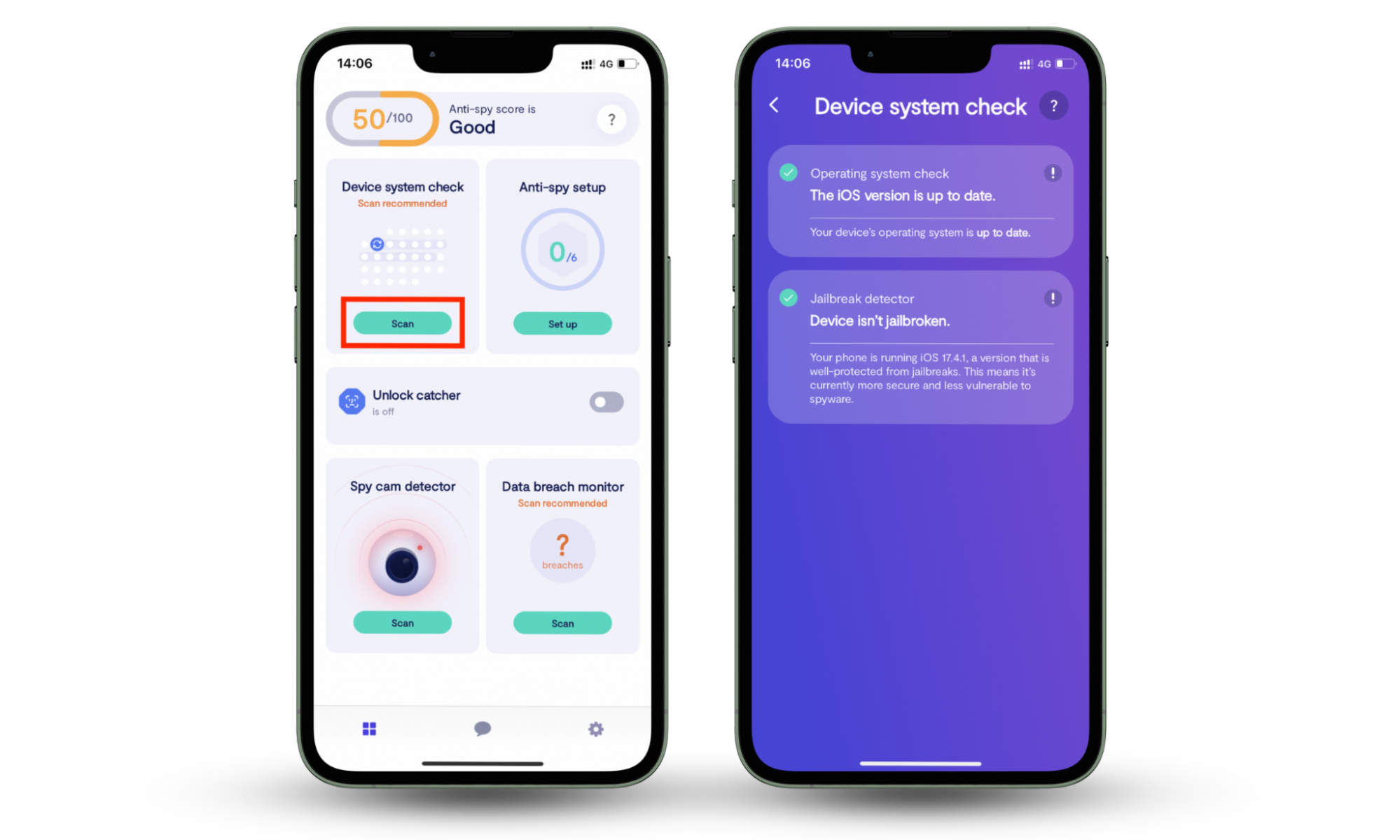
Clario Anti Spy also includes several other tools to keep your phone protected. For instance, the Anti-spy scan guides you through securing your online accounts, the Data breach monitor alerts you if your email appears in a breach (definitely worth running), and the Hidden App Scan locates suspicious apps and spyware.
And if you ever need help, Clario's 24/7 expert team is always on standby. They deal with all kinds of security issues. Here's what one expert said about helping a customer who thought their phone had been compromised:
"A customer reached out to us with concerns that some of his personal information might have been exposed through data broker platforms or unauthorized leaks.
In response, we recommended adding his email addresses to our Data Breach Monitor feature, which leverages our proprietary Leak Database to perform a comprehensive scan for known data breaches associated with the provided credentials. The scan revealed multiple breaches, including the exposure of a password linked to one of the customer’s email accounts.
Following the discovery, we delivered detailed, step-by-step instructions on how to promptly update the compromised passwords and secure the affected accounts. In addition, we offered tailored recommendations for enhancing overall account security, such as enabling multi-factor authentication, regularly rotating credentials, and avoiding password reuse across platforms.
The customer expressed gratitude for the thorough assistance and noted that he would not hesitate to contact us again should any further questions or concerns arise."
Why “calendar syncing on another phone” happens
If your Apple ID, Google account, or a shared email is signed in on multiple phones, events will sync automatically. You might've also shared your calendar at some point and forgotten about it, a family member may have added your calendar to their device, or an old device/email setup could still have access. It doesn't mean your phone was hacked or cloned—by the way, can your phone be cloned without you knowing?
1. iOS and Apple ecosystem
On Apple devices, this usually comes down to using the same Apple ID on more than one phone or sharing a calendar with someone else.
1.1 Shared iCloud or Apple ID issues
If you own multiple Apple devices, you'll see the same calendars everywhere you've signed in with the same Apple ID or iCloud account. That's just how Apple's default syncing works. In some cases, calendars may continue to sync even after you attempt to disable the feature due to an occasional glitch.
1.2 Enabling calendar under shared email account
If you add a Gmail, Outlook, or work email account to your iPhone, the calendar associated with that account may sync automatically. Team or work calendars can also appear on your device without you manually adding them. And if multiple people use the same email login, everyone will see the same events.
2. Android and Google ecosystem
The Google ecosystem works the same way. Any device signed in with the same account will automatically sync your calendar events. If you have a shared calendar with someone, events will appear on both phones.
2.1 Google account syncing calendars across devices
Google Calendar syncs instantly across all Android devices signed in with the same Google account. If you once added your account to a different phone, it might still be pulling in events. Work accounts also tend to share calendars with every connected device.
2.2 Third-party sync tools or apps
Apps like Samsung Calendar, Outlook, or family-sharing tools can also sync shared calendars across devices, sometimes even after you've given them permission. Cross-platform syncing—such as connecting Google Calendar to Apple Calendar—can also mirror events across both ecosystems.
How to stop unwanted calendar syncing on your phone
You can stop unwanted calendar syncing by turning off the feature in your account settings, removing shared accounts, unsharing calendars, or revoking access through Google or iCloud. It also helps to review third-party app permissions and delete old accounts from devices you no longer use. These steps make sure only your own personal devices get your calendar updates.
If you notice any suspicious accounts or configurations during the process, refer to our guides on how to detect if someone is spying on your phone and how to determine if your phone is being tracked.
1. For Android (turn off Google Calendar sync)
If events from another device keep popping up on Android, start by checking whether your Google account is still syncing calendars:
- Open the Settings app, tap Passwords, passkeys & accounts, and select your Google account.
- Tap Account Sync.
- Turn off the switch next to Calendar.
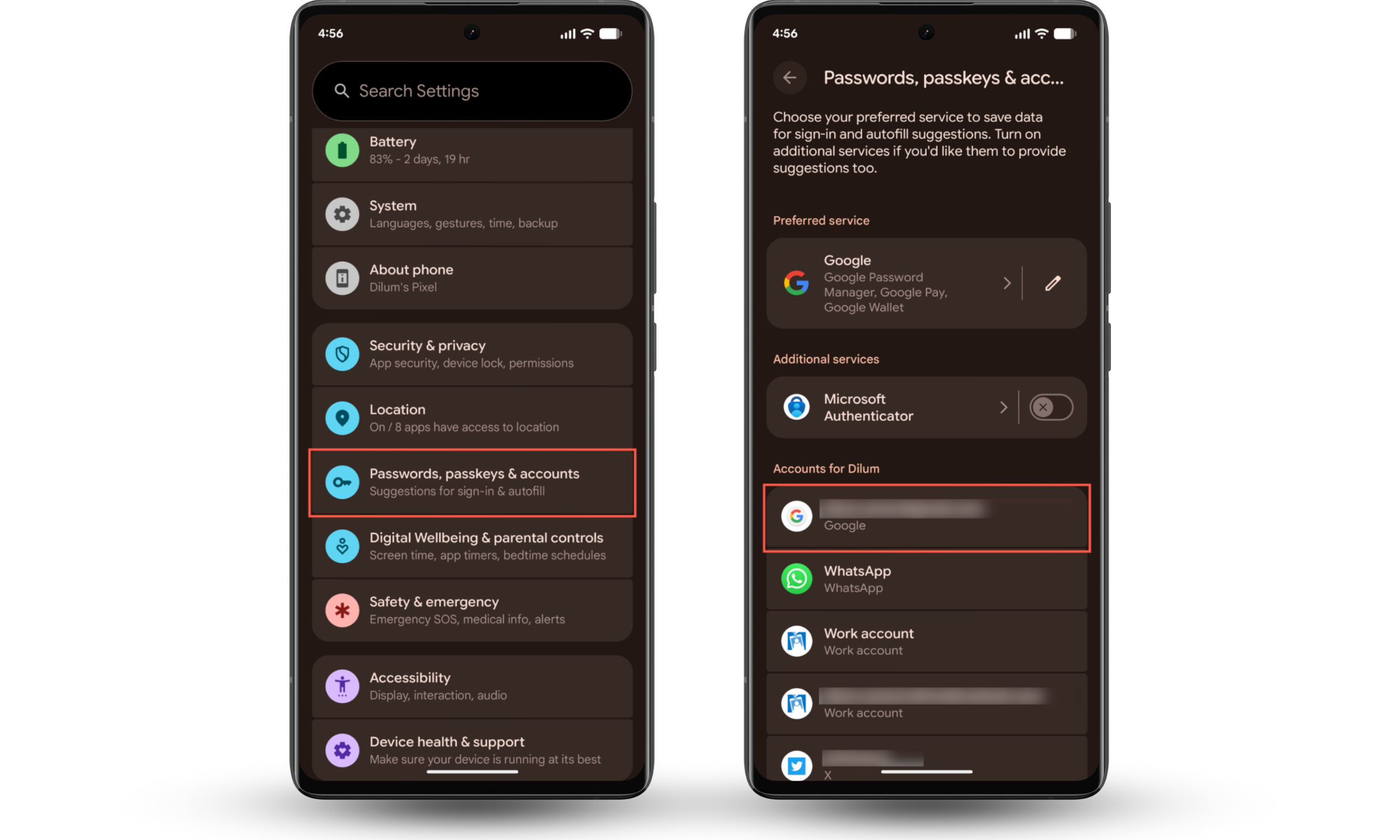
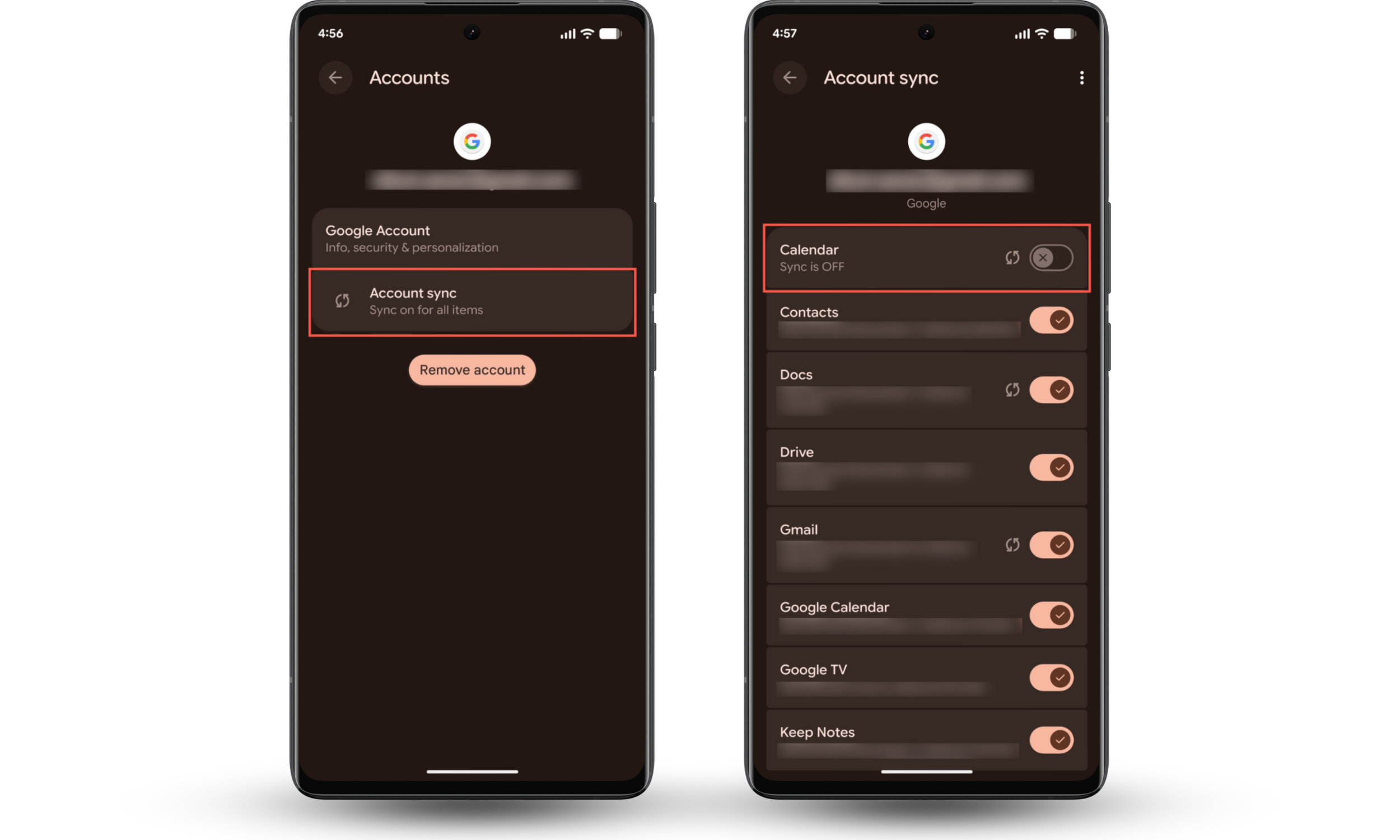
If your account shouldn't be on your phone at all, remove it completely—go back to the previous screen and tap Remove account. If you don't recognize it, make sure to run some codes to see if your phone is being tracked.
2. For iOS (remove shared calendars or disable account calendars)
On an iPhone, the issue usually comes from shared calendars or accounts that sync automatically in the background.
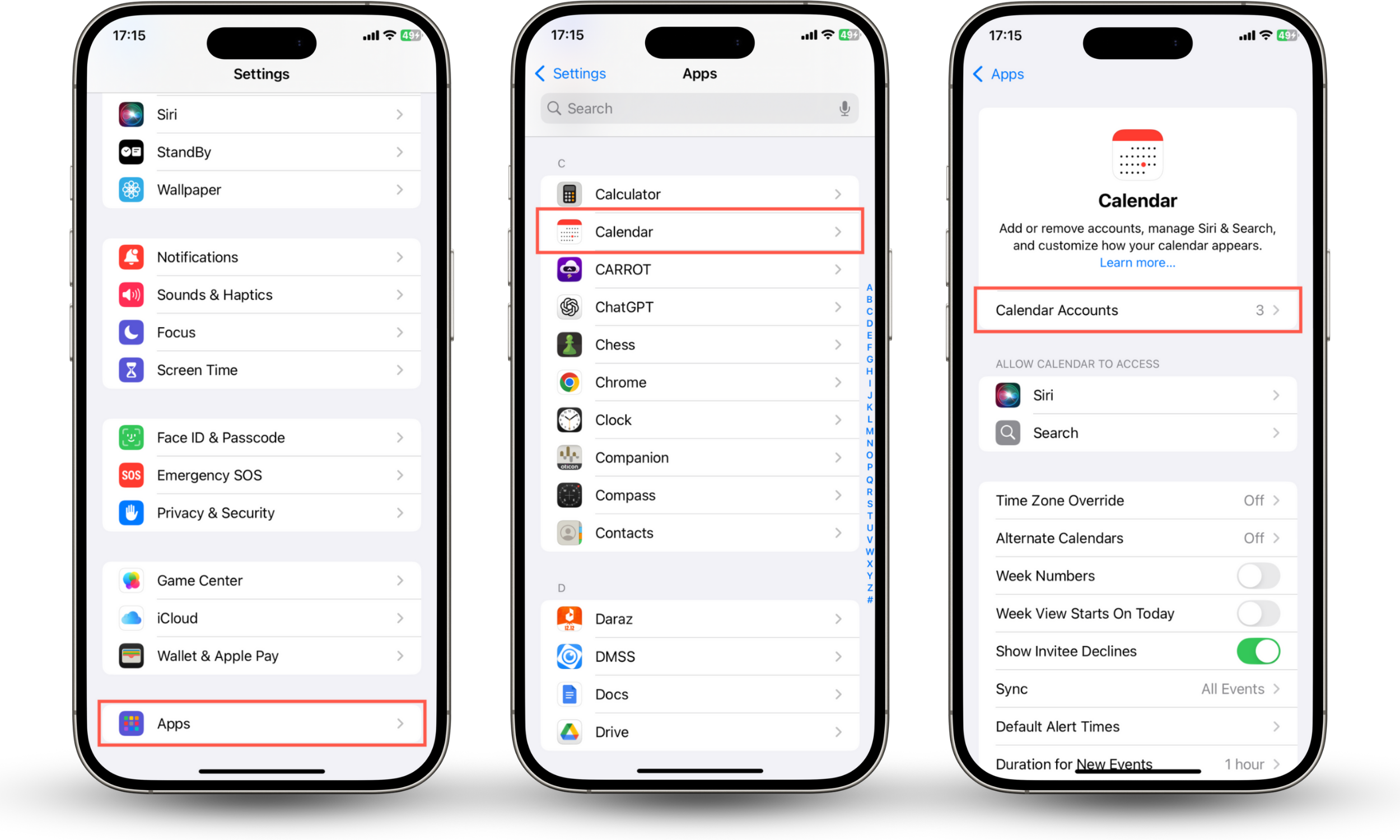
Here's how to disable calendar syncing between devices:
- Go to Settings > Apps > Calendar > Calendar Accounts.
- Select the account with the calendar.
- If it's iCloud, disable Use on this iPhone. If it's Gmail or Outlook, disable Calendars.

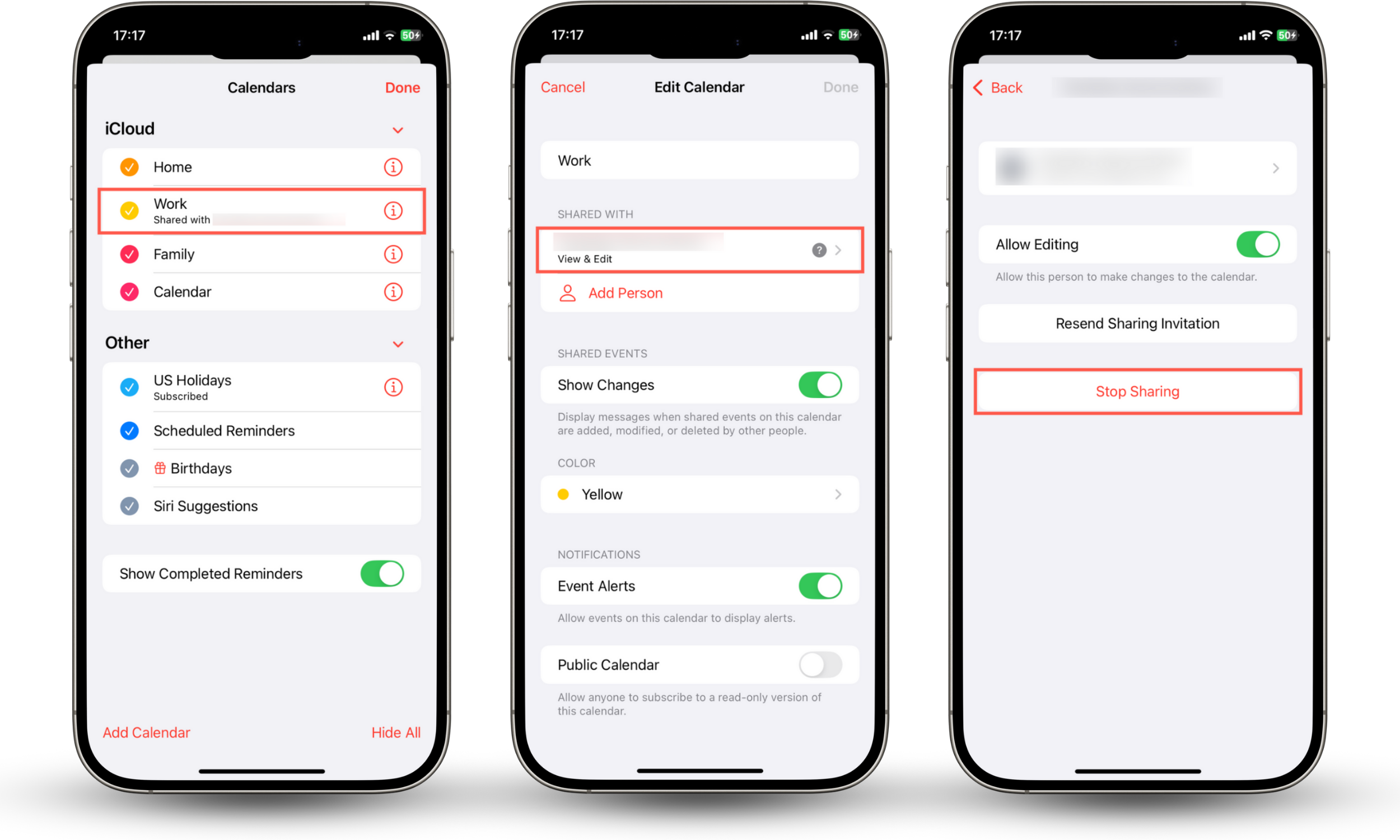
Here's how to remove people from shared calendars:
- Open the Calendar app and tap Calendars.
- Tap on the Info icon next to a calendar.
- Under Shared with, tap on a person and choose Delete.
3. For Google Calendar (unshare calendar or remove access)
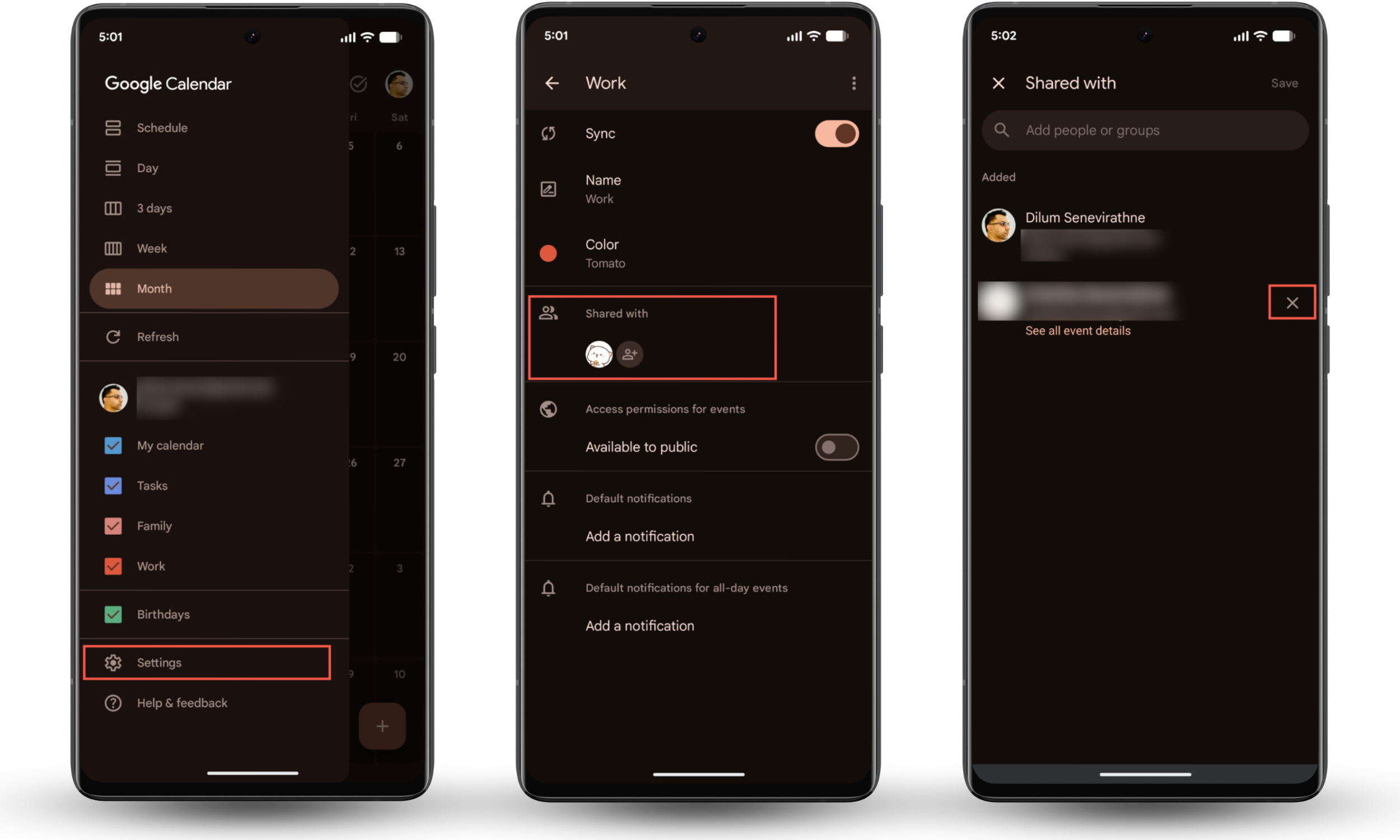
For shared calendars on Google Calendar, you'll need to manage sharing and remove anyone who has access:
- Open Google Calendar.
- Tap the three-stacked lines in the top left corner and select Settings.
- Select a calendar.
- Make sure the Make available to the public switch is inactive.
- Under the Shared with section, tap a person and select the X icon next to their name to revoke.
Conclusion
If your calendar is syncing with another phone, it's almost always due to account syncing or shared calendars. iOS and Android both sync automatically when multiple devices use the same Apple ID, Google account, or email login. Once you tweak your sync settings, remove old accounts, or unshare calendars, your events go back to being private or only show up on the devices you actually use.
If you're still concerned about security, install Clario Anti Spy and run a quick Device system check to make sure everything on your phone is safe.