Table of contents
- How malware spreads via Wi-Fi
- 1. Infected devices and network lateral movement
- 2. Man-in-the-Middle (MitM) attacks
- 3. Rogue and fake Wi-Fi hotspots
- 4. Exploiting router or network vulnerabilities
- 5. Social Engineering and phishing via Wi-Fi connections
- How to protect your Wi-Fi against malware affection
- 1. Secure your Wi-Fi network (encryption, passwords)
- 2. Use of VPNs and encrypted connections
- 3. Software updates and firmware patches
- 4. Safe usage practices on public Wi-Fi
- 5. Antivirus and endpoint protection solutions
- Conclusion
How malware spreads via Wi-Fi
There are several ways that malware can infect Wi-Fi. Hackers might use infected devices to spread malware across your network, or launch a man-in-the-middle attack to send malicious software to your phone, computer, or tablet. Some cybercriminals might set up fake public hotspots to distribute malware or exploit vulnerabilities in your network or router software. They may even manipulate you to download malware yourself, as part of a phishing scam.
Malware can steal your personal data, like financial information, private photos, or confidential files. It might activate your camera or microphone to spy on you, or let a hacker record your keystrokes. It could even lock your files until you pay a ransom or permanently wipe your data.
Once one device on a network is infected with malware, it can easily transfer to other computers or phones. Let’s look at how malware can affect Wi-Fi networks in more detail.
1. Infected devices and network lateral movement
If a computer, phone, or tablet is infected with malware, it can spread throughout your Wi-Fi network. Hackers can transfer malicious software to other computers, phones, or tablets on the network.
Once they’ve got access to your network, they can look for vulnerable computers, phones, tablets, or even smart TVs or other internet-enabled products. Malware can travel through Wi-Fi networks to spread to these devices,especially if your devices have unrestricted file-sharing permissions with other machines on the same network.
Watch out for signs that your phone has malware, so you don’t infect other devices. Signs of malware spread through Wi-Fi might include:
- Your battery drains faster than usual
- Your phone runs very slowly or freezes
- The phone gets very hot
- Your data usage increases
- There are unexpected or hidden apps on your phone
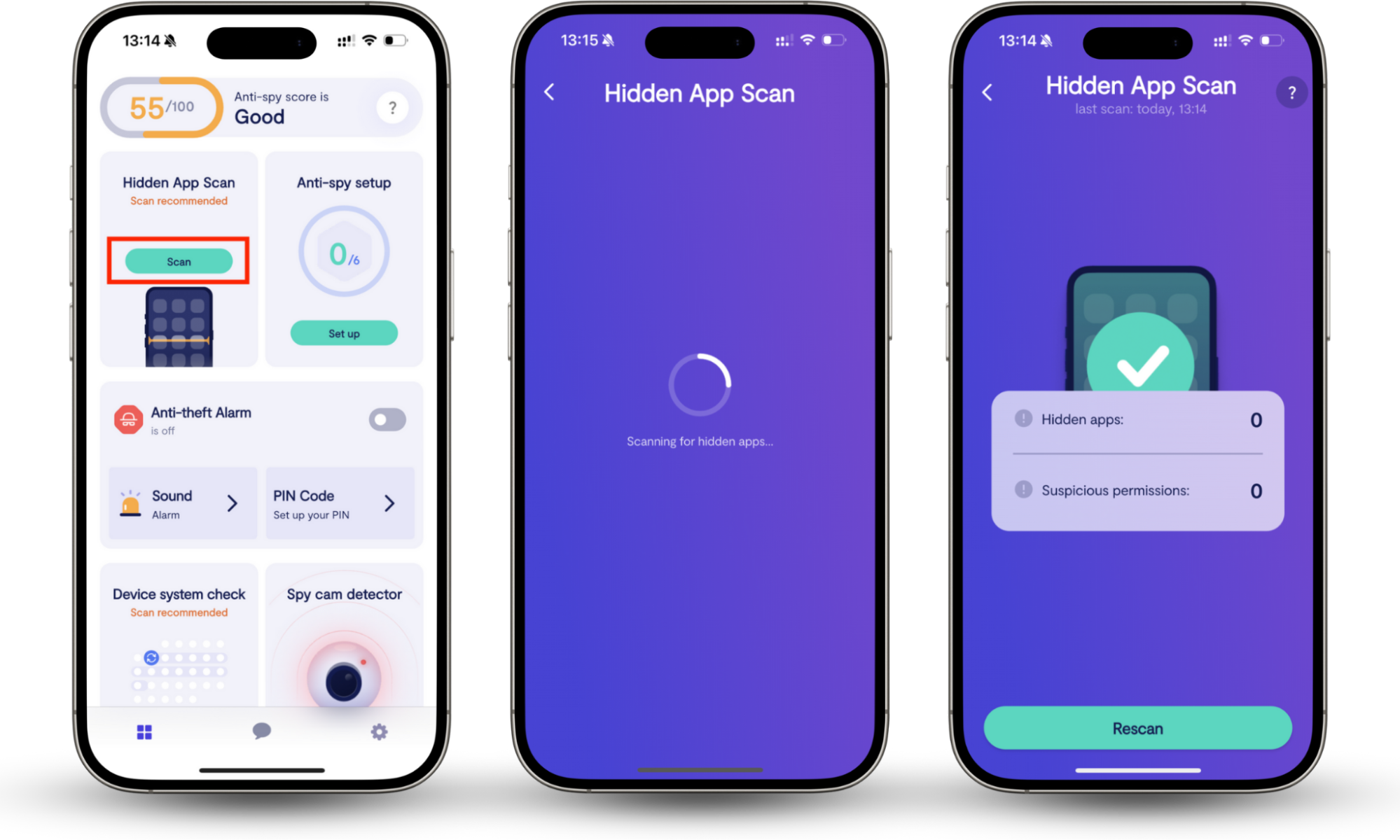
Hidden apps could be malicious. However, they can be hard to find,they don’t show up on your home screen or App Drawer. Clario Anti Spy’s Hidden app scan can help you locate hidden software with just a few taps.
Recently, a customer contacted Clario with concerns about hidden apps on their phone. They hadn’t installed anything new, but they’d noticed fast battery drain and were worried that something wasn’t right. Ross at Clario support explained how to run a Hidden app scan, which found several suspicious apps, software that was monitoring location, microphone, and even contacts.
Here’s how you can look for hidden apps on your phone:
- Download Clario Anti Spy and set up a subscription.
- Under Hidden App Scan, tap Scan.
- When the scan is complete, check the Hidden apps and Suspicious permissions for software that you don’t recognize.
2. Man-in-the-Middle (MitM) attacks
In a man-in-the-middle (MitM) attack, hackers intercept data between your device and the Wi-Fi router. They can read or alter this information, or even send their own data to your device, which may include malware.
Often, victims don’t have any idea that their data has been intercepted. However, signs of a man-in-the-middle attack might include:
- Slow online loading times
- Random network disconnections
- Websites that appear broken, perhaps with different fonts, broken images, or lots of ads
- Website addresses that begin with http rather than https
- Browser alerts warning you about untrusted websites or invalid security certificates
Expert tip
You’re most at risk if you use unsecured or public Wi-Fi. After all, hackers can easily access these networks. However, if your home Wi-Fi has security vulnerabilities, hackers may be able to access your data there.
3. Rogue and fake Wi-Fi hotspots
Some hackers set up fake Wi-Fi hotspots to distribute malware or steal personal data. Once you’ve connected, they can send malicious software to your device, and malware can travel through the Wi-Fi and affect your phone, laptop, or tablet.
It’s easy to connect to public hotspots, so lots of us do it regularly. However, there are risks associated with public Wi-Fi usage, including malware, and you’re also leaving yourself vulnerable to hackers accessing your personal data, such as financial information, private images, and confidential emails.
4. Exploiting router or network vulnerabilities
If your router has security vulnerabilities, hackers could target it to spread malware. Perhaps your firmware is outdated, or your network doesn’t require complex security credentials. Hackers could get into it and distribute malicious software.
Worried that cybercriminals are targeting your network? Find out how to tell if someone is spying on your Wi-Fi.
5. Social Engineering and phishing via Wi-Fi connections
Hackers might even get you to download malware yourself. Phishing emails often pose as correspondence from your bank, your company, or a trusted retailer. They manipulate you into clicking on an unknown link or opening an infected attachment, downloading malware. Once it’s on your device, malware can spread through your Wi-Fi network.
How to protect your Wi-Fi against malware affection
To reduce the risk of malware affecting your Wi-Fi network, make sure that your Wi-Fi is secure, with a strong password and encryption system. Use VPNs and encrypted connections where possible, so that hackers can’t launch a man-in-the-middle attack. Keep your router’s firmware up-to-date, and use security software to keep on top of threats. Finally, if you use public networks, follow safe usage guidelines.
1. Secure your Wi-Fi network (encryption, passwords)
Does your network still have its default settings? If it does, hackers might be able to access it. Change your network’s name, make sure that it has a strong password, and enable WPA2 or WPA3 encryption.
Knowing how to secure your Wi-Fi network at home can keep you safe from malware, and it can also protect you from other threats. For example, a hacked network can let someone steal your personal data, access your devices, and even use your Wi-Fi for illegal activities.
2. Use of VPNs and encrypted connections
Using a VPN can protect your online activity from man-in-the-middle attacks, especially if you regularly use public Wi-Fi while you travel. A VPN encrypts your online activity, so it can’t be intercepted.
When you’re looking for a VPN, focus on security. Find one with strong encryption protocols, and check that it doesn’t keep logs of your online activity. Some VPNs also feature a kill switch, which automatically disconnects your internet connection if the VPN connection is dropped, ensuring your online activity remains private.
I know it’s tempting to look for free VPNs, but these services often offer lower internet speeds or a monthly data cap. Some free VPNs might even log your activity, putting your privacy and security at risk.
3. Software updates and firmware patches
Keep your operating systems up to date, and regularly check for firmware updates for your router. Developers constantly check for vulnerabilities and often release updates that can improve your security.
Many routers automatically update their firmware when patches are released; however, if you’ve disabled automatic updates or have an older router, you may need to update it manually. The exact process to update your router’s firmware may vary, depending on its make and model. However, you’ll typically follow these steps.
Expert tip
Before you start, you’ll need to know your router’s IP address, as well as its login information. This is usually listed on a sticker on your router, although if you’ve changed the default login credentials, you’ll need to know the new ones.
How to update your router’s firmware:
- Connect your router to your computer, either via an Ethernet cable or Wi-Fi.
- In a web browser, enter your router’s IP address.
- Enter your login information.
- Look for updates; they may be listed under Advanced Settings or under a heading that tells you about your current firmware.
- Download and install any available updates.
4. Safe usage practices on public Wi-Fi
Malware can spread through public Wi-Fi easily. Hackers might run man-in-the-middle attacks, or even set up fake hotspots to distribute malware.
Rogue hotspots might look genuine. They may be located in places where you’d typically expect to find a Wi-Fi network, such as a coffee shop, library, or hospital waiting room.
How to identify a fake Wi-Fi hotspot:
- If you don’t see a sign offering free Wi-Fi, check with a member of staff. Does this business or location definitely have a Wi-Fi hotspot?
- Rogue networks often don’t have password requirements. If you can connect to a hotspot without any credentials, this could be a sign of a fake Wi-Fi network.
- Some fake hotspots will request a significant amount of personal information to create an account, such as your date of birth, street address, or credit card details. If you need to enter a lot of personal data to access a Wi-Fi hotspot, it could be a malicious attempt.
- Genuine networks typically want you to agree to their terms of service; if you don’t have to consent, this could be a sign of a fake hotspot.
However, even if you’re using a genuine hotspot, be cautious. If anyone can access it, cybercriminals could easily use it to run a MitM attack.
I avoid using public Wi-Fi where possible. However, when I do use it, there are some guidelines I always follow:
- Avoid doing online banking or anything confidential on public Wi-Fi. This way, no one can intercept my private information.
- Use a VPN where possible. This can help avoid MitM attacks.
- Avoid connecting to unknown hotspots. Some users might be tempted to join what appears to be an unexpected free network, or one with a humorous name like FBI surveillance Wi-Fi, but these could be fake hotspots.
- Don’t click on unexpected links in emails or download attachments.
5. Antivirus and endpoint protection solutions
You should protect all of your Wi-Fi-enabled devices with antivirus software. Malware can infiltrate your devices through Wi-Fi, including phones, computers, tablets, and others.
Scan for malware regularly, and watch for signs that something might be wrong. Look out for unexpected new software, more ads than usual, your device suddenly heating up, or other unusual behavior.
If you suspect malware is being spread through your Wi-Fi, disconnect the infected device immediately.
Conclusion
Malware can spread through Wi-Fi to infect connected devices. Hackers might exploit vulnerabilities in your network to gain unauthorized access or use public Wi-Fi to spread their malware. Some cybercriminals might even set up fake hotspots to distribute malicious software.
Protect yourself by securing your network, setting a strong password, and ensuring you have strong encryption settings. Keep your router’s firmware updated, so that you have any critical security patches installed. Use a VPN where possible, and follow safe usage guidelines if you must use public Wi-Fi when you travel.
You should also familiarize yourself with the signs of malware. Check for malicious software regularly. Clario Anti Spy’s Hidden app scan can locate potentially dangerous hidden apps on your phone with just a few taps.