Table of contents
- What is an encrypted backup password?
- Is it possible to recover forgotten encrypted backup passwords?
- What happens if you forget an encrypted backup password?
- When is it possible to create a new backup?
- What to do if you forgot your encrypted backup password?
- 1. Trying common places where password may be saved
- 2. Resetting backup encryption on device
- 3. Using alternative backups
- 4. App-specific encrypted backups
- Security implications of encrypted backups
- Conclusion
What is an encrypted backup password?
An encrypted backup password is a secure password that you can use to protect local iPhone backups. It ensures that even if you lose your Mac or someone else obtains one of your backup files, they won’t be able to browse the information it contains without first unlocking it to decrypt the data.
You are prompted to create an encrypted backup password when you choose to enable this feature within iTunes or Finder on your Mac. It’s different from your iCloud password or the passcode you use to protect your iPhone. Once backup encryption is turned on, all local backups are protected going forward, and there’s no need to enable this option every time you back up your iPhone.
Is it possible to recover forgotten encrypted backup passwords?
Unfortunately, if you forgot the password to an encrypted backup for your iPhone, it’s not possible to recover it. You can create a new password to encrypt iOS backups going forward; however, the new one will apply only to future backups you create; it won’t reset or override the password associated with existing backup files already saved to your Mac.
If you also back up your phone to iCloud, you’ll be pleased to know you don’t need your encrypted backup password to access the data stored there, since it's already encrypted using your iCloud account.
What happens if you forget an encrypted backup password?
If you have an encrypted iPhone backup and forgot the password, you won’t be able to restore it or access its data. Your password serves as the backup’s decryption key, so without it, the backup is essentially rendered useless.
You may choose to hold onto your most recent backup file in case you happen to remember the password later, at which point you’ll be able to access the backup data and recover anything you want to keep. But we usually recommend deleting the rest of your backups to free up space on your Mac since those that you can’t unlock aren’t worth holding onto.
When is it possible to create a new backup?
Even if you forgot an encrypted backup password, it doesn’t mean you have to stop backing up your iPhone. You can either disable encryption within Finder or iTunes before creating a new backup, or you can reset your encryption password by clearing the settings on your phone, as explained below.
Alternatively, you can back up your Apple device to iCloud instead, which negates the need to plug it into your Mac every time you want to create a fresh copy of your data. We know some users don’t like to save their data to the cloud because they worry about getting their iCloud hacked, but the risk of this is very low if you use a secure password and follow best practices for cybersecurity.
What to do if you forgot your encrypted backup password?
When you forgot the password to an encrypted backup of your iOS device, there are several steps we recommend that can help you recover your data and get you back on track, including:
- Trying common places where passwords may be saved
- Resetting backup encryption on the device
- Using alternative backups
- App-specific encrypted backups
1. Trying common places where password may be saved
If you use a password manager, or perhaps still write down your passwords on paper (which we don’t recommend). It’s a good idea to double-check that your encrypted backup password isn’t saved somewhere before you start deleting backup data.
2. Resetting backup encryption on device
To create new encrypted backups, you’ll first need to reset the settings on your iPhone, which also resets your backup password. Follow these instructions:
- Open the Settings app and go to General > Transfer or Reset iPhone.
- Choose Reset.
- Tap Reset All Settings, then enter your device passcode to continue.
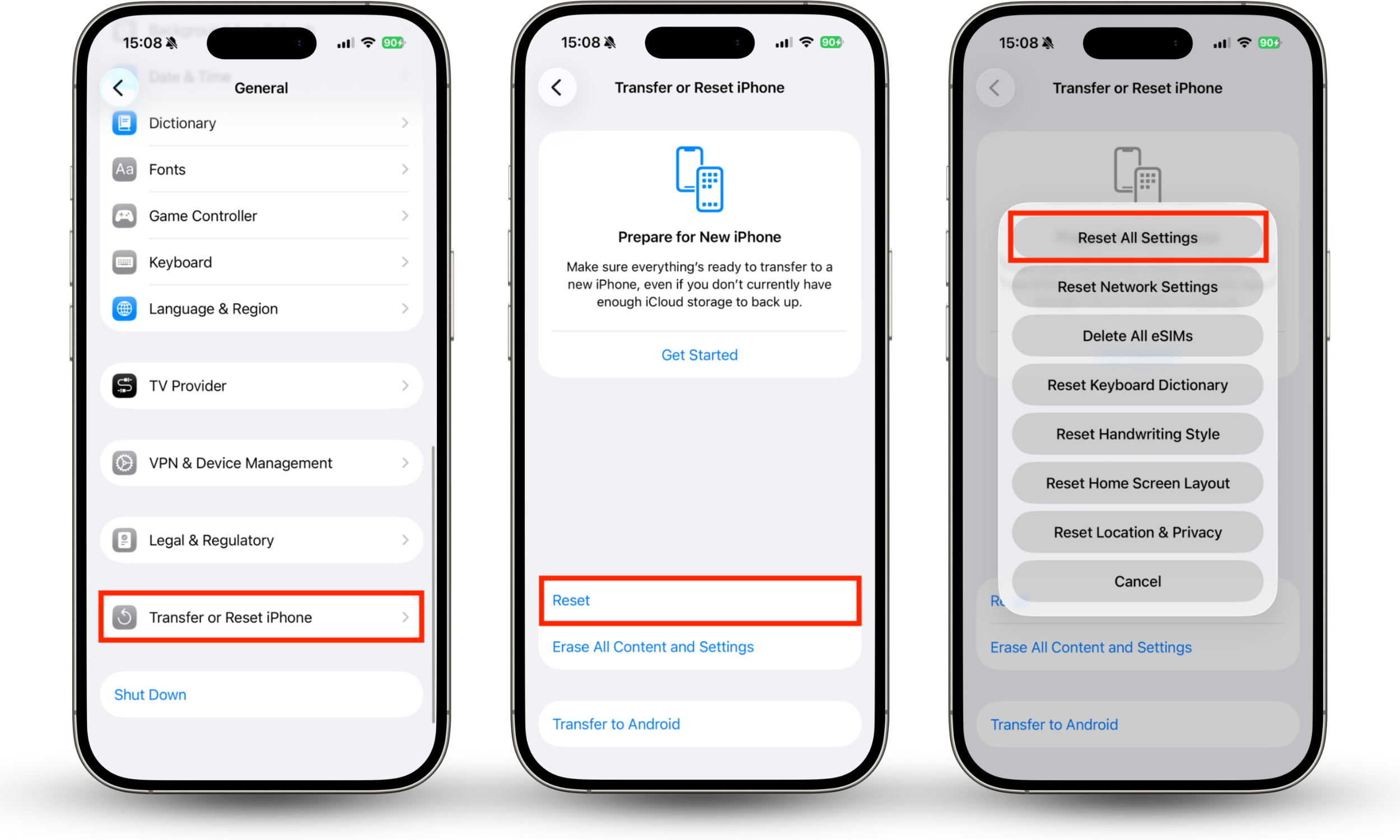
This process doesn’t delete any of your data, but it does reset device settings, including things like your wallpaper and Home screen layout. Most importantly, it resets your encrypted backup password. You can then plug your iPhone into your Mac to create a new backup with a new password.
3. Using alternative backups
Remember, resetting your phone settings and creating a new encrypted backup password doesn’t affect existing backups already saved on your Mac. Those are still locked using your old password. However, you can restore data from alternative backup locations, such as iCloud.
4. App-specific encrypted backups
It’s important to remember that many other apps and services also encrypt and save data to the cloud by default, so you may be able to recover certain files that way. For instance, if you use Google Photos or apps like Dropbox and OneDrive, these typically contain backups of images, videos, and other files.
Security implications of encrypted backups
We know it’s frustrating when you want to restore an iPhone backup that’s encrypted but you forgot the password, and it may seem silly that there’s no way to recover the data. However, this isn’t an oversight by Apple; iPhone backups are intentionally locked down in this manner with no recovery method to ensure that unauthorized access is essentially impossible.
Despite this, if you lose a Mac or storage device containing iPhone backups, or someone gains access to your device or iCloud account, we still recommend taking immediate steps to protect yourself. A great way to do that is with Clario Anti Spy’s Data breach monitor, which lets you know whether any of your sensitive information has leaked online in just a few taps. Try this:
- Download Clario Anti Spy for iOS.
- Under Data breach monitor, tap Scan.
- Enter an email address you want to search for, then select Scan new email. You can repeat this process for different emails later.
- Check whether your email address has been leaked in data breaches.
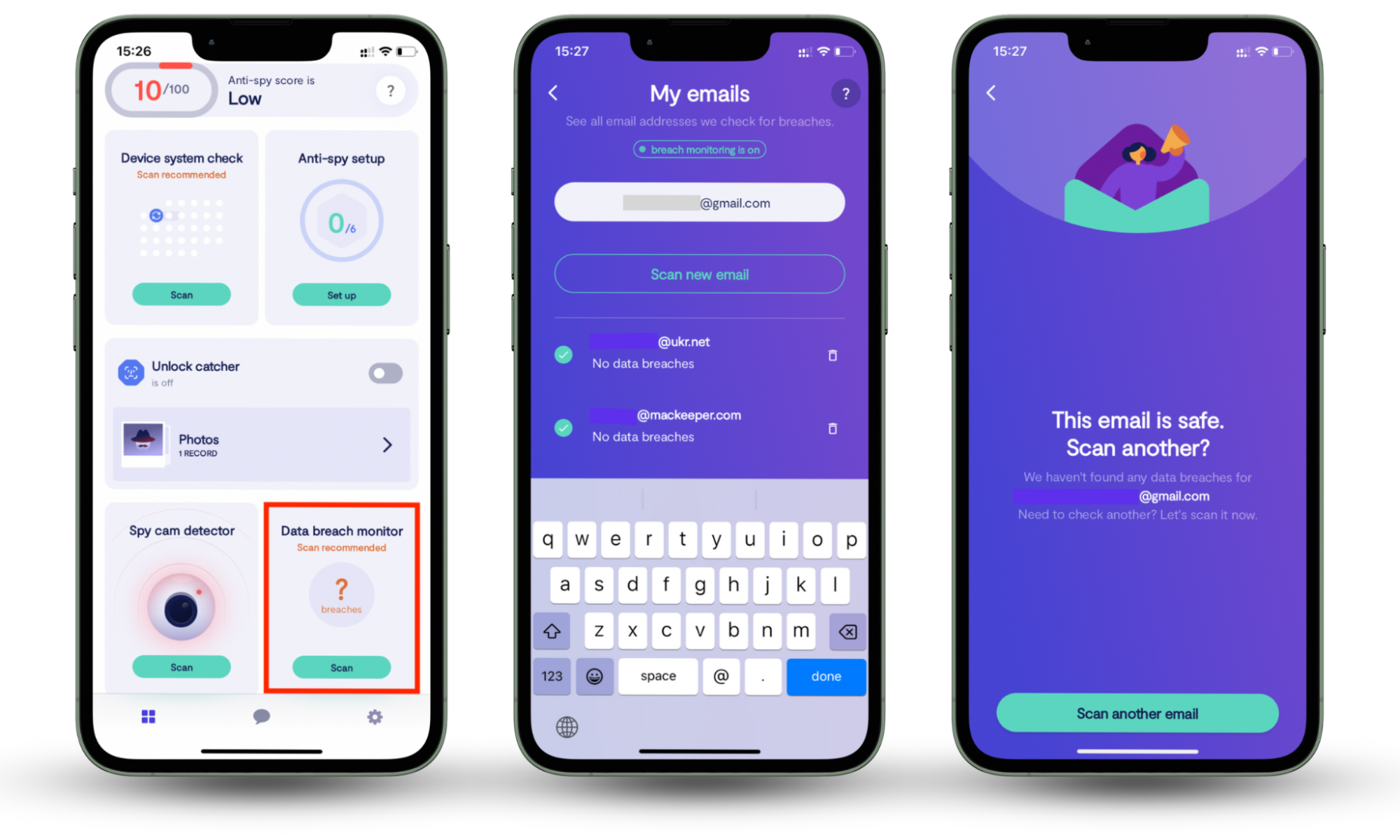
If you find that your email address is in a data breach, we advise you to reset the passwords for any accounts associated with that address as soon as possible. This will reduce the risk of someone hacking into your accounts and stealing your data and identity.
Conclusion
When you forget an encrypted backup password for your Apple iPhone, your options are somewhat limited. There’s no way to reset the password to recover data that’s saved in old backups; however, you can recover data from other backup solutions like iCloud or from within individual apps if they support cloud backups. You can also reset your backup password for all future local backups.
For those who are worried that iPhone backup data has somehow made its way to someone else, you can use Clario Anti Spy’s Data breach monitor to quickly find out if any of your email addresses have surfaced in online data breaches, which could eventually lead to identity theft.