Table of contents
- How to know if iPhone has virus
- How to scan iPhone for virus in Settings
- 1. Check for configuration profiles
- 2. Review battery and data usage
- 3. Audit battery usage
- 4. Check unfamiliar apps and storage
- 5. Check for jailbreak indicators
- 6. Inspect your Apple ID
- What to do if you suspect virus on iPhone
- Conclusion
How to know if iPhone has virus
When you want to know how to check an iPhone for a virus, I recommend monitoring the device for common signs of a potential hack. These include the presence of unknown apps in Settings > General > iPhone Storage, excessive battery usage within Settings > Battery, a sudden lack of free storage space, and a jailbreak that allows for unauthorized software.
In addition, I’ve found that many users who report an iPhone virus experience poor performance, frequent crashes, and overheating. Some users also notice odd behavior with their Apple ID, such as random login attempts or receiving two-factor authentication codes they didn’t request.
Since it’s so difficult to install apps from third-party sources on iOS, especially if you live outside of Europe, iPhone viruses and malware are uncommon. However, Apple's phones aren't completely immune to malicious software, so if you’re wondering if iPhones can get a virus, the answer is yes.
How to scan iPhone for virus in Settings
Although we can check an iPhone for a virus in Settings by looking for key symptoms, there is no built-in virus scanner within the iOS operating system. This means you can’t simply click a button to have every file on your device scanned for potential infections, as you can in Windows. Instead, we suggest inspecting Settings for unfamiliar apps, signs of a software jailbreak, and strange system behavior, such as unexplained data, battery, and storage drain.
Here are all the steps we recommend to scan an iPhone for a virus in Settings:
- Check for configuration profiles: These allow for the remote installation of software and control over certain features, such as Wi-Fi, email accounts, VPNs, and more.
- Review battery and data usage: Viruses typically consume a significant amount of system resources and upload data to attackers, which can drain your battery and cellular data.
- Audit battery usage: Keeping an eye on battery levels over time can help identify a potential infection.
- Check unfamiliar apps and storage: Malicious software sometimes appears as an app within your iPhone’s storage settings, although it is often disguised as something innocuous.
- Check for jailbreak indicators: A jailbreak allows someone to install unauthorized software, such as viruses, spyware, or iPhone trojans.
- Inspect your Apple ID: If your device is infected with a virus, hackers will likely use it to gain control of your Apple ID.
1. Check for configuration profiles
Configuration profiles allow others to control certain preferences on your iPhone, set up VPNs and other features, and install apps remotely. They allow corporations and schools to control their devices, but attackers have also started using configuration profiles to spread viruses. Here’s how to check for them:
- Open Settings and tap General.
- Select VPN & Device Management.
- Tap on any configuration profiles you see for more details, and if necessary, select Delete Profile and follow the onscreen instructions to remove them.
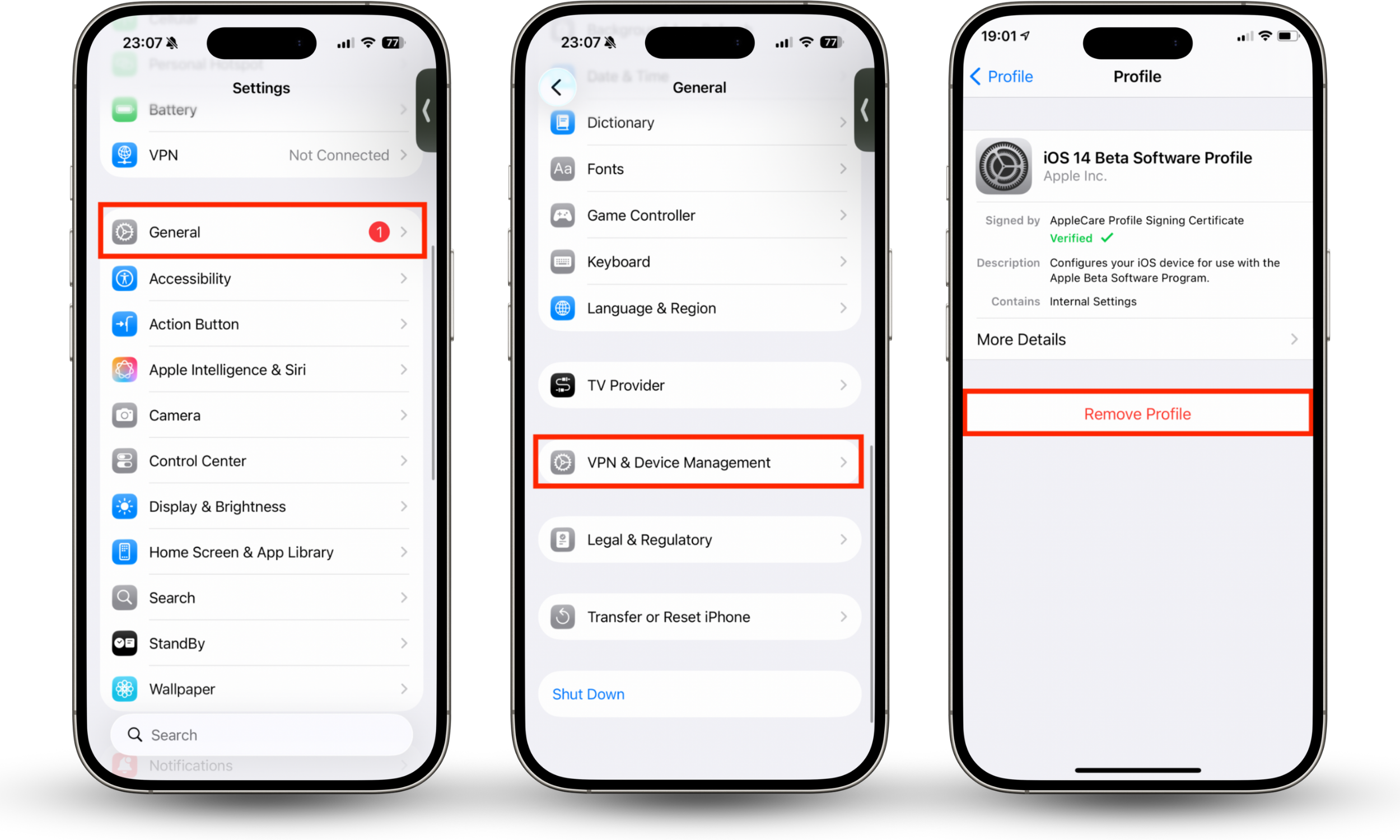
Deleting a configuration profile on iPhone prompts you to restart your device, after which, all apps and settings associated are removed.
2. Review battery and data usage
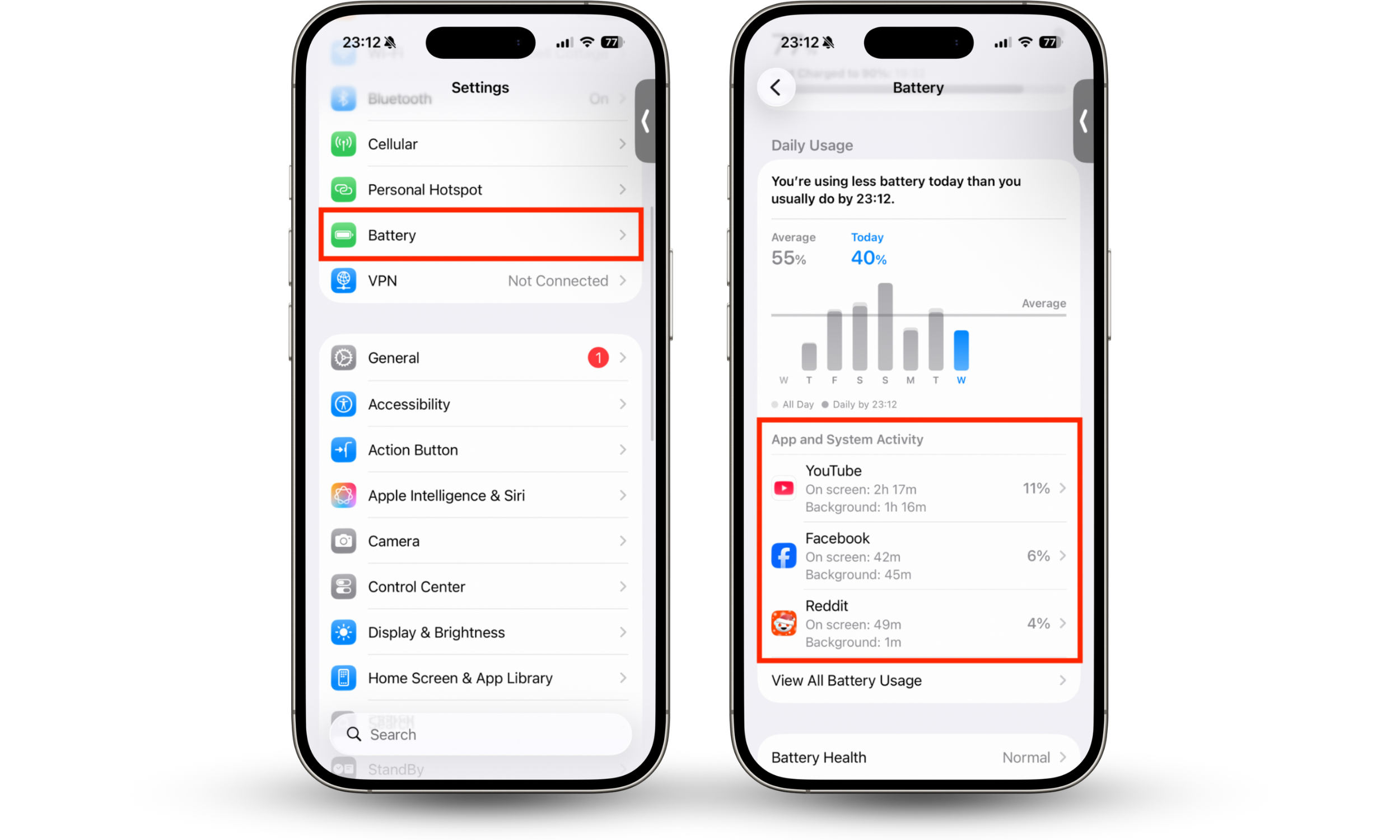
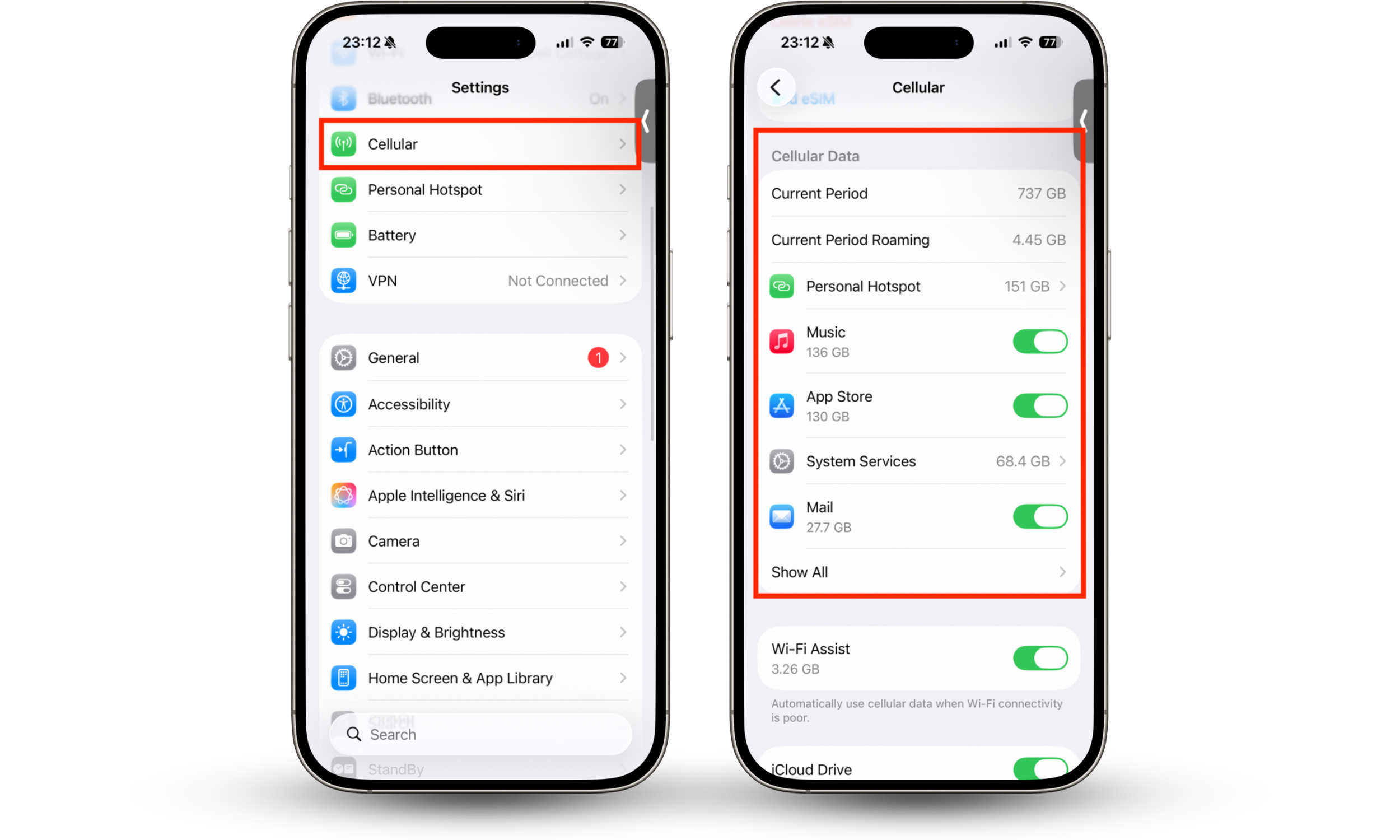
Malicious software is almost always running in the background to steal as much of your personal data as possible. It then feeds this back to hackers over the internet, and as a result, most infections tend to lead to excessive battery and data usage. You can review battery and data usage like so:
- Go into Settings, then choose Battery.
- Under Daily Usage, see which apps are eating up the most power and confirm they’re safe.
- Return to the main Settings screen, then select Cellular.
- Scroll down to Cellular Data to see which apps are using the most. Tap Show All to see the full list, and confirm you recognize all apps.
3. Audit battery usage
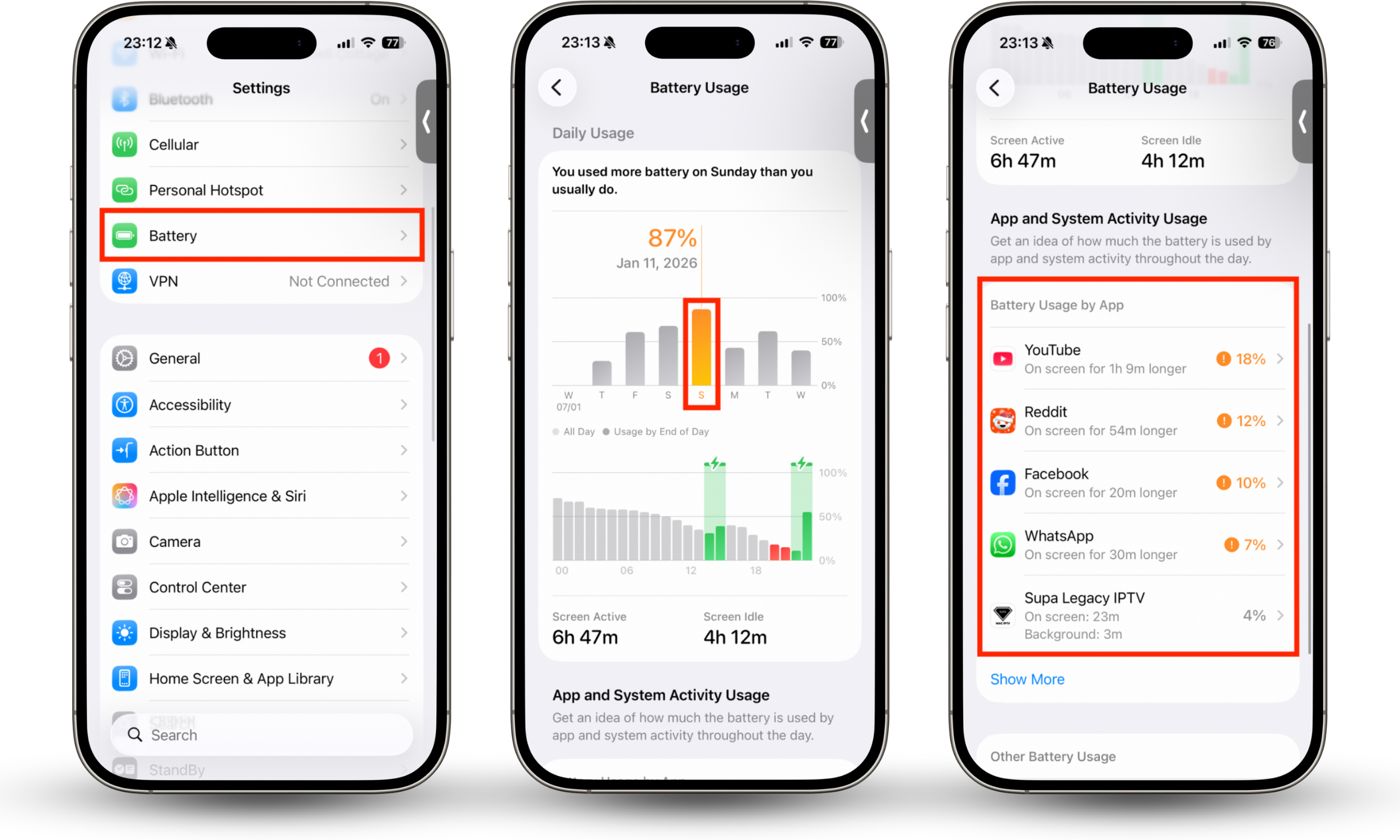
More sophisticated iPhone cybersecurity attacks hide themselves so they aren’t easy to detect. However, you can audit battery usage over time to determine if a potential infection is present. Try this:
- Go to Settings > Battery, then tap a previous day under Daily Usage, and not the percentage of battery life that was used.
- Scroll down to Battery Usage by App and add up the percentages of all apps to confirm they reflect the total percentage shown for that day.
Pro tip
If you see a discrepancy—for example, if you used 75% of your battery life on the chosen day but apps shown add up to only 60%—it indicates a hidden app is present.
4. Check unfamiliar apps and storage
Another effective way to check your iPhone for a virus in Settings is to see what software is installed and what’s using up your storage. Here’s how:
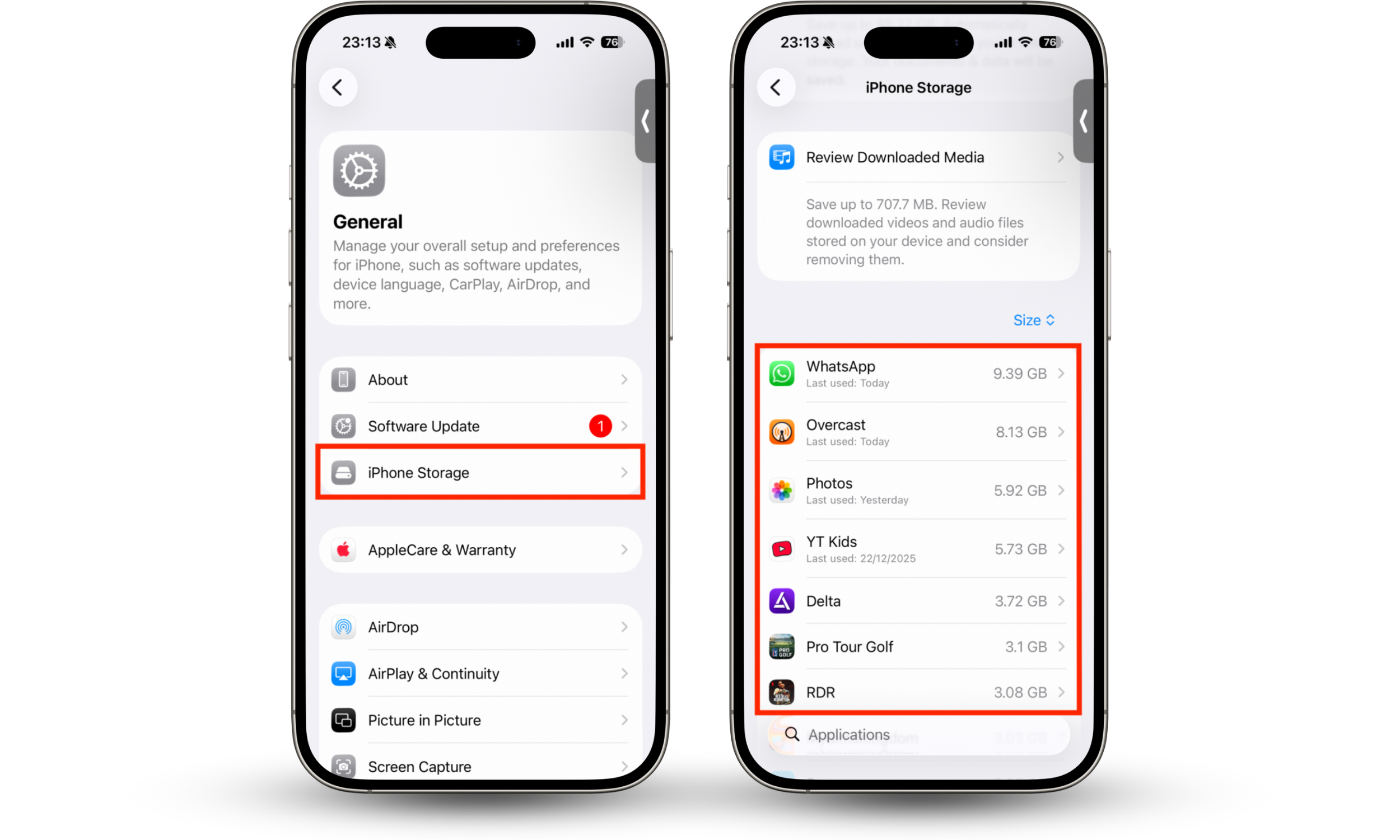
- In Settings, go to General > iPhone Storage.
- Carefully scroll through the list of apps, making sure you recognize each one. Also, note how much storage each app is using for abnormal usage. For instance, a simple task management app shouldn’t use up dozens of gigabytes of space.
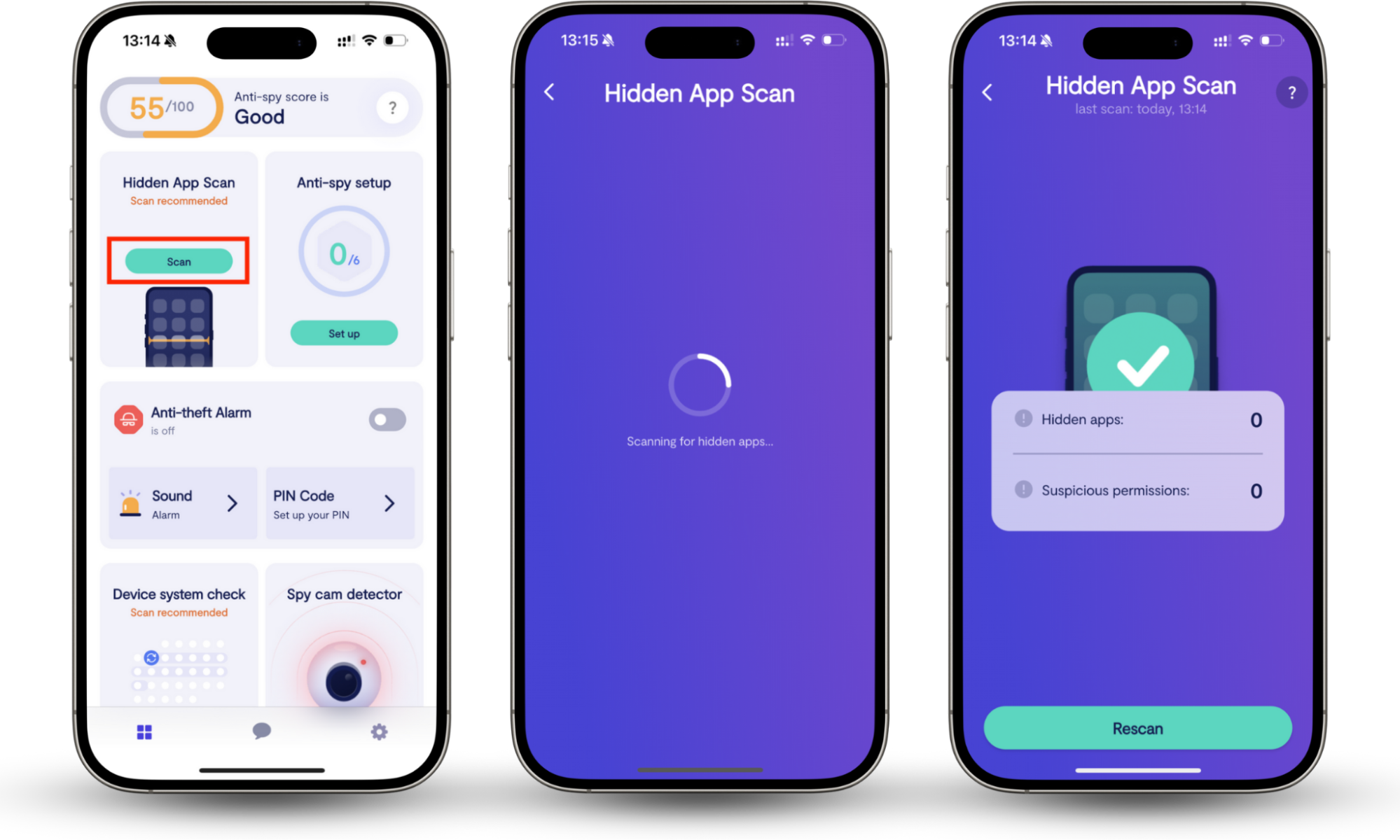
An even better way to look for potentially dangerous apps on iPhone is to use Clario Anti Spy’s Hidden app scan, developed by Clario Tech. It not only finds hidden apps, but it also helps you identify if anything installed on your iPhone is using permissions it doesn’t need. Here’s how to use it:
- Install Clario Anti Spy on your device.
- Under Hidden App Scan, tap Scan.
- Check to see if any hidden apps or suspicious permissions are found.
5. Check for jailbreak indicators
An iPhone jailbreak allows for the installation of unofficial apps, including viruses, and they’re easy to hide. To identify a jailbreak, look for unauthorized third-party app stores, such as Cydia, Sileo, or Zebra, on your device. Alternatively, there is a simpler and more effective method.
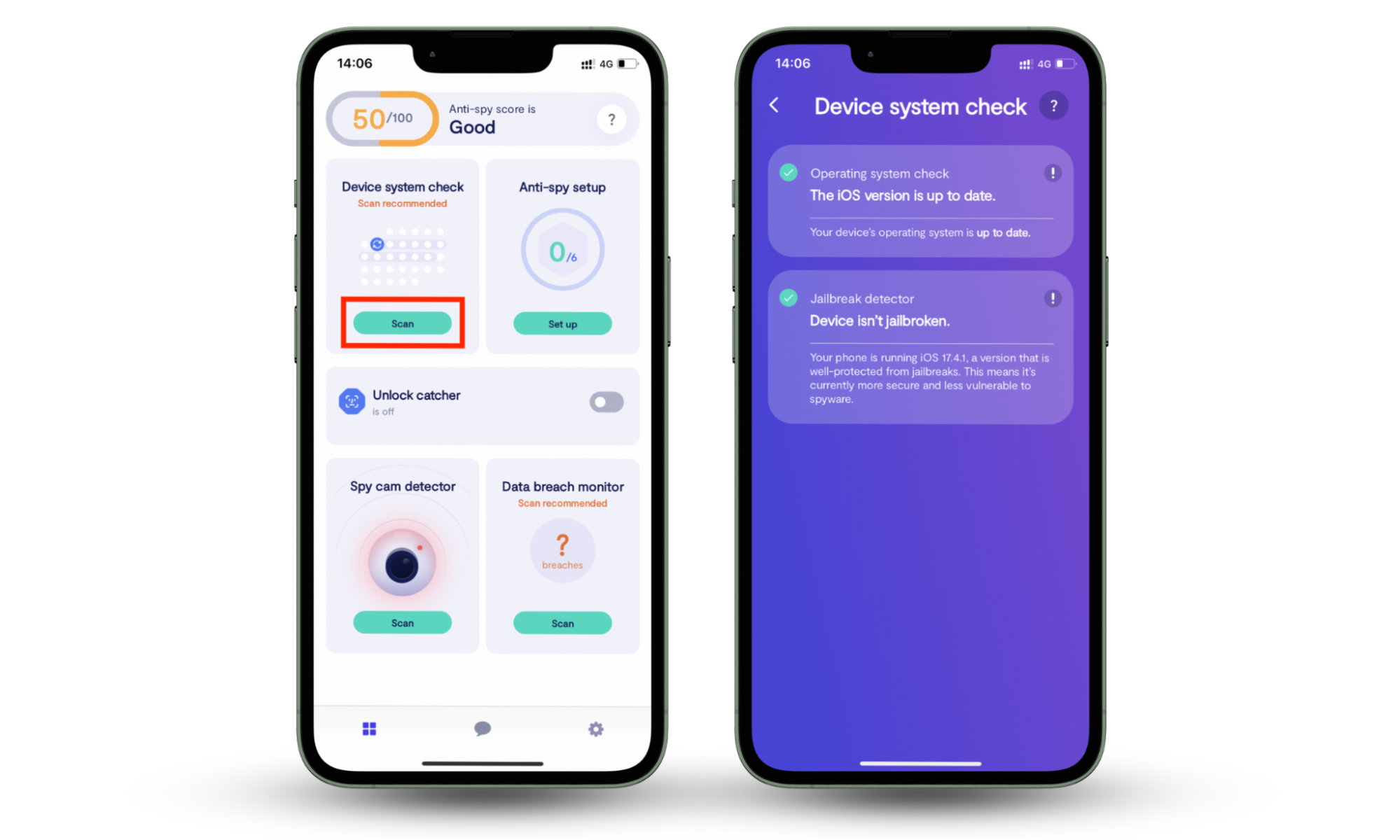
With Clario Anti Spy’s Device system check, you’ll know for certain if your iPhone is jailbroken, even if unauthorized stores are hidden away. It also tells you whether you’re running an out-of-date version of iOS, which won’t include Apple’s latest security patches. Try this:
- Download Clario Anti Spy for iOS.
- Tap Scan under Device system check.
- Confirm whether or not your iPhone is jailbroken.
6. Inspect your Apple ID
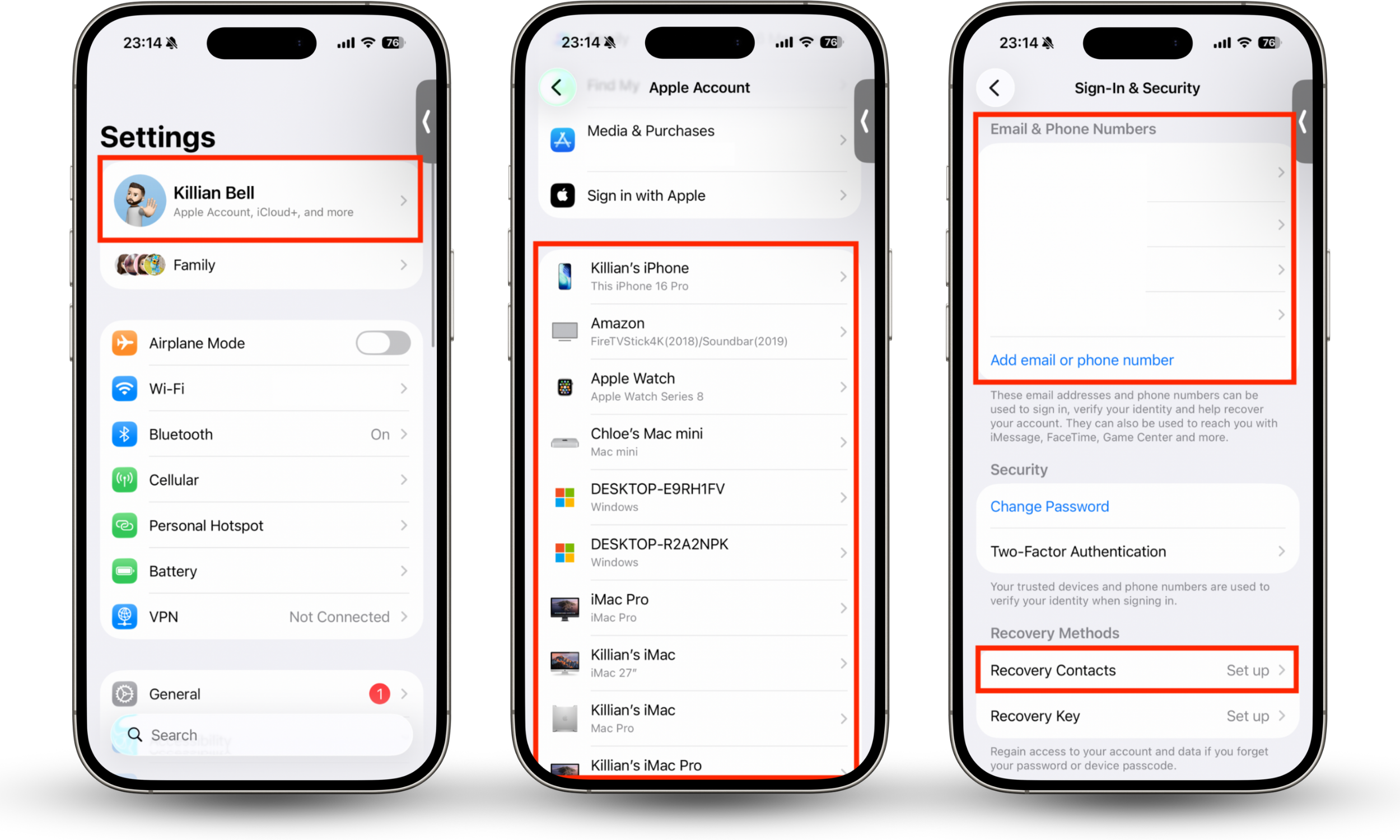
iPhone hackers typically use viruses to gain access to your online accounts, including your Apple ID. To confirm yours is safe, follow these steps:
- In Settings, tap your Apple ID.
- At the bottom of the page, scroll through the list of devices signed into your account to make sure they’re yours. Select a device for more information about it.
- Tap Sign-In & Security and review the list of Email & Phone Numbers connected to your account to confirm there’s nothing unexpected.
- If you have any Recovery Contacts set up, make sure you recognize them.
- Check your emails for any messages regarding Apple ID password resets or account recoveries, which indicate someone else has been trying to gain access.
What to do if you suspect virus on iPhone
If you identify signs of a virus on your iPhone, restart your device, then update iOS if a new release is available. This automatically removes a jailbreak if there is one, along with any unauthorized apps. If you’re already up to date, you can try removing viruses from your iPhone manually by uninstalling any unrecognized software from the App Library.
However, the best way to remove a virus from your iPhone is to factory reset it and install a fresh copy of iOS. Back up your device first, preferably to iCloud, and then you can restore all your apps, settings, and other important data without carrying over the infection.
Conclusion
If you suspect your mobile phone has a virus and you’re hoping to scan your iPhone for a virus in Settings, sadly, there is no antivirus in iOS to protect you. However, you can check Settings for signs of an infection, like unexplained battery and data usage, unrecognized configuration profiles, and jailbreaks.
To quickly and easily check an iPhone for potential hacks and attacks, we highly recommend Clario Anti Spy. Its essential Hidden app scan checks your device for apps that aren’t easy to find manually, while the Device system check tells you whether your iPhone has been jailbroken or if it needs an update.