Table of contents
- What is Spyera?
- How Spyera works on iPhone
- How to check your iPhone for Spyera
- 1. Check for configuration profiles
- 2. Review installed apps
- 3. Audit app permissions
- 4. Watch for suspicious behavior
- 5. Check for strange messages or pop-ups
- Next steps if Spyera is found on your iPhone
- 1. Disconnect from internet
- 2. Back up only essential data
- 3. Perform factory reset
- 4. Restore from clean backup
- 5. Strengthen security after cleanup
- Conclusion
What is Spyera?
Spyera is remote monitoring software for iPhone, Android, and desktop operating systems that isn’t shy about calling itself a “spy app.” The app is installed on a jailbroken iOS device and runs quietly in the background, allowing an attacker to collect sensitive data and control certain iPhone features.
Its ability to hide makes Spyera very difficult to find, so even if you know how to find spyware on your iPhone, you may not see it. This, combined with its extensive list of monitoring features, makes Spyera a popular choice among those who need to track kids and employees, as well as those with more nefarious intentions.
How Spyera works on iPhone
Before installing Spyera on a target iPhone, hackers first jailbreak the device to circumvent iOS security protections. Since Apple doesn’t authorize Spyera for download from the App Store, it’s the only way to install it. The software then runs in the background, where it’s very difficult to detect.
Once active, Spyera provides its installer with a wealth of surveillance options. It not only tracks a target’s location but also collects sensitive data such as messages, call logs, photos and videos, browsing activity, and calendar events. In addition, Spyera allows a hacker to listen to calls, take app screenshots, and more.
How to check your iPhone for Spyera
To check for Spyera on an iPhone, look for common signs of a spyware infection, such as an unexplained drop in device performance, suspicious app activity, and unrecognized configuration profiles.
If these checks are inconclusive, there are additional steps you can take to learn how to tell if someone is accessing your iPhone remotely using spyware like Spyera. Here are our recommendations:
- Check for configuration profiles
- Review installed apps
- Audit app permissions
- Watch for suspicious behavior
- Check for strange messages or pop-ups
- Use trusted security tools
1. Check for configuration profiles
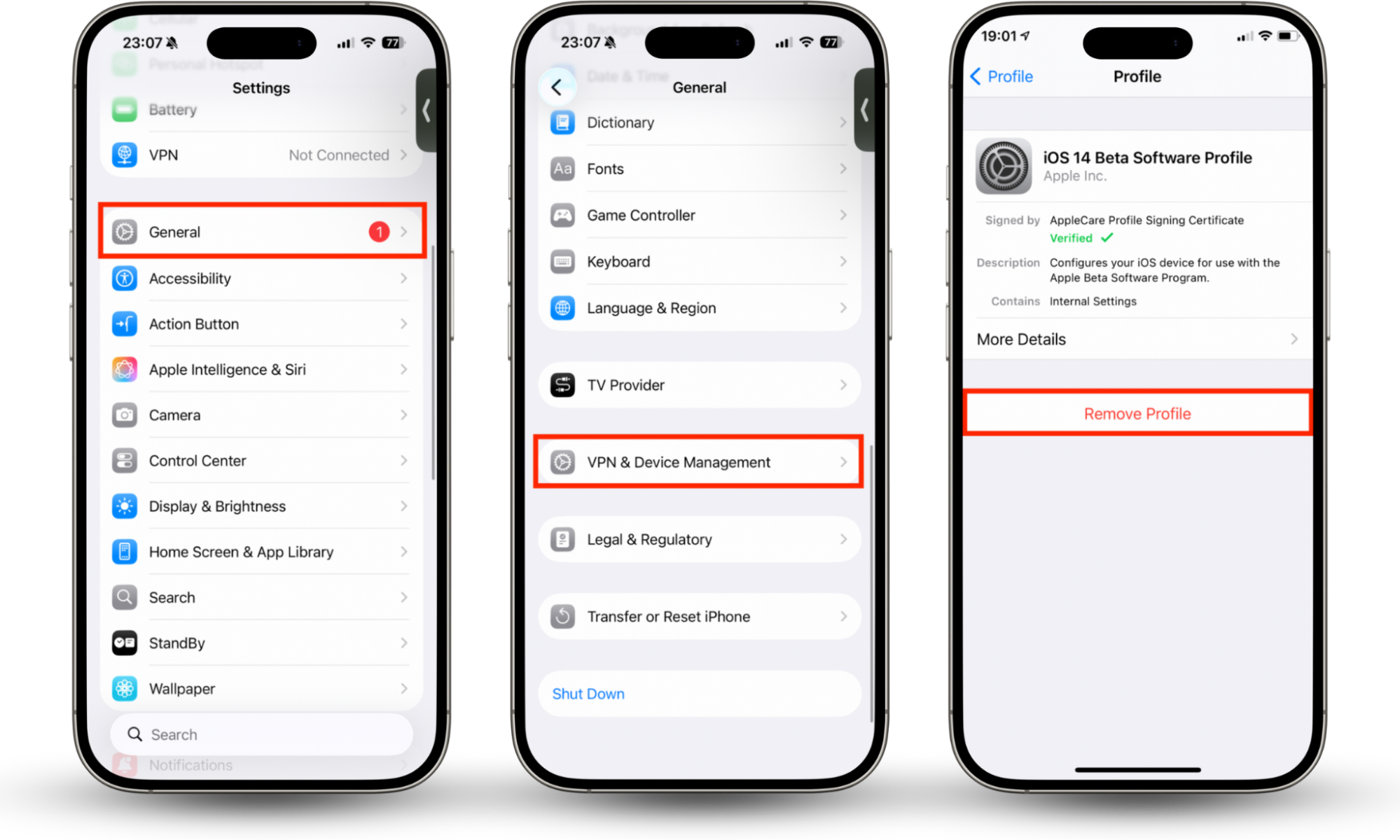
One of the simplest ways to find Spyera on an iPhone is to look for unrecognized configuration profiles, which allow others to remotely control certain settings and install apps. Here’s how:
- Open Settings and choose General.
- Tap VPN & Device Management.
- Select any configuration profiles you don’t recognize for more information and select Remove Profile to remove them if necessary.
2. Review installed apps
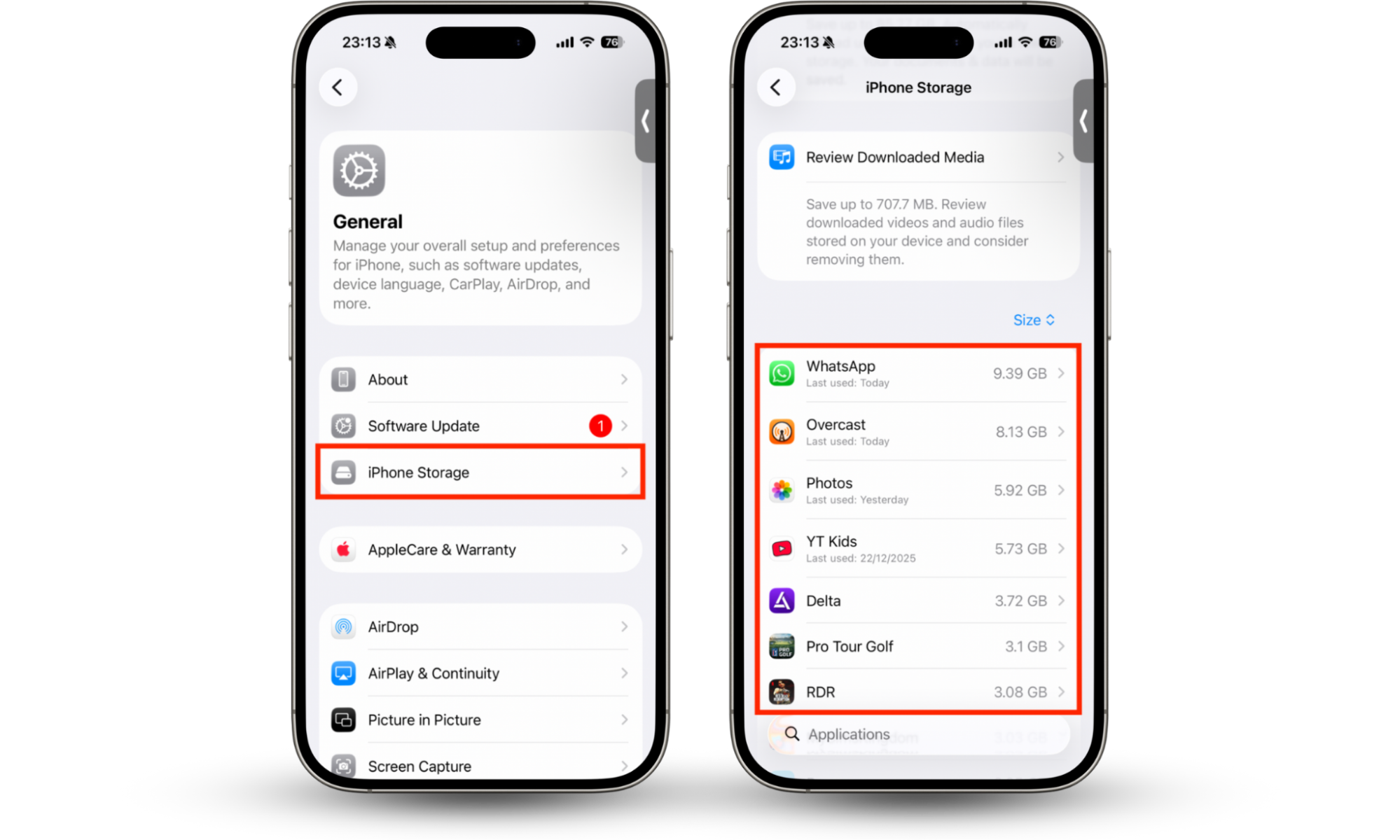
Although the software is usually hidden to make finding Spyera on iPhone more difficult, that’s not always the case, so it’s worth reviewing the apps installed on your device to see if it shows up. Try this:
- Open the Settings app and go to General > iPhone Storage to see all installed apps.
- Scroll through the list to see if Spyera or any other unrecognized software is present.
3. Audit app permissions
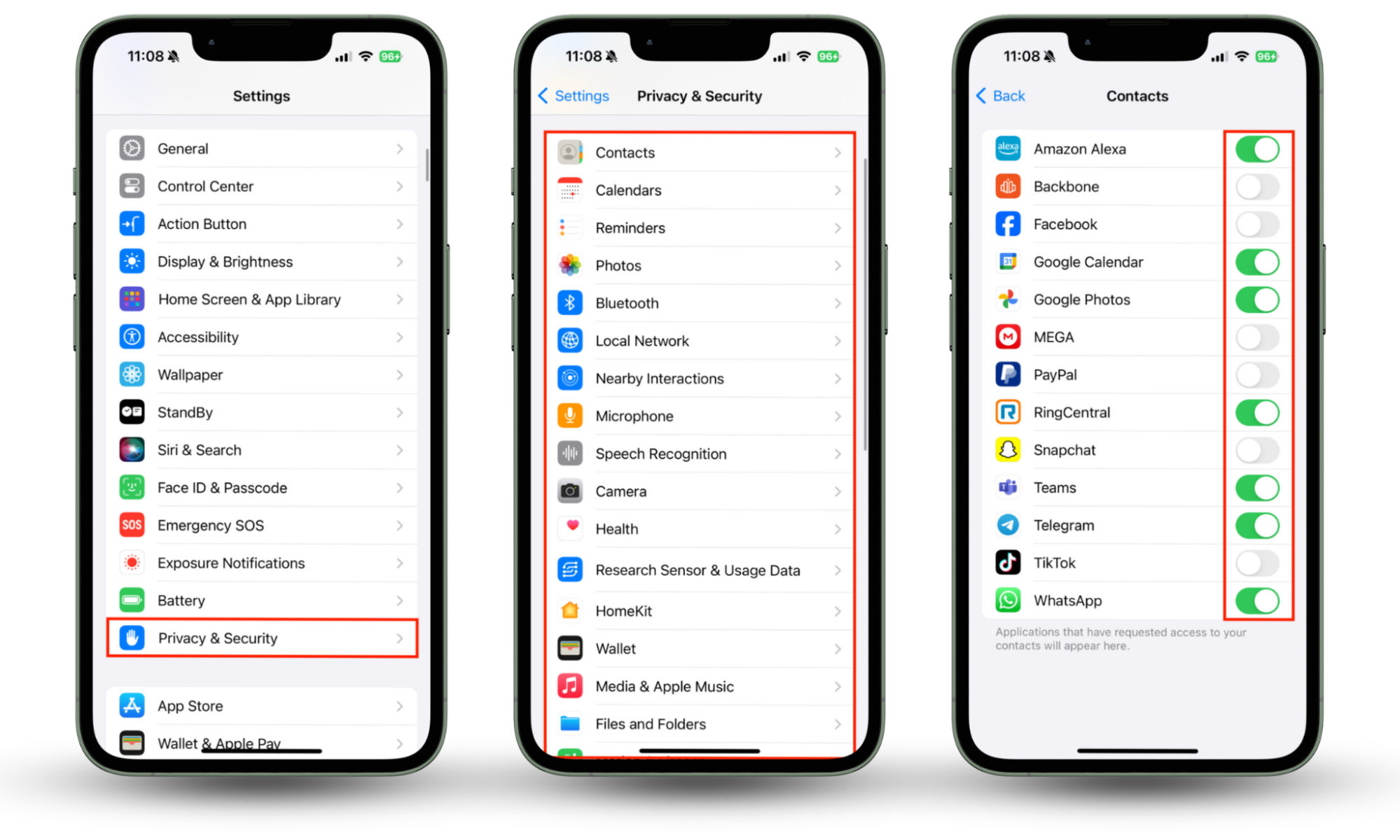
Spyware and other malicious apps typically use iPhone features like the camera, microphone, and GPS to monitor you and track your location. Here’s how to audit app permissions to find them:
- In Settings, select Privacy & Security.
- Select each of the app permissions one by one and then check the list of apps that have access to see if there’s anything suspicious.
4. Watch for suspicious behavior
An effective way to check for Spyera on an iPhone is to monitor your device for suspicious behavior. These are the things we typically see when a spyware infection is present:
- Excessive battery drain and data usage
- Frequent overheating
- Unexplained camera and microphone activity
- Random device restarts
- A sudden drop in overall performance
- Unexpected screenshots in the camera roll
5. Check for strange messages or pop-ups
Unauthorized software such as Spyera can cause strange system messages and pop-ups. If you see a message or notification you wouldn’t normally expect on your iPhone, or a pop-up that looks different from a typical iOS alert, this is a telltale sign of malware.
6. Use trusted security tools
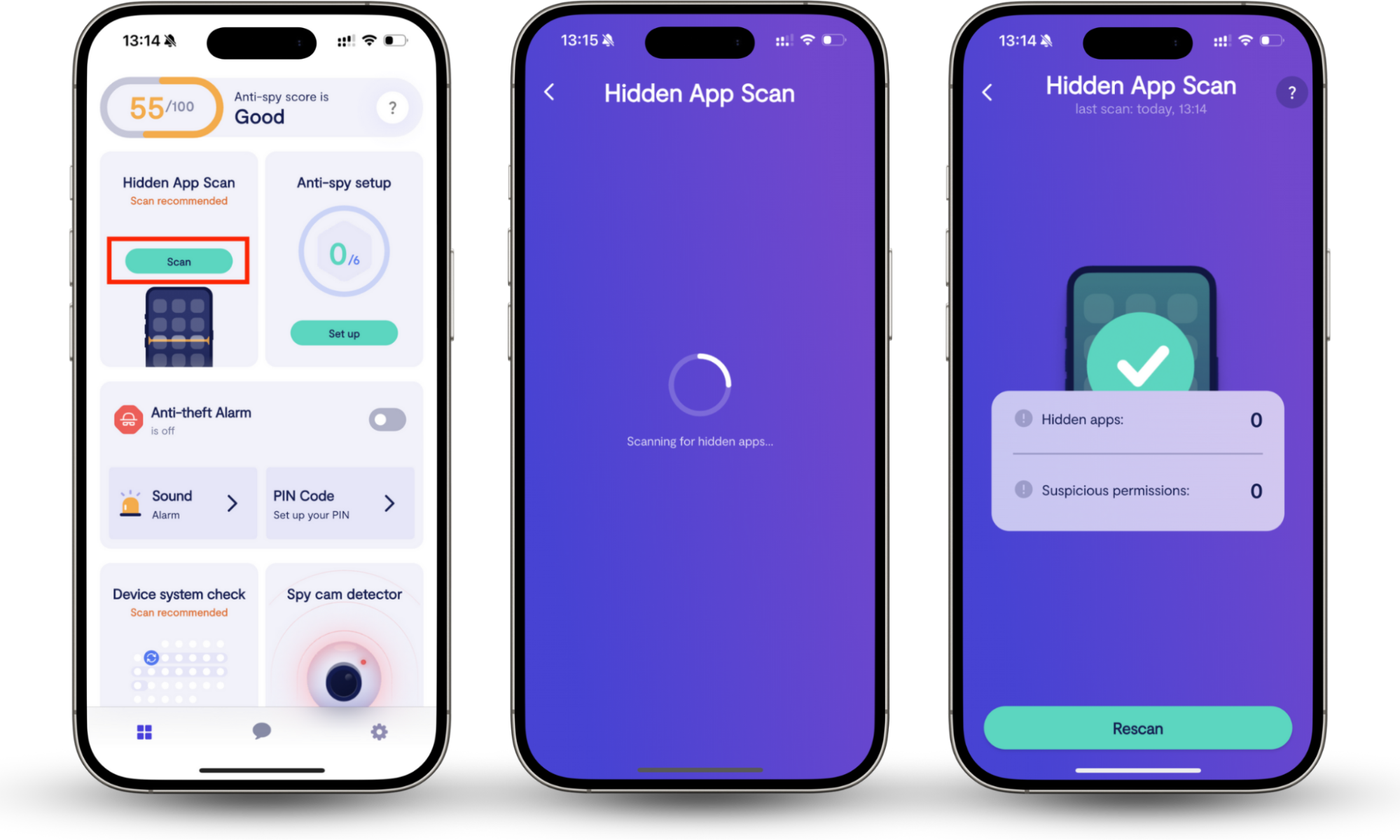
The most reliable method of detecting Spyera on an iPhone is to use a trusted security tool that can identify hidden surveillance apps. Clario Anti Spy is the best anti-spyware for iPhone, and its super useful Hidden app scan is capable of finding spy apps that usually go unnoticed. Here’s how to use it:
- Download Clario Anti Spy on your phone.
- Under Hidden app scan, tap the Scan button.
- Check if any hidden apps or suspicious permissions are identified.
Next steps if Spyera is found on your iPhone
If you detect Spyera on your iPhone after carrying out the checks above, we suggest dealing with it immediately before it can steal more of your data and continue invading your privacy. These are the steps we take to stop and remove spyware as quickly as possible:
- Disconnect from the internet
- Back up only essential data
- Perform a factory reset
- Restore from a clean backup
- Strengthen security after cleanup
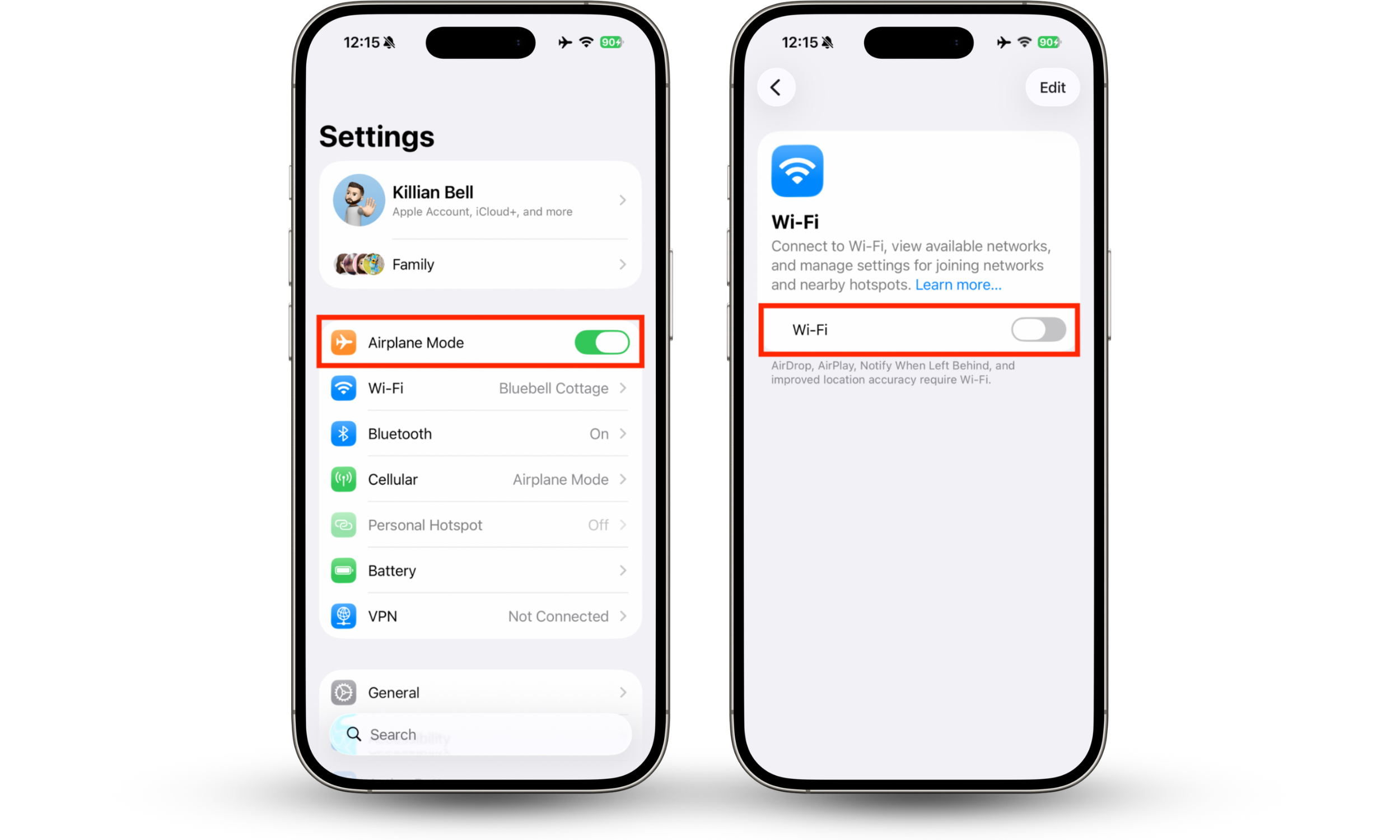
1. Disconnect from internet
To stop Spyera from providing a hacker with your data and real-time location, disconnect your iPhone from the internet like so:
- Open Settings and enable Airplane Mode.
- Select Wi-Fi and then tap the toggle to disable Wi-Fi.
2. Back up only essential data
Back up any important data you don’t want to lose during an iPhone reset. Avoid creating a full device image as these will include the malicious software. Instead, back up using iCloud, which only saves essential data, or manually transfer things like photos and videos to another device.
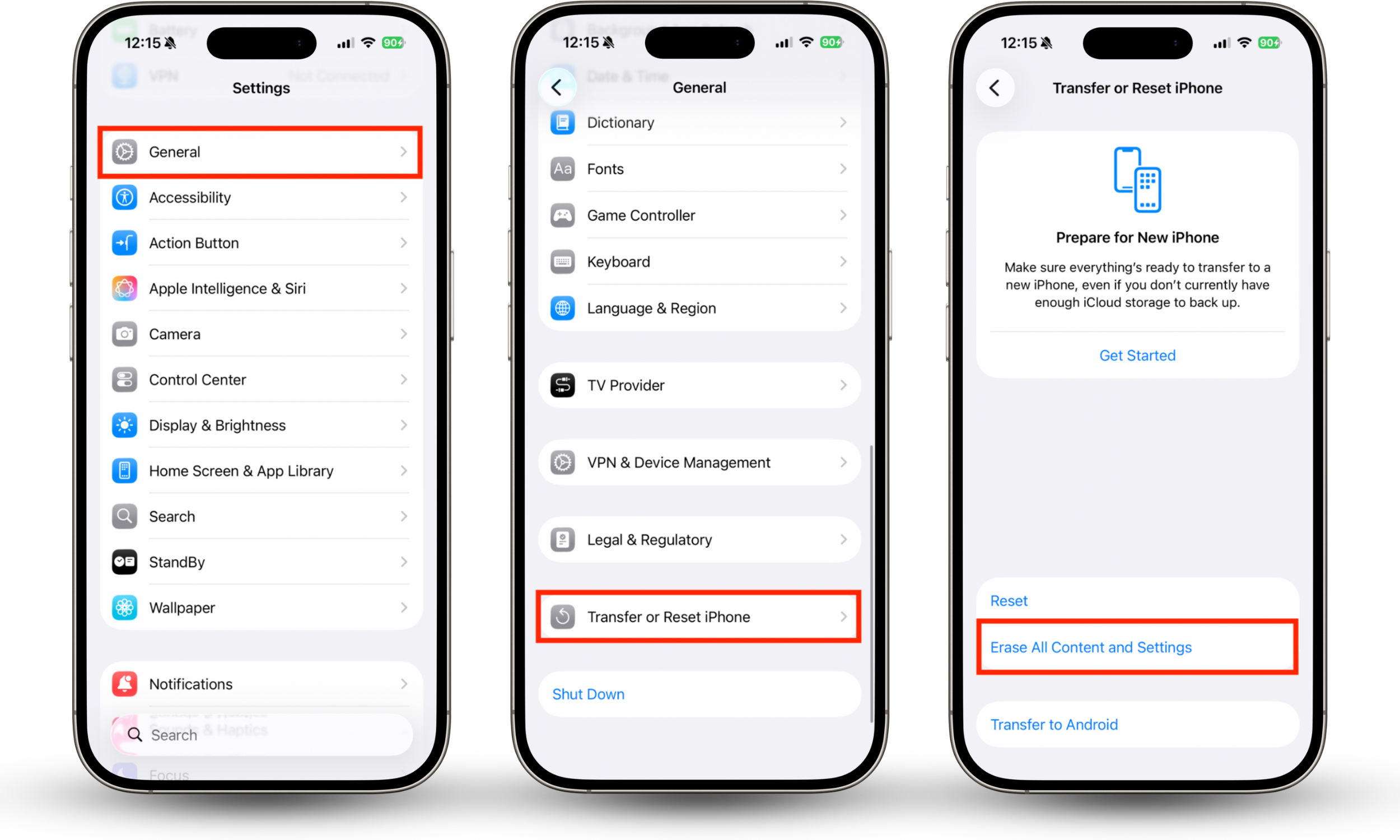
3. Perform factory reset
With your sensitive data saved, follow these steps to factory reset your iPhone and remove Spyera:
- In Settings, choose General.
- At the bottom of the screen, tap Transfer or Reset iPhone.
- Select Erase All Content and Settings and follow the steps to perform a factory reset.
4. Restore from clean backup
Once the factory reset is complete, your phone will restart, and the setup process will begin. Follow the steps to continue, and when you see the Transfer Your Apps & Data screen, choose From iCloud Backup. This ensures that only essential data is carried over to your device.
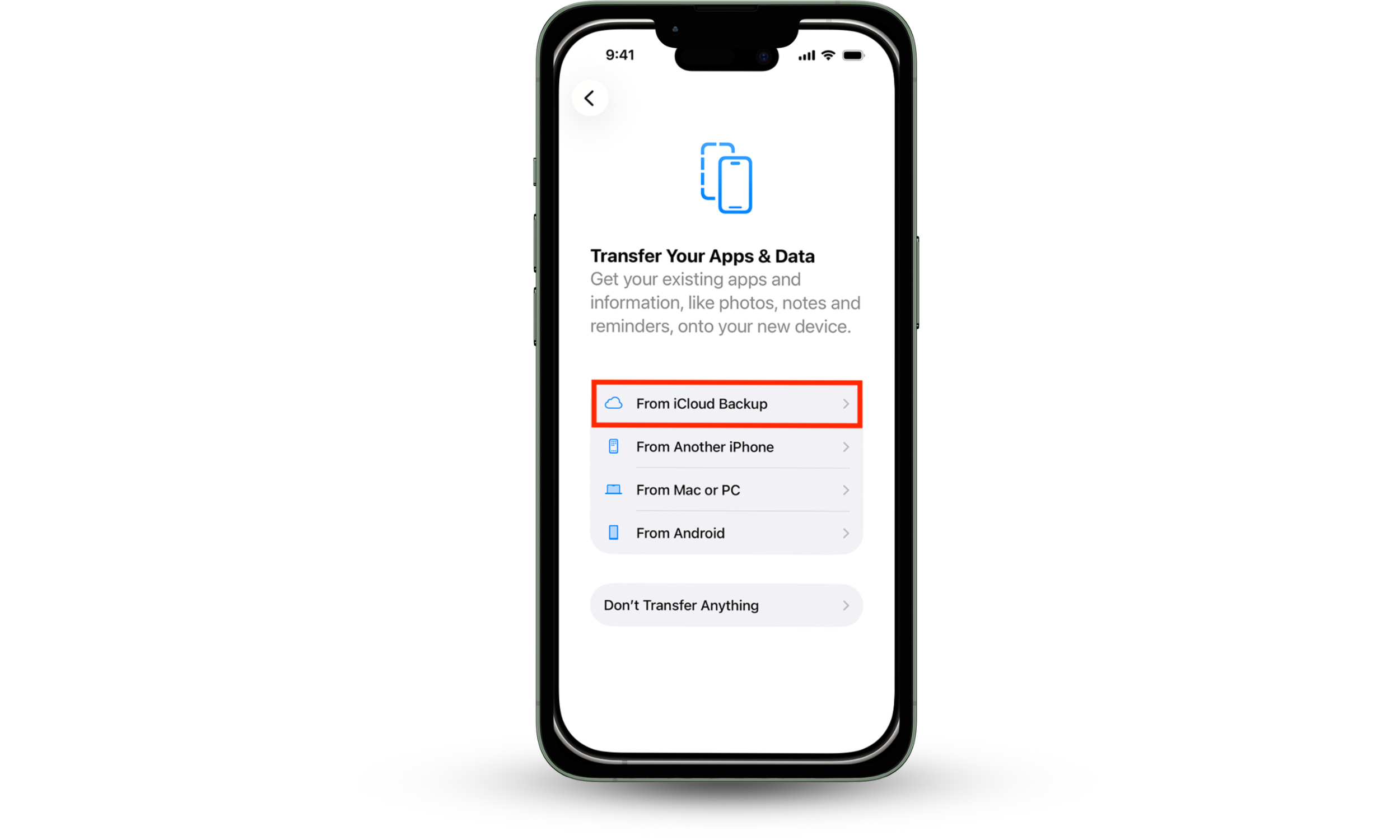
Alternatively, you can restore from a device backup that was saved before Spyera was installed on your iPhone. However, if you’re not sure when the software first appeared, there is a possibility it will return if you restore from a backup image that contains it.
5. Strengthen security after cleanup
As an increasing number of hackers are learning how to spy on iPhone, we always advise users to strengthen their device security after a factory reset to reduce the chance of another infection in the future. Here are some tips you can use to step up your protection:
- Keep iOS up to date to get the latest security patches
- Enable two-factor authentication for your Apple ID and other accounts
- Use a strong passcode and don’t share it with anyone
- Update account passwords to ensure they’re all unique
- Avoid opening suspicious links and downloading untrusted files
Conclusion
If you suspect someone is spying on you, you can find Spyera on your iPhone with a few simple steps, such as checking for unrecognized configuration profiles, looking for suspicious software, and reviewing your app permissions. To remove Spyera, we can perform a factory reset after backing up only our essential data.
The quickest and most effective way to detect Spyera on iPhone, as well as other spy apps and malware infections, is to use Clario Anti Spy’s Hidden app scan. In just a few taps, this essential tool identifies any software that’s hiding itself and highlights suspicious app permissions.