Table of contents
- What is XNSPY and why is it dangerous
- How to find XNSPY on your phone (manual checks)
- 1. Check installed apps and permissions
- 2. Look for admin-level or management access (Android or iOS profiles)
- 3. Monitor battery and data usage
- 4. Watch for abnormal device behavior
- 5. Inspect files, downloads, and system changes
- 6. Review account access and connected devices (iOS)
- Detect XNSPY using security tools
- Scan with reputable mobile security apps
- Understand the limits of manual detection
- What to do if you find or suspect XNSPY
- How to prevent XNSPY and similar spyware in future
- Conclusion
What is XNSPY and why is it dangerous
XNSPY is a surveillance app. It lets parents keep an eye on their children’s phones—but anyone with access to your phone can install it to spy on you. For example, an abusive partner could easily use it to monitor you.
If someone is spying on you with XNSPY, they can see your messages, monitor your location, and even use your microphone to record you. The app has a keylogger, so they can see every keystroke you type. They can even lock or wipe your phone.
XNSPY is dangerous because of the amount of information it allows someone to access—but it gets worse. XNSPY and other monitoring services store this info on insecure servers. Many stalkerware apps have massive security flaws, so your data could be accessed by hackers or a controlling partner.
How to find XNSPY on your phone (manual checks)
To check your phone for XNSPY manually, open your app list and look for XNSPY. Watch out for unusual files in your downloads folder, too. Next, check for unexpected app permissions, and look for device admin apps or configuration profiles—these can let other people make changes to your phone.
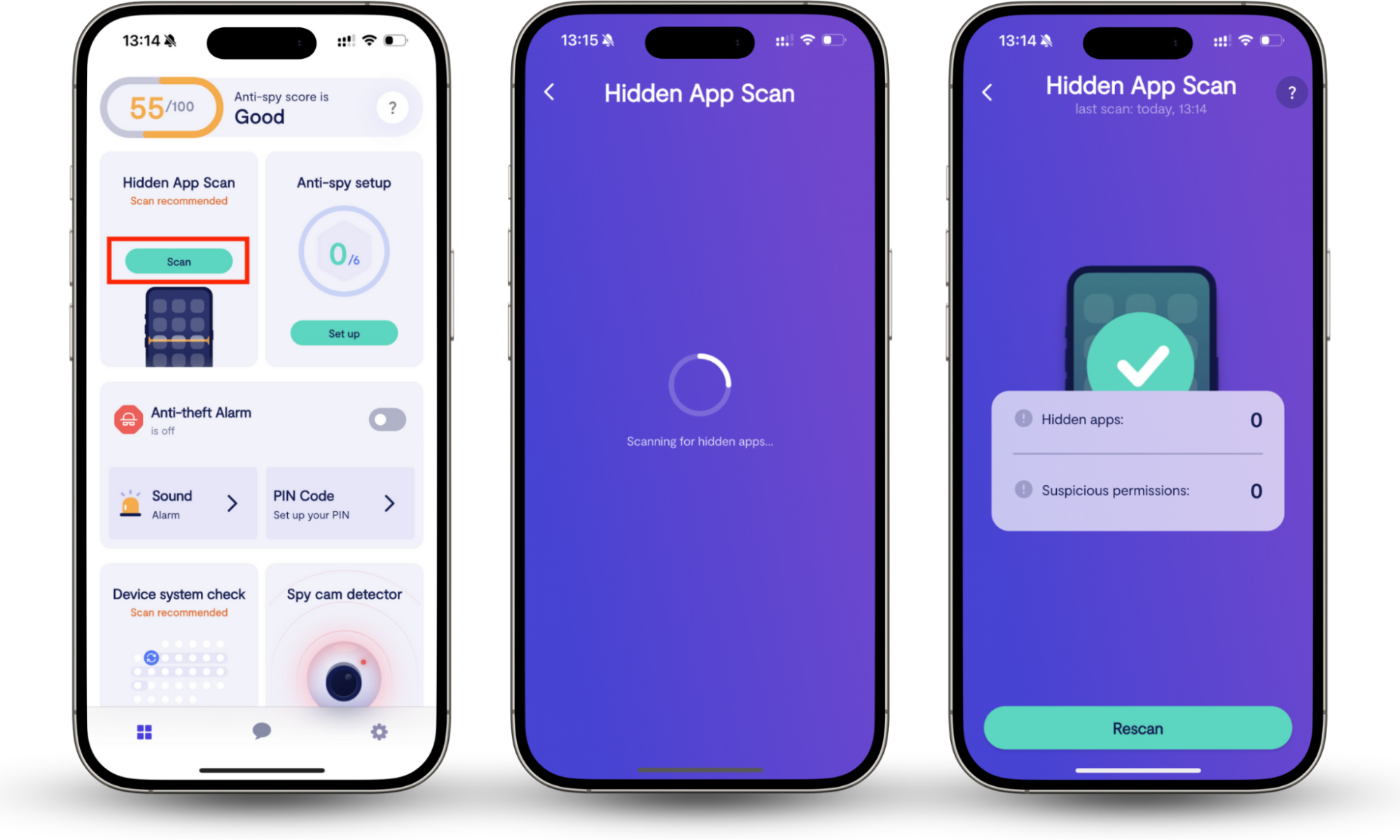
Before I explain how to manually check your phone for XNSPY, you might want an immediate solution. If you’re worried about someone spying on you, it’s often more effective to use a dedicated security app. Clario Anti Spy’s Hidden app scan can find hidden apps and alert you to apps that have unusual permissions, with just a few taps.
Worried about someone monitoring your phone? You aren’t alone. One of the Clario experts recently spoke to a customer who noticed their phone was overheating for no apparent reason. They ran a Hidden app scan and found that one app was constantly accessing their messages and tracking their location.
How to find hidden apps with Clario Anti Spy’s Hidden app scan:
- Download Clario Anti Spy and set up a subscription.
- Under Hidden app scan, tap Scan.
1. Check installed apps and permissions
The easiest way to find any app on your phone is to look through the list of apps in Settings. Whether you use iOS or Android, simply go to Settings and tap Apps. Do you see XNSPY?
Next, look through your app permissions. What features of your phone can each app access? If you don’t understand why an app needs certain permissions, disable them.
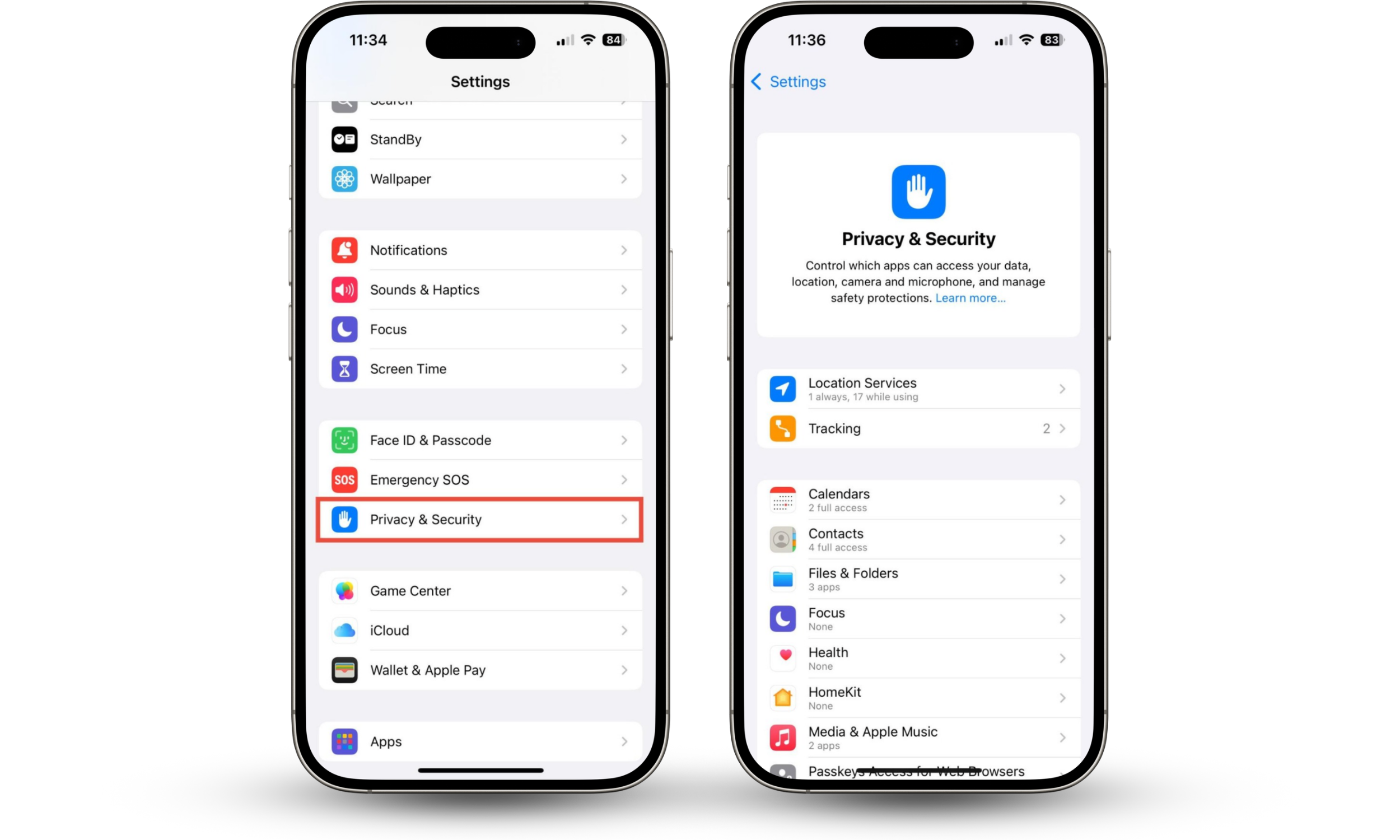
How to check your app permissions on iPhones:
- Go to Settings > Privacy & Security.
- Check each feature. Which apps have access?
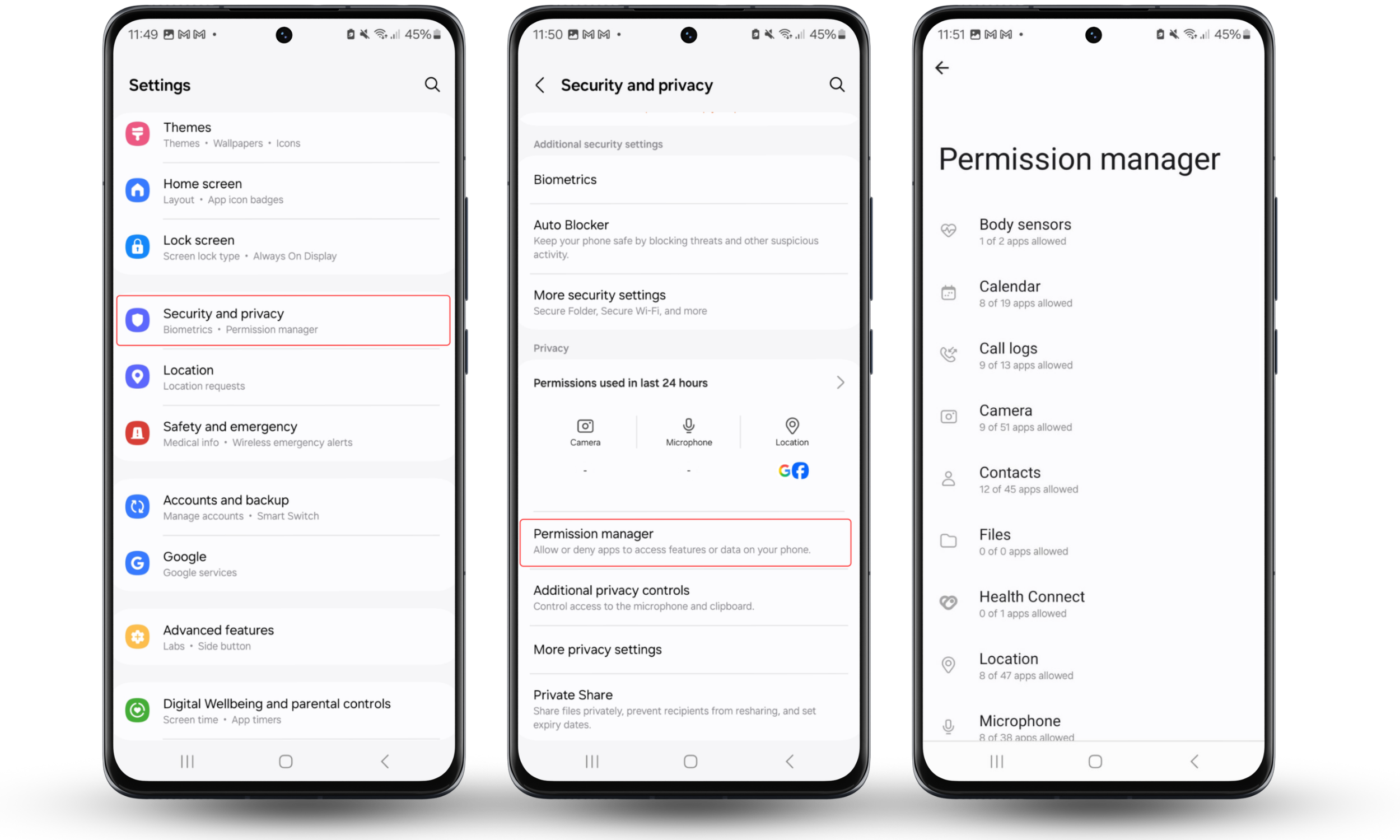
How to check permissions on Android:
- Go to Settings > Security and privacy.
- Choose Permission Manager.
- Check each feature.
2. Look for admin-level or management access (Android or iOS profiles)
If someone wants to control your phone, they can install a configuration profile (iOS) or device admin app (Android) to remotely change settings and install apps, like XNSPY. They’ll need access to your phone to install the configuration profile or device admin app, but after that, they can make changes to your phone remotely.
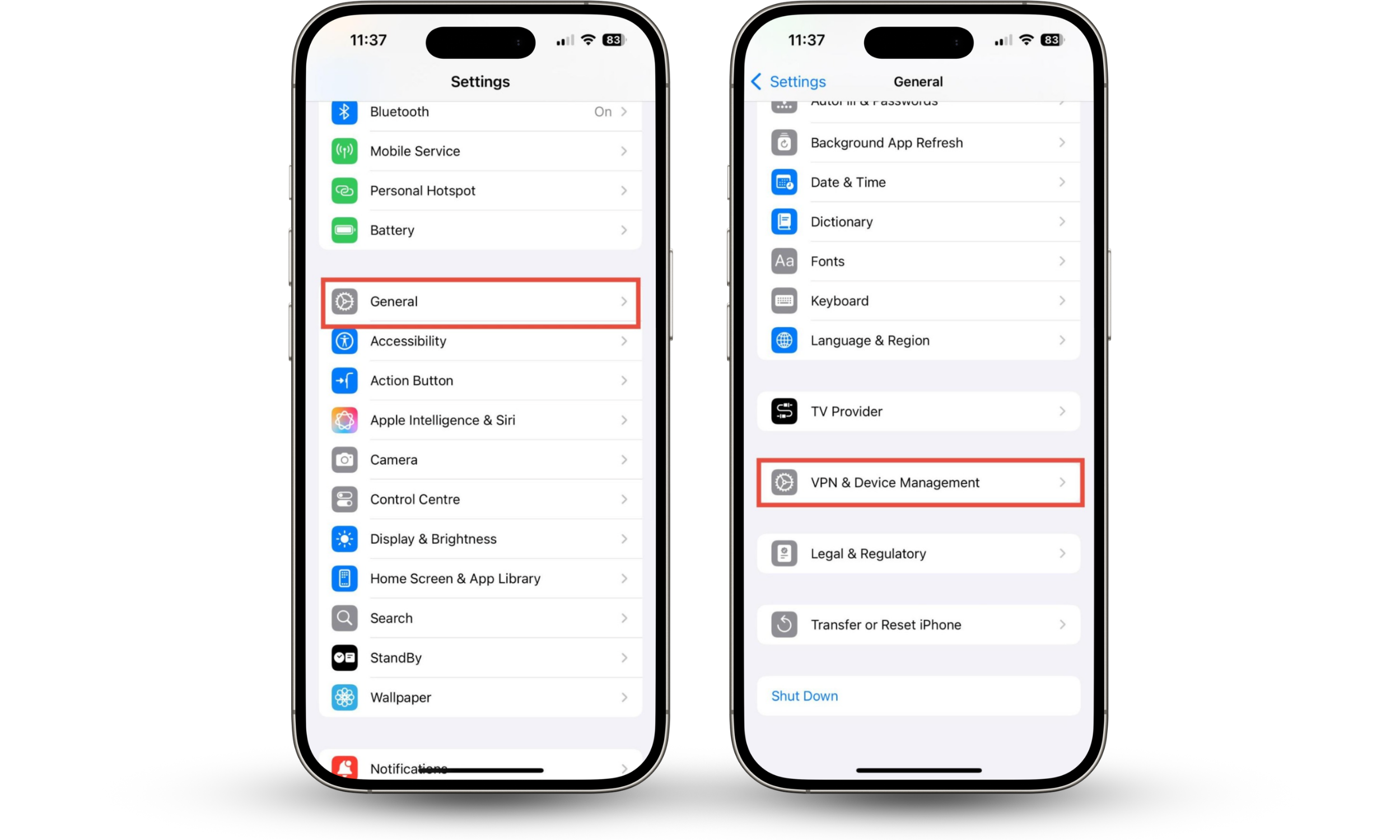
How to find configuration profiles on iOS:
- Go to Settings > General.
- Tap VPN & Device Management. Are there any profiles that you don’t recognize?
- If you see an unexpected profile, tap and choose Delete profile.
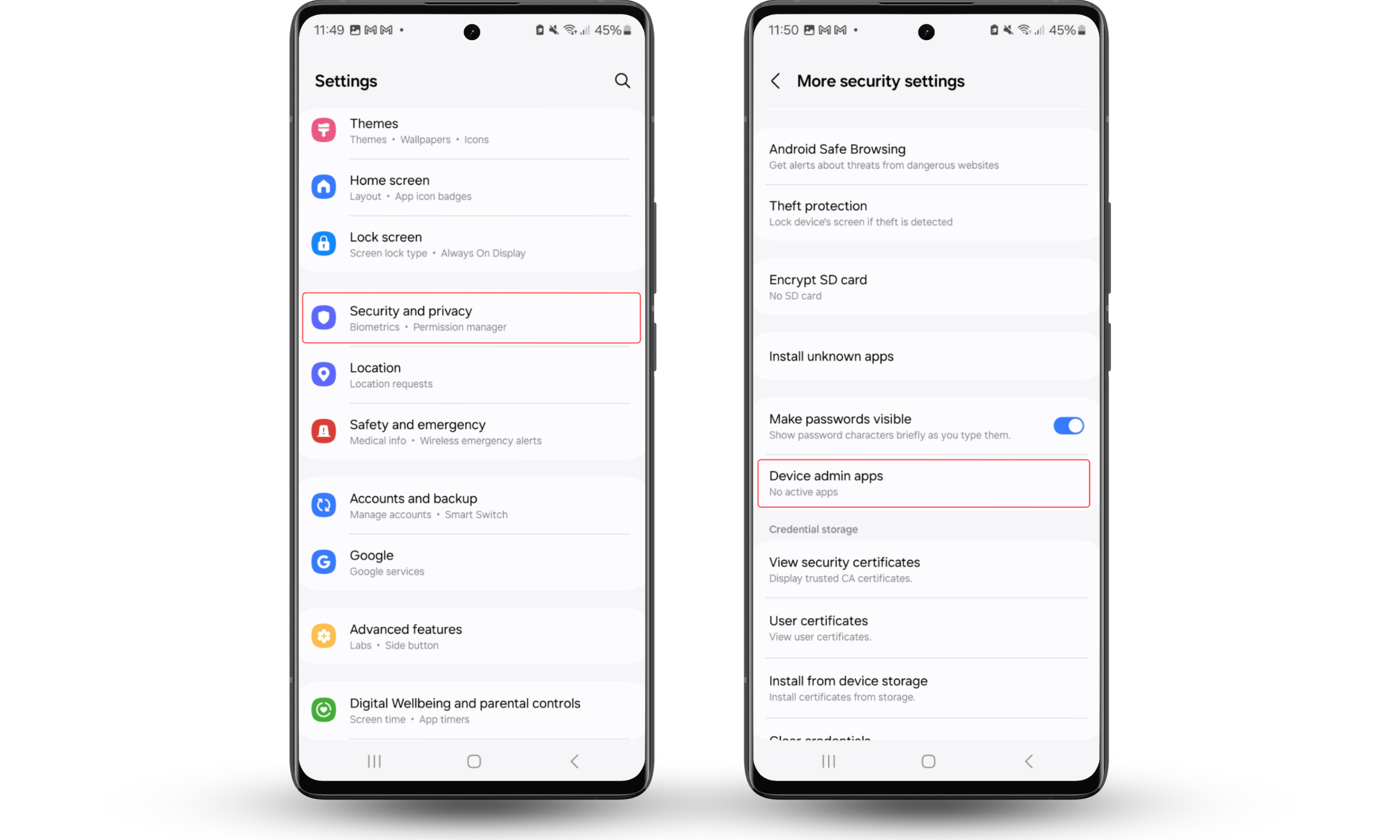
How to find device admin apps on Android:
- Go to Settings > Security and privacy.
- Tap More security settings, and choose Device admin apps. Do you see any unexpected apps listed?
Note
Device admin apps and configuration profiles are often used by employers to monitor company devices. However, if you don’t have a company phone and haven’t installed a configuration profile yourself, finding one could be a sign that someone is spying on you.
3. Monitor battery and data usage
XNSPY runs constantly in the background of your phone. You might notice that your phone’s battery drains very quickly.
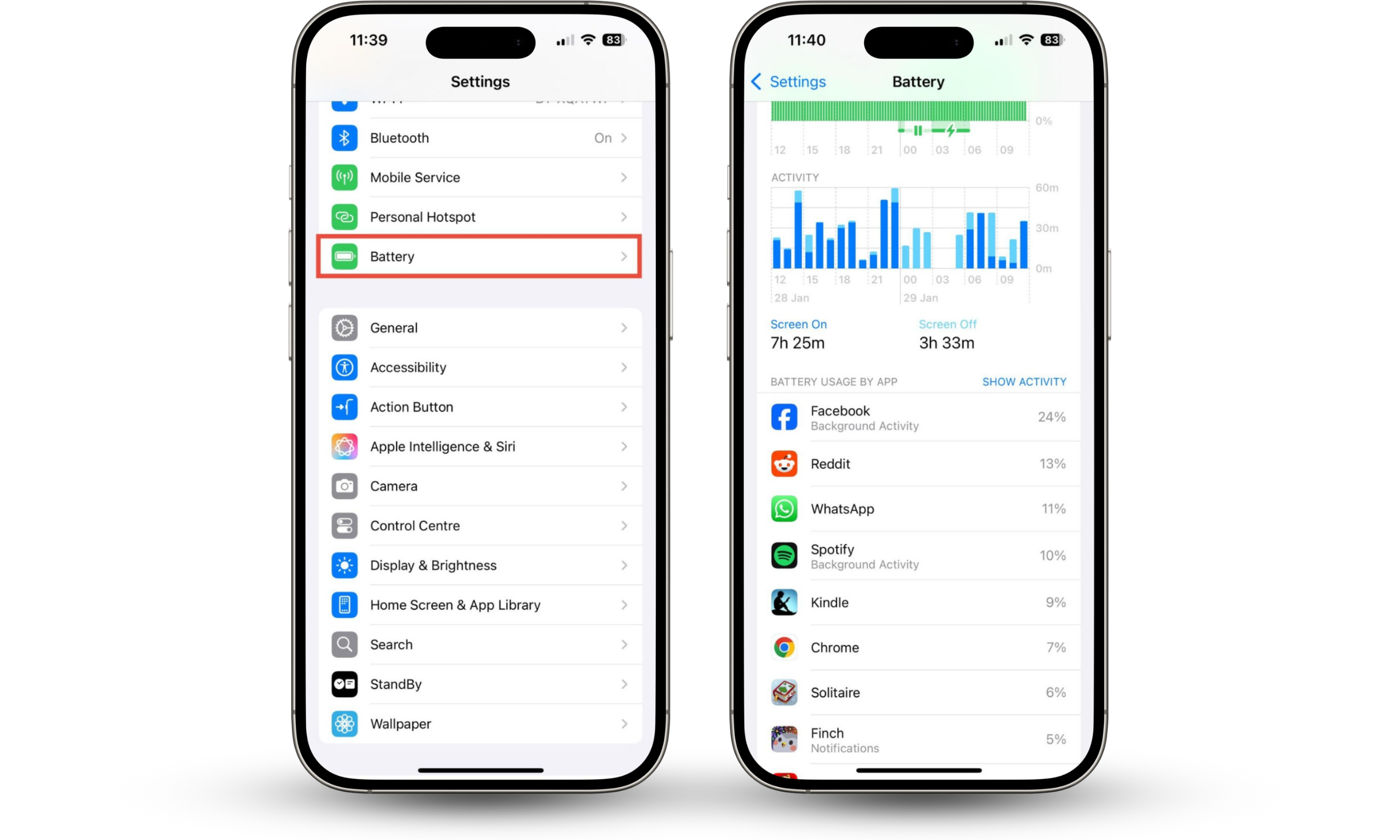
How to check battery usage on your iPhone:
- Go to Settings > Battery.
- Scroll down to Battery Usage by App. Do you recognize all of the apps there?
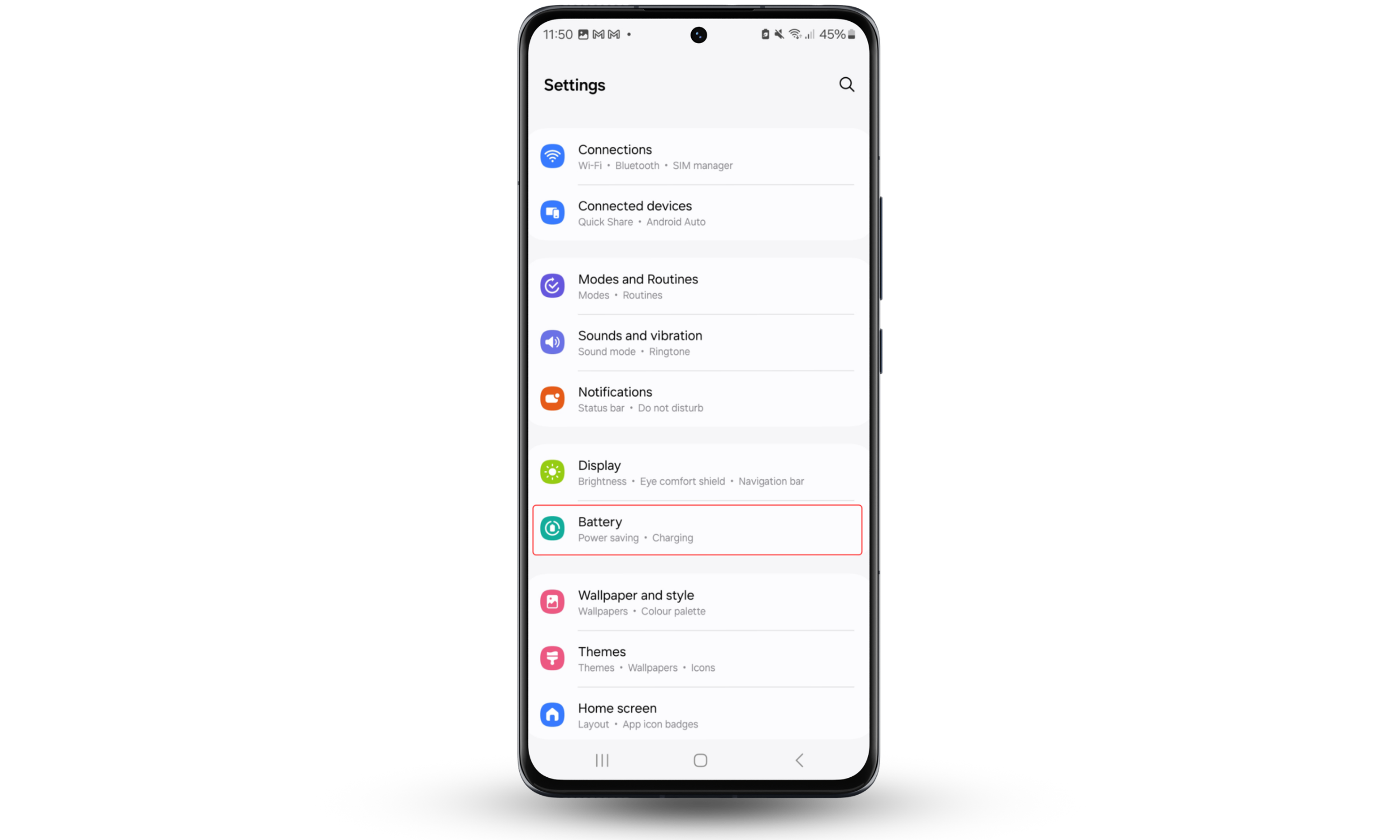
How to check battery usage on your Android device:
- Go to Settings > Battery.
- Check which apps are listed—do you recognize them?
Note
Fast battery drain isn’t always suspicious. It might just mean that your battery is old, or that you’re using lots of resource-intensive apps.
Your phone might also use more mobile data than usual. XNSPY, and other spy apps like WebWatcher, will monitor what you’re doing, and send that information back to the app’s servers—constantly using your internet connection.
To tell if you’re using more data than usual, you could check your phone bill. If you have a data cap, you might also get a notification from your cell provider. You can also check your data usage on your phone.
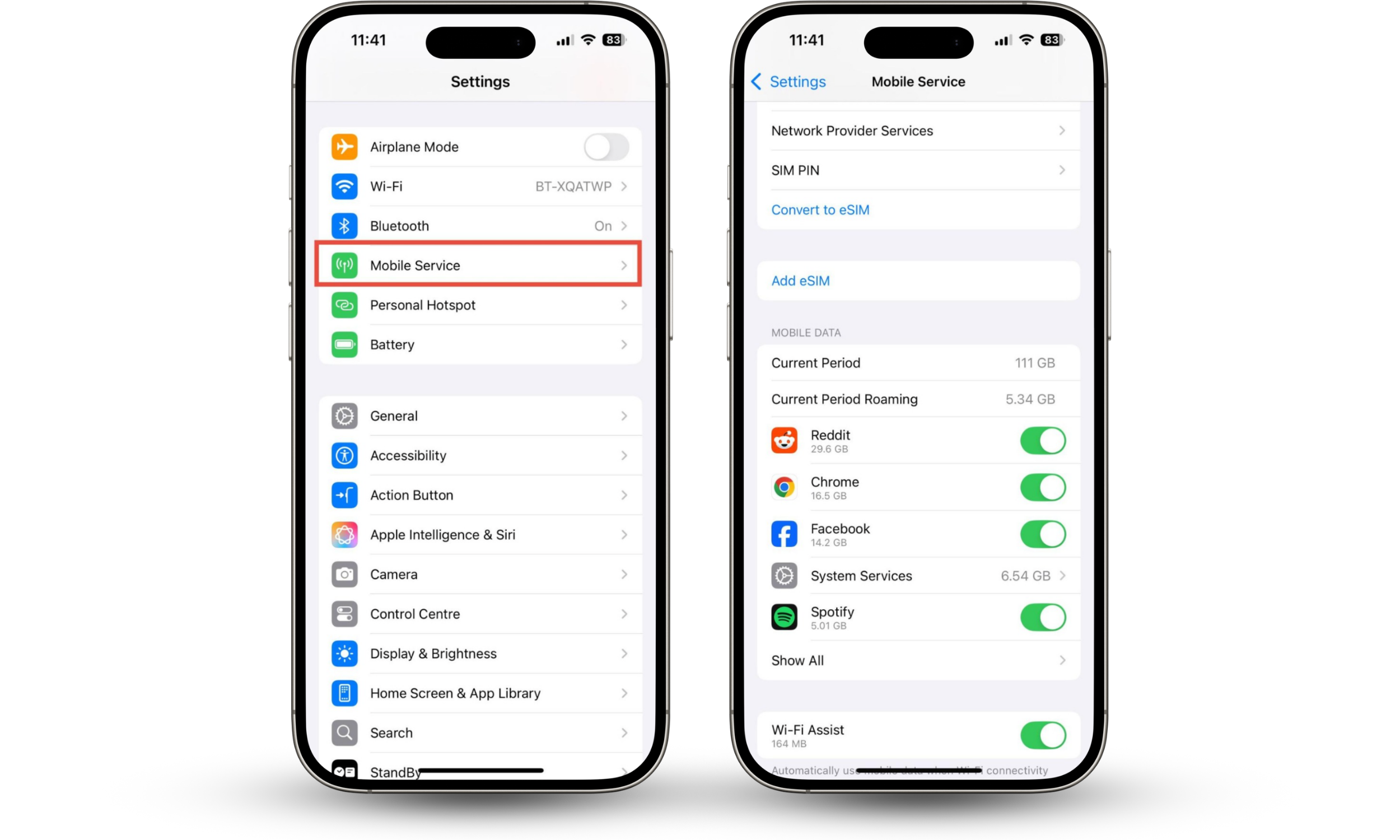
How to check mobile data usage on iPhone:
- Go to Settings > Mobile Service (called Cellular in some locations).
- Scroll to Mobile Data. Do you recognize all the apps listed?
How to check mobile data usage on Android:
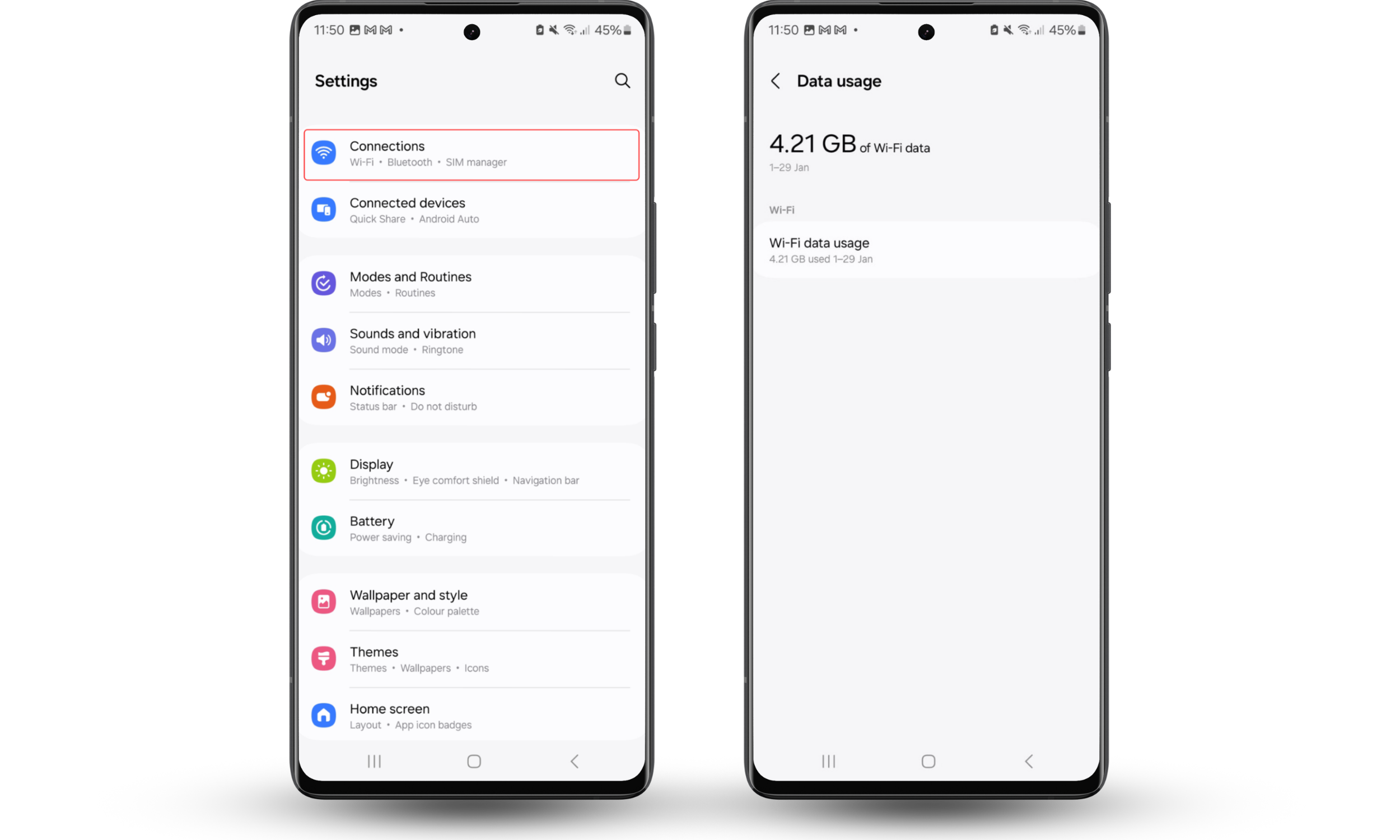
- Go to Settings > Connections.
- Tap Data usage. Is this higher than usual?
4. Watch for abnormal device behavior
If XNSPY is constantly running, it can make your phone act strangely. You might notice that it’s overheating, turning itself off or restarting randomly, or running very slowly.
You may even see that your camera or microphone is active when you know it shouldn’t be. This could be a sign that XNSPY is recording you. Find out other ways to check if your phone is tapped or hacked.
Note
There are lots of reasons for phones to behave strangely. Your device might be overheating because you have lots of apps open, for example. It doesn’t always mean that someone is spying on you.
5. Inspect files, downloads, and system changes
If someone has installed XNSPY on your phone, you might notice unexpected files in your Downloads folder. Look through your phone’s recent files—is there anything you don’t recognize?
Someone who has access to your phone might also make other changes. Check your settings for anything unexpected. Has someone changed your passcode, for example? An abusive partner might remove your passcode or add their own fingerprint or Face ID so they can check your phone easily.
6. Review account access and connected devices (iOS)
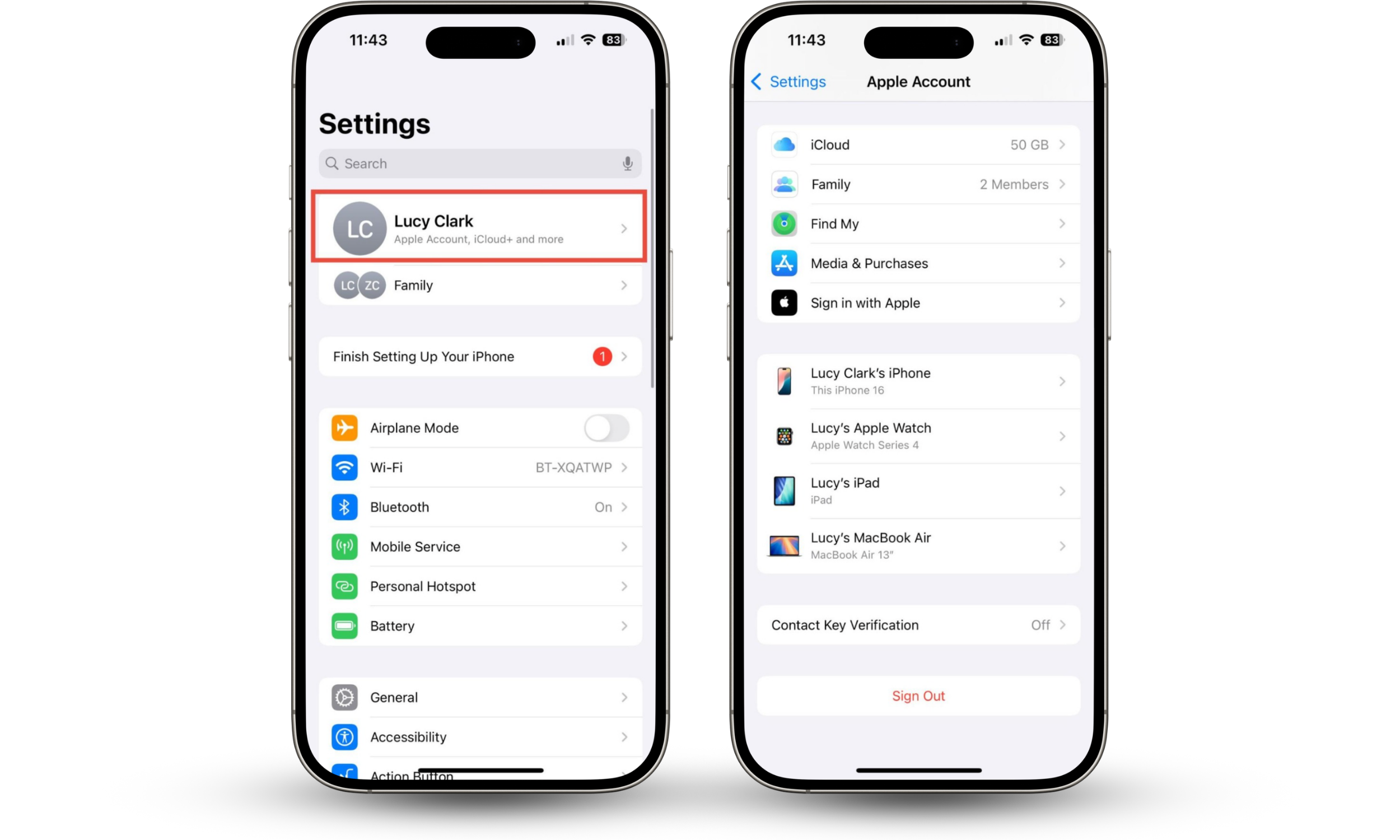
Someone who wants to monitor your phone might have other ways of spying on you, too. If you use an iPhone, check which devices are connected to your Apple Account. Connected devices can access your messages, real-time phone calls, iCloud files, and location.
When I check my connected devices, I see my iPhone, iPad, MacBook, and Apple Watch. Do you recognize all of the connected devices on your Apple Account?
How to check connected devices on your Apple Account:
- Go to Settings > Apple Account.
- Check the connected devices.
If you’re an Android user, you can’t check for devices connected to your Apple Account—but there are other ways to keep yourself safe. Find out how to detect spyware on Android.
Detect XNSPY using security tools
Anti-spyware apps like Clario Anti Spy can check your phone for XNSPY and other malware with just a few taps, and they’re usually more effective than manual checks. After all, spyware is designed to hide. Install a reputable security app, and scan your phone for monitoring software.
Scan with reputable mobile security apps
If you’re worried about XNSPY or other monitoring software, you should scan your phone with a reputable security app. Clario Anti-Spy’s Hidden app scan can find hidden software with just a few taps, and it will also alert you to any suspicious app permissions.
Understand the limits of manual detection
XNSPY claims to be undetectable, so you probably won’t find it in your App Library or Home Screen. Most modern spy apps will try to hide from their victims. After all, they’re designed to stay hidden so they can secretly monitor you.
If you want to feel confident about your phone’s security, use a reputable mobile security app. They can find apps that spy on your iPhone or Android, so you know for sure whether your device is compromised.
What to do if you find or suspect XNSPY
If you find XNSPY on your phone, make sure that you’re safe. An abusive partner might get angry if you stop them from monitoring you. Next, use security software to remove the app. Then, look at damage control, like changing your passwords and securing your data.
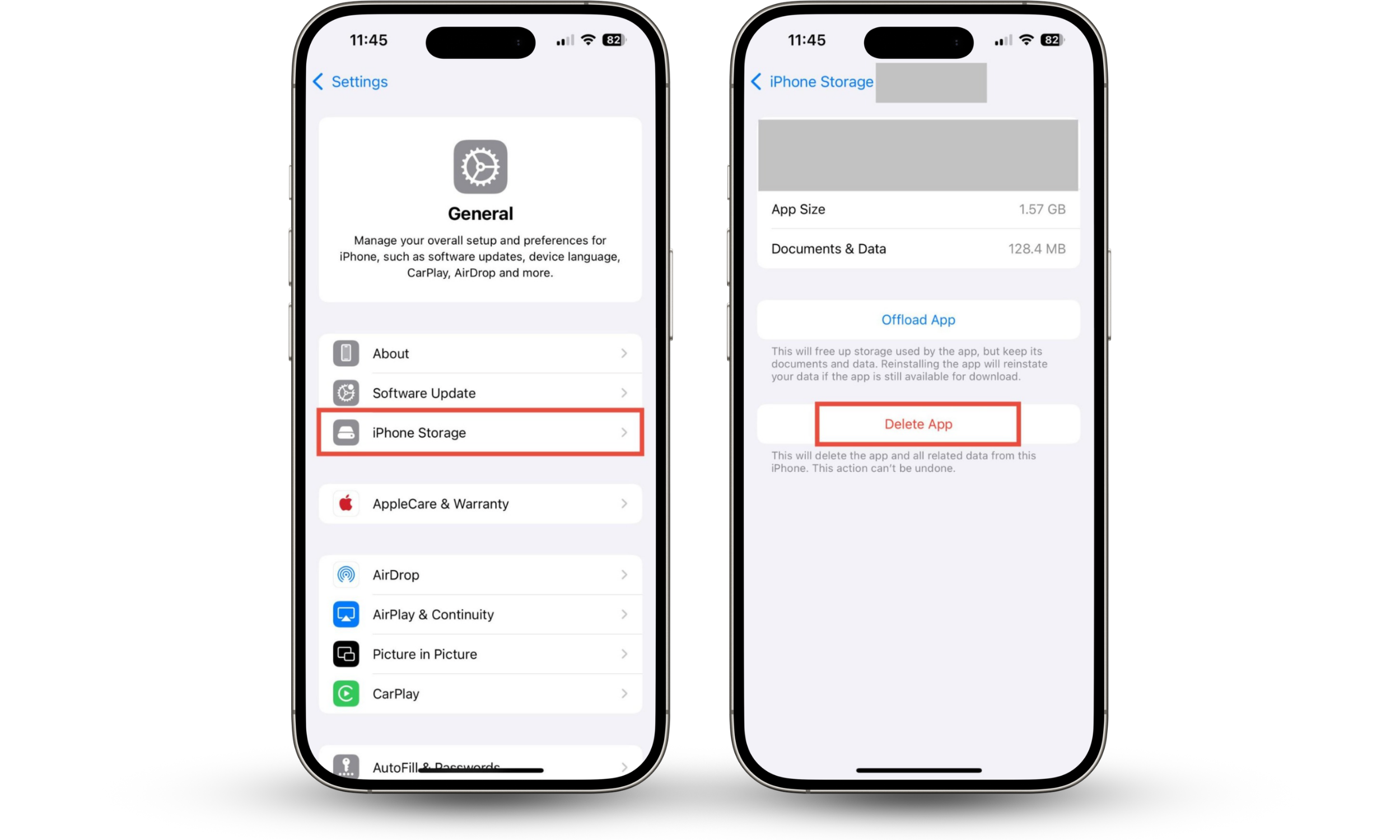
How to delete apps on iOS:
- Go to Settings > General > iPhone Storage.
- Find the app, tap on it, and choose Delete App.
How to remove suspicious apps on Android:
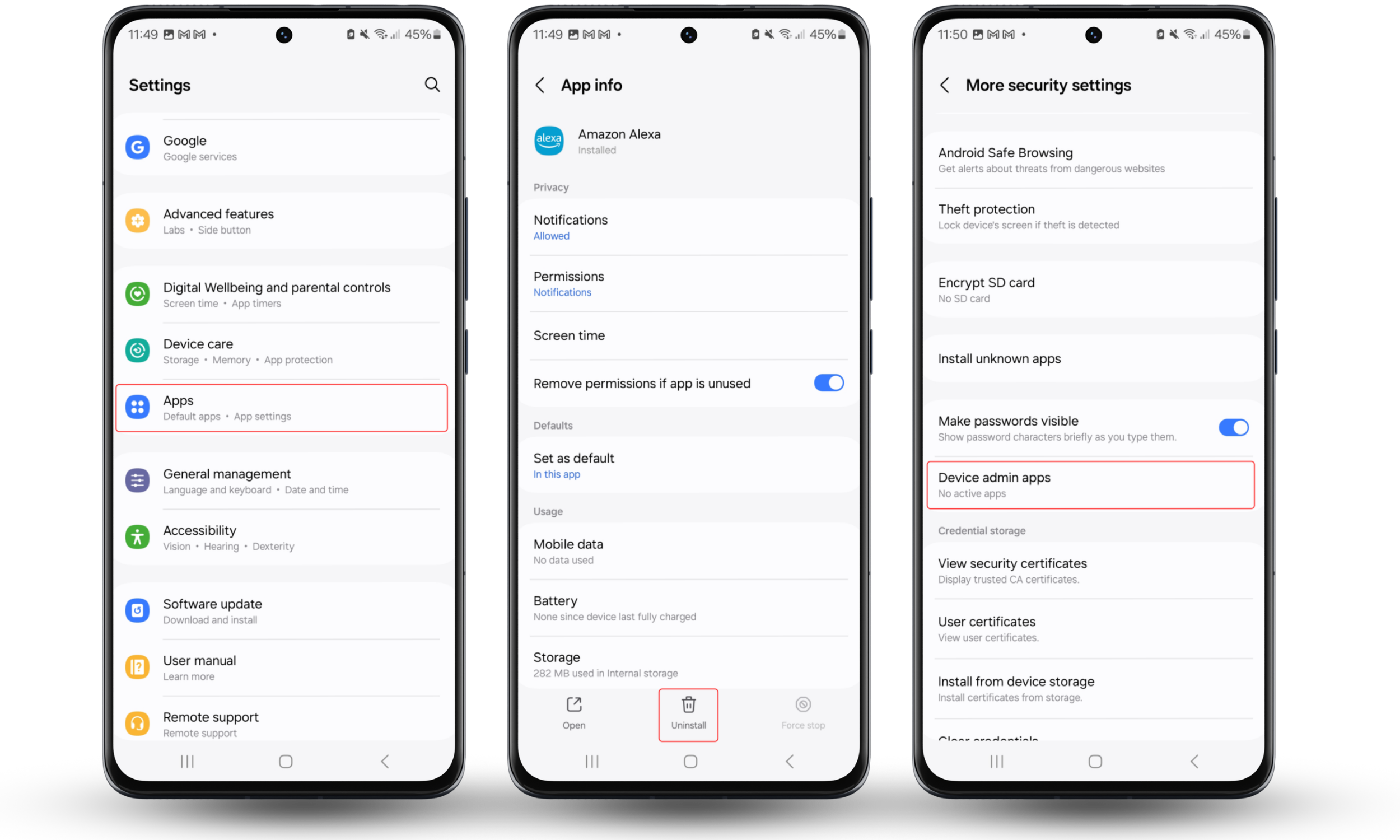
- Go to Settings > Apps.
- Tap on the app, and choose Uninstall.
- If Uninstall is greyed out, go to Settings > Security and privacy > More security settings > Device admin apps. Click on the app to remove administrator privileges.
- Go back to Settings > Apps, and Uninstall the suspicious app.
To make sure you’ve removed all spyware from your phone, you can perform a factory reset. This will delete installed apps and reset all of your settings to the factory defaults. It’ll delete all your data, so it’s a last resort, but it will ensure XNSPY is gone.
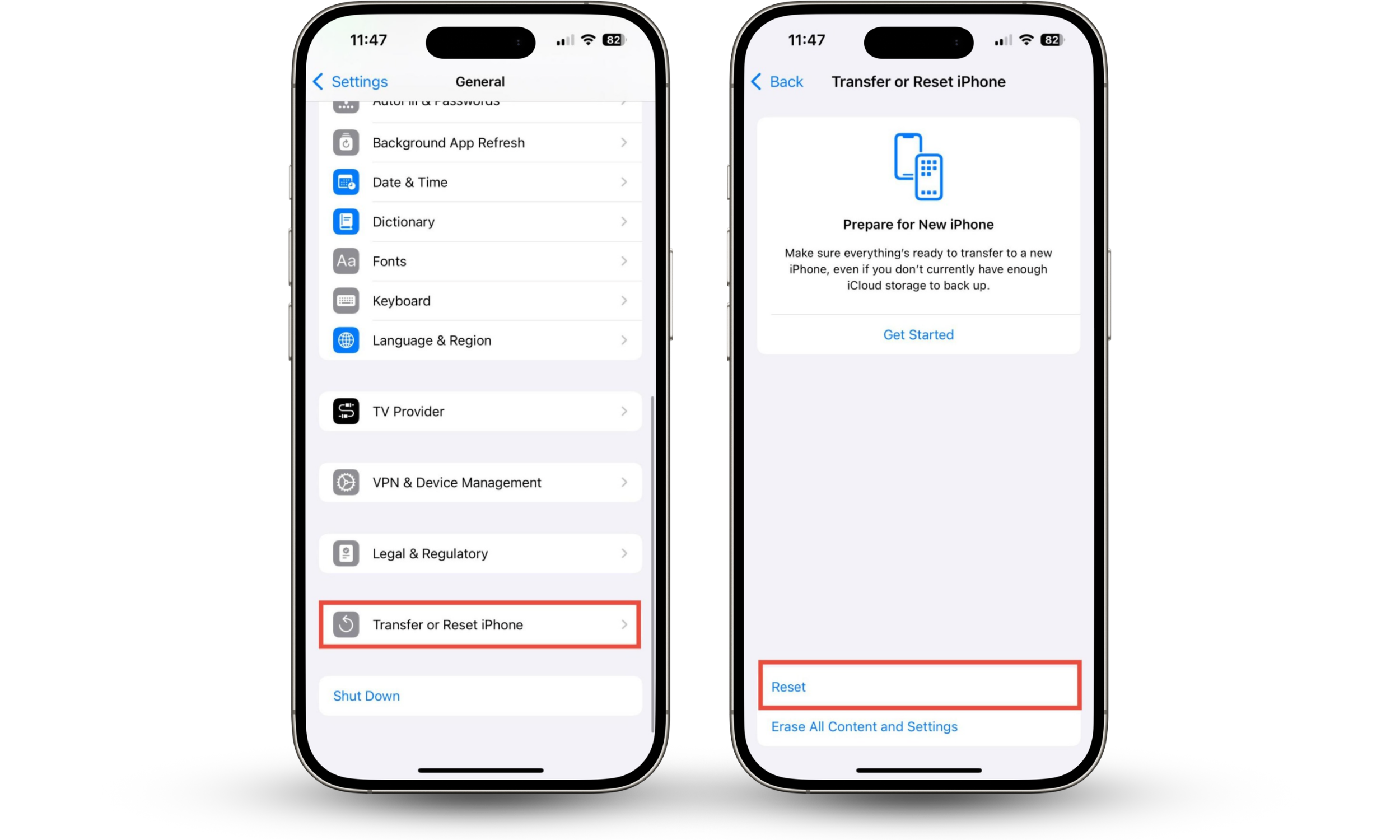
How to factory reset your iPhone:
- Go to Settings > General > Transfer or Reset iPhone.
- Tap Reset.
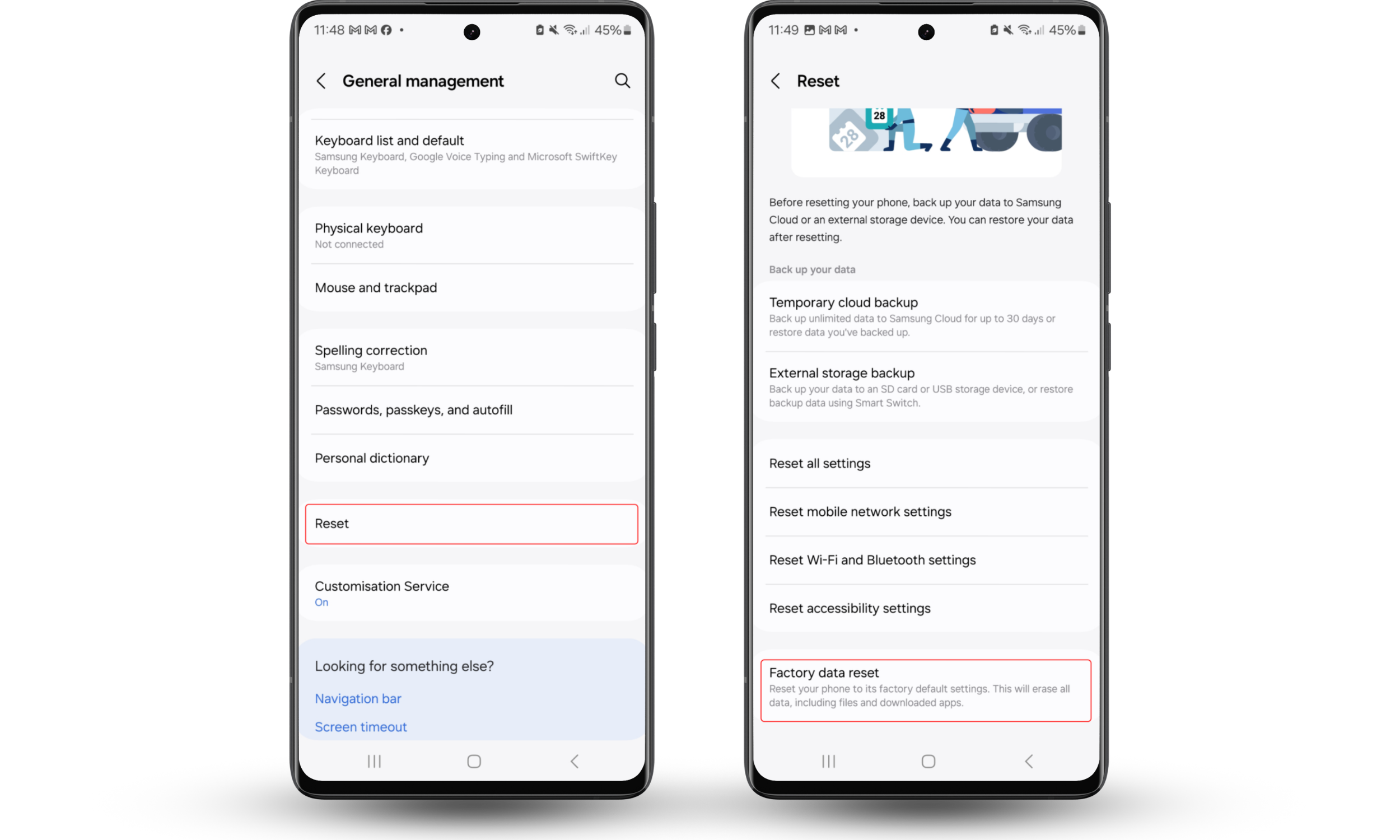
How to factory reset your Android:
- Go to Settings > General management > Reset.
- Choose Factory data reset.
Remember, if someone used XNSPY to monitor you, they probably know your passwords and other sensitive information. They could have seen private messages, intimate photos, or confidential work documents.
What to do after uninstalling XNSPY:
- Change your passcode.
- Change your online passwords.
- If you’ve sent or received confidential messages, let your contacts know that their details may have been compromised.
- Regularly check for hidden apps and suspicious permissions.
How to prevent XNSPY and similar spyware in future
Make sure no one else can access your phone. Set up a secure passcode, and check that no one else can unlock your phone with their biometric data. Install reputable security software, and scan your phone for suspicious apps regularly. Keep your device updated, too—outdated operating systems can have vulnerabilities that hackers may exploit.
XNSPY can only be installed by someone with physical access to your phone, but other spyware might be installed remotely. So you should always follow the usual digital security advice: don’t click on unknown links, avoid public Wi-Fi where possible, and make sure you use unique passwords for each online account.
Conclusion
To check your phone for XNSPY, scrutinize your app list and look for suspicious permissions. Watch out for unusual phone behavior, fast battery drain, or abnormal data usage.
However, monitoring apps are designed to hide. The best way to find them is by using dedicated security software, like Clario Anti Spy. Check your phone with Clario Anti Spy’s Hidden app scan to find out whether someone is monitoring you.