Table of contents
- How to hide apps from the home screen
- How to hide apps using the built-in Hide feature (iOS 18 and later)
- How to hide apps using Siri & Search
- How to hide apps using App Library
- How to hide apps using Screen Time
- How to hide apps using App folders
- How to hide apps from Smart Suggestions
- How to hide apps from iPhone search
- How to hide apps from your App Store purchase history
- Where do hidden apps go?
- Final thoughts
There are various ways you can go about removing apps from your home screen. When you do move them you won’t lose them. In fact, you will still be able to find your hidden apps by using the Search function in the App Library or through your Settings. So don’t worry — you can only get rid of an app for good by deleting it.
How to hide apps from the home screen
To hide apps on iPhone, touch and hold an app, then tap Remove App > Remove from Home Screen to move it into App Library. On iOS 18 and later, long-press the app and choose Require Face ID > Hide and Require Face ID to lock it inside a hidden, Face ID–protected folder. You can also hide apps from Search, Siri Suggestions, and your App Store purchase history.
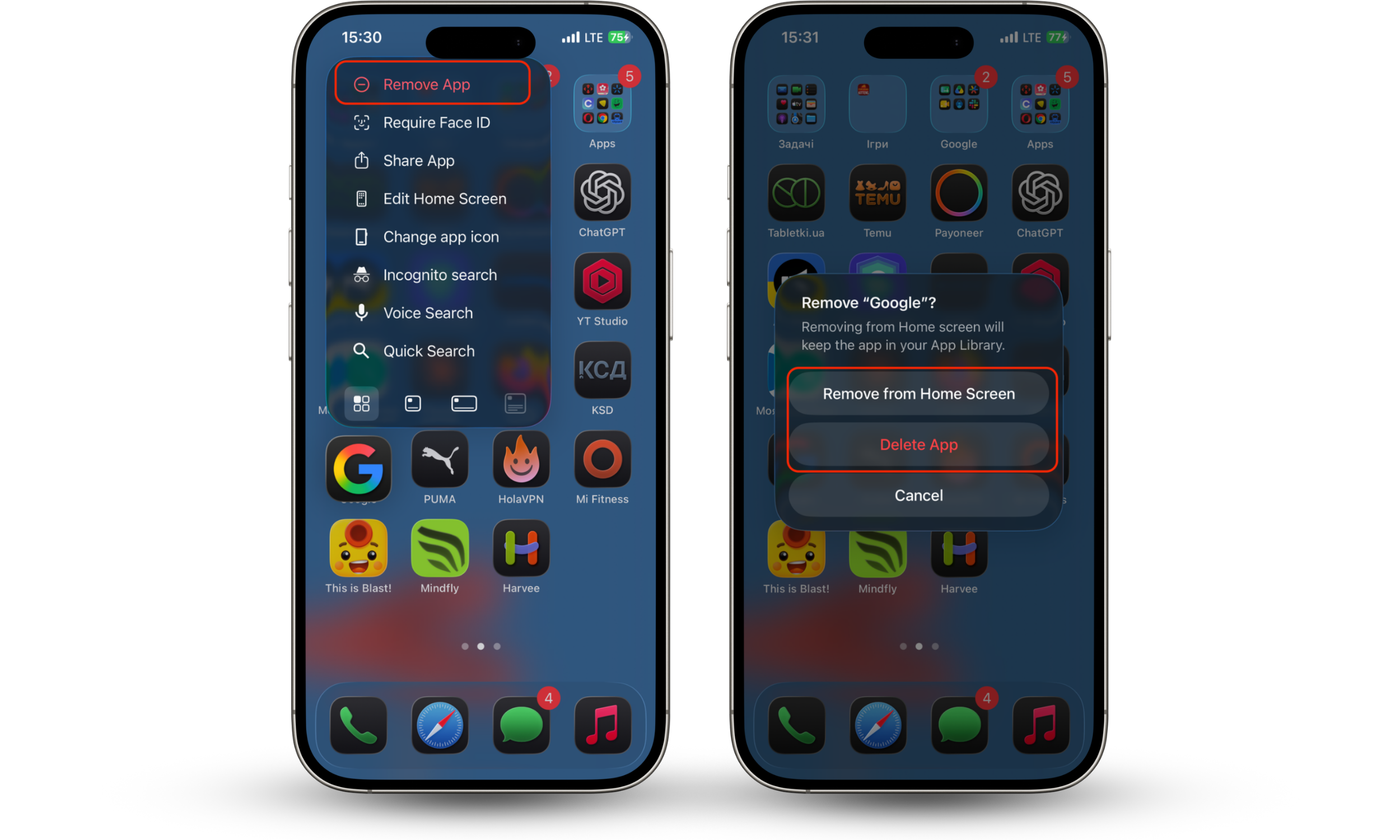
Follow these simple steps to hide an app on iPhone:
- Find the app you want to remove, then hold your finger down on the icon.
- An options menu will appear. Then tap Delete App or Remove from the Home Screen.
Important to know
Remove from Home Screen only hides the icon — the app stays installed in App Library with all its data and logins intact. Delete App is permanent: it uninstalls the app and wipes its data from your iPhone. If you just want to declutter, always choose Remove from Home Screen.
How to hide apps using the built-in Hide feature (iOS 18 and later)
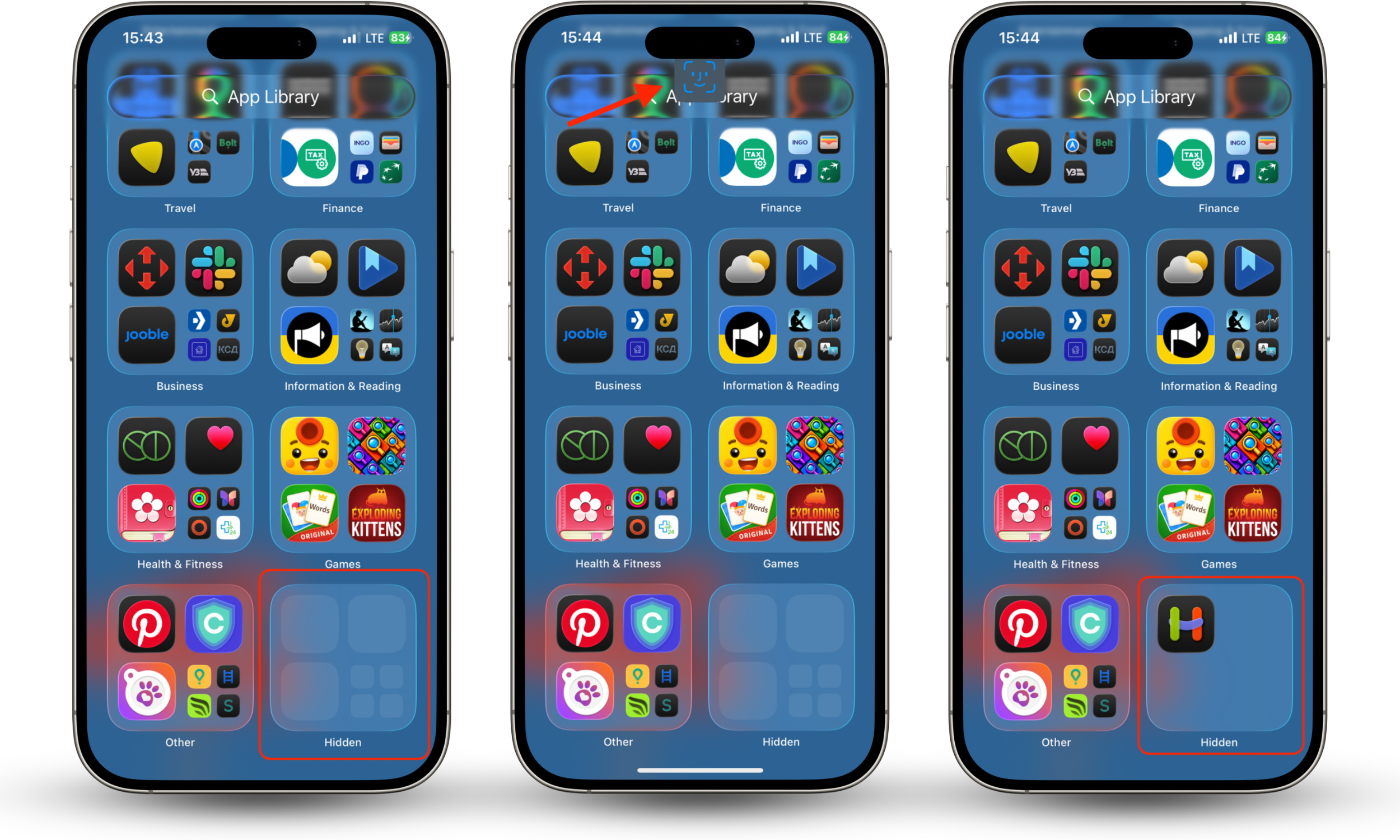
On iOS 18 and later, iPhone can hide an app completely without any workaround. Long-press the app, tap Require Face ID, then choose Hide and Require Face ID. The app vanishes from your Home Screen, Search, and notifications, and moves into a locked Hidden folder at the bottom of App Library that only opens with your face, fingerprint, or passcode.
Here's how to do it:
- From the Home Screen, touch and hold the app you want to hide until the quick actions menu appears.
- Tap Require Face ID (or Touch ID or Passcode).
- Tap Hide and Require Face ID, then authenticate with Face ID, Touch ID, or your passcode.
- Tap Hide App to confirm. The app moves to the Hidden folder at the bottom of App Library.
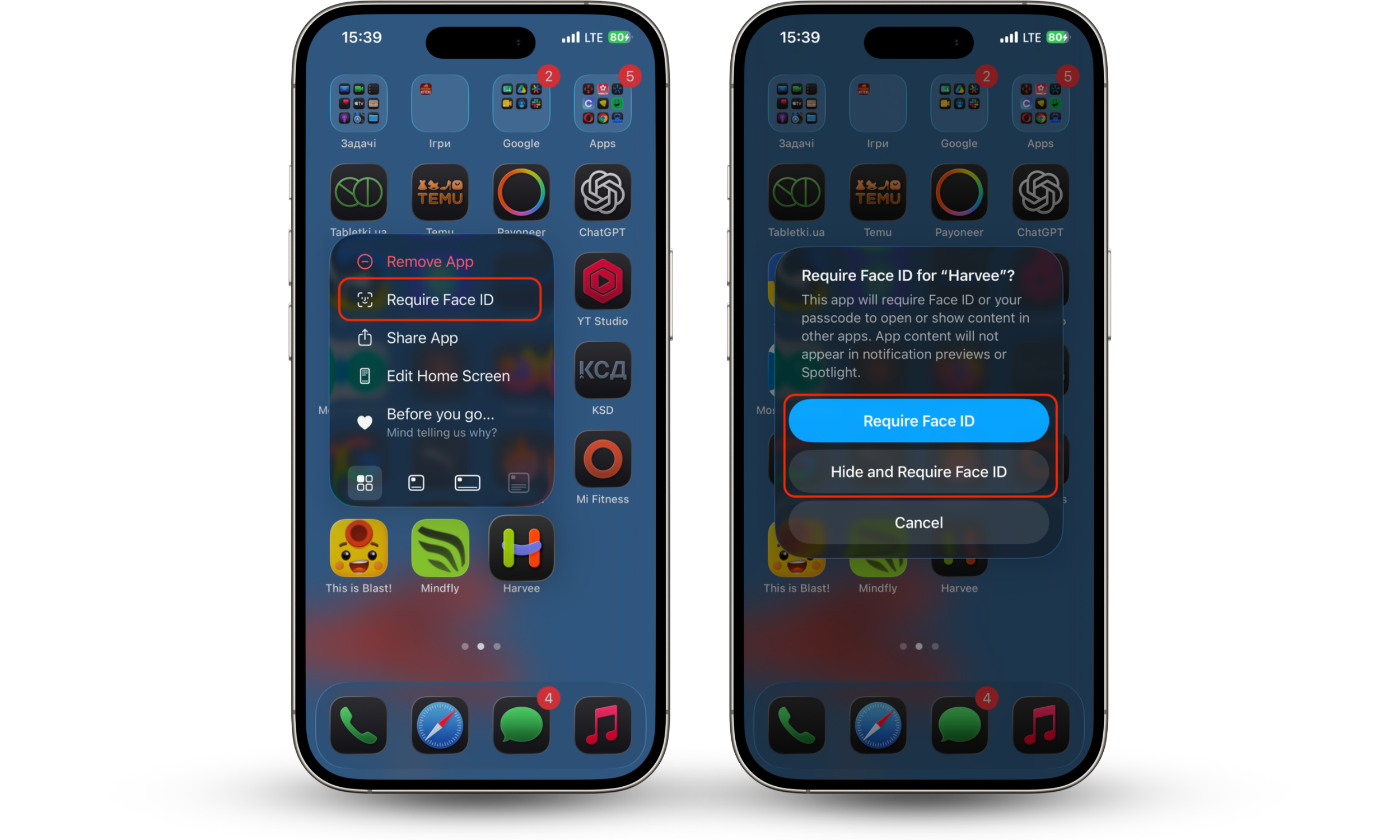
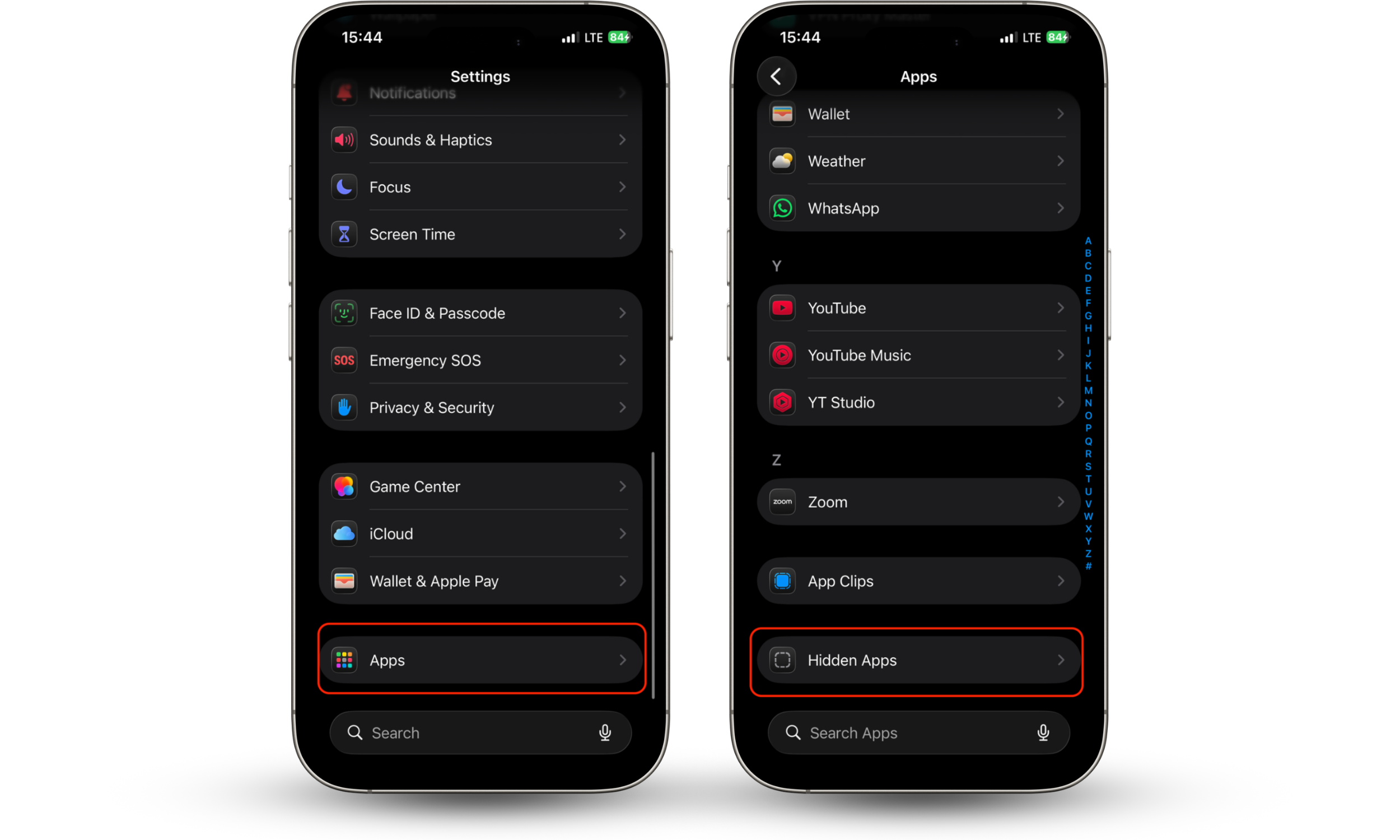
To reopen a hidden app, swipe left past your Home Screen pages to App Library, tap the Hidden folder, authenticate, then tap the app. You can also see the full list under Settings > Apps > Hidden Apps.
Important to know
This native method only works on apps you downloaded yourself — apps that ship with iOS 18 or later can't be hidden this way. The Hidden folder also relocks the moment you leave it, so a frequently used app means constant Face ID checks. Anything you hide is hidden on that device only.
How to hide apps using Siri & Search
You can also ensure iOS hidden apps are removed from your home screen by changing the settings on your iPhone and iPad. To do this you need to:
- Open Settings.
- Tap Siri & Search.
- Scroll down your list of apps until you find the one you want to hide, then tap on it.
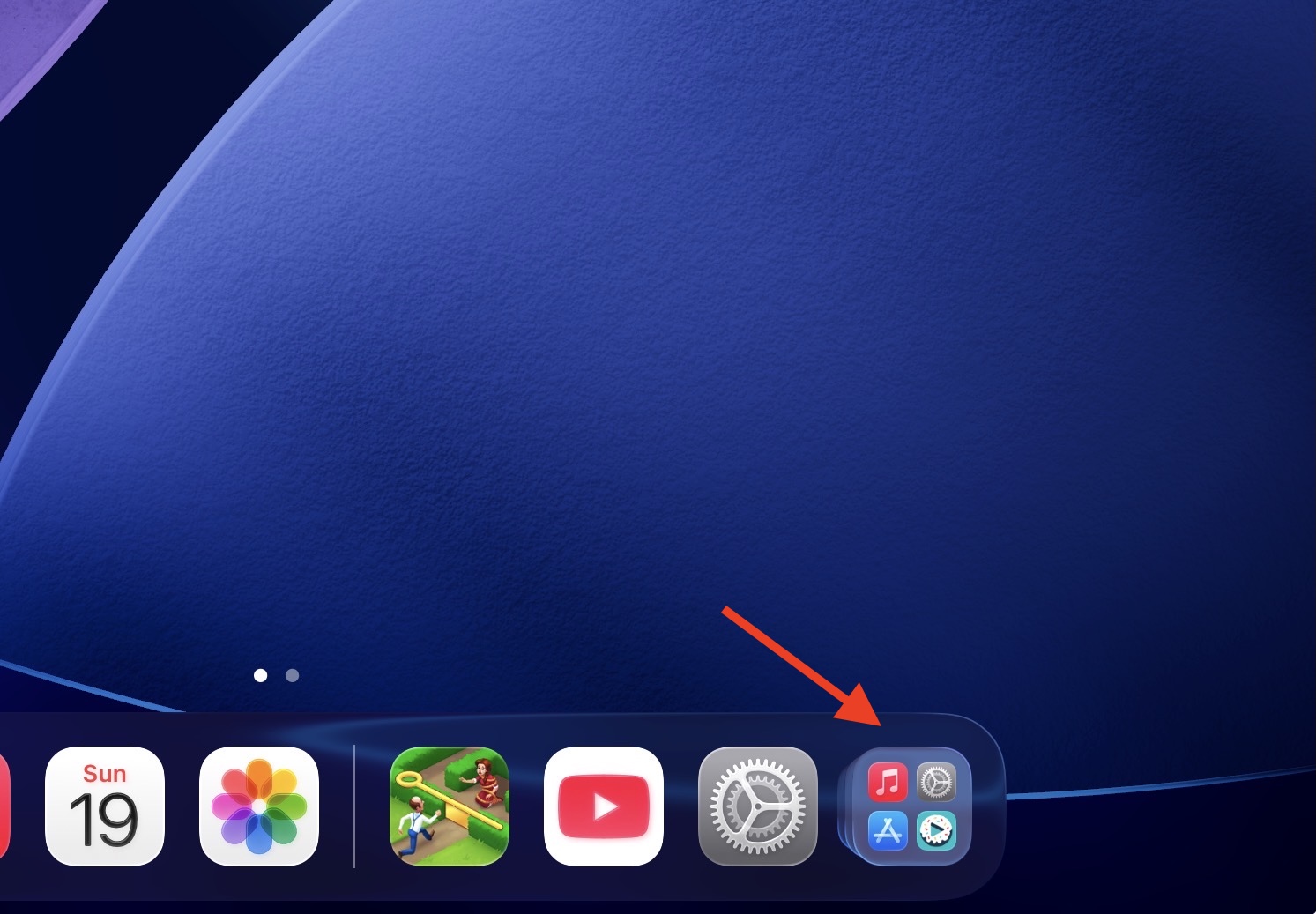
- On iPad, App Library sits in the Dock rather than at the end of your Home Screen pages — tap the App Library icon on the right side of the Dock to reach it.
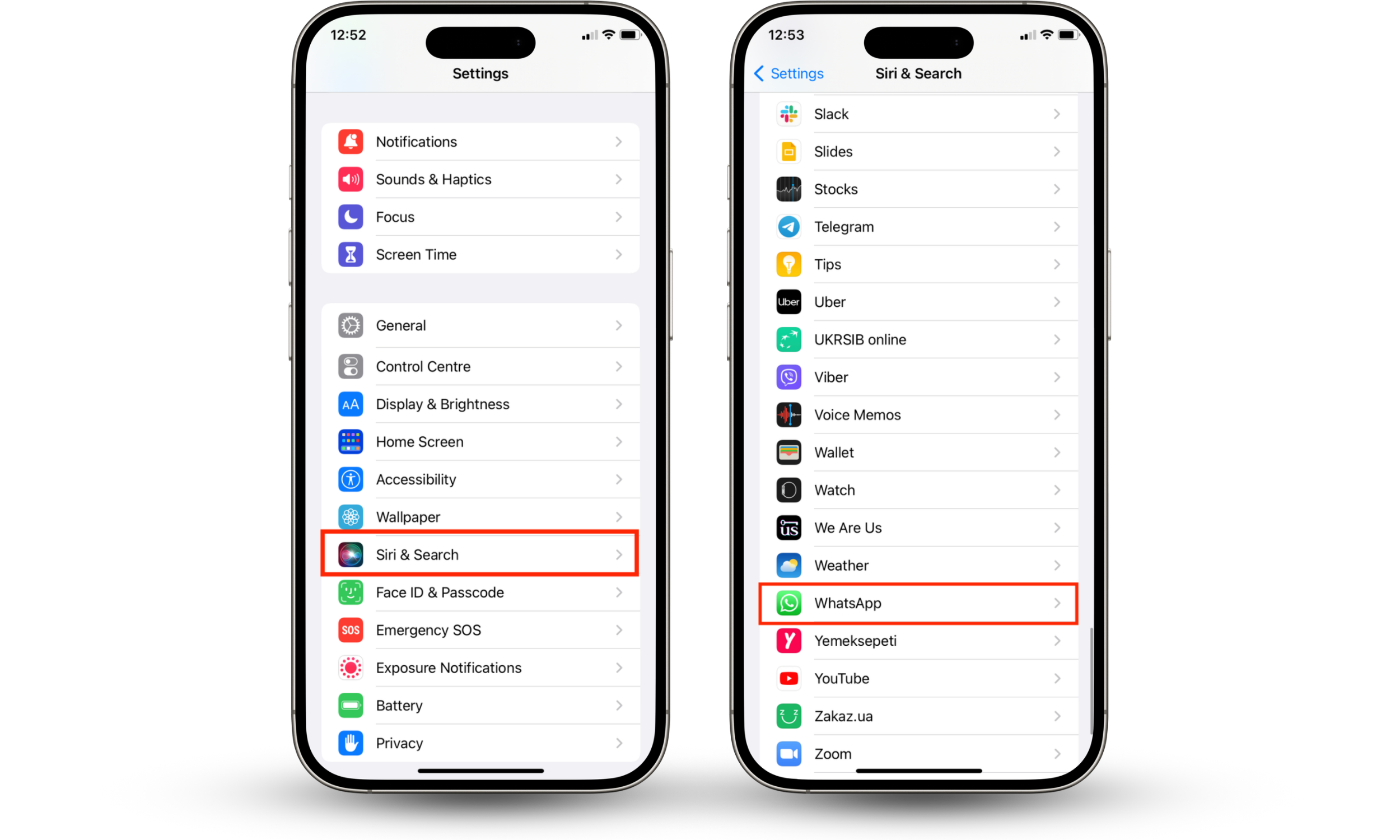
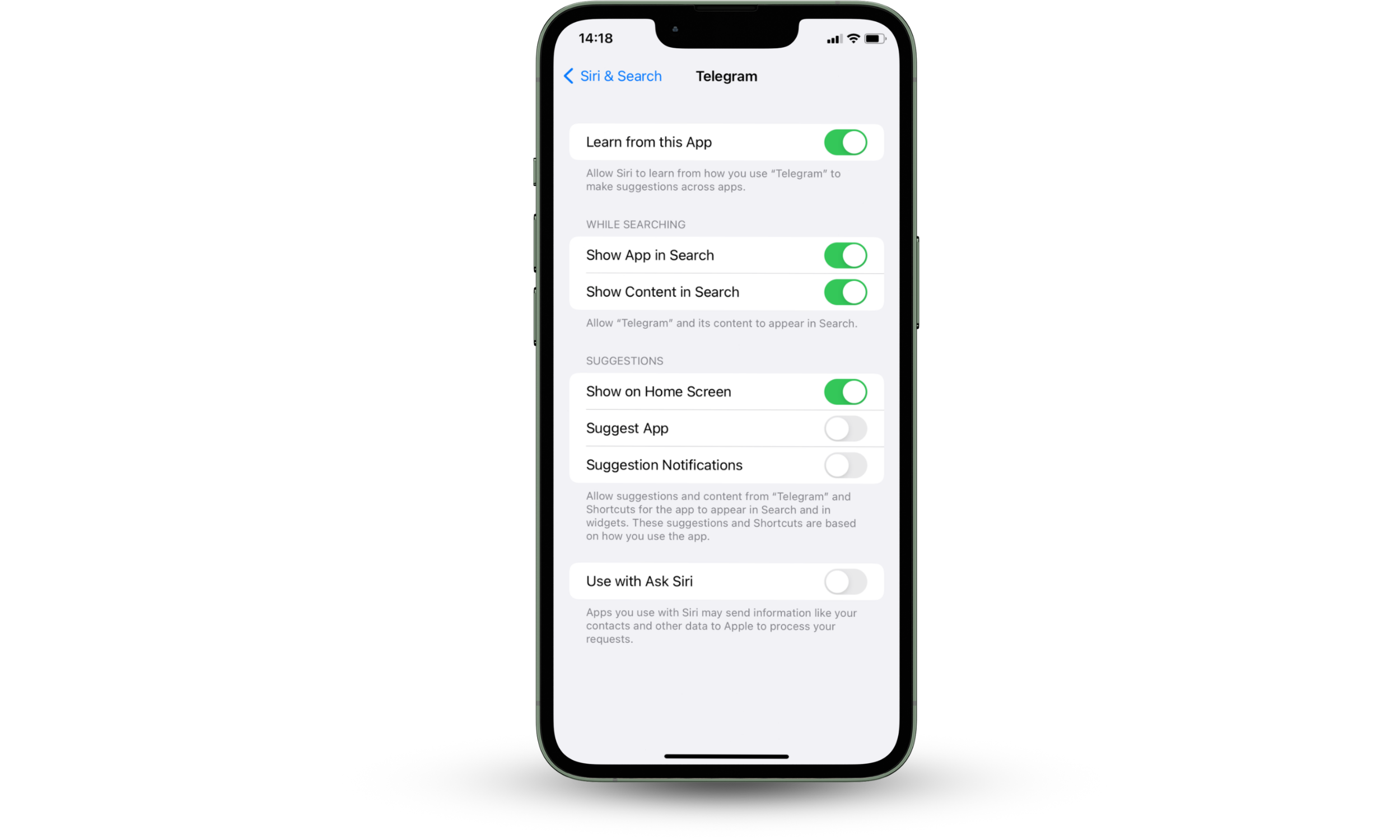
To hide an app and its content from Search, toggle off Show App in Search, Show Content in Search. To hide suggestions and content from the app from Search and widgets, toggle off Suggest App, and Suggestion Notifications. Toggle off Show on Home Screen to hide an app from your iPhone Home Screen. These should all appear gray once turned off.
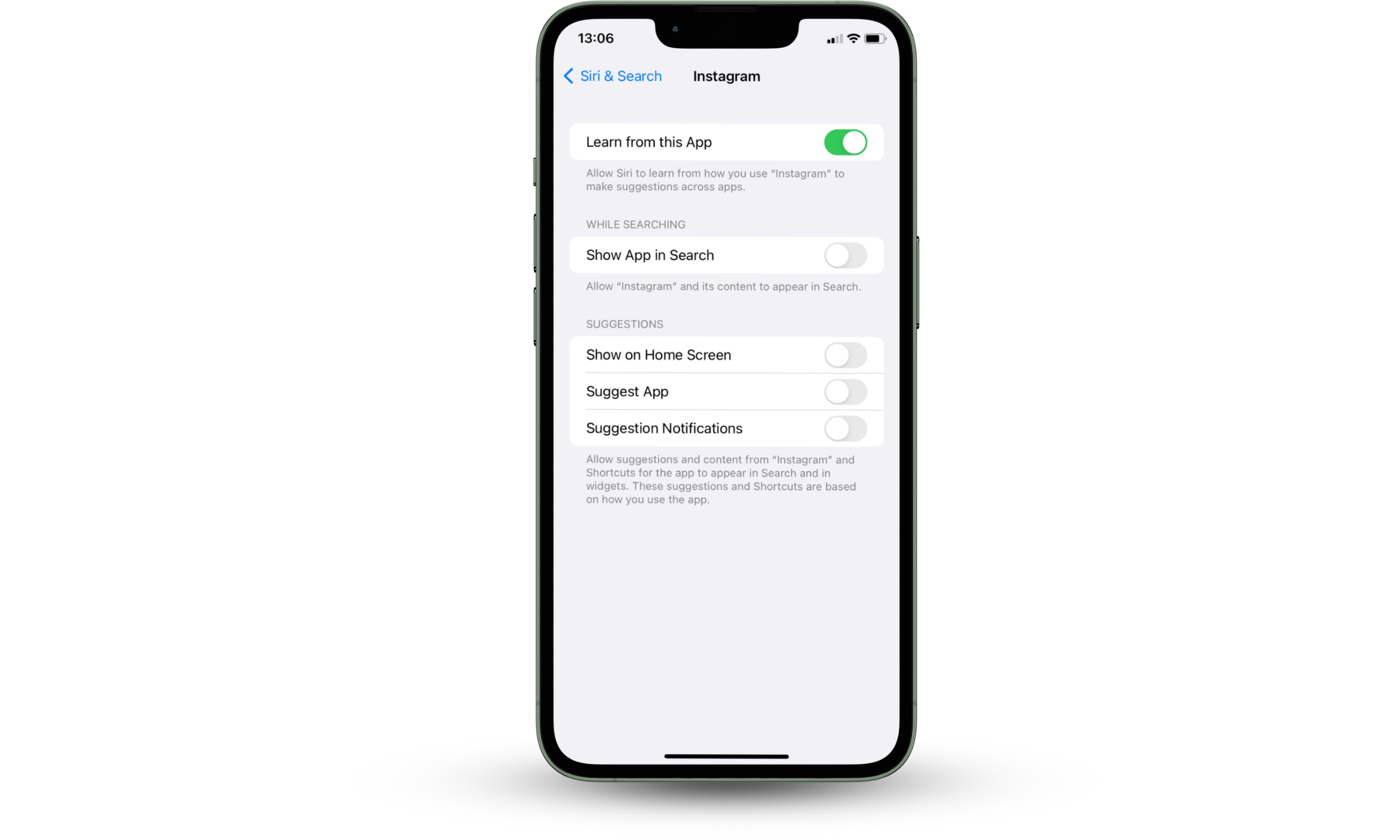
Now you have hidden icons on iPhone. But at a later date, you might want to reverse this process to show them. To do this, just repeat the steps above, then toggle on Show on Home Screen, Suggest App, Suggestion Notifications, and Show App in Search. They should appear green when back on.
To quickly get your app back on the Home Screen:
- Go to the Home Screen and swipe left until you get to the App Library.
- Find the app you need, tap on it and hold.
- Drag it to the left and drop it wherever you need it.
How to hide apps using App Library
Unfortunately, there is no way to hide an app using App Library as of iOS 15.
Important to know
This changed in iOS 18. Newer iPhones can hide a downloaded app straight into a locked Hidden folder in App Library using Hide and Require Face ID (see the section below). The App Library itself still has no standalone "hide" button — the option now lives in the app's long-press menu.
In the App Library you will only have the ‘delete app’ option. But we don’t want that, do we? However, you do have an option to hide an app from your App Library and Home Screen at the same time — using Screen Time. If you're also looking for how to hide photos on iPhone, you can use the built-in Hidden Album secured with Face ID or passcode.
How to hide apps using Screen Time
Screen Time is a trick that allows you to hide an app from your iPhone Home Screen and App Library.
How to hide default apps from Home Screen and App Library:
- Go to Settings > Screen Time.
- Tap Content & Privacy Restrictions.
- Toggle the Content & Privacy Restrictions switch on.
- Go to Allowed Apps.
- Toggle the switch off in front of the app you want to hide.
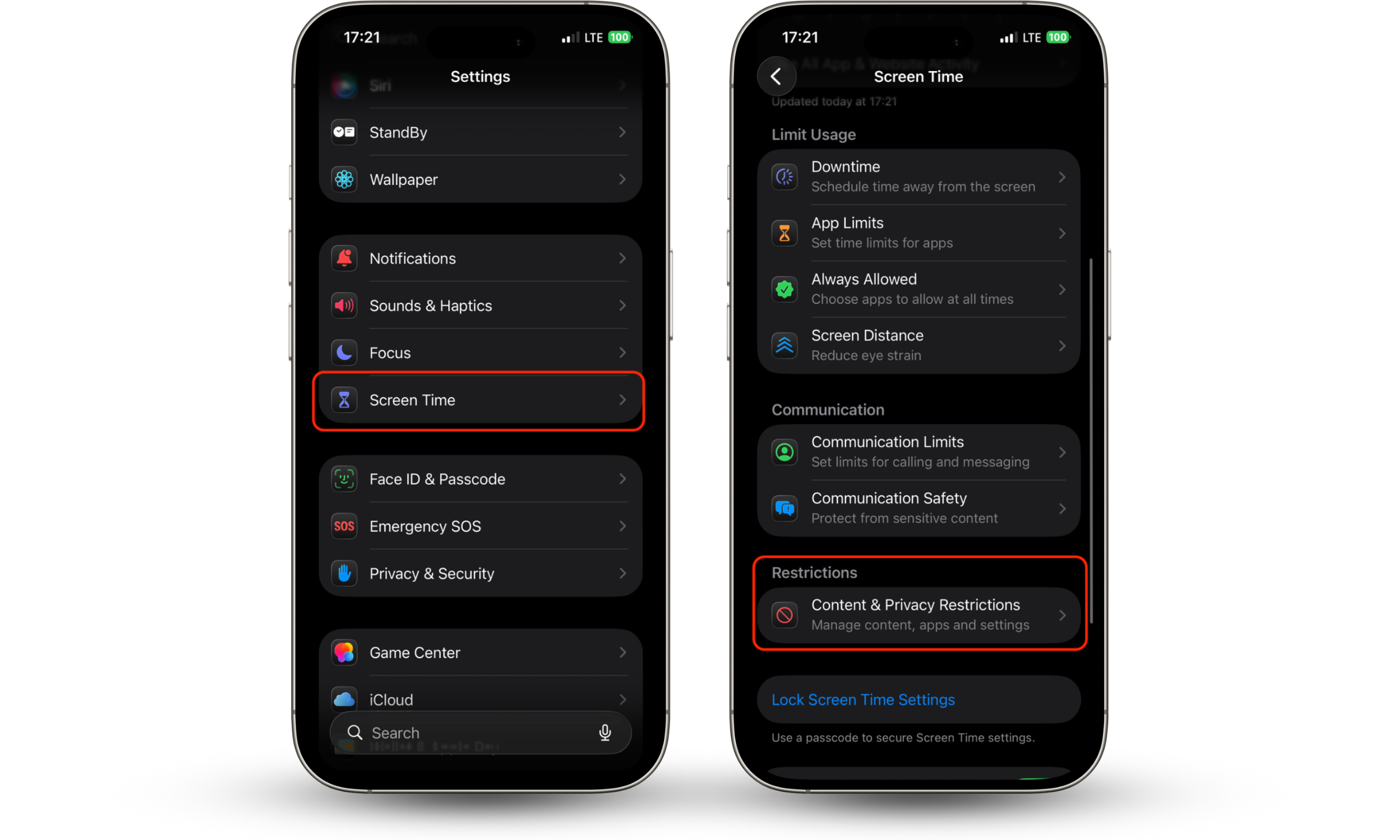
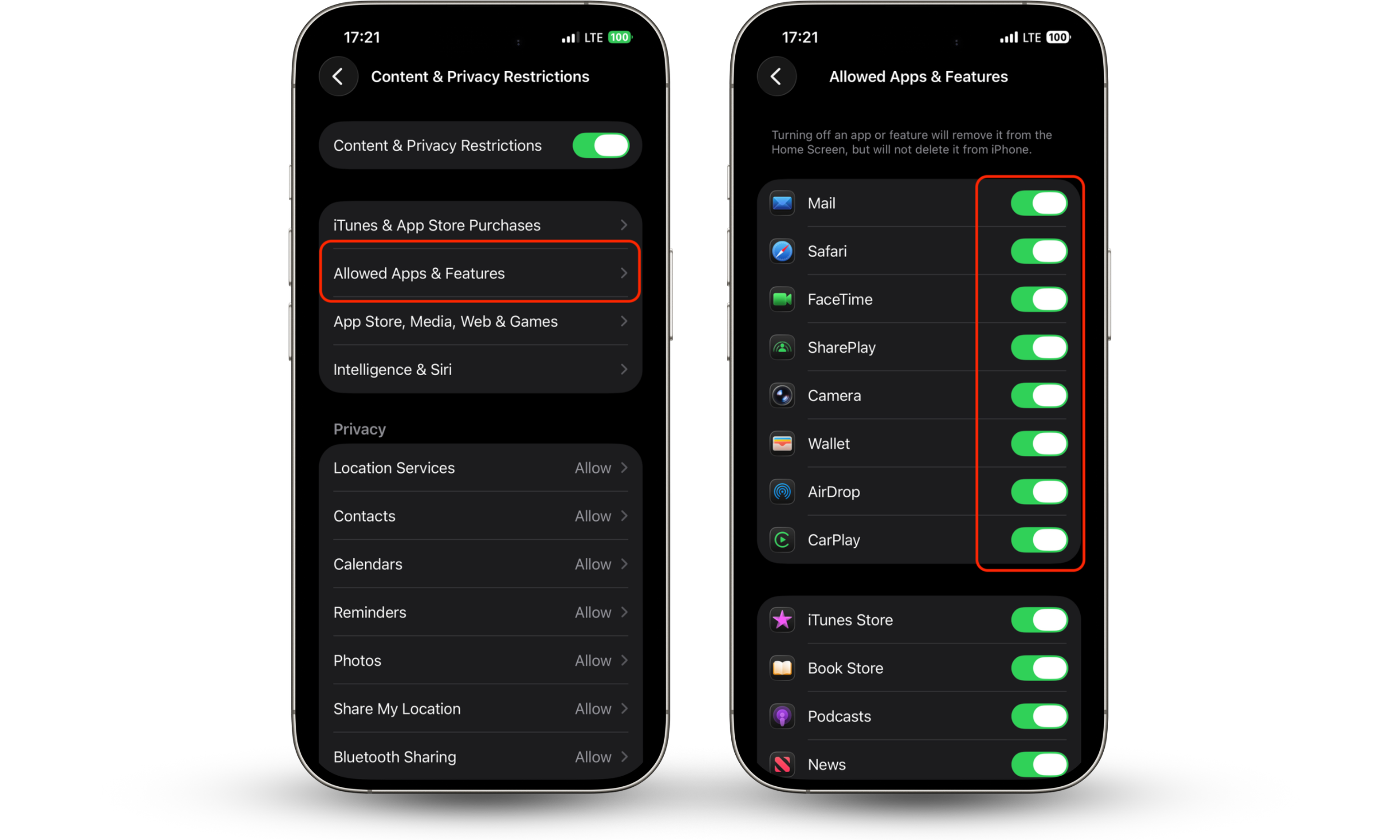
These actions will hide the app from your Home Screen And Apps Library, making it harder to access. If you ever need to, here's how to find secret apps on iPhone—just toggle the switch back on.
How to hide third-party apps from Home Screen and App Library
As disappointing as it is, Apple hasn’t developed an option to hide a separate third-party app from your App Library, unless you use age restriction. See how it works below:
- Go to Settings > Screen Time.
- Tap Content & Privacy Restrictions.
- Toggle the Content & Privacy Restrictions switch on.
- Go to Content Restrictions > Apps.
By tapping Don’t Allow Apps you will hide all third-party apps from your Home screen and App Library. Tap Allow All Apps to leave all the apps unhidden. Also, by tapping 4+ you will hide apps that have a 4+ age restriction.
Security note
Screen Time hiding is only as strong as your Screen Time passcode. If it matches your device passcode — or someone already knows it — they can switch the app back on in seconds. Set a separate Screen Time passcode under Settings > Screen Time so restrictions actually hold.
How to hide apps using App folders
One effective solution is to use folders to hide apps from your Home Screen. You can place any apps you need to use on the first pages, then others you use less on subsequent pages.
- Press and hold the icon of any apps you want to move. Wait until the Action Menu appears. Then select Edit Home Screen.
- Choose a folder or create a new folder. Then hold and drag the app you’re hiding into the folder of your choice. Drop it in the second/third screen within the folder.
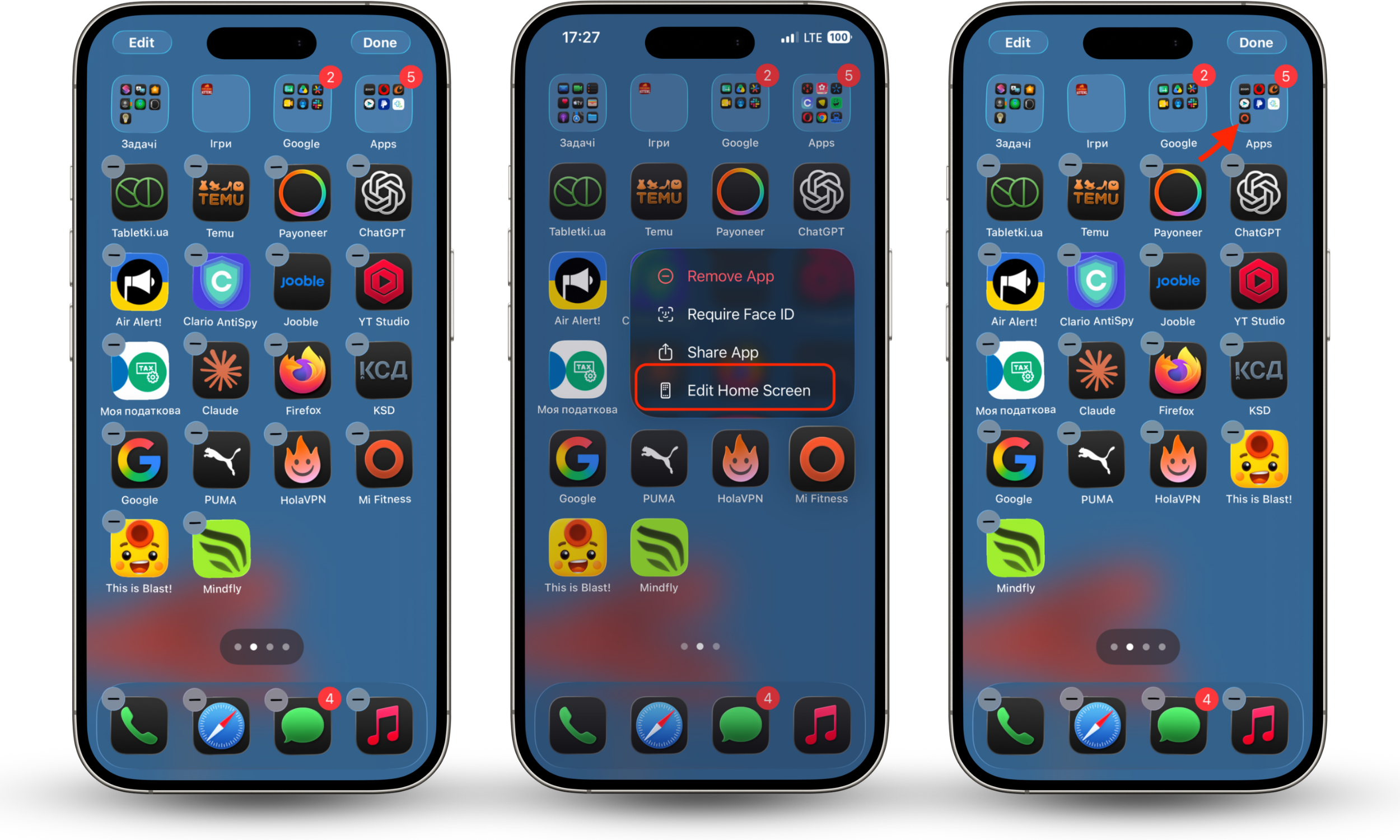
If you drag the app to the right, then you will be able to add it to the second page of the chosen folder. Only those apps featured on the folder’s first page will be visible on the home screen.
Privacy note
Folders hide an app visually, but not from Search. Anyone who types the app's name into Spotlight, or scrolls App Library, will still find it. Treat folders as tidying, not privacy — for genuinely private apps, pair this with Hide and Require Face ID or a Screen Time restriction.
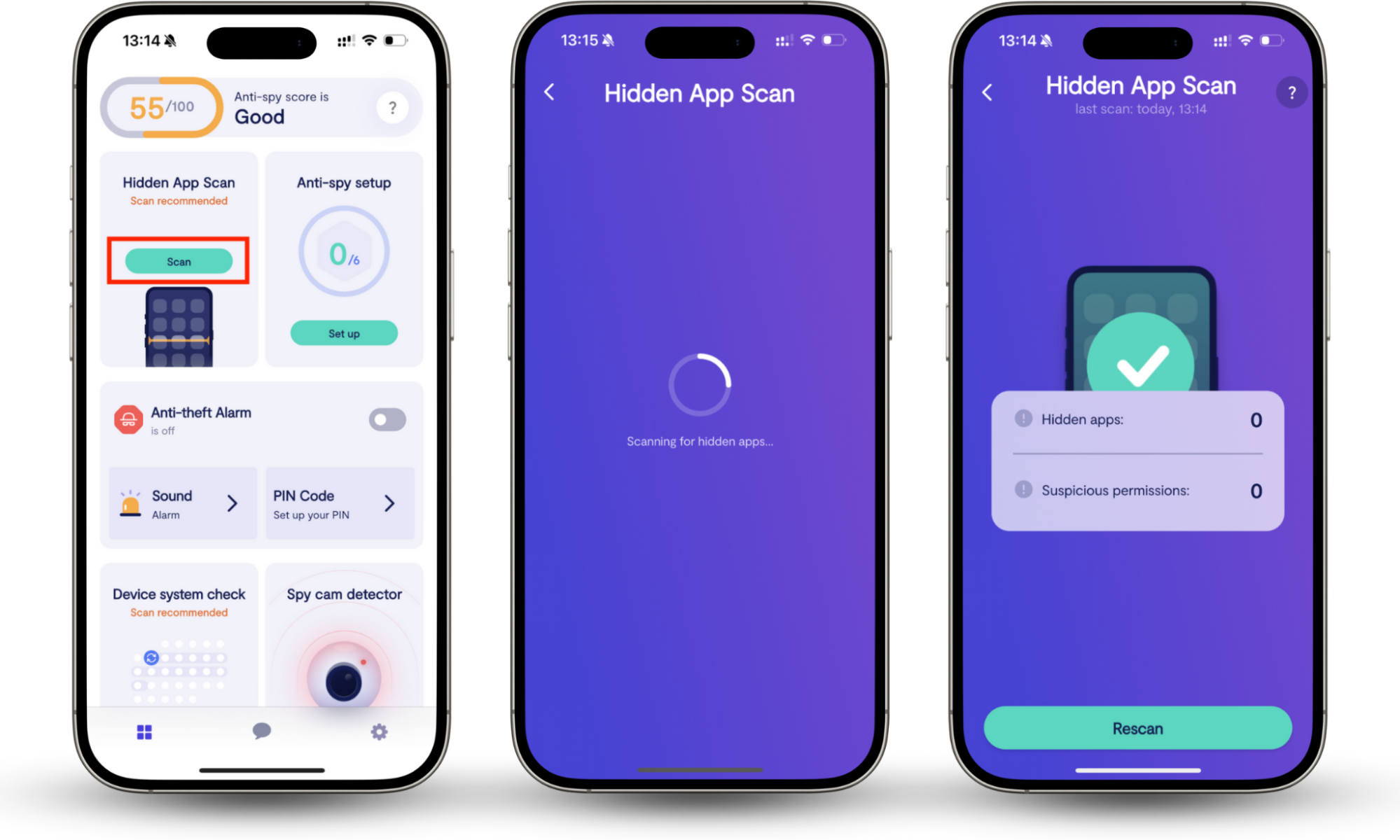
Hiding your own apps is one thing — but spyware, stalkerware, and secret parental-control apps can hide from you just as easily. Clario Anti Spy runs a full Hidden app scan that flags these apps and reviews the permissions every app has requested, so you can spot anything quietly watching your messages, location, or camera.
Here’s how to use Clario Anti Spy’s Hidden apps scan:
- Open Clario Anti Spy.
- Click on Scan under the Hidden apps scan.
- Wait till the scan is complete.
- If Clario Anti Spy flags an app as suspicious, follow the on-screen instructions to remove it and restore your privacy.
How to hide apps from Smart Suggestions
Your iPhone is a brilliantly intuitive device thanks to virtual assistant Siri. The Smart Suggestions function uses Siri's intelligence to predict and suggest apps based on how you use your device.
As handy as this can sometimes be, if you are looking to hide apps from your home screen, then it might suggest apps you’d prefer to avoid. Or you might be super-organized and already have a dedicated widget for an app in place. Whatever your reasons, here’s how to hide apps on iOS:
- Head to Settings on your iPhone.
- Scroll down to find Siri & Search.
- Scroll down to find the app you want to remove from your Smart Suggestions.
- Once you’ve found the app you’d like to hide, then choose toggle off Suggest App so this is gray.
How to hide apps from iPhone search
For extra privacy, you can hide apps from iPhone Search. This will prevent anyone who is extra nosy from snooping around your device and searching for an app. To do this, you need to:
- Open Settings.
- Tap Siri & Search.
- Go down the app section and choose the app you want to hide.
- Toggle off Show App in Search.
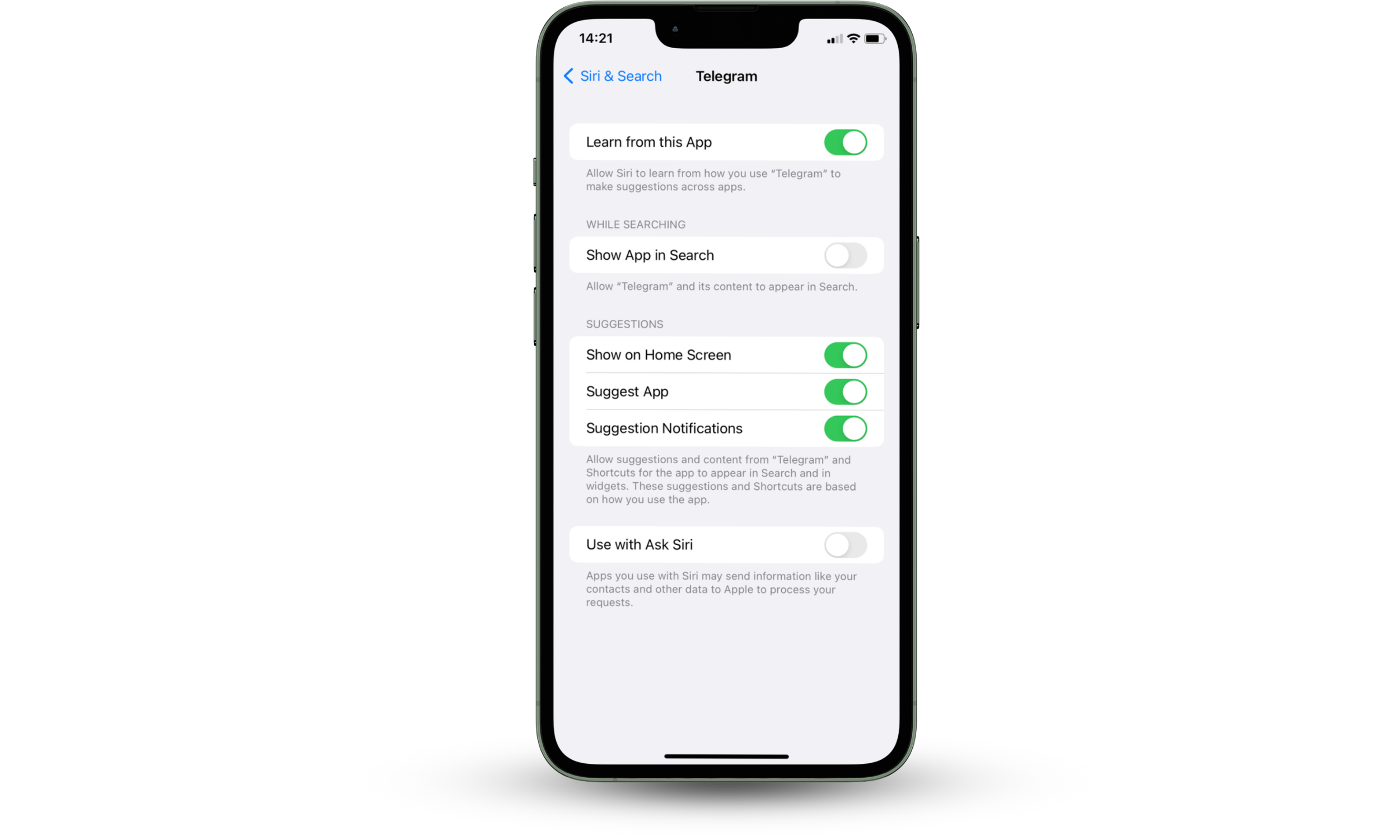
If you have any other apps you want to hide from search, then just repeat these steps. You will need to do this for each one.
How to hide apps from your App Store purchase history
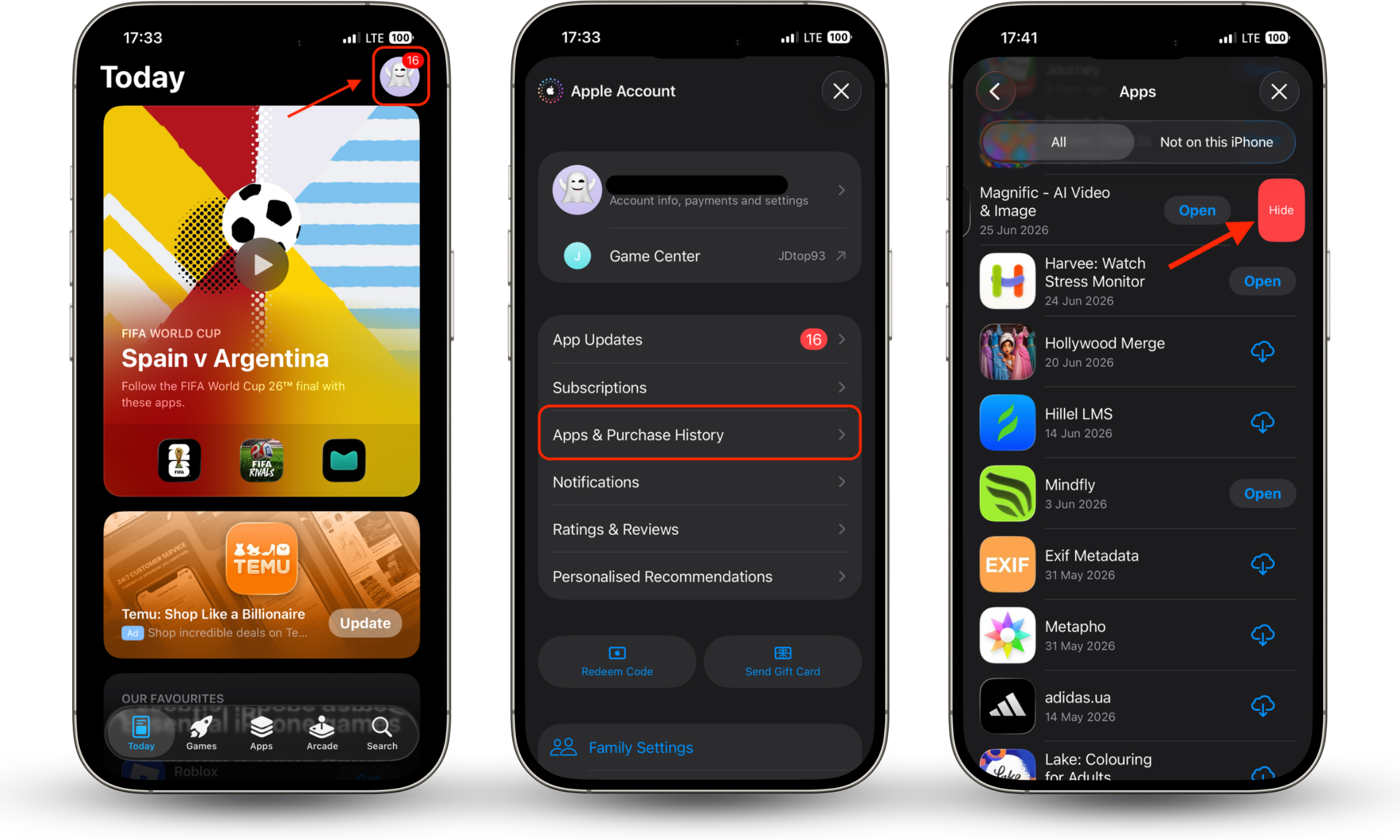
Hiding an app from your App Store purchase history stops it from appearing in your list of past downloads — handy on a shared Apple ID. The app stays on your device and can be re-downloaded later from your hidden purchases. Note this hides the record of the purchase, not the app itself.
If you want to keep some of your apps to yourself, then you can follow the below steps to hide them from your purchase history for your App Store.
- Open the App Store.
- Find your photo or profile icon in the top right corners. Then tap on it.
- Tap Purchased.
- Scroll through until you find the name of the app you want to conceal. Then swipe left on the app.
- Hit Hide.
Where do hidden apps go?
Hidden apps aren't deleted — they stay installed and move to App Library. You can reopen any hidden app by swiping left past your Home Screen to App Library, or by typing its name into Spotlight Search. Apps hidden with Face ID instead live in a locked Hidden folder at the bottom of App Library.
Can someone find hidden apps on your iPhone?
It depends on the method. Apps hidden in a folder or through Search settings can still surface in Spotlight and App Library, so a determined snooper may find them. Apps hidden with iOS 18's Hide and Require Face ID sit in a locked folder and can't be opened without your face, fingerprint, or passcode.
As with hiding notifications on your iPhone, hiding apps on your device can help you focus and avoid distractions. If you’re worried about where these hidden apps go, then don’t be. They will be stored in the App Library unless you decide to completely remove them from your iPhone by deleting them. You will be able to search the App Library or use the Spotlight Search to source it. Just swipe right until you reach the widgets manually and enter the app name in the Search to find it. This means you shouldn’t be afraid of decluttering your digital life. Instead, embrace it!
Final thoughts
Hiding apps on iPhone comes down to matching the method to your goal: Remove from Home Screen for quick decluttering, App folders for light tidying, Screen Time for blocking access on a shared device, and Hide and Require Face ID (iOS 18 and later) for genuinely private apps locked behind your face or passcode. None of these deletes anything — your apps stay safe in App Library until you want them back.
But keeping your own apps private is only half the picture. The apps you can't see are the ones worth worrying about. Clario Anti Spy runs a full Hidden app scan that surfaces spyware, stalkerware, and secret parental-control apps, reviews the permissions every app has requested, and gives you 24/7 access to real security experts if it finds something.