Table of contents
- Are you sure you have macOS Spigot?
- How to remove Spigot from my Mac manually
- How to remove Spigot from your Mac
- How to remove Spigot from Chrome
- How to remove Spigot from Safari
- How to remove Spigot from Firefox
- How to get rid of Spigot on your Mac automatically
Are you sure you have macOS Spigot?
macOS Spigot is officially classified as a Potentially Unwanted Program (PUP) and a browser hijacker. It typically infiltrates Mac systems through software bundling—hidden inside the installation packages of legitimate-looking freeware. Once installed, it alters your browser's core settings to force unwanted web redirects, inject intrusive advertisements, and track your browsing activity for profit.
Some signs of a macOS Spigot on your device include:
- You get unwanted ads or other forms of disruptive content from unfamiliar browser extensions
- You’re taken to other websites you didn’t intend to visit
- Your browsing behavior is tracked and targeted with content
Despite how frustrating this can be, remember that macOS Spigot is not a virus. Viruses can infect different devices—via shared storage devices or through computer networks—and macOS Spigot cannot do this.
How to remove Spigot from my Mac manually
There are certain telltale signs that your device has an unwanted macOS Spigot. You might suddenly be redirected to dodgy-looking websites you had no intention of visiting. Or you might be subjected to aggressive or misleading adverts. If you have been targeted, then you will likely experience a slow browsing experience.
If you have antivirus software, you can use it to check your device. If a scan comes back with macOS:Spigot-ay [pup] or macOS:Spigot-ay, then this will confirm that adware is installed on your Mac. Other similar afflictions include spyware on your mobile and hidden spy apps on your Android device.
Be cautious when navigating and modifying macOS Library files. Only delete files that explicitly contain "spigot" or the exact name of the rogue extension. Deleting core Apple system files can cause application crashes.
- Open Finder and press Cmd+Shift+G on your keyboard to trigger the Go to Folder window.
- Type ~/Library/LaunchAgents/ and press Return.
- Look for suspicious .plist files associated with the adware (e.g., com.spigot.SearchProtection.plist or similar rogue names) and drag them to the Trash.
- Repeat this exact process for the ~/Library/Application Support/ and /Library/LaunchDaemons/ directories. Move any folders or files named "Spigot" to the Trash, then right-click your Trash icon, select Empty Trash, and restart your Mac.
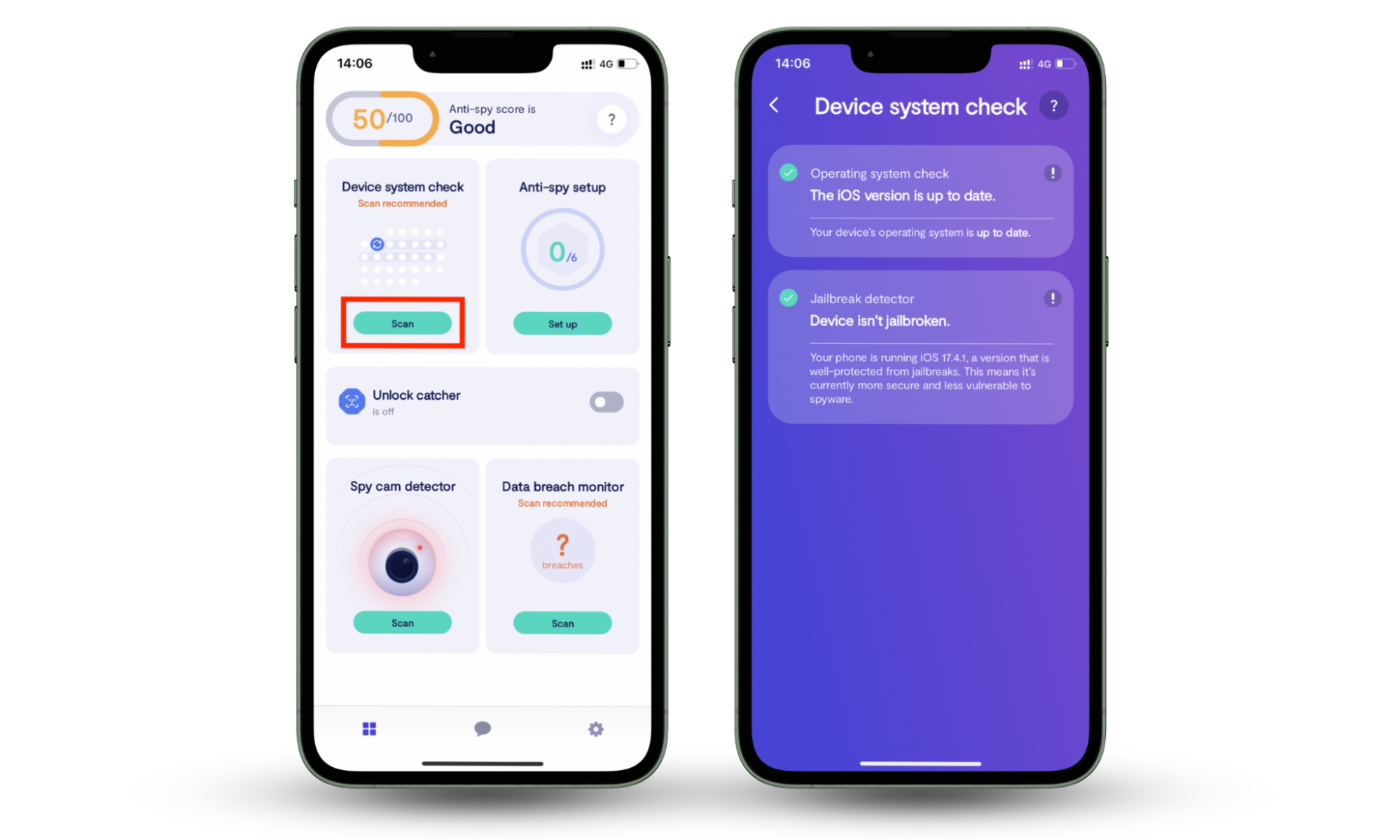
It’s important to consider that Spigot isn’t the only type of malware that can infect macOS and iOS devices. If your Mac has been infiltrated by Spigot, your iPhone might be vulnerable to infection, too. A spy can only infect your iPhone if they jailbreak it or have access to your Apple ID. To make sure it isn’t jailbroken, use Clario Anti Spy’s Device system check.
Here’s how to use Clario Anti Spy’s Device system check:
- Launch the Clario Anti Spy app on your iPhone and create an account.
- Tap Scan in the Device system check section to initiate the scanning process for privacy threats.
- Once the scan completes, follow the on-screen steps to tighten your phone’s security measures.
How to remove Spigot from your Mac
If you detect macOS Spigot, you’ll need to clean up your device and remove this adware. You will have to do this for each browser you use—and each will need a slightly different approach. You’ll need to delete every version of Spigot by going into each browser.
How to remove Spigot from Chrome
To remove Spigot from Google Chrome, users should uninstall suspicious browser extensions and review browser settings for unauthorized changes. Spigot often modifies browsing behavior through extensions that generate advertisements, redirect searches, or promote shopping-related content without the user's consent.
To remove Spigot malware from Mac in Google Chrome, follow these steps:
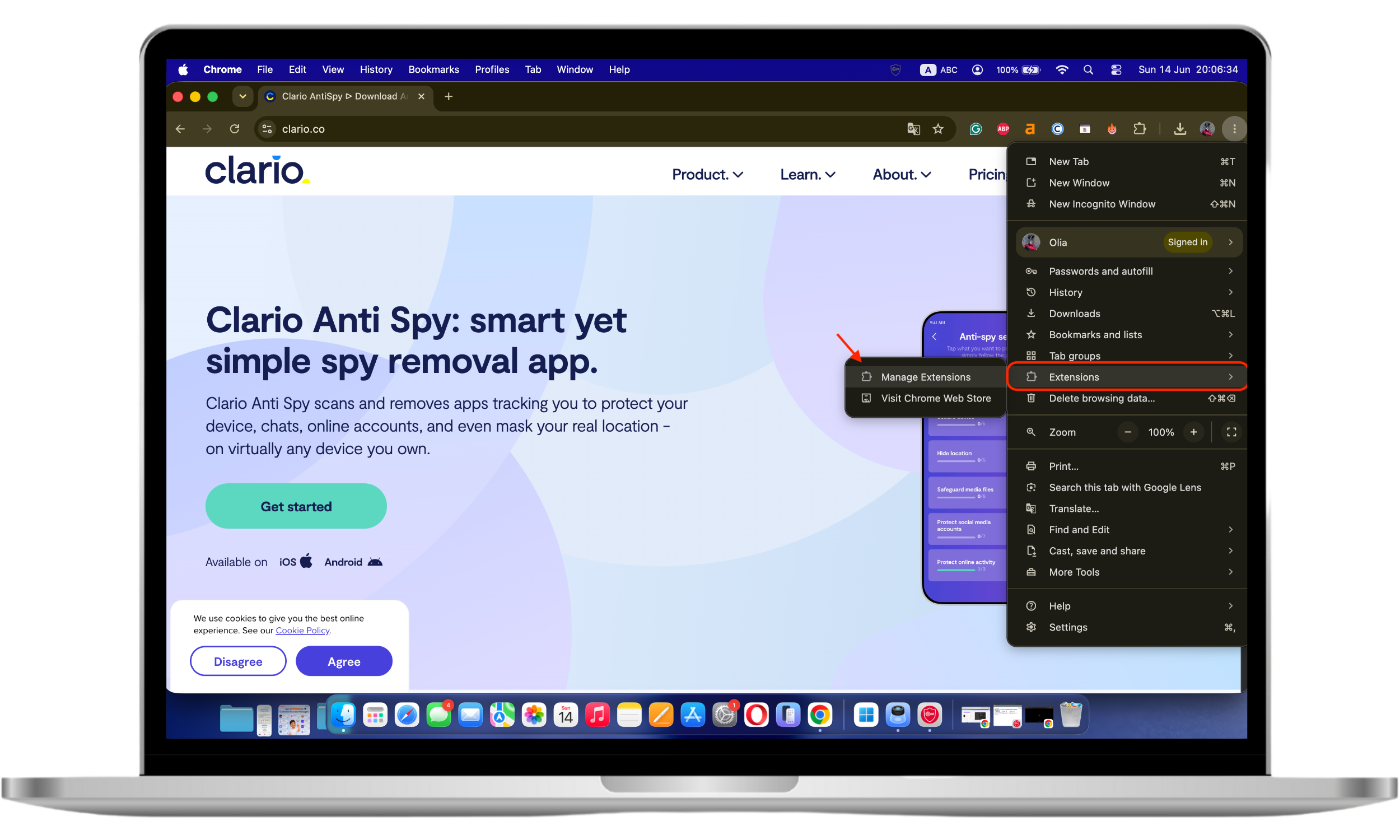
- To remove Spigot Chrome, go to Google Chrome, and tap the three dots in the top right corner of the frame.
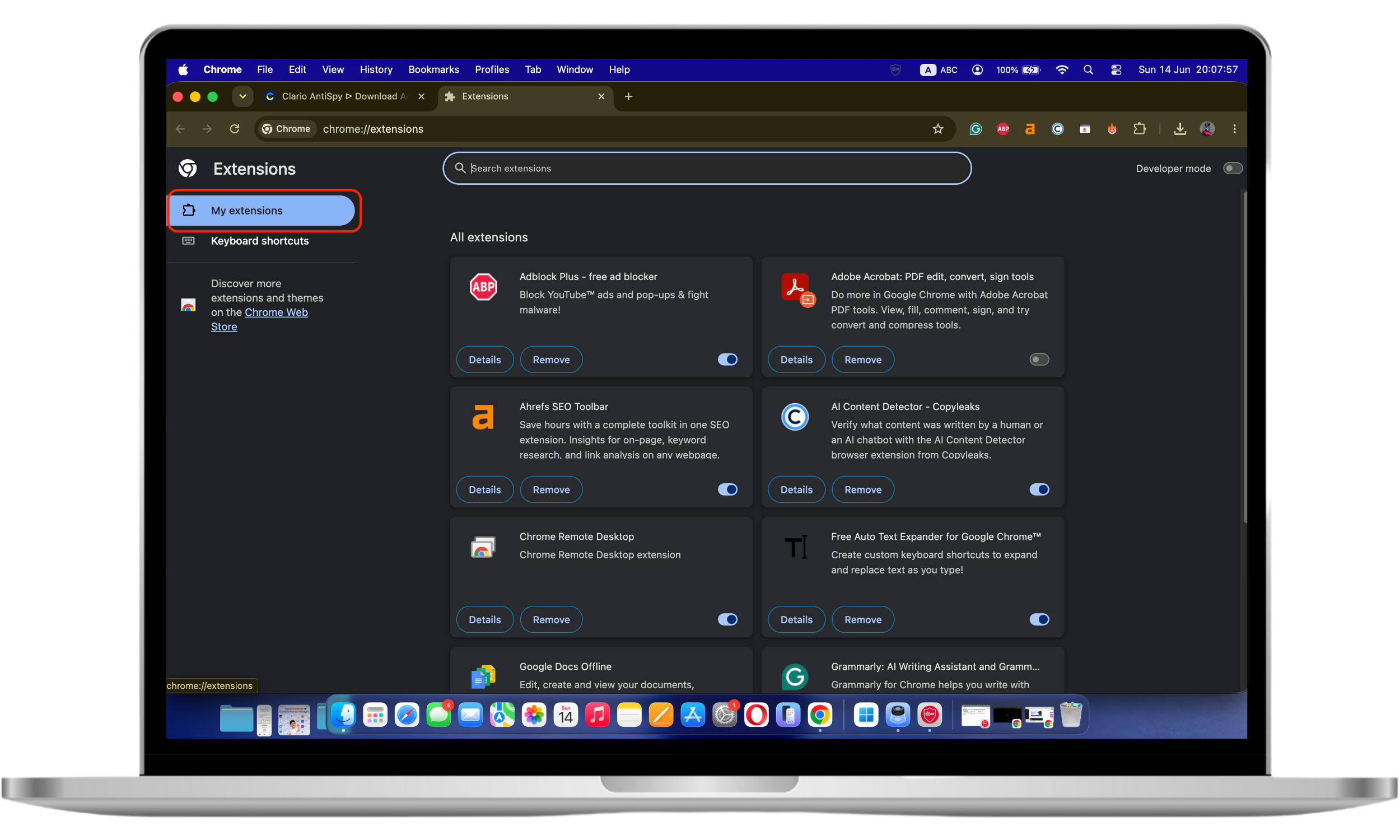
- Choose Extensions > Manage Extensions.
- Search for each extension, including Searchme, Slick Savings, Amazon Shopping Assistant, and Ebay Shopping Assistant.
- If you find any of these extensions, remove them.
How to remove Spigot from Safari
Removing Spigot from Safari requires identifying and uninstalling suspicious browser extensions that may be generating advertisements or redirecting web traffic. After removing unwanted extensions, users should also review Safari settings to ensure that homepage, search engine, and notification preferences have not been altered.
Spigot removal from Mac on Safari follows a process similar to other browsers:
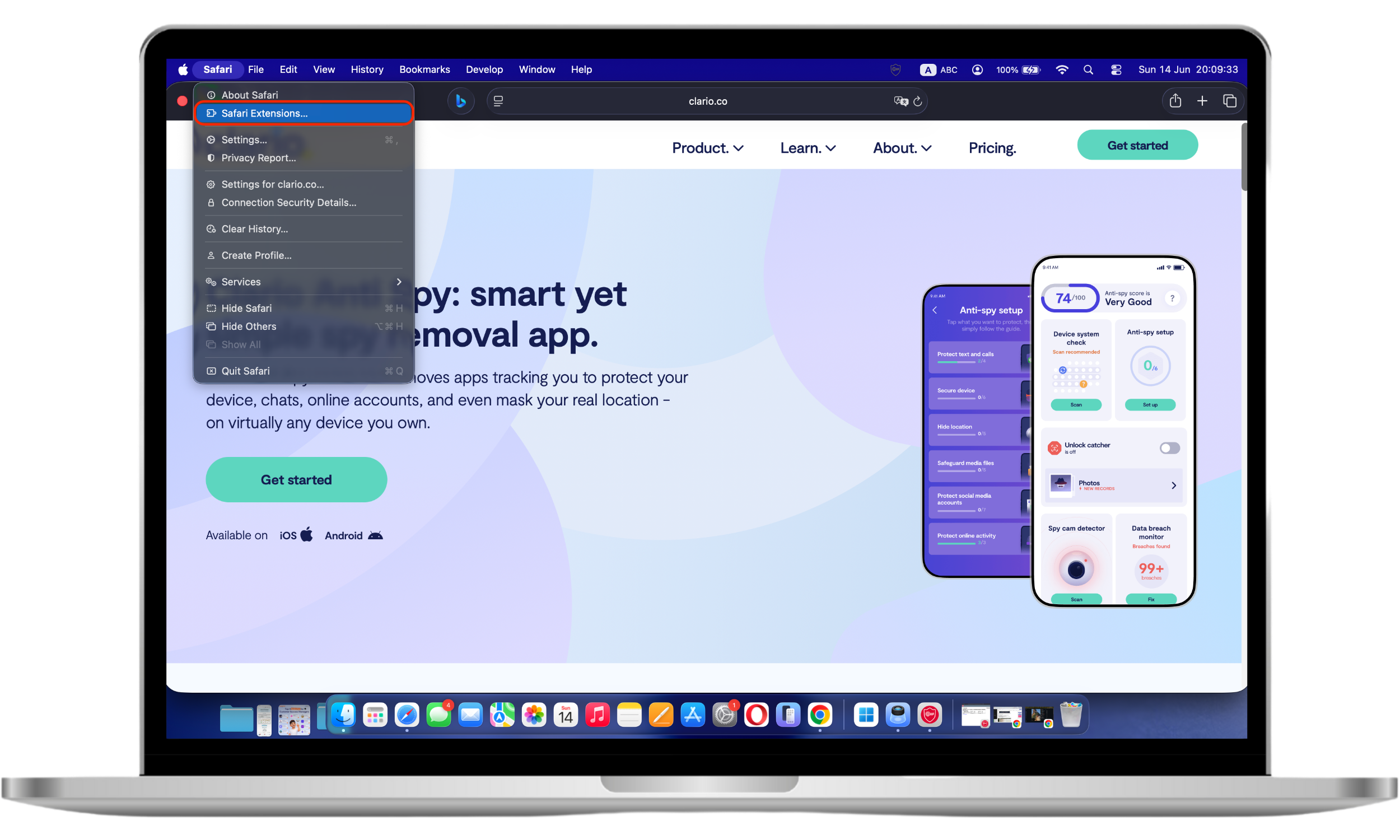
- Launch your Safari browser.
- Then click on the Safari menu bar and open Safari Extensions.
- Search for different Spigot browser extensions including Searchme, Slick Savings, Amazon Shopping Assistant, or Ebay Shopping Assistant.
- If any are found, then click Uninstall.
How to remove Spigot from Firefox
To remove Spigot from Mozilla Firefox, users should locate and remove suspicious browser extensions that may be responsible for redirects, intrusive advertisements, or unwanted browser changes. Reviewing Firefox settings after extension removal can help ensure that all traces of the adware have been eliminated.
To remove Spigot malware from Mac in Firefox, follow these steps:
- Open Firefox.
- Click the three dots in the top right corner of the browser.
- Press Add-ons.
- Select Extensions.
- Search for different Spigot browser extensions including Searchme, Slick Savings, Amazon Shopping Assistant, or Ebay Shopping Assistant.
- Once found, click the three dots to the right of each extension. Then select Remove.
- Repeat this action to remove each extension. Once all have been removed, quit and restart Firefox.
How to get rid of Spigot on your Mac automatically
You can reduce the chances of inadvertently welcoming macOS Spigot onto your device by being constantly vigilant when it comes to downloading software online. Always check the website you’re on and if it doesn’t seem legit, then leave.
And remember—spyware is everywhere, not just on your Mac! Download Clario Anti Spy to safeguard your iOS devices against spying software.