Table of contents
- What does it mean if your phone is rooted?
- Is rooting your phone dangerous?
- How to check if your phone is rooted?
- 1. Via Root checker app
- 2. Use Terminal emulator
- 3. Check via Settings
- 4. Check for Boot warnings
- 5. Use third-party apps to know if your phone is rooted
- 6. Look for device status
- Can you unroot rooted phone?
- What to do if your phone is rooted?
- 1. Run security scan
- 2. Review app permissions
- 3. Consider removing root access
- 4. Change passwords
- 5. Factory reset
- How to protect your phone from rooting?
- Conclusion
What does it mean if your phone is rooted?
Rooting is the process of gaining full administrative control over your Android device. It removes the software restrictions placed on the hardware by your manufacturer or mobile carrier. This "superuser" access lets you modify system files, delete formally unremovable bloatware, and change the core operating system.
While this provides total freedom, it also breaks the phone’s security sandbox. Without these factory barriers, malicious apps can easily access your private data and credentials.
Is rooting your phone dangerous?
Rooting is not dangerous on its own. It's what it lets in that's dangerous. Beyond the cool custom themes you could get from a rooted phone, you’re essentially tearing down the factory walls that keep your digital life private.
When those system locks go, any random app you download can suddenly "see" into your phone data or grab your passwords without asking. It’s a massive security gamble that often ends with a "bricked" device (an expensive phone that’s now as useful as a slab of concrete).
In fact, rooted devices are over 3.5 times more likely to be hit with malware. In some cases, the exposure to sophisticated system-level attacks can skyrocket by 3,000x. Rooting often voids manufacturer warranties or disables official device support, depending on the vendor and region.
Read more on why rooting an Android is bad?
How to check if your phone is rooted?
You can check if your phone is rooted by searching your app drawer for management tools like Magisk or SuperSU. Another quick way is to use a root-checking tool, such as the Device system check feature, to scan for administrative access. You can also review device status or build information in settings to see if the system has been modified.
If nothing comes up, your phone is likely secure. Walk through all six steps below to confirm.
1. Via Root checker app
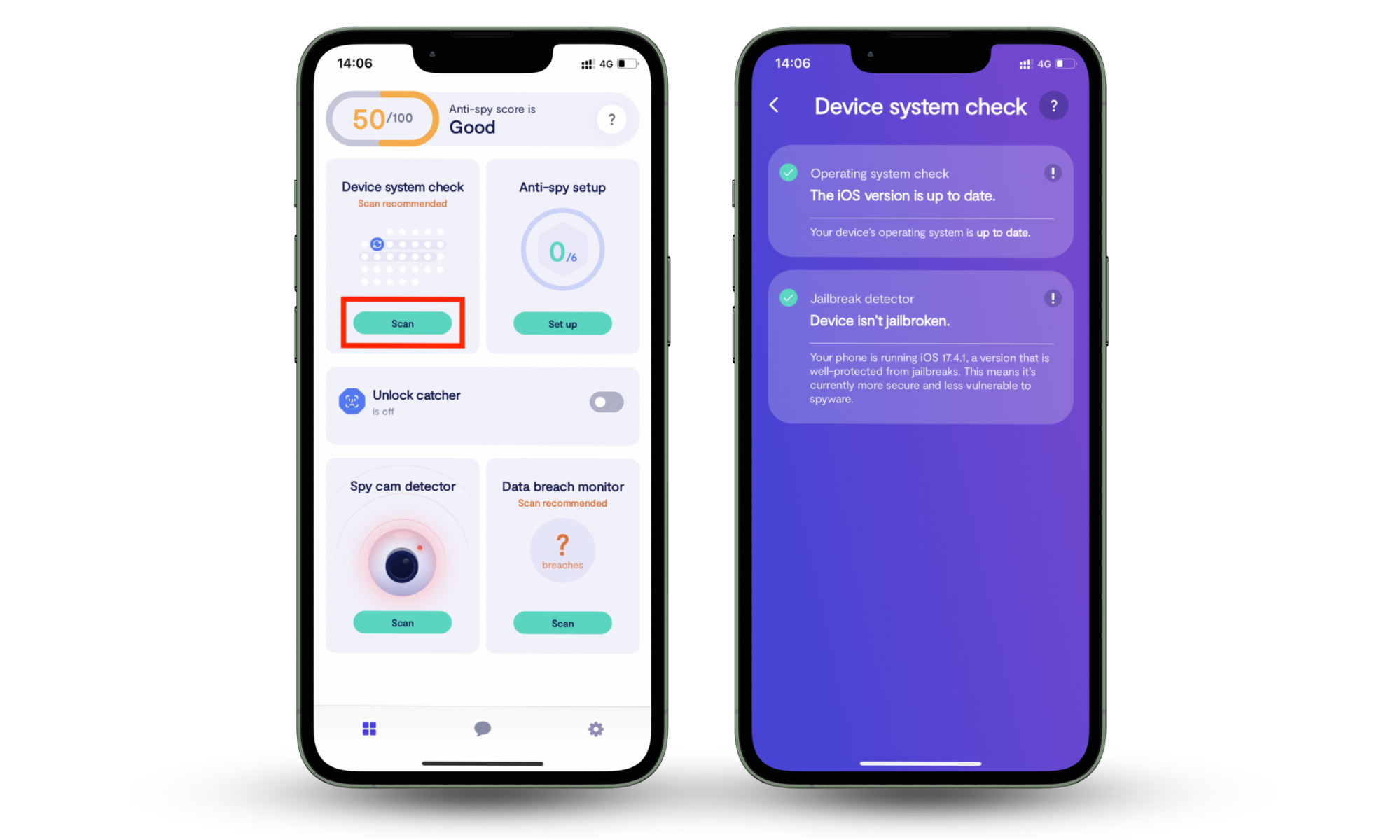
If I wanted to find out whether my phone is rooted, the fastest way would be to use a dedicated root-checker utility like Clario Anti Spy’s Device system checker to scan my phone for OS modifications and signs of rooting.
Device system check scans your phone for root access, disabled system protections, and outdated operating system versions that weaken your device.
Here’s how to run a root check with Clario Anti Spy’s Device system check:
- Download Clario Anti Spy from the app store.
- Create an account and sign in.
- Go to Device System Check.
- Tap Scan.
- Review the results to see if root access or system risks exist.
2. Use Terminal emulator
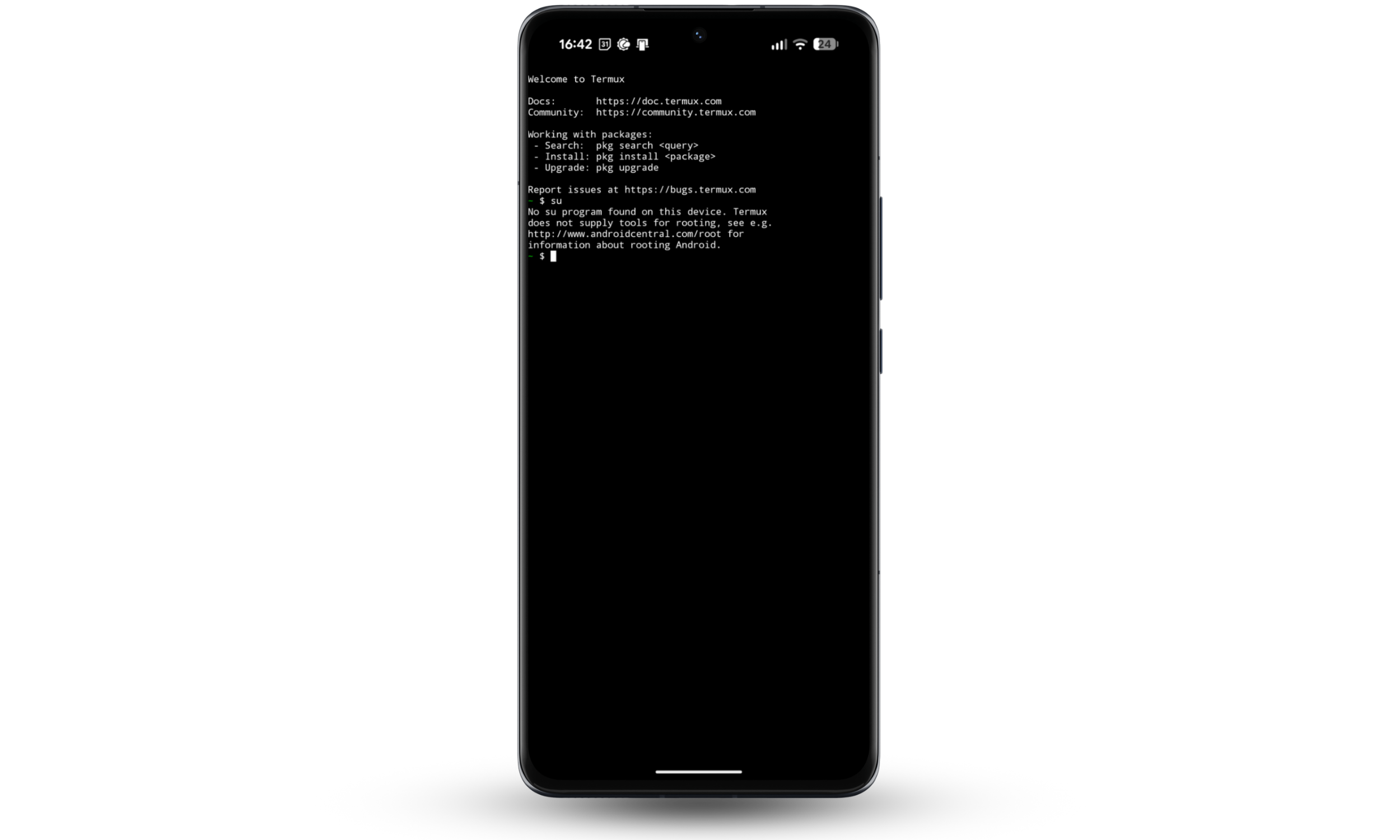
A terminal emulator checks root access by running commands that only work on rooted phones. This method is reliable, but it assumes you understand what the output means.
- Open a terminal emulator app on your phone, such as Termux or JuiceSSH.
- Enter the command su and submit it.
- Watch what happens next.
On a rooted phone, the command may trigger a permission prompt or switch to superuser access. On a non-rooted phone, the command fails or returns an error message. You should also check if your command prompt symbol changes from a dollar sign ($) to a pound sign (#)
3. Check via Settings
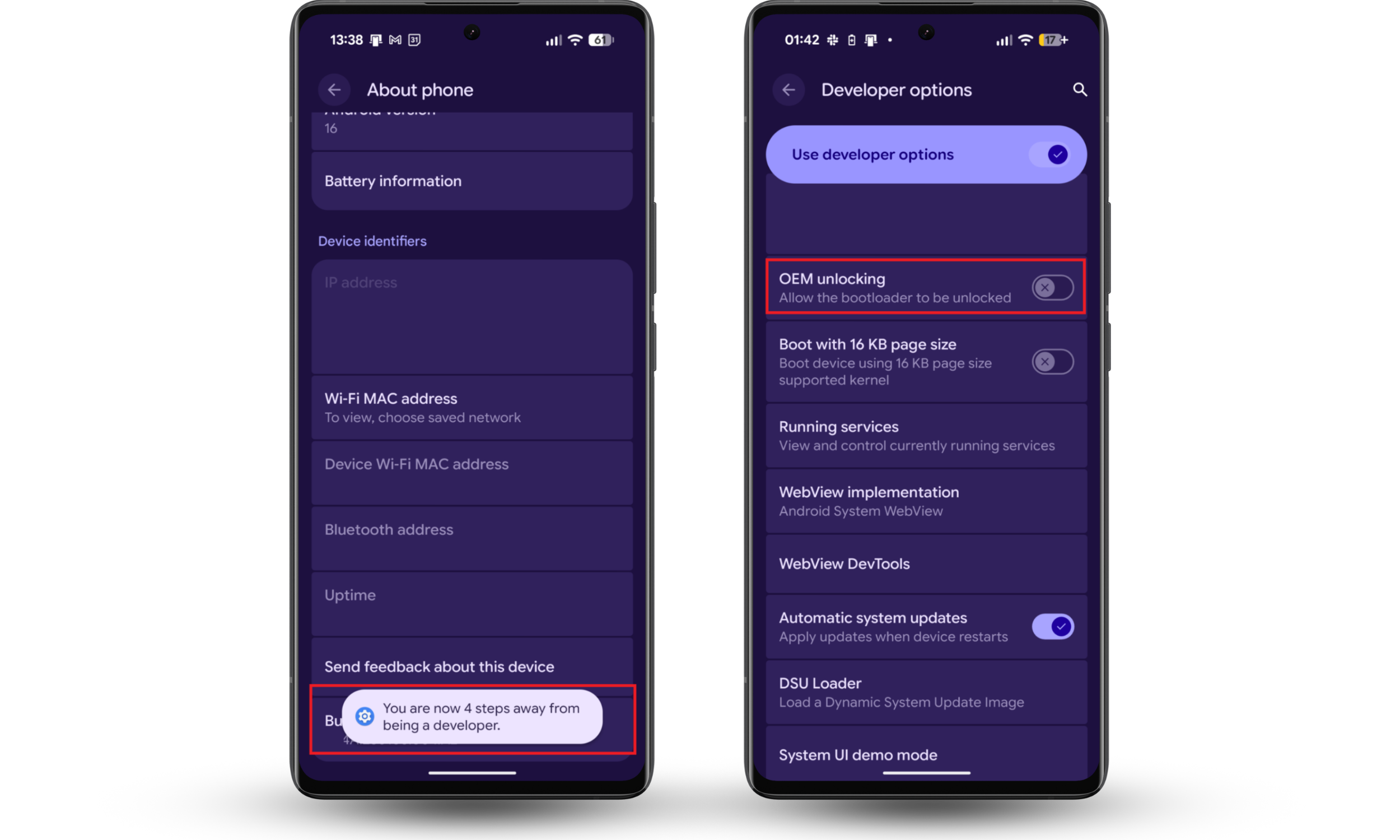
This check focuses on the bootloader, which controls what software your phone is allowed to run. On standard Android devices, the bootloader is locked to prevent system changes. Rooting usually requires unlocking it first. Checking the bootloader status helps you confirm whether your phone’s core security barrier has been removed.
Here’s how to check the bootloader status on Android devices:
- Open Settings and tap About phone.
- Scroll to the bottom and tap Build number seven times until you see a "You are now a developer" message.
- Go back to the main Settings menu, select System, and tap Developer options.
- Locate OEM unlocking.
The OEM unlocking toggle only indicates whether bootloader unlocking is permitted. An unlocked bootloader or root access is typically confirmed through boot warnings or official device status fields.
4. Check for Boot warnings
Restarting your device is often the fastest way to spot root modifications. Ordinarily, your phone should boot straight to the manufacturer's logo. However, on many devices (especially Pixel and Samsung models), an unlocked bootloader or modified system may trigger a warning screen before the manufacturer logo.
Pay close attention to the display immediately after you hit the power button. You are looking for a persistent screen (often black or white) with a warning icon and text stating that the "bootloader is unlocked" or that "software integrity cannot be guaranteed".
5. Use third-party apps to know if your phone is rooted
You can often see if your phone is rooted simply by browsing your installed applications.
Rooted phones often have special apps installed to manage root access. These apps exist for one purpose: to control which other apps can access protected system files. Common examples include Magisk, Lucky Patcher, and KernelSU. You would usually find them in your app list, like any other app. If one of these is present, your phone has root access.
6. Look for device status
You can also know if your phone is rooted by checking your device’s official status in the system menu. If the software was modified, the "Phone status" will show a custom label instead of an official phone status. A "Custom" status means the internal software has been altered by rooting or installing a non-factory operating system.
Here’s how to check your phone status for Samsung and some other Android devices:
- Open Settings on your Android device.
- Scroll down and tap About phone.
- Select Status information.
- Look at the Phone status row.
- If you see Official, your software is original.
Can you unroot rooted phone?
You can unroot a rooted phone by reversing the system changes that added root access. If the device uses a root management app, remove root through its unroot or uninstall option. If that app is gone or your phone’s root was done manually, you need to reinstall the phone’s original factory software from a computer. A factory reset usually does not remove root access or relock the bootloader if system files were modified.
What to do if your phone is rooted?
If your phone is rooted, stop logging in to important accounts for now. Scroll through your app list and get rid of anything that looks unfamiliar or asks for suspicious system-level access. Change passwords from another device, not the phone itself. If the phone starts acting oddly, like draining fast or showing random pop-ups, take that seriously. At that point, your choices are simple: undo the root through an app, manage it (if you did it yourself), or reinstall the software.
Pro Tip
A rooted phone often shows warning signs that look similar to a hacked device. So, it’s important you learn how to tell if your Android phone is hacked.
1. Run security scan
A rooted phone can allow spyware and monitoring apps to run with unrestricted access. The first step after finding evidence of rooting is to check whether any hidden or malicious apps are already present.
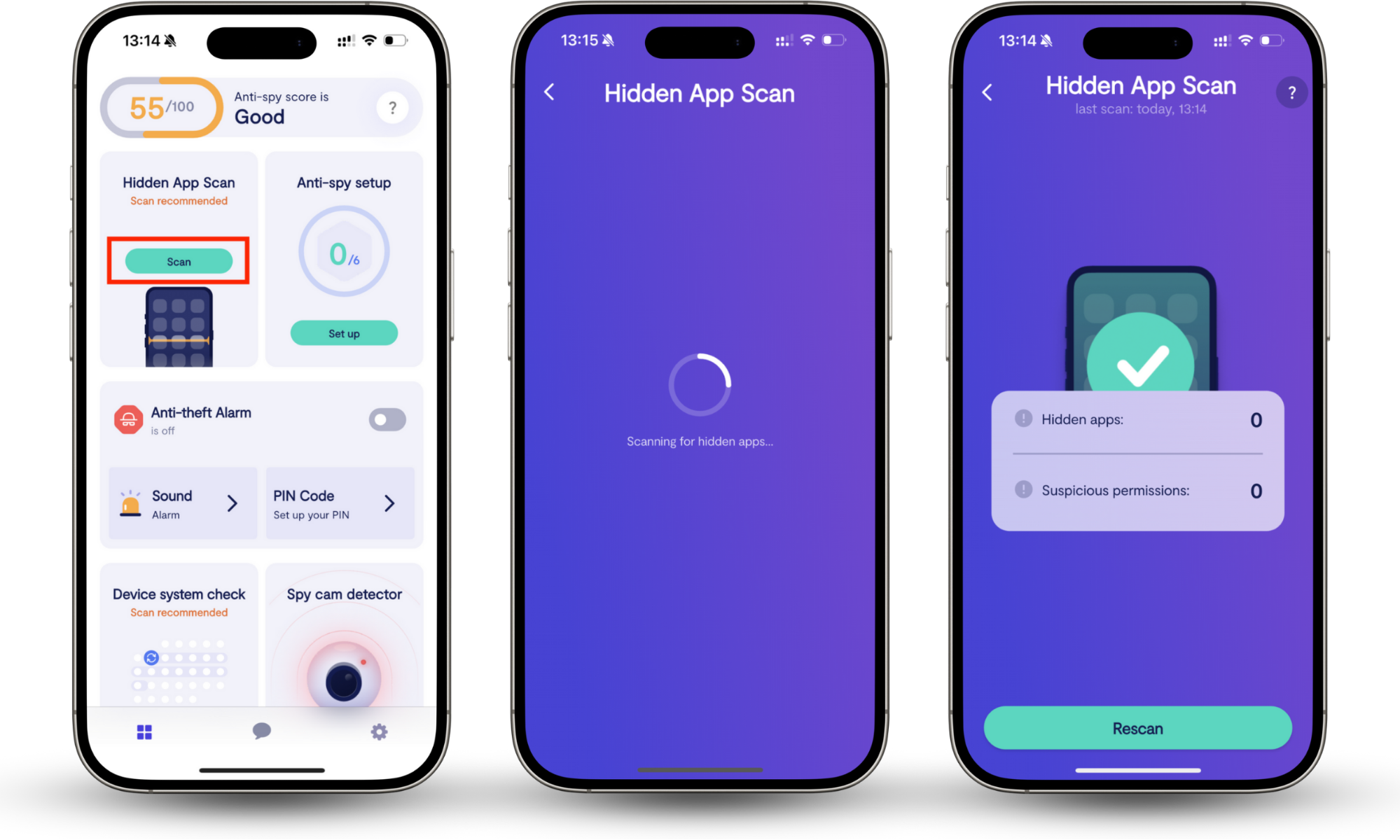
Hidden app scan in Clario Anti Spy scans phones for spyware, stalkerware, and apps designed to steal your data. Once you confirm system integrity with Device System Check, use this scan to know what has secretly slipped into your phone.
Here’s how to detect spyware on Android using Clario Anti Spy ’s Hidden app scan:
- Download Clario Anti Spy and sign in.
- Open the app and select Hidden app scan.
- Run the scan and wait for the results.
- Review any hidden or suspicious apps found.
2. Review app permissions
Rooting allows apps to request access they normally wouldn't. After running a scan, go through your app permissions and check what each app can see or control. Pay close attention to these permissions and remove them when they don’t clearly match the app’s purpose:
- Accessibility access can read what’s on your screen, track input, and control actions.
- Device admin lets an app lock the phone, block uninstallation, or erase data.
- Full file or storage access gives access to messages, photos, downloads, and saved files.
- Location access set to ‘all the time’ is rarely needed outside navigation or delivery apps.
- Microphone or camera access is a red flag when enabled for apps you barely use.
Remove permissions that don't match what the app actually needs, and uninstall any app that requests deep access without an apparent reason.
3. Consider removing root access
If you did not root the phone yourself or no longer need root features, removing root is the safest move. Root access keeps the system open even after you delete suspicious apps. Use the unroot option inside the root manager if it exists. If not, reinstall the official factory firmware to fully restore system protection.
4. Change passwords
After you confirm root access, treat the phone as exposed. Root access lets apps read saved logins or watch sign-in activity. Change your passwords from a different device that you trust, not the rooted phone.
Start your password change with accounts that control access to others, such a:
- Your Google account, since it links email, backups, and app installs
- Primary email accounts such as Gmail or work email
- Banking and payment apps tied to the phone
- Cloud storage accounts that sync photos and files
- Social apps like WhatsApp or Instagram
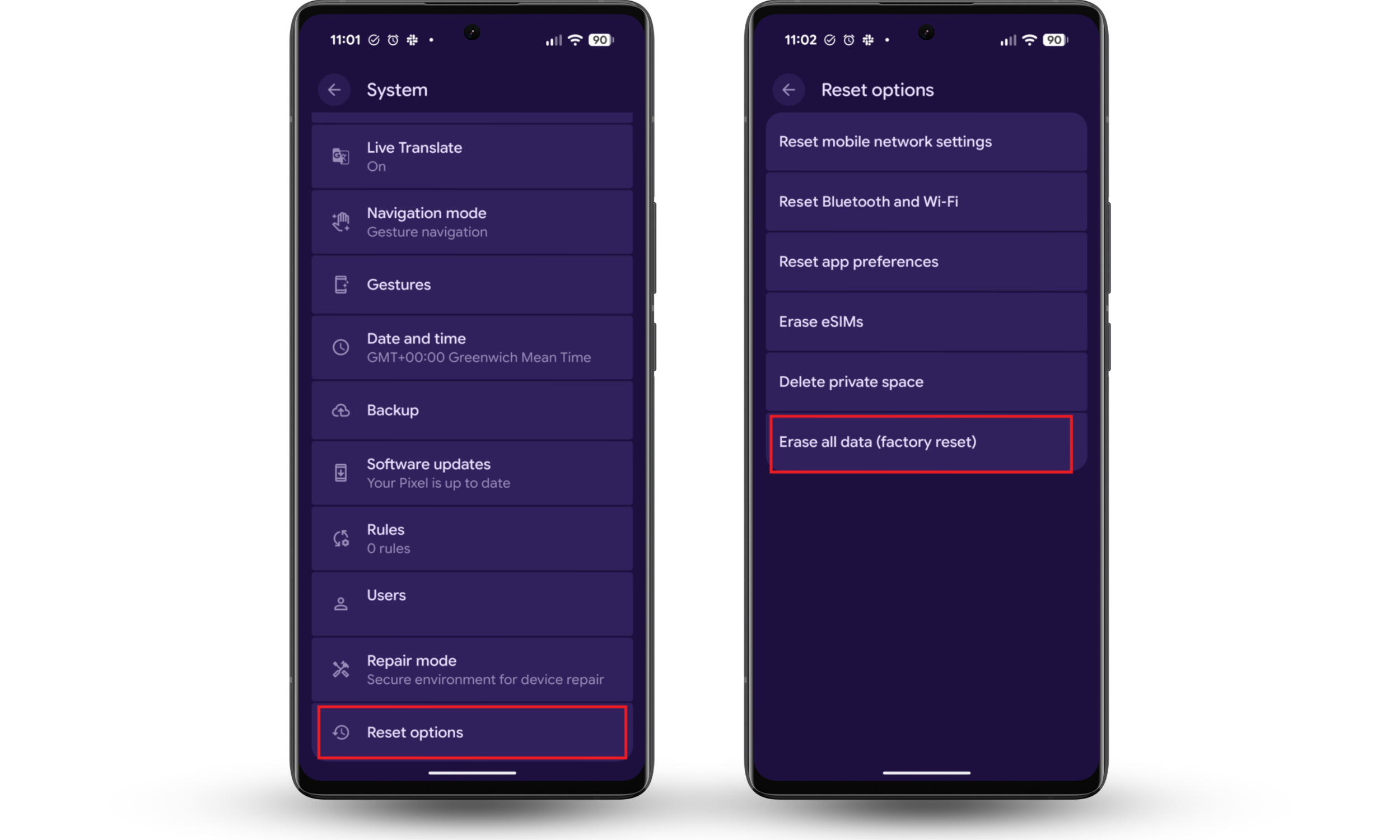
5. Factory reset
A factory reset wipes your apps, settings, and personal data. It does not remove the root itself if the system was modified, and so is not a full fix. You can back up your videos and important files you trust, but be careful.
How to factory reset your Android phone:
- Open Settings.
- Tap System.
- Choose Reset options.
- Tap Erase all data (factory reset).
- Confirm your lock screen and continue.
How to protect your phone from rooting?
You can protect your phone from rooting by keeping the operating system fully updated. And installing apps only from the Play Store. Lock your phone's bootloader and keep OEM unlocking disabled in Developer options. Review app permissions regularly and remove apps that ask for unnecessary system access.
If possible, choose a device with hardware-backed security, like Samsung Knox or a Google Pixel with a Titan M chip, which provides an additional layer of protection and makes tampering much more difficult.
You should also regularly scan your phone with Clario Anti Spy's Device system check to catch any potential rooting risks early.
Conclusion
A rooted phone exposes your phone to several risks. Malicious apps can bypass your phone's security, stay hidden, gather data, and retain access even after you uninstall them. You don’t want that.
Clario Anti Spy’s Device system check can detect indicators of root access, bootloader changes, or disabled system protections, so you know what you are dealing with. Run the scan, check the results, and secure your phone now.