Table of contents
- Why does theft protection matter on the iPhone?
- How to secure an iPhone from theft?
- 1. Secure your device access
- 2. Use strong passcodes and biometrics
- 3. Enable stolen device protection
- 4. Configure Apple ID and two-factor authentication
- 5. Enable Find My iPhone and Find My Network
- 6. Limit lock screen access
- 7. Automatic data wipe
- 8. Set a SIM PIN
- 9. Backup data regularly
- Conclusion
Why does theft protection matter on the iPhone?
Your iPhone stores lots of extremely sensitive data about you. This includes saved passwords, financial apps, health data, private messages, and photos. It also acts as a gateway to your Apple ID, which provides access to iCloud, App Store purchases, and other Apple devices. If someone gains control of your Apple ID, they could disable device tracking, change passwords, and lock you out of your account. iPhone theft prevention features help reduce these risks and prevent fraud or account takeovers.
How to secure an iPhone from theft?
There are several ways to avoid iPhone theft. iOS comes with strong built-in security tools, but they only work if you configure them properly. By enabling these features and adjusting their settings, you can drastically reduce the risk of someone accessing your data if your phone is lost or stolen.
1. Secure your device access
The device passcode is the main barrier between your data and anyone trying to unlock your iPhone. Therefore, stay cautious in crowded places where someone might watch you enter it. Also, get into the habit of locking your screen as soon as you finish using your phone by pressing the Side button. And most importantly, avoid leaving your iPhone unattended in public places or using the device in areas where a thief could quickly snatch it.
2. Use strong passcodes and biometrics
Your iPhone's passcode is what protects your data if someone gets physical access to the device. Prefer using a longer six-digit passcode to minimize the chances of someone guessing it and avoid obvious combinations like birthdays, repeated numbers, or simple patterns such as 1234.
Biometrics add another layer of protection. Use Face ID or Touch ID when unlocking your iPhone in public, so others can't easily observe and memorize your passcode.
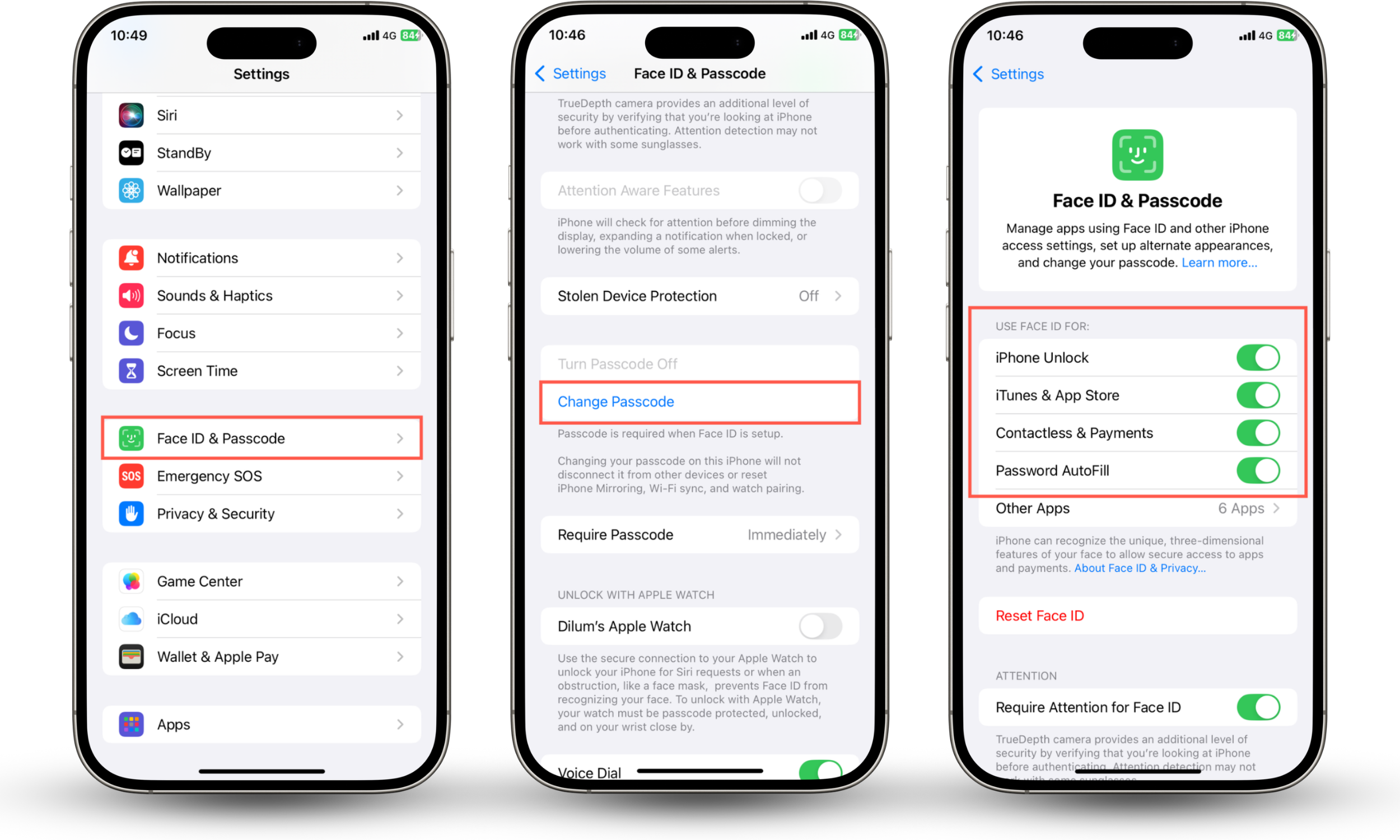
Here's how to configure your iPhone passcode and biometrics:
- Open the Settings app.
- Go to Face ID & Passcode or Touch ID & Passcode.
- Enter your current passcode.
- Tap Change Passcode and set up a stronger passcode.
- Go back to the previous screen and make sure Face ID or Touch ID is enabled for iPhone Unlock, iTunes & App Store, Contactless & Payments, etc.
3. Enable stolen device protection
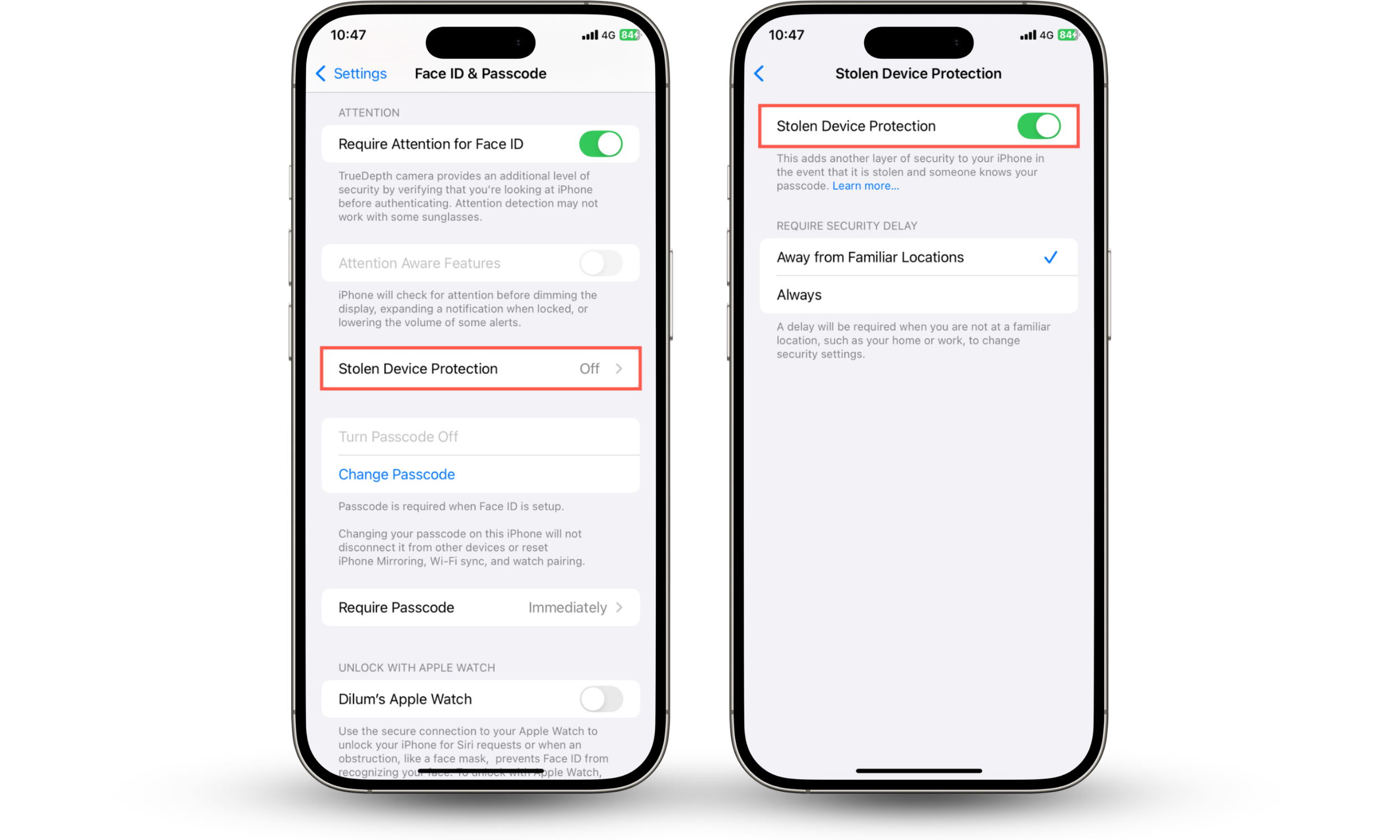
Apple introduced Stolen Device Protection in iOS 17 to protect your Apple ID if someone steals your iPhone in an unlocked state or knows its passcode. When this feature is active, Face ID or Touch ID becomes mandatory for sensitive actions, such as viewing saved passwords. Updating security settings also trigger a delay when you're outside a trusted location (like your home).
Here's how to enable Stolen Device Protection:
- Go to Settings > Face ID/Touch ID & Passcode.
- Scroll down and tap Stolen Device Protection.
- Enable the switch next to Stolen Device Protection.
If you need more protection against iPhone theft than what iOS normally provides, use Clario Anti Spy. Its Anti-Theft Alarm instantly notifies you if someone tries to steal your device.
Here's how to enable Anti-Theft Alarm on your iPhone:
- Download Clario Anti Spy and subscribe to create an account.
- Turn on the switch next to Anti-Theft Alarm.
- Follow the onscreen instructions to finish setting up the feature.
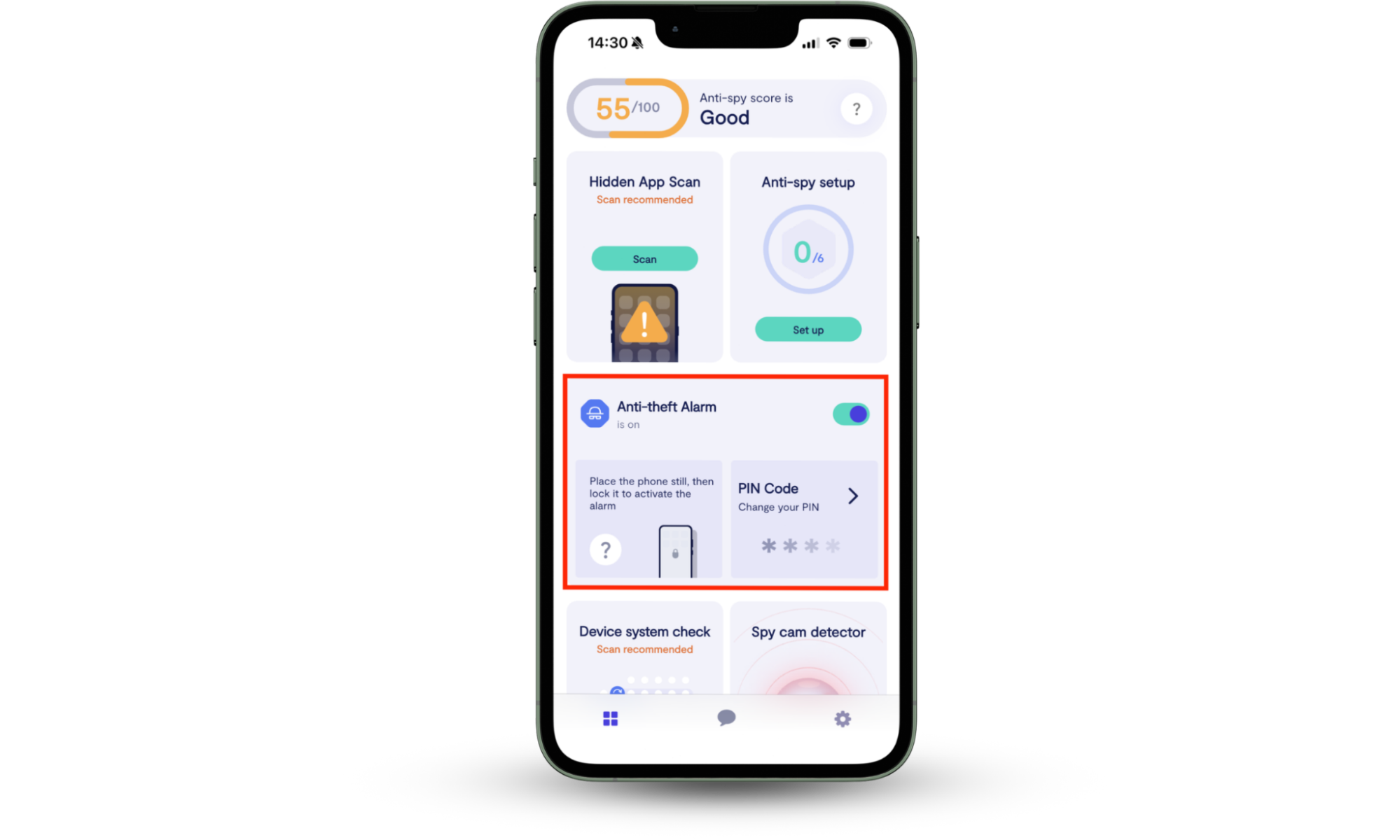
Clario Anti Spy can also help protect your device from non-physical threats, such as spyware. For example, its Hidden App Scan feature checks your phone for privacy-invasive apps that may be monitoring your activity. If you need help, you can also tap the Messages icon to talk with a security expert.
Clario experts work with all sorts of issues regarding privacy and spyware. Here's what one of them shared about a customer who was worried their phone might be compromised:
"The client reached out to us with concerns that his phone may have been compromised by spyware, which he suspected had been covertly installed by his spouse. According to the client, his wife seemed to possess an uncanny awareness of his private conversations and whereabouts, leading him to believe that his device was being monitored without his consent.
In response, we recommended utilizing our Hidden App Scan feature—a tool specifically designed to detect unauthorized or potentially malicious applications that may be used for surveillance purposes.
Upon initiating the scan, several suspicious applications were flagged by the system. We advised the client to carefully review the list and confirm whether he had knowingly installed any of the detected apps.
After his review, he affirmed that he did not recognize or recall downloading the majority of them. Based on this, we provided step-by-step guidance on how to locate and securely remove each of the flagged applications to restore the integrity of the device.
To further enhance his digital privacy, we also recommended adjusting his device’s location settings, including revoking unnecessary permissions from apps that had access to real-time geolocation data.
The client expressed sincere gratitude for our support, stating that the assistance brought him considerable peace of mind, and assured us that he would not hesitate to contact us again should he require further help in the future."
4. Configure Apple ID and two-factor authentication
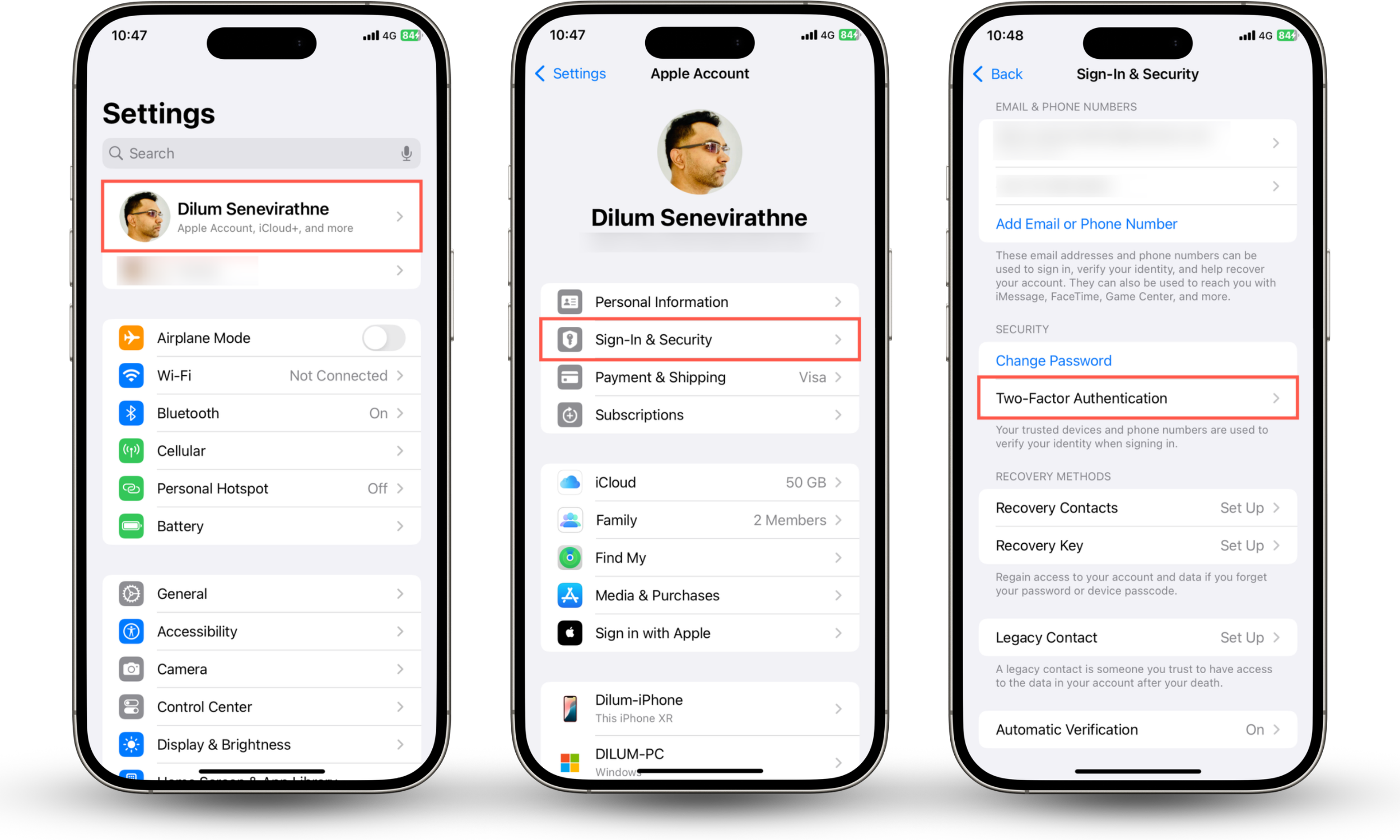
If someone gains access to your Apple ID password, they could attempt to sign in from another device and access your data. Enabling two-factor authentication (2FA) adds an extra verification step and helps secure your iPhone from hacking even if your password is compromised.
To enable two-factor authentication:
- Go to Settings and tap Apple Account.
- Tap Sign-In & Security.
- Tap Two-Factor Authentication and choose a verification method, such as another Apple device, a trusted phone number, or a physical security key.
5. Enable Find My iPhone and Find My Network
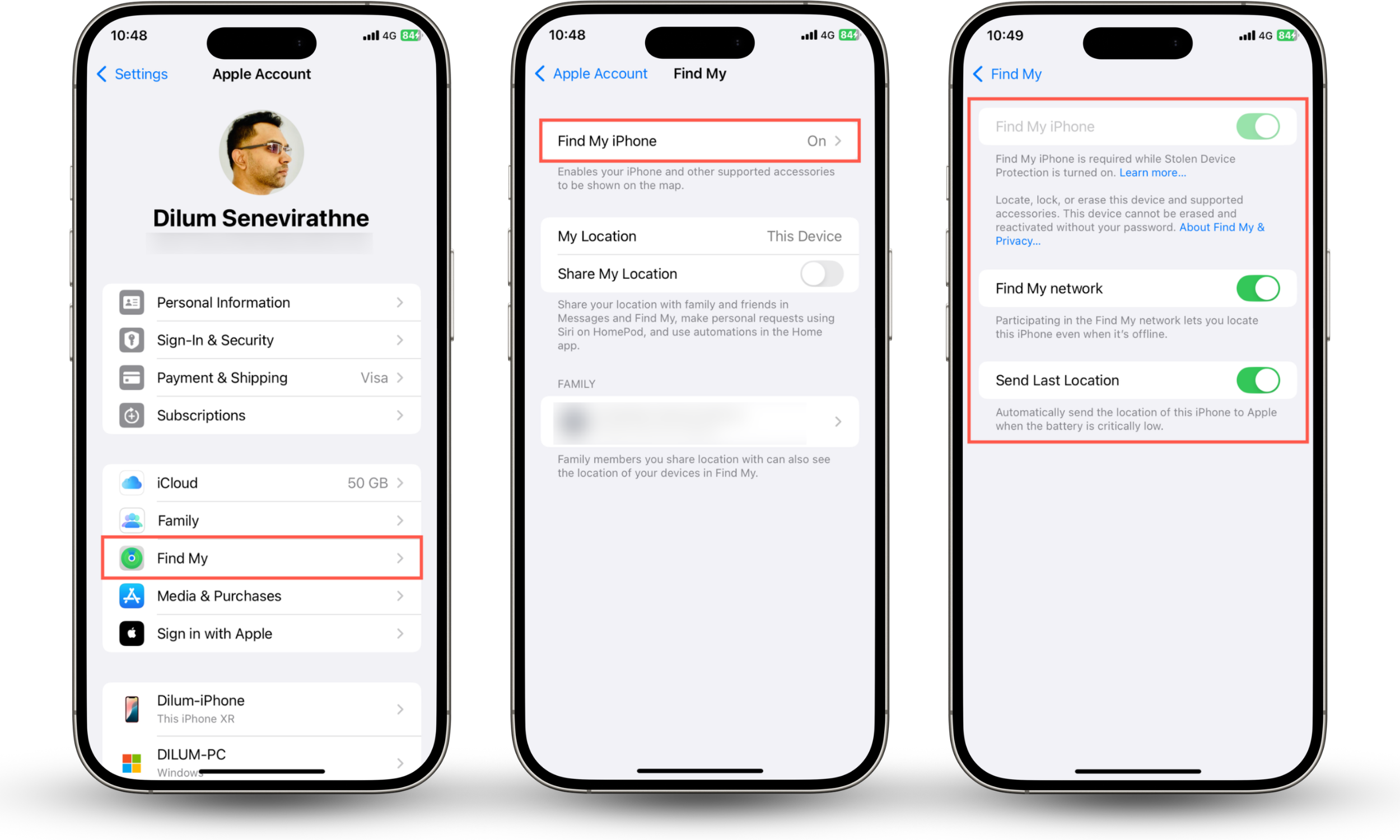
Find My lets you lock your iPhone when lost or stolen. You can view the phone's location on a map (even if it's offline via nearby Apple devices), enable Activation Lock so no one else can use or sell the device, or remotely erase its data.
Here's how to make sure that Find My iPhone is active:
- Go to Settings > Apple Account > Find My.
- Tap Find My iPhone.
- Enable the switches next to Find My iPhone, Find My Network, and Send Last Location if they're inactive.
6. Limit lock screen access
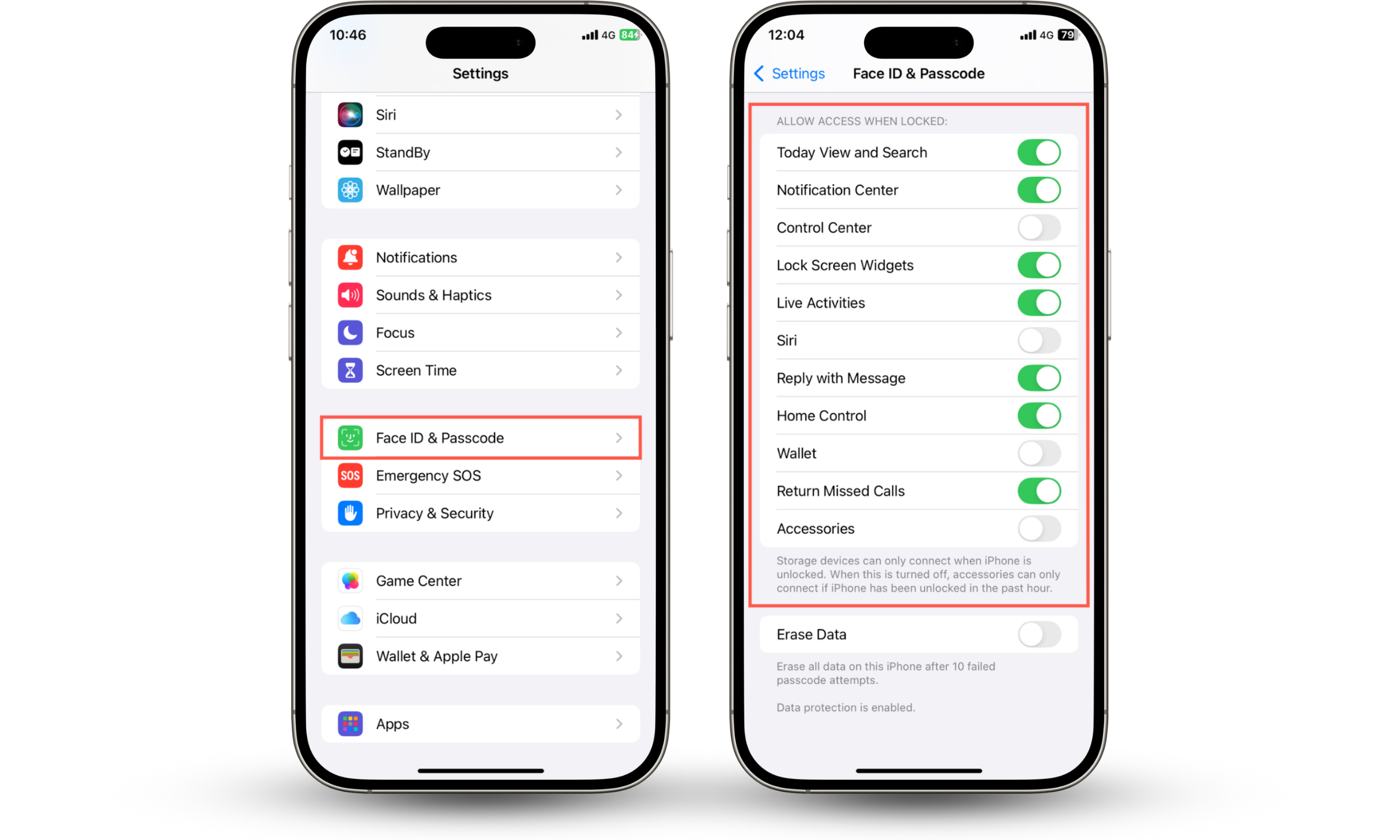
Some iPhone features—like Control Center and Siri—can be used even when the device is locked. It's convenient, but it also allows a potential thief to quickly enable Airplane Mode or access certain tools without unlocking your phone.
Here's how to limit Lock Screen access to iPhone features:
- Go to Settings > Face ID/Touch ID & Passcode.
- Enter your passcode.
- Scroll down to Allow Access When Locked.
- Disable features like Control Center, Siri, Wallet, Accessories, or anything else you don't want available from the lock screen.
7. Automatic data wipe
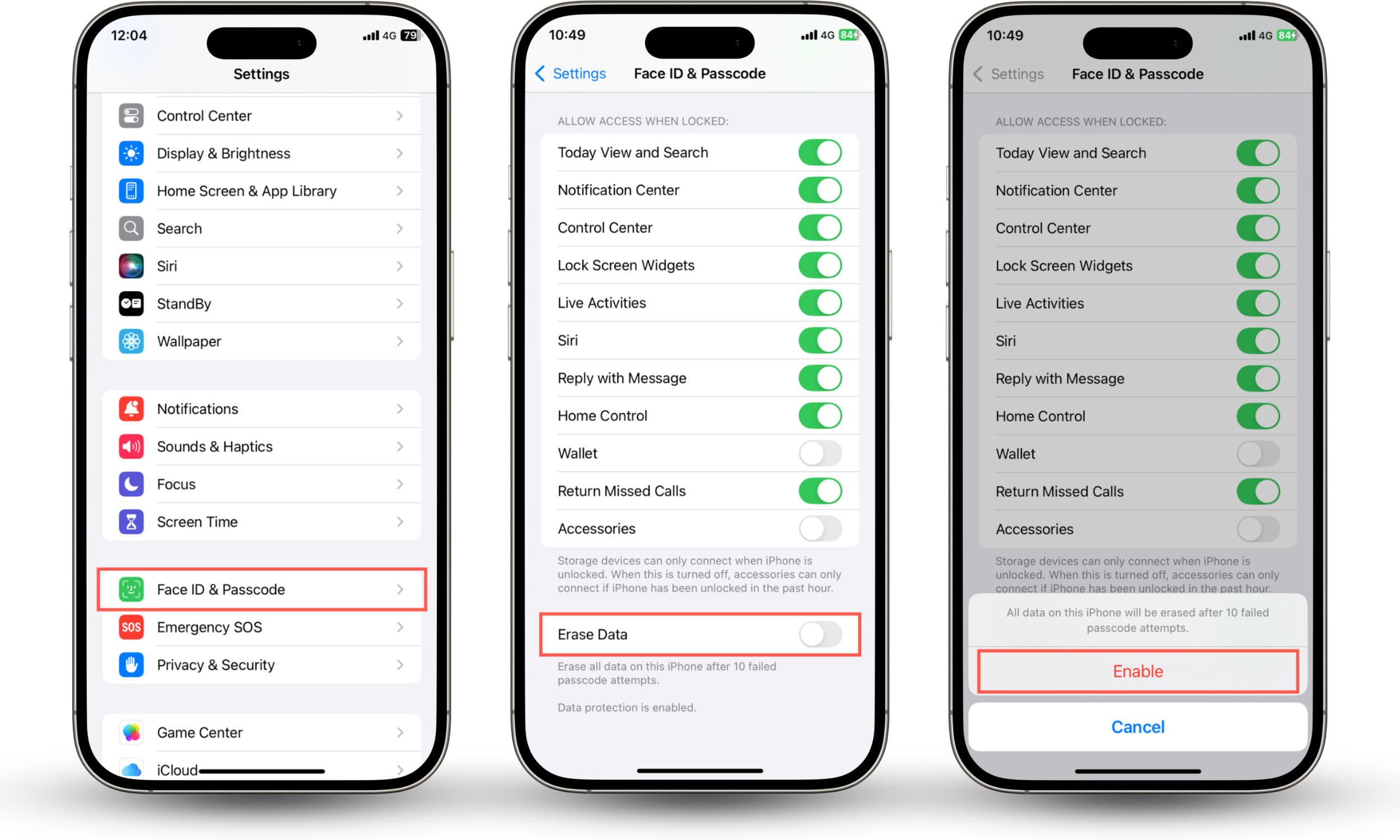
Your iPhone can protect itself against brute-force password guessing attacks by automatically erasing its data after 10 failed passcode attempts.
Here's how to enable automatic data wiping:
- Go to Settings > Face ID & Passcode.
- Scroll down and turn on Erase Data.
- Tap Enable.
Important
Make sure that your iPhone is set to back up to iCloud automatically so you always have a recent copy of your data in case the device wipes itself.
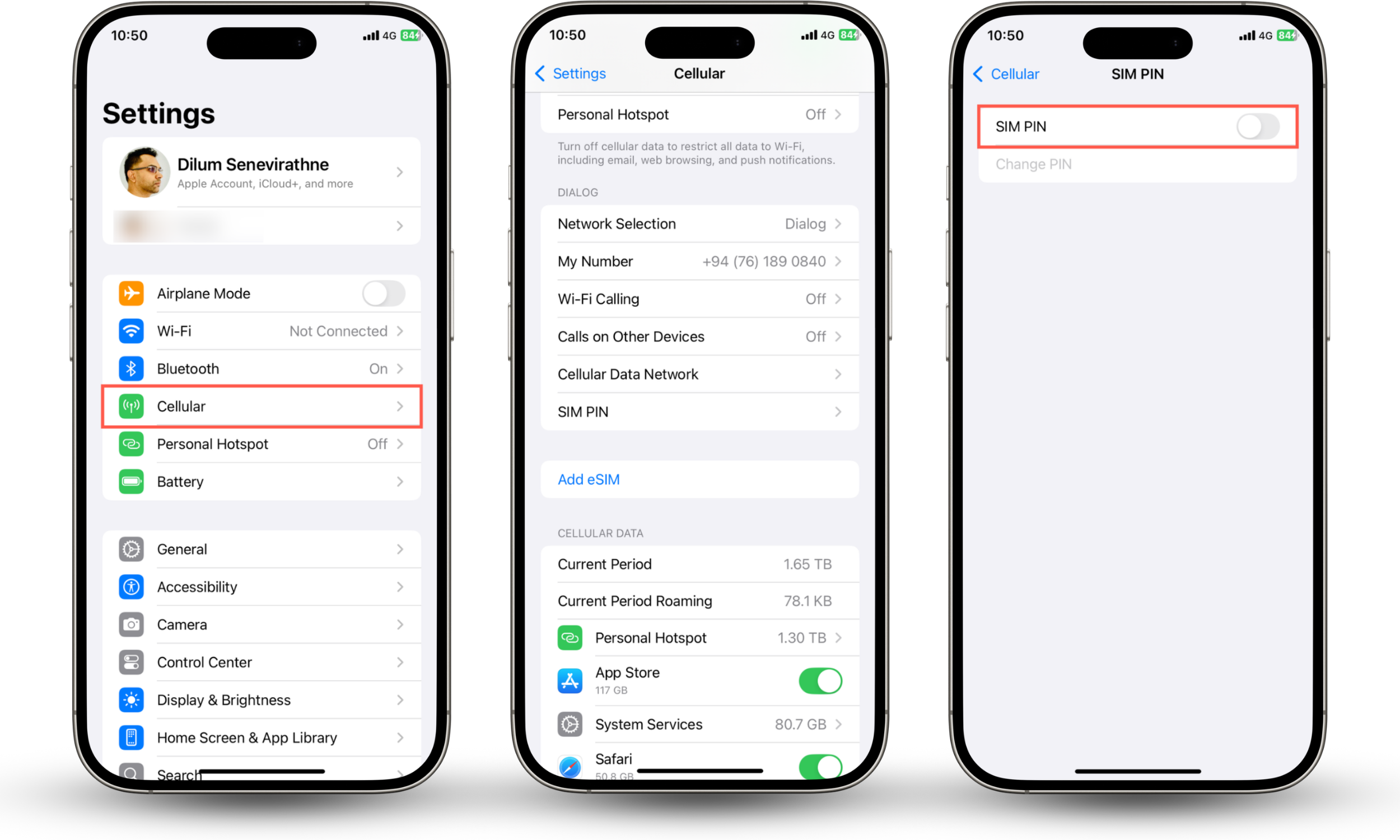
8. Set a SIM PIN
A SIM PIN prevents someone from removing your SIM card and using it on another device. This reduces the risk of SIM swapping attacks and protects accounts that rely on phone number authentication.
Here's how to set a SIM PIN on iPhone:
- Go to Settings > Cellular.
- Tap SIM PIN.
- Enable the switch next to SIM PIN and set a PIN.
9. Backup data regularly
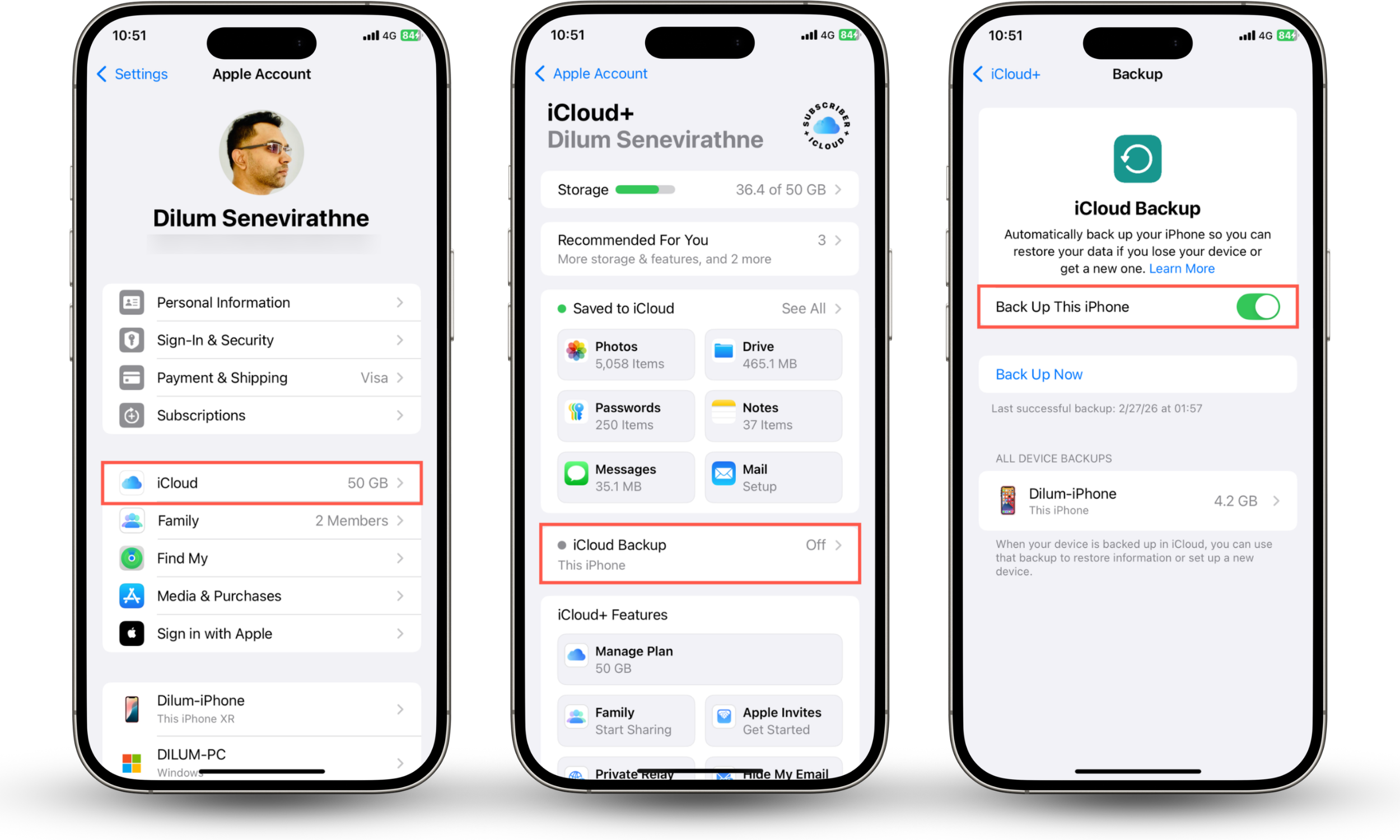
Regular backups ensure you can recover your data if your iPhone is lost, stolen, or erased. With iCloud Backup, your iPhone automatically saves your data when it's connected to Wi-Fi and charging.
Here's how to enable iCloud backups:
- Go to Settings > Apple Account > iCloud.
- Tap iCloud Backup.
- Turn on the switch next to Back Up This iPhone.
Good to know:
You can back up your iPhone to a computer if you don't have enough storage on iCloud. Connect your iPhone to a Mac or PC and use the Finder or Apple Devices app to create a backup.
Conclusion
To secure your iPhone from theft, use a strong passcode and take advantage of Face ID or Touch ID for authentication purposes. Turn on features like Stolen Device Protection, two-factor Authentication, and Find My to add multiple layers of security. You can reduce risks even more by limiting Lock Screen access, setting up a SIM PIN, and keeping regular backups. Install Clario Anti Spy and enable Anti-Theft Alarm as an extra security measure to keep your iPhone safe from theft.