Table of contents
- How unknown tracker alerts work
- Unknown tracker alerts on iPhone (Find My)
- Android feature: find unknown trackers
- Why unknown tracker alerts appear
- When unknown tracker alerts become important
- What to do when you receive unknown tracker alert?
- How to disable unknown tracker alerts
- Conclusion
How unknown tracker alerts work
Your phone constantly scans for Bluetooth signals from nearby tracking devices. When it picks up a tracker that’s away from its owner and moving with you, it watches how long this goes on and how far you travel together. If the pattern looks suspicious, your phone sends you an alert.
Both iPhone and Android alert you when they trace suspicious tracking patterns. Let’s take a look at how each brand handles the alerts and how to know if an AirTag is tracking you.
Unknown tracker alerts on iPhone (Find My)
Apple built its protection against hidden trackers into the Find My app. It works with AirTags, AirPods, and any other device that uses Apple’s Find My network. When an unknown tracker travels with you for a while, your iPhone shows an alert.
When the alert pops up, you'll see a map with red dots showing where your phone detected the tracker. Tap Play Sound and the tracker will beep (don’t worry, the owner won’t get a notification). The alert also tells you what kind of tracker it is and walks you through shutting it down.
If you’ve got a newer iPhone with ultra wideband, you can use Precision Finding to get turn-by-turn directions to the exact spot where the tracker is hiding. It shows you the distance and points you in the right direction.
Pro tip
You need Location Services, Bluetooth, and tracking notifications turned on for this to work.
Android feature: find unknown trackers
Android 6.0 and newer versions automatically watch for unknown Bluetooth trackers from major brands. These include Apple AirTags and Google’s tags.
When Android’s built-in scanner detects something suspicious, it sends you an alert. Tap the notification to open it and see a map showing everywhere the tracker has traveled with you. The map displays the tracker’s path so you can see where it’s been following you.
From the alert, you can tap Play sound to make the tracker beep so you can find it.
If you want to check for trackers manually anytime:
- Open Settings and go to Safety & emergency.
- Tap Unknown tracker alerts.
- Tap Scan now.
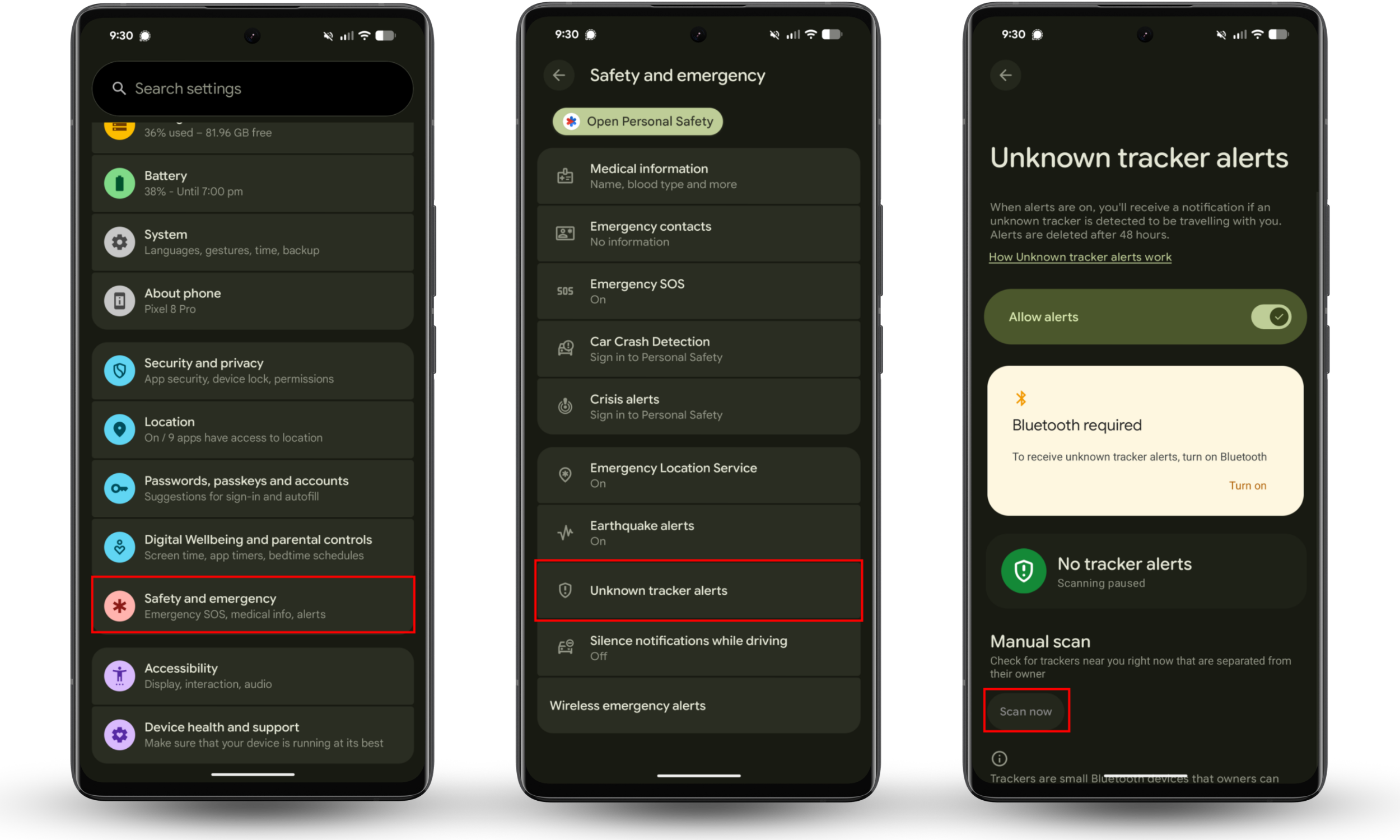
Your phone will run a scan of nearby Bluetooth devices and warn you of anything suspicious near your location.
While these scans handle physical tags, you should also look into how to check remote access apps on Android to ensure no one is watching your screen via software.
Why unknown tracker alerts appear
Unknown tracker alerts trigger when a Bluetooth tracker separates from its registered owner and moves alongside you for a certain amount of time. It avoids warning you about your own registered devices, instead alerting you only when it’s a potential stalking attempt from a stranger.
It’s worth noting that physical trackers are just one part of the problem. You might also want to learn how to know if your phone is being tracked by spyware software to ensure your privacy is fully covered.
When unknown tracker alerts become important
Understanding the meaning of unknown tracker alerts is vital for your personal safety. These alerts act as an early warning system against potential threats.
It’s most important when you need to:
- Prevent stalking. An alert is often the first sign that someone is monitoring your location without your consent.
- Stop theft. Criminals may place trackers on valuable items, like your car or bag, to follow you to your home or workplace.
- Filter out false alarms. Sometimes, you might be carrying a friend’s keys or bag. Investigating the alert helps you quickly decide if you are in danger or just holding a borrowed item.
It’s particularly important to watch for unknown trackers if you’re traveling or on your own. And trackers aren’t the only thing to worry about. Hidden cameras in hotels and rentals are becoming increasingly common, but Clario Anti Spy can help you uncover them.
If you want to make sure your room is safe, use Clario Anti Spy’s Spy cam detector:
- Open Clario Anti Spy and select Spy cam detector.
- Connect to the Wi-Fi network of the location you’re in.
- Clario will scan the network, looking for suspicious devices that could be hidden cameras. Review the results to spot any potential threats.
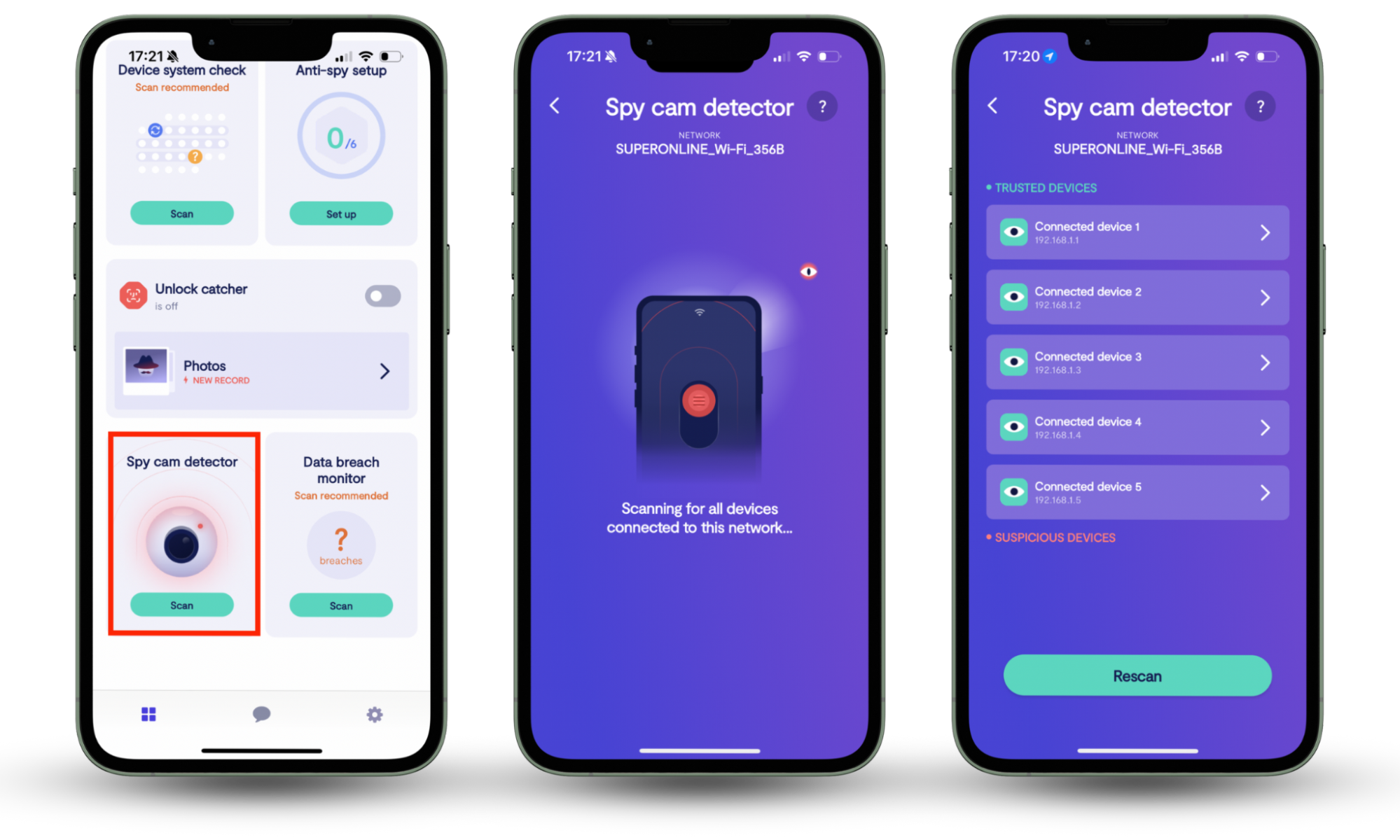
Our support agent, Lila, recently assisted a client who was anxious about potential spy cameras. After running a Spy cam detector scan to confirm there were no threats, Lila guided the client through securing their Wi-Fi network by updating firmware and enabling encryption, successfully restoring the client’s peace of mind.
This is just one example of why it’s so important to scan for hidden threats in your environment.
What to do when you receive unknown tracker alert?
If a built-in unknown tracker alert appears on your screen, follow these steps immediately:
- Tap the notification. Open the alert immediately to view the tracker’s history map and see where it has been following you.
- Press the play sound button. Make the tracker beep so you can locate the device as fast as possible without alerting the owner.
- Disable the tracker. If you find the device and feel unsafe, remove its battery to stop it from working or throw it away.
- Call the local police: If you are safe but have found a tracker, contact the police to file a report.
- Support lines: If you are dealing with stalking or domestic abuse, contact a dedicated support service like the National Domestic Violence Hotline (USA) for confidential advice and safety planning.
Taking immediate action on these alerts is a key part of covering how to block your phone from being tracked in the real world.
How to disable unknown tracker alerts
If you don’t need these tracker safety scans, you can turn them off. However, this will stop your phone from scanning for unwanted tags, leaving you vulnerable to being tracked without your knowledge.
To disable the alerts on Android:
- Open the Settings app on your device.
- Tap on Safety & emergency.
- Select Unknown tracker alerts.
- Toggle the switch to Off.
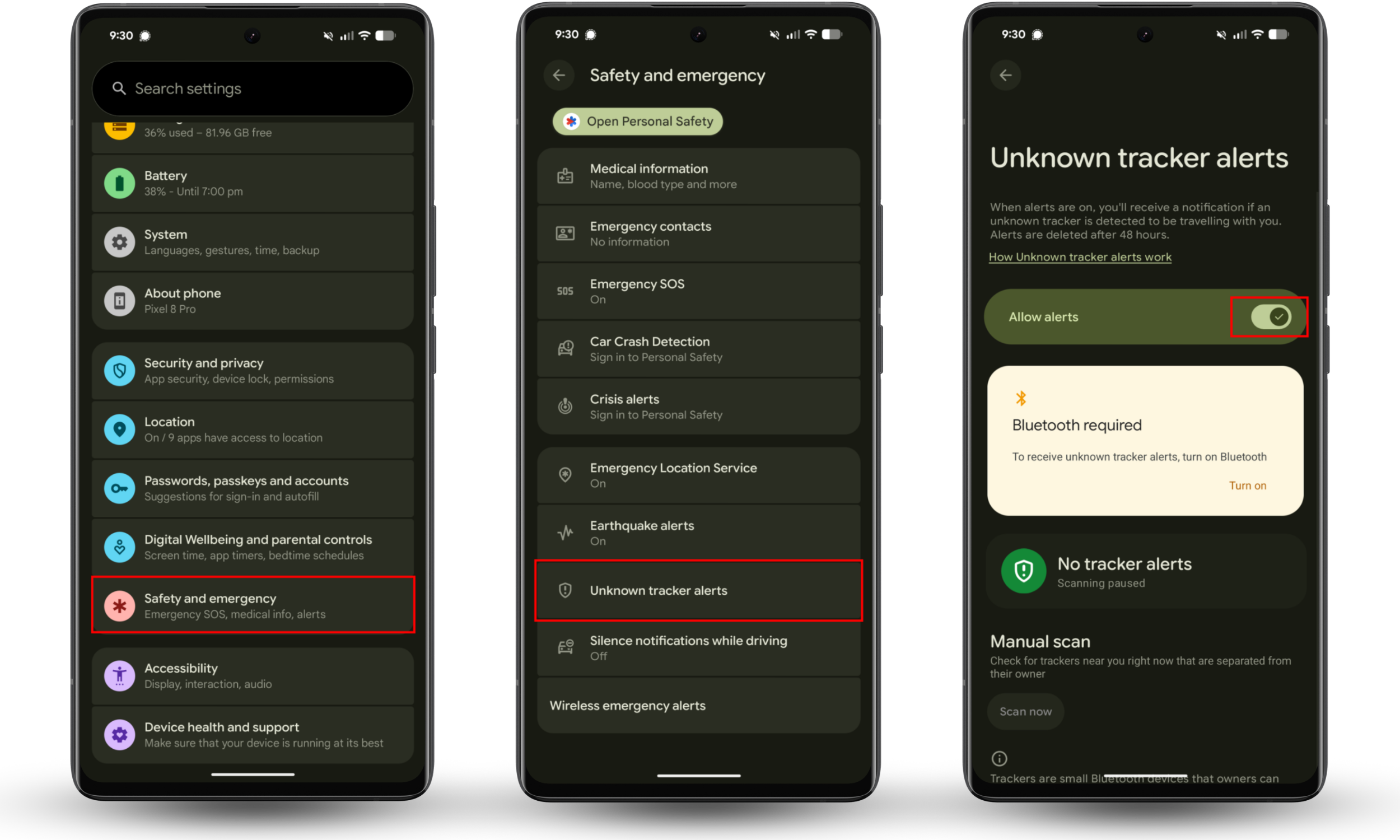
To disable the alerts on iPhone:
- Open the Find My app.
- Tap the Me tab in the bottom right corner.
- Scroll down to Customize Tracking Notifications.
- Toggle off Allow Notifications.
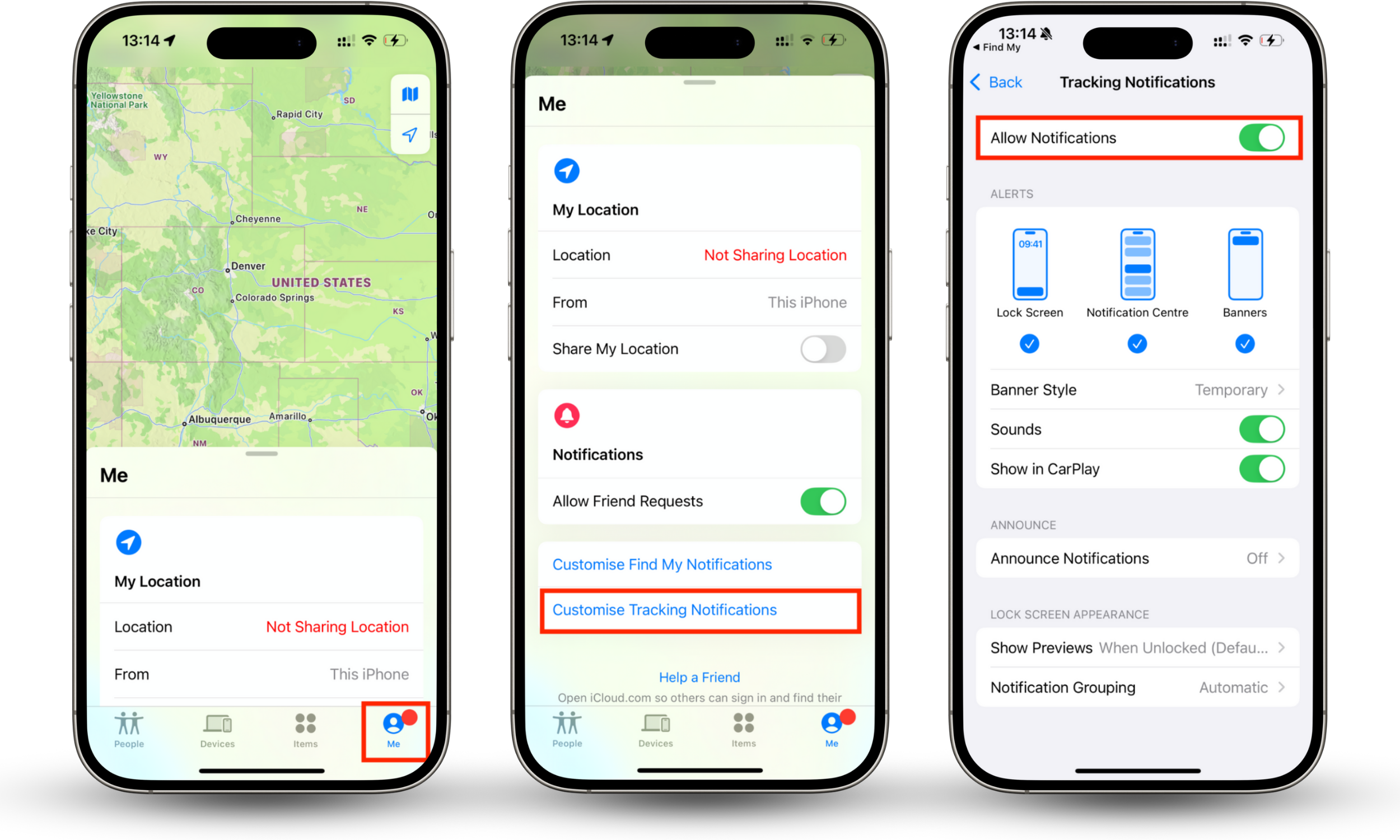
Conclusion
Unknown tracker alerts are a useful security feature that gives you control over your physical safety, quickly finding unwanted tracking devices before it’s too late.
Always take these warnings seriously and perform a physical search of your bags and car if you receive one.
Since these alerts can’t detect hidden cameras in your room, use Clario Anti Spy’s Spy cam detector to uncover any lenses that could be monitoring you. Combining Clario Anti Spy with your phone’s built-in security features is the best way to stay safe, no matter where you go.