Table of contents
- Why is iPhone getting hot?
- 1. Intensive tasks
- 2. Battery health
- 3. Environmental heat
- 4. Charging problems
- 5. Poor ventilation
- 6. Software crashes
- 7. Malware infection
- How to cool down iPhone?
- 1. Remove your case
- 2. Unplug charger
- 3. Move to a cooler place
- 4. Stop using iPhone
- 5. Turn on Airplane Mode
- 6. Reduce screen brightness
- 7. Turn off your iPhone
- How to stop iPhone from overheating?
- 1. Avoid direct sunlight
- 2. Close and uninstall unused apps
- 3. Reduce streaming
- 4. Keep your iPhone away from other devices
- 5. Turn off Bluetooth
- 6. Download an iPhone security app
- 7. Don’t leave your phone under your pillow
- 8. Turn off background refresh
- 9. Always keep your phone in a cool place
- 10. Use Low Power Mode
- 11. Leave your iPhone for a while
- 12. Update iOS version
- 13. Restart your phone
- Conclusion
Why is iPhone getting hot?
If you’ve ever encountered the dreaded “iPhone needs to cool down” warning, you’ve probably asked yourself, why does my phone get hot? There are many causes of iPhone overheating, but the most common are heavy use—like playing games, downloading large files, and using features like Genmoji—for long periods, as well as issues with background apps and a degrading battery. We also find that users see this error when accidentally leaving their phone in direct sunlight or other hot environments.
iOS malware and spyware can also cause your device to overheat. These threats constantly run in the background, collecting as much information as possible and feeding it back to attackers. Some even allow full control over your device. If you want to know how to tell if someone is accessing your iPhone remotely, look for common signs like battery drain and suspicious apps.
Here’s the full list of causes for iPhone overheating that we see regularly:
- Intensive tasks
- Battery health
- Environmental heat
- Charging problems
- Poor ventilation
- Software crashes
- Malware infection
1. Intensive tasks
Playing demanding games, editing videos, rendering 3D models, streaming content, and doing other intensive tasks cause your iPhone’s CPU to max out, which heats it up quickly. Generative AI, especially image-generation tools like Genmoji, is also very demanding.
2. Battery health
A degrading or damaged battery will sometimes get hotter than it’s supposed to. This is more common with older devices and those that have been dropped or sustained frequent damage.
3. Environmental heat
If you live in a warm climate, your iPhone is naturally more susceptible to overheating, but leaving it in direct sunlight, a hot car, close to a stove, and in similar environments will trigger the “iPhone needs to cool down” warning quickly.
4. Charging problems
Charging problems can lead to a sharp increase in your iPhone’s temperature. In addition to bad batteries, these are usually attributed to using poor-quality cables and adapters, and failures in the charging hardware inside your device.
5. Poor ventilation
Putting your Apple iPhone in a thick case, wrapping it in your duvet, and using it in other confined spaces prevents the device from cooling naturally.
6. Software crashes
Buggy apps that crash or don’t behave as intended will often use up more resources than they should, even when they’re sitting in the background, which causes your iPhone’s processor to work overtime.
7. Malware infection
Malware and spyware place a huge strain on your iPhone because they run constantly, collecting and sending data while eating up processing power and battery life. This is why we recommend all users familiarize themselves with how to find spyware on iPhone so it doesn’t go undetected for too long.
How to cool down iPhone?
To quickly cool down and stop an iPhone from overheating, you can close intensive apps, stop using the device for a little while, place it in a cooler environment, and unplug its charger if necessary. You can also enable Airplane Mode to disable certain features, or turn the device off to cool it down even faster.
Here are all our tips for cooling down your iPhone:
- Remove your case
- Unplug charger
- Move to a cooler place
- Stop using iPhone
- Turn on Airplane Mode
- Reduce screen brightness
- Turn off your iPhone
1. Remove your case
If you have a thick case, remove it or replace it with a thinner one to help your iPhone dissipate heat and cool down faster.
2. Unplug charger
Charging your iPhone warms up its battery, so leaving your device on charge while it’s overheating only exacerbates the issue.
3. Move to a cooler place
Another great iPhone overheating fix is to move your iPhone to a cooler environment, such as an air-conditioned room, or place it on a cold surface. Don’t let it sit in sunlight.
4. Stop using iPhone
We recommend not using your Apple iPhone while it’s overheating. Closing all apps and letting it sit will give its components a break and allow its screen to turn off or go dim—all of which will help it cool down.
5. Turn on Airplane Mode
Enabling Airplane Mode on iPhone turns off all wireless radios, including Wi-Fi and cellular connectivity, except Bluetooth. These features, particularly cellular, all contribute to iPhone overheating.
6. Reduce screen brightness
It’s only natural that the brighter your iPhone’s screen, the more power it consumes and the warmer it gets. Reducing the brightness can have a noticeable impact on overall temperature.
7. Turn off your iPhone
The most effective way to stop an iPhone from overheating is to simply turn it off for a little while. This shuts down all features, allowing it to cool down as quickly as possible.
How to stop iPhone from overheating?
To stop an iPhone from overheating, you can minimize the use of intensive apps, avoid letting it sit in direct sunlight and hot environments, charge it only when it’s not in use, switch to a thinner case if necessary, and enable Low Power Mode, which reduces background activity and disables certain features.
These are all the methods we use to address iPhone overheating:
- Avoid direct sunlight
- Close and uninstall unused apps
- Reduce streaming
- Keep your iPhone away from other devices
- Turn off Bluetooth
- Download an iPhone security app
- Don’t leave your iPhone under your pillow
- Turn off background refresh
- Always keep your phone in a cool place
- Use Low Power Mode
- Leave your iPhone for a while
- Update iOS version
- Restart your phone
1. Avoid direct sunlight
Leaving your Apple iPhone in direct sunlight will cause it to overheat very quickly, so avoid this as much as possible.
2. Close and uninstall unused apps
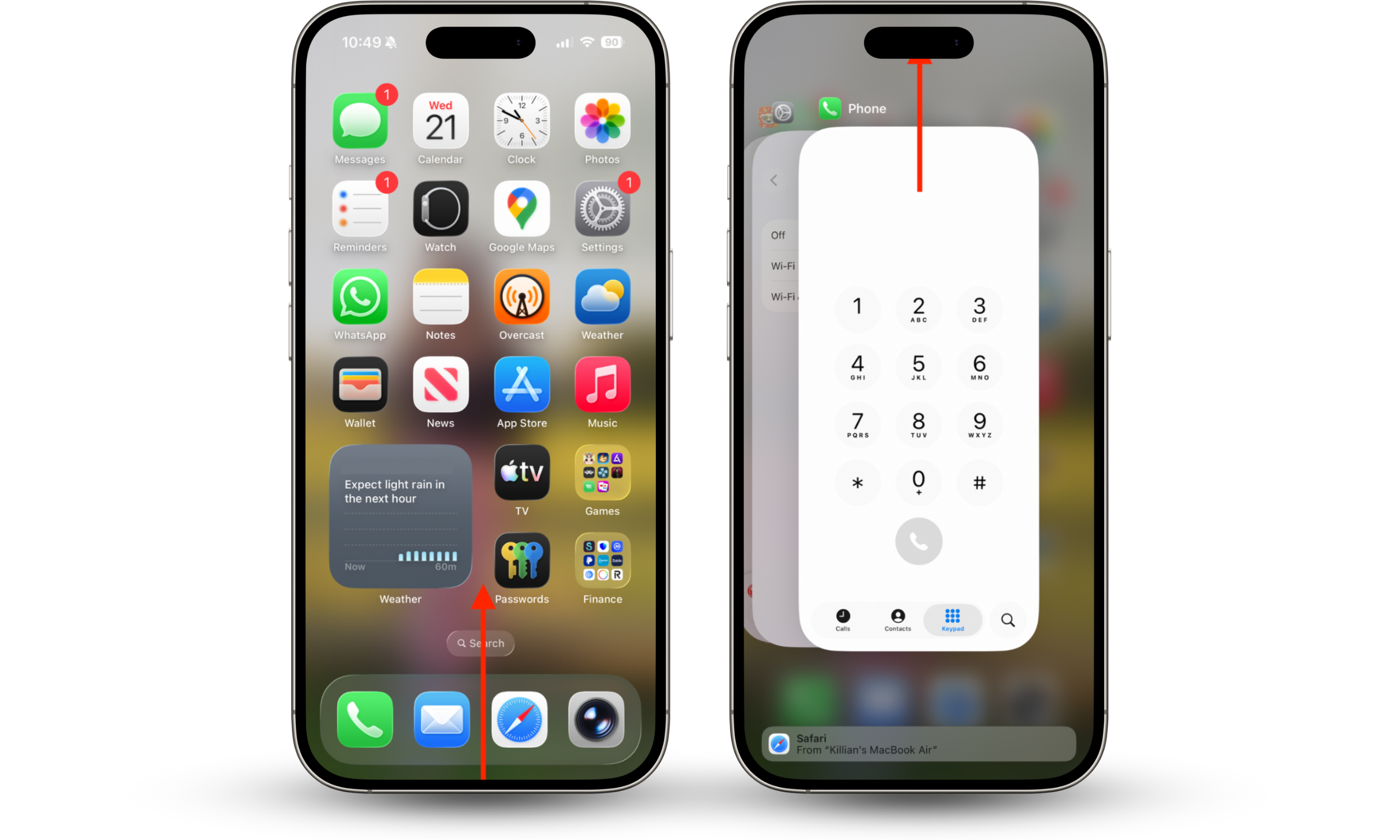
Don’t forget to close apps when you’ve finished using them, as some can prevent your iPhone from going to sleep and keep its CPU running at a higher clock speed. Simply swiping up from the bottom of the screen is usually enough, but to kill apps that are glitching in the background, try this:
- Swipe up on your iPhone’s Home screen to access the App Switcher.
- Swipe up on any demanding apps to force quit them.
3. Reduce streaming
Streaming video over a prolonged period of time can cause iPhone overheating, especially when using cellular connectivity. Reduce your streaming usage to help keep your iPhone cool.
4. Keep your iPhone away from other devices
Most electronics emit heat, so it’s best not to leave them too close to each other. You should especially avoid leaving your iPhone next to your laptop’s fan exhaust.
5. Turn off Bluetooth
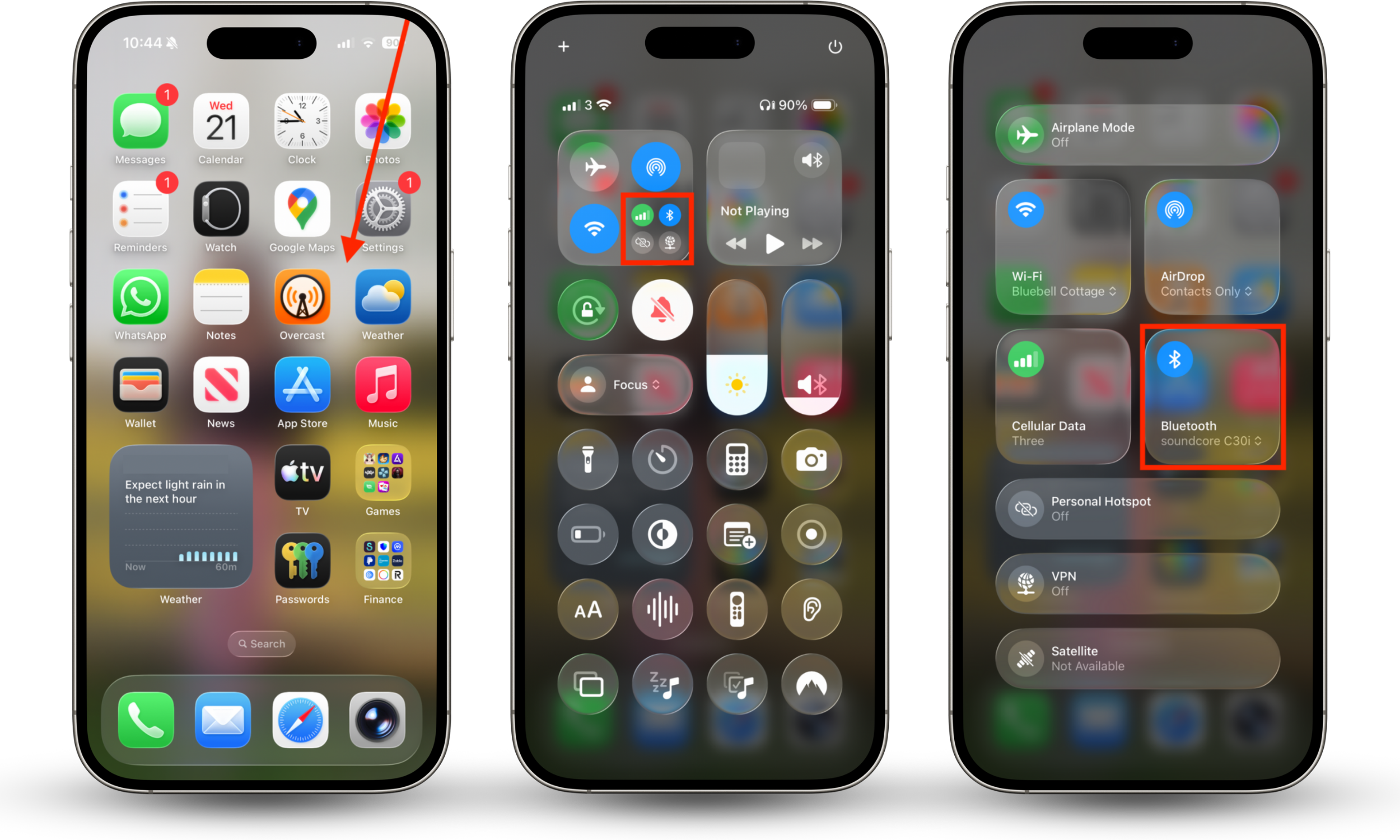
Although Bluetooth is very efficient, it can contribute to iPhone overheating when using certain Bluetooth devices that are more demanding. Here’s how to turn Bluetooth off so that it doesn’t automatically connect to accessories when you don’t intend to use them:
- Swipe down from the top-right corner of the screen to open Control Center.
- Tap the wireless radios icon, then tap Bluetooth to disable it.
6. Download an iPhone security app
Sadly, there is no code to check if your phone is monitored, so it’s a good idea to download an iPhone security app that will help you identify potential malware and spyware infections. We recommend installing Clario Anti Spy and taking advantage of its Hidden app scan and Device system check.
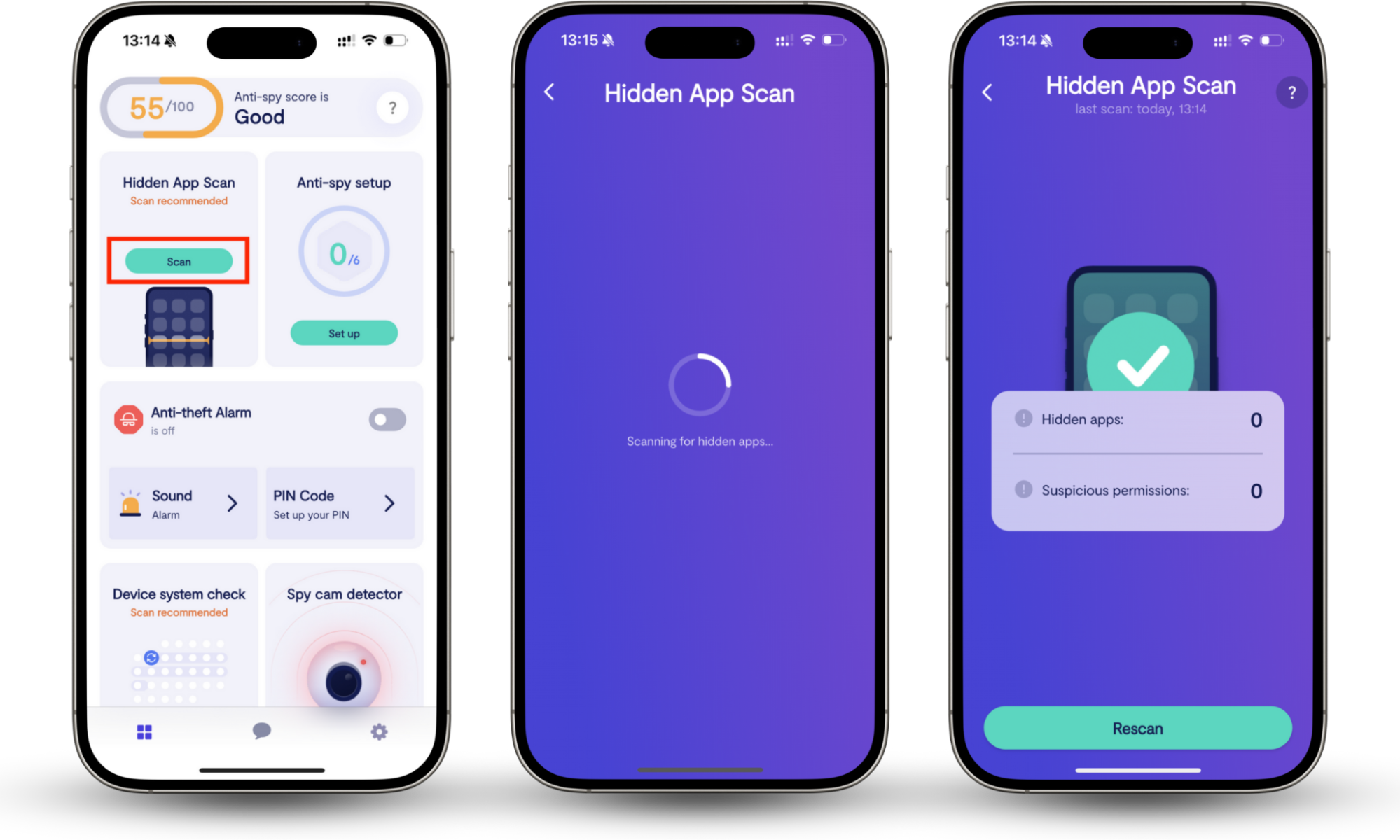
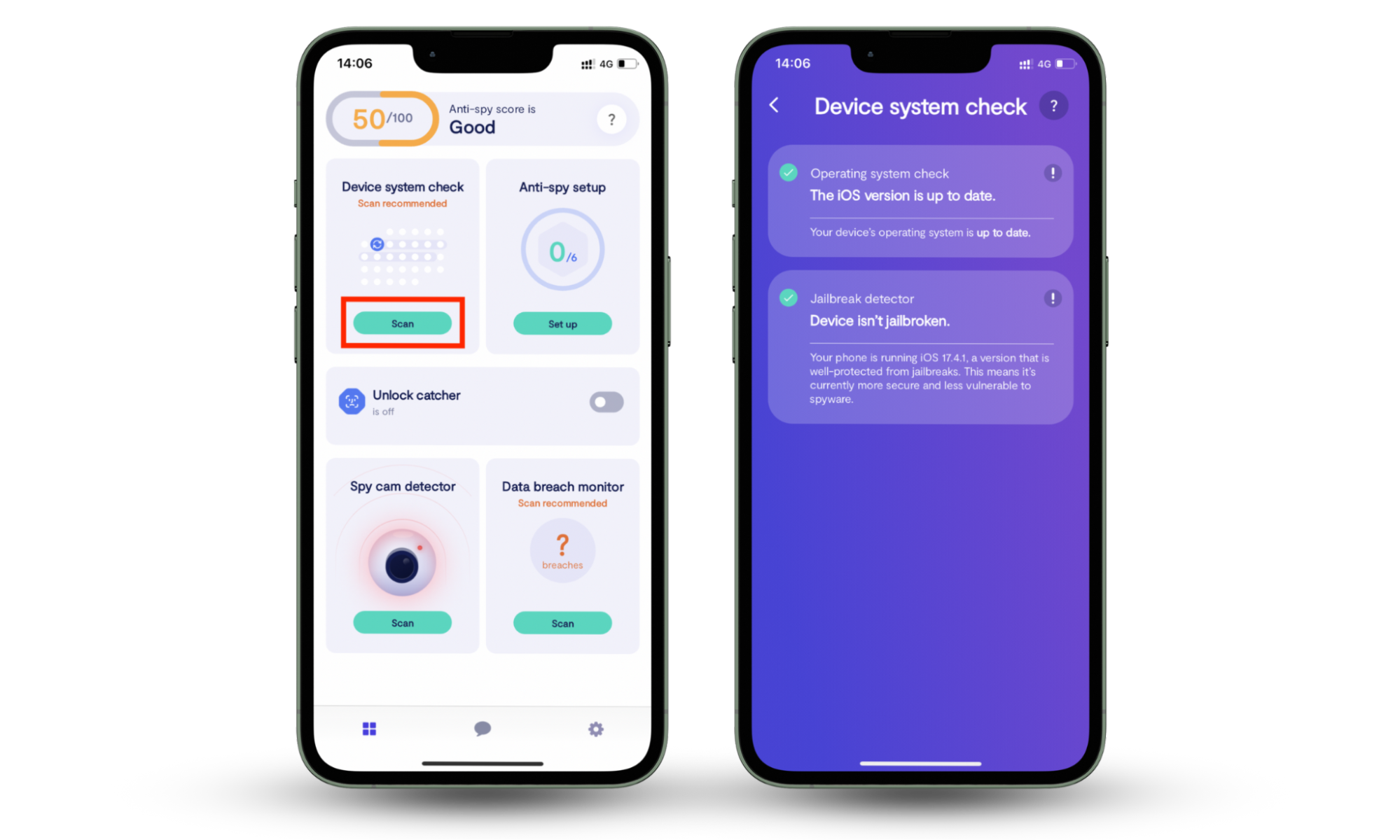
Hidden app scan weeds out any suspicious software that’s designed to go undetected and may not show up in the App Library or in Settings. Device system check tells you if iOS is up to date, and if your iPhone is jailbroken, which is usually a sign that someone cracked it to install unauthorized software.
Here’s how to use Clario Anti Spy’s Hidden app scan:
- Install Clario Anti Spy on your iPhone.
- Under Hidden app scan, tap the Scan button.
- If any suspicious apps are identified, review and uninstall them if necessary.
And these are the steps to follow to use Clario Anti Spy’s Device system check:
- Open Clario Anti Spy and under Device system check, tap Scan.
- Check you are running the latest version of iOS and that your iPhone isn’t jailbroken. Update or reset the device if necessary.
7. Don’t leave your phone under your pillow
Leaving your iPhone under your pillow is dangerous, especially when it’s charging, as this traps heat and prevents it from cooling down. Plus, if the battery malfunctions and catches fire, it can cause injury.
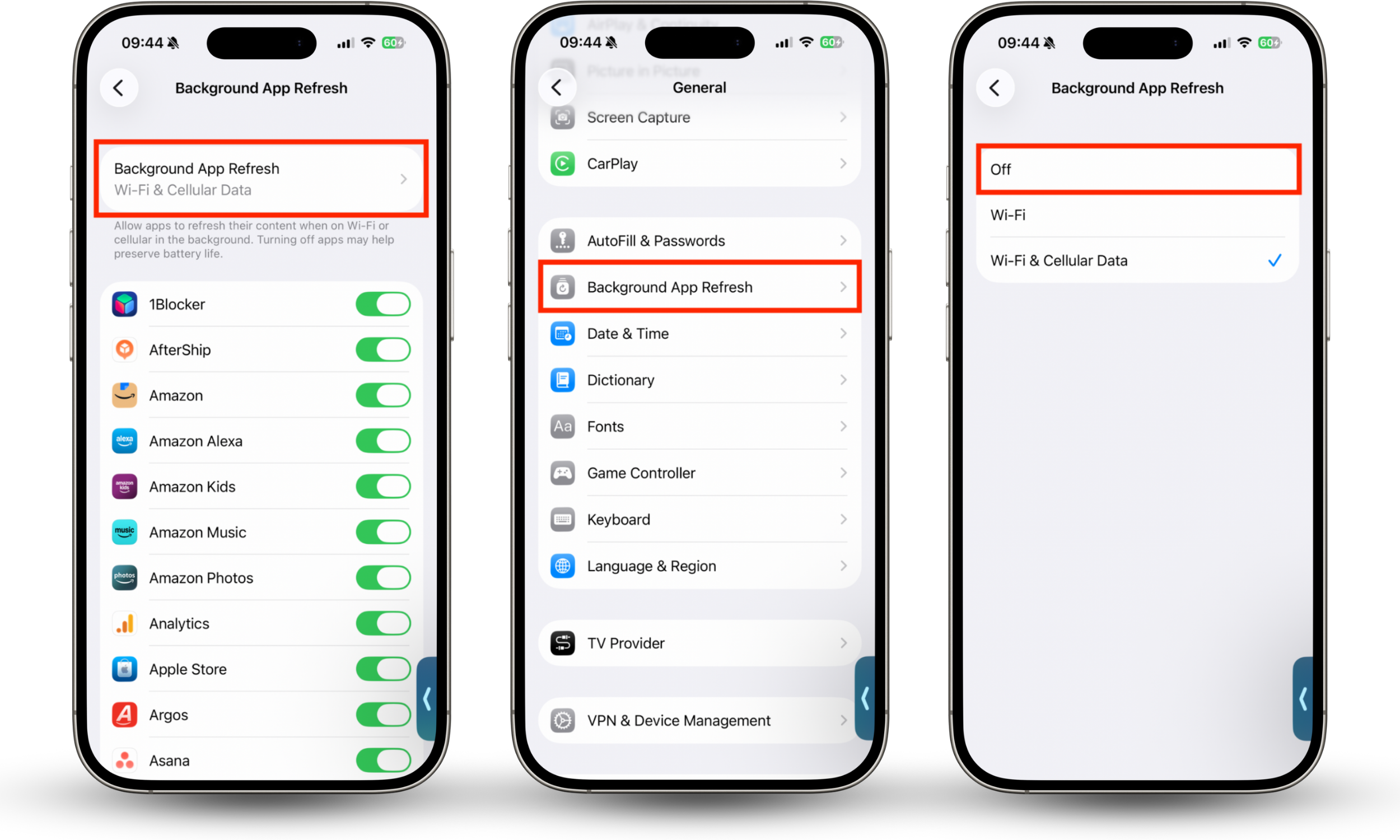
8. Turn off background refresh
Turning off background refresh reduces the demand on your iPhone’s resources and saves battery life. Here’s how to disable it:
- In Settings, go to General > Background App Refresh.
- Select Background App Refresh again, then choose Off.
9. Always keep your phone in a cool place
A really effective iPhone overheating fix is to keep your phone in a cool environment, such as a shaded or air-conditioned room, especially while it’s being used for demanding tasks.
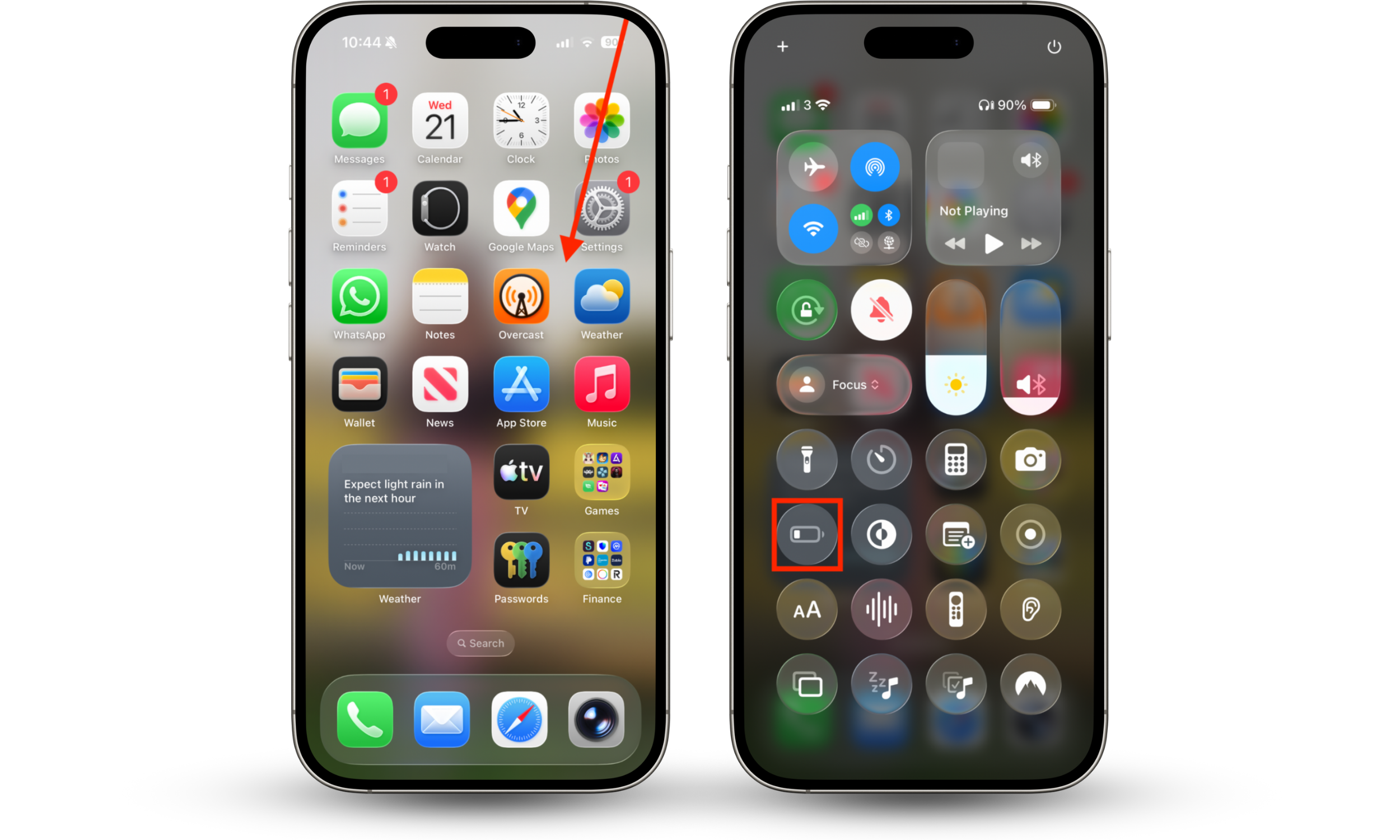
10. Use Low Power Mode
Enabling Low Power Mode on iPhone minimizes background activity, turns off the always-on display, reduces the screen’s frame rate, and disables features like 5G and iCloud sync so that your iPhone doesn’t have to work so hard. Here’s how to use it:
- Swipe down from the top-right corner of the screen to open Control Center.
- Tap the Low Power Mode button to enable it.
11. Leave your iPhone for a while
Allowing your iPhone to rest every so often helps it cool down and improves performance. You don’t have to leave it long—10 minutes should do the trick—but avoid charging it during this time.
12. Update iOS version
Keeping iOS up to date ensures you get the latest bug fixes as soon as they’re available. This makes your device more stable to reduce freezing and patches potential bugs that can lead to overheating.
13. Restart your phone
Restarting your iPhone every so often kills any processes that are stuck in the background, eating up resources and generating heat. We recommend a restart once a day, or whenever you notice your iPhone’s battery is draining faster than usual.
Conclusion
When your iPhone keeps overheating, there can be lots of different causes, like running demanding apps and games for too long, allowing it to sit in the sun, and potential malware infections. It’s easy to avoid by giving your iPhone regular breaks, closing unused apps, and enabling features like Low Power Mode.
To make sure your iPhone is free from infections and unauthorized apps, we recommend using Clario Anti Spy’s Hidden app scan and Device system check. These features weed out hidden malware and let you know if your iPhone is jailbroken, which is a telltale sign that someone installed unauthorized apps.