Table of contents
- What is System UI on Android?
- Do you need the System UI app?
- What happens if I turn off System UI?
- Can System UI spy on you?
- System UI vs. Spy apps
- Could there be spy apps named System UI?
- How to tell real System UI from fake System UI spyware?
- Package name
- Install source
- App icon
- Uninstall behavior
- Permissions
- Update behavior
- What System UI can and cannot do?
- How to check your phone for fake System UI or spyware?
- Check the list of apps manually
- Use Clario Anti Spy’s Hidden apps scan
- Use Clario Anti Spy’s Device system check
- Verdict: Is System UI a spy app for Android?
What is System UI on Android?
System UI is an Android system app, not a downloadable application or third-party software. It is responsible for displaying essential parts of the Android interface, including the status bar, notification shade, lock screen, quick settings panel, and navigation buttons. Every interaction you make with these interface elements passes through System UI.
Because System UI handles real-time interface changes (new notifications, brightness adjustments, volume changes, screen rotation), it must run continuously as a background process. This constant activity is required for Android to function properly.
System UI is tightly integrated into the Android operating system and is signed by the device manufacturer or Google. For this reason, it cannot be removed, uninstalled, or disabled like a typical third-party app. Attempting to do so would break core phone functionality.
Do you need the System UI app?
Yes, you need the System UI app. Android cannot function without System UI. The presence of System UI on your phone is normal, required, and unavoidable. Every Android device has it, regardless of brand or model.
What happens if I turn off System UI?
You generally cannot disable System UI, and attempting to do so will cause your phone to malfunction. If System UI crashes or stops responding, you may see errors like “System UI has stopped”, frozen screens, missing notifications, or unresponsive navigation buttons.
Because System UI is a core Android system component, it’s protected from being disabled in standard settings to prevent device instability.
Can System UI spy on you?
No, System UI is not malware or spyware and does not perform surveillance. Spy apps are designed to secretly collect information such as messages, calls, location data, and microphone data. System UI does none of this independently. It does not record activity, transmit personal data on its own, or operate covertly.
The confusion comes from the fact that System UI:
- Runs constantly
- Has system-level permissions
- Cannot be removed
These traits are typical for system-level controllers.
System UI vs. Spy apps
Here’s a comparison table that explains what System UI and spy apps have in common and how they differ.
| System UI | Spy apps |
| Preinstalled by the Android manufacturer | Installed intentionally or covertly |
| Signed as a system app | Often hide icons or disguise names |
| Controls interface and visual elements only | Request access to the camera, microphone, location, or messages |
| Cannot spy, record, or monitor behavior independently | Designed to monitor behavior without consent |
Essentially, System UI manages how your phone looks and responds. Spy apps focus on what you do.
Could there be spy apps named System UI?
Yes, malicious apps can disguise themselves using names similar to System UI. Spyware developers often rely on name spoofing and generic labels to avoid suspicion. A fake app might appear as “System UI,” “System Service,” or “Android System” in battery usage, data consumption, or permission lists.
This is why users sometimes see System UI consuming resources and assume spying. In most cases, the real System UI is simply doing its job. In rare cases, a fake system-named app is piggybacking on that trust.
How to tell real System UI from fake System UI spyware?
If an app named System UI uses a package name other than com.android.systemui, has an install date, or an uninstall option, it’s not the real System UI. Additionally, check the following attributes to verify the authenticity of your System UI app:
Package name
The real System UI uses a standardized Android package name, com.android.systemui. Spyware often uses look-alike names, like com.system.ui, com.android.system, system.ui.service, or random strings masquerading as system packages.
Install source
System UI is preinstalled at the factory. It does not appear as a user-installed app and has no install date. If you see System UI listed as installed from Google Play or with a visible install date, that’s a red flag.
App icon
The real System UI has no launchable icon. Any System UI app with an icon you can tap, open, or pin to the home screen is suspicious. Even though spyware often uses generic gear or calculator icons to blend in, system app icons are also possible.
Uninstall behavior
The real Android System UI cannot be uninstalled or permanently disabled. Android may restart it if it crashes, but it is required for the system to function. Any app that's called System UI that offers a normal uninstall or disable option is not a legitimate system component.
Permissions
System UI permissions are UI-related only. Spy apps, on the other hand, typically request access to:
- Camera
- Microphone
- Location
- Accessibility services
Accessibility access is especially dangerous, as it allows screen reading and interaction monitoring. System UI does not need this level of access for spying purposes.
Update behavior
System UI updates only as part of OS updates. Fake apps update independently through app stores or manual prompts. Any request to update System UI outside an OS update is suspicious.
What System UI can and cannot do?
Here are the boundaries enforced at the operating system level as to what System UI can and cannot do.
| System UI can: | System UI cannot: |
| Display notifications | Read messages or emails |
| Control the lock screen and status bar | Record calls |
| Respond to user interactions | Track location independently |
| Manage interface animations and transitions | Activate camera or microphone for spying |
| Transmit personal data without OS mediation |
If you suspect monitoring, review our guides on how to check for spyware on Android and signs your phone is being monitored.
How to check your phone for fake System UI or spyware?
If something feels off, first go through the list of apps on your phone to detect any you do not remember downloading. Then run Clario Anti-Spy’s Hidden apps scan to detect apps that request suspicious permissions, and finally check your phone for signs of rooting.
Check the list of apps manually
Review your app list, including system apps. Look for a duplicate System UI app, unexpected install dates, or apps with system-like names requesting invasive permissions. Check accessibility settings carefully.
Here's how to check the list of apps on your Android:
- Go to your Settings.
- Select Apps, Applications, or something similar.
- Go to Manage apps.
- Look for apps with suspicious names (they may hide under vague names like “system optimizer”).
- Tap the app to check its permissions, and look it up online.
- If malicious, uninstall the app.
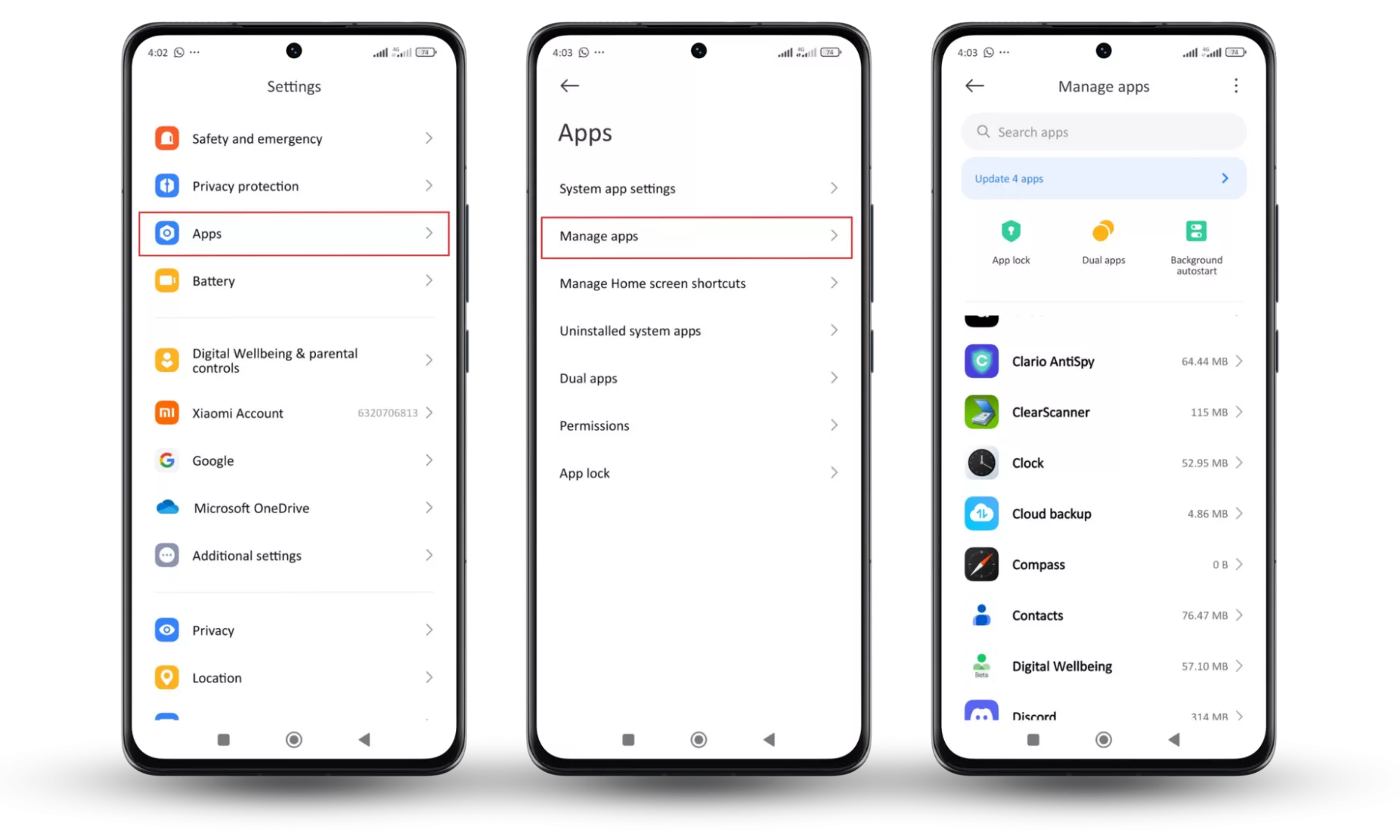
Note
This instruction is Xiaomi-specific, and the way to check the app list may differ on other Android devices.
Also, check the list of apps that can spy on your phone.
Use Clario Anti Spy’s Hidden apps scan
Some spy apps hide from the App Library. However, Clario Anti Spy’s Hidden apps scan can detect any app that disguises itself or operates without a visible icon. Run this scan if you notice battery drain, data spikes, or unexplained background activity. If an app appears that you didn’t install or don’t recognize, remove it immediately.
Here’s how to use Clario Anti Spy’s Hidden apps scan to detect spying apps:
- Open Clario Anti Spy and get a subscription.
- Click on Scan under the Hidden apps scan.
- Wait till the scan is complete.
- If Clario Anti Spy flags an app as suspicious, follow the on-screen instructions to remove it and restore your privacy.
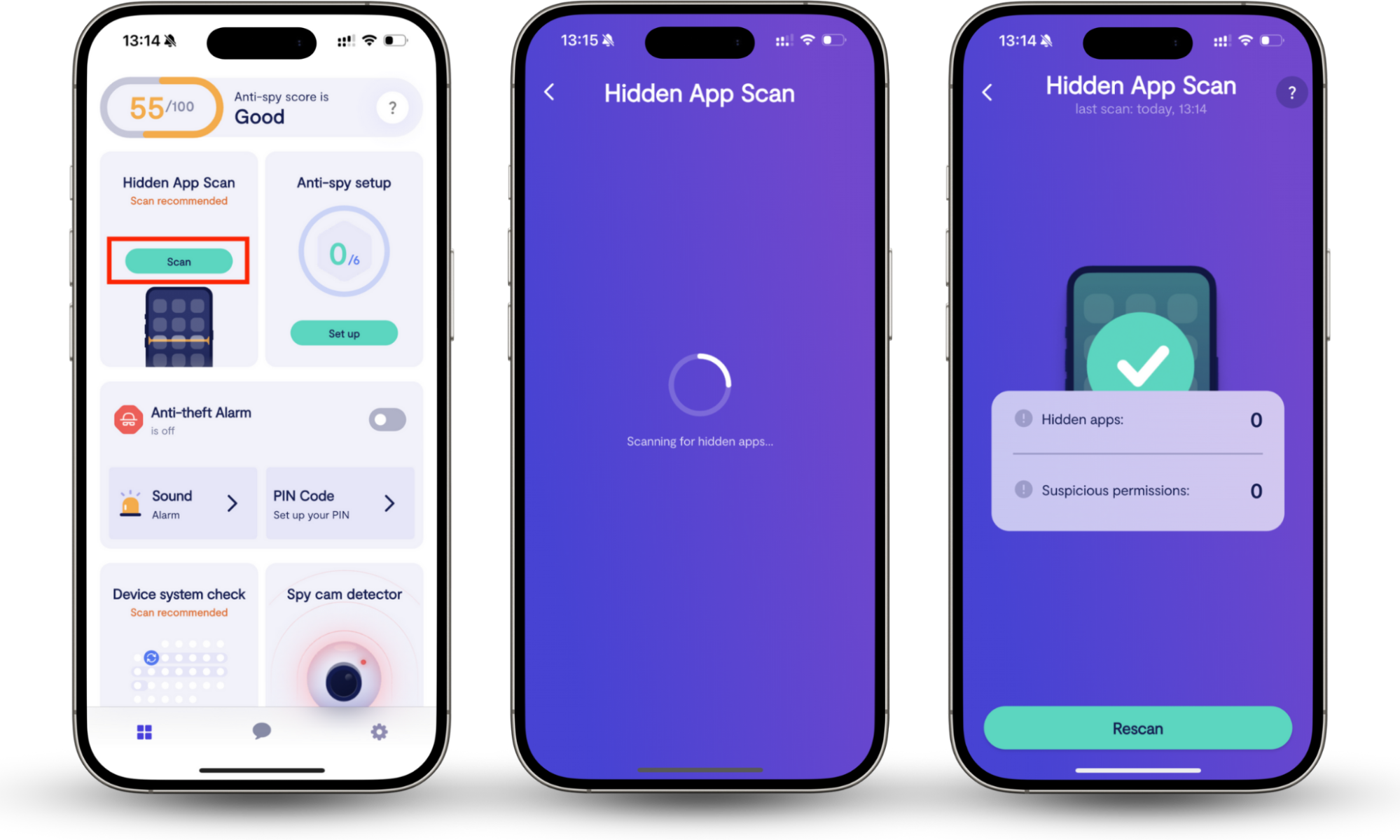
Learn how to remove hidden apps on Android and much more on the Clario blog.
Use Clario Anti Spy’s Device system check
Spyware often relies on rooting to bypass Android security. Clario Anti Spy’s Device system check scans your phone for signs of compromised system integrity. If it detects signs of rooting, it means your device is at a higher risk of hidden system-level threats.
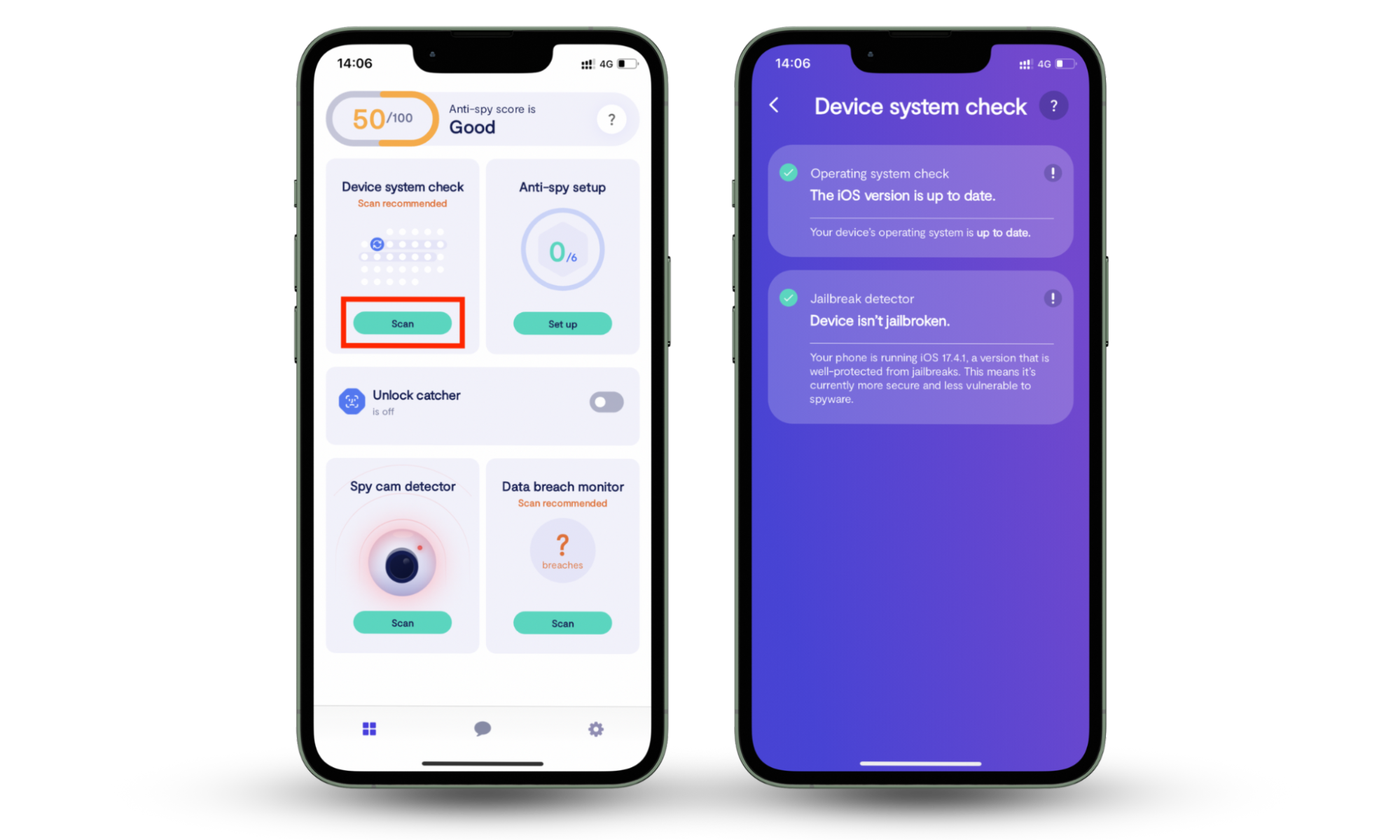
Here’s how to check if your phone is rooted with Clario Anti Spy’s Device system check:
- Download Clario Anti Spy and subscribe.
- Under Device system check, tap Scan.
- Wait for the scan to complete, and follow the on-screen instructions if any signs of rooting appear.
Verdict: Is System UI a spy app for Android?
No, System UI is not a spy app. It is a core Android system component essential to your phone's functionality. Confusion happens because it runs constantly, can’t be removed, and appears in system settings, traits shared with legitimate system software.
Suspicion becomes valid only when fake apps masquerade as System UI or when system integrity is compromised. If you’re unsure, don’t guess. Verify.
Use Clario Anti Spy to scan for hidden apps and check system integrity. Its Hidden apps scan and Device system check help confirm whether System UI on your phone is legitimate.