Table of contents
- What is bloatware?
- Pre-installed software
- Software downloaded from the internet
- What does bloatware do?
- Types of bloatware
- Trialware
- Utilities
- Adware
- Common bloatware app examples
- How to remove bloatware from your device
- How to remove bloatware on macOS
- How to remove bloatware on Windows 10?
- How to remove bloatware on Android
- How to remove bloatware on iOS
- How to prevent bloatware
- Before downloading
- During installation
- Conclusion
- FAQ
- How do I know if I have bloatware?
- Is bloatware a malware?
- Why is bloatware bad?
- Which bloatware is safe to remove from Windows 10?
- Does bloatware slow down your computer?
Computers, tablets and phones are usually associated with efficiency and speed. Unfortunately, that's not always the case. Sometimes, you might notice that your device behaves inexplicably slow, or that there are suspicious apps running in the background.
So, what’s usually behind these issues?
Such behavior could be caused by bloatware, which is a common, yet irritating challenge for tech users. But don’t worry, removing bloatware is fairly easy.
In this article we'll go over some of the most common bloatware examples and show you how to remove them.
Pro tip
To be on the safe side, we recommend you use a reliable cybersecurity solution like Clario Anti Spy. Its regular system scan will find and remove whatever malware is affecting your device.
What is bloatware?
Bloatware (also: Potentially Unwanted Programs – PUP) is basically software that slows down your device.
Note
Sluggish performance, unexpected pop-ups, or unfamiliar apps are often the first signs that something unwanted is running on your device. In many cases, the cause isn’t a virus but bloatware—software that consumes system resources without providing real value. Knowing how to recognize bloatware and remove it safely can help restore performance and reduce security risks without harming your system.
It could refer to programs that are installed, but not used, and still take up plenty of space, memory and battery life. Also, sometimes these unused pieces of software are enormous, making them more of a liability than a reliable tool.
It usually hides in the background, so sometimes it isn't as easy to detect as we would like. That does not mean bloatware is some kind of malware. However, some bloatware downloaded from malicious websites, or downloaded inadvertently along with a third-party software, could contain malware.
Good advice
Occasionally check your device so you know when it’s time to get rid of bloatware.
There are two main ways you may end up with bloatware installed on your apparently safe device. On one hand, it could come pre-installed from the manufacturer on your PC, tablet, or phone. On the other hand, it could come via programs you have actually downloaded from the internet.
Pre-installed software
This is the most ordinary and possibly oldest type of bloatware. Manufacturers are used to selling devices with certain software installed by default. This is done to make more money by offering you additional programs, such as security suites, file managers, music apps, or some third-party software you could be interested in.
Pre-installed bloatware is mostly harmless and only shows ads, which is annoying, but you might not feel the need to delete it right away. Still, there is also the risk of bloatware like this being susceptible to external attacks.
Software downloaded from the internet
This is considered more dangerous than the pre-installed software, since some of it is created with the purpose of causing harm to a machine or user. It doesn’t mean all downloaded bloatware is necessarily dangerous, but the security risk is higher.
This form of bloatware could be as harmless as only slowing down your computer or constantly displaying advertising. However, it could also pave the path to more harmful practices like man-in-the-middle attacks, spying or remotely managing your machine.
This bloatware often comes from malicious websites, suspicious links or ads. It can also come along with programs that you actually wanted to download.
Common warning signs of downloaded bloatware include:
- The app was installed as part of a software bundle rather than on its own
- It repeatedly asks for permissions that are not necessary for its function
- It displays frequent ads, pop-ups, or redirects in your browser
- The program reinstalls itself or reappears after being uninstalled
- You don’t remember installing it or cannot identify its purpose
So, if you don’t recollect downloading the app or don’t use it, if it constantly offers you extra purchases, if you notice irritating pop ups or unwanted redirects to some websites, you definitely need to get rid of that bloatware. Another distinguishing feature of bloatware is that it may not be easy to remove and it reappears even if you uninstalled it.
What does bloatware do?
Bloatware can consume a lot of valuable resources. While it is running in your device's background, it cripples performance, consumes memory, storage, and also brings down battery life. Basically, bloatware clogs your machine. It could fill your internet browser with ads and, in more severe cases, lead to a security threat.
In practical terms, bloatware affects your device in several common ways:
- Runs at startup, increasing boot time and slowing down overall performance
- Consumes memory and storage, leaving fewer resources for apps you actually use
- Operates in the background, draining battery life and using system bandwidth
- Injects ads or browser content, disrupting normal browsing
- Creates security exposure, especially when combined with tracking or outdated components
Types of bloatware
So now that you have an idea of what bloatware is, the inconvenience it can cause, and danger it represents, we can break down different types of bloatware. They might not be the only bloatware examples, but by far the most common you might encounter.
Understanding the different types of bloatware can help you decide which apps are safe to ignore, which ones can be removed without risk, and which may require closer attention due to potential security or privacy concerns.
Trialware
This bloatware is frequent for Windows computers. Imagine a newly bought PC with software already running on it. In this case, the installed software needs a license to work, but it comes as a "free trial" mode. It stops working once the trial is over, while continuing to consume your device's resources.
Trialware is not typically harmful, but can be annoying. The silver lining is that it is not hidden in the device's background, so it is fairly easy to remove bloatware like this.
Utilities
Manufacturers pre-load several utilities from them and third-parties which add functionality to your PC. Some of these utilities are helpful, such as backup, file management or video editors, but you might not use all of them. Remember, it might not be bloatware if you actually use it.
Third-party utilities are usually easy to remove, while you might not be allowed to uninstall any from the manufacturer. Check those you normally use, and those you want to remove.
Adware
Contrary to previous types of bloatware, adware is more likely to get installed on your PC by an internet download rather than being pre-installed. It will display constant ads on your web browser, making it not harmful, but something you will certainly soon want to delete. Still, there've been cases in which PC manufacturers sold new computers with pre-installed adware.
This is an easy type of bloatware to remove, but still, preventing adware is always the best choice, rather than going over several daily ads on your browser. In case you got it, you can rely on manual removal for easily deleting bloatware.
Common bloatware app examples
These apps are commonly found across different platforms, though their presence and impact can vary depending on whether you’re using Windows, macOS, Android, or iOS. Not every app listed below is harmful by default, but they are frequently pre-installed or bundled and often go unused.
- Weather apps
- Financial or money apps
- Game centers
- Sports apps
- Map or navigation apps
- Health and fitness apps
- Messaging or video apps
- Music and video players
- Toolbars and junk-browser extensions
- System update apps
- Personal productivity assistants
How to remove bloatware from your device
It is not the end of the world if you find out your computer has bloatware. Once you detect the symptoms it is only a matter of finding their cause. You can find bloatware and remove it manually.
Before removing any app, it’s important to check whether it is required for core system functions. Some pre-installed apps support system updates, hardware features, or security processes, and removing them could cause instability. When in doubt, disabling an app instead of uninstalling it is usually the safer option.
Here are some simple instructions on how to get rid of bloatware:
How to remove bloatware on macOS
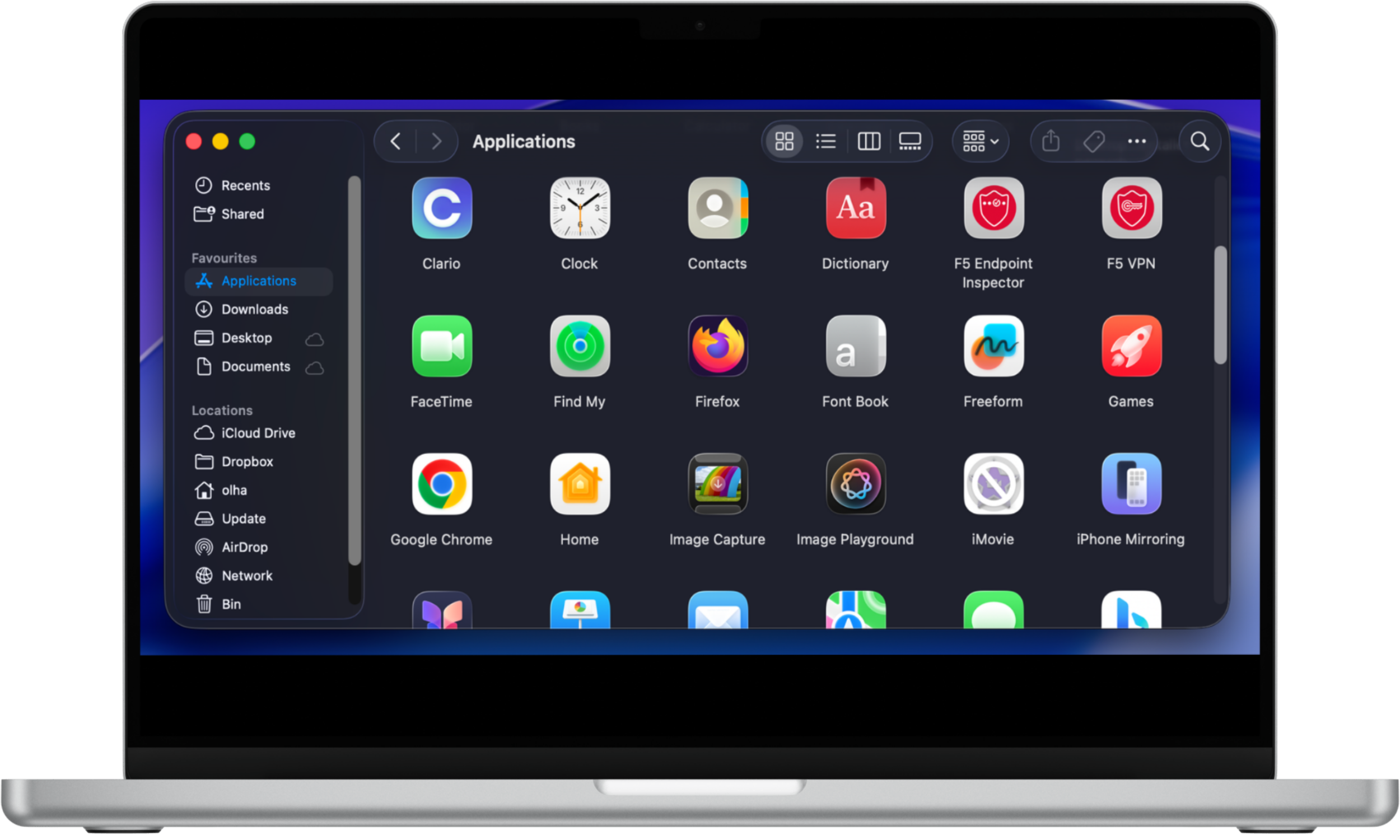
- First, open a Finder window and find the Applications folder in its sidebar.
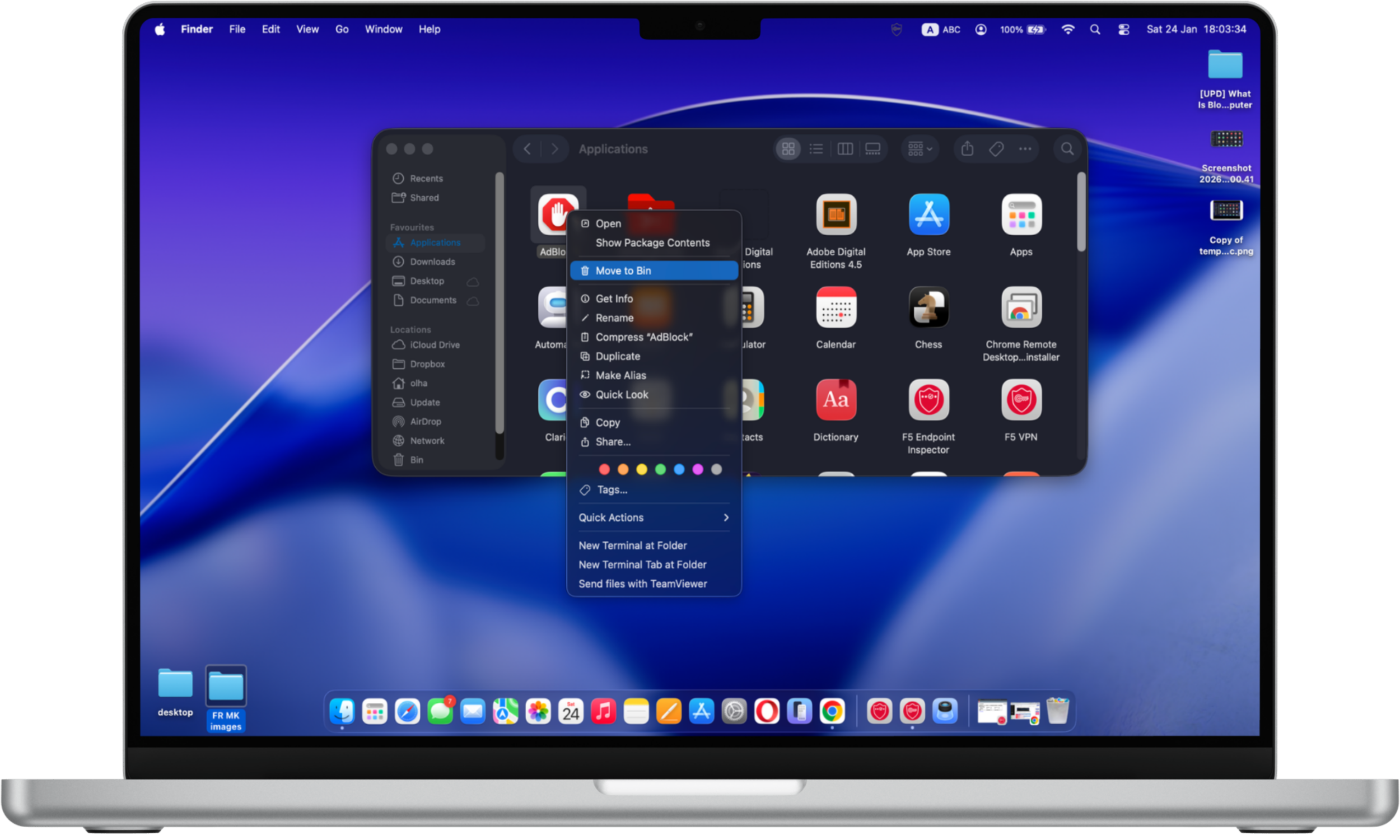
- Locate the app you want removed, click on it, and drag it towards the Bin icon on the screen's bottom. You might as well select the application and choose File > Move to Bin.
- You could be asked for your username and your password. Enter them.
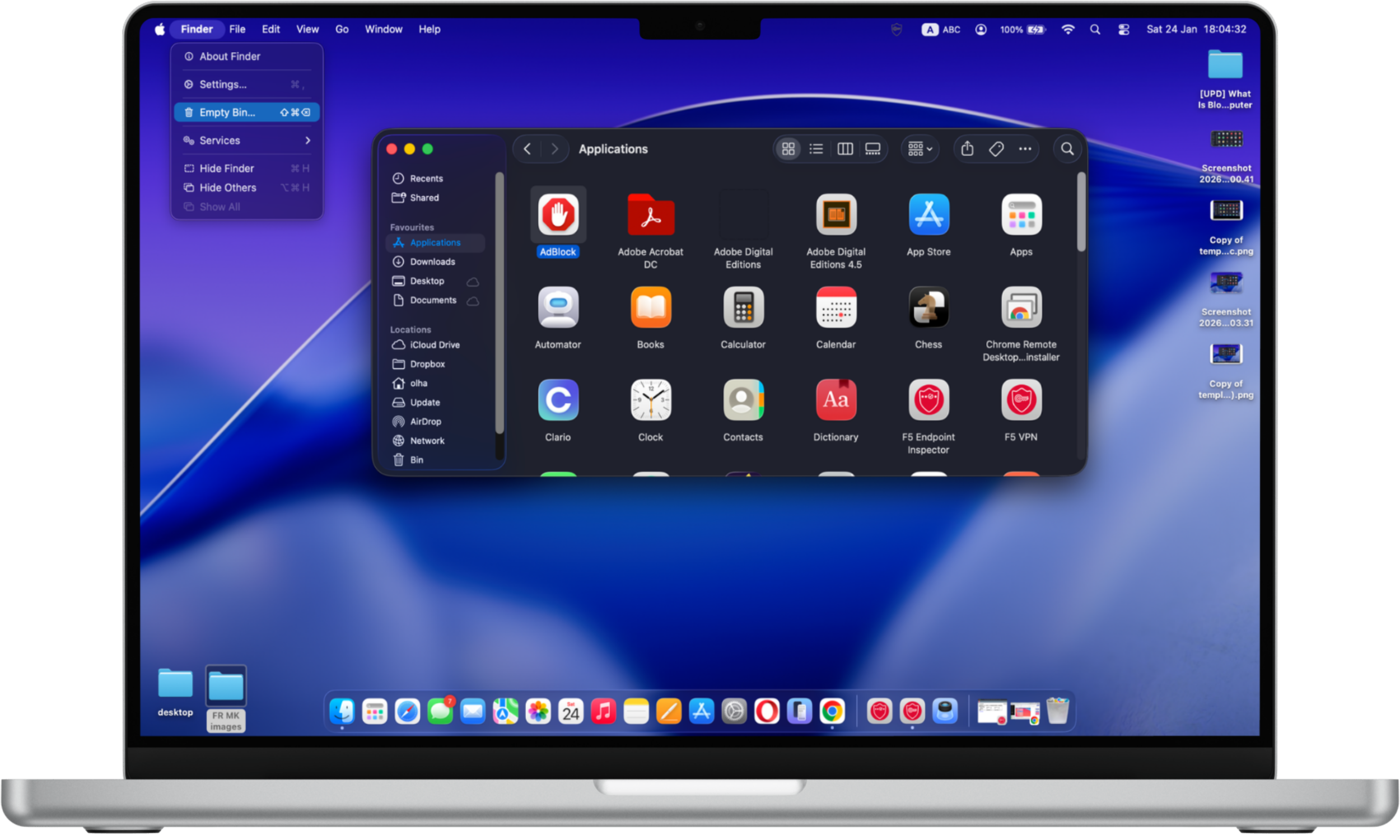
- To permanently remove the app, and therefore delete bloatware, choose Finder > Empty Bin.
How to remove bloatware on Windows 10?
This is done through a tool known as Fresh Start (for Windows 10 versions prior to 2004) or Reset this PC. It will reset the device and install only what is necessary for Windows to run. Remember, even though it shouldn't delete your files and folders, it is normally a good practice to create a backup of your computer.
Editorial note
These steps also apply to Windows 11, although some menu names and layouts may look slightly different. The overall process for resetting the system and removing pre-installed apps remains the same, but Windows 11 users may see updated labels or navigation paths depending on their version.
So, this is how to remove Windows 10 bloatware:
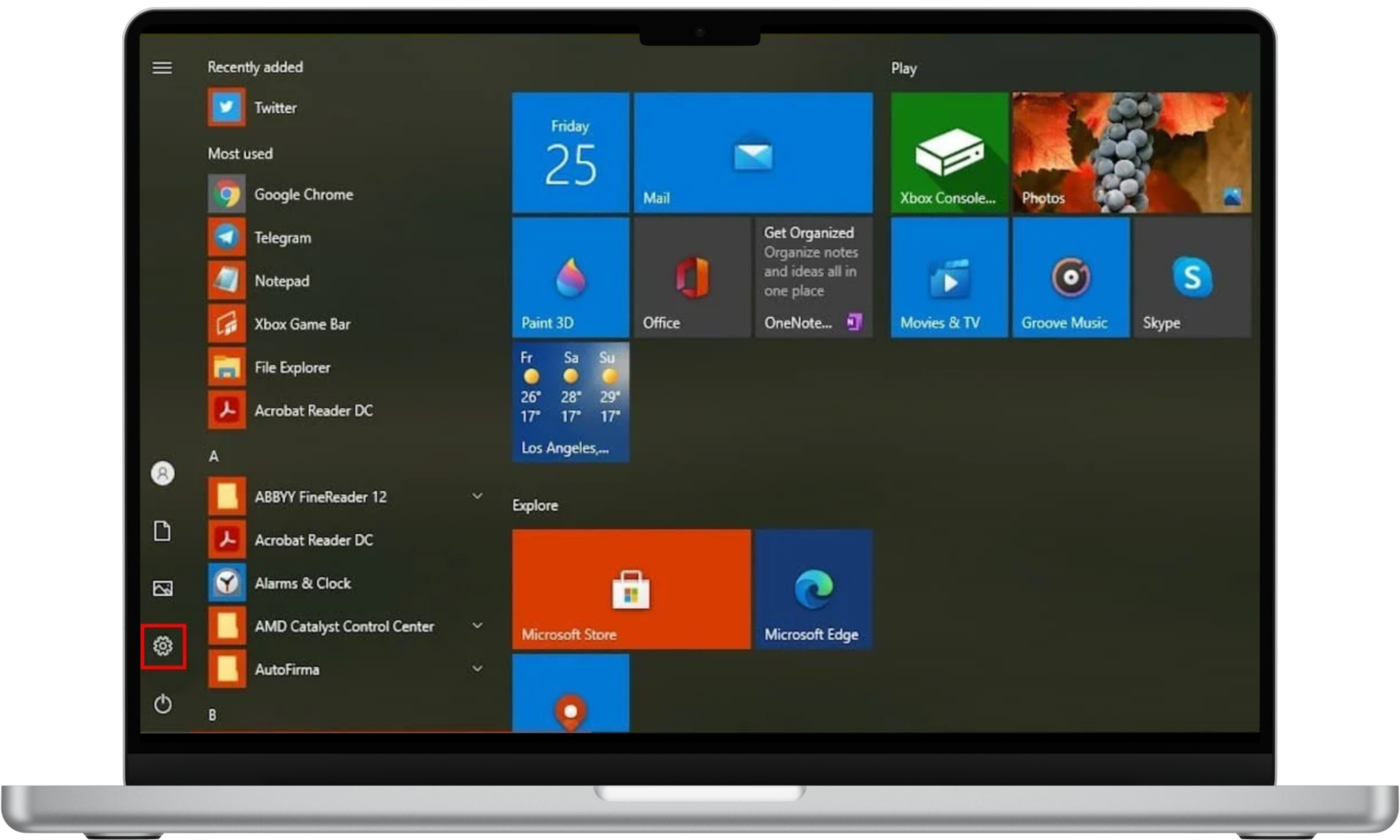
- First, go to Start Menu, then search for Settings.
- Choose Update & Security.
- In Update & Security, select Recovery.
- Under Reset this PC, choose Get started.
- Select Keep my files.
- Choose either Cloud download or Local reinstall depending on whether you need a new version of Windows from Microsoft or want to use an old one from your computer.
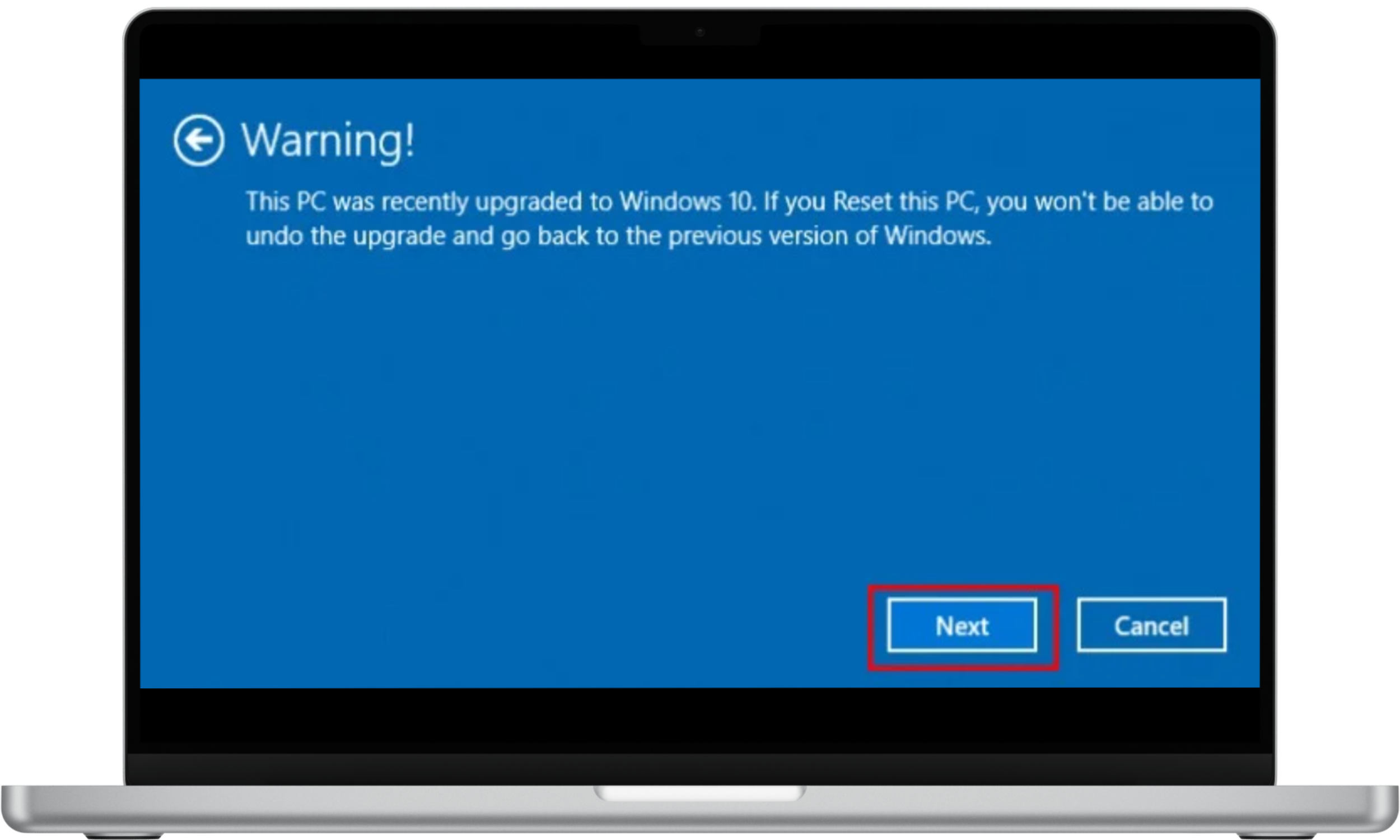
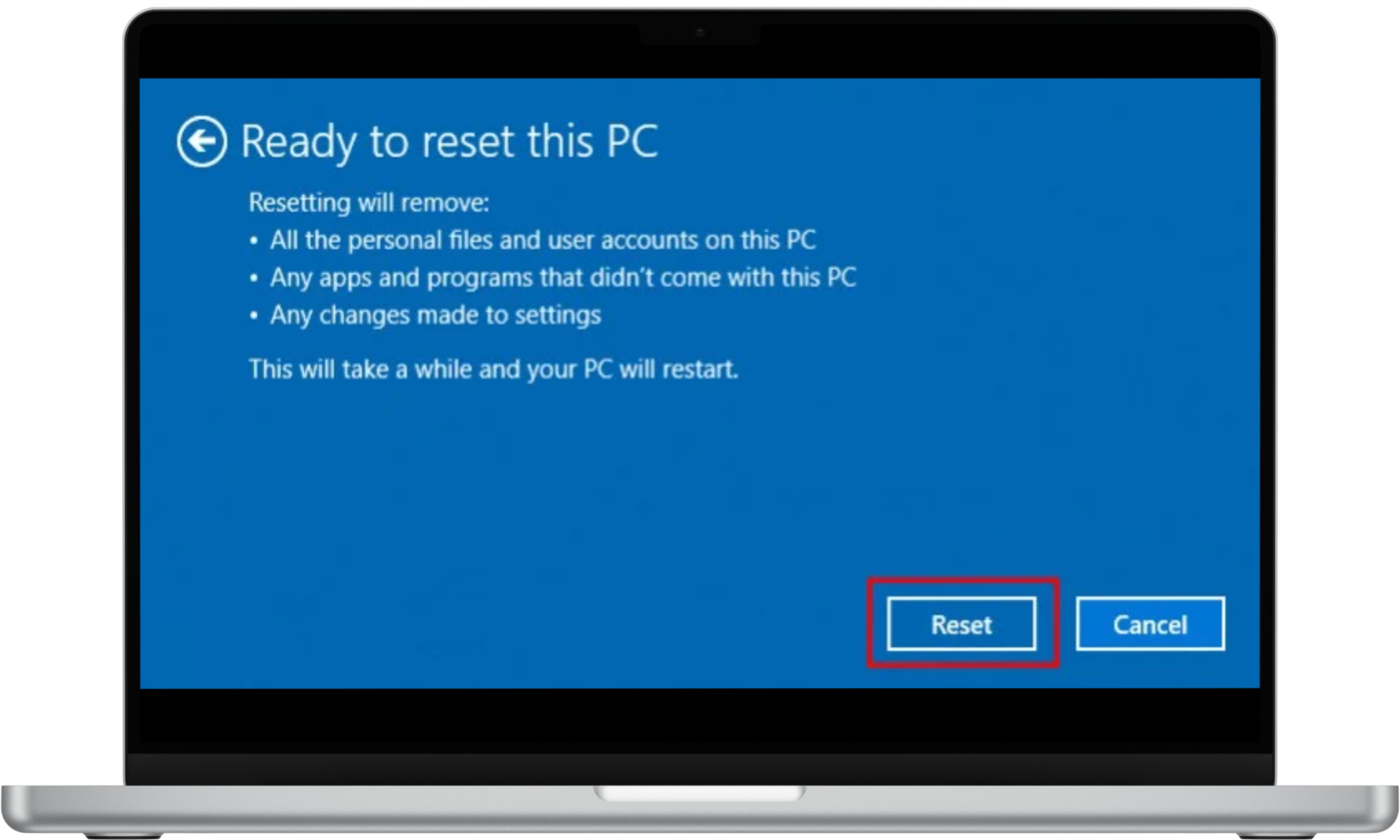
- Click Next if you see the warning that you won’t be able to go back to the previous version of Windows.
- Click Reset to start the process.
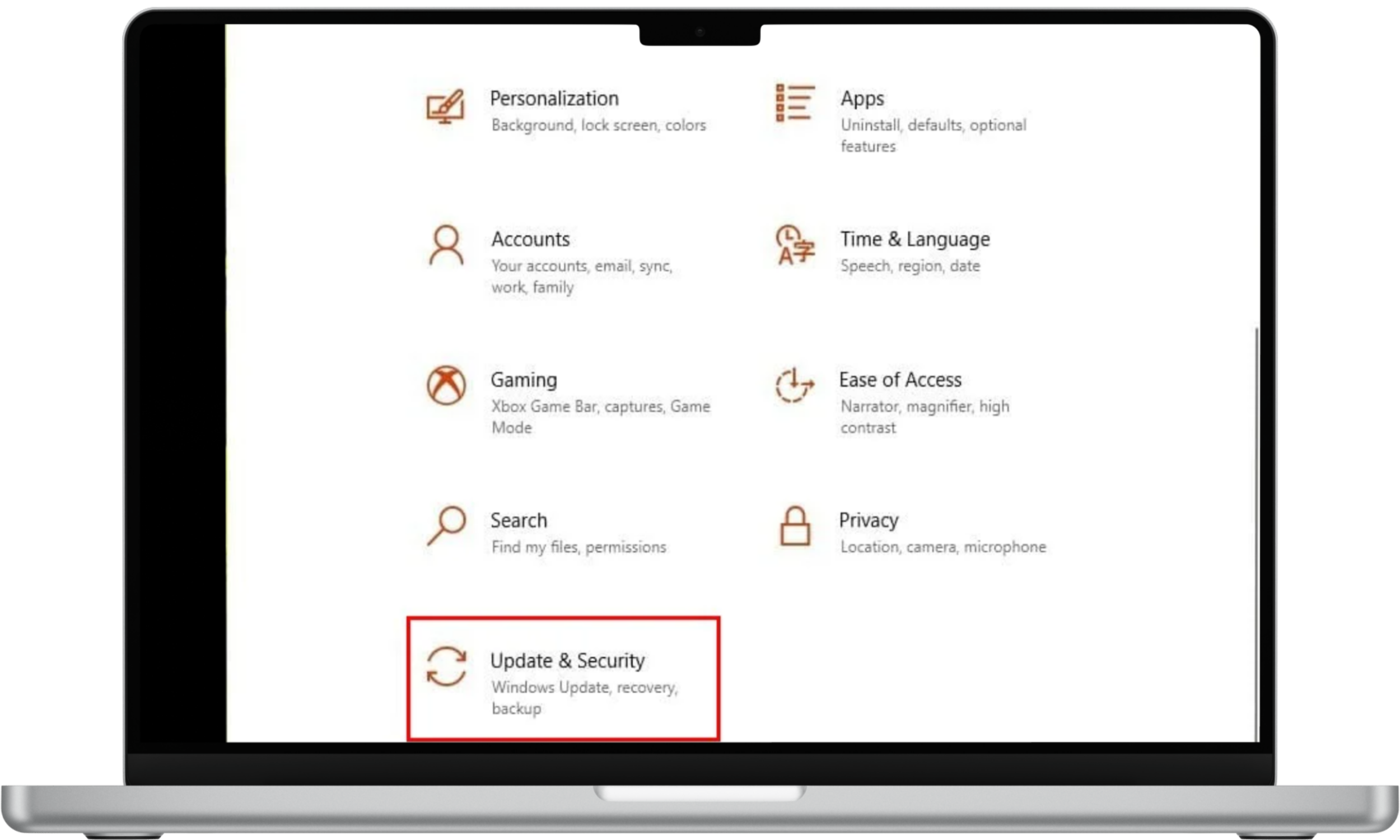
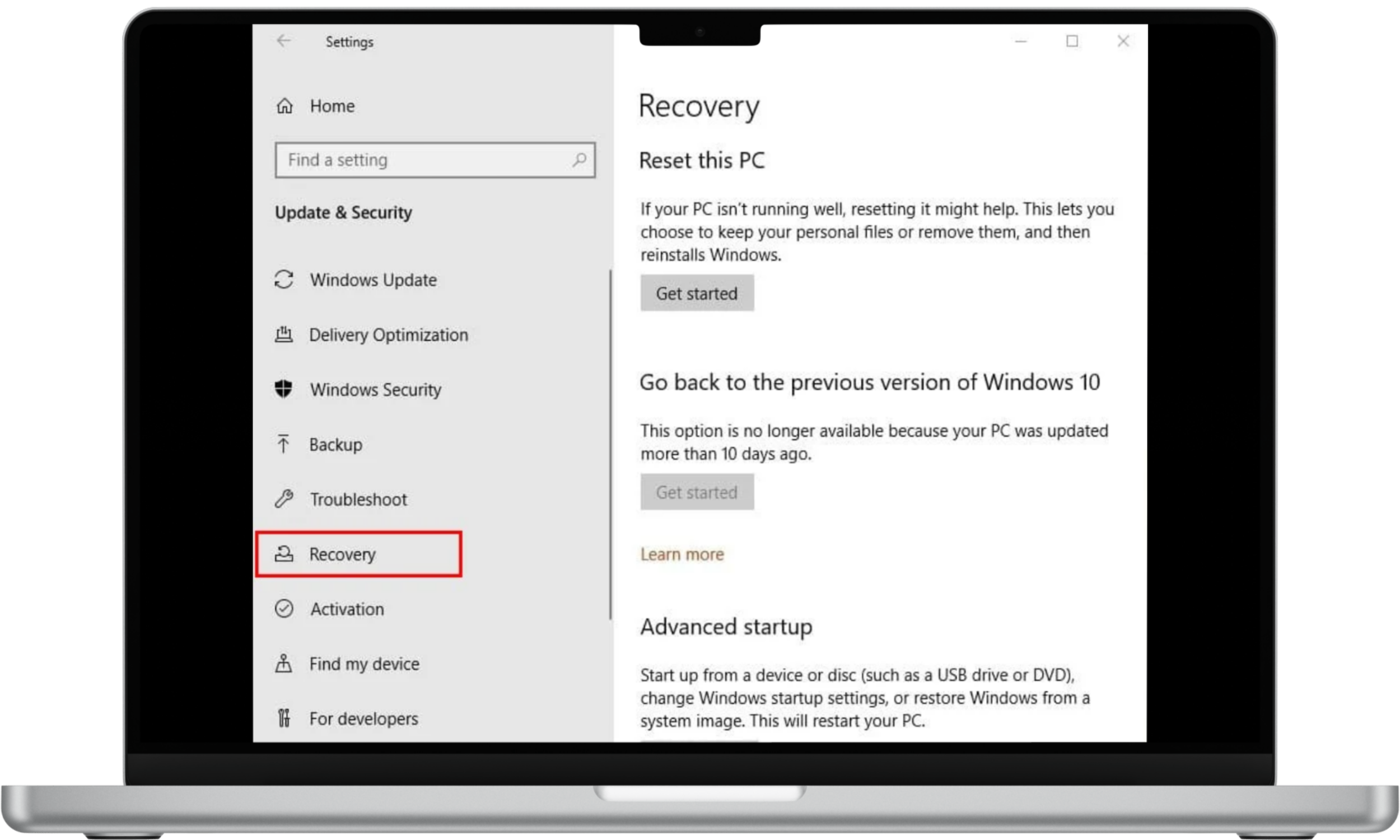
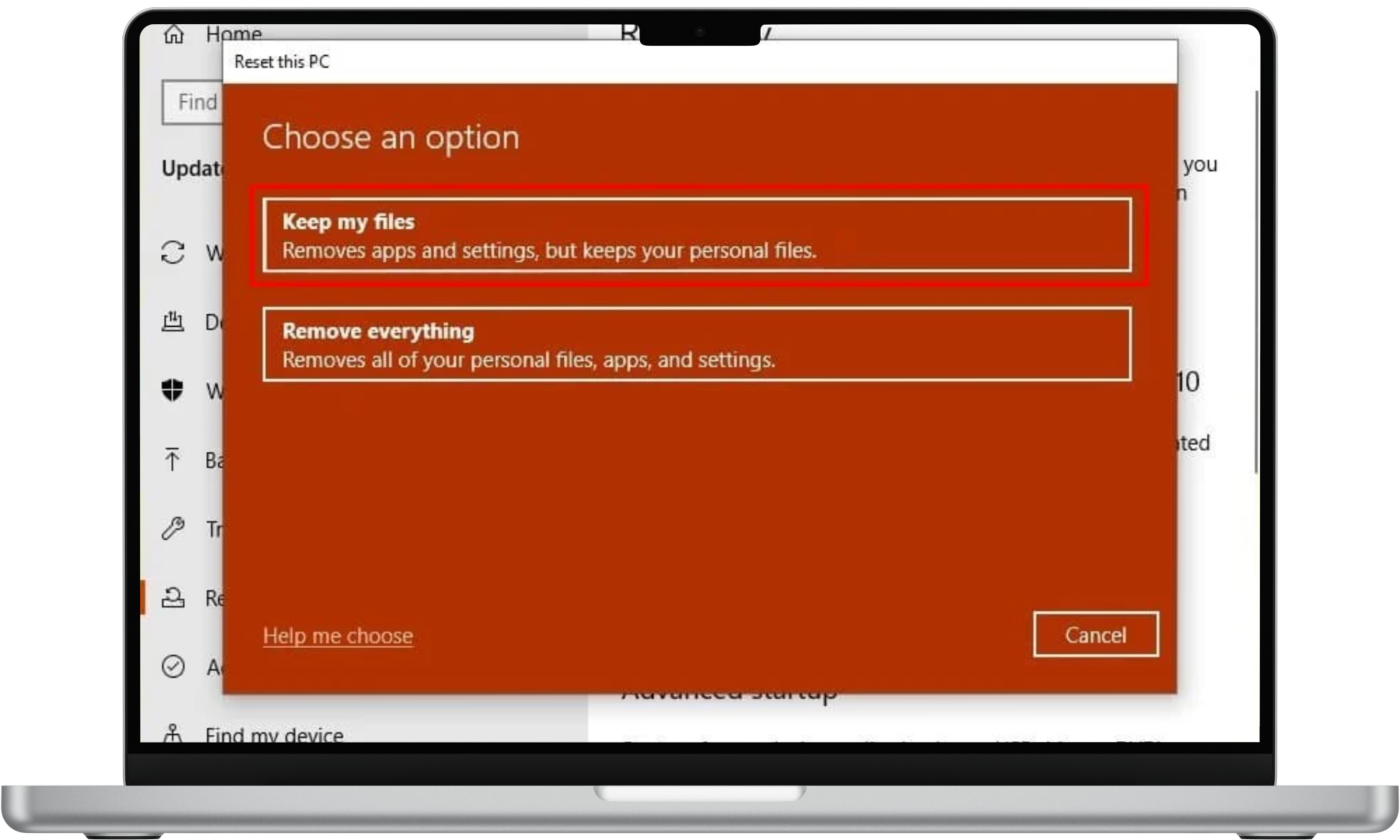
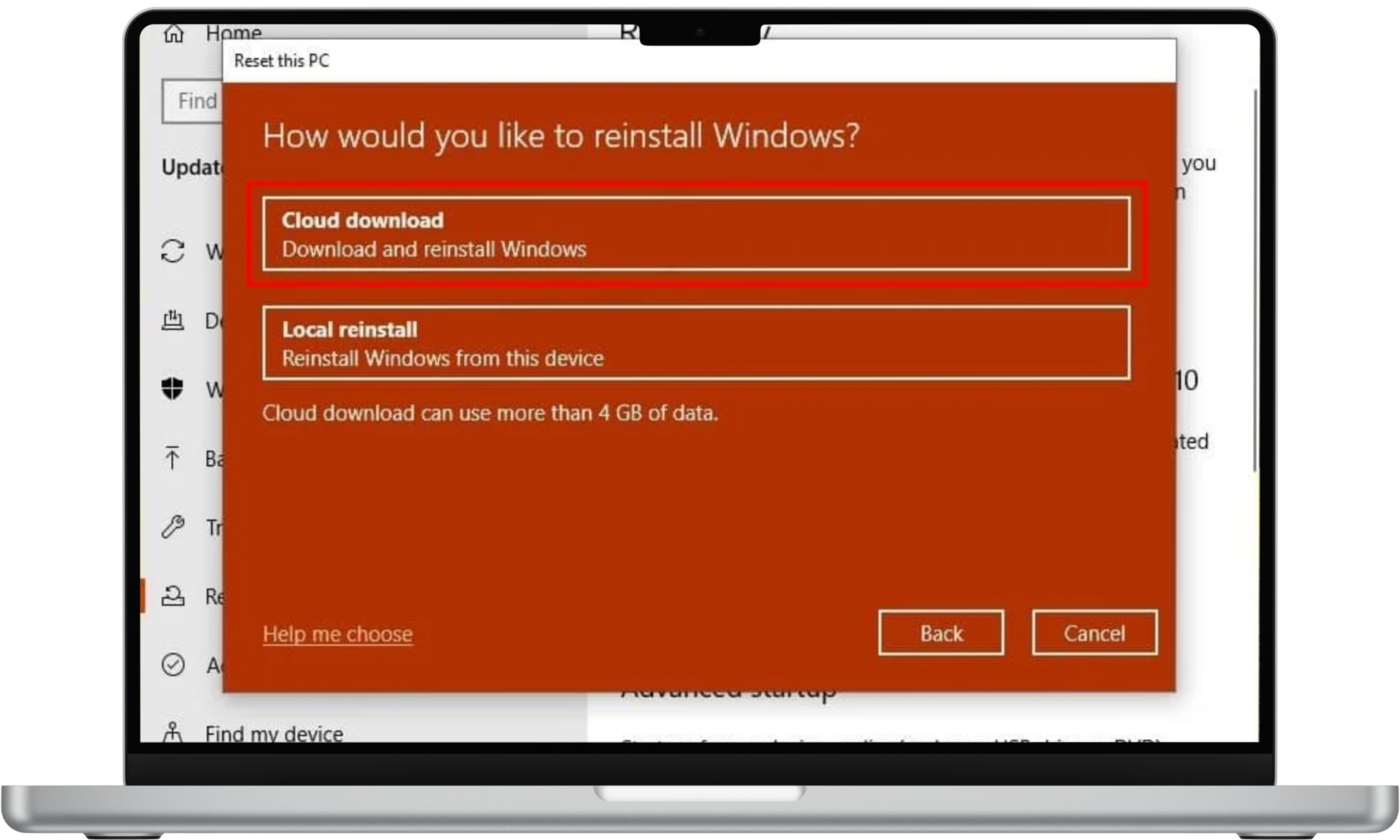
If you have Windows 10 prior to 2004, please check the instructions here.
How to remove bloatware on Android
Notice that this method might not uninstall bloatware completely, because the manufacturer wants some of those pre-installed applications to stay on your device. They might keep taking space, but with this process those applications will disappear from the Main menu and will not run in the phone's background.
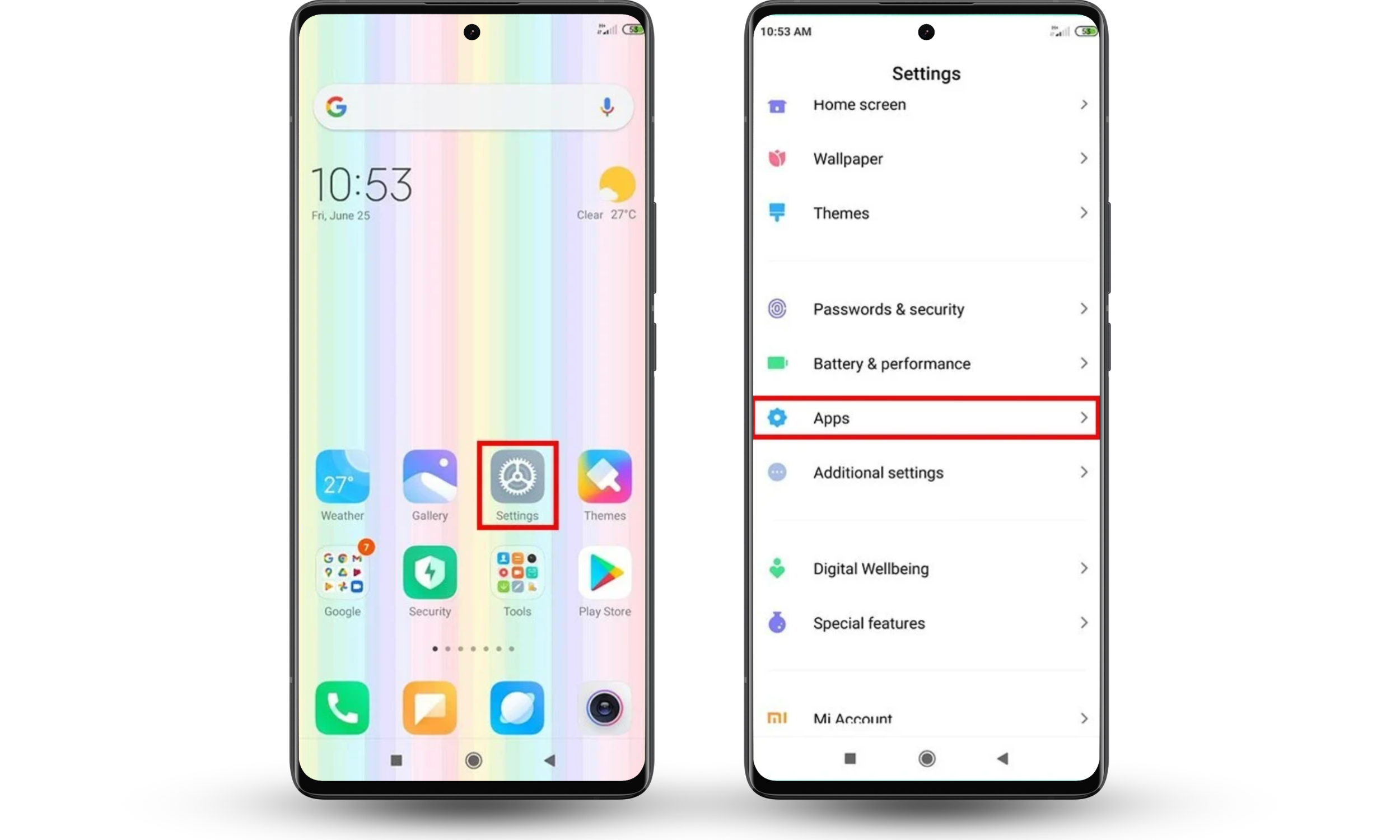
- First, go to your smartphone's Settings. This can be done from the Home Screen or through the App drawer.
- Scroll and look for the Apps submenu, then tap on it.
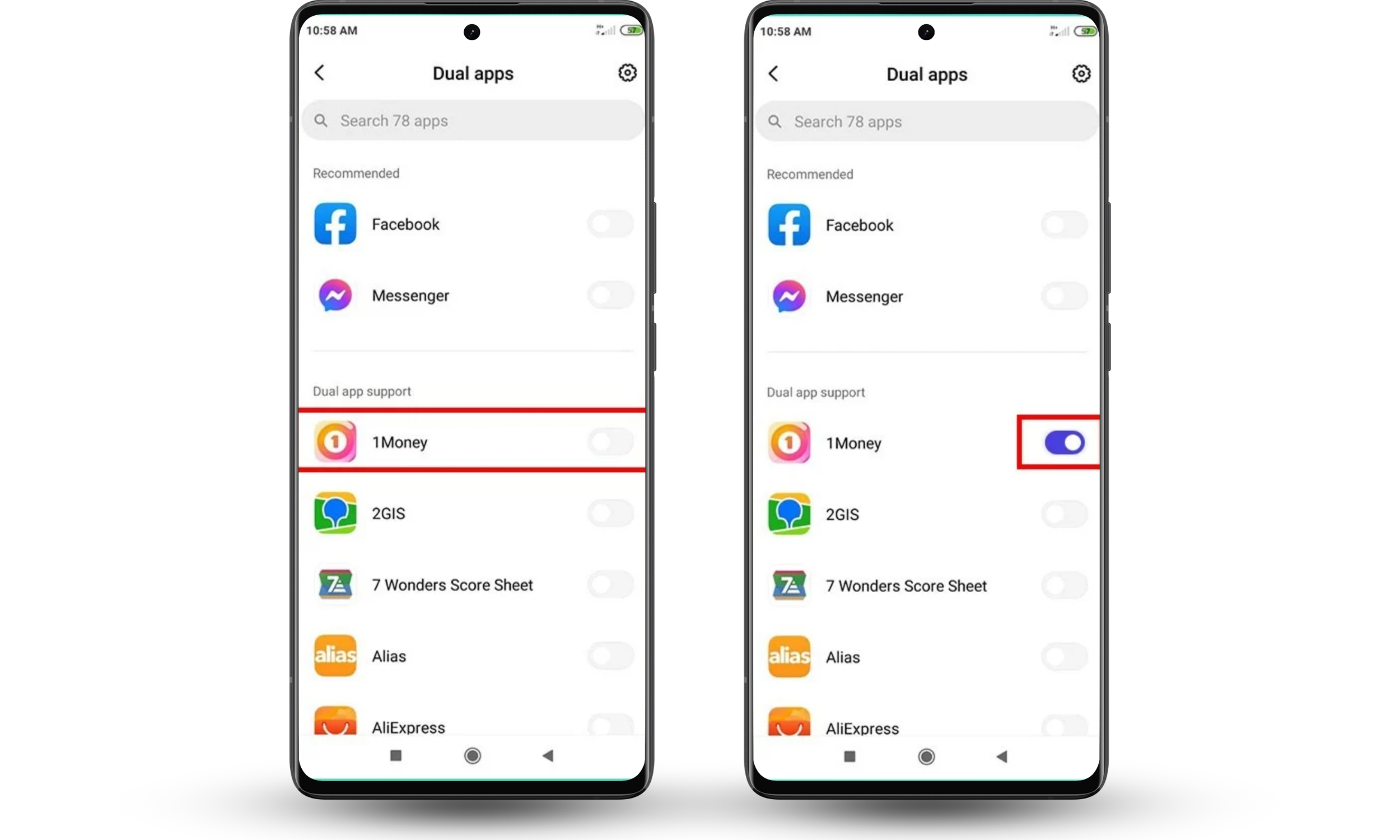
- Look for the App you want to delete, then tap it. Keep in mind that some applications cannot be uninstalled, mainly those concerning the manufacturer.
- Once you are in the application's settings, move the Switch to uninstall or disable the app.
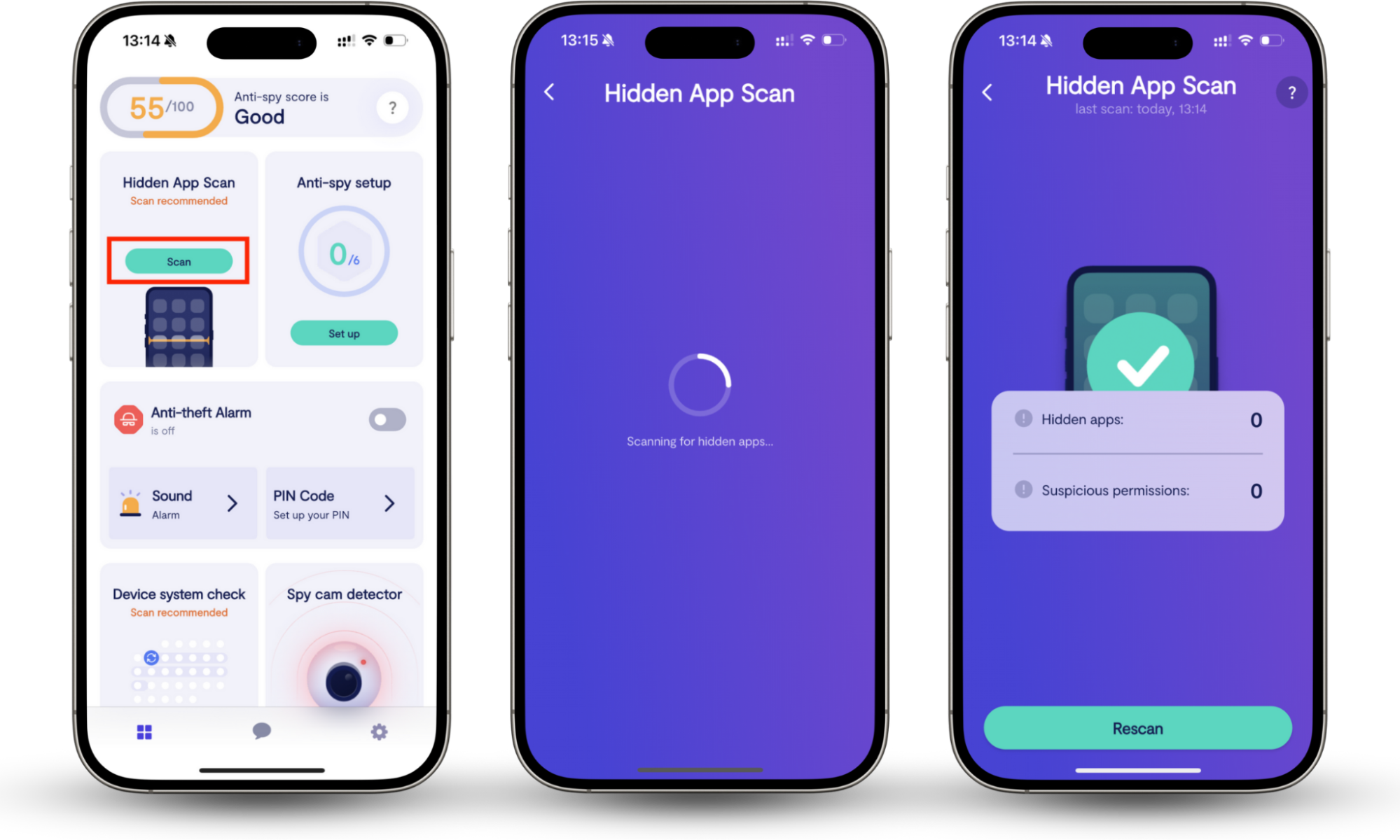
Because Android allows deeper system access, some unwanted apps may collect data or monitor activity without being obvious. In such cases, tools like Clario Anti Spy for Android are designed to look beyond visible apps. Its hidden app scan checks for spyware or monitoring software disguised as system or parental control apps and reviews app permissions to flag suspicious behavior.
If you are concerned about actual threats on your phone, use Clario Anti Spy to check for malicious software:
- Open Clario Anti Spy and select Scan under the Hidden app scan feature.
- Clario will run a full scan of your mobile device. This looks for signs of spying apps, like spyware and parental control apps that someone may have secretly installed.
- Review the results. The tool analyses all requested app permissions, helping you to detect suspicious ones that don’t belong.
How to remove bloatware on iOS
Even when iOS does not usually contain as much bloatware as Android, it is a good practice to check whether there are unused applications taking up your phone's valuable resources.
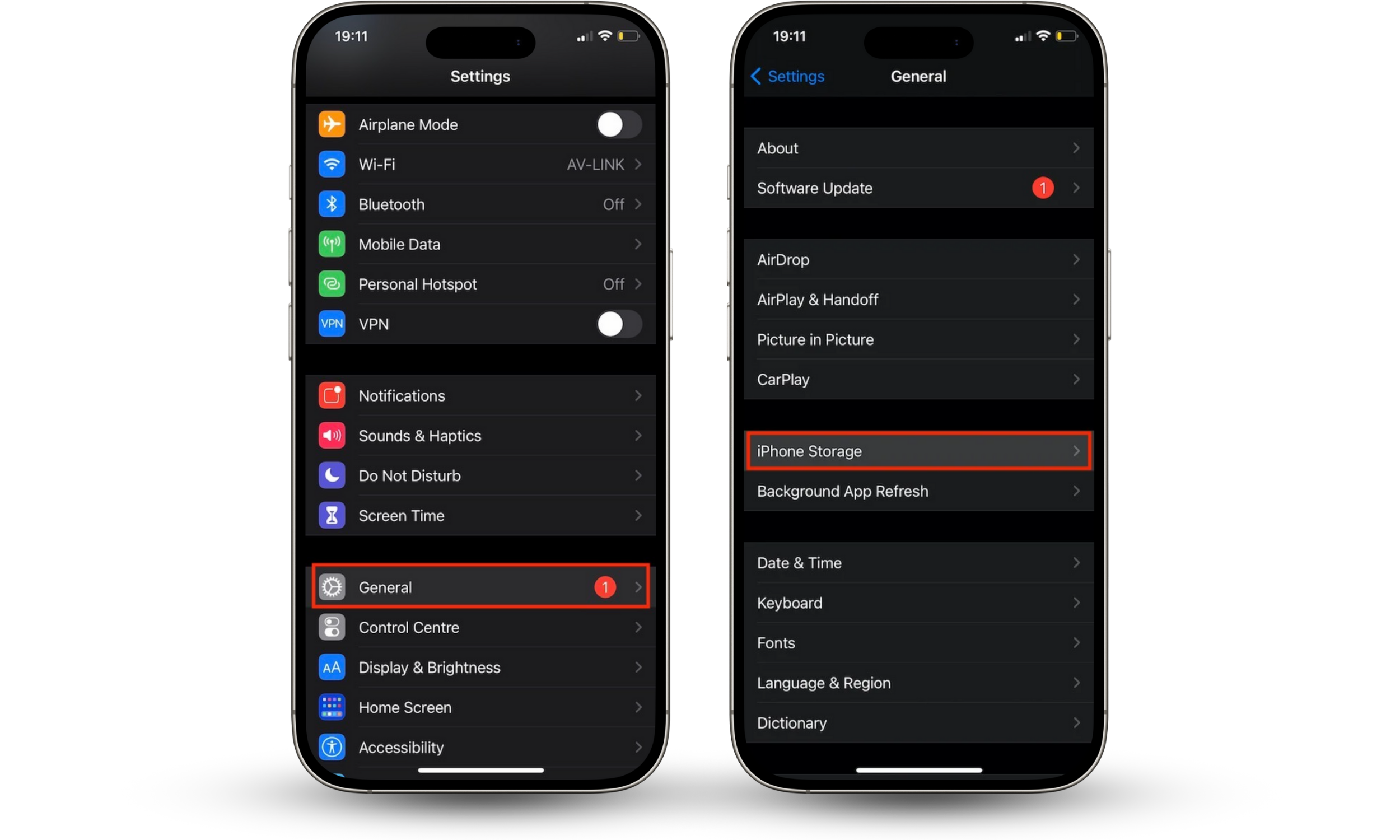
- Go to Settings and tap General.
- Then go to iPhone Storage.
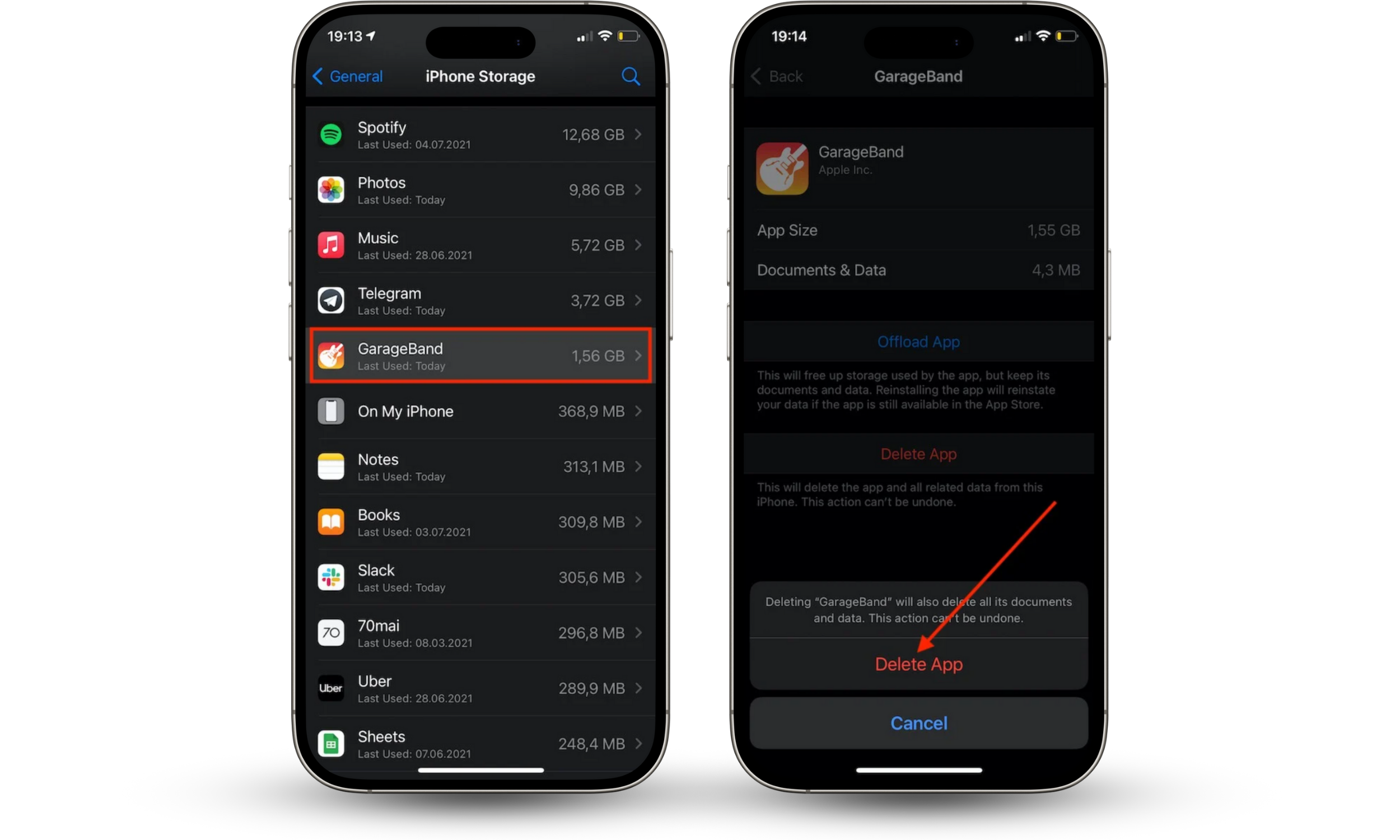
- Tap on the corresponding application.
- If you wish to keep the app's user settings while deleting the app, tap on Offload App. Otherwise, tap Delete App so you can completely remove it. Remember that offloading will naturally free less space than deleting.
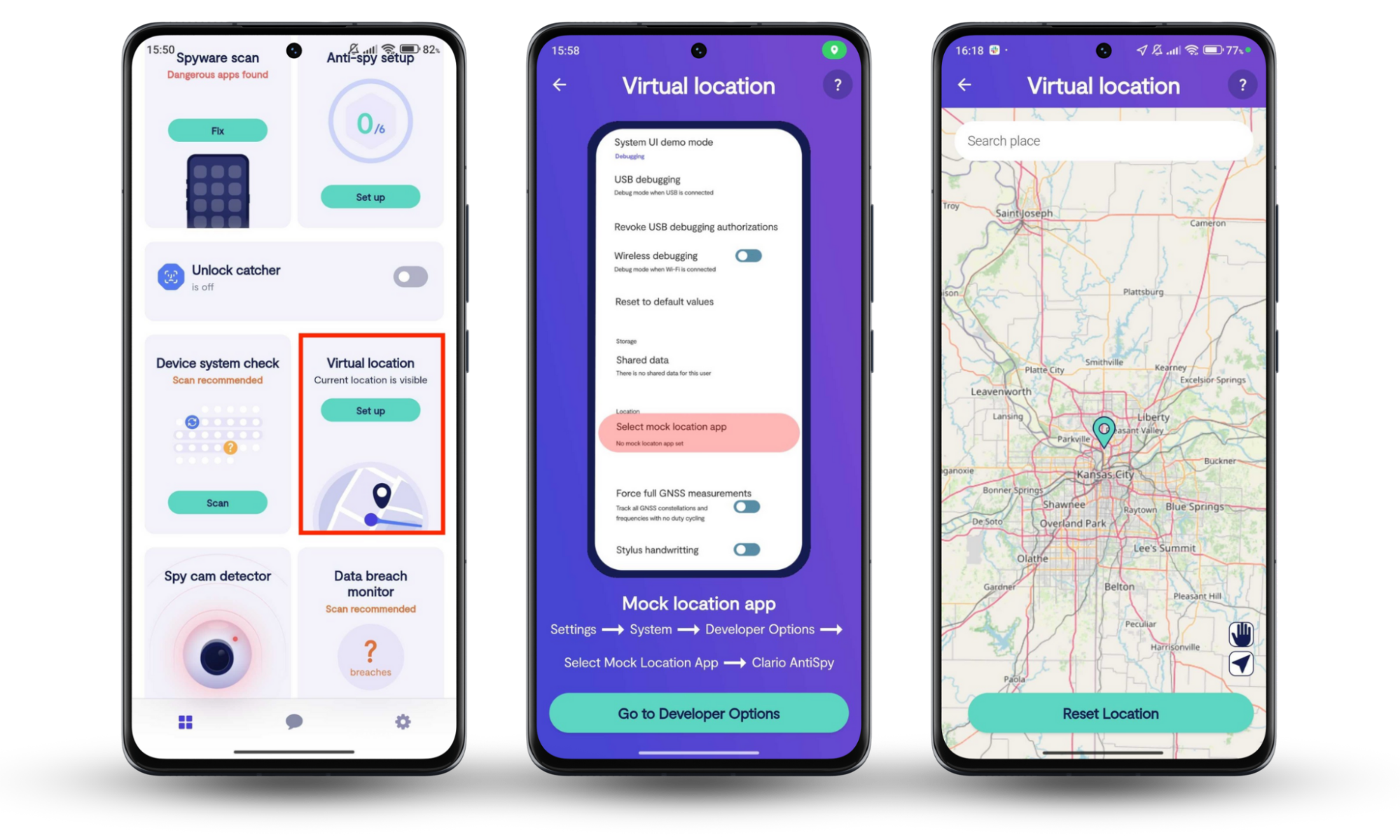
If you suspect that unused apps are doing more than just taking up space, additional checks may be needed. Some security tools, such as Clario Anti Spy for iOS, focus on identifying signs of spying rather than simple app clutter. For example, its data breach monitor scans the email address linked to your account for known data leaks and alerts you if exposed credentials could be accessed by third parties.
Here's how to check whether your information is compromised:
- Download Clario Anti Spy and subscribe.
- Open the app, and, under Data breach monitor, tap Scan.
- Enter your email address.
- When the scan is complete, follow the on-screen guidance to review any data breaches.
- Repeat the process for any other email addresses.
How to prevent bloatware
Since technology is always changing, there's no infallible way to prevent bloatware when downloading a program from the internet. Still, there are some tips that you can learn to prevent most of the annoying, and potentially harmful, issues that come with bloatware. Keep these guidelines in mind when downloading software to save yourself some trouble.
Preventing bloatware largely comes down to cautious installation habits. Many unwanted programs are added during setup rather than through direct downloads, so paying attention at each step can significantly reduce the risk.
Before downloading
First, make sure that you are in fact downloading a program from an official site, or at least a trustworthy resource, like Google Play, AppStore, MacUpdate, etc. This will also help you avoid downloading bundles of programs, which often contain bloatware among them.
Sometimes it is difficult to make sure a website is trustworthy. Sometimes, even when you do not really trust the site, it is the only place you can find the program you are looking for. If this is the case, then you would benefit from a cybersecurity software, such as Clario, to prevent and remove bloatware, among its other security features.
During installation
Once you download something and are in the installation process, read the information carefully and don't just click Agree automatically. Also, read the text in the checkboxes to verify that you are only installing what you need. Sometimes those boxes are clicked automatically and the program will download additional features and things you don’t need.
Conclusion
By understanding how bloatware works, where it comes from, and how to remove it safely across different devices, you can restore performance, reduce privacy risks, and keep your system running smoothly.
So, bloatware can be irritating and problematic, but you shouldn't be scared of it. If it does appear on your computer or smartphone, you will be able to get rid of bloatware any time following the steps reviewed above.
To make your life easier, try Clario Anti Spy’s all-round cybersecurity solution. It will protect your device from bloatware, as well as other kinds of malware, and save you time and headaches. Get Clario Anti Spy today!
FAQ
How do I know if I have bloatware?
Bloatware can be detected by end users by looking through the installed applications and identifying any they did not install. It can also be detected by an enterprise IT team using a mobile device management tool that lists all the installed applications.
Is bloatware a malware?
Short answer: No. Bloatware is a piece of unwanted software on your computer or smartphone. However, it can include malware like adware if injected via a malicious website.
Why is bloatware bad?
Bloatware runs in the background, ruining the battery life. Thus, the phone slows down. If you want to remove bloatware, then it becomes a hard choice. Doing so may cause a problem on your device.
Which bloatware is safe to remove from Windows 10?
Here are several Windows 10 apps and programs that are basically bloatware and you should consider removing:
- QuickTime
- CCleaner
- uTorrent
- Adobe Flash Player
- Shockwave Player
- Microsoft Silverlight
- Toolbars and Junk Extensions in your Browser
Does bloatware slow down your computer?
Firstly, bloatware can significantly slow down your computer. If you have lots of these programs loading in your device start-up or performing operations in the background, they can eat up your RAM. You should uninstall bloatware as soon as it begins to affect your device's performance.
Read more: