Table of contents
- Reasons why your phone is linked to computer
- 1. Cloud account synchronization
- 2. Messaging and communication
- 3. Specialized synchronization apps
- 4. Internet tethering and hotspot connections
- 5. USB cable connection for file transfer
- How to check if phone is connected to computer
- 1. Verify Apple ID device connection
- 2. Check Google account devices
- 3. Look for paired Bluetooth devices
- 4. Wi-Fi hotspot connection logs
- 5. Check Microsoft phone link settings
- 6. View Microsoft account device list
- How to stop your phone from linking to your computer
- Conclusion
Reasons why your phone is linked to computer
There are a few common reasons why your phone has a link to your PC. If messages, photos, or notifications appear on both devices, you're likely signed in with the same account on the system level. Phones and computers can also stay connected through sync apps, mobile hotspots, or even old Bluetooth connections you forgot were still active.
1. Cloud account synchronization
If you're signed in to the same Apple ID or Google account on both your phone and computer, they're automatically linked. This allows stuff like photos, contacts, calendars, notes, passwords, and even browser tabs to sync across devices. In the Apple ecosystem, features such as iCloud Drive, iPhone Mirroring, and Universal Clipboard all depend on using the same Apple ID.
If you're wondering whether these cloud accounts can be hacked and your data accessed, check our explainer on Is iCloud safe from hackers?
2. Messaging and communication
Many messaging and communication apps link your phone and computer so you can send and receive messages from either device. Examples include iMessage on Mac, WhatsApp Web, Telegram Desktop, and Microsoft Phone Link. These tools sync your conversations, display notifications on your computer, and, in some cases, even allow you to make or receive calls without touching your phone.
3. Specialized synchronization apps
Some apps are built specifically to sync data between your phone and computer. This includes tools like iTunes or Finder for iPhone, as well as Google Drive desktop, Dropbox, and OneDrive. Cross-platform apps, such as Google Chrome and Google Photos, also sync data across devices—e.g., allowing you to access photos from an Android phone on a Mac.
4. Internet tethering and hotspot connections
If your computer is using your phone's internet connection, the two devices may look linked even though they can't access each other's files. Internet tethering and hotspot connections usually work in three ways:
- Wi-Fi hotspot: Your phone acts like a router for your computer (and on Windows, it can also work the other way around).
- Bluetooth tethering: Your phone shares its internet connection over Bluetooth.
- USB tethering: Your phone provides internet access through a USB cable.
In most configurations, Wi-Fi and Bluetooth hotspots can reconnect automatically when the devices are nearby.
5. USB cable connection for file transfer
Connecting your phone to a computer with a USB cable links the two right away. Your phone may switch to file transfer mode, letting the computer access photos, videos, or documents. Even if you're just charging, most cables can still carry data and create a temporary connection. In some cases, the device may continue to appear in Finder or File Explorer until the connection refreshes.
If you're worried about privacy and notice your phone connected to a computer you don't recognize, it's worth checking that your device hasn't been compromised. An anti-spyware solution like Clario Anti Spy can help. Its Device system check looks for signs of jailbreaking or rooting, while the Anti-spy setup helps secure your phone and online accounts.
Here's how to protect your phone with Clario Anti Spy:
- Download Clario Anti Spy and subscribe to create an account.
- Tap Scan under Device system check to look for system-level security issues.
- Tap Set up under Anti-spy setup and follow each step to improve your privacy and security.

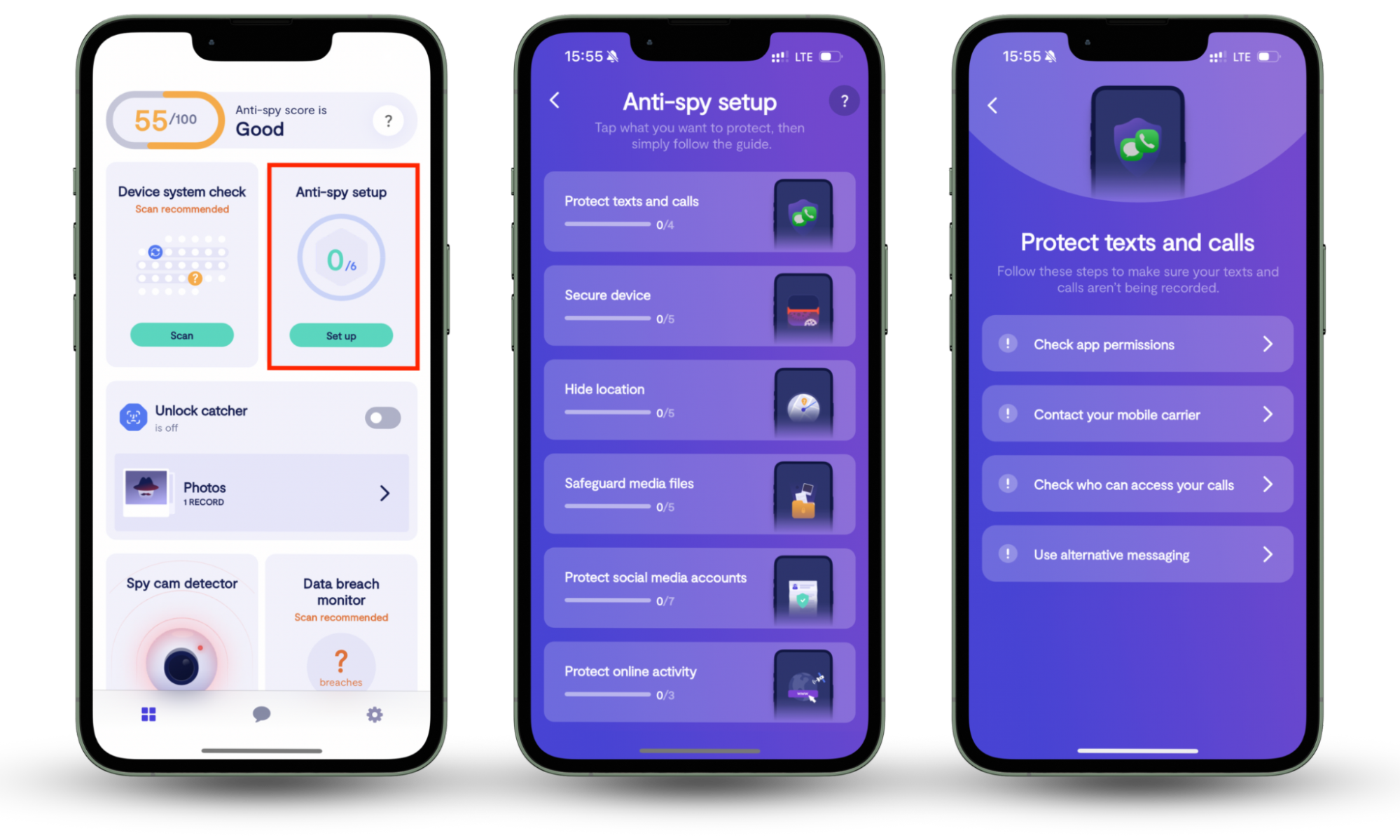
Clario Anti Spy can also detect suspicious apps that may be monitoring your activity or causing unexpected device connections. To check for this, tap Scan under Hidden App Scan.
If you need help at any point, tap the Messages icon to chat with a security expert 24/7. Clario experts provide assistance with all sorts of privacy concerns, and here's what one of them shared about a real customer case:
"The client reached out to us with concerns that his phone may have been compromised by spyware, which he suspected had been covertly installed by his spouse. According to the client, his wife seemed to possess an uncanny awareness of his private conversations and whereabouts, leading him to believe that his device was being monitored without his consent.
In response, we recommended utilizing our Spyware Scan feature—a tool specifically designed to detect unauthorized or potentially malicious applications that may be used for surveillance purposes.
Upon initiating the scan, several suspicious applications were flagged by the system. We advised the client to carefully review the list and confirm whether he had knowingly installed any of the detected apps. After his review, he affirmed that he did not recognize or recall downloading the majority of them.
Based on this, we provided step-by-step guidance on how to locate and securely remove each of the flagged applications to restore the integrity of the device.
To further enhance his digital privacy, we also recommended adjusting his device’s location settings, including revoking unnecessary permissions from apps that had access to real-time geolocation data.
The client expressed sincere gratitude for our support, stating that the assistance brought him considerable peace of mind, and assured us that he would not hesitate to contact us again should he require further help in the future."
How to check if phone is connected to computer
If you're trying to figure out why your phone is connected to your computer, start by checking any shared cloud accounts, Bluetooth pairings, hotspots, and syncing apps. Review the devices linked to your Apple ID, Google account, or Microsoft account (including services like Phone Link). These actions can help you determine whether the connection is coming from syncing, messaging, internet sharing, or file transfers.
1. Verify Apple ID device connection
To check if your iPhone and computer are linked, go to your Apple ID's devices list. If your PC or Mac shows up there, it's connected via iCloud or Continuity features.
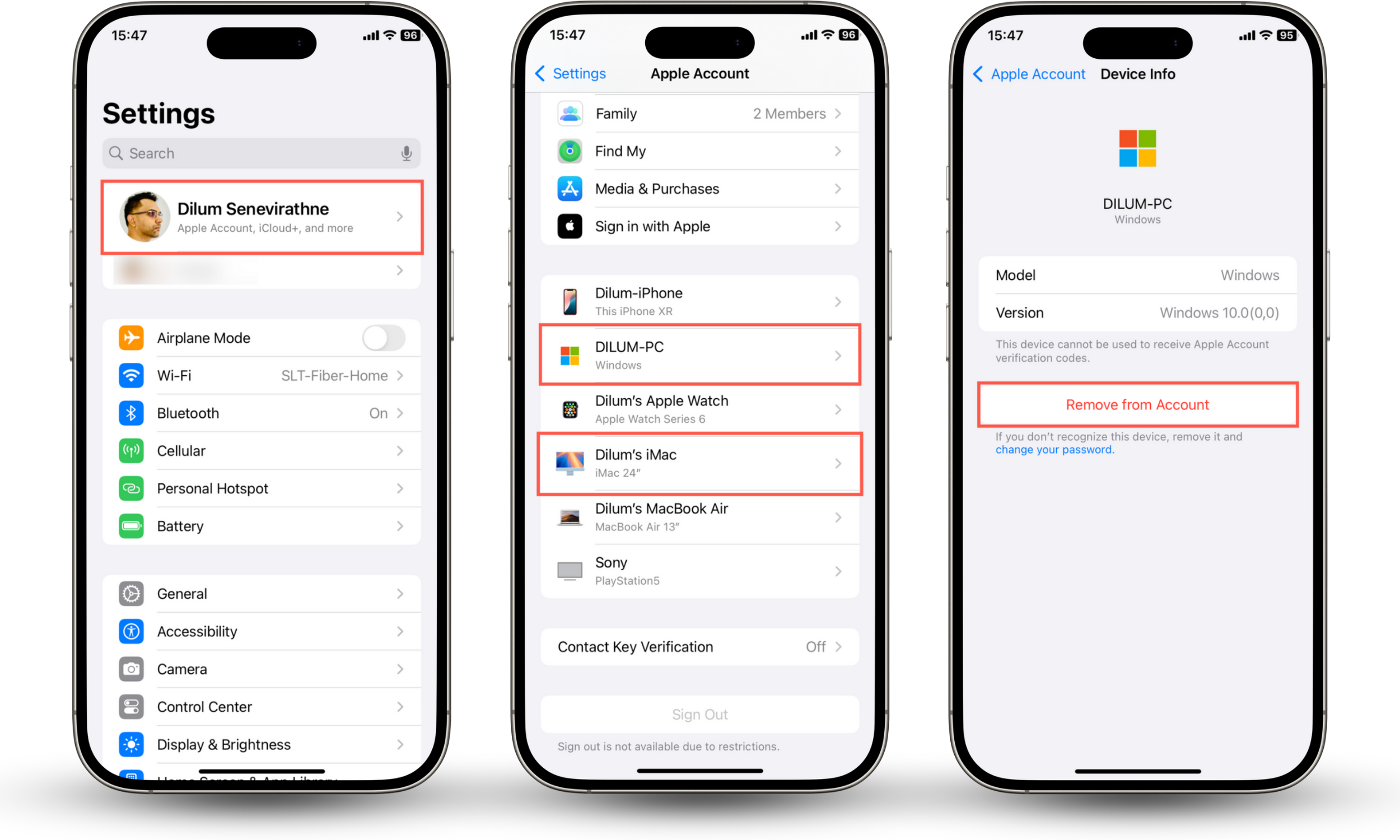
Here's how to verify your Apple ID device connection:
- Open the iPhone's Settings app and select your Apple ID.
- Scroll down and view the list of connected devices.
- If you see a computer you no longer use, tap it and select Remove from Account. Or, go to Apple ID > iCloud to manage what type of data is syncing between devices through iCloud.
Good to know
Someone can remotely access your Mac or iPhone if your Apple ID credentials get compromised, so make sure to turn on two-factor authentication via Apple ID > Sign-In & Security > Two-Factor Authentication.
2. Check Google account devices
Your Google account shows all the phones, computers, and browsers currently signed in. Services like Chrome Sync, Google Drive, and Android backups can link your phone and computer without you realizing it.
Here's how to check your Google account devices:
- Open Google Chrome on your Android and sign into your Google account.
- Go to Security & sign-in > Your devices > Manage devices.
- If your computer appears here and you want to remove it, tap and select Sign out.
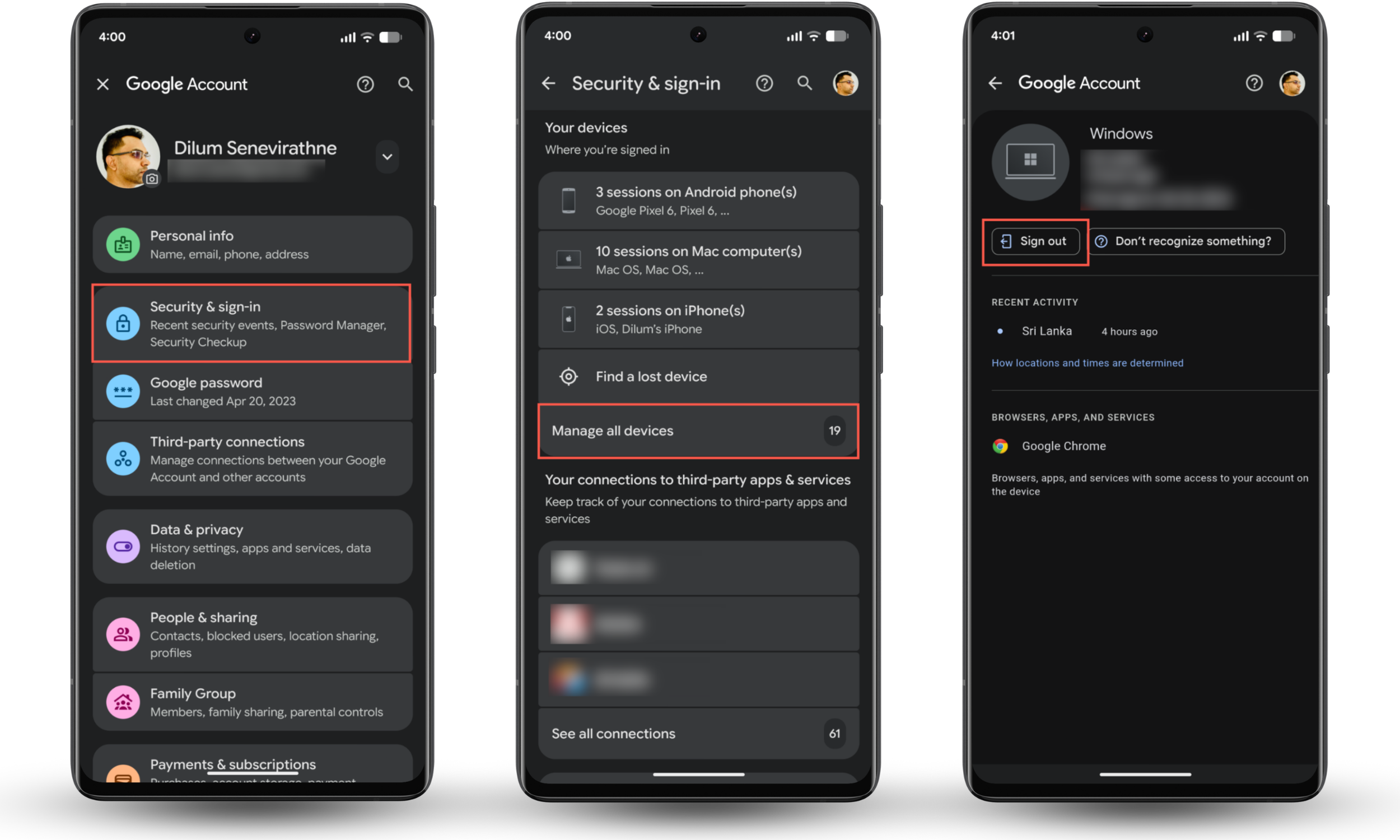
On Android, you can head to Settings > Passwords, passkeys & accounts > Google account > Account sync to manage exactly what type of data is syncing through your Google account.
3. Look for paired Bluetooth devices
Next, check the Bluetooth settings on both your phone and computer. On iPhone, go to Settings > Bluetooth, and on Android, visit Settings > Connected devices. If your computer shows up as a paired device, try unpairing it to break the connection.
4. Wi-Fi hotspot connection logs
Is your phone showing up on your computer's saved Wi-Fi list? This is caused by Wi-Fi tethering. You can confirm if the feature is active on your phone by heading over to Settings > Personal Hotspot (iPhone) or Settings > Network & internet > Hotspot & tethering (Android).
To prevent the two devices from auto-joining, either disable the hotspot on your phone or remove it from the Wi-Fi networks list on your computer.
5. Check Microsoft phone link settings
Microsoft Phone Link is a service that syncs messages, calls, photos, and notifications from Android or iPhone to Windows PCs. if you think you may've used it in the past, try checking if there's an active connection.
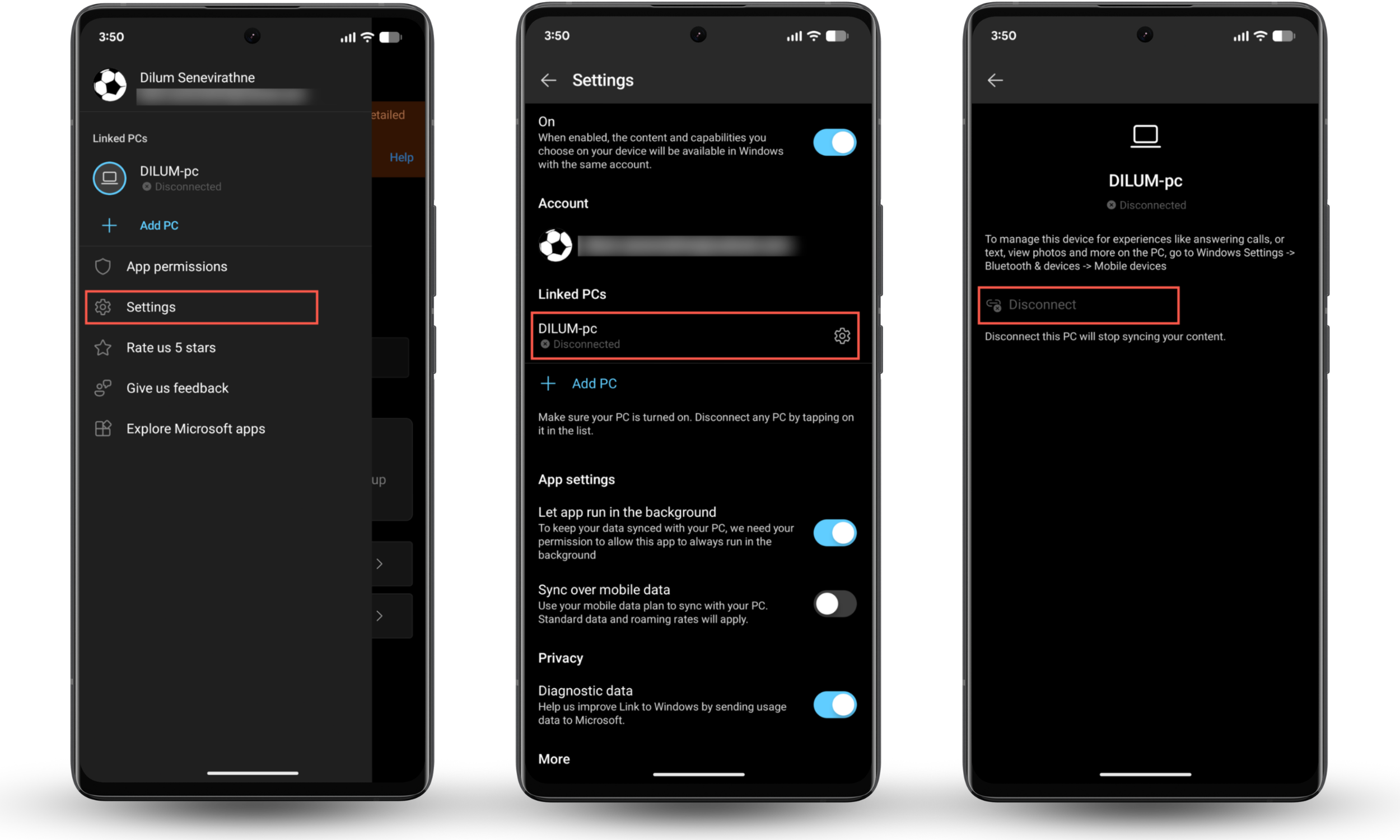
Here's how to check your Phone Link settings:
- Search your iPhone or Android for the Link to Windows app. If it's there, open it.
- Tap your Microsoft profile portrait on the top left and select Settings.
- Check under Linked PCs. If your PC shows there, tap and select Disconnect to disable the link.
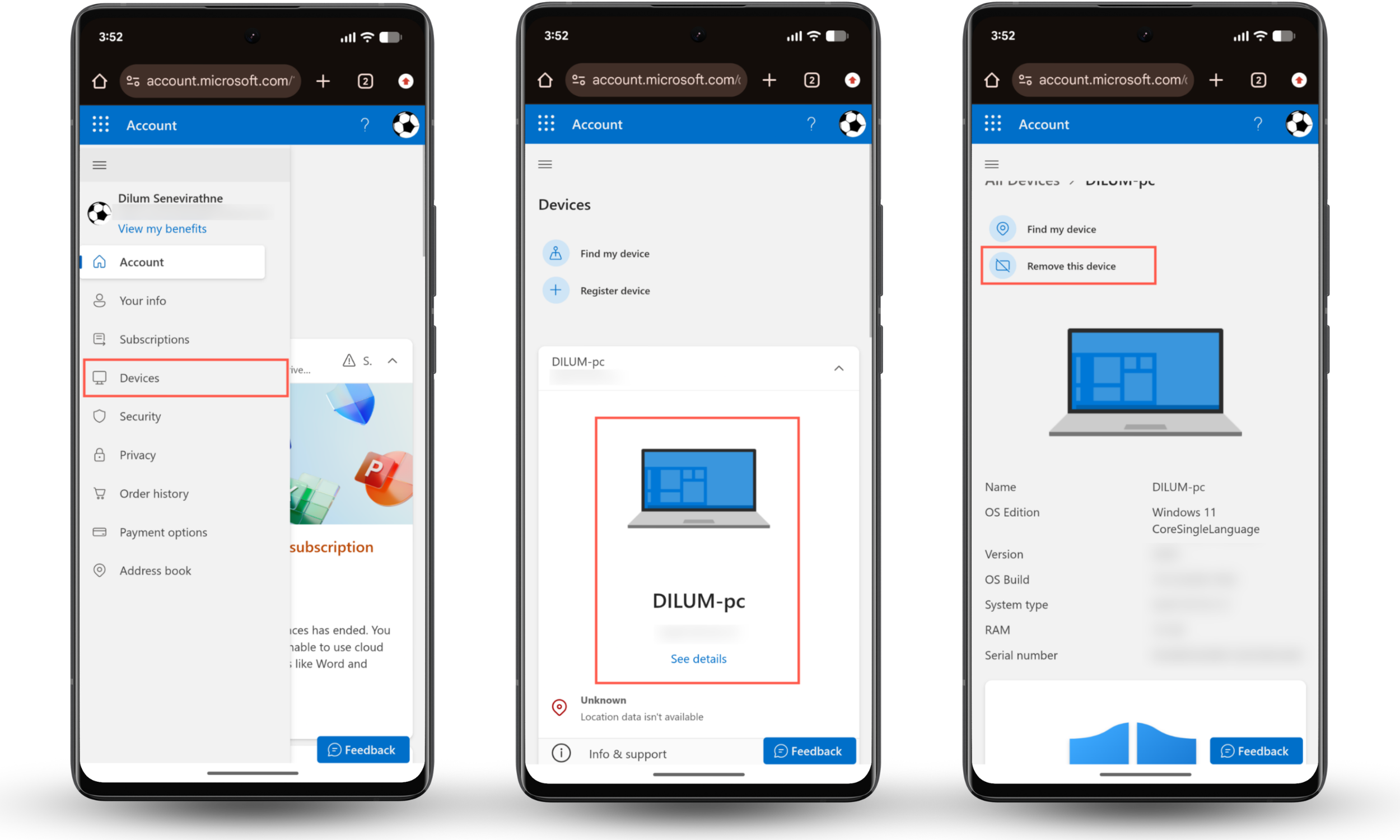
6. View Microsoft account device list
Your Microsoft Account can also reveal what devices are connected to it. It's best used to remove any computers that you no longer use from linking to the rest of your devices.
- Sign into your Microsoft account via a web browser.
- Go to the Devices section.
- To remove a computer from your account, tap its name and select Remove this device.
If you use a Windows PC, you might also want to reduce the amount of data that Microsoft collects. Check our guide on how to stop Windows spying on you for instructions.
How to stop your phone from linking to your computer
To stop your phone from linking to your computer, make sure that you do the following:
- Check your account settings and sign out of shared Apple, Google, or Microsoft accounts, or remove devices you no longer use.
- If you don't want to sign out completely, review your cloud sync settings and turn off any data types you don't want syncing.
- Look through your Bluetooth device lists and remove pairings you no longer recognize or use.
- Turn off hotspot or tethering, or forget your phone or PC as a saved network to prevent future connections.
- Disconnect any USB cables to stop data transfers. On Android, you can also go to Settings > System > Developer options > Default USB configuration and select No data transfer to prevent data transfers over USB.
- Configure specialized services like Phone Link to disable syncing if you don't want your devices connected.
If your PC appears to connect to a phone you don't recognize, check out our guide on how to know if someone is spying on your computer.
Conclusion
Shared accounts, syncing services, messaging apps, and network connections all play a part in your phone linking to your PC. While these features can be helpful and save time, they can feel confusing if you don't realize they're active. Checking your account settings and connections helps you see what's linking your devices so that you can stay in control.
If privacy is a concern, use Clario Anti Spy features like Device system check and Anti-spy setup to boost the security of your phone and reduce the risk of unauthorized connections.