Table of contents
- Why do apps track iPhones?
- What is the iPhone App Tracking Transparency (ATT) framework?
- How to turn off iPhone tracking
- How to turn off ad tracking on iPhone
- How to block apps tracking on iPhone
- How to disable iPhone analytics sharing
- Keep your iPhone safe from trackers
Why do apps track iPhones?
Apps track iPhones primarily to collect user data for advertising, analytics, and personalization purposes. This tracking often relies on device identifiers like the Identifier for Advertisers (IDFA) to monitor behavior across apps and websites. The collected data helps companies build user profiles, measure ad effectiveness, and optimize content delivery based on individual preferences and usage patterns.
While it can be useful to see ads that are more tailored to your interests, you may not want every app on your phone to have access to all of your personal data. In some cases, data collected by apps can have negative effects on iPhone users by affecting things like insurance premiums, ticket prices, and so on.
Common types of data collected through app tracking include:
- Device identifiers (such as IDFA)
- Location data (precise or approximate)
- App usage behavior (time spent, actions taken)
- Purchase and browsing signals
- Demographic inferences based on behavior patterns
For example, a shopping app may track which products you view and how long you interact with them, then use that data to show similar products in other apps or platforms.
Important to know
Not all tracking is inherently harmful or unnecessary. Some forms of data collection are required for core app functionality, such as remembering preferences or maintaining login sessions. However, cross-app tracking for advertising and profiling raises the most privacy concerns.
Thankfully, Apple is continually developing tools to help users control how much data they are comfortable sharing and with whom. One of these tools is the App Tracking Transparency framework, which can be changed with the iPhone app tracking settings. But, how does it work?
What is the iPhone App Tracking Transparency (ATT) framework?
The App Tracking Transparency (ATT) framework is a privacy feature introduced by Apple in iOS 14.5 that requires apps to obtain explicit user permission before tracking data across apps and websites. It specifically governs access to the Identifier for Advertisers (IDFA), giving users control over whether their activity can be used for targeted advertising and cross-app profiling.
However, there are some things that the iPhone App Tracking Transparency framework doesn't cover. For example, it doesn't stop apps from tracking your Internet Service Provider (ISP) or using cookies to track you across the web. The ATT framework also doesn't protect you from data collected by social media platforms which you remain logged into when browsing the web.
In the same vein, the ATT framework also doesn't stop apps from using "Sign In with Apple" to track you. However, it is a big step forward in terms of giving users more control over their data. Here's how to turn off tracking on iPhone with ATT.
How to turn off iPhone tracking
Turning off iPhone tracking using App Tracking Transparency prevents apps from requesting permission to track your activity across other apps and websites. This limits access to your advertising identifier (IDFA), reducing personalized ad targeting. However, it does not fully stop all forms of tracking, as some data collection may still occur within apps or through network-level methods.
If your goal is to make sure fewer apps have access to your data, the first thing you need to do is update your iPhone to iOS 14.5 or later. Once you have done that, you'll have access to Apple's latest privacy and safety features that come with it.
Follow these steps to turn off app tracking transparency requests:
- Open the Settings app on your iPhone.
- Tap Privacy.
- Tap Tracking.
- Under Allow Apps to Request to Track, turn the toggle switch off.
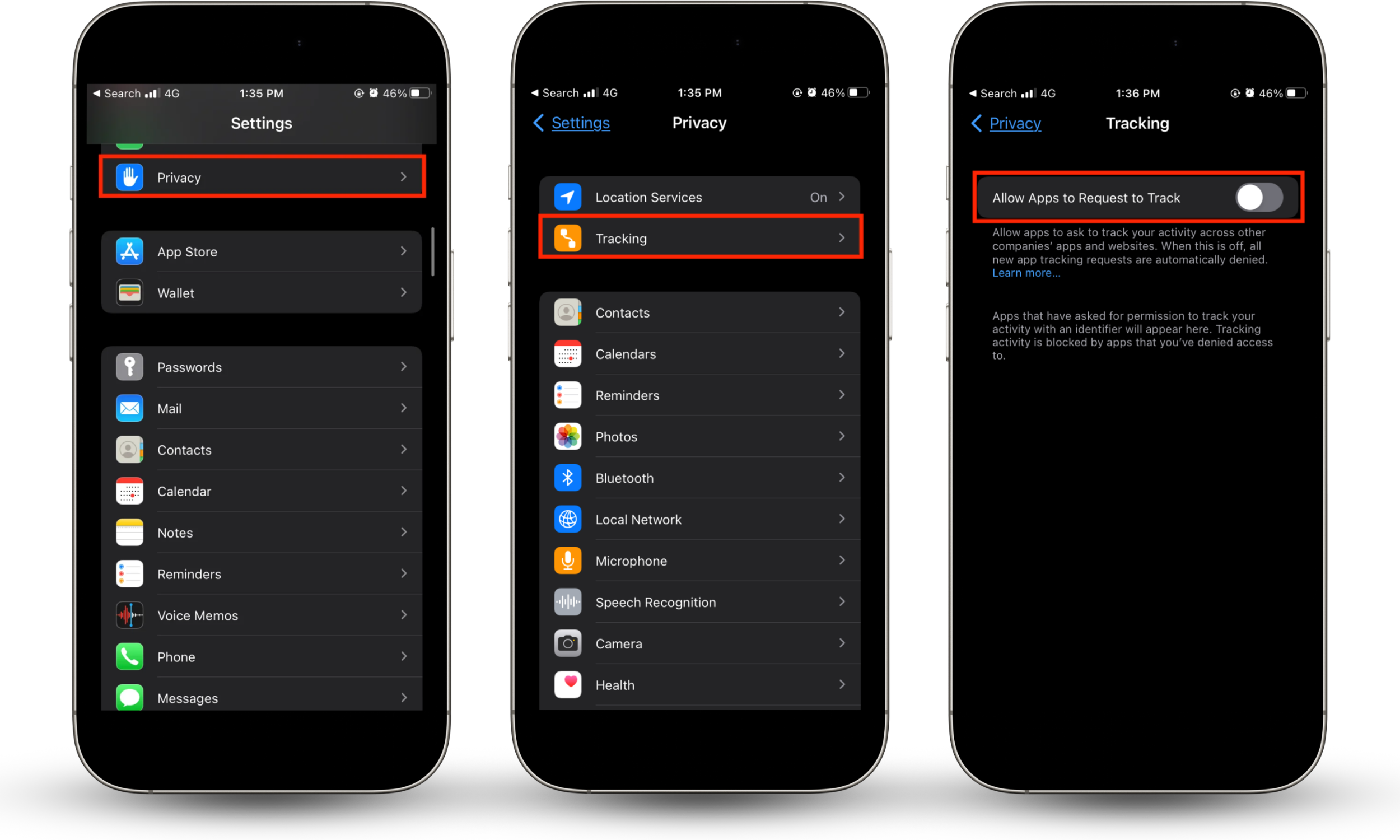
With this setting turned off, apps will no longer be able to track you for advertising purposes. However, this feature is not the same as how to stop apps from tracking you on iPhone completely—it simply prevents apps from using the ATT framework to track you.
How to turn off ad tracking on iPhone
Turning off personalized ads on iPhone limits how Apple uses your data to deliver targeted advertising within its own advertising platform. This setting affects Apple Ads specifically and reduces the use of your app activity and interests for ad personalization, but it does not eliminate ads entirely or stop third-party apps from showing their own advertisements.
Once you have disabled app tracking transparency requests, the next step is to limit ad tracking on your iPhone altogether by turning off personalized ads.
Here's how you can disable personalized ad tracking on iPhone:
- On your iPhone, open the Settings app.
- Choose Privacy.
- Tap Apple Advertising.
- Next to Personalized ads, toggle off the button.
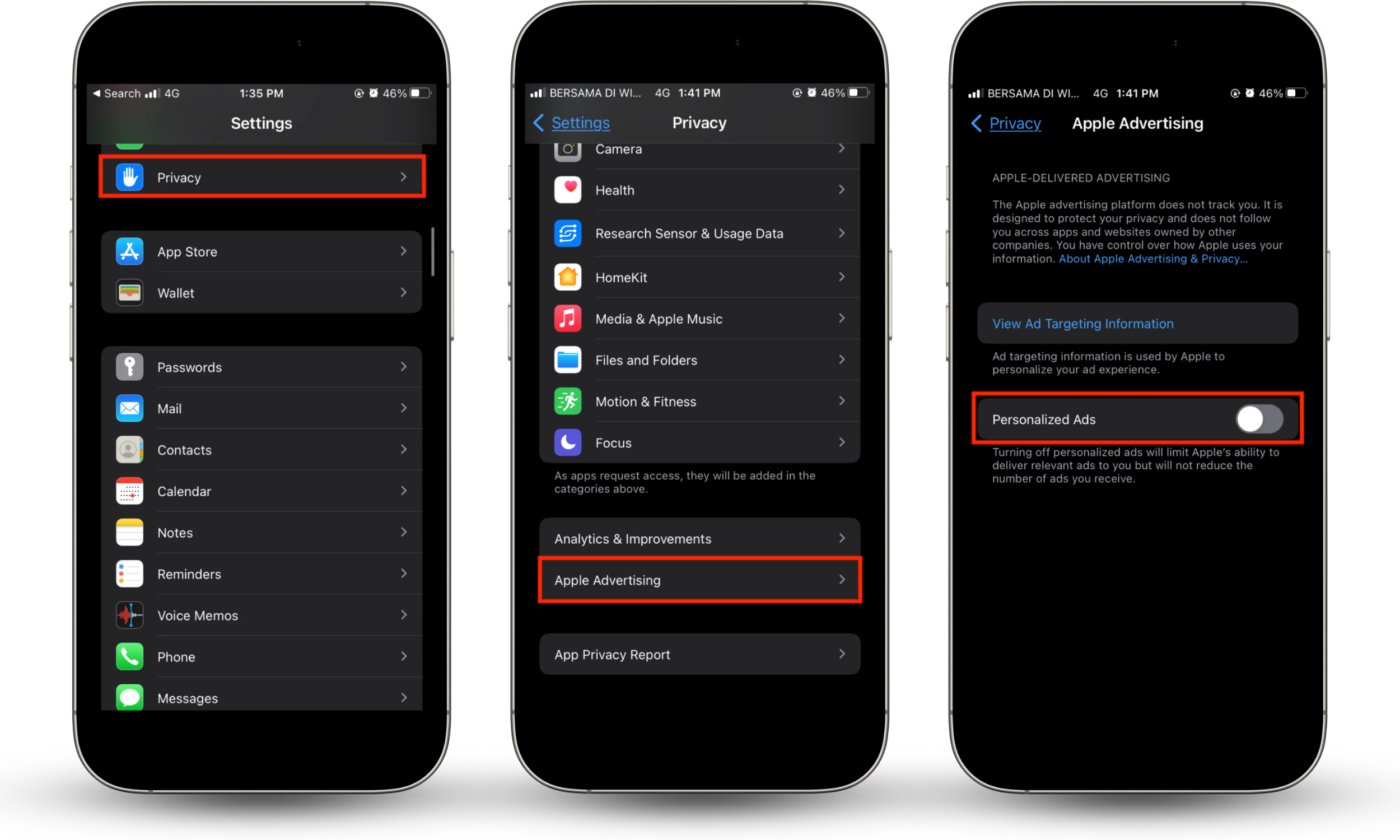
Once you have disabled personalized ads, your iPhone will no longer collect data about your app usage for advertising.
How to block apps tracking on iPhone
Blocking apps from accessing your data on iPhone involves managing individual permissions such as location, contacts, photos, and microphone access. Unlike App Tracking Transparency, which focuses on cross-app tracking, these settings control what specific data each app can access directly from your device.
In recent times, social media companies like Facebook, Instagram, and TikTok gather the most amount of data on its users. With ads being such a large share of their revenue, it's no secret why they would clamor for your information.
While there are many reasons why you would want to know how to not be tracked on iPhone, some apps may well worth the data they ask for in return to use their services. For example, some apps may need to request for critical information that it needs to fulfill its function.
Thankfully, you can ask specific apps to keep their hands off your data.
- On your iPhone, open the Settings app.
- Select Privacy & Security.
- Choose from the list of iPhone features you want to revoke app access.
- Next to the app you would like to revoke access to your data, toggle the switch off.
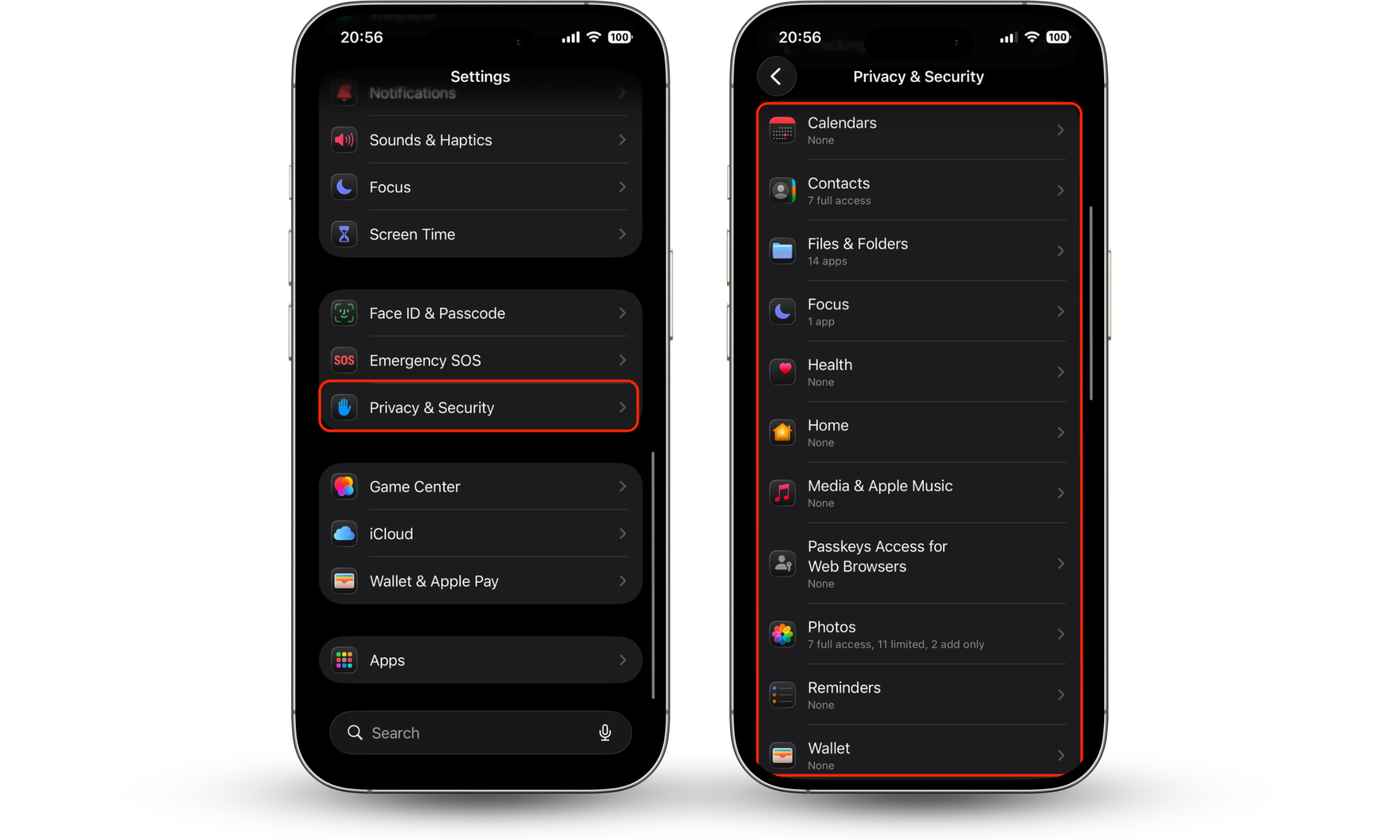
When deciding which permissions to disable, consider whether the data is essential for the app’s core functionality. For example:
- A navigation app requires location access to function properly
- A photo editing app may need access to your photo library
- A social media app may not need continuous background location tracking
Important to know
Disabling certain permissions may limit app functionality or cause features to stop working as expected.
However, manually adjusting permissions only controls access for apps you can see. In some cases, users may be concerned about hidden or suspicious apps that are not immediately obvious.
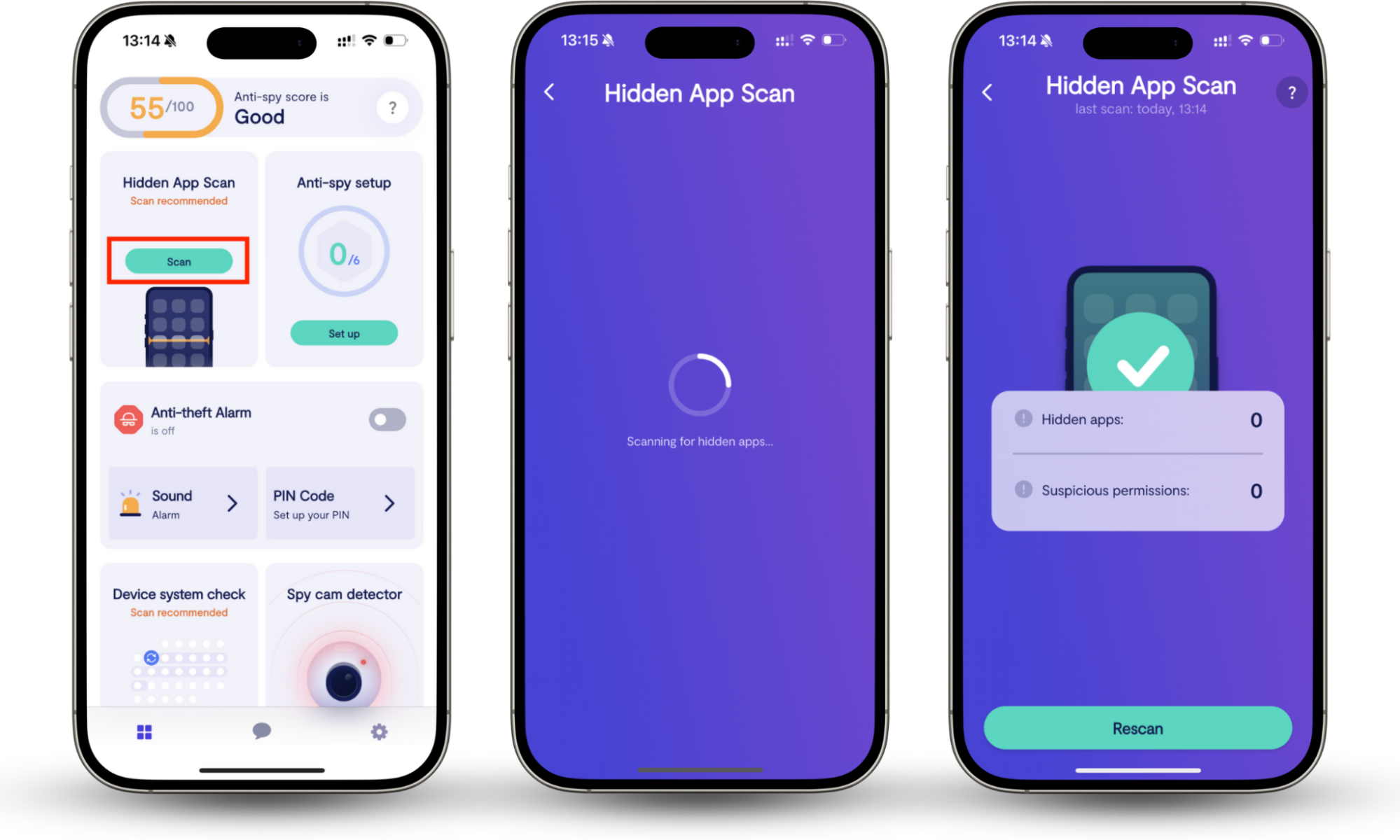
Tools like Clario Anti Spy include a Hidden app scan feature that checks your device for spyware or apps that may be operating without your knowledge, while also analyzing app permissions to help identify unusual or excessive access to sensitive data.
Here’s how to use Clario Anti Spy’s Hidden apps scan to detect spying apps:
- Open Clario Anti Spy and get a subscription.
- Click on Scan under the Hidden apps scan.
- Wait till the scan is complete.
- If Clario Anti Spy flags an app as suspicious, follow the on-screen instructions to remove it and restore your privacy.
How to disable iPhone analytics sharing
iPhone analytics sharing allows Apple to collect anonymized data about device usage, performance, and system behavior to improve its products and services. Disabling this setting stops your device from sending diagnostic and usage data to Apple, but it does not affect third-party app tracking or advertising-related data collection.
If you aren't interested in helping Apple improve its offers, here's how to disable analytics sharing for iPhone:
- Go to Settings.
- Tap Privacy.
- Select Analytics & Improvements.
- Next to Share iPhone Analytics, toggle off the button.
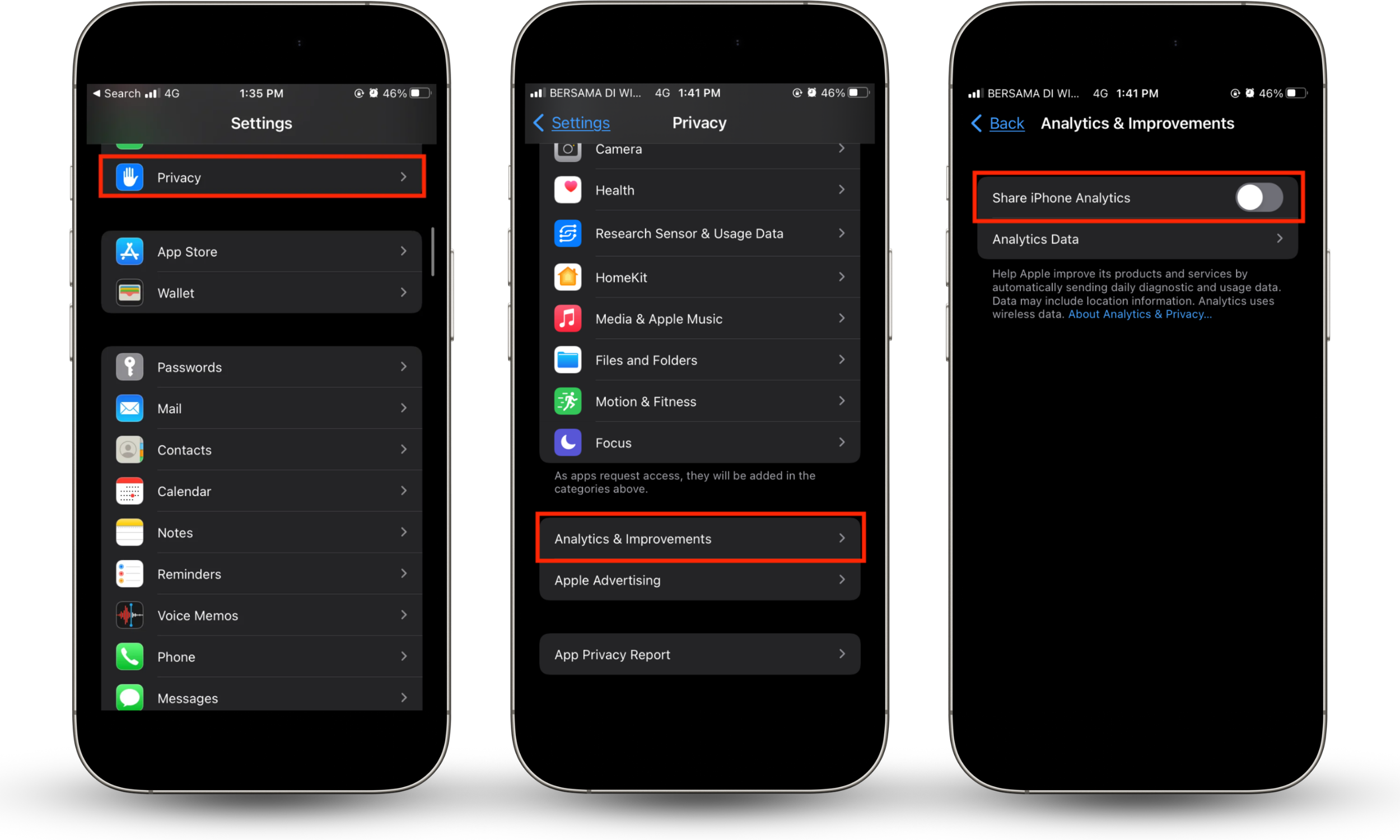
Analytics data may include:
- App usage patterns
- System performance metrics
- Crash reports and diagnostic logs
Important to know
Apple states that this data is anonymized and not tied directly to your identity. Disabling it may limit Apple’s ability to identify and fix performance issues across devices.
Keep your iPhone safe from trackers
Even if you turn off app tracking, your iPhone can still be tracked in other ways. For example, your iPhone can still be tracked through various other methods, such as its IP address, IMEI number, social media accounts, and so on.
For this reason, keeping yourself safe requires being mindful how to opt out of app tracking for not just iPhones. Aside from changing your settings, there are several other things you can do to make your iPhone impossible to track such as using a VPN, avoid connecting to public Wi-Fi networks, and investing in apps like Clario.
Using Clario Anti Spy, you can go beyond basic settings by actively checking your device for idden threats. Its Hidden app scan feature helps detect spyware or suspicious apps that may be operating without your knowledge, while also reviewing app permissions to identify unusual access to sensitive data.